Encrypting a PDF file with password is the most efficient way to protect your privacy and security for confidential documents. But how to protect a PDF with password easily and hassle-free? You’ve come to the right place. Here in this guide, you can get 5 effective ways to password protect a PDF on Windows, Mac and online.
So let’s dive into this guide to figure out how to password protect a PDF safely and effectively.
Why Should You Protect a PDF with Password?
So why should you password protect a PDF file? Protecting a PDF with a password is vital for securing sensitive information from unauthorized access. PDFs often contain confidential data, such as financial statements, legal contracts, or personal identification. An unprotected file leaves your data vulnerable to theft or misuse during email transfers or cloud sharing.
Adding a password encrypts the content and ensures that only recipients with the correct key can open it, preventing others from editing, copying text, or printing your document.
How to Protect a PDF with Password on Windows
So how do I password protect a PDF for free on Windows? Here are 3 common methods for you. Check the step-by-step guide to resolve it.
Method 1. Password Protect a PDF Free with Microsoft Word
If you already have Microsoft Word installed, this method is available to you and completely free! You can add a password for an existing PDF file or open a new document as a password-protected PDF using Word.
Step 1. Open Microsoft Word, click File > Open, and select your PDF file. Word will convert it into an editable format.
Step 2. Go to File > Save As and choose your preferred destination folder.
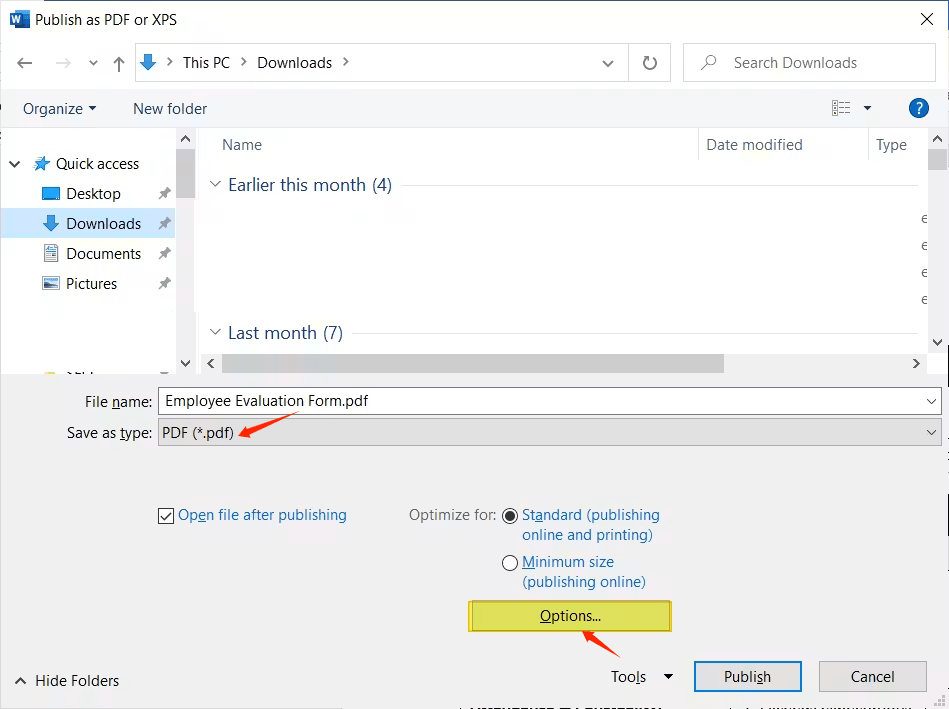
Step 3. Open the "Save as type" dropdown menu and select PDF (*.pdf).
Step 4. Click the Options... button right above the save button.
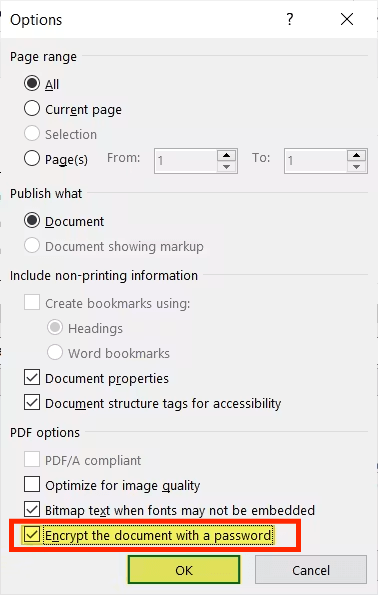
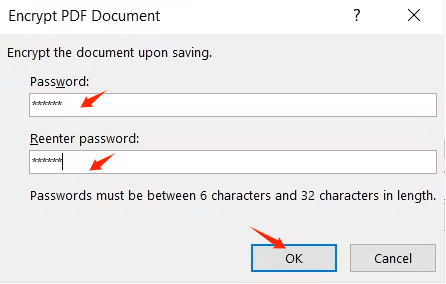
Step 5. Check the box for Encrypt the document with a password and click OK.
Step 6. Enter your password, confirm it, and click Save/Publish.
Method 2. Protect a PDF with Password Using Adobe Acrobat Pro
If you have a premium account of Adobe Acrobat, you can use it to password protect a PDF document. However, this is only available on Adobe Acrobat DC, which is very expensive.
Here’s how to password protect a PDF with Adobe Acrobat:
Step 1. Open the PDF file in Adobe Acrobat, choose Tools > Protect.
Step 2. Click on Advanced Options > Encrypt with Password.
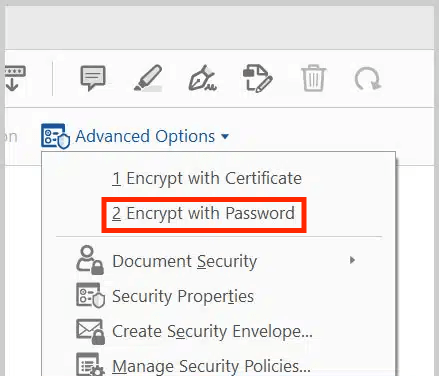
Note: If a prompt asks if you are sure you want to change the security of the document, click Yes.
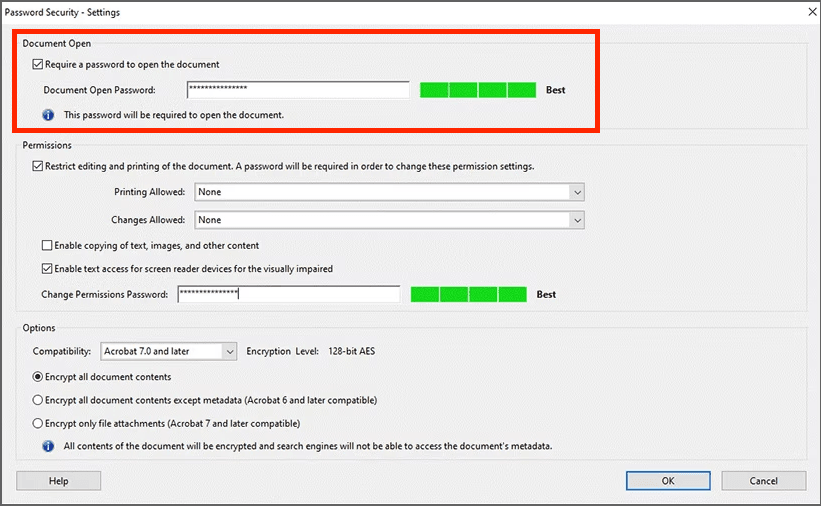
Step 3. When the Password Security window appears, choose Require a Password to Open the Document.
Step 4. Type your password (create a strong password, at least 6 characters) and click OK.
Also Read: 9 Easy Ways to Fix 100 Disk Usage Windows 11 Issues >>
Method 3. Password Protect a PDF with Safe Folder (Recommended)
How to password protect a PDF file in an easier and more secure way? Don’t panic. IObit Advanced SystemCare provides users with highly secure file encryption to lock and password protect a PDF on Windows. It’s fast and easy to lock your essential and sensitive documents with strong passwords.
This powerful software will safeguard your files and folders against unauthorized access and ransomware attacks to avoid privacy leaks.
Advanced SystemCare Free
- Clean: 420 billion traces removed & 85 EB junk files cleaned
- Protect: 80 million unauthorized access blocked & 20 million bugs fixed
- Speed Up: 6 million hours of startup time saved & Turbo boost
- Optimize: Auto clean and auto care your PC with AI mode

How to Lock a PDF with a Password on IObit Advanced SystemCare
Step 1. Free download and install the software on your Windows PC.
Step 2. Launch it, and go to the “Protect” tab, find “Privacy Protection” and enable “Safe Folder”. (To enjoy this feature, just upgrade to PRO at an 80% discount.)
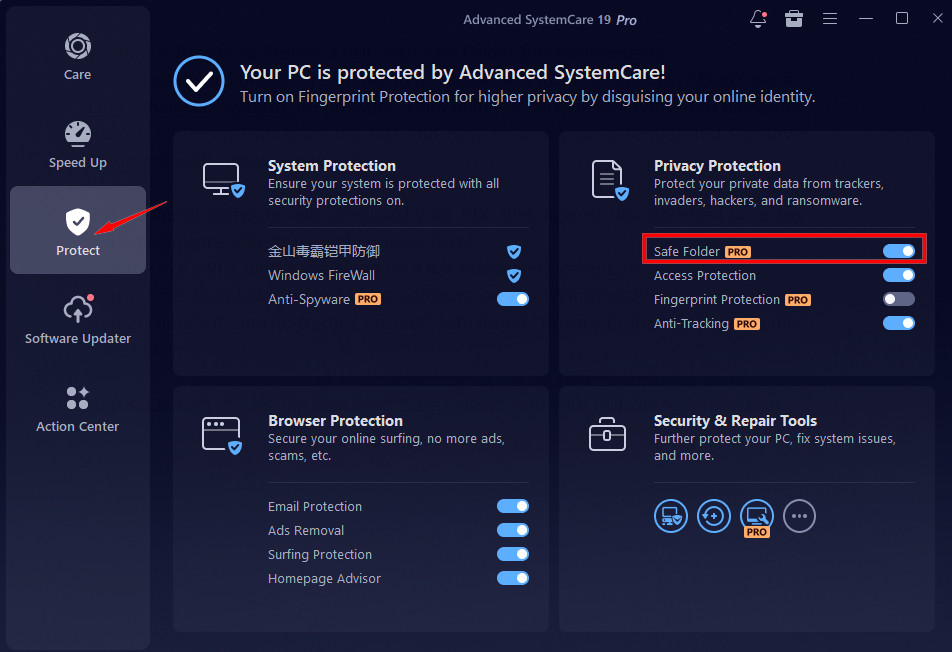
Step 3. Click on the setting icon near “Safe Folder”, add your PDF file for protection.
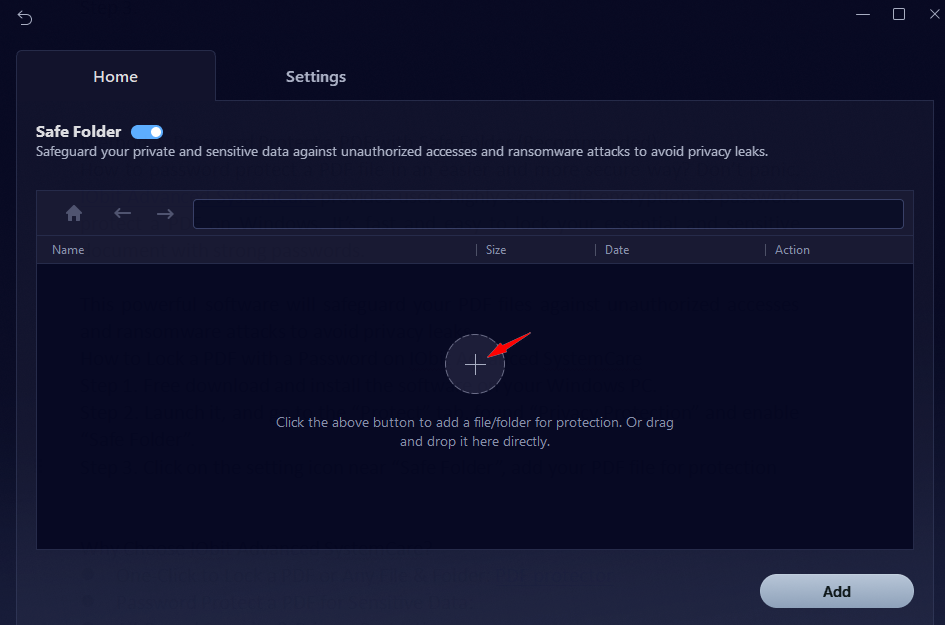
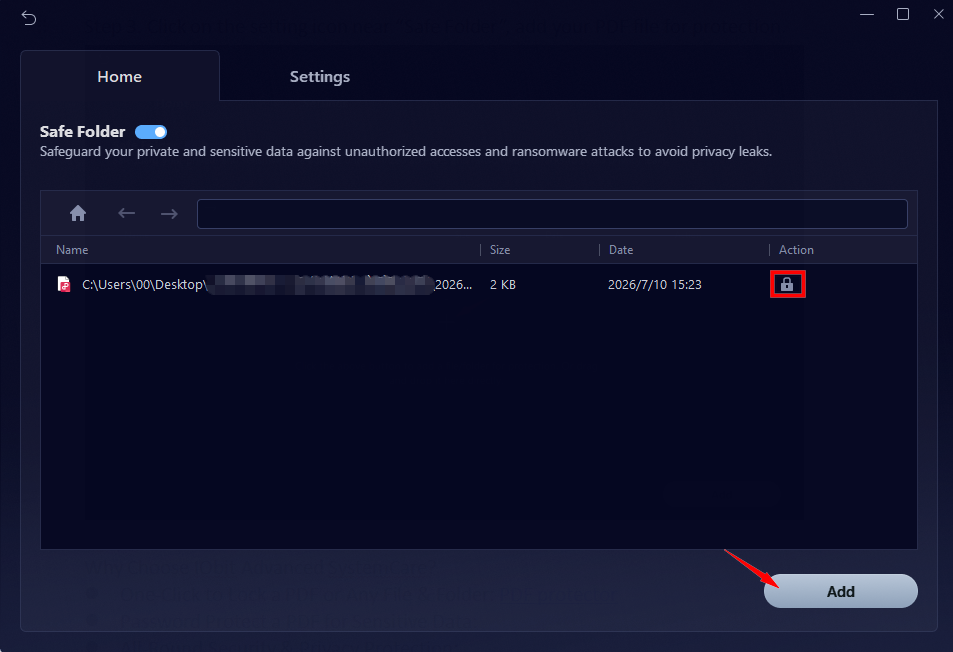
If you want to unlock the PDF file, just click on the “Lock” icon to unprotect it instantly. Or click “Add” to add more files and folders for protection. It’s really easy and convenient to protect your sensitive files.
Step 4. To add a password to protect your PDF, select “Settings” and check “Enable password protection”. Input your Password and Email in the box, and click “Apply”.
You have three Protect Options:
Hide from Explorer and other programs
Deny Read Access (Can't run/copy/read)
Deny Write Access (Can't move/delete/modify)
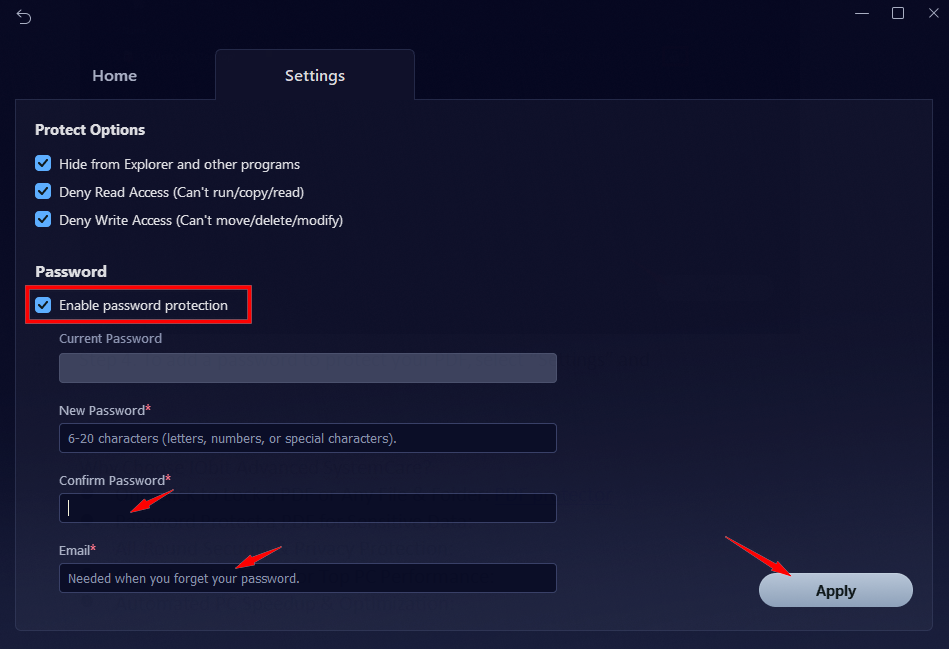
Currently, you are the only person who can access this encrypted PDF document, and it can only be opened via Advanced SystemCare.
Why Choose IObit Advanced SystemCare?
One-Click to Lock a PDF or Any File & Folder: It provides a wonderful PDF protector(Safe Folder) that quickly protects your PDF from unauthorized access.
Password Protect a PDF for Sensitive Data: It allows users to add customized passwords to vulnerable documents for privacy & finance protection.
All-Round Security & Privacy Protection: Advanced SystemCare offers browser protection, anti-spyware, fingerprint protection, homepage advisor, etc.
Optimize Disk Space for Top PC Performance: It’s also an excellent hard disk cleaner that helps clean and optimize you system for best performance.
Automated PC Speedup & Optimization: As a perfect RAM optimizer Windows 11, it automatically boosts your PC with Turbo Boost and Real-Time TuneUp.
How to Password Protect a PDF on Mac
What if you’re a Mac user? How to password protect a PDF document on Mac devices? Mac comes with a Preview app that allows users to open and edit PDF files. Follow this to encrypt a PDF with password:
Step 1. Double-click the PDF file to open it automatically in the Preview application.
Step 2. Click on File in the top-left menu bar and select Export... from the dropdown options.
Step 3. Turn on Encryption:
In the pop-up window that appears, look for the Permissions button or the Encrypt checkbox located near the bottom. Check that box.
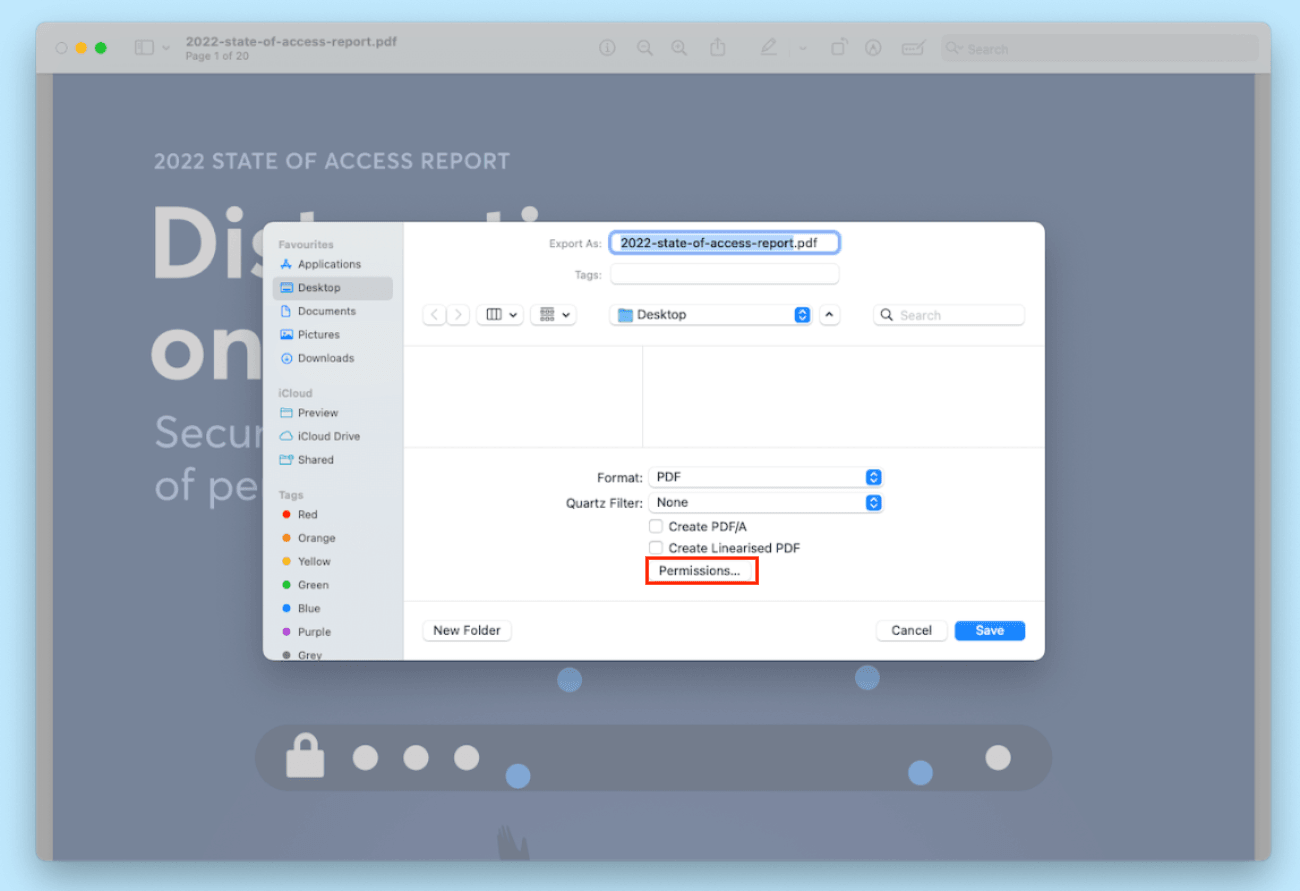
Step 4. Type your preferred password into the Password field, then retype it exactly into the Verify field. (Add an Owner Password if necessary)
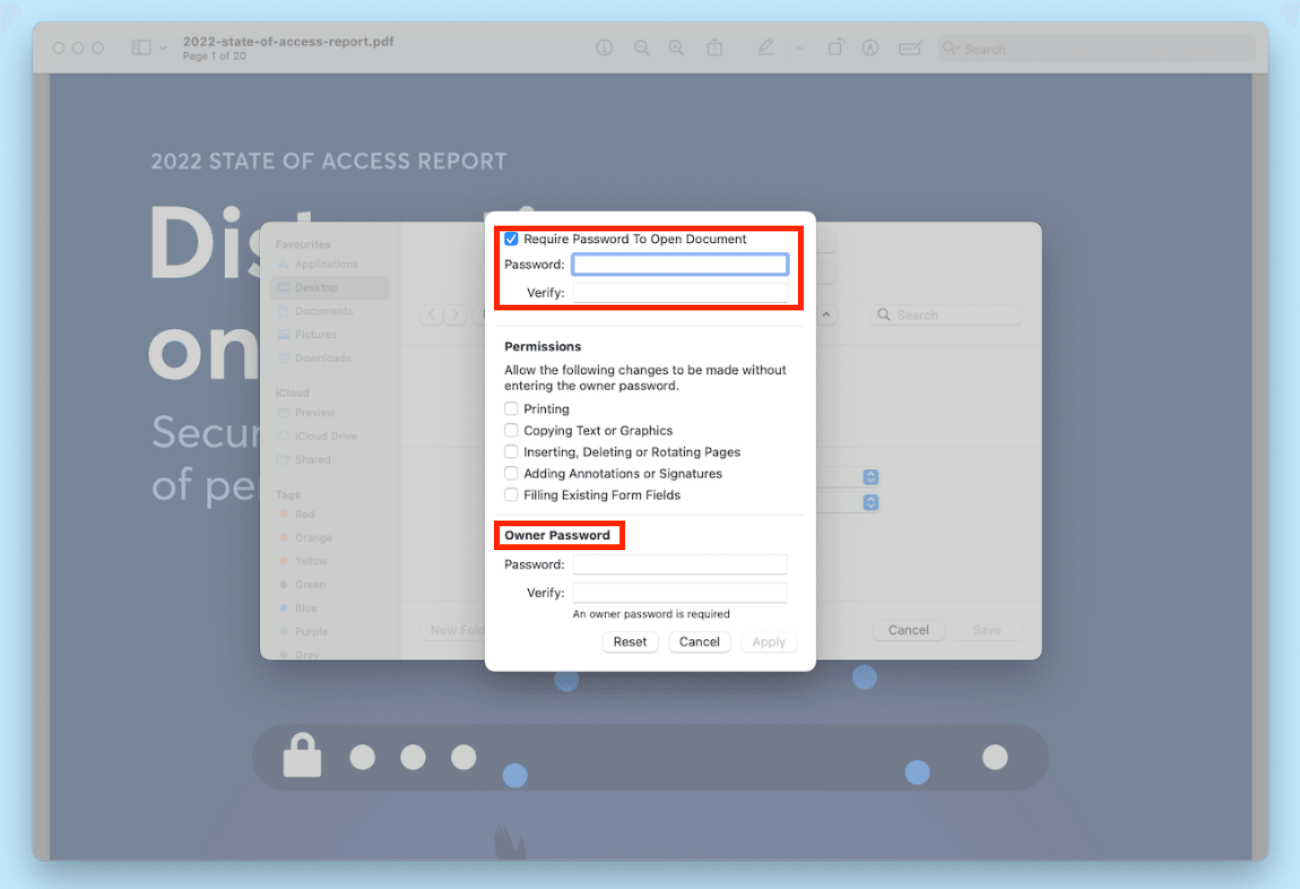
Step 5. Choose where you want to save the document, rename it if desired, and click Save.
How to Protect a PDF with Password Online
How to password protect a PDF document for free on all devices? Simple, you’re allowed to protect a PDF with password using free online tools. It’s best for users who don't want to install software or are using mobile devices/Chromebooks.
Step-by-Step Guide to Password Protect a PDF Online
Step 1. Navigate to a trusted online PDF tool.
Top 3 Online Free PDF Previewers Recommended
Adobe Acrobat Online (Create, convert, compress, edit, fill, sign, and share PDF files.)
iLovePDF (Merge, split, compress, convert, rotate, unlock and watermark PDFs)
Smallpdf (Robust AES 128-bit encryption & password protection, ad-free)
Step 2. Upload the PDF file you need to add password. (Take Smallpdf as an example.)

Step 3. Type a strong and unique password.
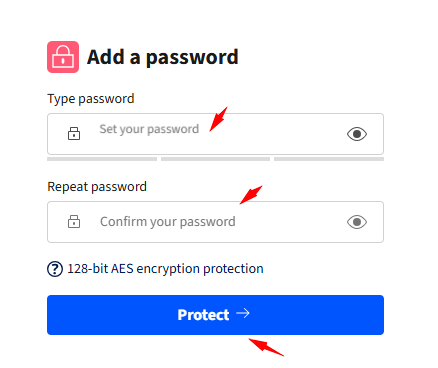
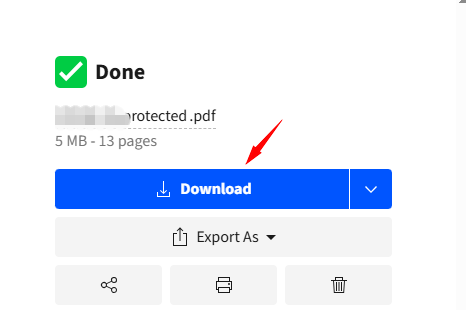
Step 4. Click "Encrypt" or "Protect" and download the secured file.
Tips for Keeping PDF Documents Well Protected
Aside from knowing how to password protect a PDF, you can do more to keep your sensitive documents safe and private.
Use Strong Encryption: Always opt for advanced 256-bit AES encryption when locking PDFs to prevent brute-force hacking attempts.
Create Unique Passwords: Use a complex mix of uppercase letters, numbers, symbols, and a length of at least 12 characters.
Separate Permissions: Use distinct passwords for opening a document versus editing it. Restrict printing, copying, and modification rights for sensitive files.
Clean Metadata: Before sharing, remove hidden metadata and revision histories that might leak internal information.
You May Need: Top Free PC Optimizer Tools for Windows 10/11 in 2026 >>
FAQs About Password Protect a PDF
Q1. Why Can’t I Password Protect a PDF?
The PDF might be a read-only file, digitally signed, or already locked with an owner password that restricts editing permissions.
Q2. How to Password Protect a PDF File for Free?
Windows users can use Microsoft Word for free: Open the PDF > Export or Save As PDF > Options... (in the Save As dialog box) > Encrypt the document with a password.
Q3. How do I Permanently Lock a PDF?
Simple. Free download IObit Advanced SystemCare, enable Safe Folder > Add the PDF > Create a strong password. The protection remains permanent until manually decrypted.
Q4. Can I Password Protect a PDF Without Acrobat?
Yes. You can use native tools like Microsoft Word, Mac Preview, Advanced SystemCare, or trusted online PDF tools (like Smallpdf or iLovePDF).
Final Thoughts
How to protect a PDF with password? You must have found the answer now. No matter if you want to password protect a PDF file with built-in features in Windows and Mac, or using online PDF Previewers, you’ll get well data protection. If you prefer advanced and highly secure encryption, download IObit Advanced SystemCare to enable Safe Folder instantly!
Advanced SystemCare Free
- Clean: 420 billion traces removed & 85 EB junk files cleaned
- Protect: 80 million unauthorized access blocked & 20 million bugs fixed
- Speed Up: 6 million hours of startup time saved & Turbo boost
- Optimize: Auto clean and auto care your PC with AI mode