Unexpected pop-up ads can interrupt reading, cover important buttons, redirect users to unrelated pages, or imitate security warnings. Fortunately, Chrome includes built-in controls for these Windows on computers and mobile devices. This guide explains how to enable pop up blocker in Chrome on desktop, Android, iPhone, and iPad. It also answers how to enable Chrome pop up blocker settings for individual websites and when the browser’s basic protection is not enough.

Why Should You Turn on Pop-up Blocker on Chrome?
A pop-up blocker prevents websites from automatically opening unwanted Windows, tabs, or redirect pages. Chrome blocks many pop-ups by default, but a previous site exception or changed browser setting may allow them again.
Confirming how to enable pop-up blocker in Chrome can reduce interruptions and limit exposure to deceptive download prompts, fake alerts, and unwanted redirects. However, Chrome’s pop-up control does not block every webpage advertisement, browser notification, or suspicious extension. Google notes that persistent pop-ups may instead come from allowed notifications or malware on the device.
How to Enable Pop-up Blocker in Chrome on Desktop
The desktop settings let you block pop-ups globally and manage exceptions for individual websites. Users asking how do you turn on pop up blocker on Chrome should first check the default behavior and then review any sites that remain on the allow list.
Turn on Pop-up Blocker for All Sites
Use this method when unwanted pop-ups appear across multiple websites.
Step 1. Open Chrome, click the three-dot More menu in the upper-right corner, and select Settings.
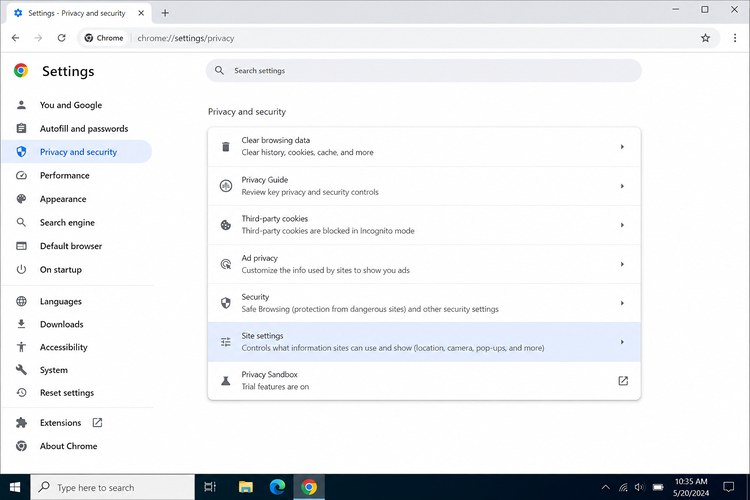
Step 2. Go to Privacy and security > Site settings > Pop-ups and redirects.
Step 3. Under the default behavior, select Don’t allow sites to send pop-ups or use redirects. The exact wording may vary slightly between Chrome versions, but the blocked option should be active.
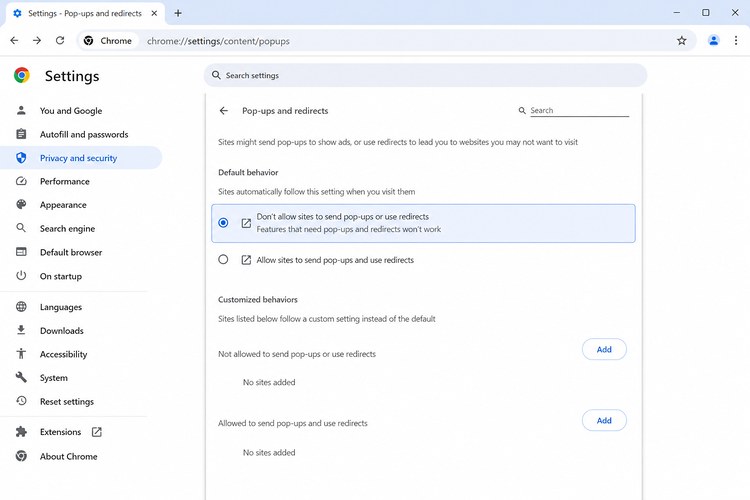
Once selected, Chrome should stop automatic pop-ups from websites that do not have a separate allow exception. This is the standard method for how to enable pop-up blocker in Chrome across all websites. The search phrase Chrome turn on pop-up blocker generally refers to activating this default blocked behavior.
Turn on Pop-up Blocker for a Specific Site
A website can remain permitted to open pop-ups even when the default setting blocks them elsewhere. You can remove the exception or add the domain directly to Chrome’s blocked list.
Step 1. Open Settings > Privacy and security > Site settings > Pop-ups and redirects.
Step 2. Under Allowed to send pop-ups and use redirects, locate the website. Click the three-dot menu beside it and select Block.
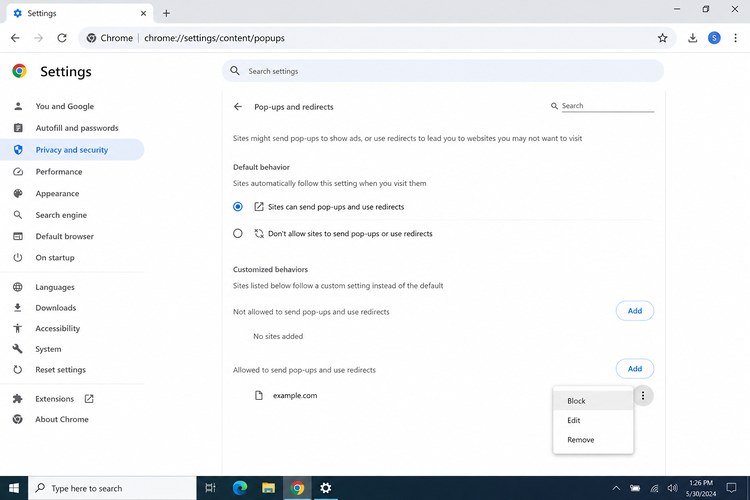
Step 3. When the site is not listed, click Add beside Not allowed to send pop-ups or use redirects, enter its address, and click Add. To block the whole domain and its subdomains, use a pattern such as [*.]example.com.
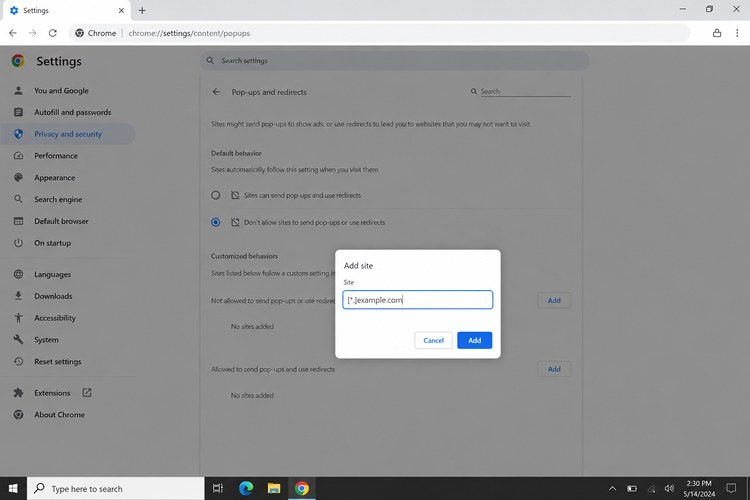
This approach lets you turn on pop-up blocker in Chrome for a troublesome domain without removing legitimate exceptions needed for payment, sign-in, or document Windows. Pop-up blocking is a browser permission and is unrelated to a RAM optimizer Windows 11 utility or a TCP optimizer.
How to Enable Chrome Pop-up Blocker on Mobile
For users wondering how do you turn on pop-up blocker on Chrome on a mobile device, the exact menu path depends on whether they use Android or iOS. The following instructions show how to enable pop-up blocker in Chrome on Android and iOS without installing another application.
Enable Chrome Pop-up Blocker on Android
Step 1. Open Chrome and tap the three-dot More menu beside the address bar.
Step 2. Select Settings, then tap Site settings.
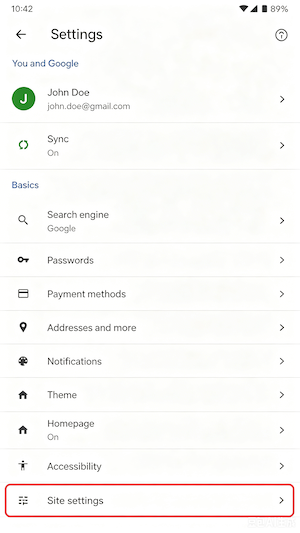
Step 3. Tap Pop-ups and redirects, then turn the option off. On Android, turning this permission off means websites cannot automatically open pop-ups and redirects.
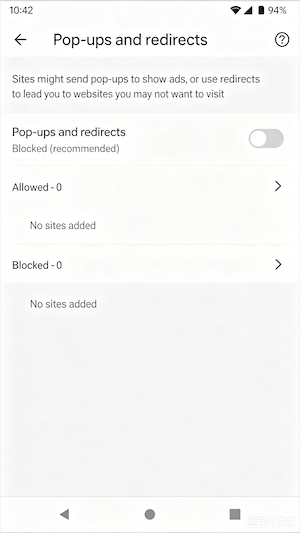
Some legitimate services use pop-up Windows. When Chrome blocks one that you need, visit the page and tap Always show in the blocked-pop-up message. This creates an exception without disabling protection for every website.
Enable Chrome Pop-up Blocker on iPhone
Step 1. Open Chrome on the iPhone or iPad and tap More.
Step 2. Select Settings > Content Settings > Block Pop-ups.
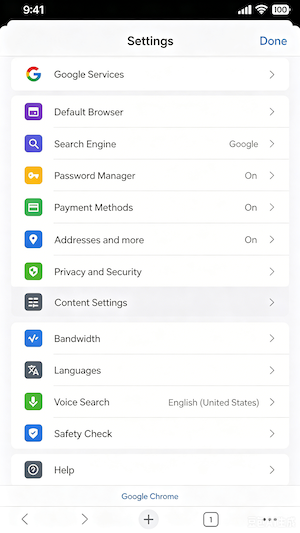
Step 3. Turn Block Pop-ups on.
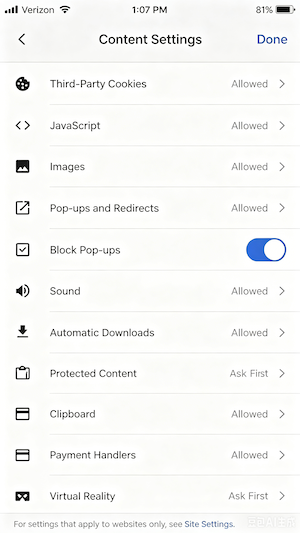
Chrome for iPhone and iPad blocks pop-ups by default. If a required window is prevented from opening, return to the affected page and tap Always show under the blocked-pop-up notification.
These steps provide a direct answer to how to enable Chrome pop-up blocker on an iPhone. Slow loading after blocking pop-ups should be investigated separately with a computer performance test rather than by repeatedly changing browser permissions.
Block Pop-up Ads on Chrome by 1-Click with Advanced SystemCare (Easiest)
Chrome’s built-in feature primarily controls pop-up Windows and redirects. Windows users who also want broader webpage ad filtering and browser monitoring can use Advanced SystemCare.
Its Browser Protection section includes Ads Removal, Email Protection, Surfing Protection, and Homepage Advisor. Ads Removal supports Chrome, Microsoft Edge, and Firefox. IObit also states that the IObit Surfing Protection browser extension must be installed to activate Ads Removal, Email Protection, and Surfing Protection.
Advanced SystemCare Free
- Clean: 420 billion traces removed & 85 EB junk files cleaned
- Protect: 80 million unauthorized access blocked & 20 million bugs fixed
- Speed Up: 6 million hours of startup time saved & Turbo boost
- Optimize: Auto clean and auto care your PC with AI mode

Why Do You Choose Advanced SystemCare?
1-Click to Block Pop-Ups on Chrome: After completing the extension setup, enable Ads Removal to filter intrusive webpage advertisements. A whitelist lets you retain ads on selected websites.
All-in-One Browser Protection: Surfing Protection helps identify online threats, while Homepage Advisor monitors unauthorized changes to the browser homepage and search engine.
Advanced System Protection: The program displays antivirus and firewall status and lets users manage those protections through Windows Security. Anti-Spyware protection is a Pro-only feature.
AI-Powered PC Clean and Optimization: AI Mode scans junk files, logs, caches, and application leftovers. For deeper storage cleanup, the separate hard disk cleaner tool can analyze selected drives.
PC Booster for Top Performance: Turbo Boost temporarily disables unnecessary services and background applications, while Startup Optimizer can disable or delay unneeded startup programs.
These functions make how to enable pop-up blocker in Chrome part of a wider browser and system-maintenance workflow.
How to Enable Pop-up Blocker in Chrome Instantly
Step 1. Download and install Advanced SystemCare. Launch the program and open the Protect tab.
Step 2. Locate Browser Protection and turn on Ads Removal. Move the cursor over Ads Removal and click its configuration icon.
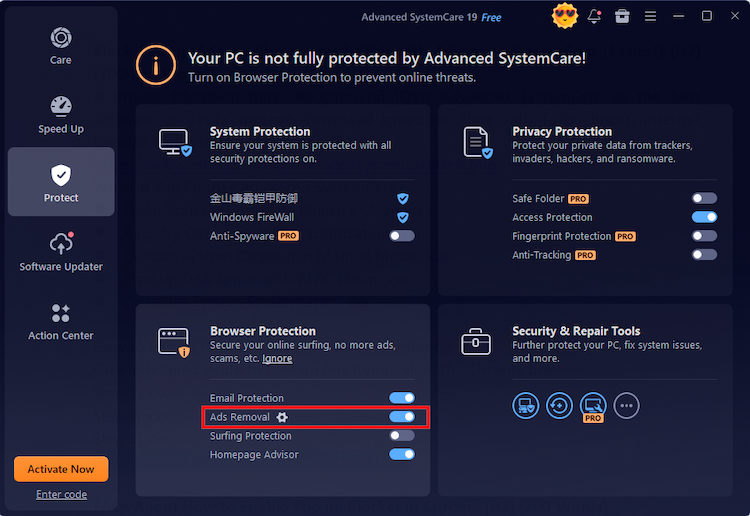
Step 3. Enable it in Google Chrome extensions. (Add trusted websites to the whitelist when you do not want their ads blocked, then refresh Chrome.)
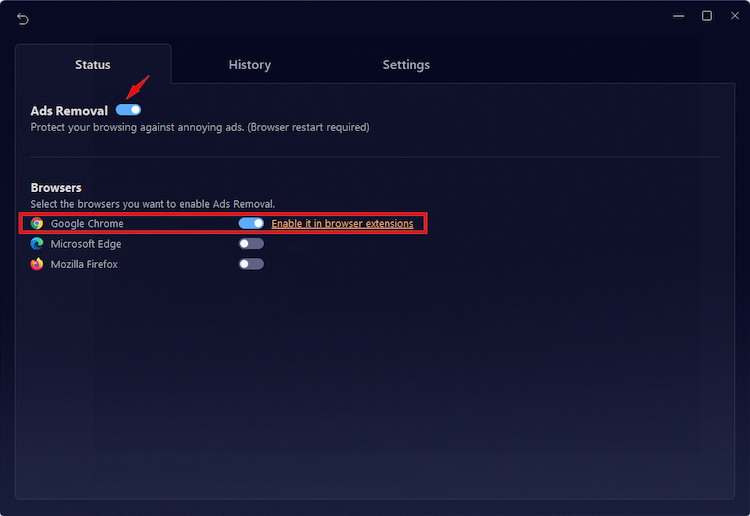
Users searching how to add pop-up blocker on Chrome should remember that Chrome already contains a built-in pop-up blocker. The additional extension is intended to provide broader ad filtering and browser protection.
More Browser Protection Options
Email Protection: Checks supported Gmail, Outlook, and Yahoo Mail accounts for spam, phishing attempts, and other email-based threats. Trusted senders can be added to a whitelist.
Surfing Protection: Helps protect supported browsers from online threats and allows unwanted websites to be added to a blacklist.
Homepage Advisor: Monitors the browser homepage and search engine and warns users when another program tries to modify them.
FAQs About How to Enable Pop-up Blocker in Chrome
1. How Do Pop-up Blockers Work?
A pop-up blocker evaluates whether a site is attempting to open another window or redirect without a permitted user action. Chrome blocks many automatic attempts while allowing users to create exceptions for legitimate websites.
2. How Do I Disable Ad Blockers and Pop-ups in Chrome?
Open Settings > Privacy and security > Site settings > Pop-ups and redirects, then select the option that allows pop-ups or add the website to the allow list. For Advanced SystemCare, switch off Ads Removal or place the website on its whitelist.
3. Why Is My Chrome Pop-up Blocker Not Working?
A Chrome pop-up blocker not working problem may actually involve browser notifications, an allowed-site exception, a suspicious extension, or malware. Google specifically notes that notification subscriptions and malware can cause messages to continue appearing after pop-ups are blocked.
4. Can I Customize Pop-up Blocker Settings on Chrome?
Yes. Chrome lets you block pop-ups by default, allow a trusted website, block an individual domain, or use a pattern such as [*.]example.com to cover its subdomains. This is useful when one service requires a payment or sign-in window while other sites should remain blocked.
5. What Is the Best Alternative to the Built-in Pop-up Blocker?
For Windows users who want webpage ad filtering together with browser monitoring, Advanced SystemCare is a practical alternative. It combines Ads Removal with Surfing Protection, Email Protection, and Homepage Advisor.
The Bottom Line
Knowing how to enable pop-up blocker in Chrome helps stop automatic Windows and redirects on desktop, Android, and iPhone. Chrome’s built-in controls are sufficient for most users, while Advanced SystemCare adds broader Ads Removal and Browser Protection on Windows. Download the software from its official website when you need that additional layer of control.
Advanced SystemCare Free
- Clean: 420 billion traces removed & 85 EB junk files cleaned
- Protect: 80 million unauthorized access blocked & 20 million bugs fixed
- Speed Up: 6 million hours of startup time saved & Turbo boost
- Optimize: Auto clean and auto care your PC with AI mode