If you've downloaded dozens of files over time, your browser's Downloads page can quickly become cluttered. Besides making it harder to find recent downloads, those records may also reveal personal documents, software installers, or other sensitive files to anyone using your PC.
 Fortunately, it's easy to clear download history without deleting the files you've already saved. Whether you're using Chrome, Microsoft Edge, Firefox, or another browser, you can learn several ways on how to delete download history while leaving your downloaded files untouched. Let’s check them one by one.
What is Download History?
Every time you download a file, your browser creates a record that typically includes the file name, download date, source website, and save location. These records are stored separately from the actual files in your Downloads folder.
That means clear download history Chrome and deleting downloaded files are two completely different actions. So if your goal is simply to remove traces of downloaded files or clean up your browser, deleting the download history is all you need.
| Download History |
Downloaded Files |
| Records of downloaded items |
Actual files saved on your PC |
| Safe to remove at any time |
Stay on your computer until manually deleted |
| Stored by browsers or Windows |
Stored in the Downloads folder or another location |
Best Way to Clear Download History Chrome Completely
If you only download files occasionally, manually deleting your browser history is perfectly fine. But for users who download files every day, switch between multiple browsers, or simply want a cleaner PC with less effort, there's a much easier solution.
Advanced SystemCare simplifies the entire process by helping you delete download history and other privacy traces from one place. Instead of opening Chrome, Edge, Firefox, and Windows settings separately, you can scan your system once and clean everything with just a few clicks.
Advanced SystemCare Free
- Clean: 420 billion traces removed & 85 EB junk files cleaned
- Protect: 80 million unauthorized access blocked & 20 million bugs fixed
- Speed Up: 6 million hours of startup time saved & Turbo boost
- Optimize: Auto clean and auto care your PC with AI mode

How to delete download history with Advanced SystemCare:
Step 1. Download and install Advanced SystemCare on your Windows PC.
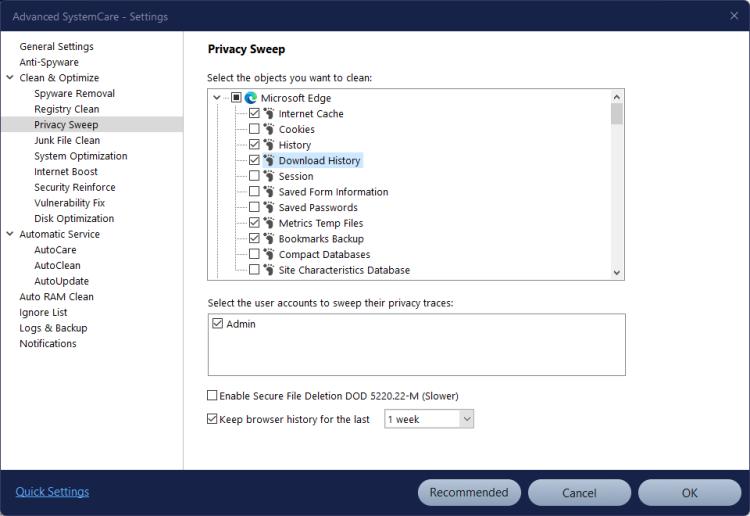
Step 2. Launch the program and switch to the Care tab. Select Privacy Sweep to scan for browser download history, browsing traces, cookies, and other privacy-related data.
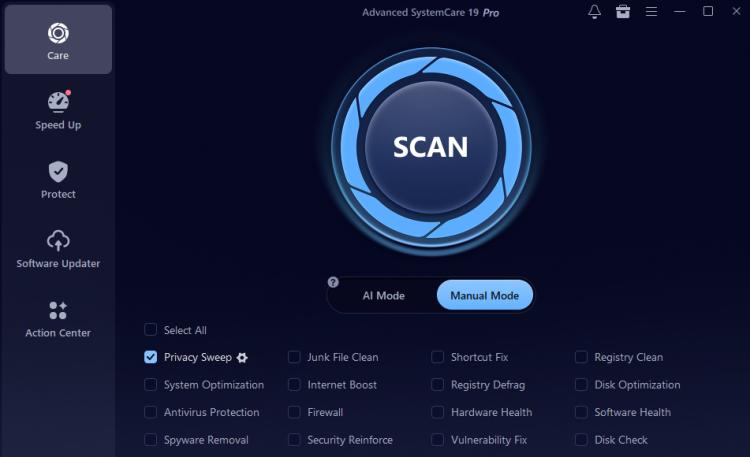
It lists the download history, as well as other cache, temp files, and cookies, from all the browsers on your computer.
Step 3. Click Scan and wait while Advanced SystemCare checks your computer for download-related records across supported browsers and Windows.
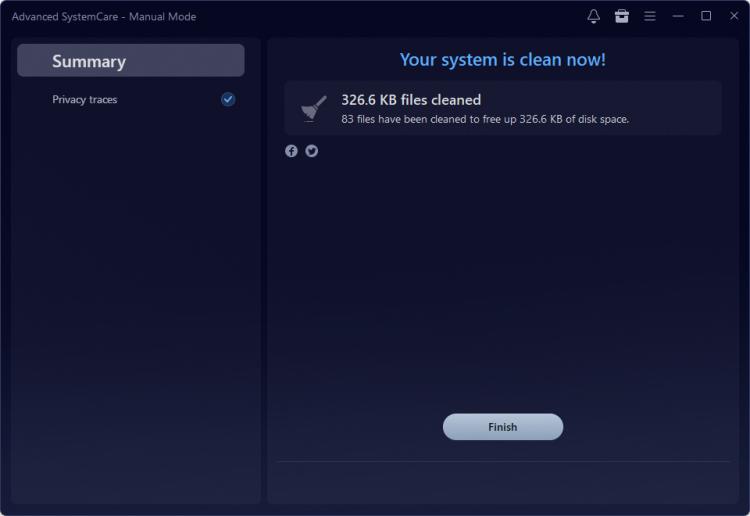
Step 4. Review the scan results, then click Fix to remove the selected download history, privacy traces, browser cache, and junk files in one go.
In addition to clearing your browser's download history, Advanced SystemCare includes a range of outstanding features to help you clean your computer, optimize Windows performance, and achieve peak condition. Here are some of its standout features:
Delete Download History from Multiple Browsers at Once - Remove download history from Chrome, Edge, Firefox, Brave, and other supported browsers in one scan, eliminating the need to clean each browser separately.
Clean More Than Just Download History - Besides helping you delete download history, this hard disk cleaner also removes browser cache, cookies, browsing traces, temporary download files, and other privacy-related data for a more complete cleanup.
Erase Windows Privacy Traces - Clear Recent Files, File Explorer history, and other Windows activity records that may still reveal downloaded files even after browser history has been deleted.
Automatically Delete Download History - Schedule regular privacy cleanups to automatically remove download history and other unnecessary traces, so you don't have to remember to do it manually.
Free Up Disk Space While Cleaning - Remove junk files, obsolete logs, and temporary files created during downloads, helping recover valuable storage space and keep your PC organized.
How to Clear Download History Chrome in Browser
For most Windows users, download history comes from web browsers such as Google Chrome, Microsoft Edge, Firefox, Brave, and Opera. Although their interfaces aren't identical, they all follow nearly the same process. The way how to delete download history in browser is simple and similar. Follow the steps:
Step 1. Open Google Chrome (for example).
Step 2. Press Ctrl + J to open the Downloads page.
Step 3. Locate the download records you want to remove. You can remove one by one, or click Clear all to delete everything with a single click—quick and convenient.
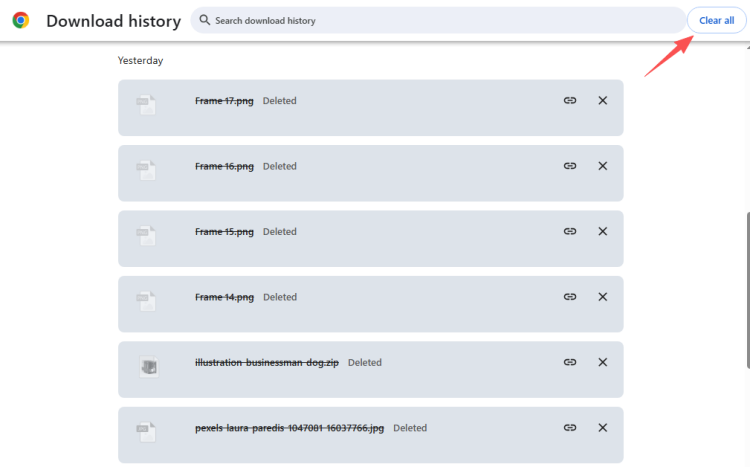
That's all there is to it. If you've been searching for how to delete Chrome download history, this is the fastest manual method in one browser.
The same workflow also applies to Microsoft Edge, Brave, Opera, and most Chromium-based browsers. Simply open the Downloads page, review your download records, and remove the entries you no longer want to keep. That’s it!
Optional - Clear File Explorer Recent Download Files
While Windows doesn't keep a separate download history like browsers do, it may still display recently downloaded files in File Explorer's Recent Files and Quick Access. If you want a more thorough cleanup, you can clear these records as well.
How to delete recent download history records in File Explorer:
Step 1. Press Win + E to open File Explorer.
Step 2. Click the three-dot menu and choose Options.
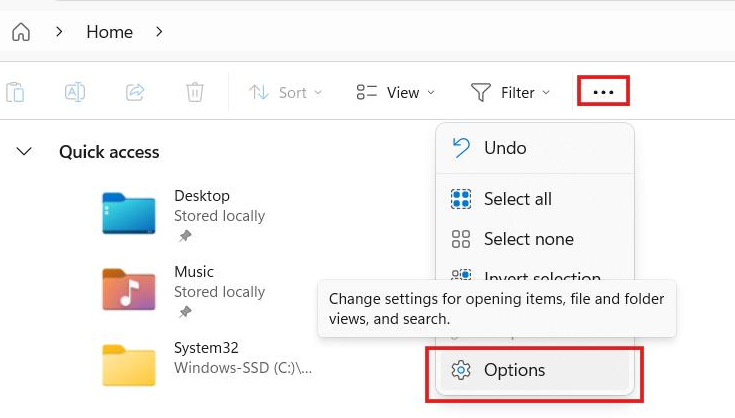 Step 3. Under the General tab, scroll down to the Privacy section. Click Clear next to Clear File Explorer history.
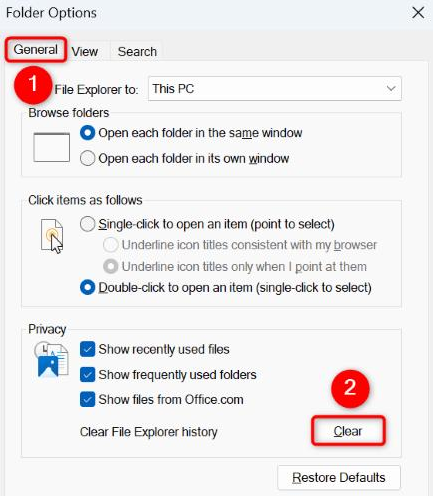
This removes recently opened files and folders from File Explorer, including downloaded files that appear in Quick Access or the Recent section. However, it doesn't remove your browser's download history.
Does Clearing Download History Delete Downloaded Files?
No.
This is probably the biggest misconception surrounding download history. When you clear download history, you're only removing the record that your browser or operating system keeps for reference. The downloaded files themselves remain exactly where they were originally saved, such as the Downloads folder, Desktop, or another custom location. If you want to free up storage space, you'll need to delete those files manually after removing the history.
Conclusion
Knowing how to delete download history is a simple but effective way to protect your privacy and keep your browser organized. Whether you're trying to remove a few recent downloads or clean years of accumulated records, Windows provides built-in options to delete download history from Chrome and other browsers.
But if you're looking for the easiest and most comprehensive way to clear download history, Advanced SystemCare goes beyond basic browser cleanup. It removes download records across multiple browsers, cleans additional privacy traces, deletes junk files, and helps keep your PC running smoothly. This PC optimizer is one of the most efficient all-in-one solutions available.