You sit down to play Fortnite or Genshin Impact, but the Epic Games Launcher freezes, loops endlessly, or fails to download. Few things ruin game time faster than technical issues.
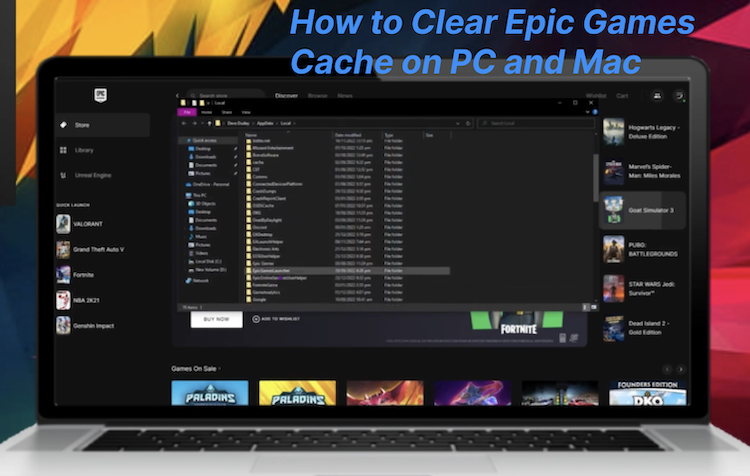
The culprit is often corrupted temporary data. Every time you use the launcher, it saves "cache" files to load faster later. But when those files get outdated or corrupted, chaos follows. Learning how to clear epic games cache solves freezing, login loops, and "offline mode" errors in minutes. Understanding how to clear cache epic games launcher properly ensures you target the right files. Below is a safe, step-by-step guide for Epic Games launcher clear cache.
What Does Clearing the Epic Games Launcher Cache Do?
Before diving into the "how," let's briefly look at the "why." The cache acts as a storage room for images, assets, and user data so the launcher doesn't have to download them from the internet every single time. However, if those files become corrupted or conflict with a new update, the launcher gets confused. This leads to the dreaded "endless loading wheel" or downloads stuck at 0%.
By clearing the cache, you are forcing the Epic Games Launcher to delete that old, messy storage room and build a brand-new one from scratch. This resolves most display issues, login failures, and download loops.
Method 1 - Epic Games Launcher Clear Cache (Delete the Webcache Folder)
This is the most reliable, direct method to resolve launcher-specific glitches. Epic Games stores its temporary browser data and UI assets in a specific folder called webcache. When you clear cache epic games launcher manually via this route, you are removing the exact files causing the "white screen" or "slow loading" issues.
Here is the how to clear cache on epic games launcher manually:
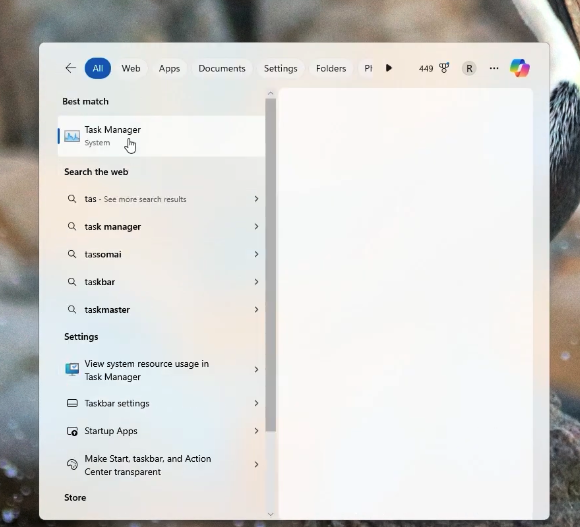
Step 1: Ensure the Epic Games Launcher is completely closed. Do not just minimize it. Right-click the icon in your system tray (bottom right corner near the clock) and select "Exit," or open Task Manager (Ctrl + Shift + Esc) to ensure no Epic background processes are running.
Step 2: Open Windows File Explorer. Paste the following path into the address bar and hit Enter: %localappdata%\Epic Games Launcher.
Step 3: Locate the folder named webcache. Right-click on it and select Delete. (Note: There may also be a folder named webcache_4147 or similar; delete those too if they exist).
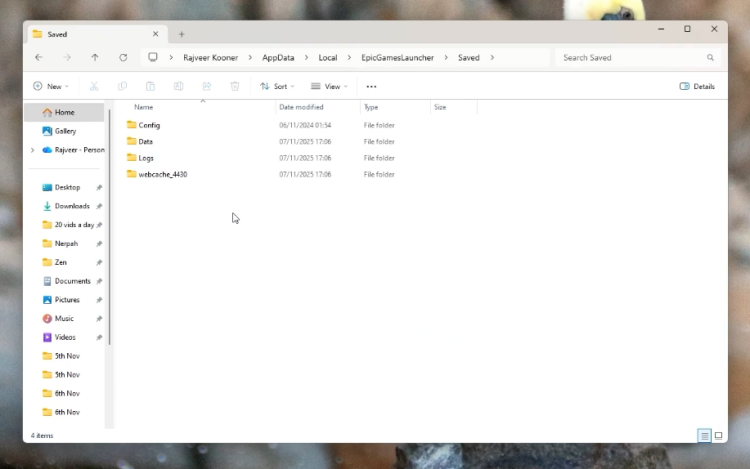
Step 4: Restart the Epic Games Launcher. It will automatically rebuild a clean cache folder.
This straightforward approach is the most common answer to how to clear epic games cache when you don't want to install third-party software. Once the folder is deleted and recreated, most login and display errors vanish immediately.
Method 2 - Use Trusted PC Cleanup Tool to Clear Epic Games Cache Easily
If navigating through hidden system folders feels intimidating or time-consuming, or if you want to clean more than just one launcher, using a dedicated PC optimizer is the best route. IObit Advanced SystemCare offers a one-click solution that not only targets the Epic Games cache but also removes system-wide junk that might be slowing down your gameplay.
Advanced SystemCare Free
- Clean: 420 billion traces removed & 85 EB junk files cleaned
- Protect: 80 million unauthorized access blocked & 20 million bugs fixed
- Speed Up: 6 million hours of startup time saved & Turbo boost
- Optimize: Auto clean and auto care your PC with AI mode

How to clear cache on Epic Games launcher using IObit Advanced SystemCare:
Step 1: Download and install IObit Advanced SystemCare Free from the official website or click the download button below.
Step 2: Launch the software. Select Manual Mode to have more control over your scan. Then, tick the relevant scan items such as Privacy Sweep, Junk File Clean, and Shortcut Fix to target temporary files and cache data. After selecting the items, click the large "Scan" button on the dashboard.
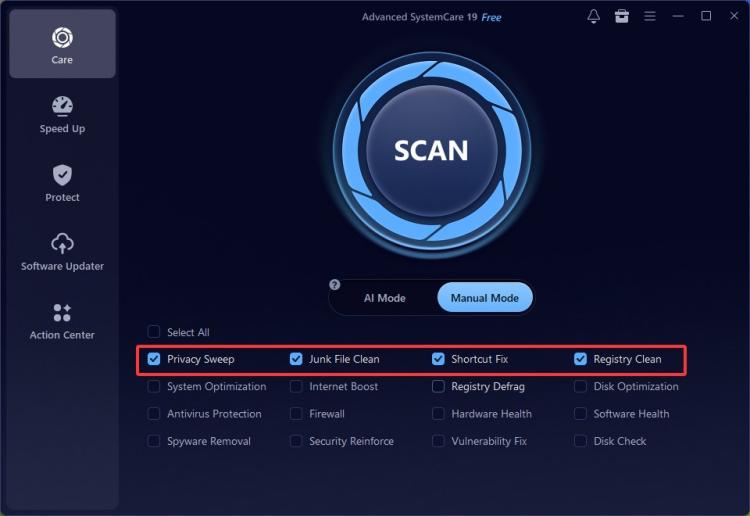
Step 3: The AI-powered engine will start scanning based on your selected items. It will detect Privacy Sweep data, Junk Files, and specifically caches from apps like Epic Games, along with other system junk.
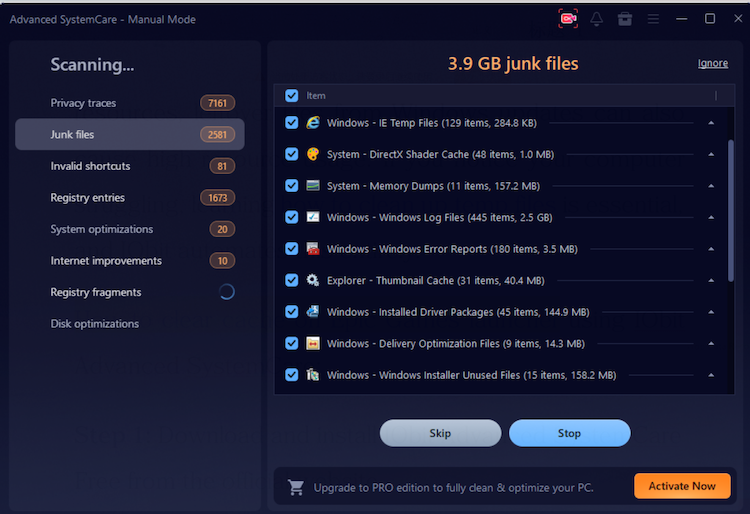
Step 4: Once the scan is complete, click "Fix." IObit will automatically remove the Epic Games cache and all other detected temporary system files.
Why Use Advanced SystemCare?
While manual methods work, IObit turns a 10-minute file hunt into a 10-second process. Here is why it is the preferred method for maintaining your gaming rig:
One-click junk file cleanup: Instead of hunting for folders, one click scans and cleans caches from hundreds of apps, including Steam, Discord, and Epic Games.
Delete temporary system cache: It digs deep into Windows temporary files that manual deletion often misses, freeing up gigabytes of space.
Cleans privacy traces and residual files: Beyond the cache, it removes browsing history and leftover uninstaller files that spyware might hide in.
Helps improve launcher responsiveness: By removing conflicting registry entries and broken shortcuts, the launcher opens and responds faster.
Beginner-friendly interface: The clean layout means you do not need to be a technician to fix how to clear the epic games launcher cache.
Furthermore, if you are experiencing deeper system lag, IObit functions as a Windows 11 optimizer, adjusting system settings for peak gaming performance. To keep your entire system running smoothly while gaming, you might also consider using a RAM optimizer Windows 11 to ensure background processes aren't eating up your memory.
Method 3 - How to Clear the Epic Games Launcher Cache in Windows via Temp Files
Sometimes the issue isn't just within the Epic Launcher folder but within Windows' own temporary data. When Windows temp files get bloated, they can interfere with how applications read and write data. To truly clear cache epic games launcher, we should also wipe the system temp folder. Even if you already know how to clear epic games cache inside the launcher's own directories, Windows temp files can still hold onto older, conflicting launcher logs that cause slowdowns.
This method is excellent for how to clear the epic games launcher cache combined with general system maintenance.
Step 1: Press Windows + R on your keyboard to open the Run dialog box.
Step 2: Type %temp% and press Enter. This opens the Temporary Files folder.
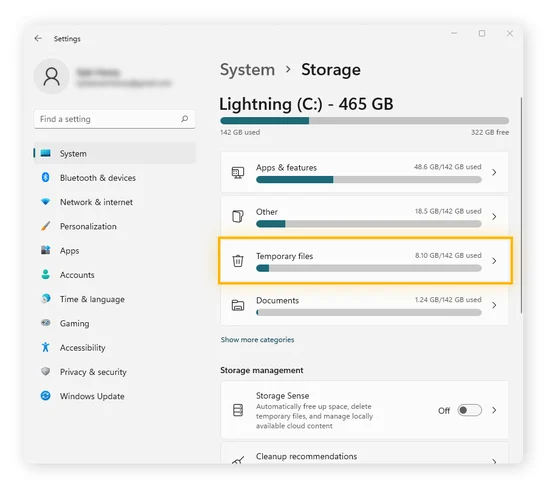
Step 3: Press Ctrl + A to select all files and hit Delete. (Note: Some files may be "in use" and cannot be deleted; check the box "Do this for all current items" and skip them).
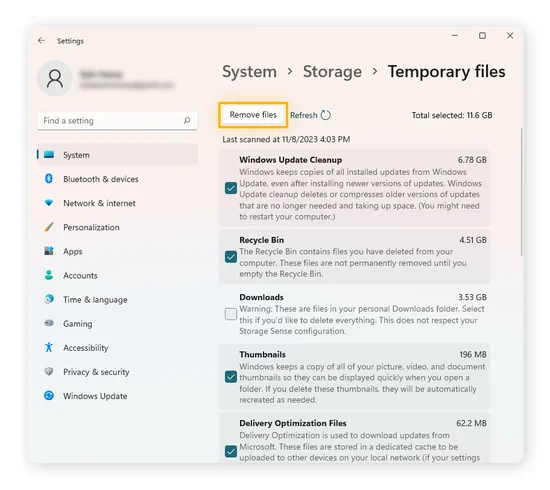 Step 4: Empty your Recycle Bin to permanently free up this space.
Doing this helps free up disk space and removes conflicting setup files that might be preventing the Epic Launcher from updating correctly. Regularly using this method is a great way to how to clean up temp files effectively.
If you frequently encounter launcher glitches, remember that knowing how to clear cache epic games launcher via both the webcache folder and the Windows temp directory gives you complete control over the problem. Together, these two methods cover virtually every cache-related issue the launcher might throw at you.
Method 4 - How to Clear Epic Games Cache on Mac
If you are playing on macOS, the process is slightly different, but just as easy. If you are experiencing Windows 11 100 disk usage on a Bootcamp setup, refer to the links, but for native Mac users, follow these steps.
For Mac users, clearing the launcher's cache takes just a minute.
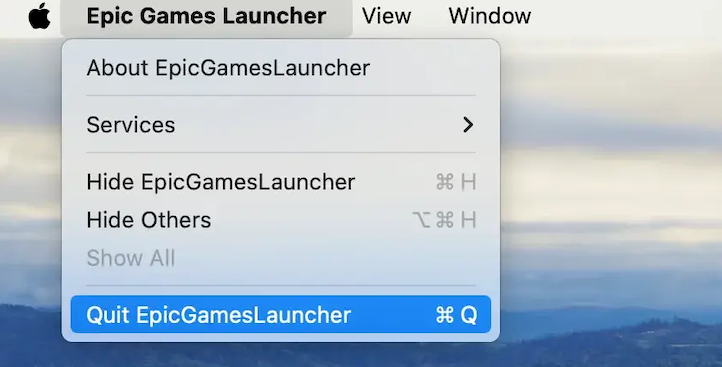
Step 1: Fully quit the Epic Games Launcher. Click the app name in the top menu bar and select Quit.
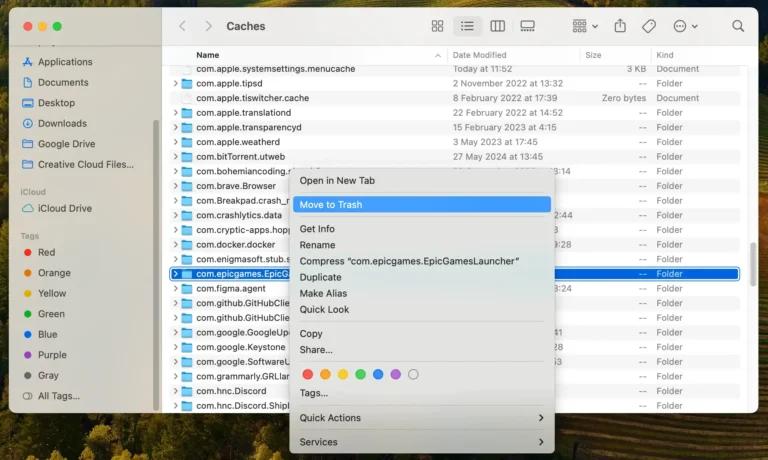
 Step 2: Open Finder, click Go > Go to Folder, and paste ~/Library/Caches/. Look for any folder named com.epicgames.EpicGamesLauncher or containing "Epic" and move it to Trash.
 Step 3: Repeat the same process in ~/Library/Application Support/ and ~/Library/Preferences/, deleting any Epic-related files.
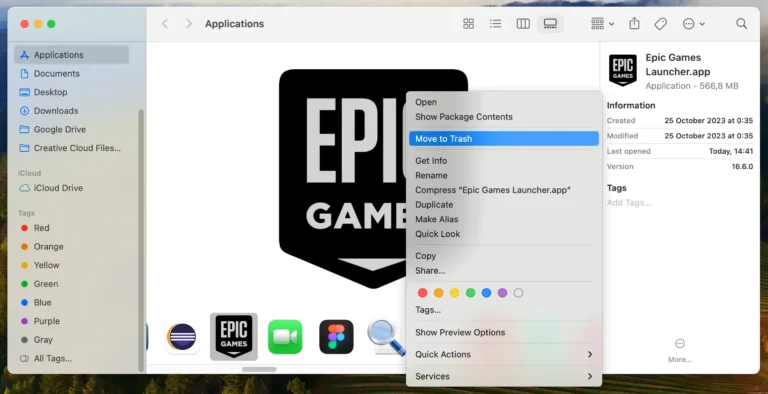 Finally, empty your Trash and relaunch the launcher. A fresh cache will be created automatically. Note: This removes temporary data only, never your installed games.
Tips to Prevent Epic Games Cache Problems
Now that you know how to clear my epic games cache, you likely want to stop this from happening every week. While you cannot turn off the cache entirely (the launcher needs it), you can minimize corruption:
Keep launcher updated: Always run the latest version of the Epic Launcher, as patches often fix corruption bugs.
Avoid force-closing the launcher: Always use "Exit" from the system tray. Force closing via Task Manager often corrupts the active cache files.
Regularly clean temp files: Schedule a weekly scan with a tool like IObit Advanced SystemCare to keep residual data from piling up.
Limit background apps: Too many apps running while the launcher updates can cause write errors to the cache folder.
FAQs about Epic Games Launcher Clear Cache
Will clearing Epic Games cache delete my games?
Absolutely not. Your games are stored in a separate folder. Clearing the cache only removes temporary launcher data, leaving your game files and progress untouched.
Is it safe to delete Epic Games webcache folders?
Yes. The folder is temporary and will be recreated automatically by the launcher the next time you start it.
Why is Epic Games Launcher still slow after clearing cache?
The issue could be network-related, a corrupted installation, or too many background programs. Try disabling unnecessary startup items to improve performance.
How often should I clear my Epic Games Launcher cache?
Every 2-3 months is sufficient for maintenance. Clear it immediately as a first troubleshooting step if you notice launcher issues.
Final Words
A frozen launcher is the last thing any gamer wants to deal with. Whether you manually delete the webcache folder or use a professional tool, knowing how to clear Epic Games cache is an essential PC gaming skill.
For those who want to keep their entire system in peak condition, IObit Advanced SystemCare automates the process, protects your privacy, and clears junk files that slow down your PC. Don't let cache issues ruin your game time. Download IObit Advanced SystemCare today and play with confidence.