In today’s fast-paced world, a slow laptop can feel like a major roadblock. Whether it’s lagging during work, freezing while streaming, or taking forever to boot, a sluggish system can waste precious time and reduce productivity. If you want to improve performance of laptop and enjoy a faster, smoother experience, there are practical steps anyone can take. From routine maintenance and software optimization to hardware upgrades, optimizing your laptop’s speed is easier than you think.
One of the most effective ways to optimize laptop performance is by using a trusted software tool like IObit Advanced SystemCare. This all-in-one PC optimization program not only cleans junk files and repairs registry issues but also protects your laptop from malware, helping it run at peak performance.
Why Laptops Slow Down Over Time
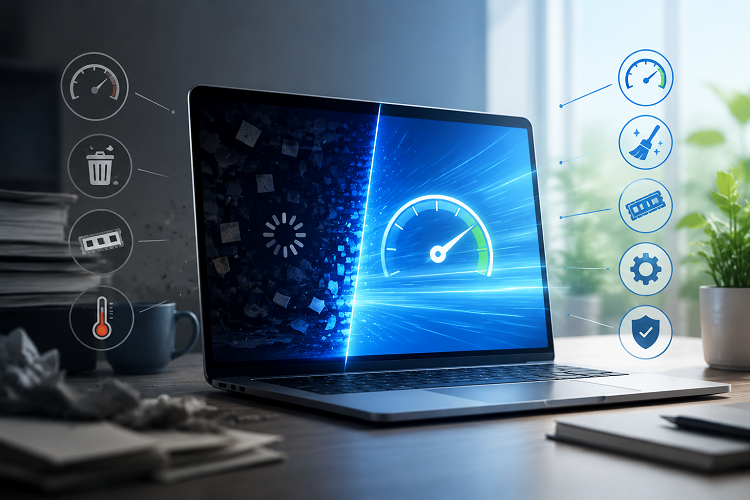
Many users are surprised to find their once-fast laptops slowing down after a few months or years. Several factors contribute to this decline:
Accumulated junk files: Temporary files, cache, and leftover data from uninstalled programs can pile up and occupy valuable storage.
Background programs: Too many apps running at startup can significantly slow down boot times.
Outdated drivers and software: Old drivers or system updates can cause incompatibility issues, reducing overall speed. Regularly learning how to update Windows apps ensures your applications run efficiently.
Malware and privacy threats: Viruses and spyware consume resources, slowing down your laptop.
Regular maintenance and optimization are key to keeping your laptop running smoothly. Using software like Advanced SystemCare automates much of this process, allowing you to optimize laptop performance quickly and efficiently.
How to Improve Laptop Processing Speed
If your laptop feels sluggish, there are several steps you can take to improve laptop processing speed:
Clean up temporary files and junk data
Over time, your system collects unnecessary files that take up storage and slow down performance. Tools like Advanced SystemCare can scan and remove these files in seconds.
Manage startup programs
Many applications automatically start when you boot your laptop, consuming memory and CPU power. Disabling non-essential programs can dramatically speed up boot times.
Defragment your hard drive
If you use a traditional HDD, files can become fragmented, forcing your system to work harder. Regular disk defragmentation improves data access speed.
Update drivers and Windows
Outdated drivers and software can cause crashes and reduce processing efficiency. Keeping everything updated ensures your laptop runs smoothly.
Scan for malware and viruses
Even minor infections can slow down your laptop. Advanced SystemCare provides real-time protection to detect and remove malware before it affects performance.
By following these steps, you can see immediate improvements in speed and responsiveness. For a faster and safer solution, IObit Advanced SystemCare can automate these tasks with a single click.
Optimize Laptop Performance with IObit Advanced SystemCare
While manual methods help, using optimization tools is often more effective and time-saving. Here’s why software like Advanced SystemCare is highly recommended:
One-click optimization: Clean, repair, and optimize your laptop without technical knowledge.
Real-time system monitoring: Keeps track of CPU, RAM, and disk usage for efficient performance management.
Malware and privacy protection: Detects threats and removes them to maintain speed and security.
Disk cleaning and registry repair: Eliminates clutter and fixes errors that slow down your laptop.
Advanced SystemCare Free
- Clean: 420 billion traces removed & 85 EB junk files cleaned
- Protect: 80 million unauthorized access blocked & 20 million bugs fixed
- Speed Up: 6 million hours of startup time saved & Turbo boost
- Optimize: Auto clean and auto care your PC with AI mode

Step-by-Step Guide: Using IObit Advanced SystemCare to Improve Laptop Performance
Follow these simple steps to clean, optimize, and speed up your laptop effortlessly:
Step 1: Download and Install Advanced SystemCare
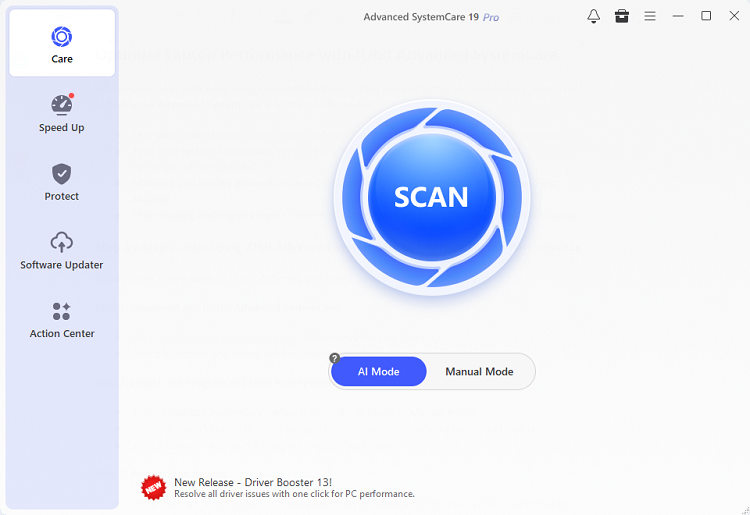
Step 2: Launch the Program and Scan Your System
Open Advanced SystemCare and select your preferred mode: AI Mode or Manual Mode.
Click the “Scan” button to check for junk files, system errors, privacy traces, and malware.
Wait a few moments as the program analyzes your laptop.
Step 3: Review Scan Results
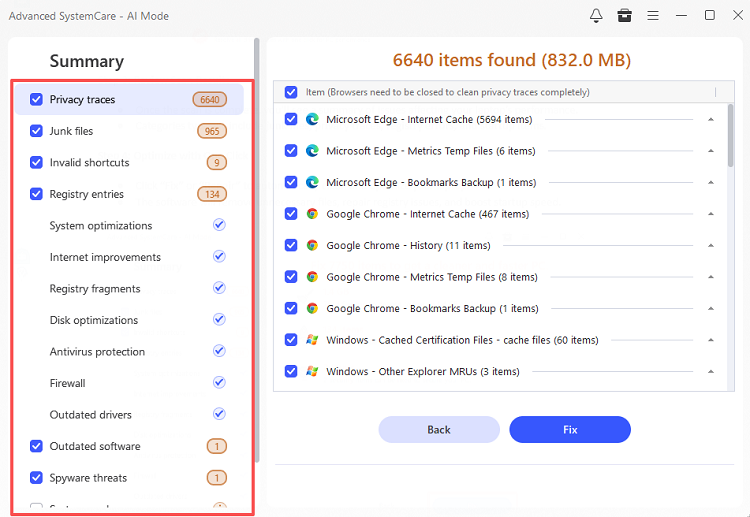
Once the scan is complete, you’ll see a summary of issues affecting your laptop’s performance.
Categories typically include junk files, privacy traces, registry errors, and startup items.
Step 4: Optimize with One Click
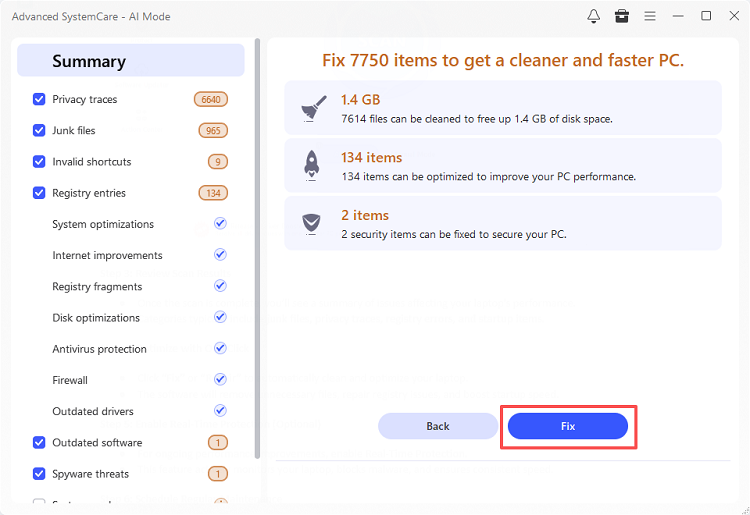
Click “Fix” to automatically clean and optimize your laptop.
The software will remove unnecessary files, repair registry issues, and boost startup speed.
 Step 5: Enable AutoCare for Automatic and Scheduled Optimization (Optional)
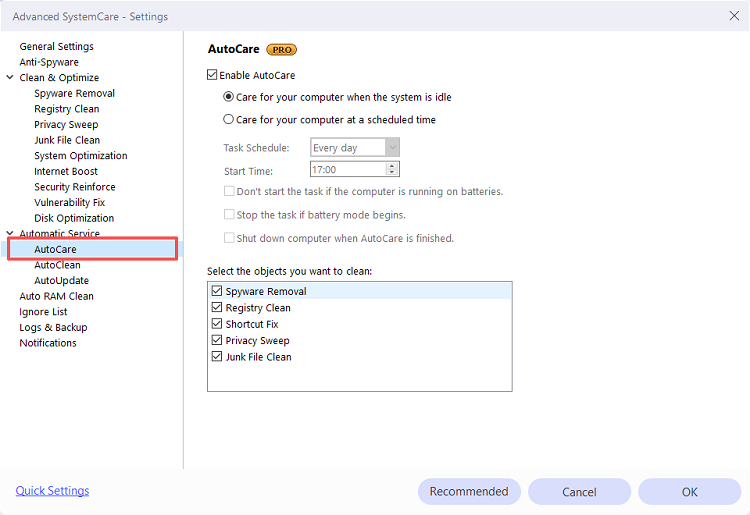
Open Settings: Click the menu icon (≡) in the top-right corner and select Settings.
Enable AutoCare: Go to Automatic Service → AutoCare and check Enable AutoCare.
Set Periodic Care: Choose to run AutoCare automatically when idle or on a scheduled time for regular maintenance.
Save Changes: Click OK to apply. Your laptop will now be optimized automatically without manual effort.
Step 6: Enjoy a Faster, Smoother Laptop
After optimization, your laptop should run noticeably faster, with quicker boot times, smoother multitasking, and fewer freezes or crashes.
With software assistance, even older laptops can perform significantly better. Using IObit Advanced SystemCare is one of the easiest ways to optimize laptop performance and maintain long-term efficiency.
Hardware Upgrades That Improve Performance
While software optimization helps a lot, hardware upgrades can also boost performance significantly:
Increase RAM: More memory allows your laptop to handle multiple applications simultaneously without slowing down. You can refer to a RAM optimizer for Windows 11 for maximum efficiency.
Switch to an SSD: Upgrading from an HDD to an SSD drastically reduces boot times and accelerates file transfers.
Update GPU for gaming or design work: A stronger graphics card can improve performance in resource-heavy applications.
Fix disk usage issues: If your laptop experiences Windows 11 100 disk usage, consider combining software optimization with hardware improvements for better results.
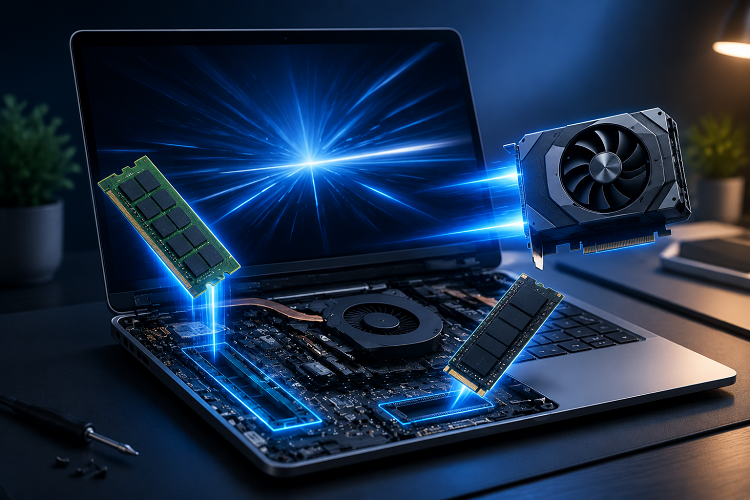 Combining software optimization with hardware upgrades ensures that your laptop stays fast and responsive, even as applications and tasks become more demanding.
Daily Habits to Keep Your Laptop Running Smoothly
Maintaining a fast laptop isn’t just about one-time optimization. Daily habits can prevent performance issues before they become serious:
Avoid too many background apps: Close unnecessary programs to free up memory and processing power.
Keep your system updated: Regularly install Windows updates and software patches to fix bugs and improve stability.
Clean your laptop physically: Dust and dirt can overheat components, causing slowdowns.
Monitor battery health: Poor battery performance can affect processing speed.
Incorporating these habits can help maintain and improve performance of laptop consistently, prolonging its lifespan and usability.
Frequently Asked Questions about Laptop Improvement
1. How can I improve the performance of my laptop for gaming?
To enhance gaming performance, update your drivers, optimize in-game settings, and use optimization software like Advanced SystemCare to free up resources and remove background processes.
2. How to optimize laptop performance without professional help?
Regularly clean junk files, uninstall unnecessary programs, defragment your hard drive, and scan for malware. Advanced SystemCare simplifies all these steps for non-technical users.
3. Can software alone improve laptop speed?
Yes! While hardware sets the upper limit, optimization software removes system clutter, repairs registry errors, and prevents malware, allowing your laptop to perform at its best.
4. How to improve laptop processing speed for older laptops?
Focus on lightweight optimization, remove bloatware, limit background apps, and consider using Advanced SystemCare to clean and repair system files efficiently.
5. How to boost internet performance on PC?
Slow internet can feel like a laptop issue. Learn how to improve internet speed on PC to optimize connectivity for smoother online tasks.
Conclusion
A slow laptop doesn’t have to be permanent. By combining smart software optimization, hardware upgrades, and good daily habits, you can dramatically improve performance of laptop and enjoy a smoother, faster computing experience.
Take control of your laptop’s speed today—start with IObit Advanced SystemCare for free. With one-click optimization, real-time system monitoring, and comprehensive cleaning tools, you’ll experience a noticeable boost in performance immediately. Don’t wait—optimize your laptop now and enjoy peak performance every day!