

- Support Center
- Multiple Languages
- Language
- Help Us Translate
Expert in
PC Health Solution

All-in-one PC health solution: clean, optimize and secure

Comprehensive PC cleaning, optimization and protection

Keep drivers always up-to-date

More stable performance with less system crashes

Protect millions of computers against malware

Top computer security with full-round protection

Protect against viruses & boost PC performance
Complete forced uninstallation for stubborn programs.
Uninstall a batch of programs at once.
Scan and remove leftover files, folders, and registry entries.
Support the management of Universal Windows Platform apps.

What is Windows Powershell? Is it useful? What's it actually used for? I Googled it and is it used for .NET? Is it a programming language or something?



PowerShell is a powerful command-line shell and scripting language built by Microsoft. Far more than just a replacement for the classic Command Prompt, it helps administrators automate repetitive tasks, manage operating systems, and handle complex configurations seamlessly. Here is an ultimate tutorial on what it is and how it works.
PowerShell is a Microsoft task-automation framework consisting of a command-line shell and a scripting language. Built on the .NET framework, it enables administrators and users to automate repetitive system tasks, manage configurations, and control operating systems efficiently through administrative commands called cmdlets.
Object-Oriented Pipeline: Passes data as structured objects rather than plain text.
Verb-Noun Cmdlets: Uses built-in commands called cmdlets that follow a strict, (e.g., Get-Service, Start-Process).
Full Scripting Language: Features a robust language supporting variables, loops, conditional logic, and advanced error handling.
Cross-Platform Compatibility: Built on open-source .NET Core, it runs seamlessly on Windows, macOS, and Linux.
Why you use PowerShell? Check the common use cases of PowerShell commands:
System Administration: Efficiently manage operating systems, user accounts, and system configurations.
Task Automation: Automate repetitive tasks like bulk file renaming, backups, and regular system cleanups.
Cloud & DevOps Management: Administer infrastructure seamlessly across platforms like Microsoft Azure, AWS, and CI/CD pipelines.
Security & Compliance: Audit system configurations and ensure compliance with industry security policies.
Also Read: Is It Okay to Uninstall Copilot? How to Uninstall It on Windows 10 >>
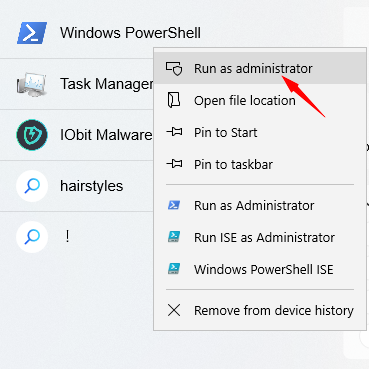
So how to start with PowerShell? Follow these steps to create and run PowerShell:
Type PowerShell into the Windows search bar.
Right-click on Windows PowerShell > select Run as administrator.
Here are fundamental cmdlets:
Get-Location: Show the exact folder directory you are currently working in.
Set-Location "C:\YourFolder": Change your directory to a specific folder.
Get-ChildItem: List all the files and folders inside your current directory.
Run a command, like “Get-Process” and press Enter.
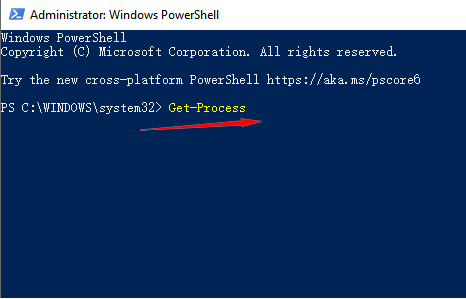
*Type Exit and hit Enter to safely close it.
Also Read: How to Safely Cleanup Windows Installer Folder and Free Disk Space? >>
Feature |
Command Prompt |
PowerShell |
Output Type |
Plain Text |
Structured Objects |
Command Style |
Short, legacy codes (dir, del) |
Verb-Noun Cmdlets (Get-ChildItem) |
Automation |
Very basic (Batch files) |
Advanced (Robust scripting language) |
Platform |
Windows only |
Cross-platform (Windows, Mac, Linux) |
Best For... |
Quick, simple PC fixes |
Complex IT admin & task automation |
Time-Saving Automation: Converts repetitive manual chores into automated, one-click scripts.
Massive Scalability: Helps configure, update, and manage thousands of remote computers simultaneously.
Accurate Data Filtering: Extracts precise system metrics directly as structured data packets, no messy text parsing.
Is Windows PowerShell safe? Although it brings many benefits, PowerShell's deep system access makes it a prime target for hackers and poses potential threats.
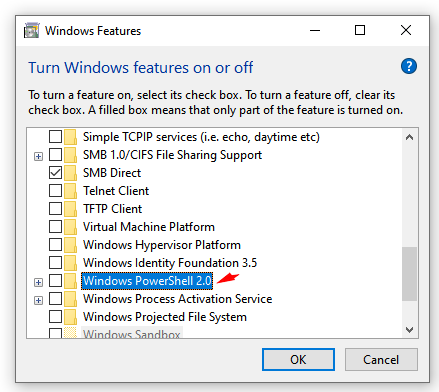
So, how to delete Windows PowerShell? You cannot fully delete built-in Windows PowerShell, but you can safely disable it: type “Turn Windows features on or off” in the search bar, then find and uncheck “Windows PowerShell 2.0”.
Bonus Tips: If you need a professional program uninstaller, IObit Uninstaller is the best option for completely removing unwanted large programs, Windows apps, and browser extensions effortlessly. Free of charge and easy to use!

 People Also Ask
Check how to uninstall Claude Code and details both the manual terminal commands and a free uninstaller tool to cleanly remove it from your system.
Stuck with the “This app can’t run on your PC” error? Learn quick fixes, compatibility settings, and advanced ways to make programs run smoothly on Windows.
What is AMD auto-detect and install Tool? How to fix AMD auto detect and install not found? See here.