The latest Nvidia GeForce driver update (Game Ready Driver) is ready. Update your old driver to the newest version to match newly released games. This new round of driver updates offers smoother performance, bug solutions, and higher stability for RTX GPUs.
If you adjust in-game settings many times and still end up with choppy gameplay, a black screen, or game crashes, you should try to upgrade to this new version to support your gameplay.
We also offer you an automatic driver updater to save you from manually matching and downloading new drivers. Let’s read on.
Quick Glance at Latest Nvidia Geforce Driver Update: Up to May 2026
The Newest Nvidia driver is a Game Ready driver, aiming to help users improve their in-game experience. New Nvidia driver means higher FPS and dedicated performance optimization for newly released games. But note that the new driver’s common problem is compatibility problems. And unknown problems occur since there are not enough samples for testing.
Note: It is recommended to always create a backup point using driver-related software.
NVIDIA's latest GeForce driver overview:
| Item |
Verified Spec |
| Driver Version |
596.49 |
| Driver Type |
GeForce Game Ready Driver (GRD) |
| Certification |
WHQL Certified |
| Release Date |
May 12, 2026 |
| Operating Systems |
Windows 10 64-bit, Windows 11 |
| Package Type |
DCH |
| File Size |
958.81 MB |
| Driver Branch |
r596_25-10 |
| Official Filename |
596.49-desktop-win10-win11-64bit-international-dch-whql.exe |
Info from: https://www.nvidia.com/en-us/drivers/details/270416/
The newest driver fixes the frame pacing and unstable problems when DLSS Frame Generation and V-SYNC are used together.
Many Nvidia 59x version drivers have problems, including Micro stutter, uneven frametime, and choppy screen display under high FPS. People who use RTX 40/50 and open DLSS 3or4 are most likely to encounter this scenario.
And the latest Nvidia GeForce driver update is an overall fix to the user-complained problems. If you are having stutters and try every method but just cannot get rid of them, upgrade to 596.49.
Latest Nvidia Geforce Driver Update Problems: What Does the Forum Say?
As the old saying goes, the latest Nvidia driver isn’t the best Nvidia driver. Any slight adjustment in the new driver can cause the overall stability of your PC. The influenced parameters cover FPS, stability, temperature, and consumption. Actually, many users choose to stay at one particular driver version to make everything work well and only choose to upgrade when new games are released.
Community and forum reflect 596.49 problems:
Black screen issues on dual-monitor setups
Random display signal loss
Game crashes after shader compilation
System-wide FPS drops and desktop stuttering
NVIDIA Control Panel scaling bugs
Instability reported on some RTX 50 series systems
Some users rolled back to older drivers for better stability
No major “avoid this driver” consensus yet among gamers
But compared to previous Nvidia driver update catastrophes, it’s no big deal.
Reddit users say:
“Rollback fixed everything.”
They roll back to 546.33 and 537.58 to address chrome flickering, dual-screen black monitor, and random drive reset problems. If you are afraid of upgrading to the wrong version of Nvidia driver, use software to create a backup point, so you can roll back to your old version of PC in one click. IObit Driver Booster is what you've been seeking.
Driver Booster Free
- Automatically scan and update drivers.
- Update game ready drivers for peak gaming performance.
- Identify and fix various common of hardware issues.
- Boost 30% of system performance for fast & smooth running.

Latest Nvidia GeForce Driver Update Fail? Try Software Auto Update
A failed Nvidia GeForce Driver Update is common. The failures can be divided into several types:
Installation failed: “Installation cannot continue.”
Cannot install Graphics Driver
Black screen during installation
PC freezing or resetting during installation
GeForce Experience download errors
And even if drivers are installed successfully, other problems may occur:
NVIDIA Control Panel cannot find
Installs the latest driver, but it doesn’t work; the old driver works
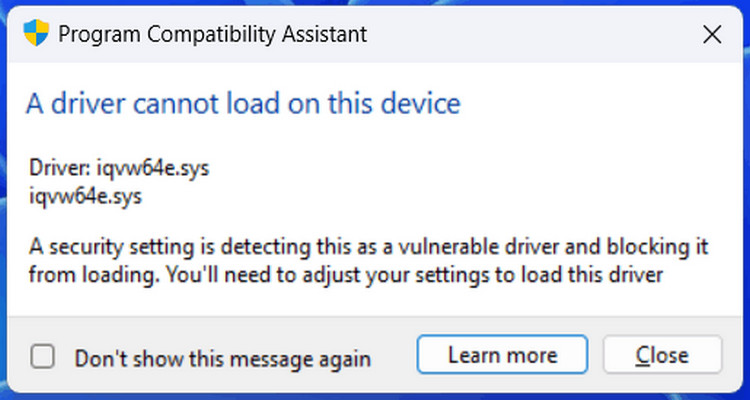
The message says ‘Driver not compatible with this version of Windows.’
These problems may be due to broken old drivers, anti-virus software interference, or uninstalled driver leftovers. These problems consume users’ time, energy, and patience. When a software - IObit Driver Booster helps with everything, requires no learning curve, and automatically downloads the safe updates.
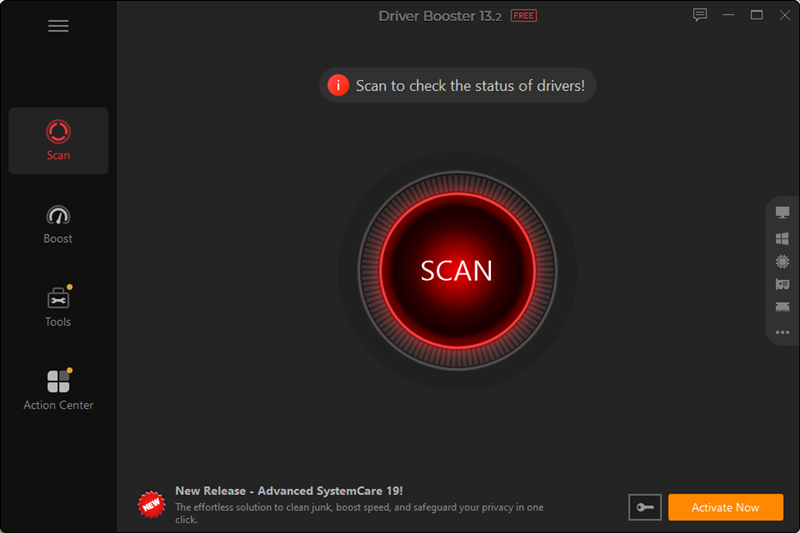
Automatically driver update
One click to check all your outdated drivers and update them all at once
Create a backup point for you to roll back to a safe driver version
Game boosting features to optimize the system resource management
How to auto-download the latest Nvidia GeForce Driver with IObit Driver Booster?
Step 1. Download IObit Driver Booster.
Step 2. Scan your whole hard drive to find all outdated drivers.
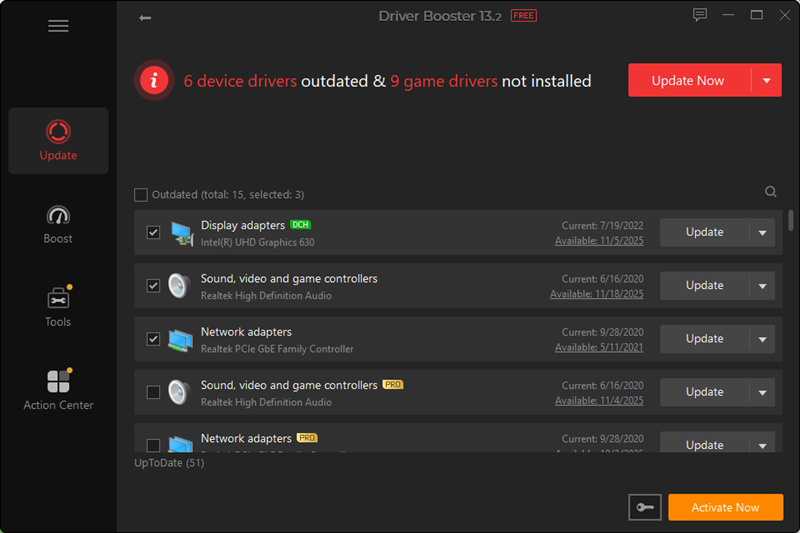
Step 3. Upgrade display drivers (equal to GPU driver/Graphics driver). IObit Driver Booster searches its ocean-like driver database to find the most compatible version of the driver for your PC. The selected driver passed the WHQL test and was reviewed by a large group of users.
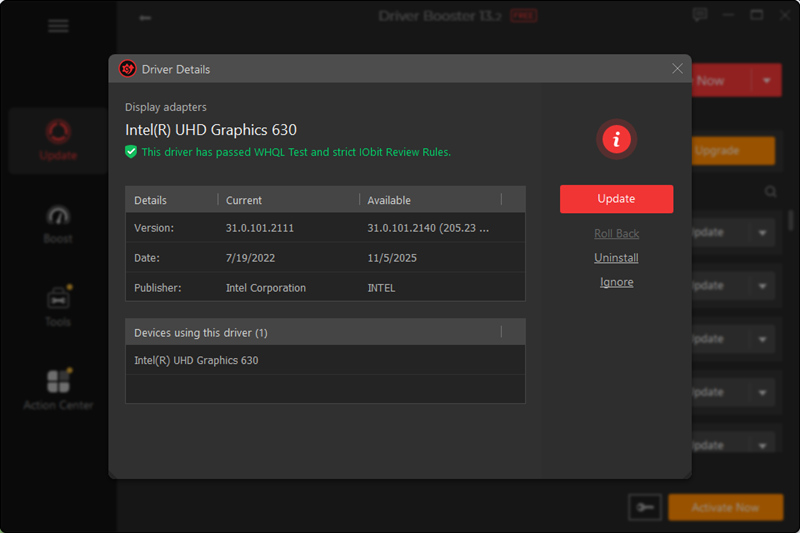
Step 4. Open the auto update mode, no need to scan and update drivers by yourself anymore.
Don’t Want Third-Party Software? Update Nvidia Geforce Driver Manually
Third-party software isn’t always hard to use. But if you have a trust issue, you can still use the traditional way to upgrade your Nvidia driver manually. Whether you need an NVIDIA driver download for an RTX 3060 on Windows 11 or a GTX 1050 Ti driver for Windows 10 64-bit, NVIDIA provides official Game Ready and Studio drivers for nearly all GeForce GPUs. The thing is, you should provide the info about your PC and do a quick version match.
In the following tutorial, we’ll show you how to find, download, and install the correct NVIDIA driver from the official website step by step.
How to download the latest Nvidia GeForce Driver manually?
Step 1. Navigate to the site: https://www.nvidia.com/Download/index.aspx?utm_source=chatgpt.com
Step 2. Choose the correct information for your GPU. (The wrong information causes improper compatibility, failure of installation, and instability)
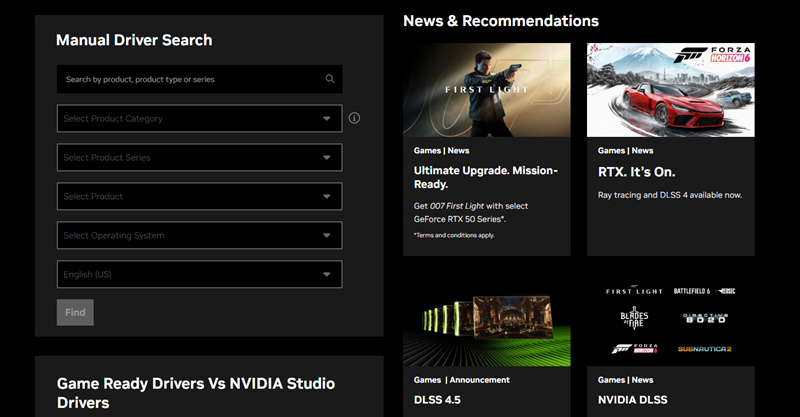
Step 3. Check the latest driver version and see if you need the specific characteristics of this driver.
Step 4. Download the driver to see if your PC supports the driver or not. If not, you need to uninstall the driver and install the old version.
Be afraid of the install, uninstall, and reinstallations? Creating a backup point is essential. IObit Driver Booster offers this feature to help you roll back to any time point you store.
Bonus Tip: Update Other Nvidia Drivers to Optimize Your Gameplay
Besides GPU drivers, keeping your Chipset, Wi-Fi, and Audio drivers updated can also significantly improve your overall PC and gaming experience. These drivers work behind the scenes to ensure your hardware communicates properly with Windows and games.
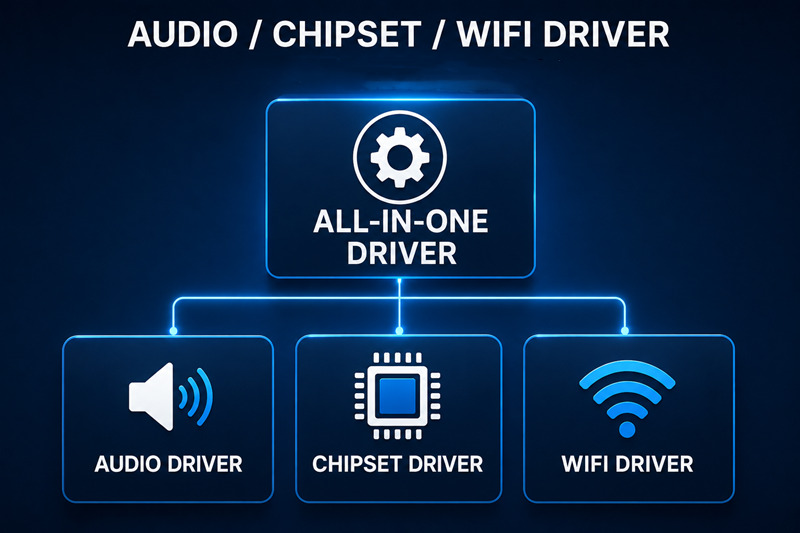
Chipset drivers are especially important. Because they manage communication between your CPU, motherboard, memory, and PCIe devices. Outdated chipset drivers may cause system instability, USB issues, poor power management, or inconsistent gaming performance. Updating them can improve system responsiveness and hardware compatibility.
Wi-Fi drivers are another commonly overlooked component. If you experience random disconnects, high ping, packet loss, or unstable online gameplay, outdated network drivers could be the cause. Installing the latest Wi-Fi or LAN drivers may improve connection stability and reduce latency during multiplayer gaming sessions.
Audio drivers also play a major role in gaming and streaming. Old or corrupted audio drivers can cause sound distortion, microphone problems, crackling noises, or missing audio effects in games. Updating your Realtek or motherboard audio drivers can help restore clear sound quality and improve voice chat performance.
While NVIDIA drivers usually get the most attention, updating these essential system drivers can also help your PC run smoother, faster, and more reliably.
Conclusion
Keeping your NVIDIA GeForce driver up to date can improve gaming performance, fix crashes, support the latest games, and enhance overall system stability. While manually downloading the latest Nvidia GeForce driver update from the official NVIDIA website is a safe and reliable method, many users also forget to update other important drivers like Chipset, Wi-Fi, and Audio drivers, which can also affect gameplay and PC performance.
If you want an easier way to keep all your drivers updated automatically, IObit Driver Booster can help scan, download, and install outdated drivers in one click, saving time and reducing driver-related problems on your gaming PC.
Driver Booster Free
- Automatically scan and update drivers.
- Update game ready drivers for peak gaming performance.
- Identify and fix various common of hardware issues.
- Boost 30% of system performance for fast & smooth running.