The Central Processing Unit (CPU) is often called the "brain" of your computer. It handles every instruction sent by your software and hardware. When your CPU usage reaches high percentages, it causes your PC to become sluggish and unresponsive.
Identifying why your CPU usage is so high is the first step. Then take necessary steps to lower the percentage to get back to peak performance. Read the blog to find why your CPU usage is so high and ways to fix it effectively.
High CPU Usage: What Does It Mean?
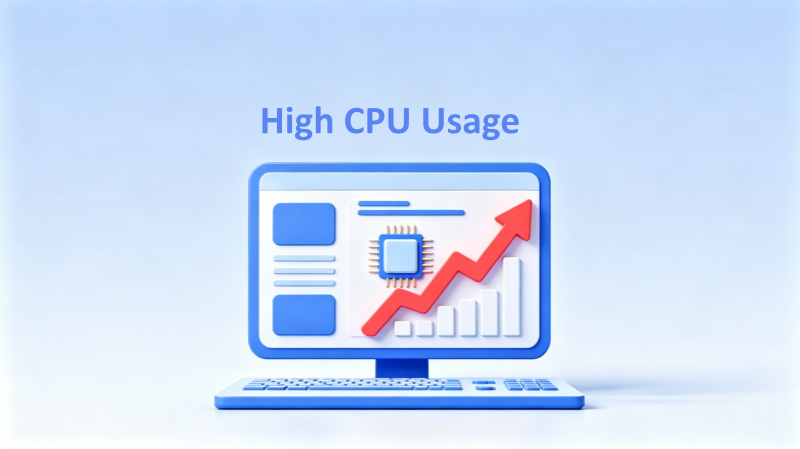
CPU usage (or CPU load) refers to the amount of work your computer's processor is currently doing. When measuring CPU usage, percentages are usually displayed. At what percentage of CPU usage is considered high CPU usage that needs to take measures to lower it?
0-30%: Normal for light work.
30-70%: Normal for moderate use, especially when browsing or streaming.
70-90%: Heavy usage, likely resulting in some slowdowns.
90-100%: Very high, indicating the CPU is overloaded and likely causing significant performance issues.
In summary, when CPU usage surpasses 70% for an extended period, it’s time to take action instantly to maintain your PC performance.
Tips: CPU usage is not a static number. If it suddenly spikes to 90% and then gradually drops back to normal, there's no need to worry.
Where to check your CPU usage on Windows?
There are two ways to check your CPU usage percentage, from Task Manager, Xbox Game Bar, or third-party performance monitor.
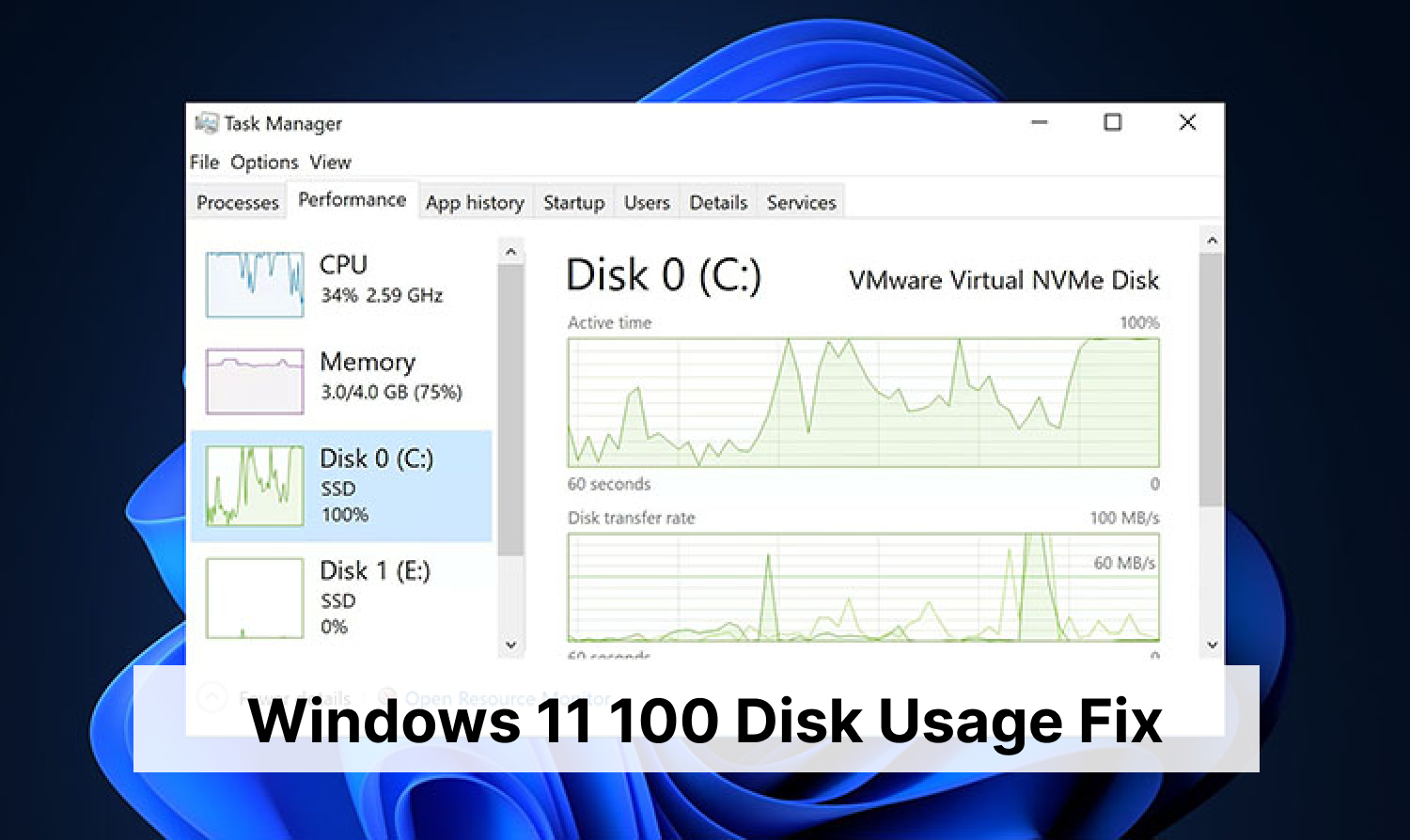
To check CPU usage on Task Manager, press Ctrl + Shift + Esc to open Task Manager instantly (or right-click the Start button and select Task Manager). Then you can see your PC performance, including CPU, memory, disk and network.
When you are playing a game or using a full-screen app, press the shortcut Windows + G and click the performance icon to see your PC’s CPU usage.
You can also try a real-time PC performance monitor tool, like Advanced SystemCare, which can monitor your PC performance (showing processes with high CPU usage) and one-click to optimize PC performance.
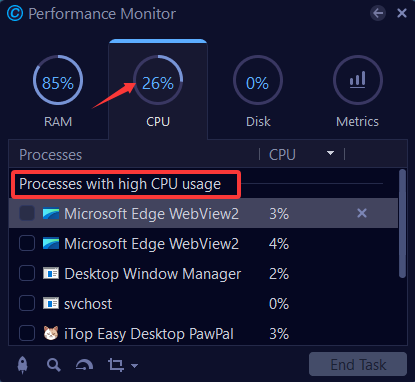
Download it if you want to check your system performance in real time on your PC desktop.
Advanced SystemCare Free
- Clean: 420 billion traces removed & 85 EB junk files cleaned
- Protect: 80 million unauthorized access blocked & 20 million bugs fixed
- Speed Up: 6 million hours of startup time saved & Turbo boost
- Optimize: Auto clean and auto care your PC with AI mode

What happens if CPU usage is 100?
When a CPU hits 100% usage, it means the processor is operating at its maximum capacity, causing some problems.
Significantly decreased speed: your action on mouse or type cannot be processed instantly.
Stutter or freeze screen: video frames will be dropped and lead to choppy visuals.
Unresponsive applications: applications are unable to communicate with the processor timely, resulting in a "not responding" error.
Sometimes, high CPU usage leads to system crashes or the "Blue Screen of Death" (BSOD).
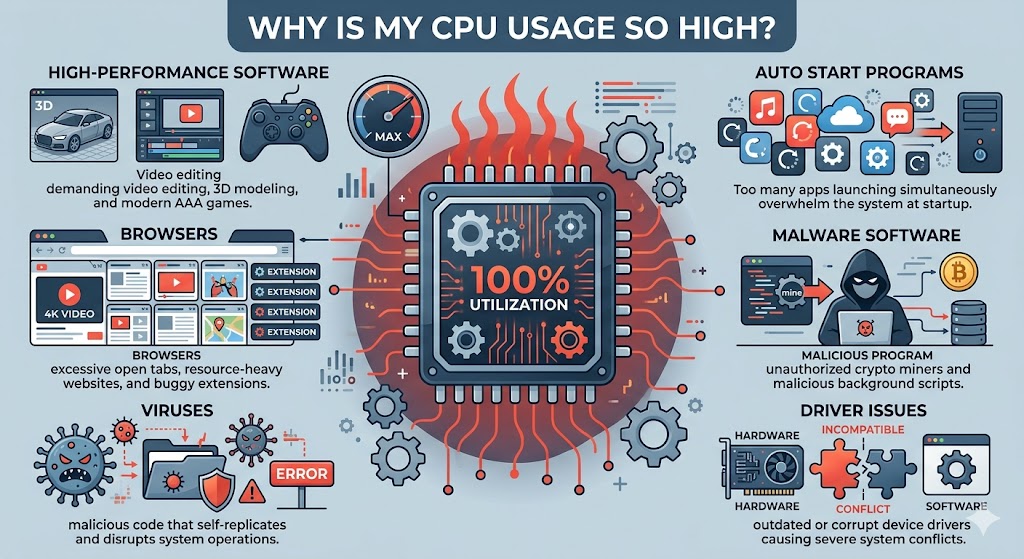
Why is My CPU Usage So High?
High-performance software
Programs like video editors, modern AAA games, and 3D Modeling, performing intensive mathematical calculations and complex logical tasks, always require the processor to work at its maximum speed.
Auto start programs
After PC startup, the CPU must handle multiple simultaneous requests from auto start apps. These apps, even though some are not opened, still occupy CPU resources and run in the background processes.
Browsers
Sometimes browsers consume a lot of CPU resources, especially when you have multiple tabs open. In addition, some plugins and extensions running in the background can also cause high CPU usage.
Driver issues
Inefficient or buggy hardware drivers can cause system-wide CPU spikes.
Malware software
Malicious software often runs hidden in the background and takes a lot of CPU usage, such as Cryptojacking scripts hijacking your CPU’s power to mine cryptocurrencies.
Viruses
High CPU usage can also be caused by a virus infection on your computer. These viruses are not usually detected in performance monitors. If you suspect this, scan and remove them with antivirus software.
How to Fix High CPU Usage on Windows?
Restart Your PC
We have to admit, restarting a PC is always the fastest and easiest solution to fix some problems, which clears out temporary glitches or "stuck" processes.
End tasks to stop running some apps
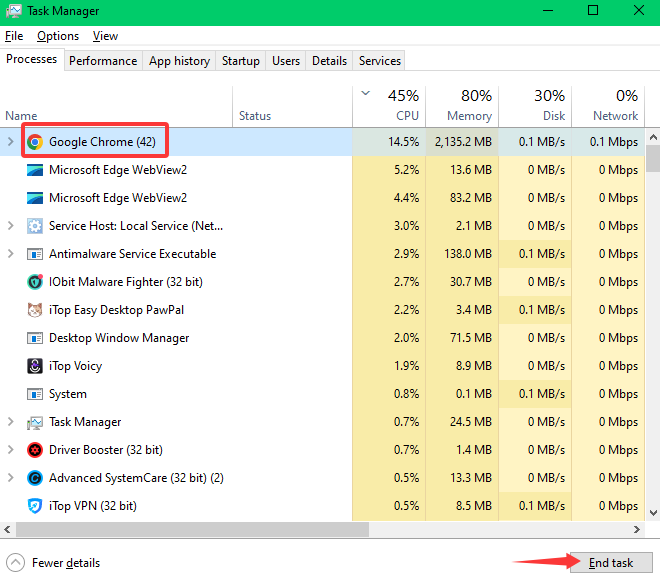
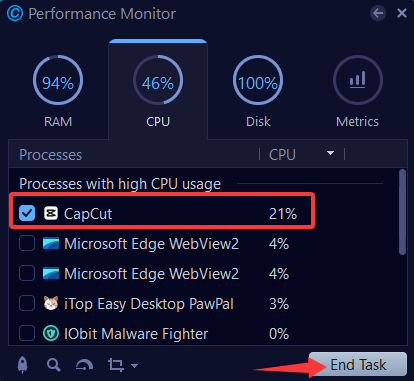
Check the process with high CPU usage. Choose it and click the “End Task” button to end the process, which can be done with Task Manager, System Tray or Advanced SystemCare. (Right-click the Taskbar to open the Task Manager. Click the System Tray, an upward-facing chevron icon, on the Taskbar.)
In the Advanced SystemCare app, click the Speed Up tab, toggle on “Performance Monitor" which displays real-time PC performance.
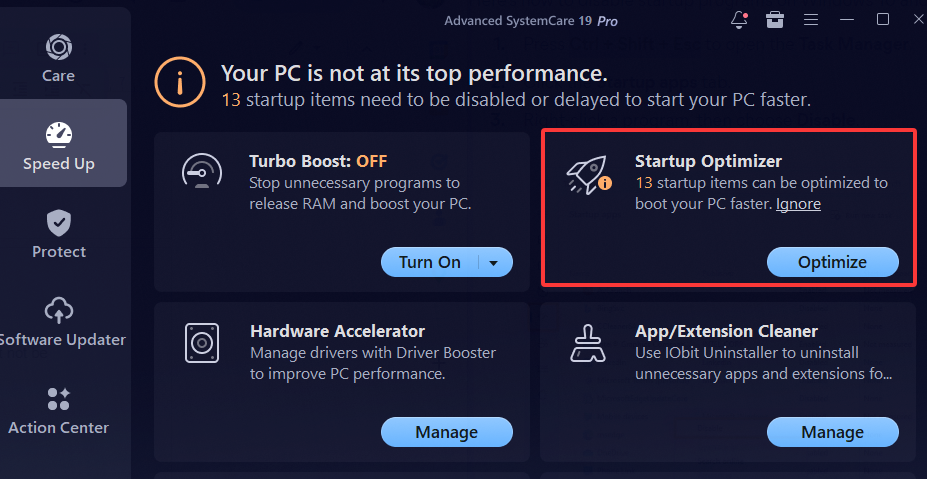
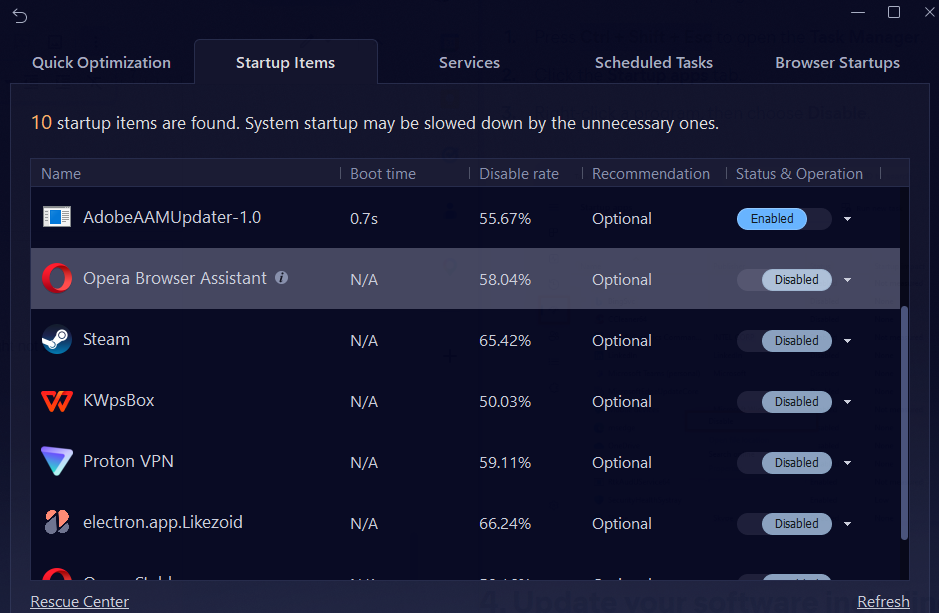
Disable unnecessary startup apps
Some apps have already enabled automatic startup on system boot, which you might not be aware of. They undoubtedly consume CPU resources.
How to disable startup programs on Windows manually, one by one:
Press Ctrl + Shift + Esc to open the Task Manager.
Click the startup apps tab on the top.
right -click a program and choose Disable to stop it from auto starting.
How to disable multiple startup programs at once on Advanced SystemCare:
Update drivers
Update outdated drivers manually in Settings. Open the Start menu and choose Settings. Scroll down to find Updates & Security and click the “Check for Updates” button.
Automatically update drivers with free Driver Booster, which scans and updates all drivers at once. Moreover, it offers game drivers that are suitable for your device and helps to improve your PC gaming experience. We give you another third-party app option because Driver Booster automatically scans your outdated PC drivers and offers compatible new drivers for your device, what you need to do is to click the Update button to update drivers instantly. The Backup feature enables you to roll back if something is wrong after updating.
Driver Booster Free
- Automatically scan and update drivers.
- Update game ready drivers for peak gaming performance.
- Identify and fix various common of hardware issues.
- Boost 30% of system performance for fast & smooth running.

Perform some operations in browsers
Close unused tabs, disable buggy extensions, and avoid playing multiple 4K videos simultaneously to reduce CPU usage.
Change power settings
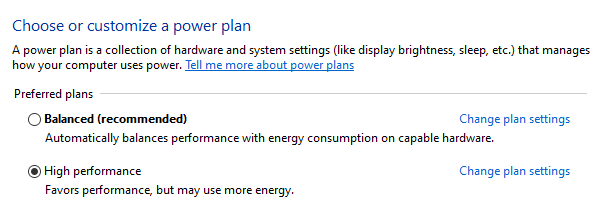
Change your Windows Power plan from “High Performance" to "Balanced" to allow the CPU to throttle down when not needed.
Scan & remove malware or virus
If high CPU usage persists, it may be caused by malware that disguises as a normal Windows process. Run a full scan of your system with Windows Defender or IObit Malware Fighter.
Windows Defender is Windows built-in security feature provided by Microsoft to protect your computer from various digital threats. Access Windows Defender by clicking Start > Settings > Privacy & Security > Windows Security. Open Windows Security and then scan for viruses and threats.
IObit Malware Fighter, using IObit anit-malware engine and Bitdefender engine, is a security application designed to protect your PC against various threats, including spyware, ransomware, and viruses.
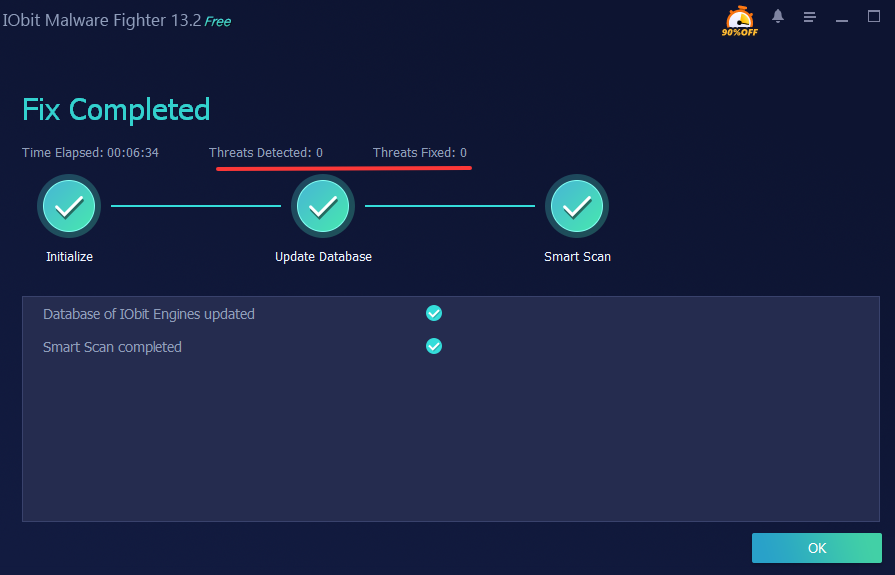
With real-time malware detection and blocking, it specifically protects startup processes from being modified by malicious scripts.
IObit Malware Fighter Free
- Quick and deep system scanning throughout PC system.
- Smart defense against all malicious infestations.
- High-level security and privacy protection in real time.
- Leading anti-malware and anti-virus engines.

Conclusion
Dealing with high CPU usage is a common part of maintaining a healthy computer. Know why CPU usage is high and take measures to fix it. To keep your processor running efficiently, remember to monitor your PC performance with Advanced SystemCare, decluttering your startup, fixing registry issues, optimizing the system, and updating software. Always keep your drivers up to date with Driver Booster, automatically scanning and updating drivers. For advanced security requirements, try IObit Malware Fighter to block malware in real time.