Downloading a new game from the Epic Games Launcher should be exciting, but slow download speeds can quickly become frustrating. If you've been asking, "Why does Epic Games download so slow?", you're not alone. Many users experience slow downloads caused by network issues, launcher settings, overloaded servers, or PC performance problems.
Fortunately, there are several ways to improve download performance. In this guide, we'll explain why does Epic Games download so slowly and show you how to increase Epic Game download speed with seven practical methods.
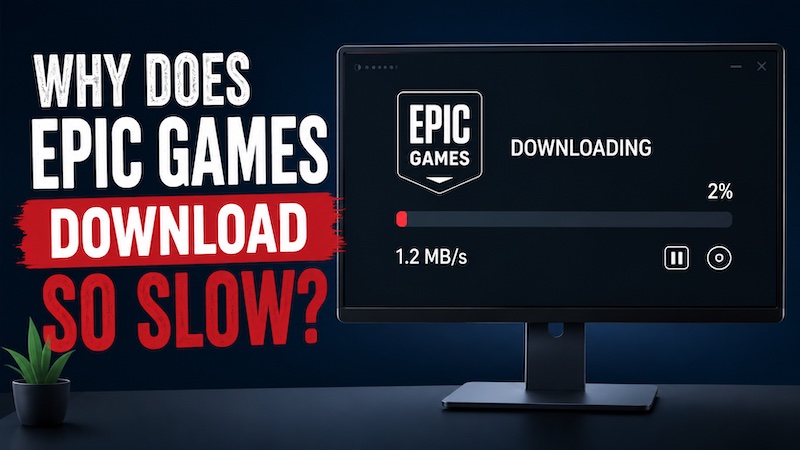
Why Is Epic Games Download So Slow?
Why does Epic Games download so slow? Or we can say, why does Epic Games download so slow on PC? Before trying any fixes, it's important to understand what may be causing the slowdown. Epic Games download speed can be affected by both your PC and your network. Identifying the possible reasons helps you choose the most effective solution instead of trying every fix blindly.
Common causes include:
Slow or unstable internet connection
Epic Games server congestion
Download bandwidth limitations
Background applications using network resources
VPN or proxy interference
Corrupted launcher cache
Outdated network drivers
High CPU or disk usage on your PC
Method 1. Remove Download Speed Limits in Epic Games Launcher
How to get faster download speed on Epic Games? The Epic Games Launcher includes a download throttling option that can unintentionally restrict your download speed. If this feature is enabled, your games may download much slower than your internet connection allows. Disabling the limit is one of the quickest ways to improve download performance. Here’s how to disable download throttling Epic Games.
Step 1. Open Epic Games Launcher.
Step 2. Click your profile icon and choose Settings.
Step 3. Scroll to Throttle Downloads.
Step 4. Disable download throttling or set it to 0 (Unlimited).
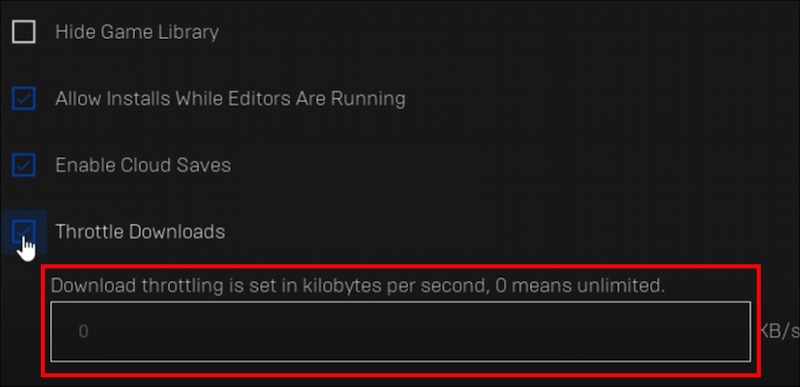
Step 5. Restart the launcher and test your download speed.
Method 2. Close Background Programs Using Network Bandwidth
Even with a fast internet connection, other applications can consume valuable bandwidth in the background. Streaming services, cloud storage, browsers, and software updates may compete with Epic Games for network resources. Closing these programs can free up bandwidth and help downloads finish faster. Here are the specific steps on how to get faster download speed on Epic Games.
Step 1. Press Ctrl + Shift + Esc to open Task Manager.
Step 2. Open the Processes tab.
Step 3. Sort by Network usage.
Step 4. Right-click the programs that use the most bandwidth and select End task to close them.
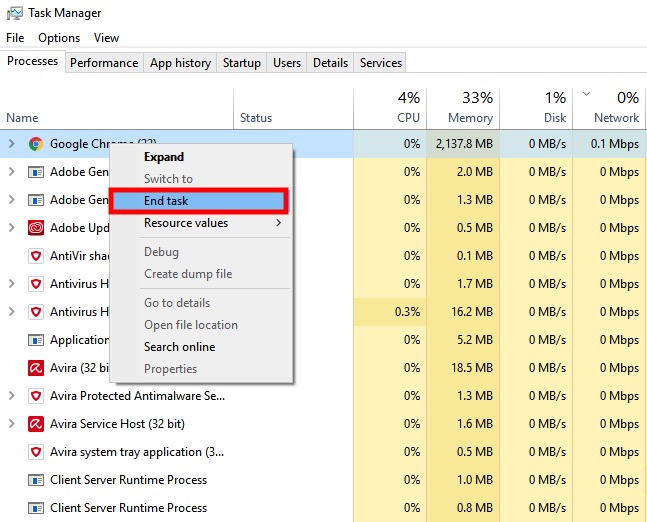
Step 5. Resume the Epic Games download. Thus, you know how to improve download speed on Epic Games launcher.
Method 3. Optimize Windows with IObit Advanced SystemCare
Not every slow Epic Games download is caused by your internet connection. In many cases, Windows itself may be slowing things down by running too many background processes, startup programs, or unnecessary services. These tasks consume CPU, memory, and disk resources that Epic Games Launcher relies on for smooth downloading and installation.
IObit Advanced SystemCare provides an easy way to optimize your PC without manually changing dozens of Windows settings. It automatically removes junk files, disables unnecessary startup items, repairs common system issues, and boosts overall system performance. With its one-click optimization and Turbo Boost mode, you can free up valuable system resources and create a better environment for faster, more stable Epic Games downloads.
Advanced SystemCare Free
- Clean: 420 billion traces removed & 85 EB junk files cleaned
- Protect: 80 million unauthorized access blocked & 20 million bugs fixed
- Speed Up: 6 million hours of startup time saved & Turbo boost
- Optimize: Auto clean and auto care your PC with AI mode

Key Features of Advanced SystemCare
One-click System Scan and Comprehensive PC Optimization
Perform a full system scan to detect junk files, invalid registry entries, privacy traces, and performance issues. With one click, this hard disk cleaner cleans and repairs your PC, creating a smoother environment for Epic Games downloads.
Turbo Boost to Free Up CPU, RAM, and Background Resources
Turbo Boost temporarily shuts down unnecessary background services, startup applications, and non-essential Windows processes. This frees valuable CPU and memory resources, allowing Epic Games Launcher to run more efficiently during large downloads.
Intelligent Junk File Cleanup and Startup Program Management
Clean temporary files, browser cache, system logs, and other unnecessary data while disabling resource-hungry startup programs. This helps reduce disk usage, shorten boot times, and improve overall system responsiveness.
Internet Optimization for Faster and More Stable Network Performance
As a RAM optimization Windows 11 feature, it optimizes Windows network settings to improve connection stability and reduce unnecessary network overhead. Combined with a reliable internet connection, this feature can help maintain smoother and more consistent Epic Games download speeds.
Real-time Performance Monitoring and Automatic System Health Protection
Monitor CPU, RAM, disk, and network usage in real time while Advanced SystemCare continuously protects your system from performance issues. This allows you to quickly identify resource-intensive programs that may be slowing Epic Games downloads.
Want to give Advanced SystemCare a try? Follow these steps to do it.
Step 1. Free download and install Advanced SystemCare on your PC.
Step 2. Launch the program and click Scan to detect your system issues. Or, switch to Manual Mode to customize scan options before starting.
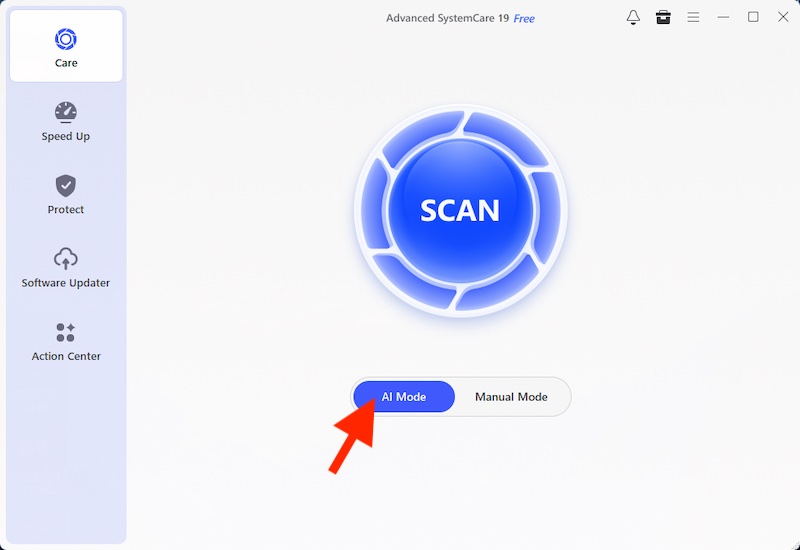
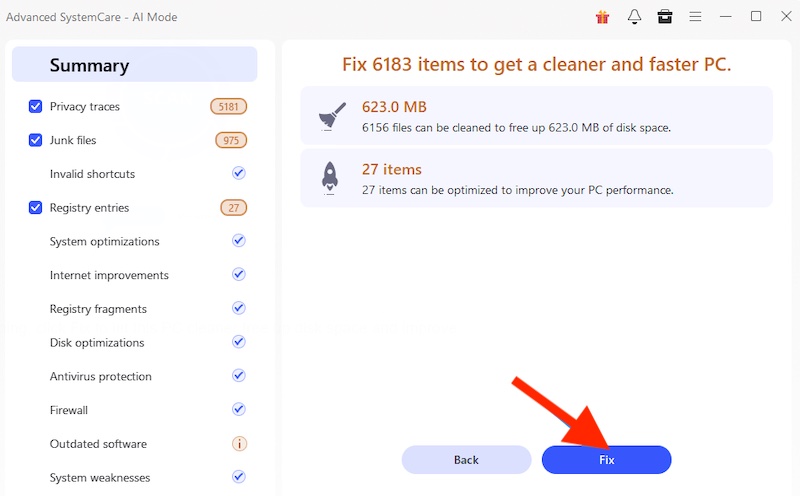
Step 3. Once the scan is complete, click Fix to clean junk files, optimize startup items, and improve system performance.
Step 4. Go to the Speed Up tab and enable Turbo Boost to temporarily stop unnecessary background services.
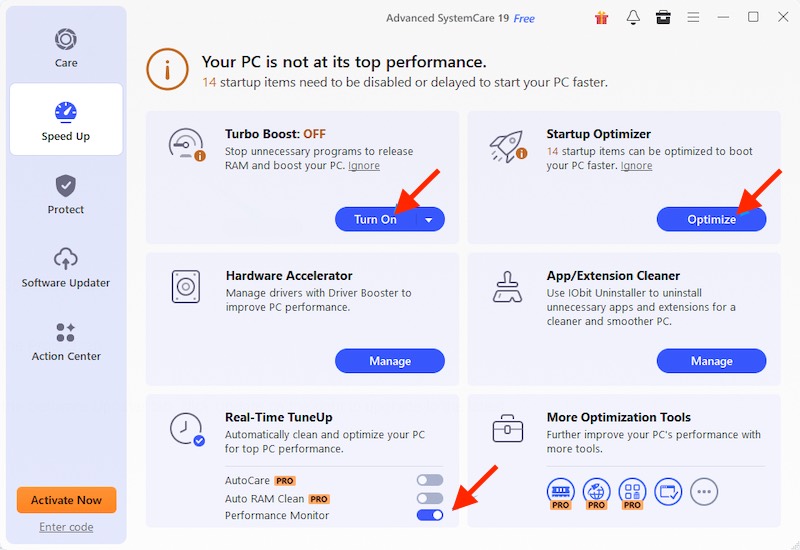
Step 5. Restart Epic Games Launcher and check whether download speeds improve.
Method 4. Clear Epic Games Launcher Cache
Over time, Epic Games Launcher stores cache files that can become outdated or corrupted. These files may interfere with downloads, updates, or launcher performance. Clearing the cache forces the launcher to generate fresh data and can resolve download-related issues. Here’s how to clear the Epic Games Launcher cache.
Step 1. Completely exit Epic Games Launcher.
Step 2. Press the Windows Key + R to open the Run window.
Step 3. Type “%localappdata%” into the Run box and press Enter. This will open your File Explorer.
Step 4. Navigate to the EpicGamesLauncher folder, then open the Saved folder.
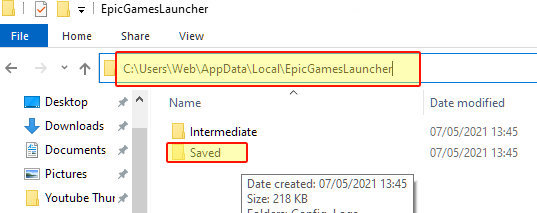
Step 5. Locate folders named “webcache,” “webcache_4147,” “webcache_4430” (or similar). Right-click and delete them.
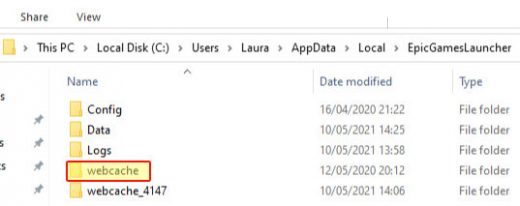
Step 6. Restart the Epic Games Launcher.
Method 5. Change Your DNS Server
Your DNS server determines how quickly your PC connects to Epic Games' download servers. If your ISP's DNS is slow or overloaded, switching to a faster public DNS service like Google Public DNS or Cloudflare DNS may improve connection stability and download performance.
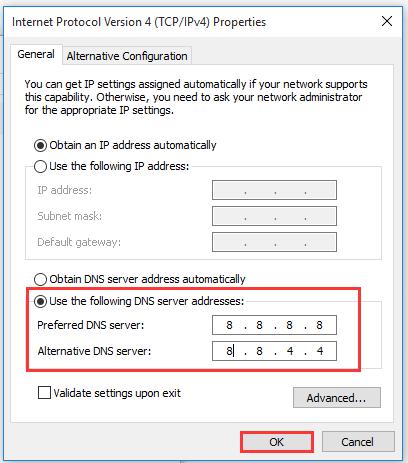
Step 1. Press Win + R, type ncpa.cpl, and click OK. This opens the Network Connections window, where you can manage your network adapters.
Step 2. Locate the network adapter you're currently using. Right-click it and choose Properties.
Step 3. Scroll through the list and select Internet Protocol Version 4 (TCP/IPv4). Click Properties.
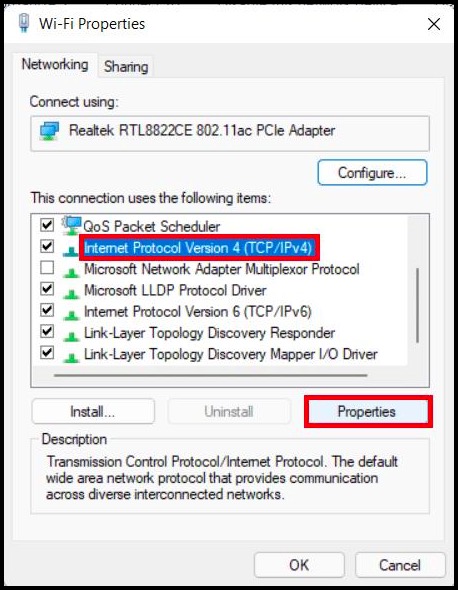
Step 4. Choose Use the following DNS server addresses, then enter one of these recommended DNS providers. Click OK, then Close to save the changes.
Google Public DNS
Preferred DNS: 8.8.8.8
Alternate DNS: 8.8.4.4
Cloudflare DNS
Preferred DNS: 1.1.1.1
Alternate DNS: 1.0.0.1
Step 5. Close the Epic Games Launcher completely, reopen it, and resume your download.
Method 6. Update Network Drivers
Network drivers act as the bridge between Windows and your internet hardware. Outdated or corrupted drivers can reduce network performance, cause unstable connections, or limit download speeds. Keeping your drivers updated helps ensure your network adapter performs at its best.
Step 1. Right-click the Start button and select Device Manager from the menu.
Step 2. Click the arrow to expand the Network adapters section.
Step 3. Locate your network adapter (e.g., Intel Wi-Fi 6, Realtek PCIe Family Controller) and right-click it.
Step 4. Select Update driver.
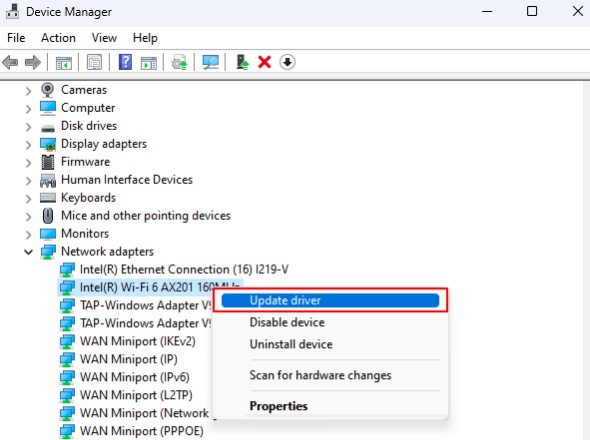
Step 5. Choose Search automatically for drivers.
Method 7. Restart Your Router or Use a Wired Connection
Sometimes the simplest fixes are the most effective. A router restart can refresh your network connection, while switching from Wi-Fi to Ethernet provides a more stable and reliable connection. Both methods can noticeably improve Epic Games download speed, especially during large game downloads.
Step 1. Turn off your router for about one minute.
Step 2. Turn it back on.
Step 3. Connect your PC using an Ethernet cable if possible.
Step 4. Pause and resume your Epic Games download.
Tips to Increase Epic Games Download Speed
Besides the fixes above, a few good downloading habits can further improve Epic Games performance. These simple tips help reduce interruptions, maximize available bandwidth, and ensure your PC is ready for faster and more consistent game downloads.
Use a wired Ethernet connection instead of Wi-Fi.
Restart your modem and router.
Disable VPNs and proxy servers.
Download during off-peak hours.
Temporarily pause Windows Update.
Make sure your SSD or HDD has enough free space.
Add Epic Games Launcher to your antivirus exclusions if it's slowing file scanning.
Conclusion
If you've been asking why does Epic Games download so slow, the good news is that the issue is often easy to fix. From removing bandwidth limits to updating network drivers and switching to Ethernet, these solutions can significantly improve download performance.
For users looking for an all-in-one optimization tool, this Windows optimizer - IObit Advanced SystemCare is an excellent addition. It cleans junk files, reduces unnecessary background activity, and optimizes Windows, helping your PC deliver smoother and faster Epic Games downloads. By applying these seven methods, you'll be able to know how to increase Epic Games download speed and spend less time waiting and more time playing.
Advanced SystemCare Free
- Clean: 420 billion traces removed & 85 EB junk files cleaned
- Protect: 80 million unauthorized access blocked & 20 million bugs fixed
- Speed Up: 6 million hours of startup time saved & Turbo boost
- Optimize: Auto clean and auto care your PC with AI mode