Fortnite is a fast-paced battle royale game where every frame counts. Whether you're building, editing, or aiming during intense fights, a higher FPS (frames per second) can make gameplay smoother and more responsive. Unfortunately, many players experience low FPS, stuttering, and lag spikes that negatively impact performance.
If you're searching for how to get more FPS in Fortnite or how to get more FPS on Fortnite, this guide covers the most effective ways to improve game performance and enjoy a smoother gaming experience.
Why Is Fortnite Running at Low FPS?
Before applying fixes, it's helpful to understand what's causing your FPS issues. Fortnite performance can be affected by both hardware and software factors. Some of the most common reasons for low FPS include:
Outdated graphics drivers
Graphics settings that are too demanding for your hardware
Too many background applications are running
Overheating CPU or GPU components
Insufficient RAM or storage space
Windows power-saving settings are limiting performance
Identifying these issues can help you choose the most effective solution. Whether you want to know how to get more in Fortnite on Xbox or how to get more FPS in Fortnite PS5, follow these methods to do it.
Method 1. Update Graphics Drivers for Better Fortnite Performance
How to get more FPS in Fortnite? Keeping your graphics drivers up to date is essential for achieving the best possible performance in Fortnite.
Instead of manually checking for updates, you can use IObit Driver Booster to automatically scan for outdated drivers and install the latest game-ready versions. By ensuring your graphics drivers are always current, Driver Booster can help reduce FPS drops, minimize stuttering, improve system stability, and deliver a smoother Fortnite gaming experience.
Driver Booster Free
- Automatically scan and update drivers.
- Update game ready drivers for peak gaming performance.
- Identify and fix various common of hardware issues.
- Boost 30% of system performance for fast & smooth running.

Learn how to update driver is one of the easiest ways to improve your computer performance, so install Driver Booster and improve your game performance now.
Step 1. Download IObit Driver Booster on your computer.
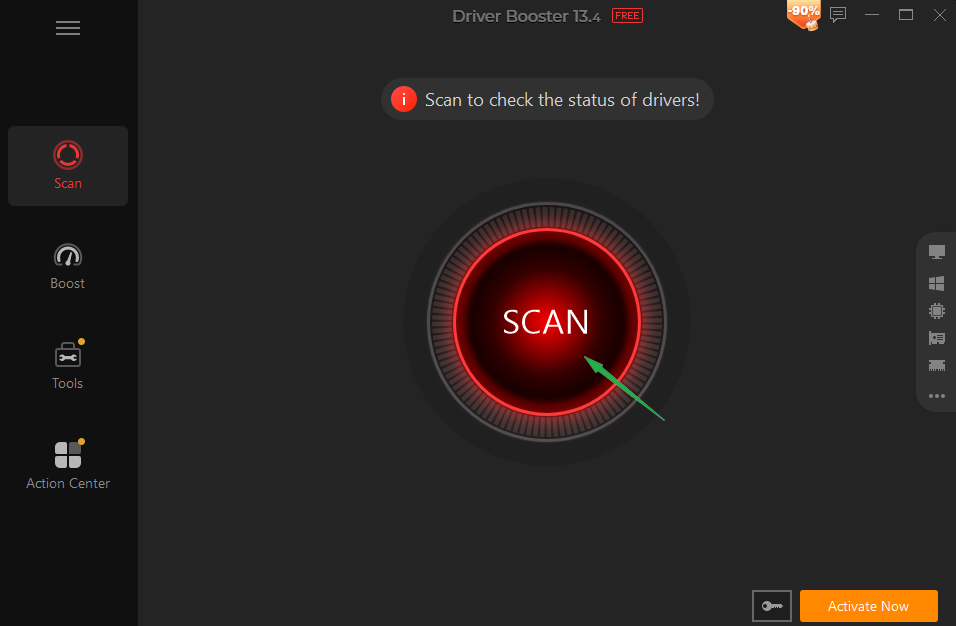
Step 2. Click the SCAN button.
Driver Booster will search for outdated, missing, or faulty drivers that may affect gaming performance.
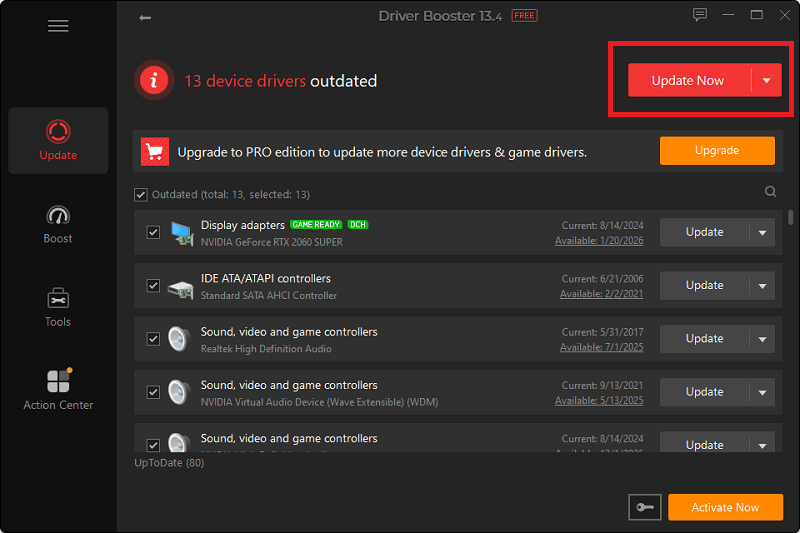
Step 3. After the scan completes, review the results.
Find your graphics driver update, then click Update next to your graphics driver. Alternatively, click Update Now to install all available driver updates.
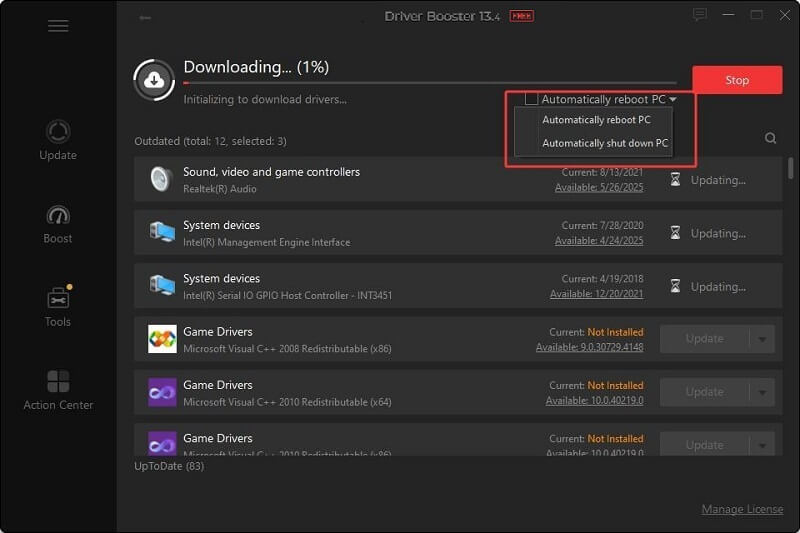
Step 4. Update and reboot your PC.
For the best Fortnite experience, you can also update Chipset drivers, Network drivers, and audio drivers. Once the updates are installed, click Restart Now if prompted.
More Benefits of using IObit Driver Booster include:
One-click driver updates: How to update Windows drivers? IObit Driver Booster automatically scans for outdated drivers and updates them with a single click, helping keep your system ready for intense Battle Royale matches.
Access to the latest game-ready graphics drivers: Easily install the newest NVIDIA, AMD, and Intel graphics drivers, optimized to deliver higher FPS, faster rendering, and a better Fortnite experience.
Improved gaming stability and compatibility: Updated drivers can help reduce crashes, fix graphical issues, minimize stuttering, and ensure smoother Fortnite gameplay during building, editing, and combat.
Automatic driver backup and restore options: Before installing updates, Driver Booster creates a backup of your existing drivers, allowing you to quickly restore them if an update causes issues.
Reduced risk of installing incorrect drivers: Driver Booster automatically identifies the correct drivers for your hardware, reducing the risk of installing incompatible drivers that could negatively affect Fortnite performance.
Method 2. Enable Fortnite Performance Mode
If updating your drivers doesn't provide the FPS boost you're looking for, the next step is to optimize Fortnite's in-game settings. One of the most effective options is Performance Mode, a feature introduced by Epic Games to help players achieve higher frame rates, especially on low-end and mid-range PCs.
By reducing visual effects and lowering graphical demands, Performance Mode allows your hardware to focus more resources on delivering smoother gameplay and higher FPS.
To enable Fortnite Performance Mode:
Step 1. Launch Fortnite and click the menu icon in the top-right corner. Wait for the game to reach the main lobby.
Step 2. Click your Profile/Menu icon in the upper-right corner and click the Settings (gear) icon.
Step 3. Select the Video tab and scroll to the Graphics section.
Step 4. Locate Rendering Mode and click the drop-down menu. Select Performance (Low Graphic Fidelity). Then, click Apply if prompted.
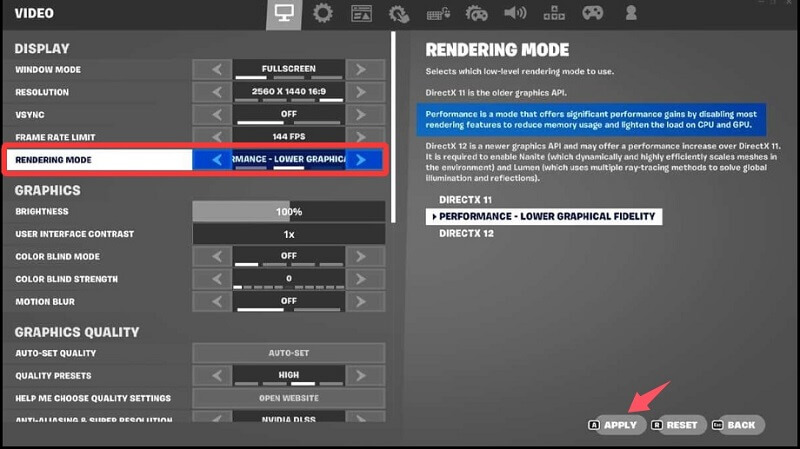
Once enabled, Performance Mode reduces graphical effects and system demands, helping improve FPS and overall gameplay smoothness.
Method 3. Lower Fortnite Graphics Settings
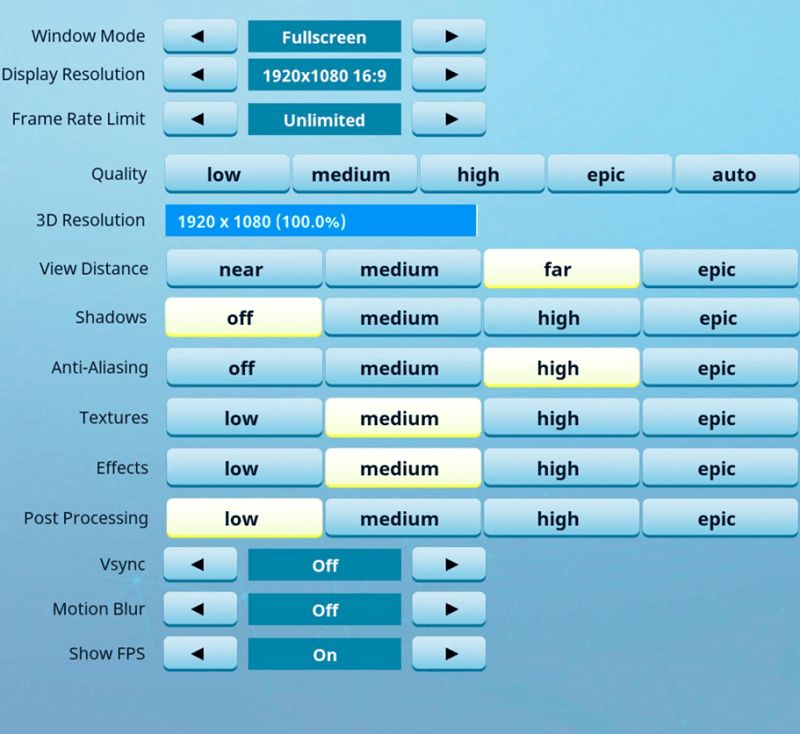
While Fortnite's built-in Performance Mode can deliver a noticeable boost, fine-tuning your graphics settings can help you squeeze out even more FPS and achieve smoother gameplay. These adjustments reduce GPU workload and help Fortnite run more smoothly. Here’s how to increase FPS in Fortnite by lowering Fortnite graphics settings.
Step 1. Open Fortnite and wait for the main lobby to load.
Step 2. Click your Profile/Menu icon in the upper-right corner and click the Settings (gear) icon.
Step 3. Select the Video tab and scroll down to the graphics options.
Step 4. Locate Quality Presets and select Low or manually lower individual settings. Then, set the following options to Low or Off where available:
Method 4. Turn On Windows Game Mode
Before moving on to more advanced optimizations, it's worth enabling Windows Game Mode. This built-in feature helps allocate more system resources to your games and can improve overall performance while playing Fortnite. Follow these steps to enable Game Mode:
Step 1. Press Windows + I to open Settings.
Step 2. Click Gaming from the left-hand menu.
Step 3. Select Game Mode.
Step 4. Toggle Game Mode to On.
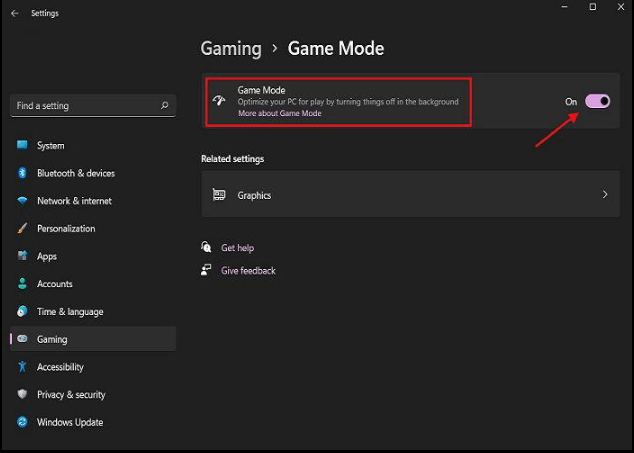
Step 5. Restart your PC if prompted.
Once enabled, Windows will prioritize gaming processes, reduce unnecessary background activity, and minimize interruptions from system tasks, helping deliver a smoother Fortnite experience.
Method 5. Close Unnecessary Background Programs
Before launching Fortnite, it's a good idea to close unnecessary background applications. Doing so can free up valuable system resources and help improve overall game performance. Follow these steps to close resource-heavy programs.
Step 1. Press Ctrl + Shift + Esc to open Task Manager.
Step 2. Click the Processes tab.
Step 3. Look for applications that are using significant CPU, RAM, or disk resources.
Step 4. Common examples include:
Step 5. Select any non-essential program and click End Task.
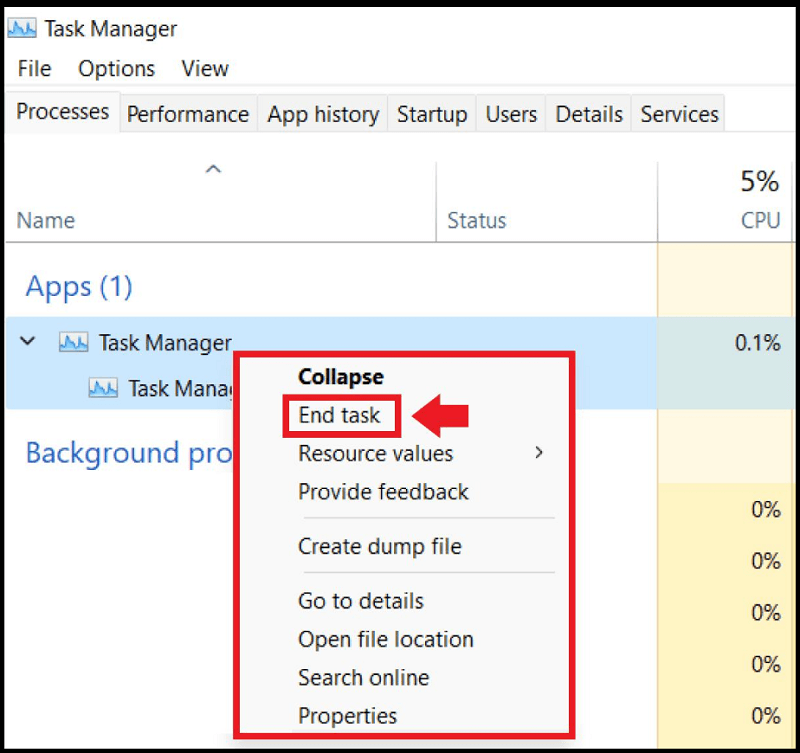
Step 6. Continue reviewing the process list. End unnecessary third-party background processes that are not required during gameplay.
Step 7. Start Fortnite after closing unnecessary programs. The game should now have more system resources available.
By closing unnecessary background applications, you can allocate more CPU, RAM, and disk resources to Fortnite, which may result in higher FPS and smoother gameplay.
You May Like: How to Fix Roblox Laggy: Achieve a Lag-Free Experience >>
Method 6. Switch to High-Performance Power Plan
Before moving on to more advanced optimizations, it's worth checking your Windows power settings. Many PCs, especially laptops, use power-saving plans by default, which can limit CPU and GPU performance during gaming.
Switching to a High Performance power plan allows your system to prioritize speed and gaming performance over energy savings. Here are the steps on how to get more FPS in Fortnite PC by switching to a high-performance power plan.
Step 1. Press Windows + R, type control, and press Enter.
Step 2. Click Hardware and Sound > Power Options.
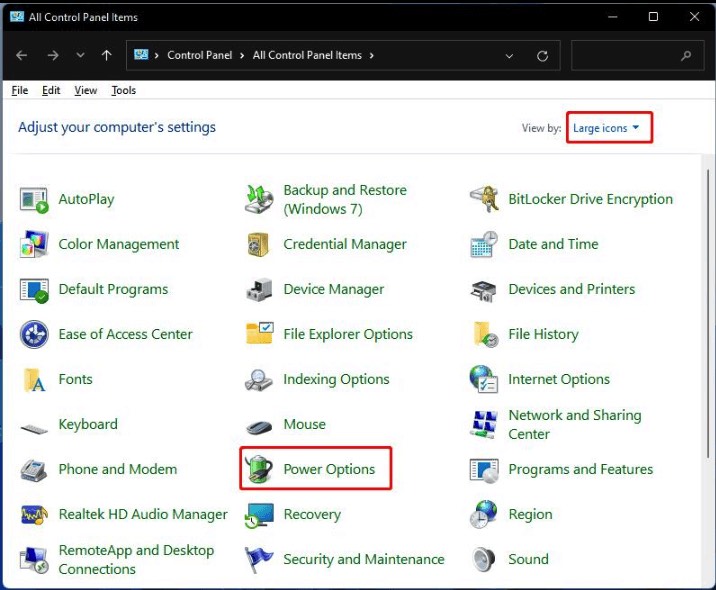
Step 3. On the Power Options page, click Show additional plans if the High Performance option is not visible.
Step 4. Choose High performance from the list of power plans. Windows will immediately switch to the High Performance mode.
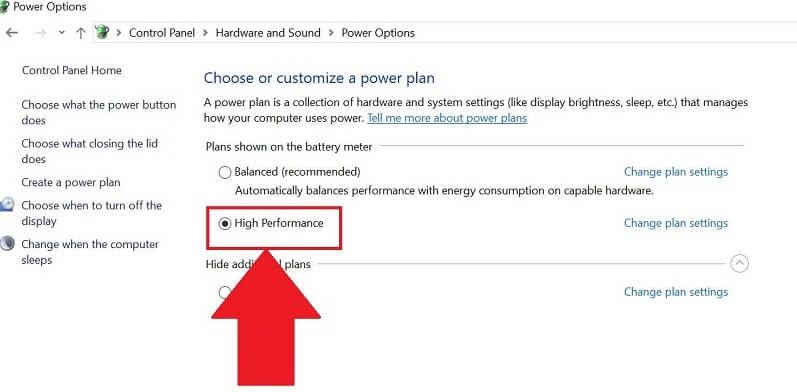
Step 5. Verify that the selected power plan is active. Close the Power Options and Control Panel windows.
Method 7. Disable Startup Applications
Before launching Fortnite, it's a good idea to review the programs that automatically start with Windows. Too many startup applications can consume valuable system resources, reducing the performance available for gaming. Here’s how to get more FPS in Fortnite by disabling startup applications.
Step 1. Press Ctrl + Shift + Esc to open Task Manager.
Step 2. Click the Startup tab.
Step 3. Review the list of startup applications.
Step 4. Right-click any non-essential program and select Disable.
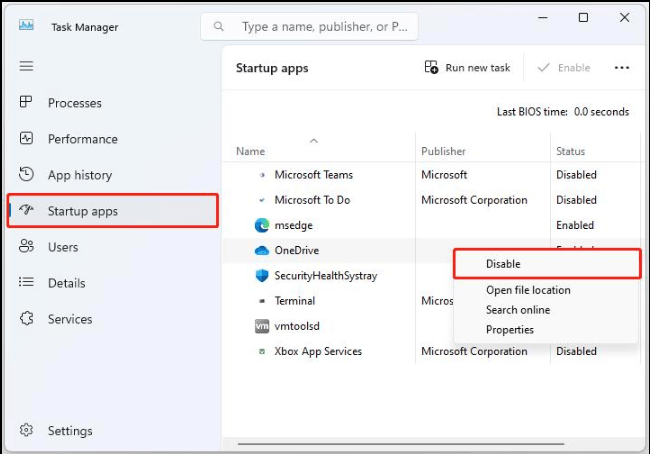
Step 5. Repeat the process for other non-essential applications. Restart your PC to apply the changes.
Method 8. Verify Fortnite Game Files
Sometimes, corrupted or missing files can negatively affect performance and cause unexpected issues during gameplay. If Fortnite is experiencing FPS drops, crashes, stuttering, or unusually long loading times, verifying the game files can help resolve these problems.
Step 1. Open the Epic Games Launcher.
Step 2. Go to your Library.
Step 3. Locate Fortnite and click the three-dot menu next to it.
Step 4. Select Manage.
Step 5. Under the Verify Files section, click Verify.
Step 6. Wait for the verification process to complete.
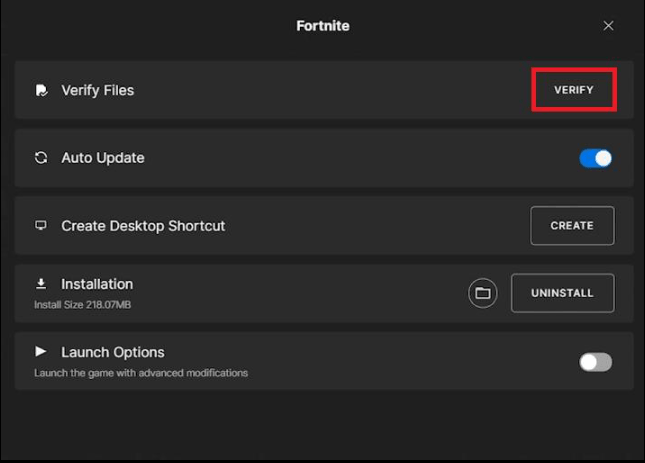
The launcher will automatically scan for missing or damaged files and replace them if necessary. Once the process is finished, restart Fortnite and check if performance has improved.
FAQ About Getting More FPS in Fortnite
Does updating drivers increase Fortnite FPS?
Yes. Updated graphics drivers often contain optimizations that improve Fortnite performance, stability, and compatibility with the latest game updates.
What are the best Fortnite settings for FPS?
For maximum FPS, use Performance Mode, disable shadows, lower texture quality, reduce effects, and turn off anti-aliasing.
Why does Fortnite suddenly have low FPS?
Sudden FPS drops may be caused by outdated drivers, overheating hardware, background applications, corrupted game files, or recent software changes. If, unfortunately, you can’t update NVIDIA driver, you can also fix it with IObit Driver Booster.
How do I get more FPS on Fortnite without upgrading my PC?
You can improve FPS by updating drivers, lowering graphics settings, enabling Game Mode, disabling overlays, and optimizing Windows performance settings.
Conclusion
If you're looking for how to get more FPS in Fortnite or how to get more FPS on Fortnite, there are plenty of effective ways to boost performance without upgrading your hardware. Among these solutions, keeping your drivers updated is one of the most important steps.
Using IObit Driver Booster can simplify the process by automatically installing the latest game-ready drivers, helping you maintain optimal Fortnite performance and enjoy a more responsive gaming experience.
Driver Booster Free
- Automatically scan and update drivers.
- Update game ready drivers for peak gaming performance.
- Identify and fix various common of hardware issues.
- Boost 30% of system performance for fast & smooth running.