Privacy has become a basic concern in everyday web use. Search queries, visited pages, cookies, downloads, and account sessions can leave traces on a shared computer. That is why almost every mainstream browser now provides some form of private browsing.
Firefox calls its feature Firefox private browsing, which helps reduce the local browsing information retained after a private session ends. This post covers what the Firefox private browsing feature does, how to use it, and where its protection stops.
What Is Firefox Private Browsing
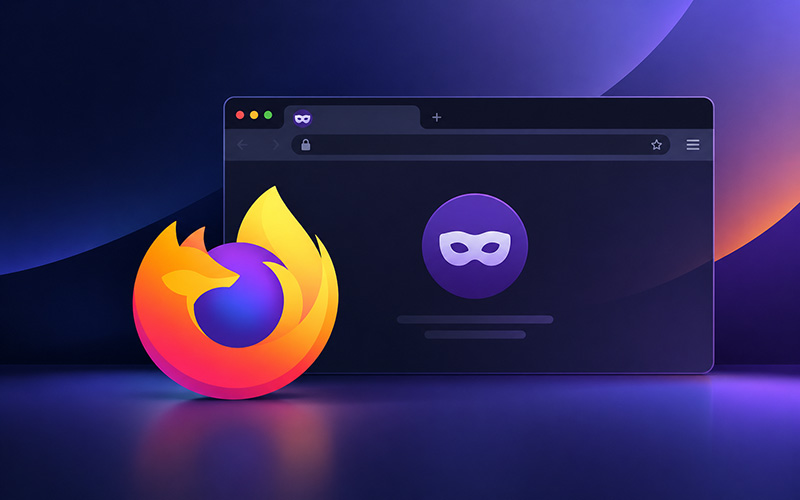
Firefox private browser is a browsing mode that limits the information Firefox keeps from a private session. When all private windows are closed, Firefox removes the browsing history, cookies, and site data associated with that session. It also uses Enhanced Tracking Protection, including Total Cookie Protection, to limit known trackers and prevent cross-site cookie-based tracking.
However, Firefox private browsing mode is not the same as being anonymous online. It does not make you invisible online; browsing activity may still be monitored by websites, search providers, your ISP, or the organization managing your network. It also does not stop malware, phishing sites, malicious downloads, or other threats by itself.
Some information is still retained locally. Bookmarks created in a private window remain available after the session, and downloaded files remain on the computer, although they are not added to Firefox's normal Downloads list.
Tip: Firefox private browsing pays the attention to privacy, while a reliable browser protection tool, like Advanced SystemCare, helps you take more control on online security.
Why Activate Firefox Private Browsing
There are several everyday situations where it makes sense:
Keep local history clean: Pages, searches, cookies, and site data from the private session are removed when the last private window is closed.
Block online tracking: Firefox's built-in Enhanced Tracking Protection works in private windows and blocks known trackers. Total Cookie Protection also separates cookies between sites.
Use shared computers safely: A private window reduces the amount of browsing information left behind after the session when using a family computer, library PC, or another shared device.
Isolate different accounts: A private window starts with a separate temporary browsing environment, making it convenient for testing another login or checking a site without relying on cookies from the regular session.
Test websites: Private windows make it easy to determine whether a website problem is related to stored cookies, site data, cache, or an extension.
How to Use Private Browsing Mode in Firefox
Once you know what the feature actually protects, using it is straightforward. Firefox gives several ways to start a private session, including the application menu, keyboard shortcuts, and the context menu for individual links.
How to Start a Private Browsing Session in Firefox on Desktop
The quickest way to open Firefox private browsing is to create a new private window using the Firefox menu options or keyboard shortcut.
Method 1: Use the Firefox menu
1. Open Firefox on your Windows, Mac, or Linux computer.
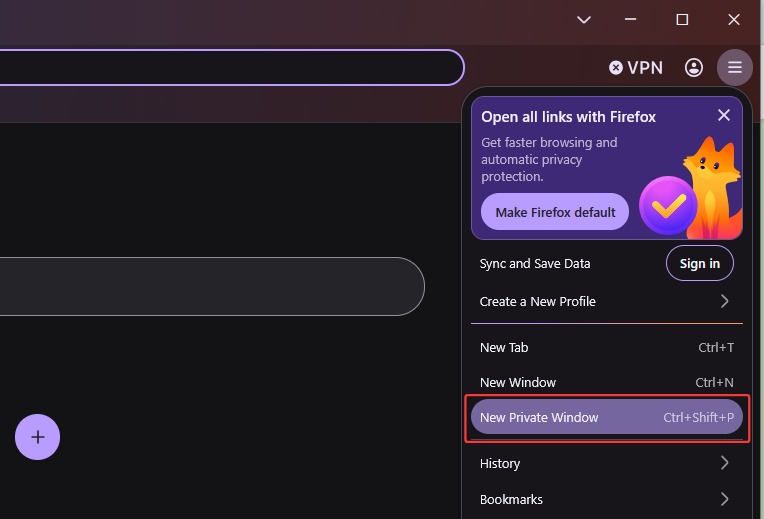
2. Click the three-line menu button in the upper-right corner.
3. Select New Private Window, and a new private window will open.
Method 2: Use a keyboard shortcut
1. On Windows or Linux, press Ctrl + Shift + P. On Mac, press Command + Shift + P.
2. Firefox will immediately open a new private window. This is the Firefox private browsing shortcut to remember if you frequently switch between normal and private sessions.
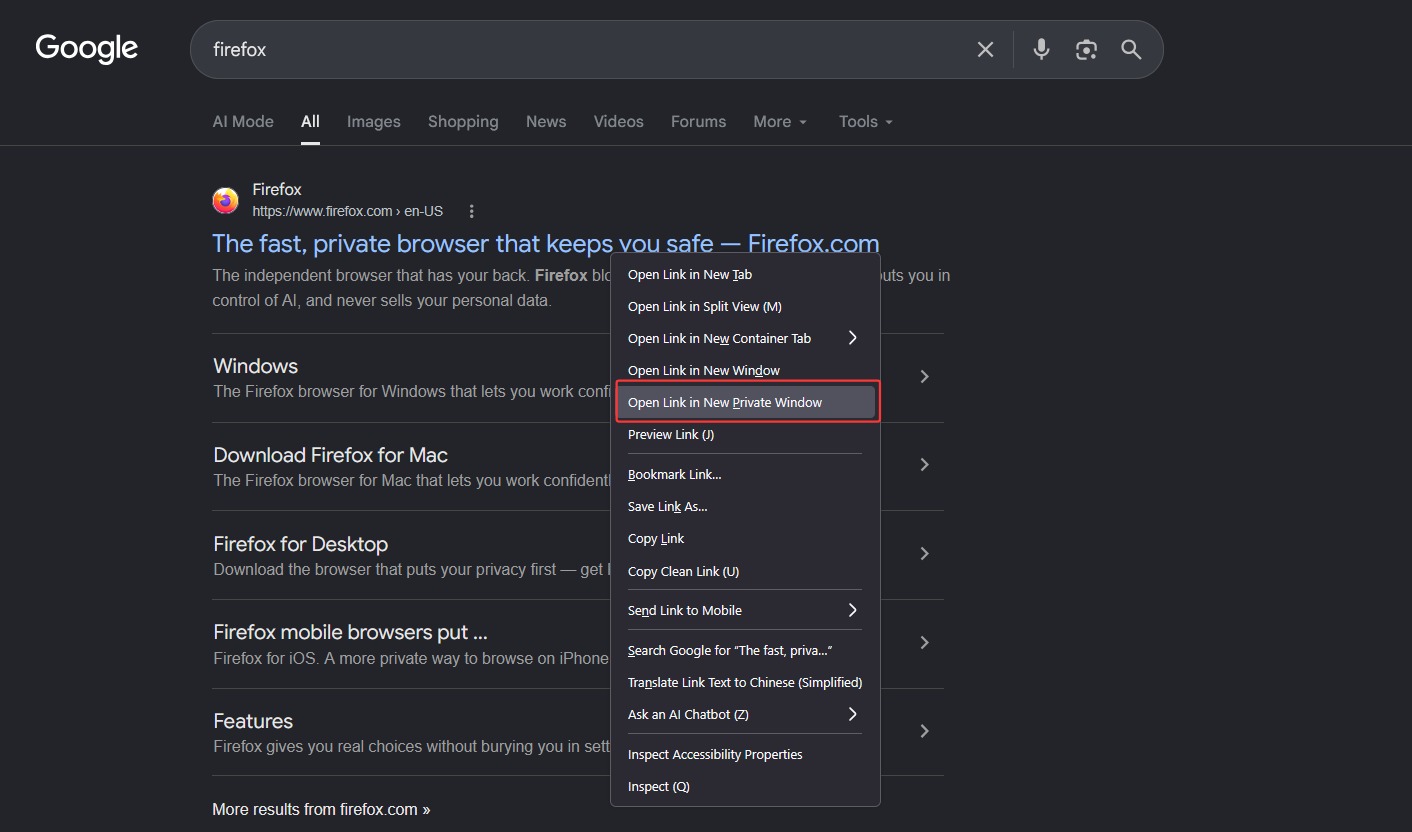
How to Open a Link in a Firefox Private Window
If you already have a page open and want to view a specific link privately, use the following steps.
1. Find the link you want to open.
2. Right-click the link.
3. Select Open Link in New Private Window. Firefox opens that destination in a separate private window.
How to Use Firefox Private Browsing Permanently
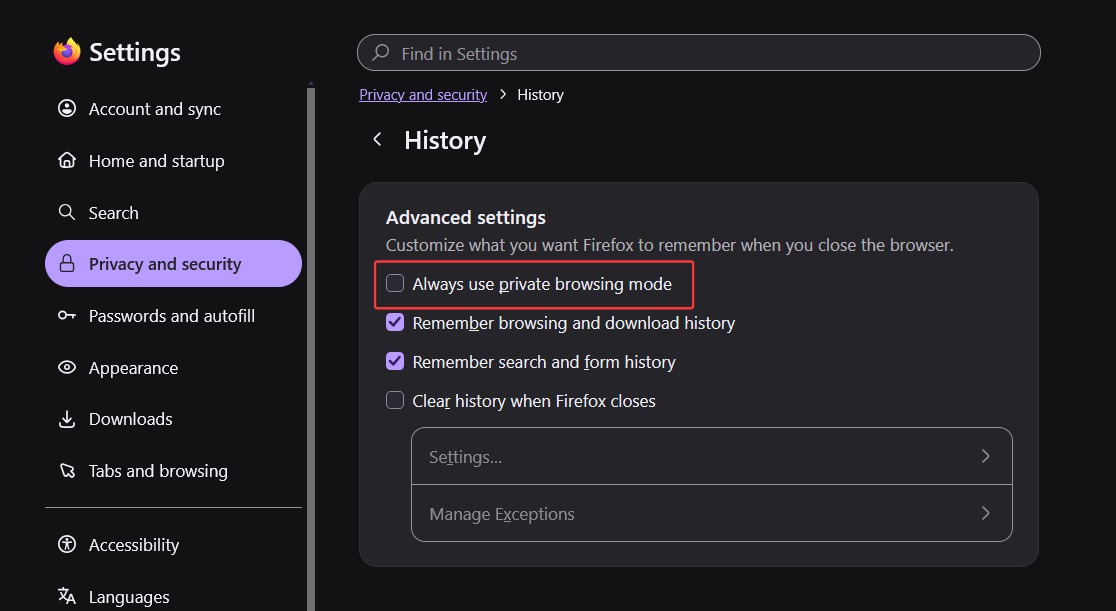
Firefox can also be configured to use Private Browsing automatically instead of requiring a separate private window each time.
1. Click the Firefox menu button and select Settings.
2. Select Privacy and Security.
3. Scroll to the History section.
4. Choose Use custom settings for history. Select Always use private browsing mode. Restart Firefox when prompted.
How to Turn Off Firefox Private Browsing Mode
If you only opened one private window, there is nothing to disable permanently. Simply close the private window. Once all private windows are closed, that private browsing session ends. For permanent private browsing, the setting needs to be changed:
For a single private browsing window: Simply click the X (Close) button in the upper-right corner of the private browsing window to close the private window.
For permanent private mode: Go to Settings > Privacy & Security > History. Change the Firefox will setting back to Remember history, or select Use custom settings for history and turn off Always use private browsing mode.
Keep in mind that Firefox private browsing mode is a privacy feature, not a complete security system. It does not make your IP address invisible, prevent websites from identifying you through other methods, or protect you from malware and phishing attacks. Downloads and bookmarks are also not automatically deleted just because they were created during a private session.
Enhanced Privacy & Security Protection in Firefox Private Browser
Firefox's built-in privacy settings help limit tracking and protect browsing sessions, but they may not cover every browser-related risk. For an extra layer of protection, Advanced SystemCare offers a Browser Protection feature that guards against common online threats and unauthorized changes to browser settings.
Advanced SystemCare Free
- Clean: 420 billion traces removed & 85 EB junk files cleaned
- Protect: 80 million unauthorized access blocked & 20 million bugs fixed
- Speed Up: 6 million hours of startup time saved & Turbo boost
- Optimize: Auto clean and auto care your PC with AI mode

Its main protection options include:
Protect Against Online Threats: Browser Protection brings together several tools designed to make everyday browsing safer and less disruptive. It addresses common online concerns, from unwanted content and suspicious links to potential security risks, giving users greater control over their browsing experience.
Block Harmful Websites: Surfing Protection protects supported browsers by blocking access to websites on its blacklist. This is helpful when a misleading link in an email, an unfamiliar search result, or a suspicious pop-up leads to a potentially dangerous page.
Remove Ads and Pop-ups: Ads Removal filters intrusive advertisements in supported browsers, including Firefox, to reduce distractions from pop-up windows, banner ads, and other unwanted ad content. This can make web pages easier to read and prevent ads from repeatedly interrupting your browsing.
Secure Web Emails: Email Protection scans supported webmail services for spam, phishing attempts, and other suspicious messages. It can flag emails that imitate banks, online stores, or familiar services to trick recipients into clicking fraudulent links or sharing login credentials.
Monitor Any Change to Homepage: Homepage Advisor monitors changes to the browser homepage and search engine and notifies you when unwanted modifications are detected. It also allows you to customize the start page, like setting Google as homepage, easily.
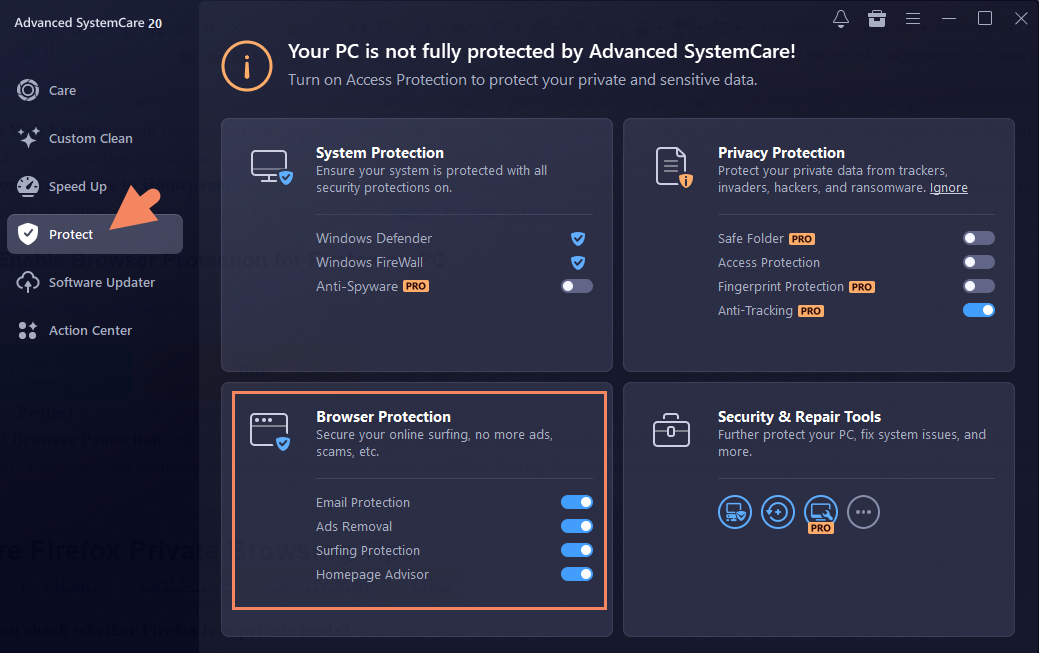
How to Enable Browser Protection for Firefox on PC
Step 1. Install and open Advanced SystemCare on your Windows PC.
Step 2. Click Protect in the main interface.
Step 3. Find Browser Protection and turn it on. The available options include Email Protection, Ads Removal, Surfing Protection, and Homepage Advisor.
To use Email Protection, Ads Removal, or Surfing Protection, install the IObit Surfing Protection extension when prompted, then adjust each feature's settings to suit your needs.
More Firefox Private Browsing Tips
How can you check whether Firefox is in private mode?
A normal private window is marked as a Private Window and can display the private-browsing mask. If Firefox has been configured for permanent private browsing, the usual indicator may not appear. Check Settings > Privacy and Security > History and look for Always use private browsing mode or Never remember history.
Can you save bookmarks and passwords in Firefox private mode?
Yes. Private Browsing does not prevent you from creating bookmarks or saving passwords. Bookmarks and downloaded files remain on the computer after the private session ends.
Do browser extensions work in Firefox private browsing?
Yes, but you must enable them manually. Firefox blocks extensions in private windows by default. Open Extensions and Themes, choose an extension, and change its private browsing permission to Allow.
How can you fix Firefox when Private Browsing stops working?
Close every private window, then open a fresh one using Ctrl + Shift + P on Windows/Linux or Command + Shift + P on Mac. If only one site has problems, review its extensions, cookies, and stored site data.
How do you clear Firefox cache and cookies if private browsing is unavailable?
From Firefox's Settings menu, open Privacy and Security, locate Browsing data, and choose Clear browsing data. Select Cookies and site data, Temporary cached files and pages, choose the desired time period, and click Clear.
The Bottom Line
Firefox private browsing works well for temporary sessions, shared computers, account separation, and reducing locally stored browsing data. It also benefits from Firefox's built-in tracking protection, but it should not be treated as complete online security or anonymity. When you need another layer against harmful websites, intrusive ads, phishing attempts, suspicious email content, and unwanted homepage changes, Advanced SystemCare, a trusted PC optimizer, cleaner and protector, provides a Browser Protection feature, allowing you to perform additional security controls alongside Firefox.
Advanced SystemCare Free
- Clean: 420 billion traces removed & 85 EB junk files cleaned
- Protect: 80 million unauthorized access blocked & 20 million bugs fixed
- Speed Up: 6 million hours of startup time saved & Turbo boost
- Optimize: Auto clean and auto care your PC with AI mode