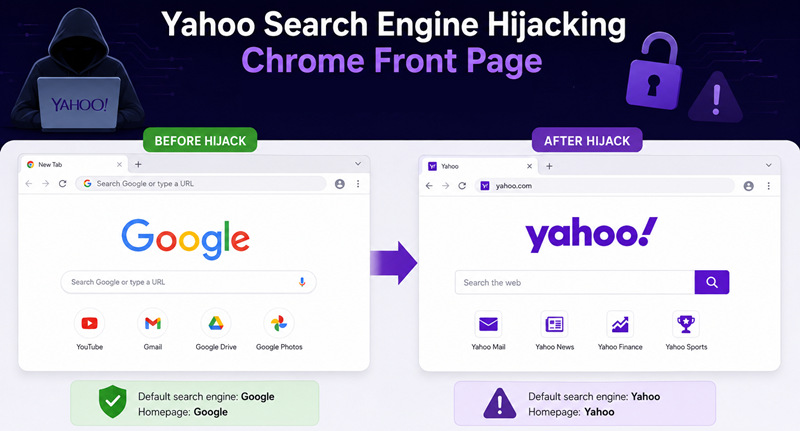
Firefox extensions are super helpful, which offers various features like ad blocking, password management, and productivity tools. However, unnecessary, corrupted, or malicious Firefox extensions can slow down your surfing speed, cause pop-up ads, trigger page crashes, and even lead to privacy leaks. That’s why many users are looking for ways to remove Firefox extensions. This comprehensive guide covers all the effective solutions you need. Just read on to learn how to uninstall Firefox extensions for a smooth and secure Firefox browsing experience!
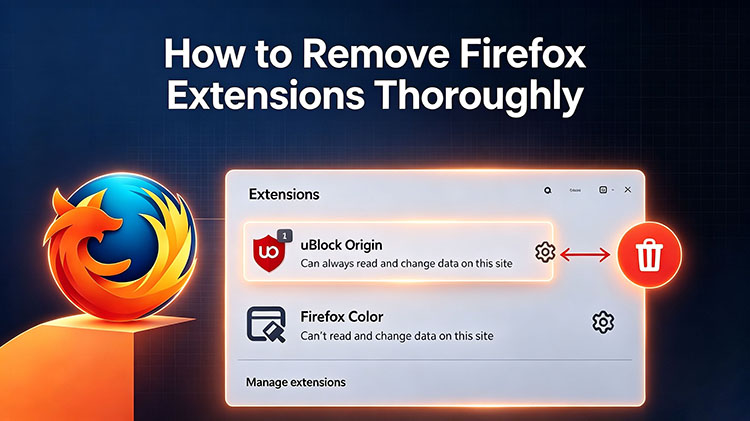
Why You Need to Remove Firefox Extensions
While Firefox extensions can be a great help to improve your browsing experience, they can cause various problems at the same time. Here are the main reasons why you might want to delete Firefox extensions.
Performance Issues: If there are too many extensions running, they might consume valuable system resources. This will lead to browser lag, slow page loading, and increased CPU usage.
Functional Conflicts: Some extensions may be incompatible with each other, which can cause crashes or unexpected errors. These conflicts inevitably reduce overall browser stability.
Privacy Risks: Malicious extensions may track your browsing activity, collect personal data, install malware, and even manipulate search results. It’s best to remove such extensions for better online security.
Annoying Pop-ups: Adware-based extensions often flood your browser with intrusive ads and pop-ups, which significantly degrade the user experience.
Free Up Browser Resources: Sometimes, you may simply want to delete Firefox extensions to keep your browser clean and boost productivity.
Regular Methods to Remove Firefox Extensions - for Normal Extensions
Regardless of the reason, you can uninstall Firefox extensions easily with two built-in settings. These manual methods are pretty straightforward and work for most standard extensions.
Method 1: Uninstall Firefox Extensions from the Extensions Toolbar (Quickest Way)
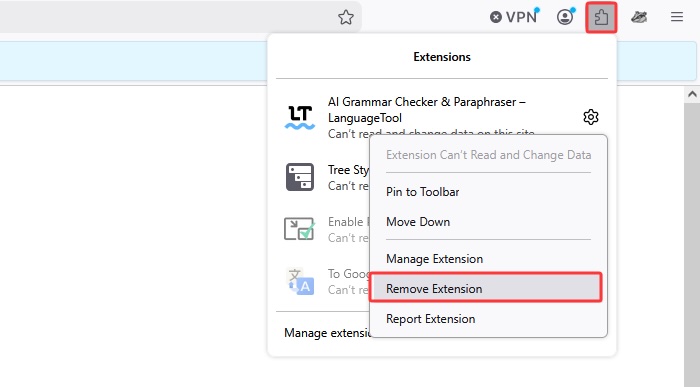
If the extension icon is visible on your Firefox toolbar, this is the fastest way to uninstall it. This method is convenient for frequently used extensions.
How to remove Firefox extensions via the Toolbar
Step 1. Right-click the extension icon on the toolbar. Click on the Settings icon next to the extension.
Step 2. Select Remove Extension. Click Remove to confirm the act.
Method 2: Delete Firefox Extensions from the Add-ons Manager (Regular Way)
Alternatively, Firefox allows you to remove extensions from the add-on manager. This feature provides a complete overview of all installed extensions. You can also disable extensions temporarily by toggling them off.
How to remove browser extensions Firefox
Step 1. Open Firefox and click the menu (☰) in the upper-right corner, then select Add-ons and themes.
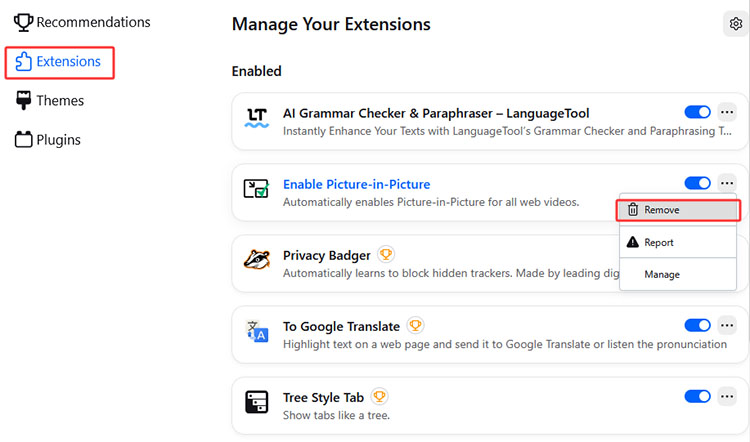
Step 2. Go to Extensions in the left sidebar and find the extension you want to remove.
Step 3. Click the three-dot menu next to it, select Remove, and confirm.
How to Remove Extensions From Firefox - for Stubborn Extensions
While previous built-in methods generally work, they can not delete Firefox extensions that resist standard removal. This is because these problematic extensions are often corrupted or partially removed. But worry not. Firefox offers official advanced solutions to help you deal with such situations effectively.
Here’s how to delete Firefox extensions via the Troubleshoot Mode.
Step 1. In an open browser window, click the hamburger icon (☰) in the top-right corner and select Help.
Step 2. Choose Troubleshoot Mode, then click Restart to confirm.
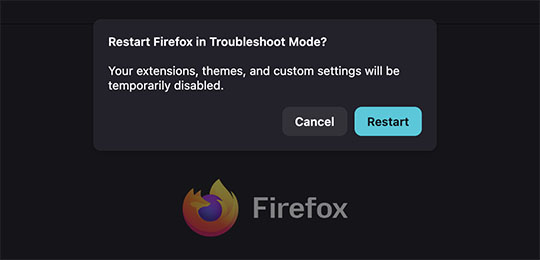
Step 3. In the next prompt, select Open to enter Troubleshoot Mode.
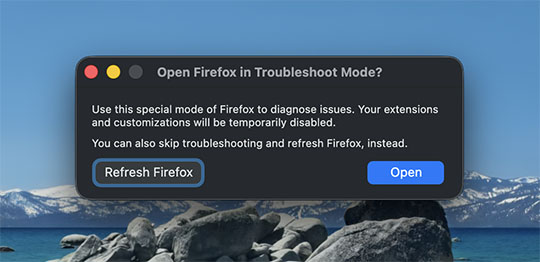
Once Firefox restarts, you can use the Add-ons Manager(steps introduced previously) to remove Firefox extensions manually. You can also safely manage or report them as you see fit.
If the extension still won’t uninstall after this, you can use the Refresh Firefox feature to resolve the issue.
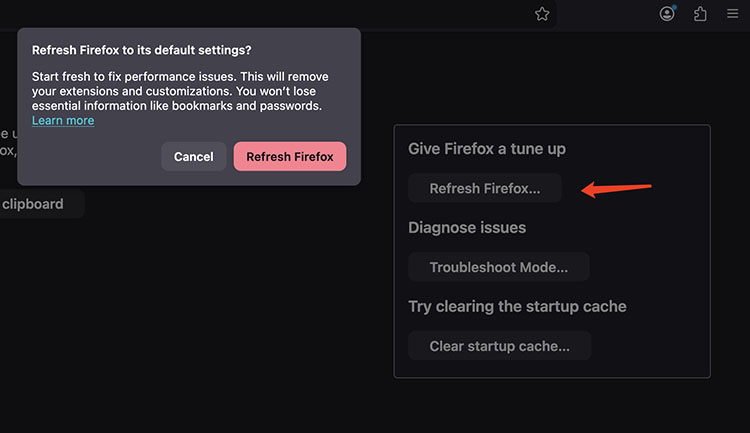
Step 1. Click the menu (☰) in the top right. Go to Help > More Troubleshooting Information.
Step 2. Click the Refresh Firefox button on the right.
Step 3. Confirm to reset Firefox in the prompt dialogue.
More Effective Way to Remove Firefox Extensions Deeply - for All Difficult Scenarios
While manual methods work for basic situations, they can be time-consuming and may leave behind residual files or registry entries. In addition, you need to be equipped with technical knowledge to remove stubborn extensions manually; otherwise, it may cause potential risks.
This is the time IObit Uninstaller comes into play, which offers one-click removal for both normal and stubborn extensions. First off, let’s see how to remove extensions from Firefox in simple steps.
Step 1. Free download IObit Uninstaller and launch it on your Windows PC.
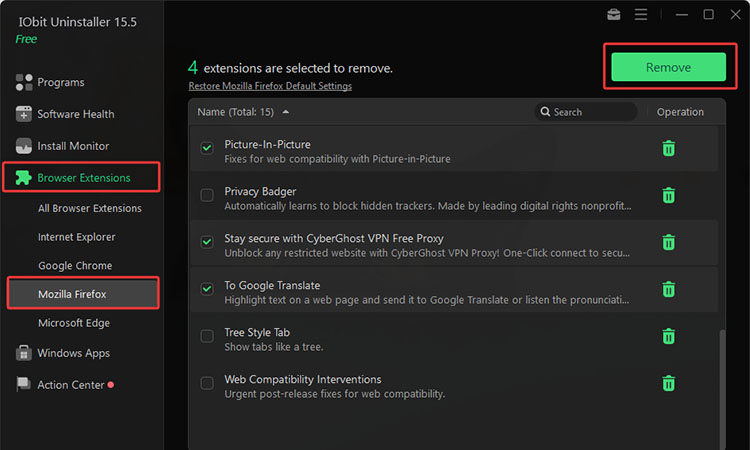
Step 2. Go to Browser Extensions > Mozilla Firefox. You can choose multiple extensions you want to remove here. Click the Remove button in the top right.
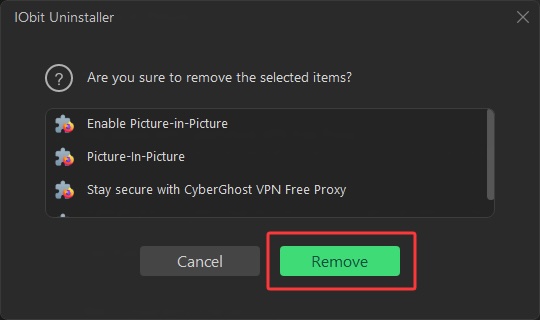
Step 3. Review and confirm the extensions in the prompted window.
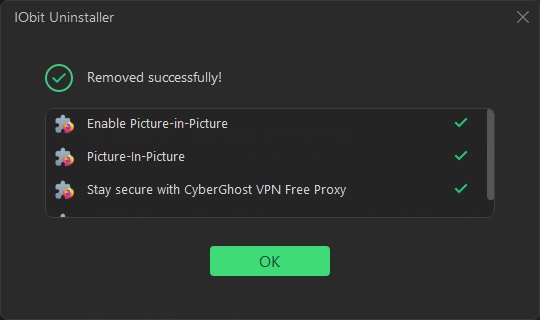
Step 4. The selected extensions will be removed thoroughly from your Firefox.
The Advantages of Removing Firefox Extensions with IObit Uninstaller
How do I uninstall Chrome extensions and add-ons on other browsers? IObit Uninstaller lets you manage browser extensions across multiple browsers(Chrome, Firefox, Edge, and Internet Explorer) in one place. The entire process is quick and efficient.
Equipped with a massive database, IObit Uninstaller can detect and remove potentially harmful extensions that may track your activity or display intrusive ads. This helps protect your privacy and ensures a safer browsing experience.
How to remove browser extensions in batches? The software supports multiple browser extensions in one go. Simply select the extensions you no longer need, and IObit Uninstaller will uninstall them together directly.
Not sure whether to keep or remove an extension? IObit Uninstaller provides user ratings and insights to help you make informed decisions quickly. No more guesswork!
IObit Uninstaller goes beyond basic removal. It can even detect and clean leftover files, folders, and registry entries that built-in tools often miss. Best of all, these powerful features are completely free to use.
FAQs on How to Remove Extensions from Firefox
1. How do I disable a Firefox extension without uninstalling it?
You can go to Menu > Add-ons and themes > Extensions. Find the extension you want to disable and turn off the toggle switch. The extension will be disabled but remain installed.
2. How do I remove multiple Firefox extensions at once?
Unfortunately, you can not make it with Firefox’s built-in tools. If you want to uninstall multiple extensions simultaneously, IObit Uninstaller is a handy tool that can help you remove them in batches.
3. Why can't I remove a Firefox extension?
Sometimes, an extension may fail to uninstall because it is corrupted, conflicting with another add-on, or not fully removed. You can use the Firefox Troubleshoot Mode as introduced earlier. If the issue continues, consider the Firefox Refresh feature or a dedicated tool like IObit Uninstaller for help.
4. Does removing Firefox extensions delete my saved data?
No. An extension removal does not delete bookmarks, passwords, or Firefox settings. However, some extensions store their own data, so it is recommended to back up important information before removal.
Conclusion
How to remove Firefox extensions? You can either uninstall them easily through Firefox’s Toolbar or Add-ons Manager. For stubborn extensions, you may try the Troubleshoot Mode or Refresh Firefox and see if they help. However, if you want a simpler way to remove difficult extensions, IObit Uninstaller is what you need. It can thoroughly remove stubborn extensions, clean leftover files, and manage extensions across multiple browsers with ease. Download IObit Uninstaller to manage your browser extensions effortlessly from now on!
IObit Uninstaller Free
- Complete forced uninstallation for stubborn programs.
- Uninstall a batch of programs at once.
- Scan and remove leftover files, folders, and registry entries.
- Support the management of Universal Windows Platform apps.