



Kevin Hart
Kevin is an experienced editor focused on tech blog writing. Familiar with all kinds of PC software on the market. All the topics he chooses are aimed at bringing more benefits to users.
Expert in
PC Health Solution

All-in-one PC health solution: clean, optimize and secure

Comprehensive PC cleaning, optimization and protection

Keep drivers always up-to-date

More stable performance with less system crashes

Protect millions of computers against malware

Top computer security with full-round protection

Protect against viruses & boost PC performance
Clean: 420 billion traces removed & 85 EB junk files cleaned
Protect: 80 million unauthorized access blocked & 20 million bugs fixed
Speed Up: 6 million hours of startup time saved & Turbo boost
Optimize: Auto clean and auto care your PC with AI mode

Learn how to clear cache Windows 11 for browsers (Chrome/Edge/Firefox) and system to easily maintain your PC.

Kevin Hart


Is your computer slowing down, are applications opening slowly, and is Windows taking a long time to respond? This type of problem is often related to the accumulation of temporary files and unnecessary data.
To fix this, clear cache Windows 11 is a simple, quick, and effective method. This not only improves device performance but also frees up disk space and resolves some common bugs.
In this comprehensive guide, discover how to clear cache Windows 11 (including system and browser cache) step by step, whether you want to learn how to clear computer cache Windows 11 or 10, manually or automatically.
The cache contains temporary data stored by Windows, browsers, and applications to speed up certain operations (page loading, file access, software launches). In theory, the cache improves performance. In practice, a full or corrupted cache slows down the computer.
Understanding where your computer's cache is located is essential for clearing it effectively. The computer cache typically contains:
| Category | Detailed content | Manual cleaning | Effects |
| Basic system cache | Preview thumbnails, file index, temporary logs, update cache | Safe to clean | It regenerates automatically, with no loss of personal files |
| Essential system cache | Kernel data, driver records, hardware compatibility files | Manual deletion is strictly prohibited | Risk of blue screen, device failure, Windows startup failure |
| Web browser cache | Images, CSS/JS scripts, web fonts, static resources, offline pages | Standard cleaning | Accounts can be logged out; resources can then be reloaded |
| Memory/CPU Cache | Data from frequent programs, process snapshots, temporary calculations | No need to clean manually | Automatically cleared on restart; may cause slowdown if modified |
| Network cache/DNS | Domain-to-IP mapping, routing records, temporary authentication | Cleanable | Websites load more slowly after initial cleanup; resolves web access failures |
| Software/Multimedia Cache | Preloaded video clips, subtitles, document previews, temporary office files | Completely safe | Re-buffered on the next read; original files retained |
| Pilot cover / hardware | Graphics card cache, USB connection history, temporary device recognition data | Random deletion is not recommended | Risky removal: Code 43 errors , USB devices not detected, graphics driver fault |
If you don't regularly clear your cache, your computer will suffer negative consequences. We've compiled some common consequences and benefits of clearing the PC cache:
| Common consequences | Clearing the PC's cache allows you to |
| Slow Windows startup | Free up several GB of disk space |
| General slowness of the PC | Reduce loading times |
| Software bugs | Stabilize the system |
| Browsers that lag | Improve overall fluidity |
Clear your browser cache (essential)
Browsers are often responsible for excessive computer cache. Clearing your browser's cache and cookies is the easiest way to speed up your PC.
1. Click on the three dots located in the upper right corner → Settings → Privacy and security.
2. Click on Delete browsing data.
3. Select Cached Images and Files → Clear Data . If you want to delete cookies, you can check the Cookies and other site data option.
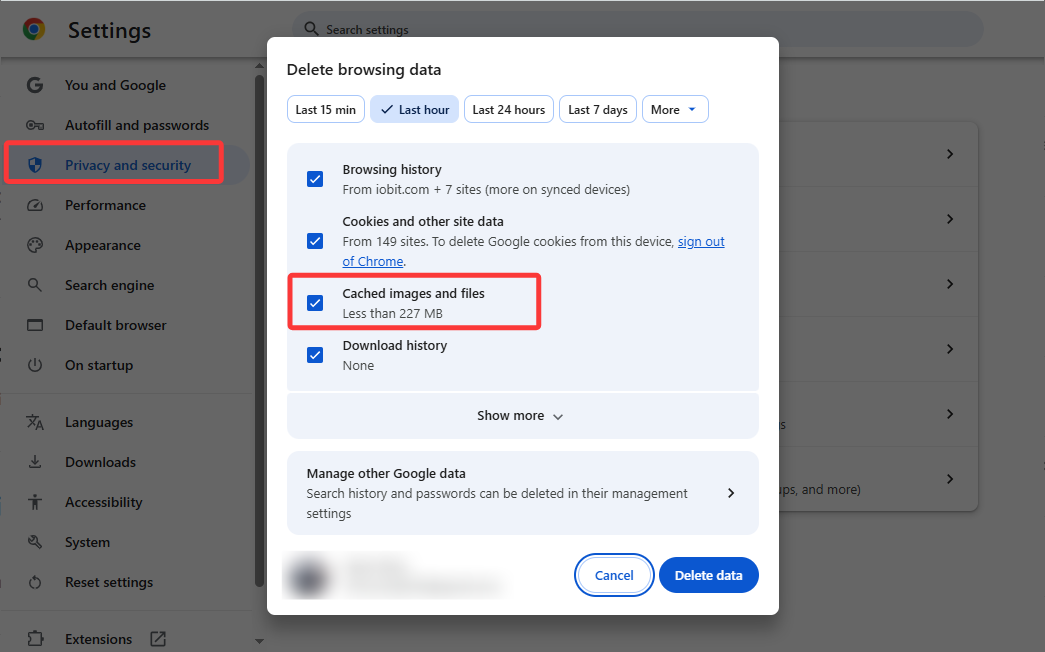
Do this regularly to clear the PC cache if browsing becomes slow.
TIPS
Keyboard shortcut to clear browser cache : Ctrl + Shift + Delete
1. Click on the three dots located in the upper right corner → Settings → Privacy and security → Clear browsing data.
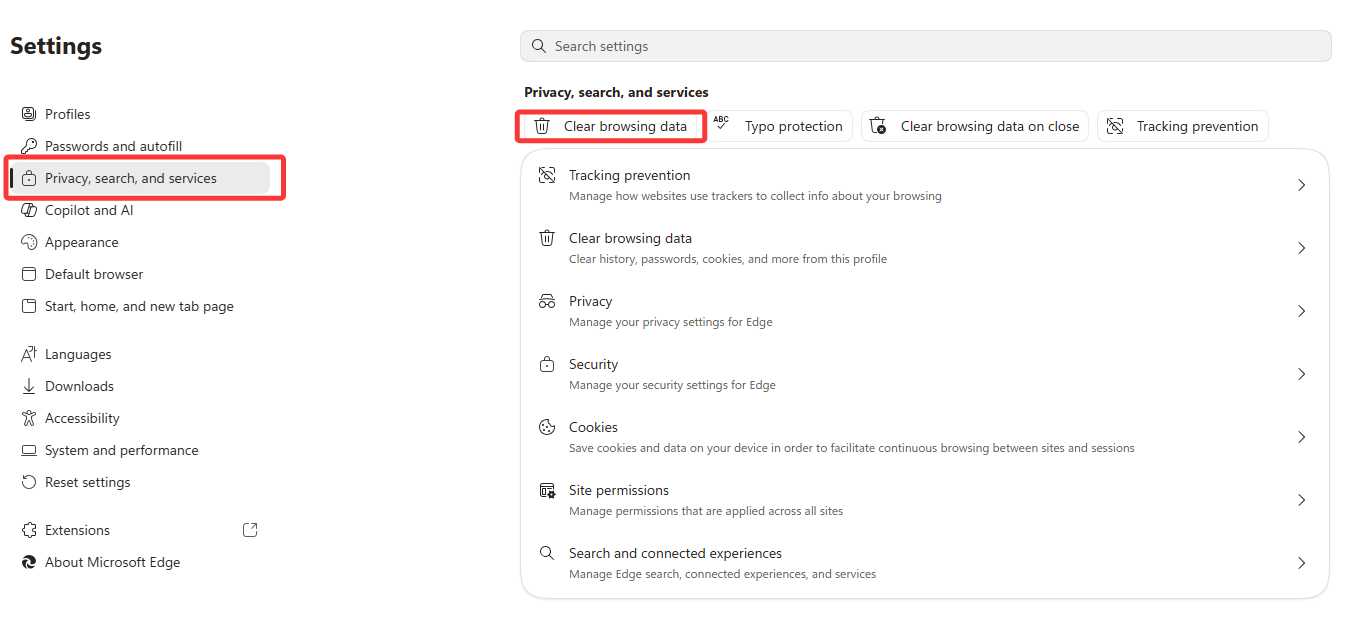
2. Select the images and cached files , or others, that you want to delete. Finally, click Clear now.
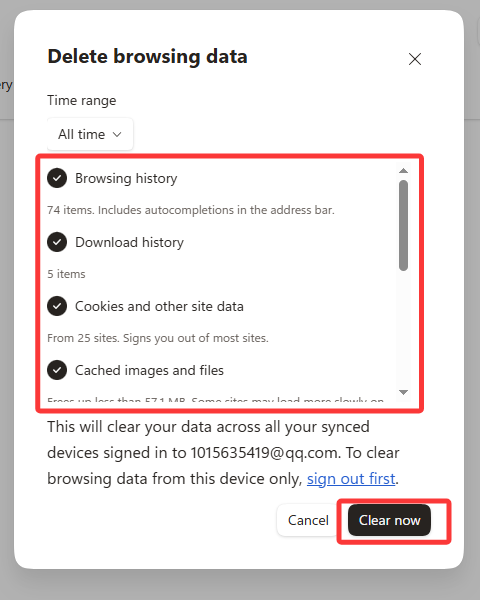
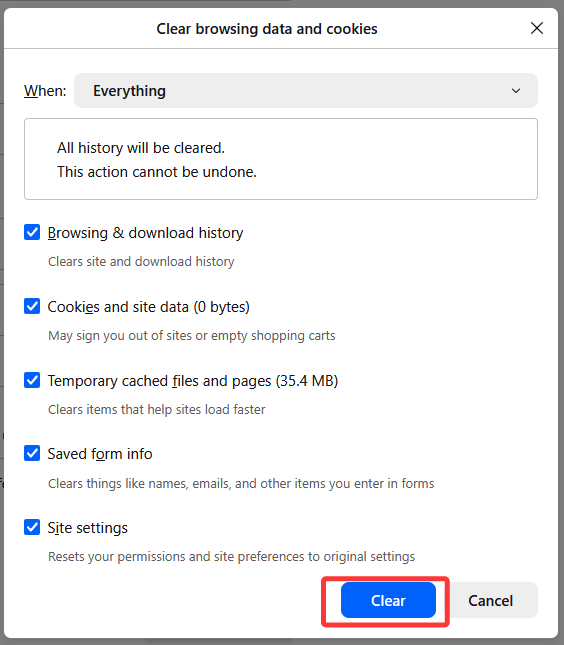
1. Click on the three horizontal lines in the top right corner → Settings → Privacy and security → Clear browsing data.
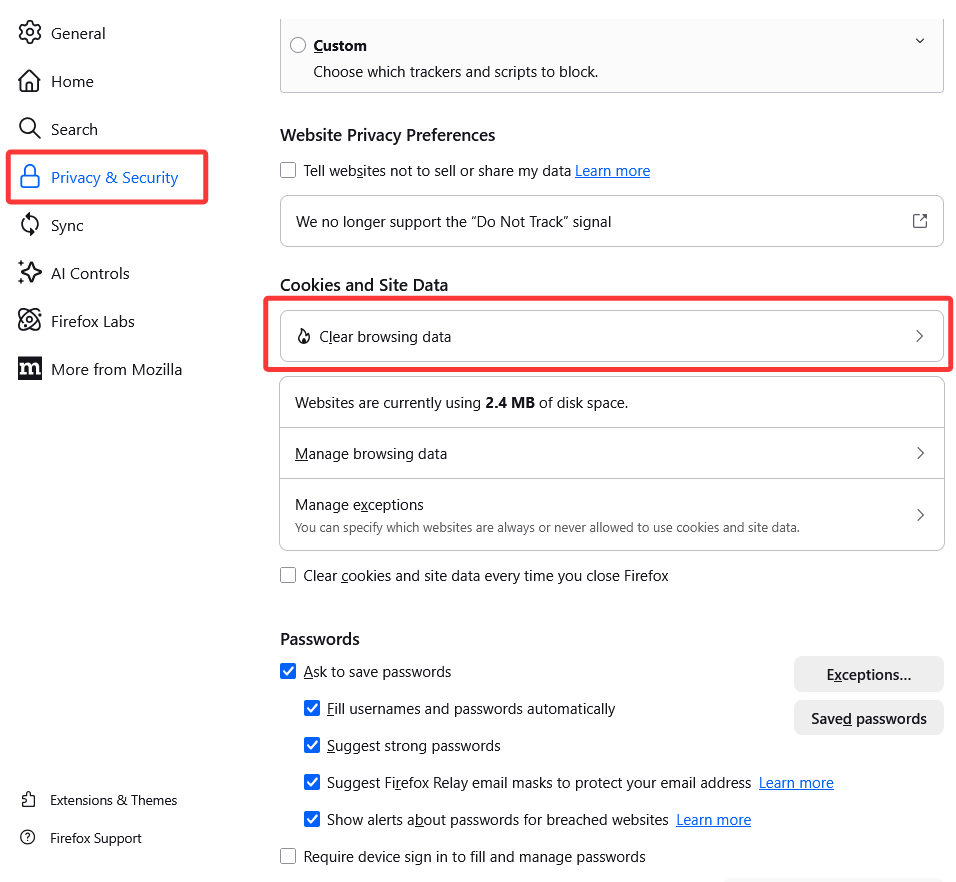
2. Choose Temporary cached files and pages , you can select other options depending on your needs, such as Cookies and site data.
Windows includes Disk Cleanup, which can automatically empty the Recycle Bin, old temporary files and thumbnails, the DirectX shader cache, and other cached files. Launch it from the Start menu. You can also clear your PC's DNS cache, the Windows Store cache, and your location cache.
1. Clear the PC cache via Windows Temporary Files
This is the basic method for clearing the computer cache safely.
1. Press Windows + R
2. Type temp → Enter
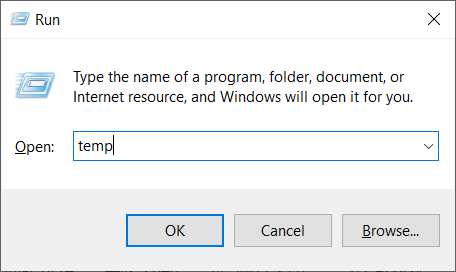
3. Delete all the displayed files
4. Start again with:
%temp%
prefetch
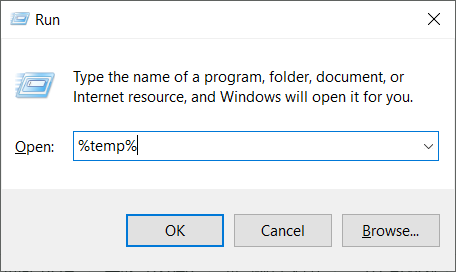
This action clears the Windows PC cache accumulated by the system and applications.
To clear the temporary file cache using the Disk Cleanup utility, follow these steps:
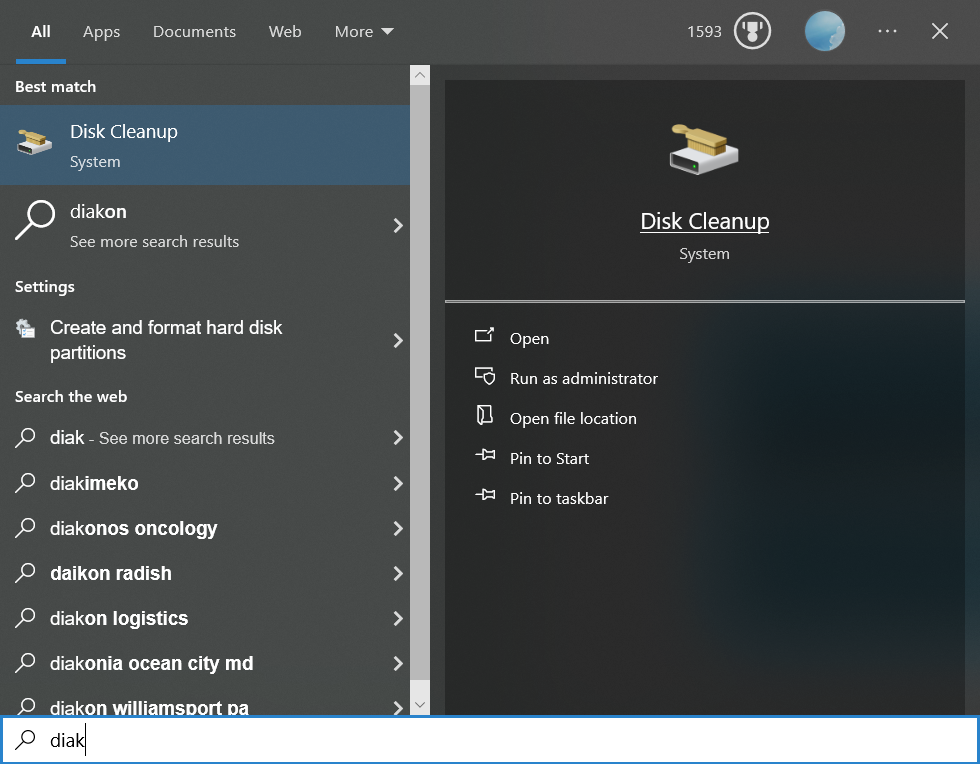
1. Type Disk Cleanup in the Windows search bar located in the lower-left corner of the desktop. Select the Disk Cleanup application that appears in the Windows search results.
2. Disk Cleanup for the operating system (C:) will appear. Scroll down and check the box next to Temporary files . You can also choose to delete files from other locations, such as the Recycle Bin or Downloads. Once you have selected what you want to clear, click Clean up system files.
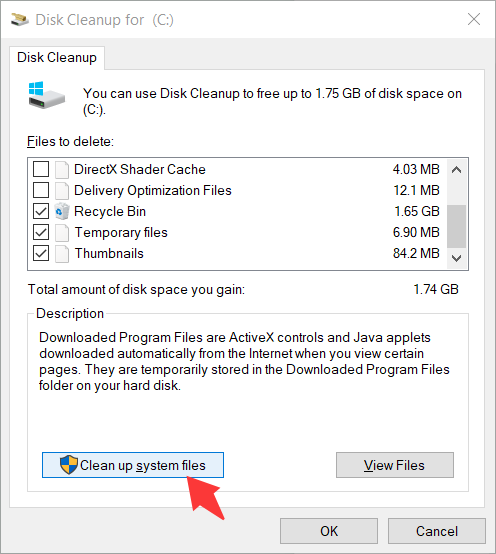
3. Once Windows has calculated the amount of storage space that will be freed up, you will be returned to the same page. This time, select the files and locations you want to delete a second time, and then click OK.
4. A warning will appear asking you to confirm that you want to permanently delete the files. Select Delete files.
Disk Cleanup will now remove unnecessary files from your machine. This process may take several minutes.
If you want to clear the DNS cache on your Windows 10 PC, open the command prompt as an administrator.
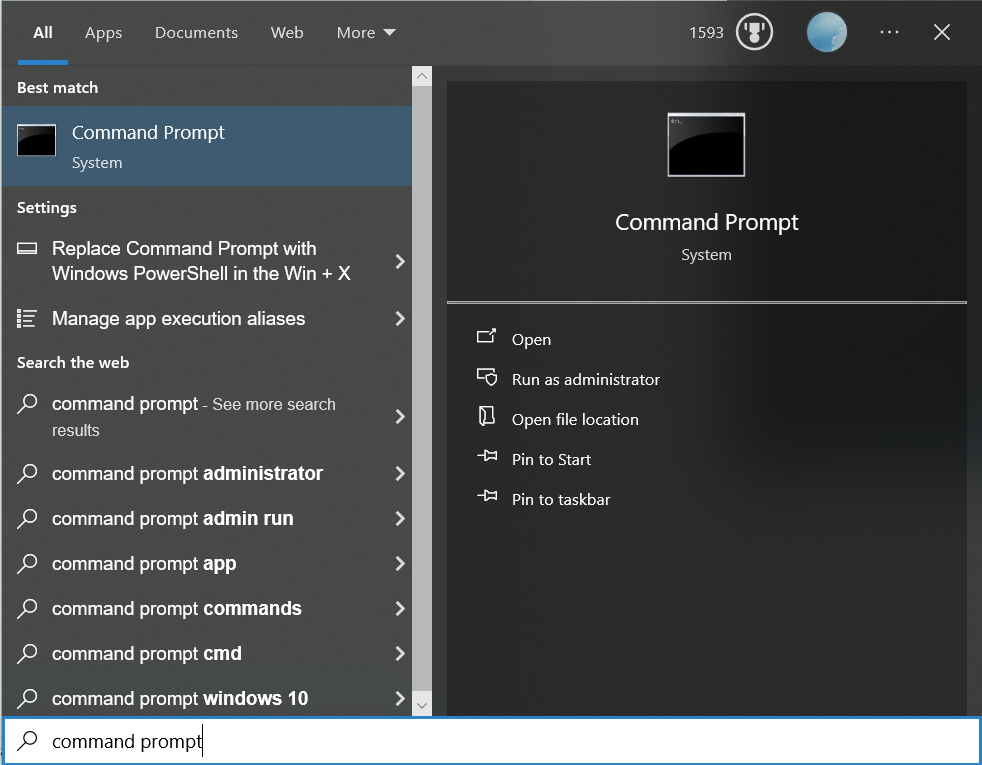
1. To do this, type Command Prompt in the Windows search bar located in the lower left corner of the desktop.
2. The Command Prompt application will appear in the search results. Right-click on it and select Run as administrator from the menu.
3. Next, run the following command: ipconfig /flushdns
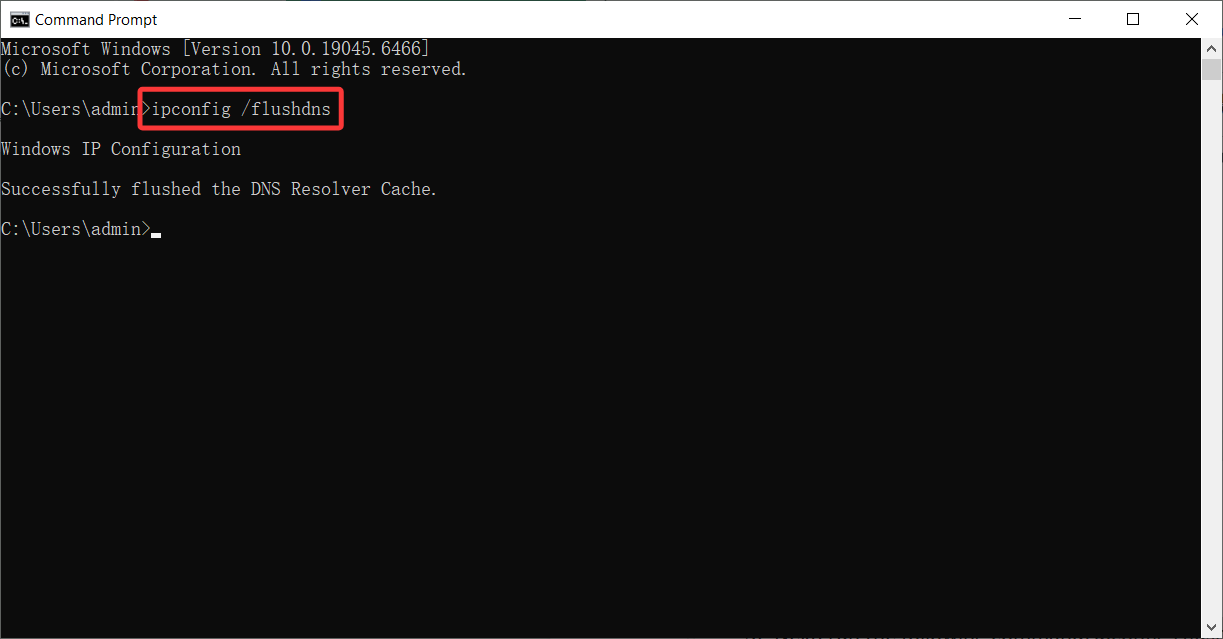
4. You will receive a message indicating that you have successfully cleared the DNS resolver cache.
1. To clear the Windows Store cache, open Run by pressing the Windows key + R on your keyboard. The Run window will appear. In the text box next to Open, type WSReset.exe, and then click OK.
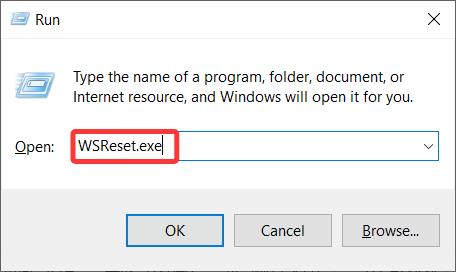
2. Once selected, a black window will appear. There's nothing to do here; simply wait a few moments while it clears the cache.

3. Once the window is closed, the cache is cleared and the Windows Store will launch. You can close the Windows Store app if you wish.
1. To clear the location cache, click the Windows icon to open the Start menu . Then, select the Settings icon.
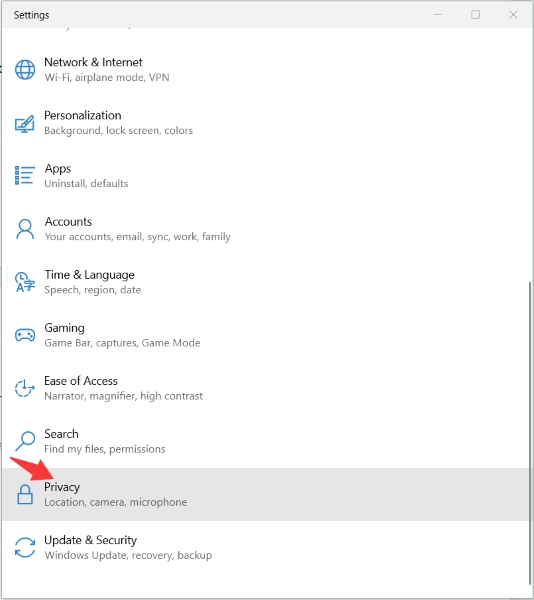
2. Scroll down and select the Privacy option.
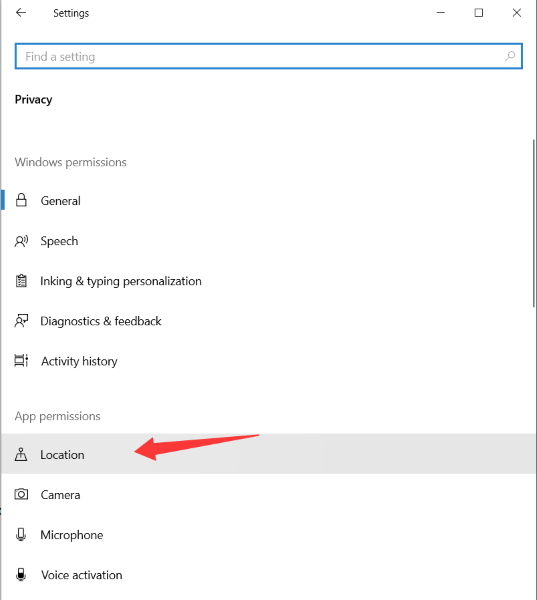
3.You will now be in the Privacy group of settings. In the left pane, select Location , located in the App permissions section.
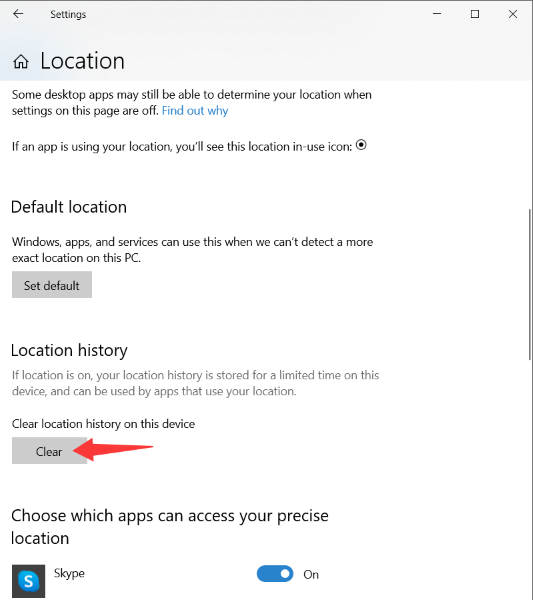
4. In the next window, scroll down until you find the Location History group. Here, select Clear under Clear location history on this device.
As you can see, clear cache Windows 11 at once is complex, and manually clearing some caches can easily lead to the accidental deletion of important data or cause system errors.
That's why, for novice computer users, using third-party software is a simpler and faster solution. Advanced SystemCare allows you to clear the PC cache in just a few clicks, while minimizing the risk of errors.
Why choose Advanced SystemCare?
Easy to use: clear interface, accessible even without technical knowledge.
Complete cleaning: allows you to clear the PC's cache memory, including Windows temporary files, DNS cache, DirectX and browser caches (Chrome, Firefox, Edge, Opera, IE).
Compatible with most browsers, ideal for clearing computer cache related to web browsing.
Additional features: startup optimization, deep cleaning and basic browser protections.

This solution is particularly suitable if the PC regularly slows down or if you are looking for a way to clear the PC cache automatically, without going through repeated manual adjustments.
If clear your PC cache doesn't solve the slowness issue, it's best to try other methods. Here are four ways to resolve this problem.
1. Delete unnecessary bookmarks
Bookmarks (favorites), which allow you to easily access websites, are among the data that are often stored without being cleaned up. Deleting bookmarks can improve your browser's performance. Therefore, it's advisable to clean them regularly and remove unnecessary bookmarks.
If you want to avoid updates while you're working, you can take steps such as changing the update time to the evening. Since operating system updates take time, to ensure your computer is up to date with the latest version, run them when you have the time.
2. Uninstall unnecessary applications
Disabling resident programs that aren't used frequently can improve computer performance. In Windows, after launching Task Manager and selecting "Startup," you can stop resident programs by selecting any application and clicking "Disable." Before stopping a program, it's best to first check if you truly don't need it.
You can also improve your PC's speed by uninstalling unwanted applications . You can go to Programs in the Control Panel, select the unnecessary applications from the list, and remove them using Uninstall.

3. Exterminate the virus
If your PC is running slowly due to a virus infection, you can improve its performance by removing it. First, if you're sure your computer is infected with a virus , you can disconnect from the network to prevent the infection from spreading. If you have a wired internet connection, you should disconnect the LAN cable.
After disconnecting the infected computer from the Internet, you can use an antivirus program to remove the virus.
[Recommended] The free antivirus program IObit Malware Fighter.
4. Replacing a defective or damaged memory
If your PC is still slow after trying the methods above, such as clearing the cache and deleting bookmarks, you might consider replacing the memory. Replacing your PC's memory will increase CPU processing and improve speed. However, memory replacement requires some knowledge and tools, so it's best to consult a specialist if you lack the necessary expertise or are uncomfortable performing the procedure.
Clear cache Windows 11 isn't the only thing you can do to prevent your PC from deteriorating. The key is to perform a cleanup and defragmentation about once a year.
Clean your computer's hard drive
The documents and emails are small, but easy to store. After backing them up, it's best to clean up the data on your PC.
Don't forget to delete temporary files and empty the Recycle Bin. Temporary files are data stored temporarily while the application is running. Many are automatically deleted, but in rare cases, they may remain. Most of this data is unnecessary, so you can safely delete it.
Defragmenting your hard drive to improve performance
Defragmentation involves sorting fragmented data into files. The goal is to increase free space while reducing the load on the hard drive by regularly reorganizing data on the drive, which has a disjointed design.
[Recommended] The free defragmentation program Smart Defrag. Defragments quickly and thoroughly optimizes hard drive and PC performance.
Expert recommendations:
Windows cache: once a month
Browser cache: every 2 to 4 weeks
DNS cache: only in case of a problem
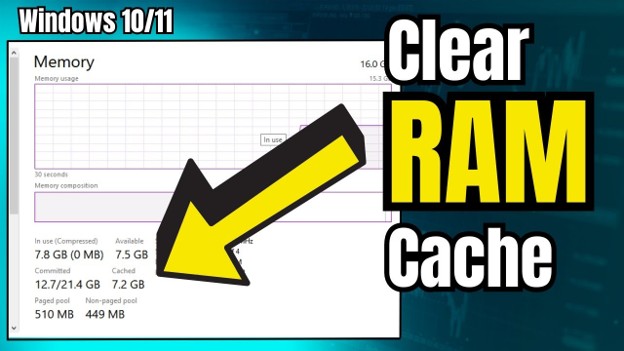
RAM cache memory: via regular restart
Excessive cleaning is unnecessary, but never clearing the computer cache will eventually impact performance.
What will I lose if I clear my computer's cache?
Clear cache Windows 11 doesn't delete your photos, documents, or software. You only lose unnecessary temporary files. Some websites and apps may load a little more slowly the first time after clearing.
How to clear a computer's cache most effectively?
By combining Windows temporary files + browser cache.
Does clearing the PC cache really speed up a slow computer?
Yes, especially on PCs that have been used for a long time or with little disk space.

All-in-one PC health solution.
Free Download