Reliable driver backup software can save you considerable time when reinstalling Windows, replacing hardware, or recovering from a problematic driver update. Instead of searching for every device driver again, you can preserve important drivers and restore them when necessary. This guide compares six practical options based on backup features, usability, compatibility, advantages, and limitations, helping you choose the right solution for your Windows PC.
What Is Driver Backup Software and Why Do You Need It?
A reliable driver backup program can help protect drivers for graphics cards, network adapters, audio devices, chipsets, USB controllers, and other hardware. Keeping a backup is especially useful for older or uncommon devices whose drivers may be difficult to locate again.
Users looking for software for driver backup should mainly consider these factors:
Backup Coverage: Whether the program can identify and save important third-party device drivers.
Restore Capability: Whether backed-up drivers can be restored conveniently after system changes.
Ease of Use: A simple interface is preferable when managing many hardware drivers.
Compatibility: Make sure the program supports your current Windows version.
Extra Driver Management: Driver scanning, updating, rollback, or repair features can make the tool more useful, especially if you regularly need to update drivers or troubleshoot hardware issues.
The following driver backup software options approach these tasks differently. Some focus almost entirely on backup, while others provide broader driver-management features.
1. Driver Booster – Best All-in-One Driver Backup and Management Option
If you want more than a basic backup utility, Driver Booster is a strong choice. Rather than functioning only as a driver backup tool, it combines driver scanning, updating, backup, restoration, and troubleshooting capabilities in one Windows application.
This makes it especially useful before updating drivers. You can preserve the existing version first and have a recovery option available if a newer driver introduces compatibility or performance problems. This is particularly helpful for graphics drivers, where users may sometimes need to roll back NVIDIA drivers after an unstable update.
Driver Booster Free
- Automatically scan and update drivers.
- Update game ready drivers for peak gaming performance.
- Identify and fix various common of hardware issues.
- Boost 30% of system performance for fast & smooth running.

Key Features of Driver Booster
Driver Backup: Creates backups of installed device drivers so previous versions can be retained for future recovery.
Driver Restore: Lets users restore backed-up drivers when a new version causes errors or compatibility issues.
Automatic Driver Detection: Works like an automatic driver updater by scanning the PC for outdated, missing, or problematic drivers and reducing manual driver management.
Driver Update Support: Downloads and installs appropriate driver updates after detecting outdated components.
Driver Rollback Protection: Backup and restore capabilities provide an additional recovery option when an update does not work as expected.
Broad Hardware Coverage: Helps manage graphics, network, chipset, peripheral, and audio drivers, making driver maintenance easier for users researching how to uninstall Realtek audio driver or manage other device drivers.
Pros
Combines backup, restore, scanning, and updating
Beginner-friendly interface
Useful before performing major driver updates
Suitable for managing many different device drivers
Cons
Some functionality is reserved for paid editions
More feature-rich than necessary if you only need a simple backup utility
For users who regularly maintain PC drivers, Driver Booster provides a more complete approach than a standalone backup application. It can be particularly convenient when you want to update drivers while keeping older versions available as a safety measure.
2. Double Driver – Simple Portable Driver Backup Utility
Users who prefer lightweight software may find Double Driver appealing. This driver backup software focuses on identifying installed drivers and preserving them for later use without adding extensive PC optimization features.
Because of its relatively straightforward approach, it can be useful when preparing for a Windows reinstall or creating an offline collection of drivers. However, its aging interface and development history make it less suitable for users who expect modern automated driver management.
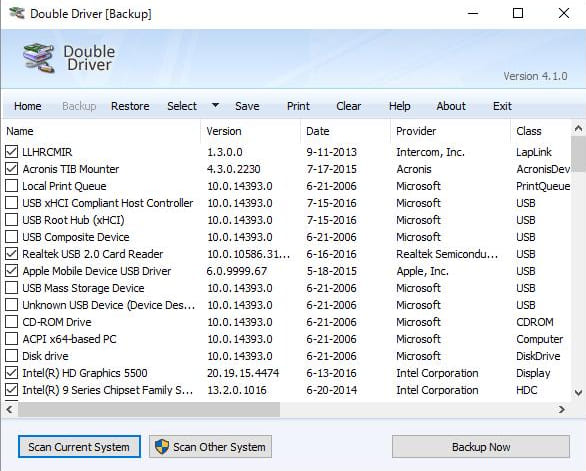
Key Features of Double Driver
Scans Windows for installed drivers
Allows selected drivers to be backed up
Can save driver information for reference
Offers a relatively lightweight, portable approach
Supports restoring previously saved drivers
Pros
Lightweight
Straightforward backup functionality
Useful for offline driver preservation
Cons
Outdated interface
Limited modern driver-management capabilities
Not ideal for users who also need automatic driver updating
3. DriverMax – Backup Plus Driver Update Features
DriverMax takes a broader approach by combining backup and restoration with driver detection and updating. It can identify installed components and help preserve existing drivers before you make major system changes.
As a driver backup program, it is better suited to users who want both backup and update capabilities instead of maintaining separate utilities for these jobs. However, limitations in its free version may make frequent maintenance less convenient.
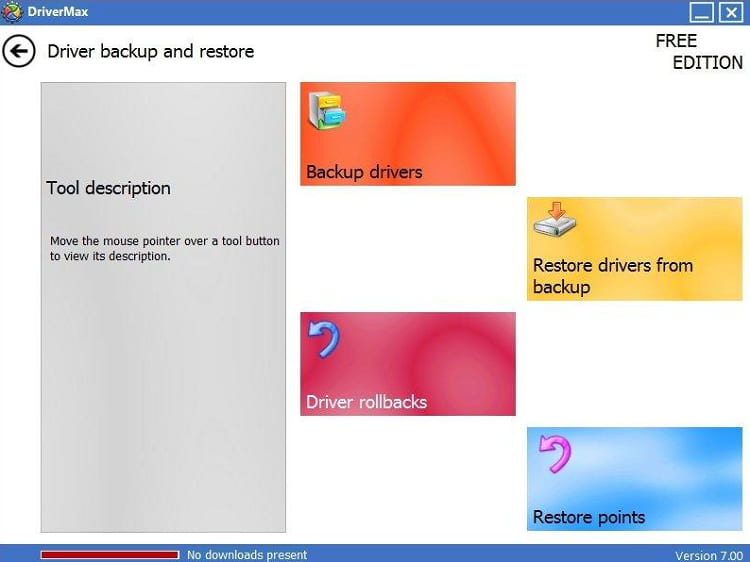
Key Features of DriverMax
Backs up installed drivers
Restores previously saved drivers
Detects outdated hardware drivers
Provides driver update functionality
Displays information about installed drivers
Pros
Combines backup and update functions
Relatively easy to navigate
Useful for routine driver maintenance
Cons
Free edition has limitations
Some users may not need its additional update features
4. Snappy Driver Installer Origin – Better for Offline Driver Management
Snappy Driver Installer Origin is different from a conventional backup-focused utility. It is primarily designed for detecting and installing drivers and can be particularly useful for offline systems when appropriate driver packs have been obtained beforehand.
Users researching free driver backup software may encounter it because of its free, portable, and driver-management-focused design. However, it is generally more appropriate for experienced users who understand drivers and offline installation than for beginners wanting one-click backup functionality.
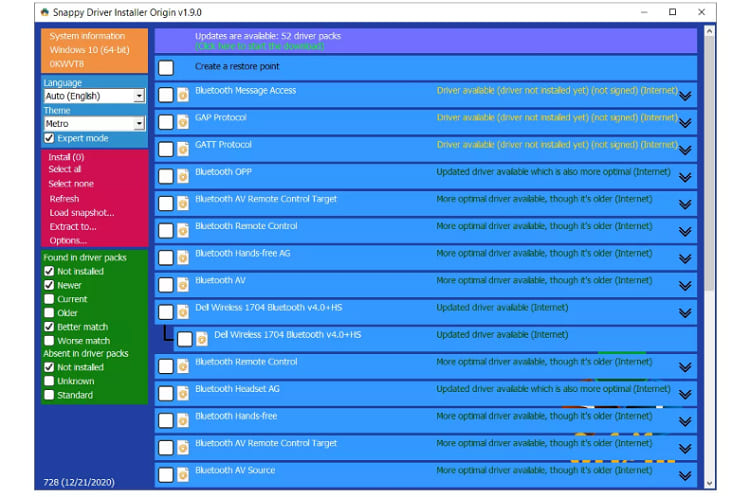
Key Features of Snappy Driver Installer Origin
Portable driver-management utility
Supports offline driver installation
Detects missing and outdated drivers
Works with downloadable driver packs
Provides detailed driver information
Pros
Free and open source
Useful for offline computers
Broad driver coverage
Cons
Less focused on conventional driver backup
Interface can be confusing for beginners
Driver packs can require substantial storage space
5. DISM – Built-In Windows Driver Export Option
Not every driver backup solution requires third-party software. Windows includes Deployment Image Servicing and Management (DISM), which can export third-party drivers from a Windows installation.
DISM is particularly attractive to experienced users because it is already built into Windows. However, it is command-line based, so users wanting a graphical application may prefer one of the dedicated utilities above.
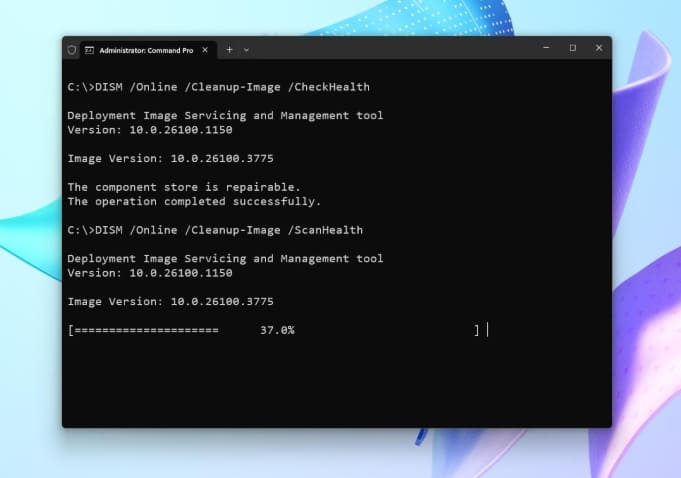
Key Features of DISM
Built into modern Windows versions
Exports third-party drivers
Requires no additional application installation
Suitable for creating an offline driver collection
Useful for administrators and advanced users
Pros
No third-party installation required
Free Windows component
Useful before reinstalling Windows
Cons
Command-line interface
Less beginner-friendly
Lacks automatic scanning and driver-update features
6. PnPUtil – Built-In Tool for Advanced Driver Management
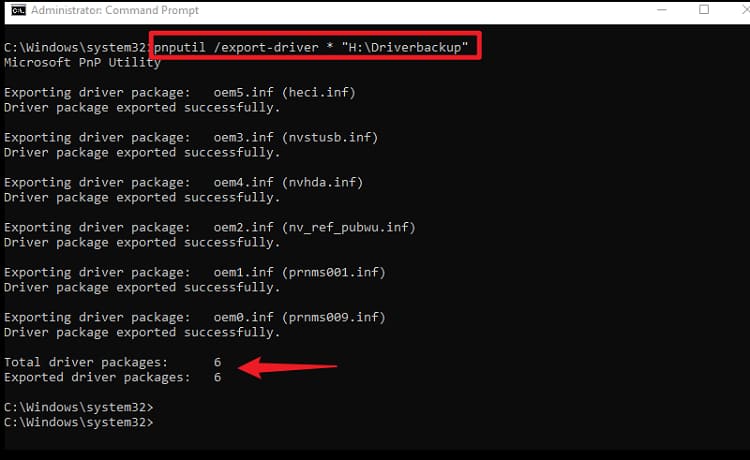
Another Windows option is PnPUtil, a command-line utility designed for working with driver packages in the Windows Driver Store. It is primarily an administration tool rather than a conventional consumer backup application.
For advanced users, however, it can complement other driver-management methods without requiring another third-party application.
Key Features of PnPUtil
Built into Windows
Manages driver packages
Enumerates installed driver packages
Supports exporting driver packages
Designed for administrative driver management
Pros
No additional download required
Powerful Windows-native functionality
Suitable for advanced driver management
Cons
Command-line operation
Not designed around a simple backup interface
Easier for inexperienced users to misuse than a graphical utility
Which Driver Backup Software Should You Choose?
Choosing the right driver backup software depends on whether you need simple backups, automatic driver management, offline support, or advanced command-line control. Some tools focus only on saving and restoring drivers, while others combine backup with scanning and updates. The comparison below can help you quickly choose an option that fits your Windows driver management needs.
Tool |
Best For |
Driver Backup & Restore |
Driver Updates |
Ease of Use |
Windows 10/11 |
Driver Booster |
Complete driver management |
Yes |
Automatic |
Very easy |
Yes |
Double Driver |
Lightweight driver backups |
Yes |
No |
Easy |
Check current compatibility |
DriverMax |
Backup plus driver updates |
Yes |
Yes |
Easy |
Check current version |
Snappy Driver Installer Origin |
Offline driver management |
Limited/driver packages |
Yes |
Moderate |
Yes |
DISM |
Built-in Windows driver backup |
Yes |
No |
Advanced |
Yes |
PnPUtil |
Command-line driver management |
Driver package export/management |
Manual |
Advanced |
Yes |
How to Back Up Drivers with Driver Booster
Once you have selected your software to backup drivers, creating a backup before updating, replacing, or removing important hardware drivers is a sensible precaution. If your PC has accumulated outdated driver packages, you can also learn how to uninstall old drivers after securing the versions you may still need. Driver Booster makes the process accessible through a graphical interface, so you do not need to manually locate driver files or enter commands.
Here is a simple way to create a backup:
Step 1. Download and install Driver Booster, then launch the program on your Windows PC.
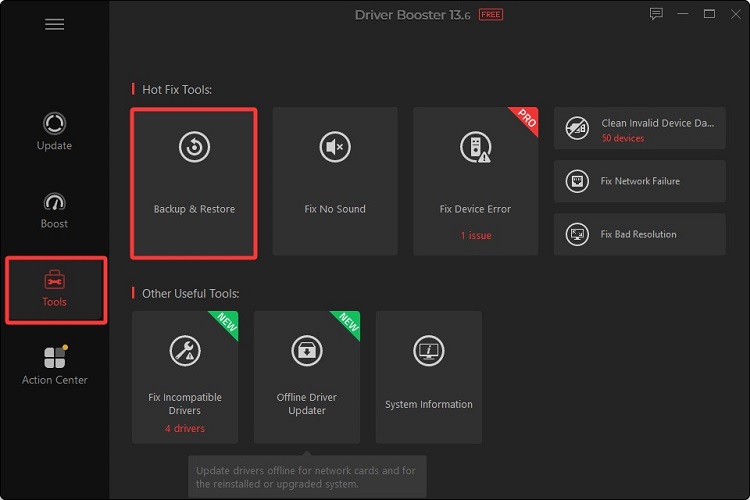
Step 2. Open the Tools section and select Backup & Restore.
Step 3. Under the Driver Backup section, select the drivers you want to preserve. Prioritize important hardware such as graphics, network, audio, and chipset-related drivers. Click Back Up.
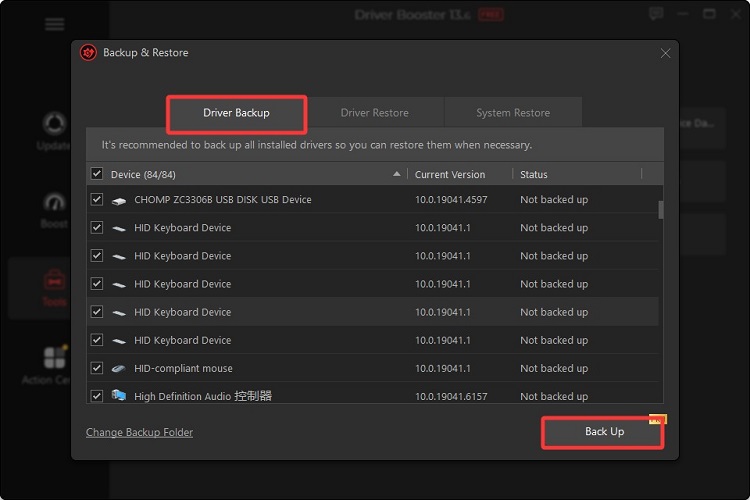
Step 4. Start the backup and wait for Driver Booster to save the selected driver versions. Keep the backup available in case you need to restore an earlier driver later.
Using this approach before major updates gives you an additional recovery option if a new driver creates unexpected issues.
Final Words
The right driver backup software should make protecting and recovering essential hardware drivers easier. Driver Booster is a strong choice for users wanting backup, restore, detection, and updating in one application, while Double Driver and DriverMax provide useful alternatives. Advanced users can also consider Windows-native tools such as DISM and PnPUtil for greater manual control.
Driver Booster Free
- Automatically scan and update drivers.
- Update game ready drivers for peak gaming performance.
- Identify and fix various common of hardware issues.
- Boost 30% of system performance for fast & smooth running.