A website may suddenly fail to open, load an outdated page, or display a DNS error even though your internet connection is working normally. One possible cause is an outdated or corrupted DNS cache that directs the browser to the wrong address. In this situation, a DNS cache cleaner can remove old records and allow Windows to request updated information. This guide compares five practical options and explains how to clear the DNS cache in Windows and Chrome.

Do I Need a DNS Cache Cleaner?
Before choosing a cleanup method, it helps to understand what the DNS cache does and when it may need attention. The DNS cache is a temporary Windows database that stores domain names and their resolved IP addresses. It helps frequently visited websites open faster, but an outdated entry may continue causing connection errors after a website changes its server or IP address.
In most cases, you do not need a standalone third-party DNS cache cleaner, because Windows can flush DNS cache records with one command. However, a maintenance utility may be more convenient if you also want to clear PC cache data, browser traces, and other unnecessary files. Keep in mind that flushing the DNS cache only refreshes saved domain lookups—it cannot repair weak Wi-Fi, a faulty router, or an ISP outage.
Is It Safe to Flush DNS Cache?
Once you understand why outdated DNS records may need to be refreshed, the next question is whether removing them will affect your personal data or network settings. Fortunately, DNS cache clearing is generally safe. It deletes temporary DNS lookups rather than bookmarks, passwords, personal files, or saved network configurations.
Flushing the cache also does not change your DNS server or adapter settings. Windows automatically creates new records as you revisit websites, although the first connection may be fractionally slower. Therefore, it is safe to use for troubleshooting, but clearing it every hour provides little practical benefit.
The Best DNS Cache Cleaners You Can Rely On
If refreshing the DNS cache is appropriate for your situation, the next step is choosing a method that matches your needs. Some users may only need a quick Windows command, while others may prefer a guided utility that also cleans browser traces and other PC junk.
The following options range from complete maintenance suites to Windows’ built-in command line. We compared their DNS-cleaning support, result visibility, additional maintenance tools, usability, and price. Continue reading to find the right DNS cache cleaner for a quick connection refresh or broader system optimization.
1. Advanced SystemCare: One-Stop DNS Cache Cleaner & PC Optimizer
Advanced SystemCare will be one of the best choices if you are looking for an all-round DNS cache cleaner, which combines selectable scanning modules and a dedicated junk file clean feature that targets Windows categories such as DNS Cache, making it a practical third-party DNS cache cleaner for users who prefer checkboxes and want broader cleanup beyond DNS records.
Advanced SystemCare Free
- Clean: 420 billion traces removed & 85 EB junk files cleaned
- Protect: 80 million unauthorized access blocked & 20 million bugs fixed
- Speed Up: 6 million hours of startup time saved & Turbo boost
- Optimize: Auto clean and auto care your PC with AI mode

● Clean DNS Cache & PC Junk Thoroughly & Automatically: Junk File Clean scans system caches, logs, temporary files, and other disposable data. Pro users can include it in scheduled AutoCare.
● Clear Internet Cache for Better Performance & Privacy: Privacy Sweep clears browser caches and activity traces, helping browsers run more smoothly while reducing stored data that may expose your online activity.
● Boost Internet for Smoother Connections: Internet Boost adjusts supported network settings for your connection type, helping improve responsiveness and create smoother browsing, streaming, and downloading experiences.
● Comprehensive PC Performance Optimization & Protection: Turbo Boost pauses unnecessary services, Startup Optimizer reviews startup entries, and protection modules extend the package beyond a basic PC optimizer.
How to Flush DNS Cache Automatically & Completely
Step 1: Download. Install Advanced SystemCare 19 from IObit, open Care, and switch to Manual Mode.
Step 2: Customize and scan. Hover over Junk File Clean, click its gear icon.
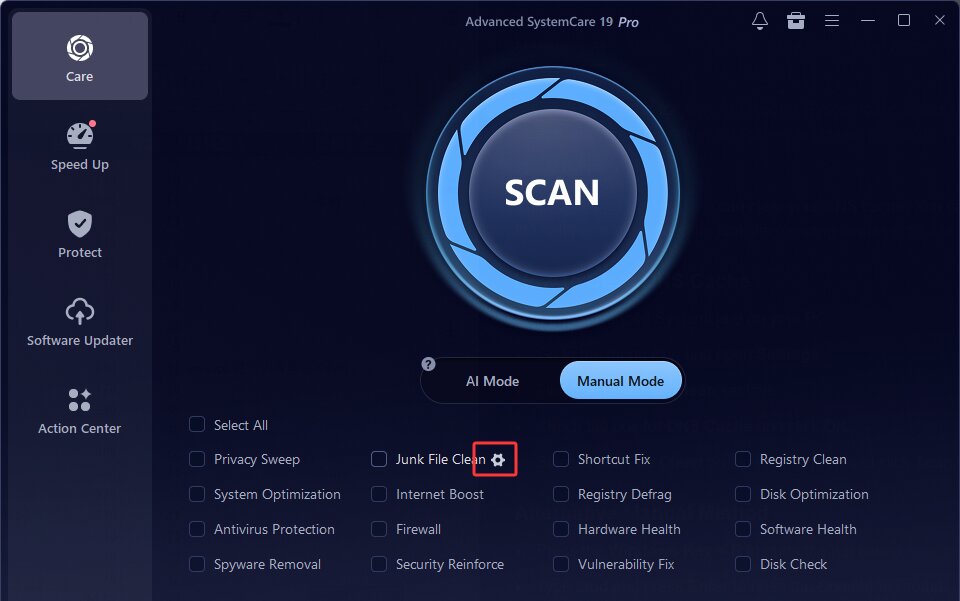
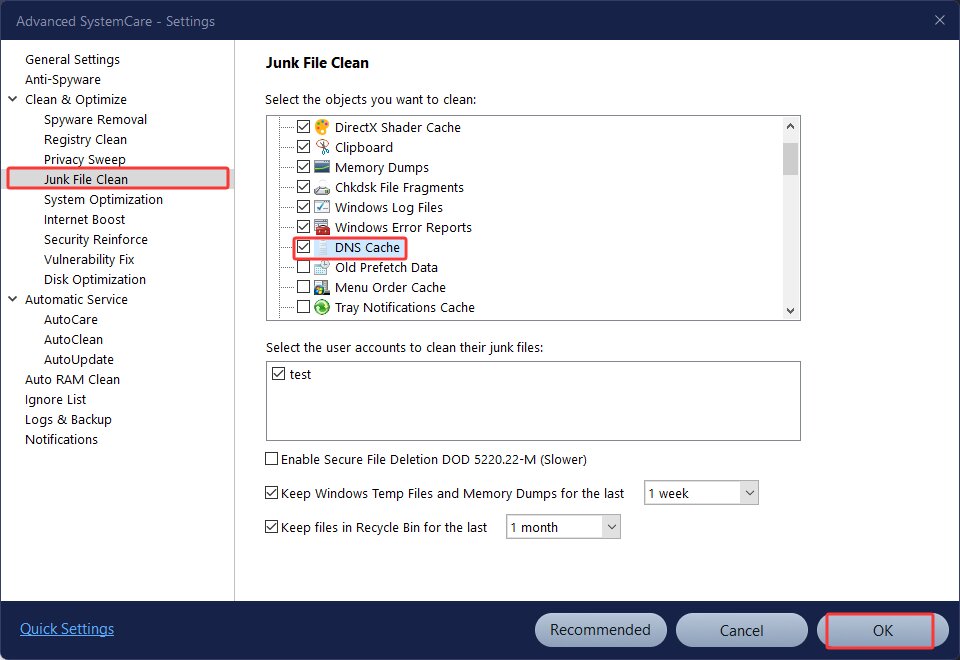
Then, select DNS Cache in the Windows/system cleaning categories. Save the setting, check Junk File Clean, and click SCAN.
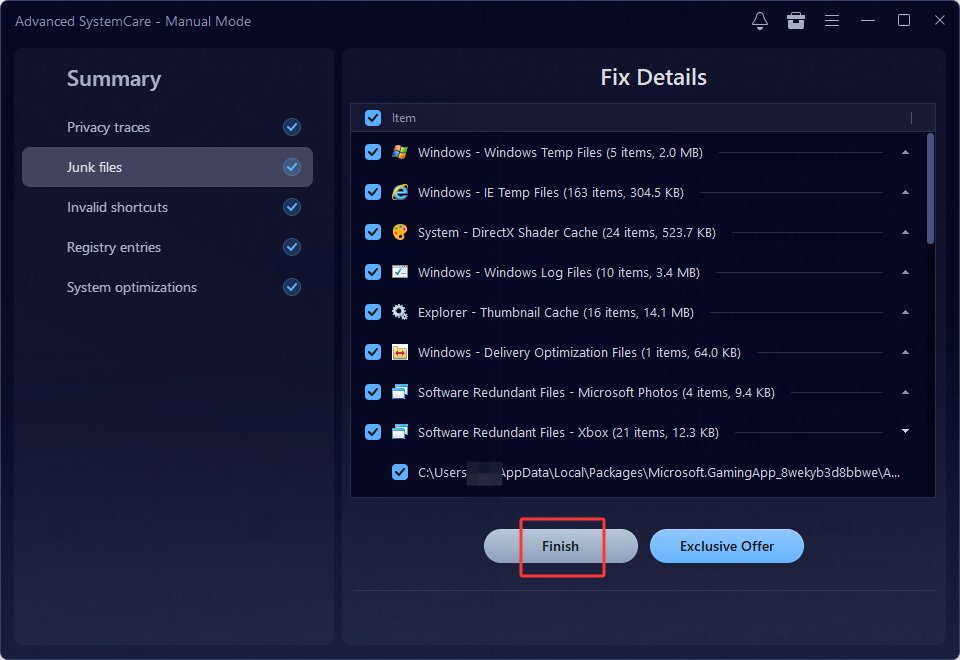
Step 3: Clean. When scanning finishes, open the Junk files result if you want to inspect it, keep the intended items selected, and click Fix. DNS lookups will repopulate normally as you browse.
Pro users can include Junk File Clean under Settings > Automatic Service > AutoCare. Review its categories first. For broader tuning, see how to boost Internet speed.
2. CCleaner: Clean DNS Cache & PC Efficiently
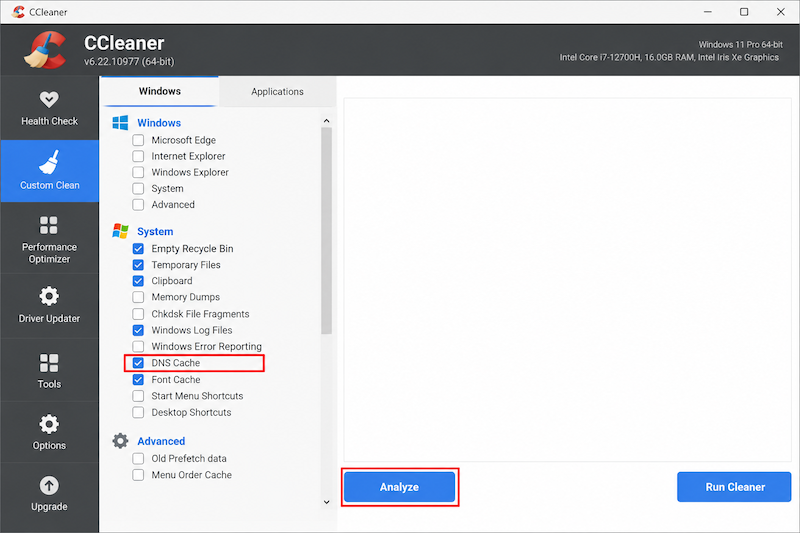
For users who prefer a familiar, category-based cleaning workflow, CCleaner provides a practical alternative to clearing the DNS cache through Command Prompt. Its Custom Clean feature places DNS Cache alongside other Windows system-cleaning categories, allowing you to refresh stored DNS records while deciding exactly what else should—or should not—be removed.
What Users Like:
Dedicated DNS Cache option: Under Custom Clean > Windows > System, CCleaner provides a separate DNS Cache checkbox. You can select only this category if you do not want to remove cookies, browsing history, or other data.
Analyze before cleaning: The Analyze function previews the categories and data CCleaner plans to clean. This extra review step reduces the risk of deleting unrelated browser or system information accidentally.
Granular PC cleaning controls: In addition to DNS cache cleaning, CCleaner can check temporary files, Windows logs, browser caches, Recycle Bin contents, and other unnecessary data through one interface.
What Users May Not Like:
Pricing:
A free edition is available for essential cleaning.
Pro: $44.95
Pro Plus: $64.95; with Driver Updater, up to 3 devices;
Premium Bundle: $64.95 with Driver Updater, up to 5 devices;
How to clear DNS cache?
Step 1. Launch CCleaner and select Custom Clean from the left-hand menu. Open the Windows tab.
Step 2. Scroll to the System section and select DNS Cache. If you only want to clean the DNS cache, clear any unrelated checkboxes before continuing.
Step 3. Click Analyze, review the detected items, and then select Run Cleaner. Windows will build new DNS records automatically as you revisit websites and online services.
3. PrivaZer: DNS Cache Clearing & Privacy Traces Cleaning
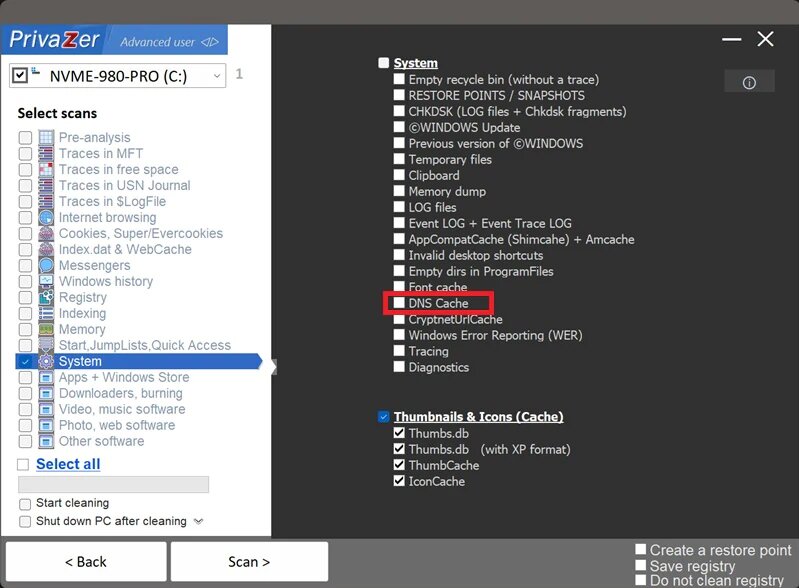
While CCleaner emphasizes routine PC maintenance, PrivaZer is better suited to users who want greater visibility into privacy traces left behind by Windows and installed applications. Its DNS cache clearing function flushes the Windows resolver cache, producing the same basic result as running ipconfig /flushdns, while integrating the action into a broader privacy-cleaning scan.
What Users Like:
System-wide DNS trace cleaning: PrivaZer clears DNS resolution records stored by Windows rather than cleaning only one browser. These records may come from browsers, email clients, background applications, and other programs that access the internet.
Detailed scan and review controls: The program presents individual trace categories before cleanup, helping experienced users understand what has been detected and choose which information to remove.
Portable and installed versions: PrivaZer can be installed normally or used in portable mode. This is useful for technicians or users who want to run a privacy scan without keeping another utility permanently installed.
What Users May Not Like:
Pricing:
PrivaZer offers a free standard edition.
How to flush DNS cache?
Step 1. Open PrivaZer and enter its advanced or in-depth scanning options.
Step 2. Go to Scan Options > System, locate Cache DNS, and select it. Review the other categories so that you do not include unrelated privacy traces unintentionally.
Step 3. Start the scan, review the detected DNS information, and proceed with cleaning. A restart is generally unnecessary, although Windows will begin rebuilding the cache as new domains are accessed.
4. Disk Mop: Clear DNS Resolver Cache Easily
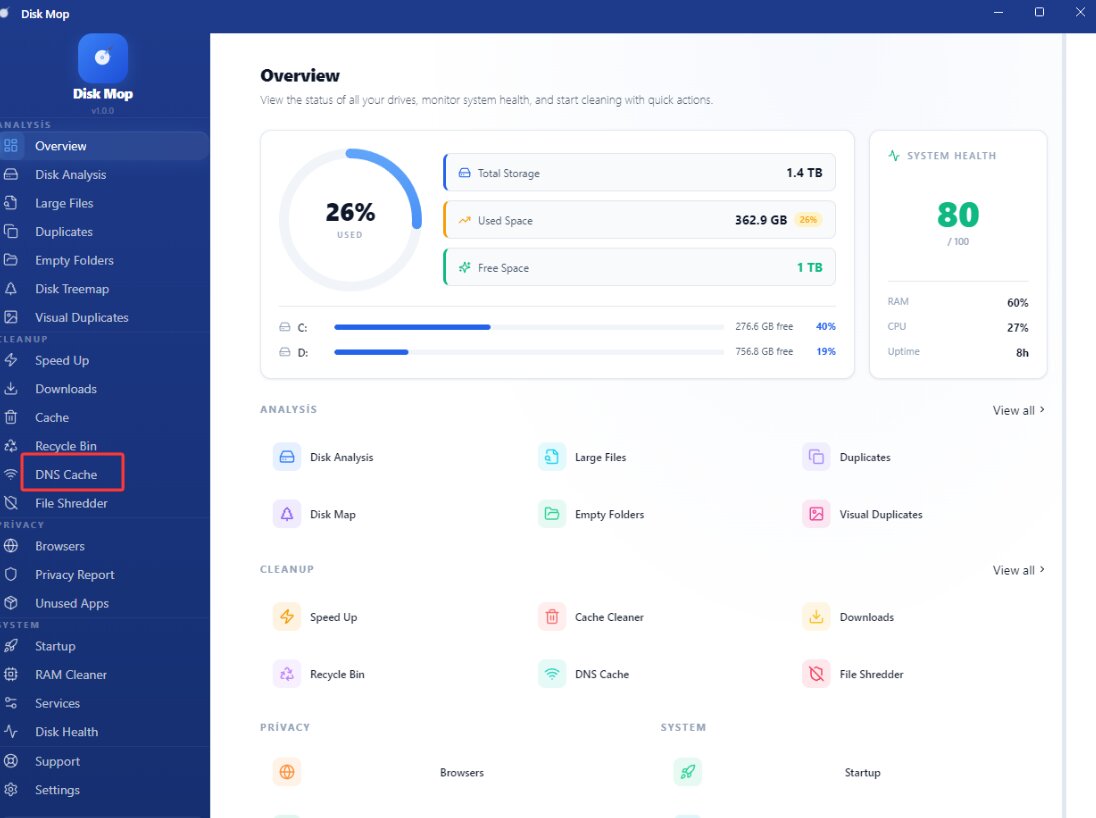
If PrivaZer’s detailed privacy controls feel more extensive than necessary, Disk Mop offers a simpler approach through a dedicated DNS Cache Cleaner. Instead of requiring users to remember a Windows command, it places DNS cache clearing within a broader collection of storage, cache, duplicate-file, and startup-management tools.
What Users Like:
Dedicated DNS Cache Cleaner: Disk Mop gives DNS cleanup its own tool, making the function easier to locate than in utilities that place it inside a long list of system-cleaning checkboxes.
Simple visual workflow: The DNS tool is designed around a direct clearing action, which is convenient for users troubleshooting outdated DNS records, recent DNS-setting changes, or websites that resolve incorrectly.
Additional storage analysis tools: Disk Mop also includes cache cleaning, duplicate-file detection, large-file analysis, and visual disk-space tools. These features can help users investigate storage usage after refreshing the DNS resolver cache.
What Users May Not Like:
Pricing:
$14.90 for Disk Mop Lifetime;
How to clear the DNS cache?
Step 1. Download and install Disk Mop, launch the program, and open DNS Cache Cleaner from its available tools.
Step 2. Check the displayed DNS cache status and make sure no important downloads or network-dependent tasks are being interrupted.
Step 3. Click Clear DNS Cache and wait for the completion message. Then reopen the affected website or application to test whether the connection or name-resolution problem has been resolved.
Users who also need to investigate unnecessary files and storage usage can compare Disk Mop with a more specialized hard disk cleaner.
5. Command Prompt: Windows DNS Cache Clear Built-In Commands
Unlike a third-party DNS cache cleaner, Command Prompt is free and needs no installation. It runs only the command entered; it does not diagnose problems or schedule maintenance.
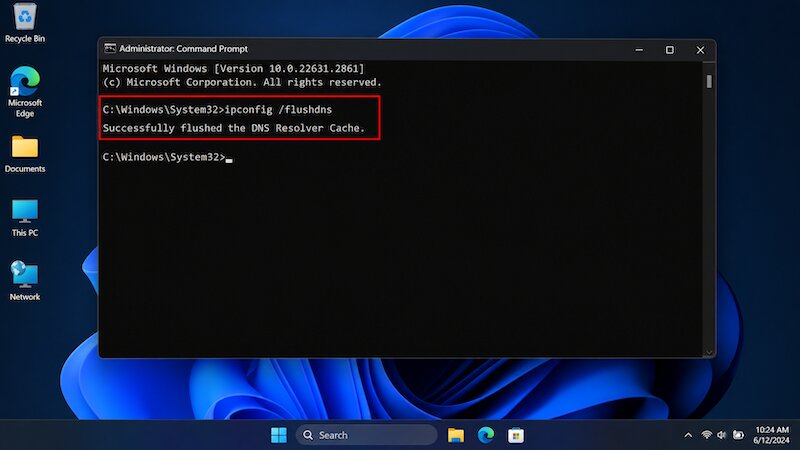
Step 1. Search for Command Prompt, right-click it, and choose Run as administrator.
Step 2. Enter ipconfig /flushDNS and press Enter.
Step 3. Confirm that Windows reports the DNS Resolver Cache was successfully flushed, then retry the affected site.
For readers searching “Windows DNS cache clear,” this method is ideal when they already know how to flush DNS cache and need only a quick reset. If the entire PC is sluggish, a best RAM optimizer for Windows 11 guide addresses a different bottleneck.
How to Clear DNS Cache on Google Chrome
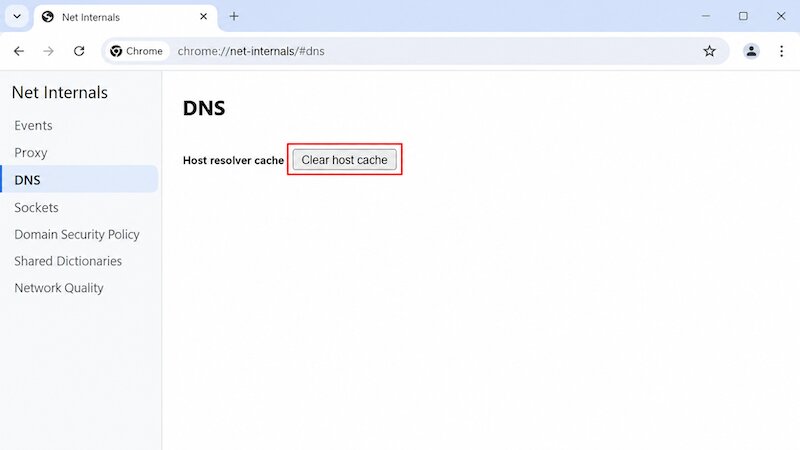
A system flush may not remove Chrome’s own host-resolution state. If you searched for “Chrome DNS cache clear,” use the following method when a site fails in Chrome but works in another browser, or after changing DNS servers.
Step 1. Enter Chrome://net-internals/#dns in Chrome’s address bar.
Step 2. Click Clear host cache.
Step 3. Open Chrome://net-internals/#sockets, click Flush socket pools, and restart Chrome before testing again.
This procedure answers the query “how to clear DNS cache” inside Chrome without deleting browsing history, cookies, or saved passwords.
Final Thoughts
Command Prompt is sufficient for a one-time refresh, while utilities add guided selection and broader cleanup. For an accessible DNS cache cleaner with system-junk, privacy, startup, and network-maintenance options in one interface, download Advanced SystemCare and review each selected category before running Fix.
Advanced SystemCare Free
- Clean: 420 billion traces removed & 85 EB junk files cleaned
- Protect: 80 million unauthorized access blocked & 20 million bugs fixed
- Speed Up: 6 million hours of startup time saved & Turbo boost
- Optimize: Auto clean and auto care your PC with AI mode