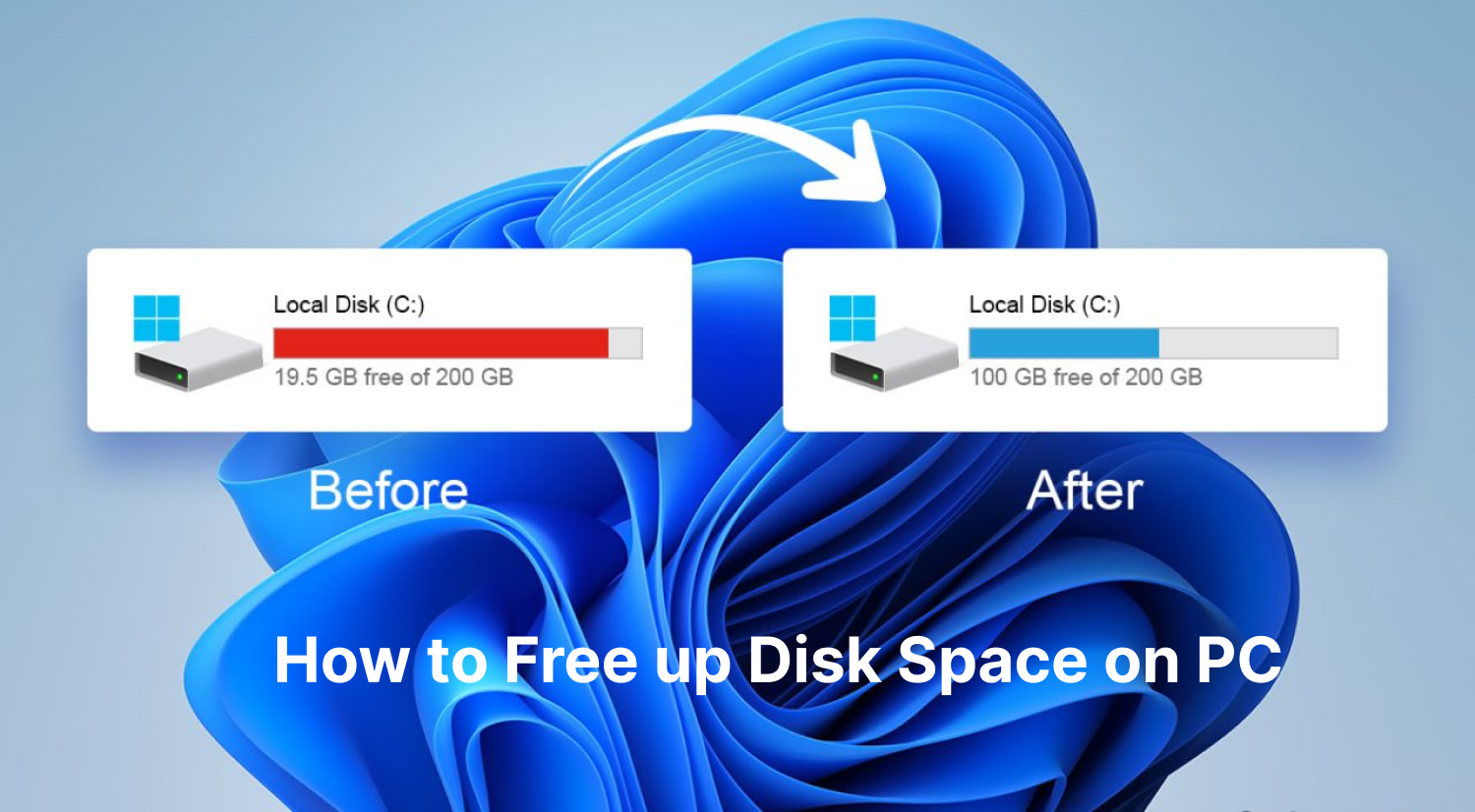
Does your computer frequently display a "Local disk is full" message right when you need to save an important file? This red warning bar in File Explorer is frustrating, but it's also incredibly common. Over time, Windows silently accumulates invisible junk files, cache data, and system leftovers that quietly consume your hard drive space.
The good news is you don't need to be a technical expert or pay expensive repair fees to solve this problem. This article will walk you through several proven methods for how to clear up local disk space, from Windows built-in tools to professional optimization software. Each method includes detailed, step-by-step instructions. Keep reading to reclaim your storage and speed up your PC today.
Why Is Your Local Disk (C Drive) Full?
Before jumping into cleanup methods, it helps to understand what's eating up your storage. Several common culprits contribute to a full local disk:
-
Accumulated Temporary and Cache Files
Every time you browse the web, install software, or use applications, Windows creates temporary files. These are supposed to self-delete, but often they remain and accumulate.
-
Large Windows Update and Backup Files
Windows saves old versions of system files after major updates, allowing you to roll back if something goes wrong. The Windows.old folder alone can consume 10-20GB of space.
-
Too Many Installed Applications and Games
Modern games and software suites regularly exceed 50-100GB each. Combined with pre-installed bloatware, these quickly fill your C drive.
-
Downloaded and Duplicate Files
Your Downloads folder is often the biggest offender. Duplicate photos, documents, and installation files pile up unnoticed.
-
System Restore Points and Hibernation Files
The hiberfil.sys file reserves disk space equal to 75% of your RAM. If you have 16GB of RAM, that's 12GB gone before you install anything. System restore points also consume significant space.
Understanding these causes makes the cleanup process much more targeted and effective. Once you know what's consuming your storage, learning how to clear up local disk space becomes a straightforward process of targeting these specific file categories.
Also Read: Best RAM Optimizers for Windows 11 to Boost PC Performance >>
How to Clear up Local Disk Space with Windows Settings?
Windows comes with 2 powerful built-in tools that can handle most of the heavy lifting. Neither requires downloading anything extra. Let's start with the easiest one first.
Using Storage Sense for Automatic Cleanup
Storage Sense is Windows' automatic cleanup feature. It regularly deletes temporary files and old items from your Recycle Bin and Downloads folder without any manual input. Here's how to turn it on:
Step 1: Press Windows + I to open Settings, then navigate to System > Storage.
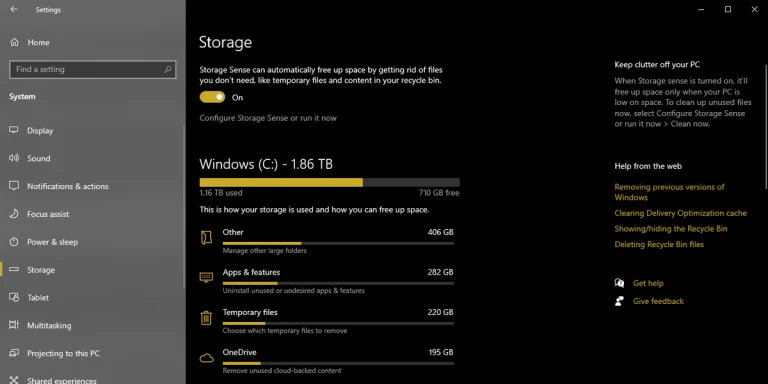
Step 2: Toggle the Storage Sense switch to "On." Click on the option to configure it or run it immediately.
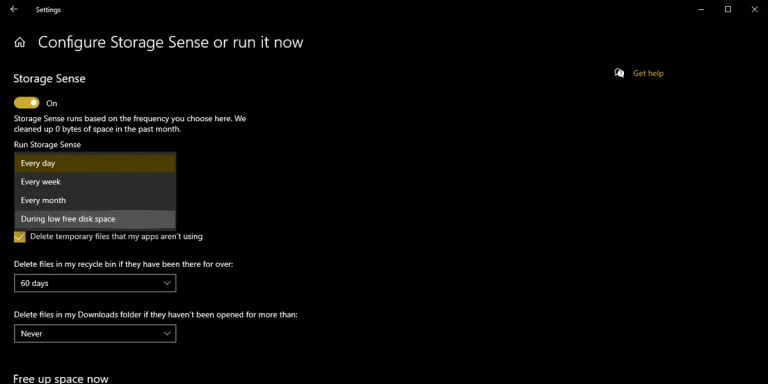
Step 3: Choose how often you want Storage Sense to run (daily, weekly, monthly, or when low on disk space).
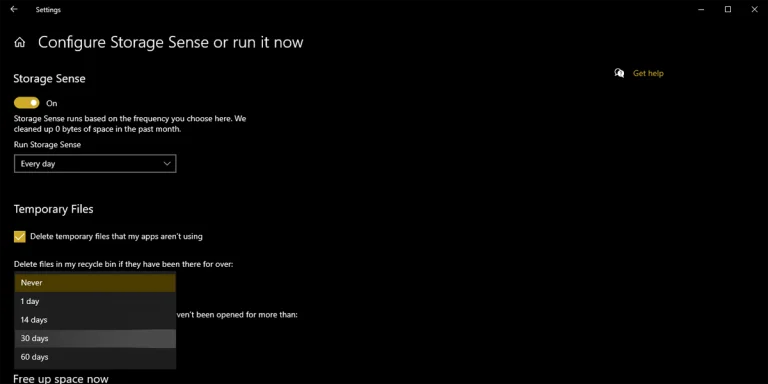
Step 4: Under "Temporary Files," set how long to keep files in the Recycle Bin and Downloads folder. One day or 30 days are safe options.
Step 5: Scroll down and click "Run Storage Sense now" to start an immediate cleanup.
By following these steps, you can use Storage Sense as a "set-and-forget" solution, automatically handling how to clear up local disk space without having to manually search for files.
Running the Windows Built-in Disk Cleanup Tool
Disk Cleanup is an older but more thorough tool than Storage Sense. It can delete system files that Storage Sense cannot touch, including Windows Update leftovers and old installation files. To learn how to free up local disk space using built-in Windows tools, Disk Cleanup is your best option for removing system files.
Step 1: Type "Disk Cleanup" in the Windows search bar and click on the result.
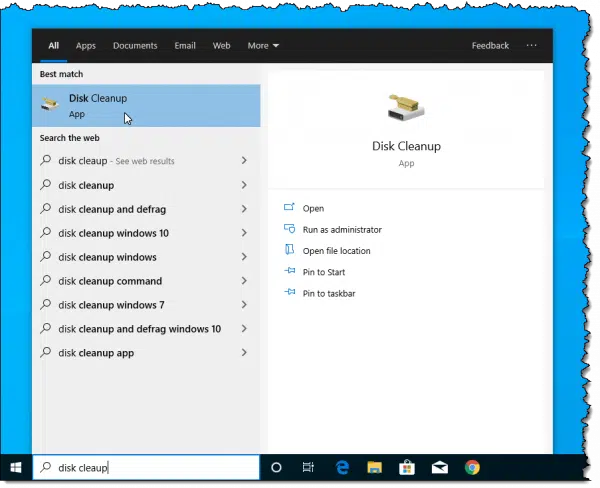
Step 2: Select your C: drive (or whichever drive you want to clean) and click OK.
Step 3: Wait for the tool to calculate how much space you can free up. Check the boxes next to the file types you want to delete: Temporary files, Recycle Bin, Downloads folder, and Delivery Optimization Files.
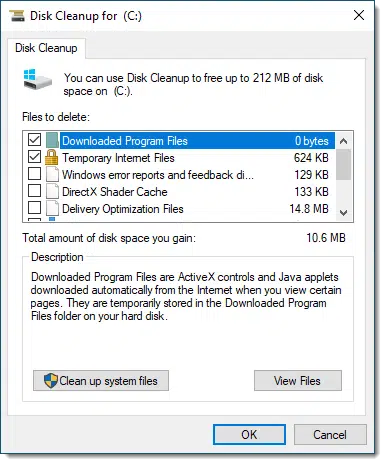
Step 4: Click the "Clean up system files" button for the most impactful results. This requires administrator permission.
Step 5: After the second scan completes, check additional items like "Windows Update Cleanup" and "Previous Windows installations". These can free up 5-15GB or more.
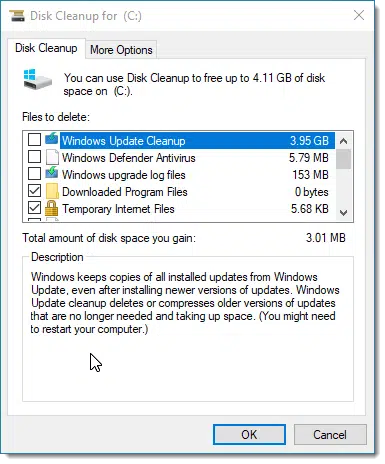
Step 6: Click OK, and Disk Cleanup goes to work once again.
How to Clear Temporary Files and System Cache Manually?
While the tools above are excellent, they sometimes miss temporary files stored in user-specific directories. Manually clearing these folders catches what automated scans might overlook. Another reliable method for how to clear up local disk space is manually deleting temporary files bypassed by automated tools. You can quickly access these hidden files using the Run command:
Step 1: Press Windows + R on your keyboard to open the Run dialog box.
Step 2: Type %temp% and press Enter. A File Explorer window will open, showing hundreds of temporary files.
Step 3: Press Ctrl + A to select all files, then press Delete. Some files may be "in use" and cannot be deleted—simply skip those.
Step 4: Open the Run dialog again and type temp, then press Enter. This opens the system-level temporary folder at C:\Windows\Temp.
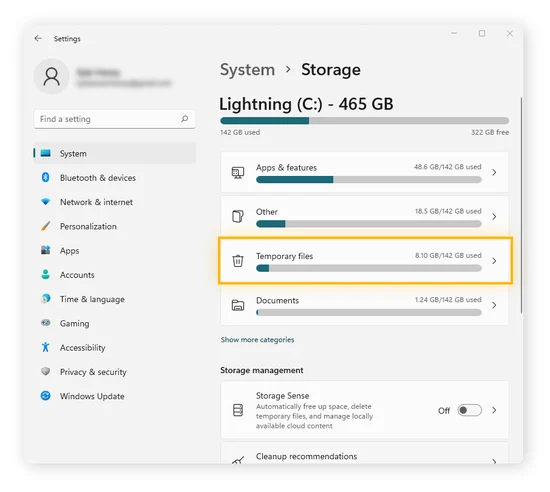
Step 5: Select all files and delete them. You may need administrator permission for some files.
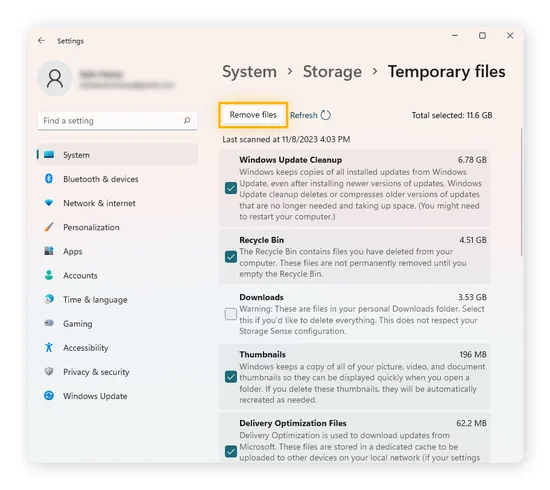
Step 6: Empty your Recycle Bin to permanently free up the space.
The %temp% command offers a quick, software-free manual method for how to free up space in local disk C. It takes less than 2 minutes and catches what automated scans miss.
Also Read: How to Clear Your RAM Cache on Windows >>
One-Click Solution to Deep Clean and Speed Up Your PC
Manual methods work, but navigating through multiple menus and remembering different commands takes time. For users who want a faster, one-click solution to remove junk files and boost performance, a dedicated PC optimizer is essential.
For the fastest path on how to free up local disk space, IObit Advanced SystemCare delivers a comprehensive system clean in under 30 seconds. Its AI-powered engine scans deeper than standard Windows tools, catching hidden caches, orphaned registry entries, and leftover installation files that manual methods miss.
Advanced SystemCare Free
- Clean: 420 billion traces removed & 85 EB junk files cleaned
- Protect: 80 million unauthorized access blocked & 20 million bugs fixed
- Speed Up: 6 million hours of startup time saved & Turbo boost
- Optimize: Auto clean and auto care your PC with AI mode

Key features that make a difference:
One-click AI-powered PC scan – The intelligent scan engine identifies performance bottlenecks and space hogs automatically with no technical knowledge required.
Intuitive interface for quick optimization – A clean, modern dashboard presents all tools clearly, so you never feel lost or overwhelmed.
Deep junk file and cache cleanup – Supports cleaning over 50 different types of junk files across browsers, apps, and system components.
Automatic registry cleaning – Removes invalid registry entries that slow down application launch times and system responsiveness.
Real-time performance monitoring – ActiveBoost technology manages background processes and RAM allocation intelligently, keeping your system responsive during intensive tasks.
If you're struggling with a constantly full drive, Advanced SystemCare can automate the entire cleanup process while maintaining your PC's peak performance. Next is how to:
Step 1: Download and install Advanced SystemCare Free from the official website.
Step 2: Launch the software. Choose "Manual Mode" to customize your scan. Specifically tick the boxes related to freeing up disk space: Junk File Clean, Privacy Sweep, and Registry Clean.
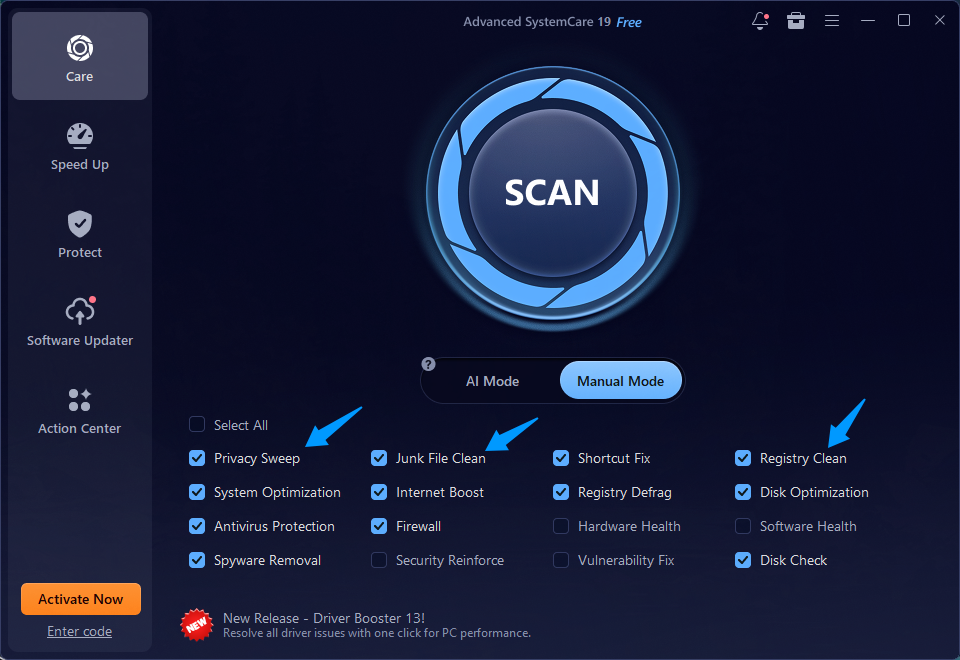
Step 3: Click the large "Scan" button. The AI engine will analyze your system, categorizing all junk files, privacy traces, and invalid registry entries.
Step 4: Review the scan results. You'll see exactly what will be deleted, broken down by category.
Step 5: Click "Fix" to purge these files from your local disk. The software automatically creates a system restore point before making changes.
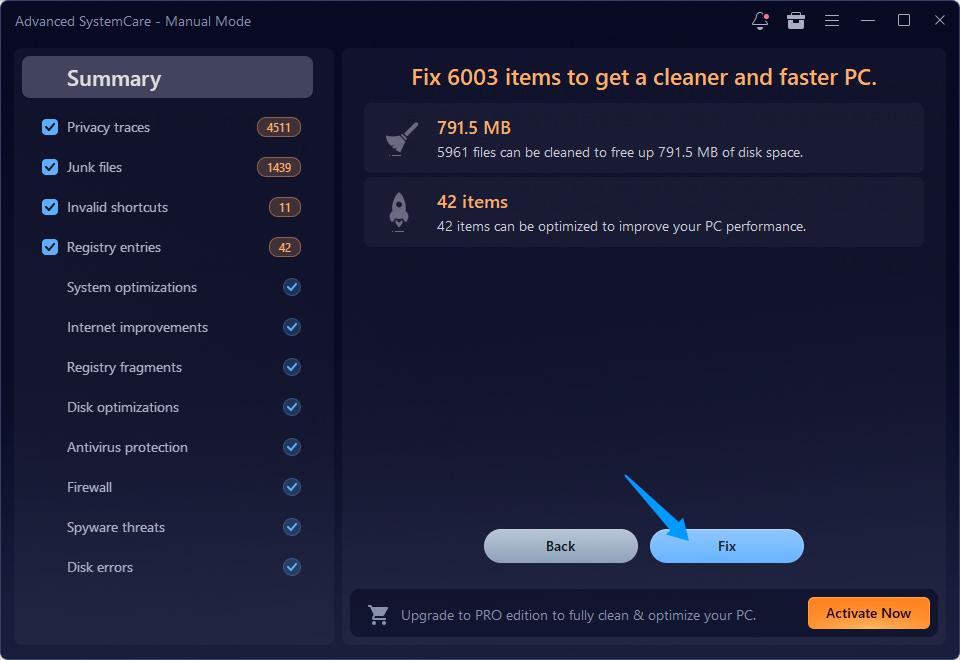
Step 6: For ongoing maintenance, schedule weekly automatic scans. This keeps your local disk space consistently optimized.
Uninstall Unused Programs to Free Up PC Local Disk Space
Deleting temporary files helps, but large applications and games are usually the real space hogs. Removing programs you no longer use can free up tens or even hundreds of gigabytes.
How to Uninstall Programs in Windows
Step 1: Press Windows + I to open Settings, then go to Apps > Installed apps (or Apps & features).
Step 2: Sort the list by size to identify the biggest space consumers.
Step 3: For any application you don't use regularly, click the three dots (or the entry) and select Uninstall.
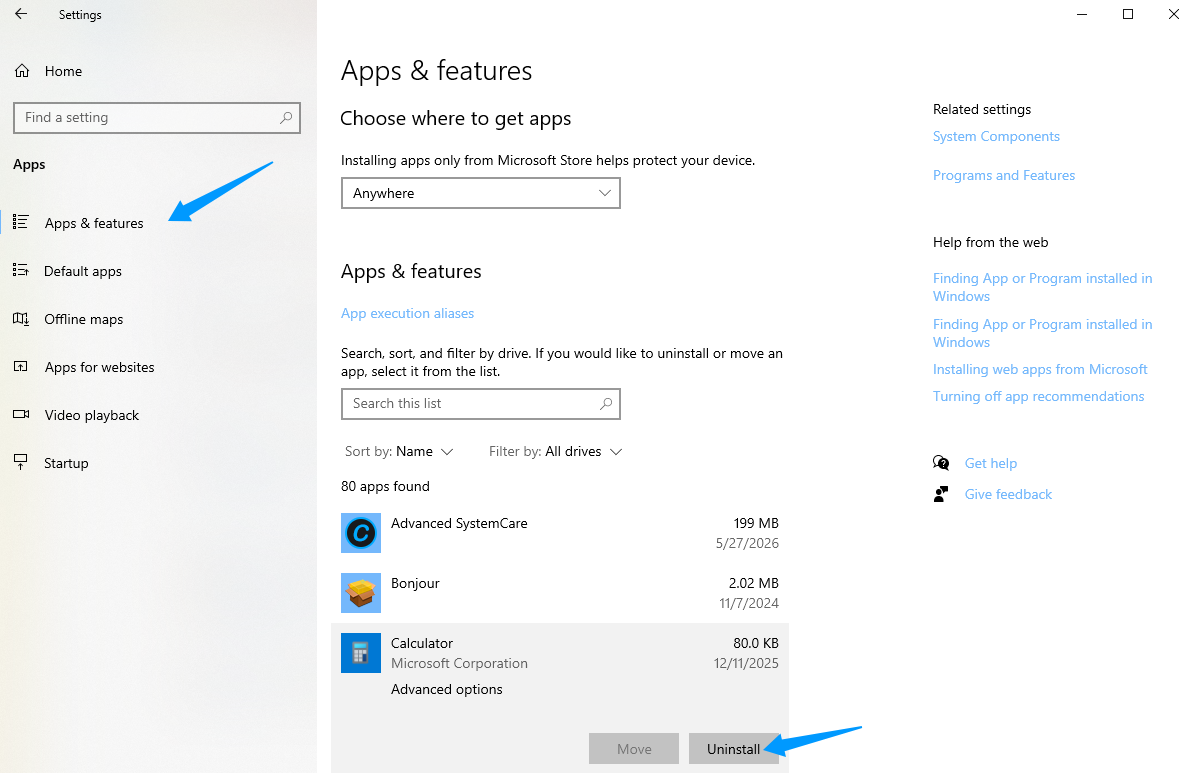
Step 4: Follow the uninstall wizard's instructions.
The problem? Windows often leaves behind registry entries, cache folders, and configuration files. This "digital residue" can accumulate over time, wasting hundreds of megabytes. Combining app uninstallation with cache cleaning gives you a complete strategy for how to clean up disk space on PC.
IObit Uninstaller solves this problem by performing a Powerful Uninstall that automatically scans for and removes leftover files after the standard uninstall completes. It also offers a "Force Uninstall" option for stubborn programs that refuse to remove normally, and an "Install Monitor" that tracks everything an installation creates, enabling complete removal later.
IObit Uninstaller Free
- Complete forced uninstallation for stubborn programs.
- Uninstall a batch of programs at once.
- Scan and remove leftover files, folders, and registry entries.
- Support the management of Universal Windows Platform apps.

Conclusion
A full local disk doesn't have to mean a slow or unusable computer. As you've learned, how to clear up local disk space can be accomplished through several effective approaches. Windows Storage Sense and Disk Cleanup provide solid, free options. Manual temp file deletion offers more control. And if you want to free up disk space on PC with zero hassle, Advanced SystemCare automates the entire process while catching junk files that other methods miss.
Don't let storage warnings interrupt your workflow. Download Advanced SystemCare today.