You’ve just launched your favorite game, settled into your chair, and grabbed your controller. Then sadly, you find Windows refuses to recognize it, and it kills all your gaming mood. Why is my controller not connecting to my PC? In most cases, the hardware is fine. The usual culprits are a charge-only USB cable, Bluetooth pairing conflicts, outdated or corrupted drivers, flaky USB ports, or interference from previously paired devices.
Fortunately, this guide offers the most comprehensive troubleshooting guide. You can find all the practical solutions, from the simplest checks to advanced driver repairs. Just read on to find out how to fix this controller not connecting to PC issue easily!
Quick Troubleshooting Checklist
When you find your controller not connecting to PC, perform these fast checks for better troubleshooting.
Restart your PC and controller. A simple reboot can clear temporary glitches in Windows recognition. See if the act can reset the controller’s internal state.
Check the controller’s battery level. Low power often causes intermittent or failed connections, which is common with Bluetooth.
Confirm your connection method (USB or Bluetooth). What connection method do you use? Are they failing? Use a connection method that can ensure a proper connection with your PC.
Disconnect nearby USB or Bluetooth devices. Other peripherals can create port conflicts. Disconnect unnecessary devices temporarily to see if the controller connects properly.
How to Fix a Controller Not Connecting to PC?
When you find your controller not connecting to PC, start with basic checks, then move on to more advanced troubleshooting. In many cases, the issue can be resolved successfully. Let’s dive in now.
Fix 1. Check if Windows Recognizes Your Controller
The first step is to identify if Windows can detect the controller at all. So you know whether the controller not connecting to PC issue is related to the connection, the driver not working, or the controller itself.
Step 1. Search for Device Manager on your Windows PC and open it.
Step 2. Expand these categories: Xbox Peripherals, Sound, video and game controllers, or Human Interface Devices.
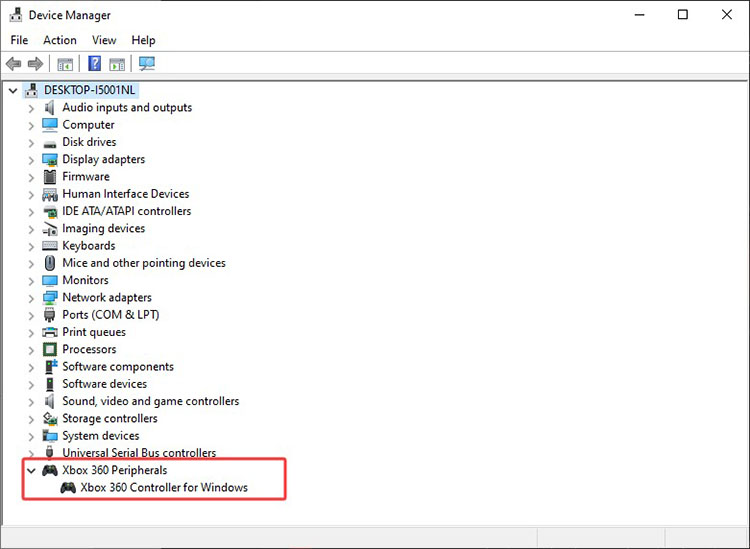
Step 3. If no controller-related device appears, Windows is not detecting the hardware connection. If the device appears with an error symbol, the problem is most likely related to corrupted drivers.
Fix 2. Fix USB Connection Problems
While wired connections seem to be stable, they can still fail surprisingly often for several reasons, for instance, an incorrect cable, damaged ports, or connection conflicts. At this point, you can troubleshoot with the steps below.
Step 1. Use a USB data cable
Many cables that come with controllers are charge-only; they are not designed for data communication. Better to use a genuine data-capable USB cable. Then plug the controller in and wait 10-15 seconds for Windows to detect it.
Step 2. Try another USB port
A faulty USB port can prevent proper controller detection. Connect the controller directly to a USB 2.0/USB 3.0 port on the motherboard. Avoid USB hubs, front-panel extension ports, or docking stations; they might introduce power limitations or bandwidth issues.
Step 3. Restart your PC and reconnect the controller
Sometimes, a PC restart can refresh Windows hardware detection. Just reconnect the controller after that and reconnect your controller to see if that helps.
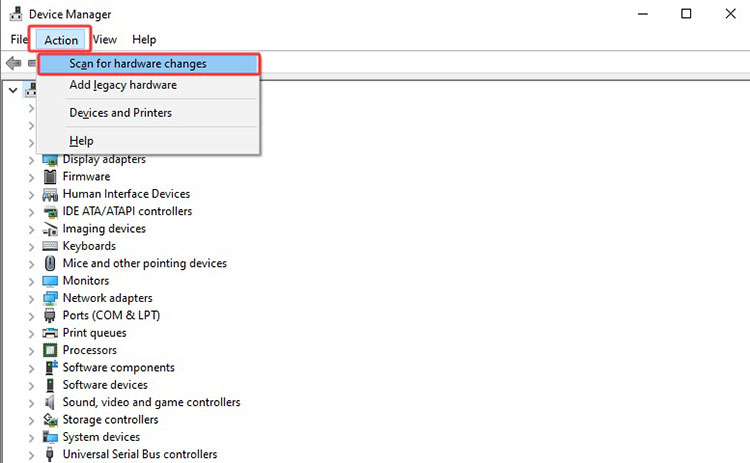
Step 4. Scan for hardware changes
Open Device Manager, click the Action menu at the top, and select “Scan for hardware changes.” Windows will search for newly connected devices and install the appropriate drivers automatically.
Fix 3. Fix Bluetooth Connection Problems
When it comes to wireless controllers, they rely on a stable Bluetooth connection. However, pairing problems, interference, and outdated Bluetooth settings can easily prevent a successful connection. But worry not, you can try the following fixes.
Step 1. Turn Bluetooth off and on
Go to Settings > Bluetooth & other devices, switch Bluetooth off, wait about 10 seconds, and turn it back on. This refreshes the Bluetooth adapter and can clear temporary connection problems.
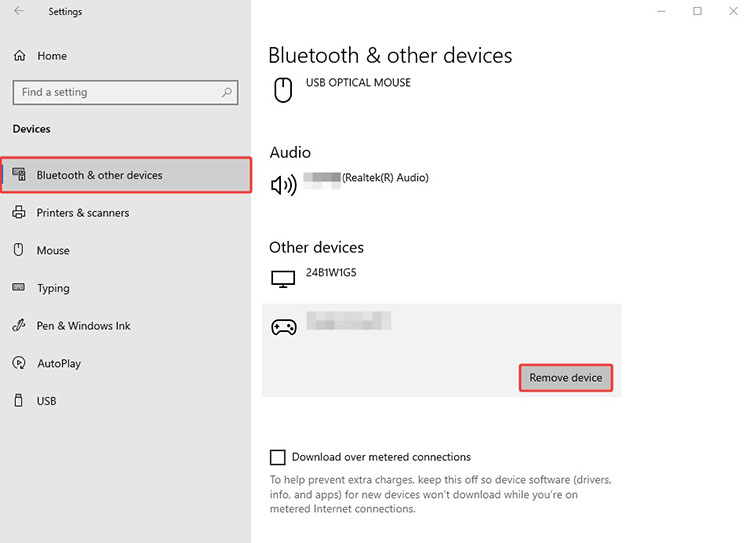
Step 2. Remove the controller and pair it again
In the same Bluetooth & other devices menu, find your Xbox/PlayStation controller, click the three dots, and select “Remove device.” Then pair your controller to your PC again.
Step 3. Remove hidden Bluetooth devices
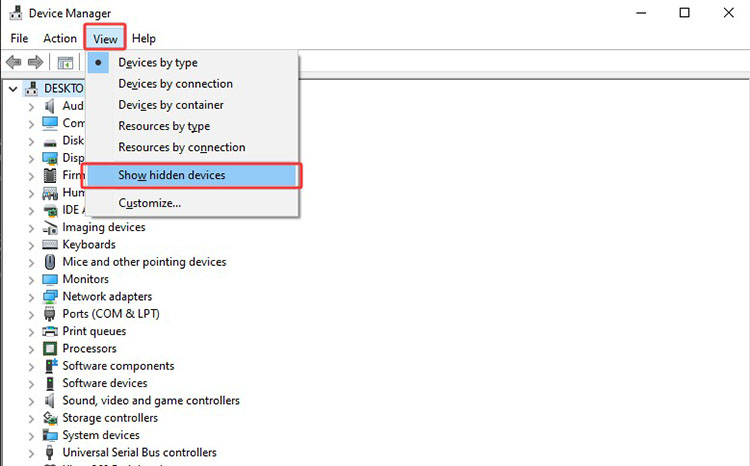
Open Device Manager, click View > Show hidden devices, expand the Bluetooth section, and uninstall any greyed-out or duplicate controller entries. Remove old/hidden Bluetooth devices to resolve pairing conflicts.
 Step 4. Reduce Bluetooth interference
Move the controller closer to your PC and disconnect nearby wireless headphones, keyboards, or mice. Meanwhile, remove large metal objects that may interfere with the Bluetooth signal.
Fix 4. Update or Reinstall Your Controller Drivers
When you find your Xbox controller won't connect to PC, outdated/corrupted controller drivers are often the main cause. Drivers act as the communication bridge between Windows and your controller. Any driver-related issues can prevent the system from detecting the device properly.
Instead of manually checking every related driver in Device Manager, a dedicated driver update tool can be a faster solution. For instance, IObit Driver Booster can scan for outdated/missing controllers, Bluetooth, USB, and chipset drivers, then install compatible updates in just a few clicks. Just have a look at its main features to learn more.
Driver Booster Free
- Automatically scan and update drivers.
- Update game ready drivers for peak gaming performance.
- Identify and fix various common of hardware issues.
- Boost 30% of system performance for fast & smooth running.

Key Features of Driver Booster
-
One click to scan and update drivers
How to update drivers quickly? Driver Booster is here to help. It identifies outdated, missing, or corrupted drivers related to your controller, Bluetooth adapter, USB ports, and chipset. You can then update the drivers and fix controller not working on PC issues in one click.
-
Large database for compatible updates
Equipped with a huge database of 12M+ drivers, Driver Booster provides the latest verified drivers from official manufacturers. This helps ensure that the updates match your specific controller model and Windows version.
-
Automatic and easy driver installation
There is no need to search for drivers one by one. Driver Booster automatically downloads the correct driver packages and installs them in the background, which saves you time and reduces the risk of installing the wrong driver.
-
Safe driver updates with restore points
Before applying any driver changes, this best driver updater allows you to create a system restore point. If something unexpected happens after an update, you can quickly roll back the changes and restore your PC stability.
How to fix controller not connecting with Driver Booster
Step 1. Get Driver Booster from the official website for free and install it on your Windows PC.
Step 2. Launch the software and click on the Scan button. The tool will check your system for outdated/corrupted drivers, including controller, Bluetooth, USB, and chipset drivers.
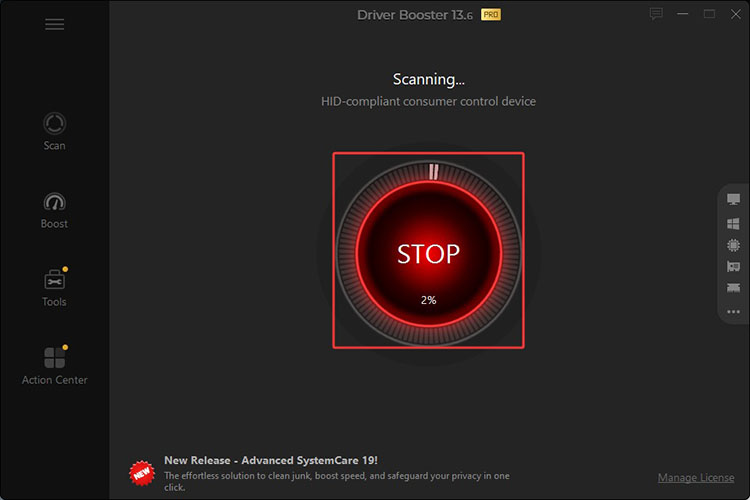 Step 3. The next screen will list all the drivers that need to be updated. Click the Update Now button in the top right to install all recommended updates.
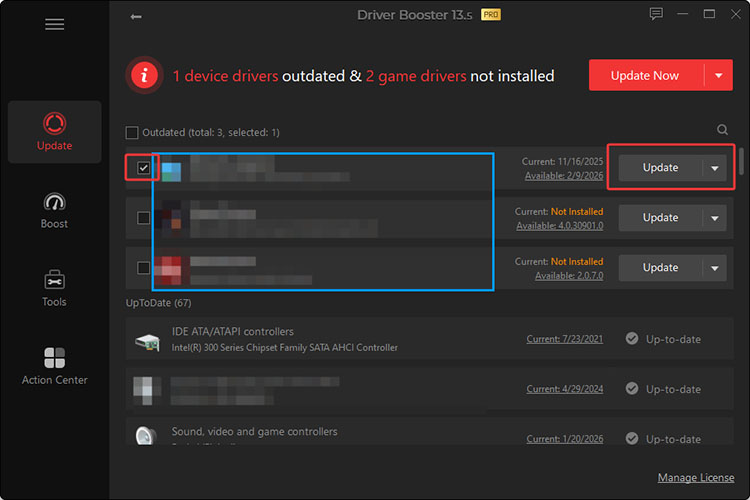 Step 4. Driver Booster will update all your selected drivers to the latest and compatible version.
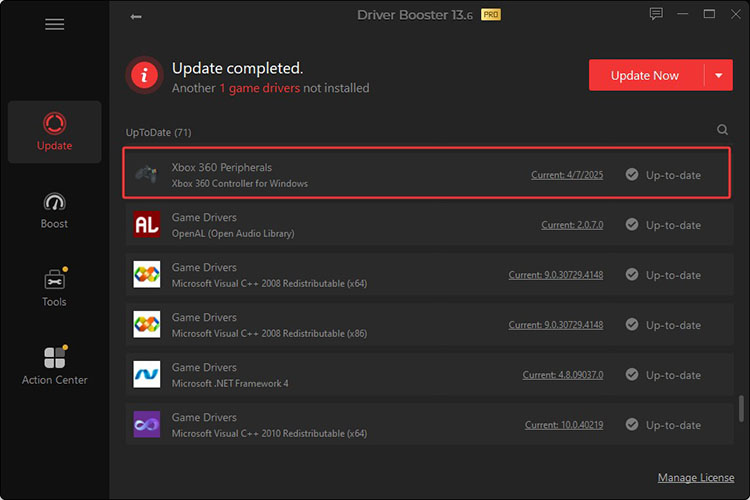 Step 5. You can also switch to the Boost tab and turn on Game Boost. It will optimize system resources before launching a game, creating a smoother gaming experience.
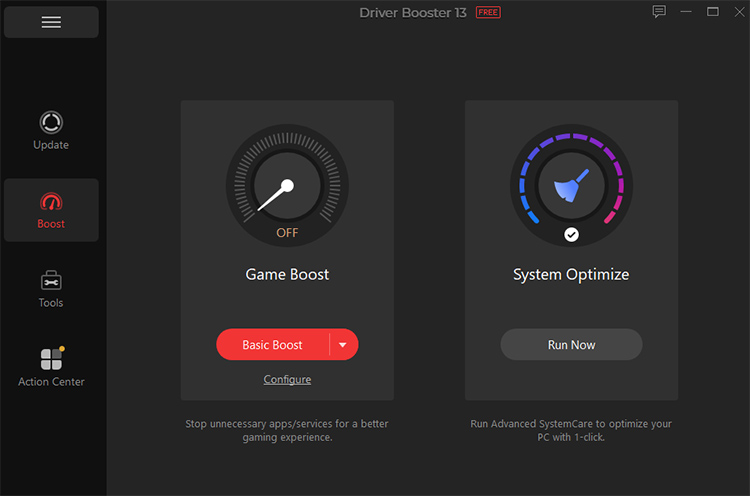 It’s important to update USB drivers because they handle wired connections and help Windows properly recognize your controller. Bluetooth and chipset drivers are also crucial because they manage wireless communication and ensure proper communication with connected hardware.
Fix 5. Reset and Re-Pair Your Xbox or PlayStation Controller
If your PlayStation/Xbox controller won't connect to PC, it may simply need a fresh start. Resetting and re-pairing the controller can clear temporary connection problems and establish a new link with your computer. However, the 2 methods serve different purposes. While pairing mode only makes the controller discoverable, a full reset restores the controller’s Bluetooth state and clears previous connection issues.
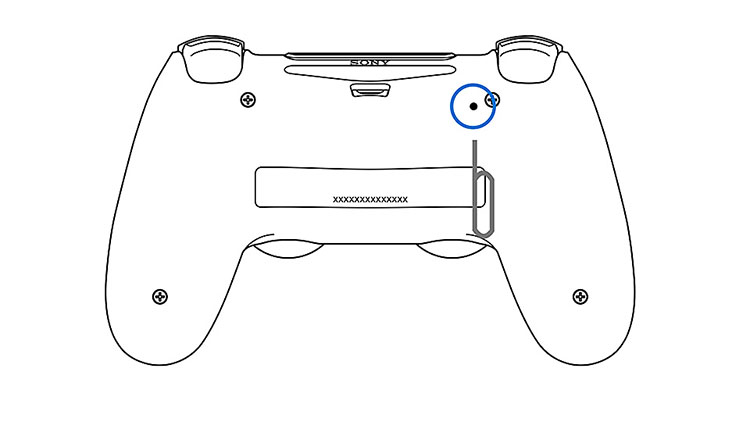
Reset and Re-Pair a PlayStation Controller (PS4/PS5)
For a DualSense controller or DualShock 4 controller, flip it over. Insert a pin into the small reset hole on the back and hold it for about 5 seconds.
Reset and Re-Pair an Xbox Controller
Press and hold the Pair/Sync button (the small circular button on the top edge, near the charging port) for about 15 seconds. The controller will begin vibrating and then reset itself.
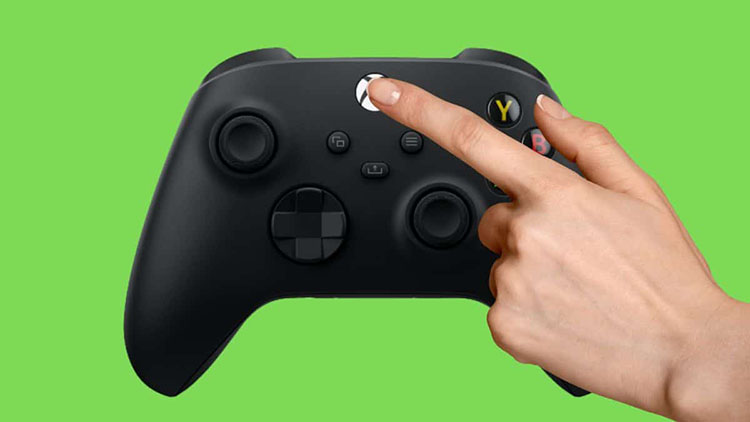
After resetting, open Windows Bluetooth settings and pair the controller again as usual. Then check if the controller not connecting to PC issue is resolved.
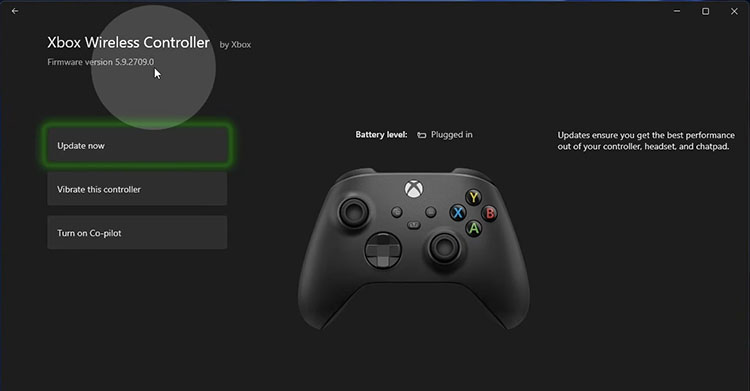
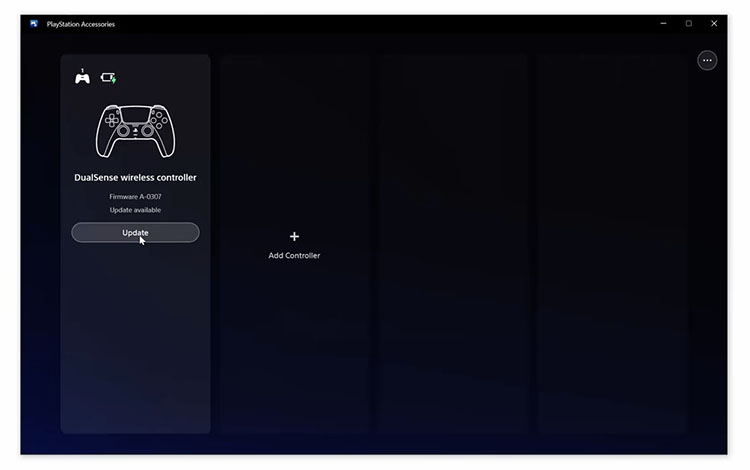
Optional: Update the Controller Firmware
Meanwhile, you might want to keep your controller firmware updated to improve compatibility and fix connection-related problems. Here’s how.
How to Fix a Controller Connected but Not Working in Games
If you find your controller connected yet still not working in games, it can be caused by incorrect game settings, controller configuration conflicts, or compatibility problems. Try the following fixes to get your controller working again.
Fix 1. Check Your Game's Controller Settings
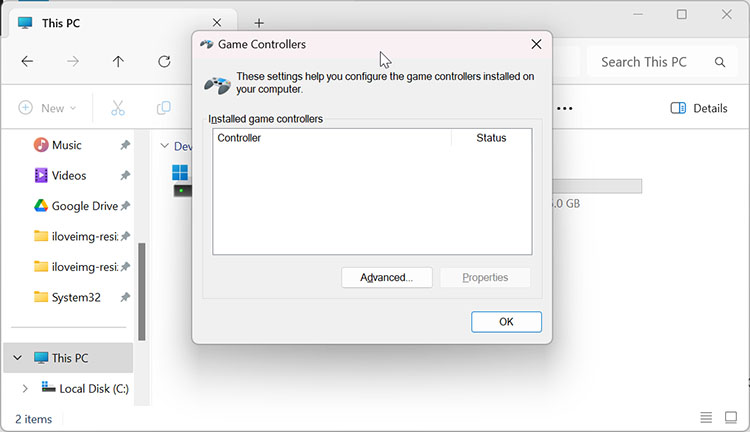
Press Windows + E to open File Explorer, then paste the following path into the address bar: %SystemRoot%\System32\joy.cpl. Press Enter to open the Game Controllers window. Select your controller, then click Properties > Additional settings to check whether Windows detects all inputs correctly.
Fix 2. Configure Steam Input or DS4Windows
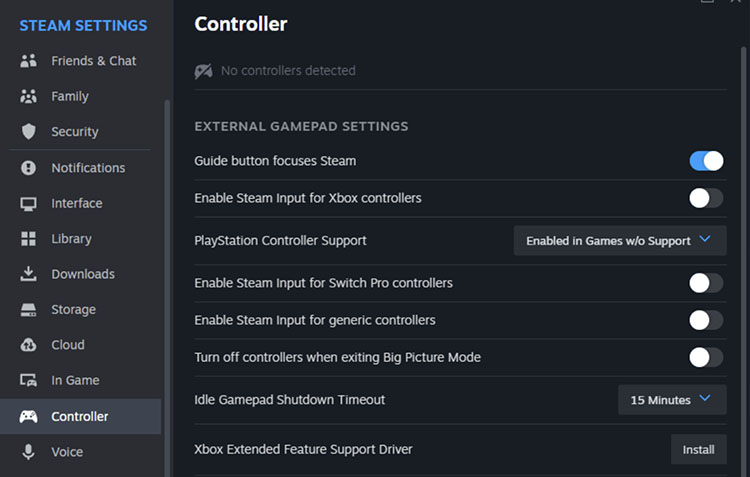
If you play games through Steam, adjust Steam Input settings to ON if the game does not support your controller natively.
Step 1. Open Steam and click Steam > Settings from the top menu. Select Controller from the left sidebar.
Step 2. Enable Steam Input for your specific controller type.
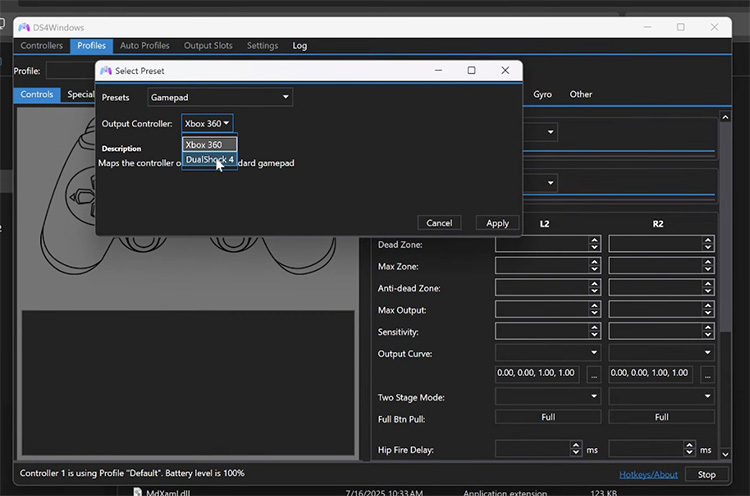
If you use a PlayStation controller on Windows, DS4Windows can help translate inputs into a format supported by more games.
Step 1. Download and install DS4Windows along with the required ViGEmBus drivers from the official DS4Windows portal.
Step 2. Connect your PlayStation controller using a USB cable, or pair it through Windows Bluetooth settings.
Step 3. Open DS4Windows, go to the Profiles tab, and create a new profile. Select the output controller type based on your game’s compatibility. Follow the prompts to activate the profile.
Fix 3. Reset or Calibrate Your Controller
If your controller is detected by Windows but some buttons, sticks, or triggers do not work properly in games, you can test or recalibrate it with the steps below.
Step 1. Press Windows + R, type joy.cpl, and press Enter. Select your controller > Properties > Settings tab > Calibrate.
Step 2. This will launch the calibration wizard. Follow the on-screen instructions to recalibrate the controller.
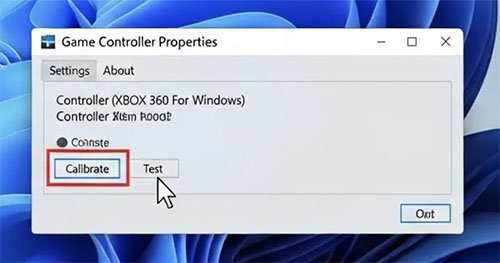
Tips: If your controller appears in joy.cpl (Windows Game Controllers panel) but does not respond when you launch a game, the problem is usually not related to the hardware itself.
FAQs about PC Controller Pairing Issues
Q1. Why won't my controller connect to my PC?
When you find your controller not connecting to PC, it can be caused by various reasons, as discussed above. For instance, a faulty USB cable, Bluetooth pairing problems, outdated drivers, or incorrect controller settings. You can just follow the troubleshooting guide above to resolve the issue.
Q2. Why does my controller keep disconnecting randomly?
There might be multiple reasons why your controller disconnects randomly: unstable connection, low battery, Bluetooth interference, or outdated drivers. You can first check your cable and reduce wireless interference. If it does not work, try to update related drivers and see if that helps.
Q3. Can outdated drivers prevent a controller from working?
Yes. Outdated drivers can stop Windows from recognizing your controller correctly or prevent it from communicating properly with games. That’s why you need to update all related drivers for USB, Bluetooth, and controller drivers to fix compatibility issues and restore normal functionality.
Q4. Why is my Xbox controller blinking but not connecting to my PC?
A blinking Xbox controller usually means it is searching for a connection but can not complete the pairing process. The reasons behind this can be Bluetooth pairing errors, low battery, outdated firmware, or another device already connected to the controller. You can check the connection/battery or update the firmware to fix the problem.
Conclusion
When you find your controller not connecting to PC, don’t worry; this blog is the most complete guide that offers specific troubleshooting steps. As introduced earlier, you can check cables, Bluetooth connection errors, and keep your drivers updated to fix the issue. If outdated drivers are causing connection problems, Driver Booster can help automatically scan for and update the drivers your controller needs. Get it to keep your system drivers up to date and improve controller compatibility with ease from now on!
Driver Booster Free
- Automatically scan and update drivers.
- Update game ready drivers for peak gaming performance.
- Identify and fix various common of hardware issues.
- Boost 30% of system performance for fast & smooth running.