Windows Command Prompt (CMD) is one of the best ways to interact with your operating system directly. It helps you complete tasks and troubleshoot problems when the graphic interface cannot do. In most cases, the tool is designed for IT professionals and administrators to manage the system. Also, there are a set of CMD commands lists for beginners to automate tasks more efficiently.

What Is Command Prompt in Windows
Command Prompt (cmd.exe) is an inbuilt command-line tool for Windows. Instead of using window, menus, buttons and other graphical elements, it allows users to communicate with the operation system with text commands, from automating tasks to performing administrative system management.
Although it is usually regarded as an advanced tool for technician stuff, learning some basic CMD command lists is helpful for beginners to complete certain tasks and diagnose PC issues more quickly.
Basic Windows CMD Commands Lists
Now, let's explore Windows CMD commands lists for management and troubleshooting. All of them are simple to understand and use.
CMD Command List for Files and Folders
One of the best uses of CMD is that it can help manage files and folders. Check the list of Windows CMD commands that help create, move, rename, copy, and delete the files.
Command |
Description |
Example |
dir |
Shows files and folders in the current directory. |
dir |
cd |
Changes the current folder. |
cd Documents |
cd.. |
Moves back to the previous folder. |
cd.. |
mkdir or md |
Creates a new folder. |
mkdir Projects |
rmdir or rd |
Deletes an empty folder. |
rmdir TestFolder |
del |
Deletes one or more files. |
del report.txt |
copy |
Copies files to another location. |
copy file.txt D:\Backup |
xcopy |
Copies folders and many files. |
xcopy C:\Docs D:\Backup /E |
robocopy |
Copies files and folders with advanced options. |
robocopy C:\Data D:\Backup |
move |
Moves files or folders. |
move report.txt D:\Files |
rename or ren |
Renames a file or folder. |
ren old.txt new.txt |
type |
Displays the contents of a text file. |
type notes.txt |
attrib |
Changes file attributes such as Read-only or Hidden. |
attrib +h file.txt |
tree |
Shows the folder structure in a tree format. |
tree |
cls |
Clears the Command Prompt screen. |
cls |
CMD Command List for Disk
Many people struggle to check drives, keep an eye on the disk information, and organize storage. For this reason, we are sharing the basic CMD commands list that you can use to manage the disks.
Command |
Description |
Example |
diskpart |
Opens the DiskPart utility to manage disks and partitions. |
diskpart |
chkdsk |
Checks a drive for errors. |
chkdsk C: |
format |
Formats a drive. |
format D: |
label |
Changes the drive label. |
label D: Backup |
vol |
Displays the drive's volume label and serial number. |
vol C: |
fsutil |
Manages file system settings. |
fsutil fsinfo drives |
mountvol |
Creates or removes drive mount points. |
mountvol |
diskcopy |
Copies one floppy disk to another (legacy command). |
diskcopy A: A: |
subst |
Assigns a drive letter to a folder. |
subst X: C:\Projects |
wmic logicaldisk get name,size,freespace |
Displays disk information. |
wmic logicaldisk get name,size,freespace |
CMD Command List for Network
CMD has different commands for checking and managing the network. This means you will be able to find the IP address and test the internet connection. In addition, it helps people fix the network issues. So, this section has CMD commands list to fix the network problems.
Command |
Description |
Example |
ipconfig |
Displays your computer's IP address and network information. |
ipconfig |
ipconfig /all |
Shows detailed network configuration. |
ipconfig /all |
ipconfig /release |
Releases the current IP address. |
ipconfig /release |
ipconfig /renew |
Requests a new IP address from the network. |
ipconfig /renew |
ipconfig /flushdns |
Clears the DNS cache. |
ipconfig /flushdns |
ping |
Tests the connection to another computer or website. |
ping google.com |
tracert |
Shows the path data takes to reach a website. |
tracert google.com |
pathping |
Combines ping and tracert for detailed network testing. |
pathping google.com |
netstat |
Displays active network connections and listening ports. |
netstat -an |
nslookup |
Finds the IP address of a domain name. |
nslookup google.com |
arp |
Displays and manages the ARP cache. |
arp -a |
hostname |
Shows your computer's host name. |
hostname |
getmac |
Displays the MAC address of your network adapters. |
getmac |
netsh |
Configures and manages network settings. |
netsh wlan show profiles |
route print |
Displays the IP routing table. |
route print |
Also Read: How to Boost Internet Speed on PC >>
CMD Command List for System and Process
While we have shared the networking and files-related commands, you can also use CMD commands to monitor the computer and manage the running apps. In addition, you will be able to control the Windows services. With this section, we are sharing the Windows command prompt list, which will make system management easy.
Command |
Description |
Example |
tasklist |
Displays all running processes. |
tasklist |
taskkill |
Ends a running process. |
taskkill /IM notepad.exe /F |
systeminfo |
Shows detailed information about your computer. |
systeminfo |
driverquery |
Lists installed device drivers. |
driverquery |
shutdown |
Shuts down or restarts the computer. |
shutdown /r /t 0 |
logoff |
Signs out the current user. |
logoff |
whoami |
Displays the current user account. |
whoami |
time |
Displays or changes the system time. |
time |
date |
Displays or changes the system date. |
date |
ver |
Shows the Windows version. |
ver |
echo |
Displays a message or variable value. |
echo Hello |
set |
Displays or changes environment variables. |
set PATH |
sc query |
Shows the status of Windows services. |
sc query |
net start |
Lists or starts Windows services. |
net start |
net stop |
Stops a Windows service. |
net stop spooler |
Most Common Troubleshooting CMD Commands
Whenever your Windows computer has issues, there are built-in tools in CMD which can fix corrupted system files and check the hard drive for errors. Have a look at the CMD commands list to troubleshoot the issues.
Command |
Description |
Example |
sfc /scannow |
Scans and repairs corrupted Windows system files. |
sfc /scannow |
DISM /Online /Cleanup-Image /RestoreHealth |
Repairs the Windows system image. |
DISM /Online /Cleanup-Image /RestoreHealth |
chkdsk /f |
Finds and fixes file system errors on a drive. |
chkdsk C: /f |
chkdsk /r |
Finds bad sectors and recovers readable data. |
chkdsk C: /r |
bootrec /fixmbr |
Repairs the Master Boot Record. |
bootrec /fixmbr |
bootrec /fixboot |
Repairs the boot sector. |
bootrec /fixboot |
bootrec /scanos |
Searches for Windows installations. |
bootrec /scanos |
bootrec /rebuildbcd |
Rebuilds Boot Configuration Data. |
bootrec /rebuildbcd |
netsh winsock reset |
Resets the Windows network socket settings. |
netsh winsock reset |
netsh int ip reset |
Resets TCP/IP settings. |
netsh int ip reset |
powercfg /energy |
Creates a report about power and battery issues. |
powercfg /energy |
fc |
Compares two files to find differences. |
fc file1.txt file2.txt |
assoc |
Displays or changes file type associations. |
assoc .txt |
help |
Shows information about CMD commands. |
help |
How to Use Windows Command Prompt
How to run Command Prompt in Windows? There are several ways to open the tool and give proper commands to let Windows perform tasks.
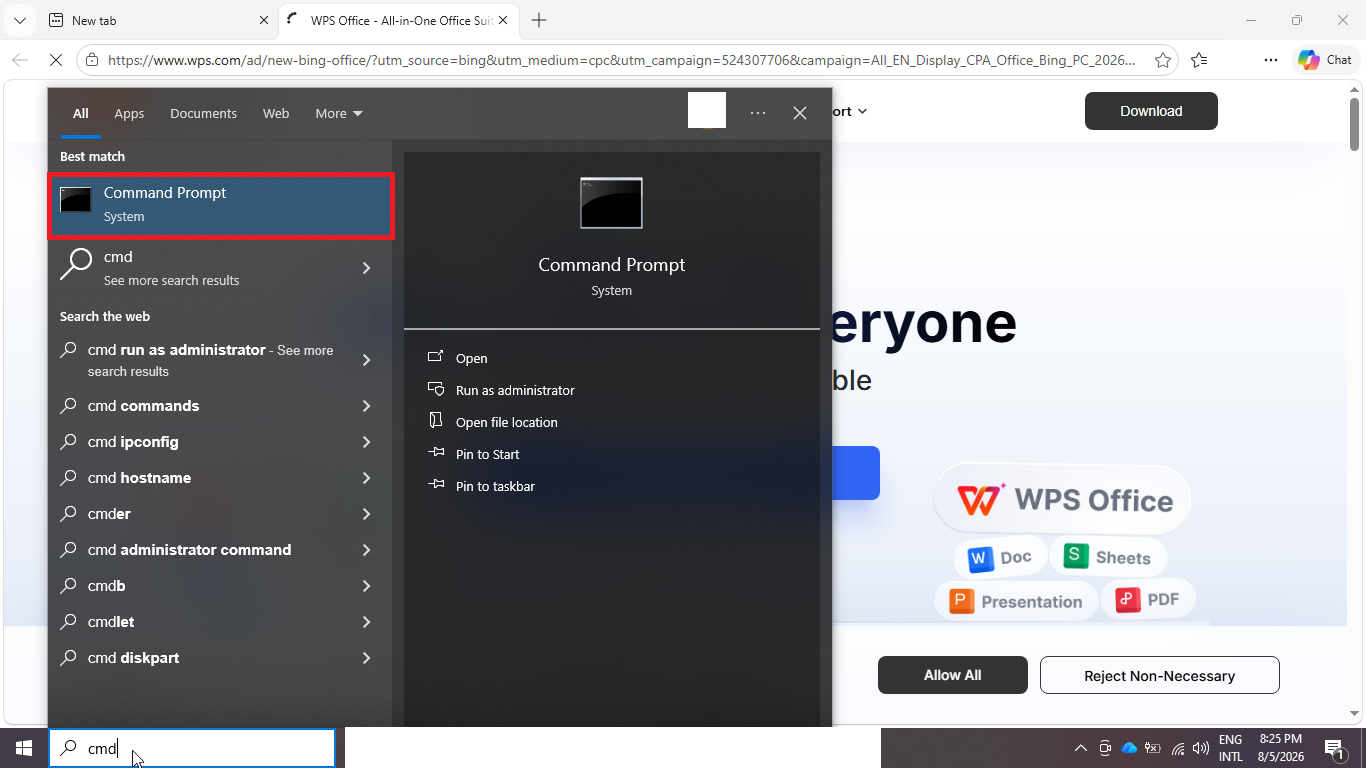
Method 1. Open Command Prompt from the Search Bar
This is the easiest way to open the Command Prompt. The steps to follow are:
1. Press the Windows key or Search button.
2. Write down CMD or Command Prompt in the field.
3. Click on it and choose the "Run as administrator" option to run it.
Method 2. Open Command Prompt with the Run Dialog Box
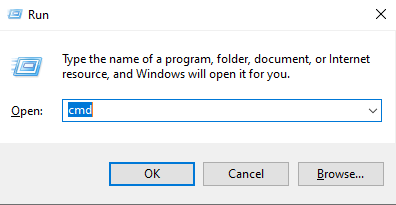
Another method is to use the Rung dialog box. The steps include:
1. Click Windows and R together on your keyword.
2. Write down CMD in the box.
3. Then, just hit the Enter button. If you want to open CMD as the administrator, click Ctrl, Shift, and Enter buttons once you type CMD.
Method 3. Open Command Prompt Through File Explorer
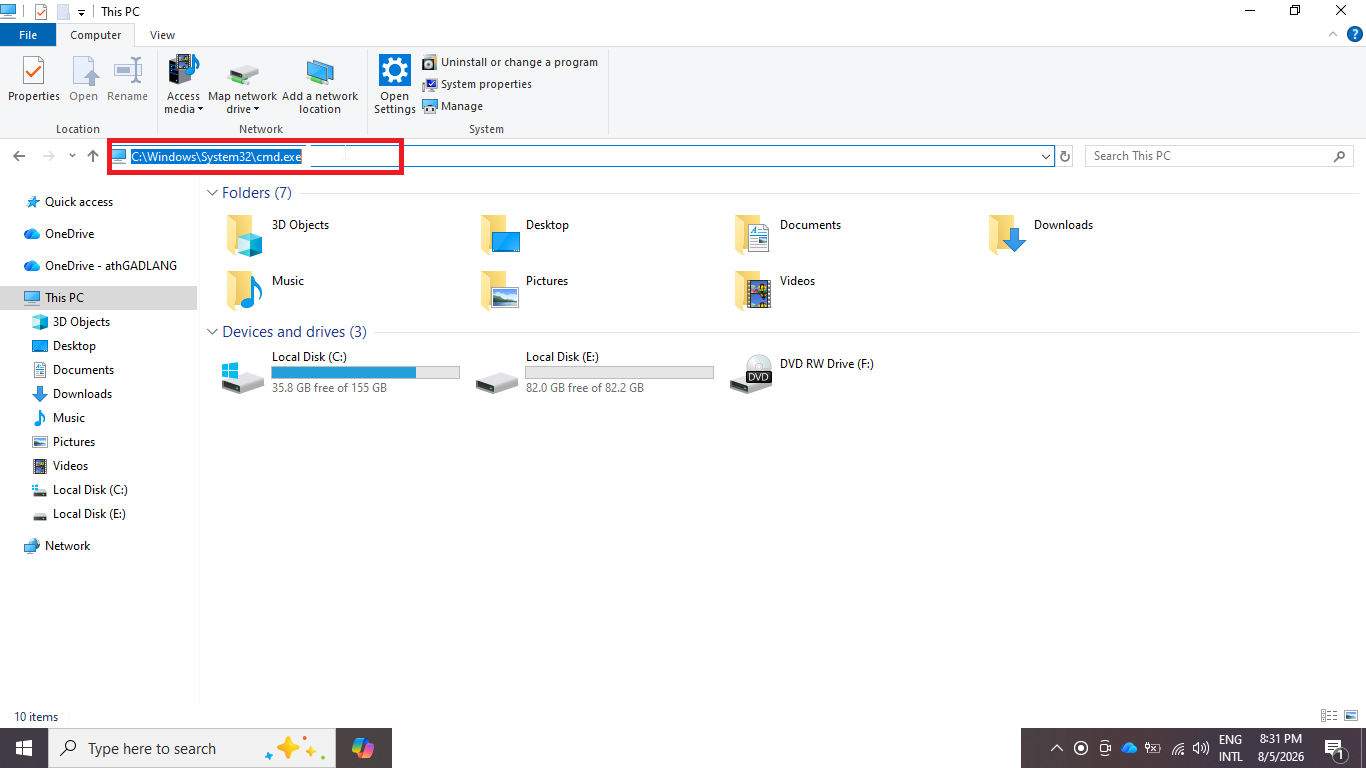
You can also evoke Command Prompt with File Explorer. Follow the guide:
1. Open the File Explorer and tap on the address bar at the top.
2. Write down CMD and hit the Enter button.
Best CMD Commands Alternative for Windows Optimization
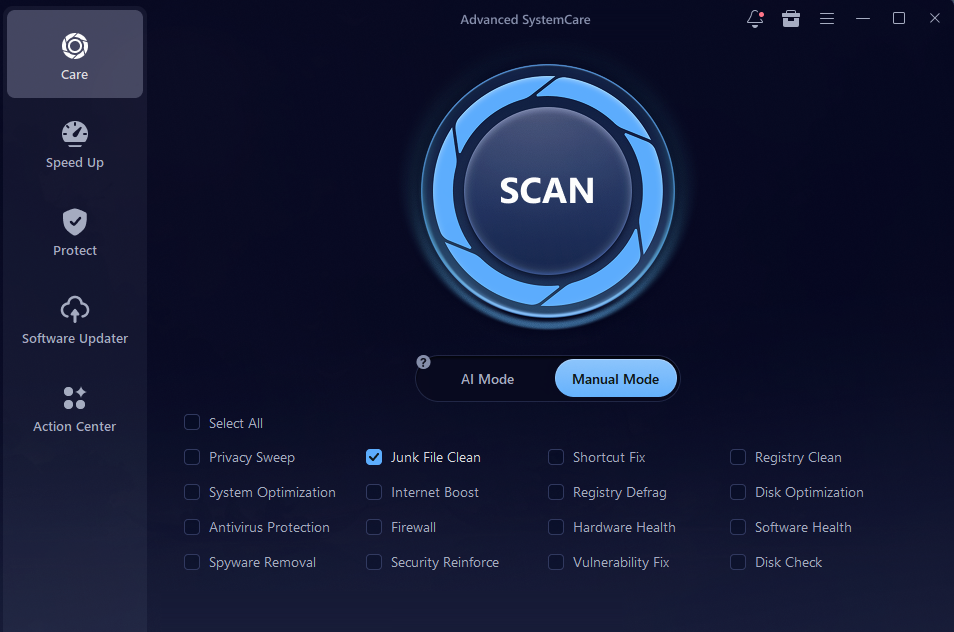
If you still find that CMD commands are a little difficult and need a similarly efficient way to manage Windows, Advanced SystemCare is a perfect choice. It automates the workflow to clean up and optimize your PC for gaming and productivity.
Advanced SystemCare Free
- Clean: 420 billion traces removed & 85 EB junk files cleaned
- Protect: 80 million unauthorized access blocked & 20 million bugs fixed
- Speed Up: 6 million hours of startup time saved & Turbo boost
- Optimize: Auto clean and auto care your PC with AI mode

Packed with a set of excellent features, the leading Windows optimizer can boost your PC in many aspects.
Deep Scan & Clean PC: Through a deep scan for your system, it automatically detects and removes unnecessary data that eats disk storage, like junk/temp files, corrupted registry entries, privacy tracks, software caches and more. It helps release more space to save more important and valuable files.
Speed Up PC in 1-Click: Enable "Turbo Boost" to stop apps and services running in the background, making your PC running faster. Disable unneeded startup programs to speed up your computer boost time. An “Auto RAM Clean” mode helps clear RAM cache and free up RAM for top PC performance.
Protect the Data You Care About: Whether you need to protect your system from hacker, trackers, ransomware or prevent online threats, Advanced SystemCare ensures all protections on.
Additional Adjustments: Advanced SystemCare also provides lots of options for advanced users to customize the system optimization and cleanup to fit their needs.
Advanced SystemCare delivers a comprehensive solution to achieve the best PC Performance. Without getting correct CMD commands, you can clean, boost and secure your system in a single click.
The Bottom Line
Windows Command Prompt is an invaluable tool for system management, troubleshooting and automation. Essential yet basic CMD commands lists give Windows users a straightforward way to perform certain tasks. However, if you need to improve system performance, an automatic PC optimizer - like Advanced SystemCare - can greatly simplify the process, empowering you to get a faster PC instantly.
Advanced SystemCare Free
- Clean: 420 billion traces removed & 85 EB junk files cleaned
- Protect: 80 million unauthorized access blocked & 20 million bugs fixed
- Speed Up: 6 million hours of startup time saved & Turbo boost
- Optimize: Auto clean and auto care your PC with AI mode