Ever typed a website address, only to be greeted by a frustrating "This site can't be reached" error? Or perhaps you've updated your own website, but your browser stubbornly shows the old, outdated version. These common annoyances often trace back to a small, but crucial, component of your Windows system: the DNS cache. Think of it as your computer's own little address book for the Internet. While it's designed to speed up your browsing, this address book can sometimes become outdated or corrupted, leading to connection hiccups. The good news? The fix is often simple and quick. This article will show you how to perform a Windows clear DNS cache operation using several easy methods, including built-in Windows tools, browser-specific options, and a beginner-friendly one-stop solution.

What Is DNS Cache and Why Should You Clear It?
Before diving into the "how," it's helpful to understand the "why." As mentioned, a corrupted or outdated DNS cache is often the hidden culprit behind many browsing problems. Let's break down what it is and why clearing it helps.
What Is DNS Cache?
Imagine trying to call a friend. You don't dial their number from memory every time; you use your phone's contact list. The Domain Name System (DNS) does something similar for the Internet. When you type "example.com," your computer doesn't understand that. It needs a numeric IP address (like 192.168.1.1) to find the server. Your computer first checks its local "contact list"—the DNS cache—to see if it already knows the IP address for "example.com." If it does, it can connect almost instantly, making your browsing experience faster. However, when this cache becomes outdated, learning the Windows clear DNS cache procedure can save you from unnecessary frustration.

Why Clear DNS Cache on Windows?
Clearing this cache is a primary troubleshooting step when you encounter DNS-related errors. You should consider a Windows clear DNS cache operation in several common situations. This simple action can resolve many frustrating browsing issues without requiring advanced technical knowledge.
Website Loading Issues: You can't access a website, but you know it's online.
Outdated Webpages: A website you manage shows an old version, even after you've made changes.
DNS Server Errors: You receive messages like "DNS Server Not Responding".
Security Concerns: To remove entries that might have been poisoned by malware, redirecting you to fake sites.
Network Changes: After connecting to a new network or changing your DNS settings.
Is It Safe to Clear DNS Cache?
Yes, it is completely safe and a standard practice recommended by IT professionals. When you perform a Windows flush DNS cache operation, you are simply deleting the local "address book." Some users worry that performing a Windows clear cache DNS operation might delete important files, but that's a misunderstanding—the DNS cache only stores temporary website address mappings. Your computer will automatically rebuild it over time as you visit websites again. The only minor impact is that the first time you visit a site after flushing, it might take a fraction of a second longer to load because your PC needs to fetch the IP address from the DNS server again.
6 Ways to Clear DNS Cache on Windows
Now that you understand the importance of flushing the DNS cache, let's explore the different ways to do it. Whether you prefer the speed of command-line tools or the simplicity of a dedicated application, there's a method here for everyone.
Knowing the steps for a Windows clear DNS cache is a valuable skill for any PC user. Below are six reliable methods, from quick command-line tricks to beginner-friendly tools. If a standard flush doesn't work, you can perform a delete DNS cache Windows operation more thoroughly by restarting the DNS Client service—covered in method three.
1. Flush DNS Cache Using Command Prompt
This is the quickest and most common method used by Windows users for a Windows flush DNS cache. It uses a single, easy-to-remember command.
How to clear DNS cache using Command Prompt:
1. Press the Windows key on your keyboard, type cmd in the search bar.
2. Right-click on Command Prompt in the search results and select Run as administrator.
3. In the black Command Prompt window, type the following command and press Enter: ipconfig /flushdns.

You should see a confirmation message: "Successfully flushed the DNS Resolver Cache."
2. Clear DNS Cache Through PowerShell
If you prefer using Windows PowerShell, another powerful administrative tool, it also provides a quick solution to clear DNS cache Windows. This is a perfect alternative if the Command Prompt is unavailable.
How to clear DNS cache:
1. Right-click the Start button and select Windows PowerShell (Admin) or Terminal (Admin).
2. In the PowerShell window, type the following command and press Enter: Clear-DnsClientCache.
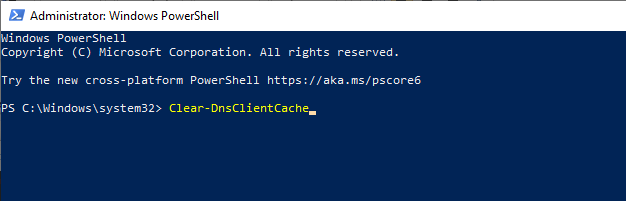 The command runs silently and will not display a confirmation message. The cache is cleared instantly.
3. Restart the DNS Client Service
If flushing the cache doesn't resolve your DNS issues, restarting the DNS Client service itself can be a more thorough fix. This stops and re-initializes the entire service, effectively clearing the cache and refreshing Windows' networking components. You can do this in two ways:
How to clear DNS cache by restarting the DNS Client service:
1. Press Windows key + R to open the Run dialog box.
2. Type services.msc and press Enter.
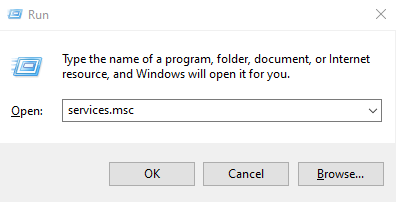
3. Scroll down in the Services window and locate the DNS Client service.
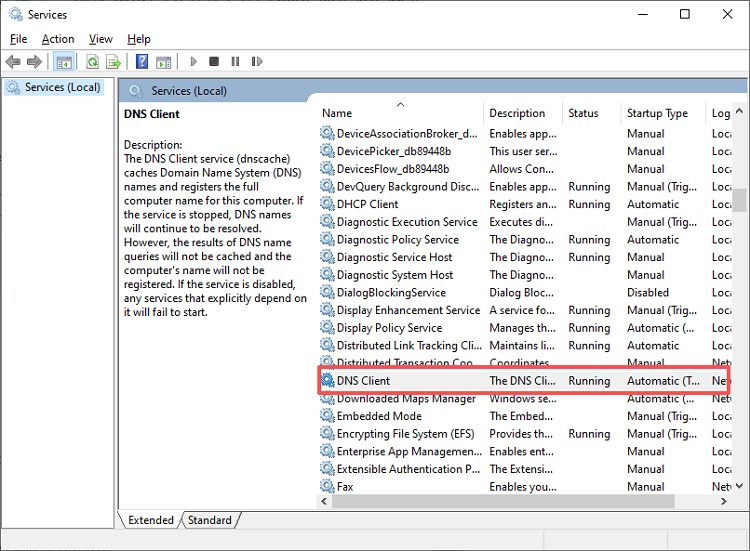
4. Right-click on it and select Restart.
CMD: Run net stop dnscache then net start dnscache
PowerShell: Run Stop-Service -Name Dnscache -Force then Start-Service -Name Dnscache
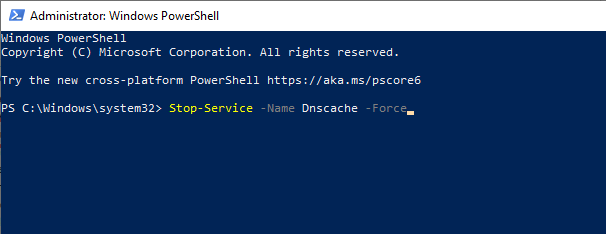
Important caveat: On some Windows configurations, the DNS Client service is set as a dependency for other network services. Stopping it may briefly interrupt active network connections. Do not run this on a production server without a maintenance window.
4. One-Stop Clear DNS Cache with Advanced SystemCare
If you'd rather avoid command-line tools altogether, there's a simpler way. Not everyone feels comfortable using commands. For a simpler, more beginner-friendly approach, tools like Advanced SystemCare are excellent. This powerful PC optimizer not only helps you perform a Windows clear DNS cache operation but also removes junk files and optimizes performance with a single click.
Advanced SystemCare Free
- Clean: 420 billion traces removed & 85 EB junk files cleaned
- Protect: 80 million unauthorized access blocked & 20 million bugs fixed
- Speed Up: 6 million hours of startup time saved & Turbo boost
- Optimize: Auto clean and auto care your PC with AI mode

How to clear DNS cache with Advanced SystemCare:
Download and install Advanced SystemCare from the official website. You can also use it as a RAM booster for Windows 11 to improve overall system speed.
Step 1. Download and install Advanced SystemCare from the official website.
Step 2. Launch the application. In the main interface, click ≡ > Settings.
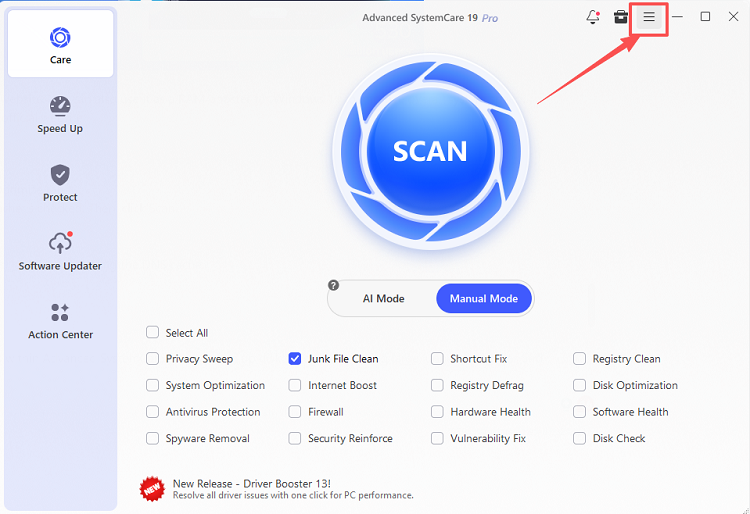
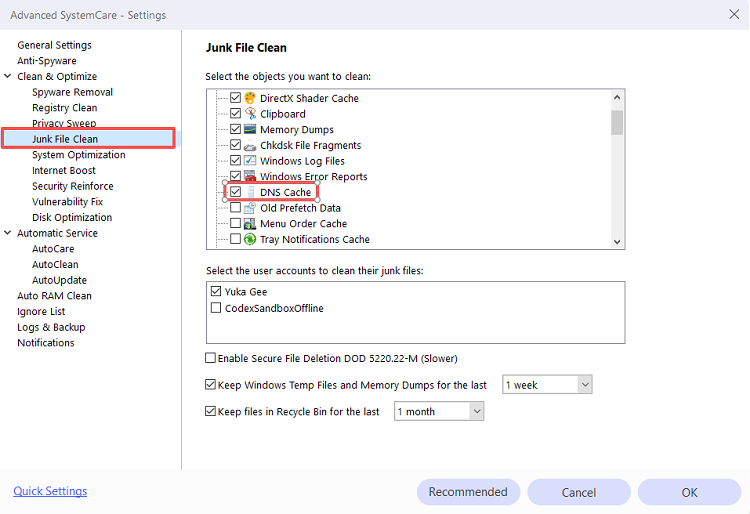
Step 3. Under the Junk File Clean section, ensure that DNS Cache is checked. Then, click OK.
 Step 4. Then select Junk File Clean and click the Scan button.
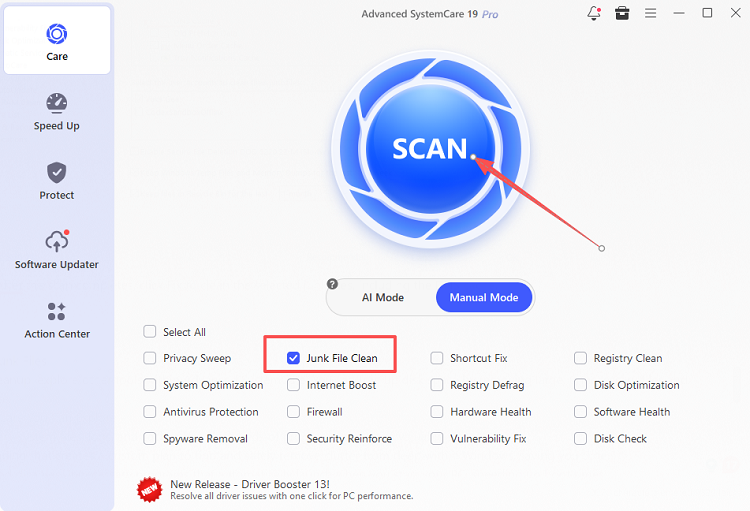
Step 5. After the scan completes, click Fix to clean the selected junk files, including the DNS cache.
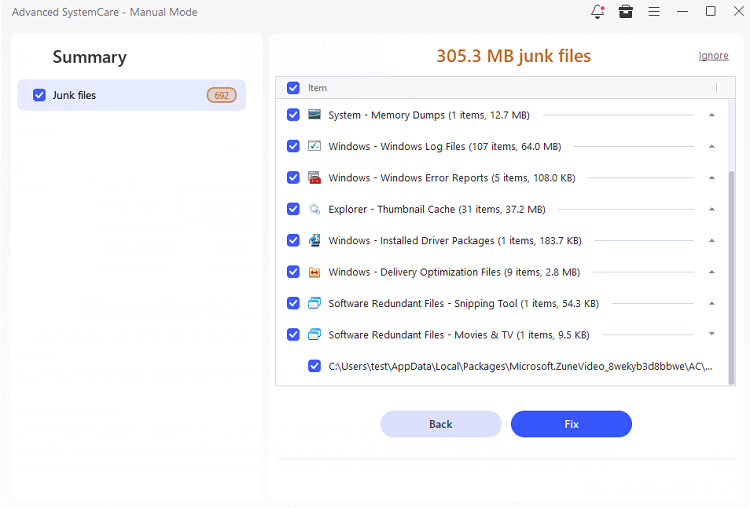
Tip: For a more thorough system cleanup, explore other tools within Advanced SystemCare. You can free up disk space by removing large, unnecessary files and optimizing your browsing experience.
More Features of Advanced SystemCare You Can Explore:
Junk File Clean: Removes temporary system files, logs, and caches from hundreds of programs to reclaim valuable storage space.
AI Mode Cleaning: Intelligent cleaning that creates a custom plan to find and safely remove clutter from deep within Windows, saving you time.
Startup Optimization: Manages and disables unnecessary programs that automatically launch when you start your PC, speeding up boot times.
Privacy Sweep: Clears browsing history, cookies, and saved passwords from your browsers to protect your online privacy.
Registry Cleaner: Safely scans and repairs invalid or outdated entries in the Windows Registry for improved stability.
Performance Monitor: Automatically monitors system resources (RAM, CPU) and optimizes them in the background.
Turbo Boost: Temporarily shuts down non-essential services to dedicate more system resources to gaming or demanding applications, boosting FPS.
5. Clear DNS Cache in Google Chrome
Sometimes, the issue is not with the Windows DNS cache but with DNS information cached inside your browser. This is a great troubleshooting step for site-specific problems.
How to clear DNS cache:
1. Open Google Chrome.
2. In the address bar, type chrome://net-internals/#dns and press Enter.
3. Click the Clear host cache button.

6. Clear DNS Cache in Microsoft Edge
Microsoft Edge users may also encounter similar browser-related DNS problems that a simple flush can fix.
How to clear DNS cache:
1. Open Microsoft Edge.
2. In the address bar, type edge://net-internals/#dns and press Enter.
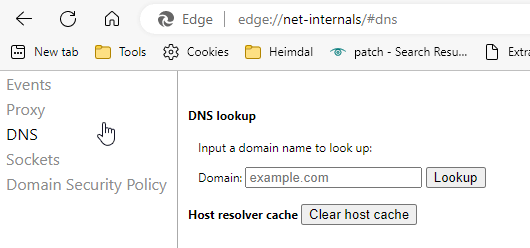
3. Click the Clear host cache button.
FAQs About Windows DNS Cache
Still have questions about when and how to perform a Windows clear DNS cache operation? Here are some common queries:
How often should I clear DNS cache on Windows?
You don't need to do it regularly. Only clear it when you encounter the specific issues mentioned earlier, like website loading errors or seeing outdated content.
Does clearing DNS cache improve Internet speed?
No, it generally does not improve your Internet connection speed. It's a troubleshooting step to fix access issues. However, after a fix, your browsing experience will feel normal again.
How do I know Windows flush DNS cache worked?
After using the ipconfig /flushdns command in Command Prompt, you will see a confirmation message: "Successfully flushed the DNS Resolver Cache".
How to clear DNS cache Windows 11?
The methods are identical for Windows 10 and 11. You can use Command Prompt (ipconfig /flushdns), PowerShell (Clear-DnsClientCache), or restart the DNS Client service on either operating system.
Final Words
Knowing the Windows clear DNS cache steps is a simple but powerful skill for anyone using a computer. It's an essential first-line troubleshooting step that can quickly fix frustrating loading problems, DNS errors, and outdated website information. We encourage you to try the built-in Windows methods first—whether you are looking for how to clear DNS cache Windows 11 or an older version, the Command Prompt approach works across all editions. If you prefer a more guided and comprehensive solution, tools like Advanced SystemCare offer an easy way to handle DNS cache clearing alongside broader system maintenance and optimization tasks. You can also use it to boost Internet speed on PC by optimizing various network settings.