CleanMyPC was a popular PC cleaning utility designed to remove junk files, manage applications, and improve system maintenance. However, the software has been discontinued, raising questions about its availability and compatibility with Windows 11 and 10. To figure out what you want to know about this app, check this CleanMyPC review for features, download options, limitations, Windows compatibility, and a practical alternative for keeping your PC clean.
What Is CleanMyPC and What Can It Do?
Developed by MacPaw, CleanMyPC was an all-in-one Windows maintenance program that helped users reclaim storage space. Unlike basic disk cleaners, it combined several maintenance functions in one interface, making routine PC cleanup more convenient.
Its main features included:
Junk File Cleanup: Scanned temporary files, system logs, caches, and other unnecessary data to recover storage space.
Multi Uninstaller: Removed multiple installed applications and helped eliminate associated leftover files.
Registry Maintenance: Identified unnecessary or outdated registry entries for cleanup.
Autorun Management: Allowed users to manage applications that automatically launched with Windows.
Privacy Cleanup: Removed selected browsing traces and stored activity information.
File Shredder: Provided a secure deletion feature for sensitive files.
These features made the software useful for basic Windows maintenance. However, MacPaw ended its development and support, making newer alternatives more practical for ongoing use.
Is CleanMyPC Still Available for Windows 11/10?
CleanMyPC was a popular PC cleaning and optimization tool developed by MacPaw. Although the software has been discontinued and is no longer officially supported, it offered several useful features for removing unnecessary files, managing installed applications, and improving overall PC maintenance. Users looking for CleanMyPC Windows 11 or CleanMyPC Windows 10 download solutions can explore its original functionality before choosing a modern alternative.
Key Features of CleanMyPC
1. Remove Unnecessary Files with System Junk Cleanup
CleanMyPC scans your computer for temporary files, outdated logs, caches, and other unnecessary data. Removing these files helps recover storage space and keeps your system organized.
2. Uninstall Unwanted Programs and Their Leftover Files
The built-in Multi Uninstaller allows users to remove multiple applications and associated residual files. This feature helps reduce software clutter and reclaim disk space.
3. Manage Startup Programs to Improve Boot Performance
CleanMyPC includes startup management tools that help identify applications launching automatically with Windows. Disabling unnecessary startup entries may reduce boot times and background resource consumption.
4. Clean Windows Registry Entries
The Registry Maintenance feature identifies certain outdated or invalid registry entries left behind by software changes. However, registry cleaning does not guarantee performance improvements, so users should back up their systems before making changes.
5. Manage Browser Extensions for Better Organization
This Windows optimizer helps users review installed browser extensions and remove unwanted add-ons. This makes it easier to manage browser clutter and potentially reduce unnecessary resource usage.
6. Protect Personal Information with Secure File Deletion
The Shredder feature is designed to delete selected files more securely than ordinary deletion. However, secure deletion cannot be guaranteed on SSDs because of their internal storage management.
Is CleanMyPC Compatible with Windows 11 and Windows 10?
CleanMyPC was designed for Windows PCs, including Windows 10, but it is no longer maintained or officially supported. Its reliability on Windows 11 is not guaranteed. For ongoing updates and modern optimization features, users should consider a supported CleanMyPC alternative, such as IObit Advanced SystemCare.
Advanced SystemCare Free
- Clean: 420 billion traces removed & 85 EB junk files cleaned
- Protect: 80 million unauthorized access blocked & 20 million bugs fixed
- Speed Up: 6 million hours of startup time saved & Turbo boost
- Optimize: Auto clean and auto care your PC with AI mode

Is CleanMyPC Free and Safe to Download?
Yes, CleanMyPC offered a free trial with limited features, while full functionality required a paid license. And the original software is generally safe. However, since it is not officially available now, users might have to download it from unofficial websites, which will expose your PC to potential threats.
Therefore, it is not recommended to use a CleanMyPC crack due to potential security risks. For users looking for safer PC cleaning and a CleanMyPC free alternative, consider a legitimate and maintained CleanMyPC alternative like IObit Advanced SystemCare with in-depth cleaning and optimization tools.
Best CleanMyPC Alternative: IObit Advanced SystemCare
IObit Advanced SystemCare is a Windows cleaning and optimization utility that helps remove unnecessary files, manage startup applications, and maintain PC performance.
As a powerful CleanMyPC alternative, it provides a free edition with basic cleaning capabilities and optional Pro features for more advanced maintenance. Unlike the discontinued CleanMyPC, Advanced SystemCare continues to receive updates and supports Windows 11 and Windows 10.
Why Choose IObit Advanced SystemCare?
● Remove Unnecessary Junk Files to Recover Disk Space
As a hard disk cleaner, it can detect temporary files, system caches, and other unnecessary data to reclaim storage space without manually searching through Windows folders.
● Perform One-Click PC Cleaning and System Maintenance
Use AI Mode or Manual Mode to scan selected system areas and perform cleanup tasks through a centralized interface.
● Optimize Windows Startup by Managing Unnecessary Background Applications
Identify unnecessary startup entries and disable or delay them to reduce background resource consumption.
● Clean Browser Traces to Improve Your Online Privacy
Remove selected browsing histories, cookies, and activity traces while allowing users to review what should be retained.
● Find Large and Duplicate Files Consuming Storage Space
Use Custom Clean to locate large or duplicate files and decide which items can safely be deleted.
Advanced SystemCare Free
- Clean: 420 billion traces removed & 85 EB junk files cleaned
- Protect: 80 million unauthorized access blocked & 20 million bugs fixed
- Speed Up: 6 million hours of startup time saved & Turbo boost
- Optimize: Auto clean and auto care your PC with AI mode
● Monitor PC Resource Usage and Manage Memory Consumption
View system resource activity and use available optimization functions to manage unnecessary background processes. Automatic RAM cleaning requires Pro.
● Improve PC Responsiveness with Dedicated Performance Optimization Modes
Use Turbo Boost modes to temporarily reduce selected nonessential services and processes during demanding tasks. If you want to know how to improve Steam download speed, then this software will give you the answer.
● Check Disk Problems That May Affect PC Stability
Use Disk Check to identify potential disk errors, perform a PC performance check, and investigate storage-related issues that may affect system stability.
How to Clean Your PC Using IObit Advanced SystemCare
If your computer is accumulating unnecessary files or experiencing storage problems, Advanced SystemCare provides a straightforward cleaning workflow. Rather than manually removing temporary data from different Windows folders, you can select specific maintenance categories, inspect scan results, and clean the detected items from one interface.
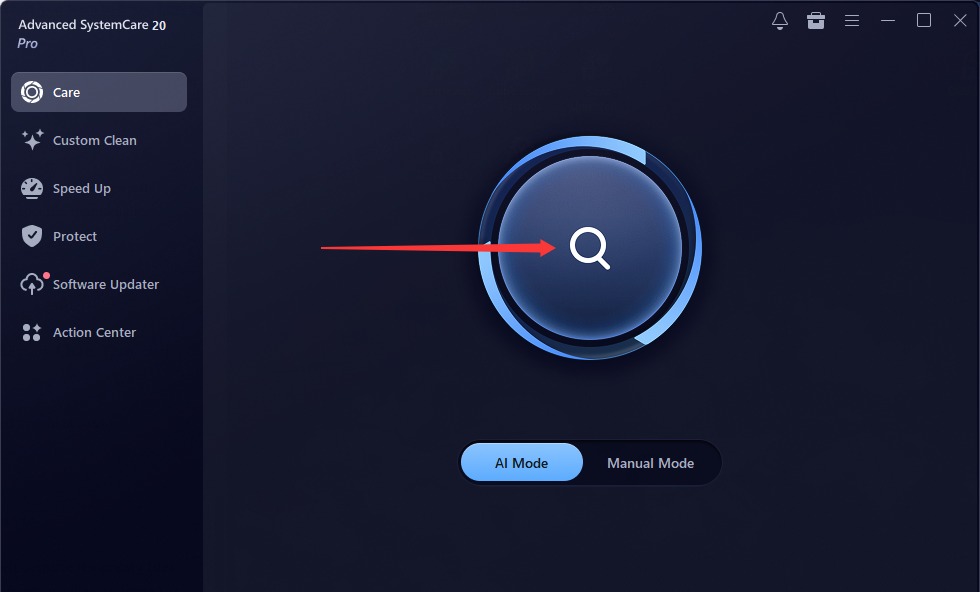
Step 1. Download and install IObit Advanced SystemCare from the official website. Open it and navigate to Care.
Step 2. Choose AI Mode, let it handle everything for you. Or choose Manual Mode and select specific cleaning options, such as Junk File Clean, Privacy Sweep, and Registry Clean. Then, click Scan and wait for the program to examine the selected areas.
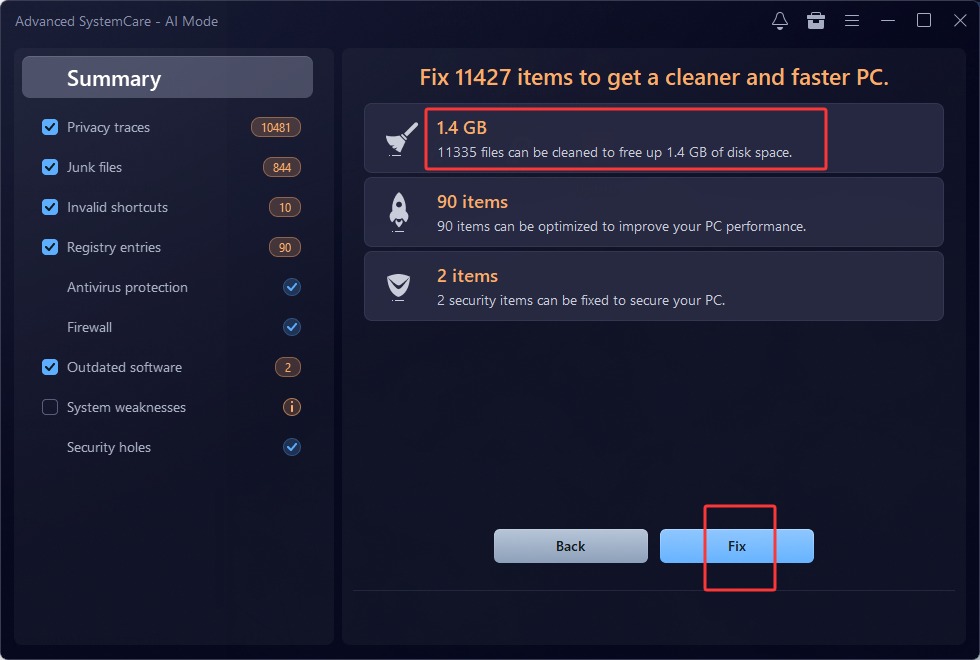
Step 3. Review the scan results carefully, deselect anything you want to keep, and click Fix to perform the selected optimizations.
Step 4. Restart your computer if necessary and check the available storage space and overall responsiveness.
Tip: Review cookies, saved browser data, and large files before deletion. Not every detected item needs to be removed.
Other Free Ways to Clean Your Windows PC
If you prefer not to install additional software, Windows includes built-in maintenance utilities. These junk file cleaners can help remove temporary files, manage storage usage, and reduce unnecessary startup activity. Although they offer fewer combined optimization functions than dedicated software, they are useful for performing straightforward cleanup tasks.
Method 1. Remove Temporary Files Through Windows Settings
Step 1. Press Windows + I to open Settings.
Step 2. Navigate to System > Storage.
Step 3. Select Temporary files and wait for Windows to calculate available cleanup items.
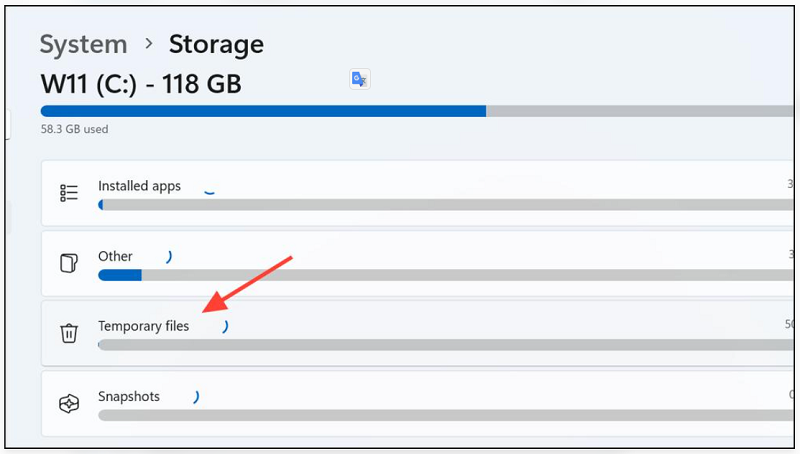
Step 4. Review the categories and click Remove files.
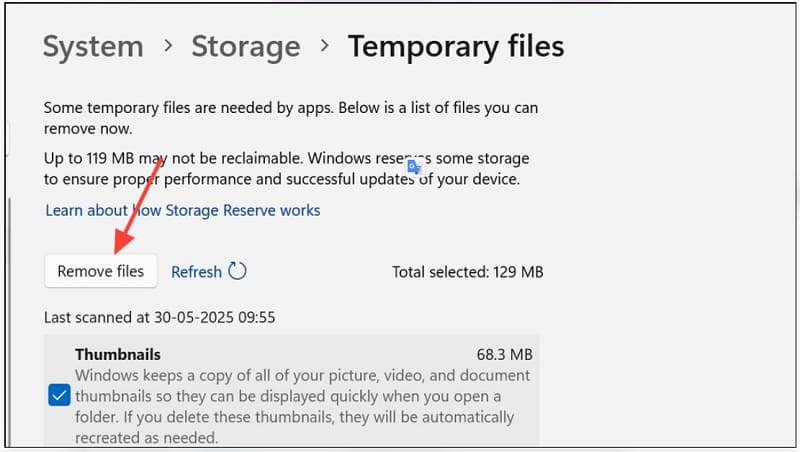
Method 2. Enable Storage Sense for Automatic Cleanup
Step 1. Open Settings > System > Storage.
Step 2. Select Storage Sense and turn it on.
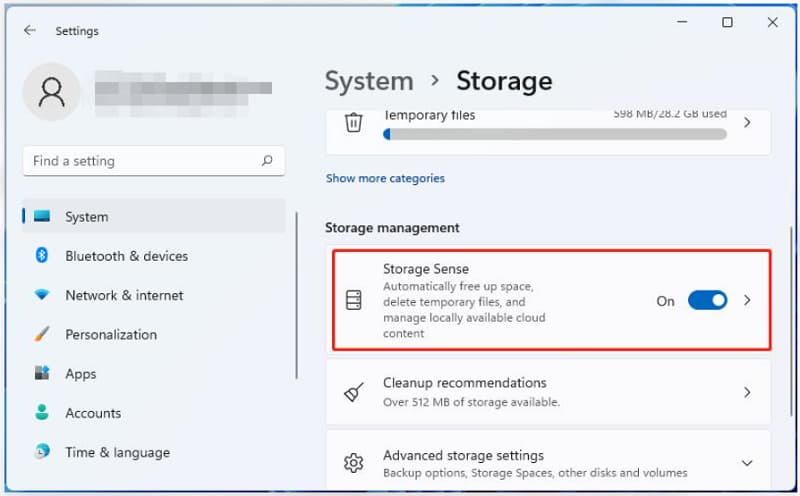
Step 3. Configure the cleanup schedule and temporary-file settings.
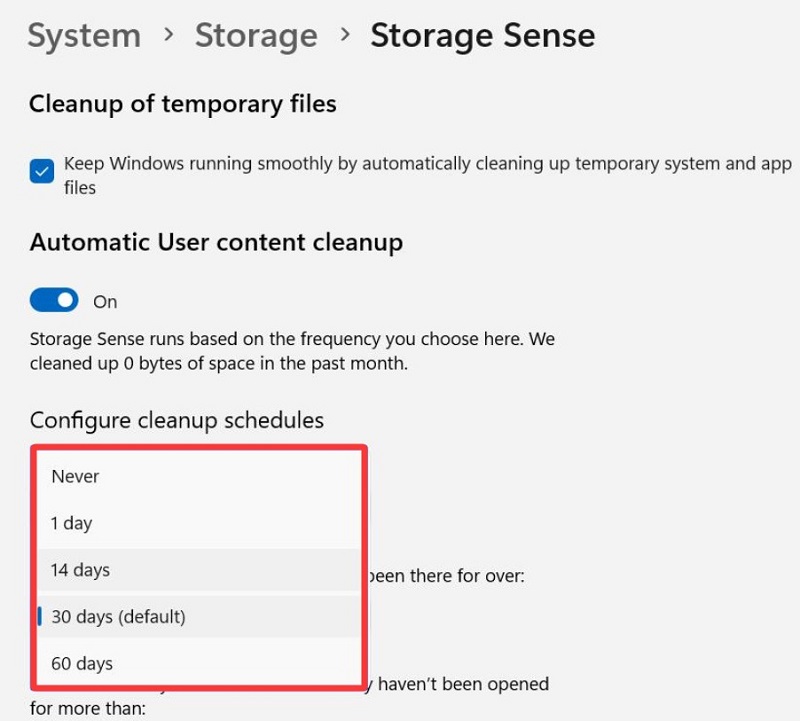
Step 4. Run Storage Sense manually when necessary.
Method 3. Disable Unnecessary Startup Programs
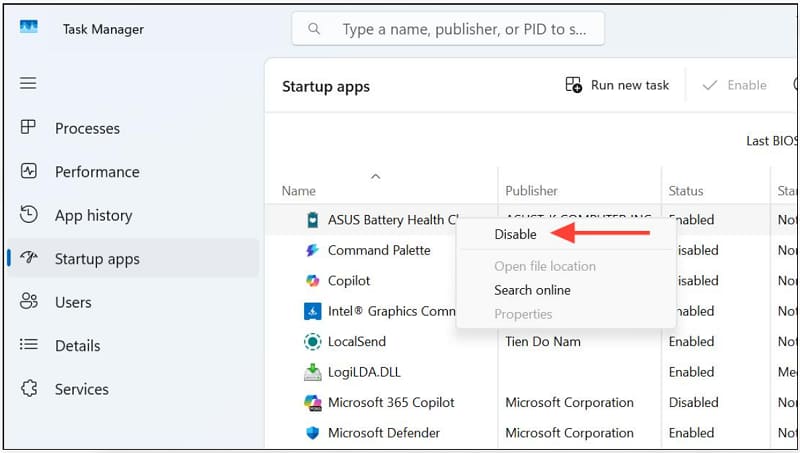
Step 1. Press Ctrl + Shift + Esc to open Task Manager.
Step 2. Select Startup apps.
Step 3. Identify unnecessary applications with high startup impact.
Step 4. Right-click the application and select Disable.
CleanMyPC Review FAQs
1. Is CleanMyPC discontinued?
Yes. MacPaw officially discontinued the software in April 2025. It no longer receives updates, fixes, or regular support.
2. Can I still download CleanMyPC?
Yes. MacPaw states that the final version remains downloadable, but only existing license holders can activate all features. Compatibility is no longer guaranteed.
3. What is the best free CleanMyPC alternative?
IObit Advanced SystemCare is an option for users seeking a free PC cleaner with junk-file removal, startup management, and basic optimization functions. Windows Storage Sense is another choice for users who prefer built-in cleanup tools.
4. Does cleaning junk files make a PC faster?
Removing unnecessary files can free storage and may improve responsiveness when a drive is nearly full. However, it does not automatically improve CPU or GPU performance. Results depend on the cause of the slowdown.
Conclusion
Although CleanMyPC once provided convenient Windows maintenance features, its discontinuation makes it less suitable for ongoing use. For Windows 11 and 10 users, IObit Advanced SystemCare is a practical CleanMyPC alternative offering free cleaning functions and optional advanced optimization tools. Regular cleanup, careful startup management, and updated software can help keep your PC running smoothly.