Storing sensitive files on your new PC requires robust protection, and BitLocker is often the first solution that comes to mind. However, many Windows users face disappointment when they discover the feature isn't available on their system. If you've encountered the message "BitLocker is not available on this edition of Windows," you're not alone. Fortunately, the market offers several excellent BitLocker alternative solutions that work effectively to encrypt sensitive data and keep your information secure. Let's explore the best options available in 2026, from free open-source tools to premium security suites.
What is BitLocker?
BitLocker is Microsoft's built-in full-disk encryption feature designed to protect data on Windows devices from unauthorized access. It uses the Advanced Encryption Standard (AES) algorithm with 128-bit or 256-bit key lengths to encrypt entire volumes, making data inaccessible when devices are lost, stolen, or improperly decommissioned. The feature integrates with the Trusted Platform Module (TPM) hardware to provide pre-boot system integrity verification, ensuring the device hasn't been tampered with while offline.
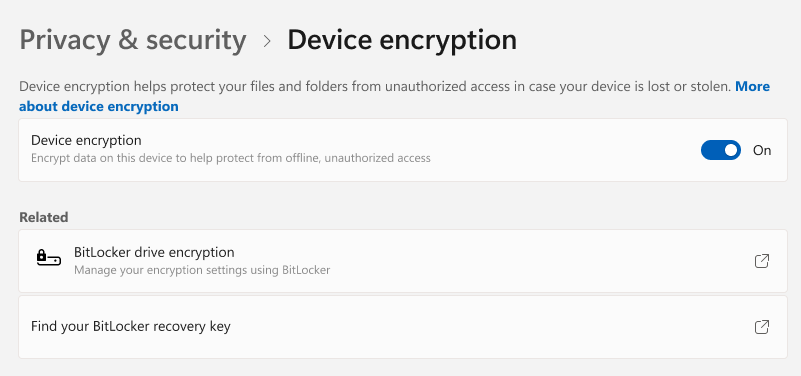
BitLocker is available on Windows Pro, Enterprise, and Education editions. However, is BitLocker available in Windows 11 Home? No, it is not. The Home edition does not include the full BitLocker Drive Encryption management features. That said, Microsoft does offer Device Encryption on Windows 11/10 Home—this is a feature-limited version of BitLocker that automatically encrypts the operating system drive and fixed drives on Modern Standby-capable devices that meet hardware requirements (TPM 2.0, Secure Boot).
When you sign in with a Microsoft account, Device Encryption turns on automatically and backs up the recovery key to your account. For users wondering about BitLocker Windows 10 Home, the same limitation applies—the full BitLocker Drive Encryption management interface is reserved for Pro and higher editions. Upgrading to Windows Pro is the official way to access full BitLocker management features.
Understanding Encryption Types
Before choosing a BitLocker alternative, it's important to understand two primary encryption approaches:
Full-disk encryption
It protects everything on a drive, including the operating system, system files, and all user data. When you turn on your device, the encryption software requires authentication before the system boots. This approach ensures comprehensive protection but can cause complications if the encryption key is lost—potentially leading to BitLocker blue screen errors or startup loops.
File and folder encryption
It allows you to selectively encrypt specific files or directories rather than entire drives. This provides more flexibility, enabling you to protect only sensitive information while leaving system files and non-sensitive data unencrypted for better performance.
Comparison Table for BitLocker Alternatives
The table below compares the top BitLocker alternative solutions based on encryption type, platform support, open-source status, and pricing. This quick overview will help you identify which tool best matches your specific security needs—whether you prefer free full-disk encryption or premium file-level protection with additional features.
|
Alternatives
|
Encryption Type
|
Supported Platforms
|
Open-source
|
Price
|
|
Advanced SystemCare
|
File/folder encryption
|
Windows
|
No
|
From $19.99/mo
|
|
FileVault 2
|
Full-disk encryption
|
macOS
|
No
|
Free (built-in)
|
|
AxCrypt
|
File/folder encryption
|
Windows, macOS, Android, iOS
|
No
|
From $5.00/mo
|
|
DiskCryptor
|
Full-disk encryption
|
Windows
|
Yes
|
Free
|
|
BestCrypt
|
Container/disk encryption
|
Windows, macOS, Linux, Android
|
No
|
From $49.95
|
|
Cryptomator
|
File/folder encryption
|
Windows, macOS, Linux, Android, iOS
|
Yes
|
Free (desktop); mobile paid
|
6 Best BitLocker Alternatives to Encrypt Sensitive Data
1. Advanced SystemCare
Best for: Users seeking a comprehensive security suite that combines file/folder encryption with system optimization and privacy protection tools.
Advanced SystemCare offers a comprehensive approach to data security that extends beyond simple encryption. This makes it an excellent BitLocker alternative for users who need selective protection rather than full-disk encryption.
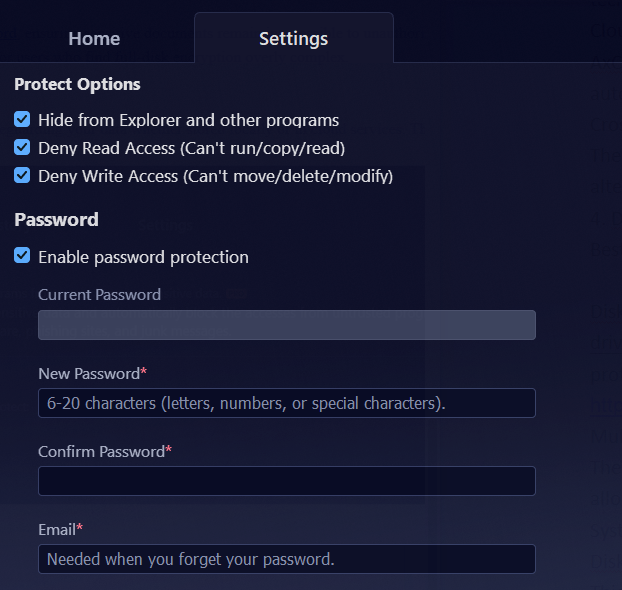
Protect files and folders with password
Its Privacy Shield feature lets you protect files and folders with password, ensuring sensitive documents remain inaccessible to unauthorized users. You can also password protect a folder with just a few clicks, making it an ideal BitLocker alternative for users who find full-disk encryption overly complex.
Access protection for local and cloud drives
The software provides access protection for local and cloud drives, safeguarding your data whether stored locally or in cloud services. This ensures that your sensitive information remains protected across all storage locations.
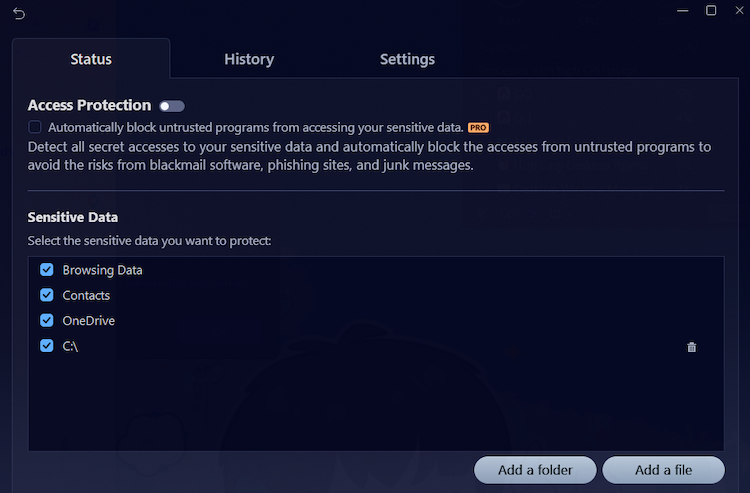
Clear temp files and browser cookies to prevent sensitive data leaks
Additionally, its privacy protection tools help clean up temp files and browser cookies, preventing sensitive data leaks through temporary files or stored browsing information.
2. FileVault 2
Best for: macOS users who need full-disk encryption integrated directly into their operating system.
FileVault 2 is Apple's built-in full-disk encryption solution for macOS, serving as the Apple ecosystem equivalent of BitLocker. While not a direct BitLocker alternative for Windows users, it's worth mentioning for those who work across both platforms.
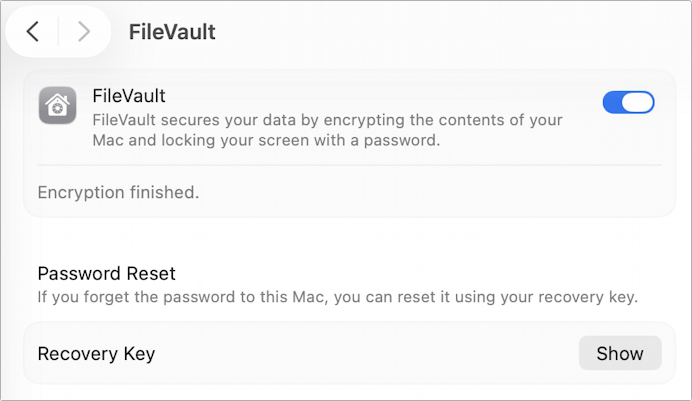
Full-disk encryption with XTS-AES 128-bit
It uses XTS-AES 128-bit encryption to protect the entire startup drive, requiring users to enter their login password or recovery key when starting up. This ensures comprehensive protection for all data stored on the Mac.
Seamless macOS integration
The feature is seamlessly integrated into macOS, requiring no additional software installation. FileVault 2 also supports iCloud recovery key storage, making key management straightforward for Apple users.
3. AxCrypt
Best for: Users who want simple, seamless file encryption that integrates with cloud storage services.
AxCrypt is a user-friendly encryption software that focuses on simplicity without compromising security. It offers strong AES-256 encryption for individual files and folders, making it an ideal BitLocker alternative for users who find full-disk encryption overly complex.
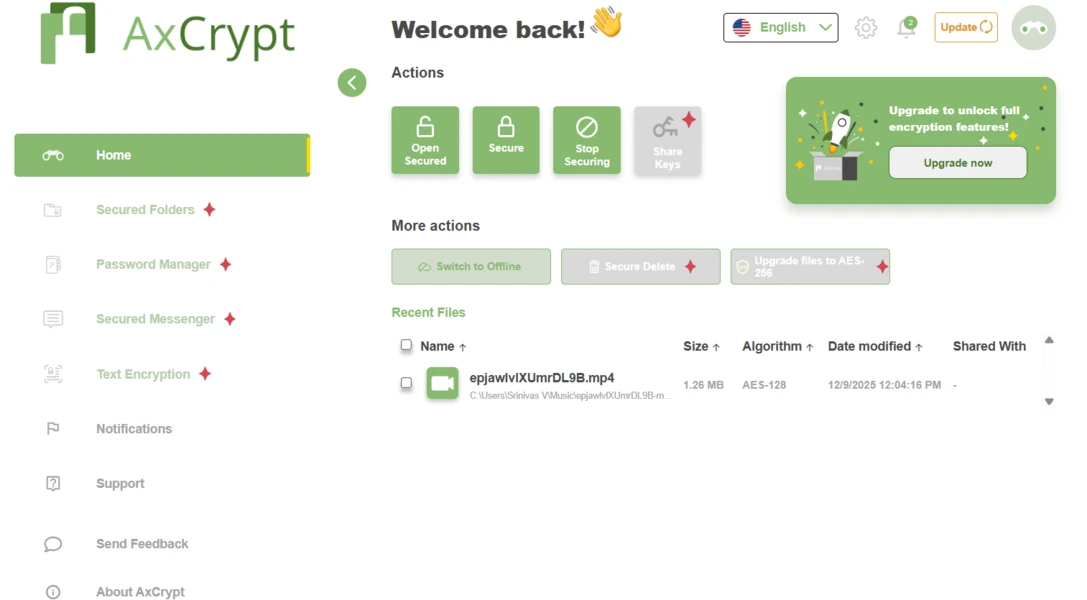
Simple file encryption with Windows Explorer integration
The software integrates with Windows Explorer, allowing you to encrypt files with a simple right-click. This intuitive approach makes securing sensitive data accessible to users of all technical levels.
Cloud storage integration
AxCrypt includes features like secure password management and cloud storage integration, automatically encrypting files before they sync to services like Dropbox or Google Drive.
Cross-platform mobile access
The mobile apps enable you to decrypt and view files on the go. As a modern BitLocker alternative, AxCrypt prioritizes ease of use while maintaining enterprise-grade security standards.
4. DiskCryptor
Best for: Budget-conscious users who need full-disk encryption and prefer open-source software.
DiskCryptor is an open-source full-disk encryption solution that supports encryption of system drives, external drives, and partitions. As a free BitLocker alternative, it offers comprehensive protection without the cost barriers associated with commercial software.
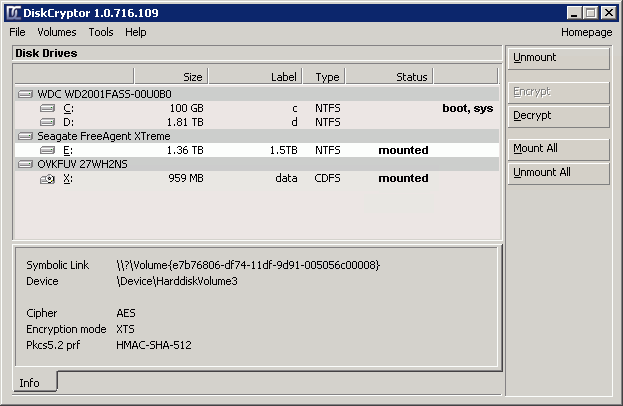
Multiple encryption algorithm support
The software supports multiple encryption algorithms including AES, Serpent, and Twofish, allowing users to choose their preferred security level based on their specific needs.
System drive encryption with pre-boot authentication
DiskCryptor can encrypt the system drive, enabling pre-boot authentication similar to BitLocker. This ensures that your entire system is protected from the moment it starts up.
Open-source transparency
Its open-source nature means the code is publicly auditable, providing transparency about the security implementation. For users concerned about the limitations of BitLocker Windows 10 Home, DiskCryptor offers a viable free BitLocker alternative with comparable functionality.
5. BestCrypt
Best for: Users requiring advanced encryption features and plausible deniability capabilities.
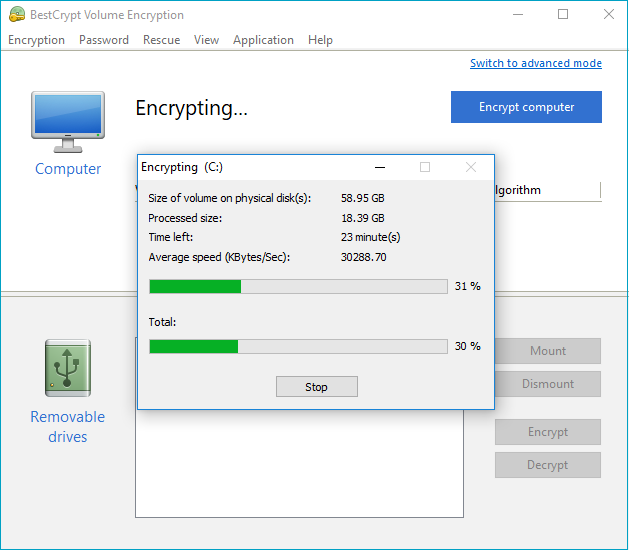
BestCrypt offers enterprise-grade encryption with container-based protection that's highly versatile. Instead of encrypting entire drives, BestCrypt creates encrypted containers—virtual drives that appear as regular drives when mounted but remain locked and inaccessible when unmounted. This approach provides the benefits of full-disk encryption with more flexibility.
Encrypted containers for flexible protection
The container-based approach allows you to create multiple encrypted containers for different purposes, each with its own password and encryption settings. This provides granular control over how your data is protected.
Advanced security features
The software supports multiple encryption algorithms and includes advanced features like hidden containers (plausible deniability) and keyfile support. These features make it suitable for users with high-security requirements.
Full-disk encryption option
BestCrypt also offers BestCrypt Volume Encryption for full-disk protection on Windows and macOS. For users managing a BitLocker laptop in a business environment, BestCrypt provides robust management tools that complement existing security infrastructure.
6. Cryptomator
Best for: Users who store sensitive data in cloud services and need cross-platform encryption.
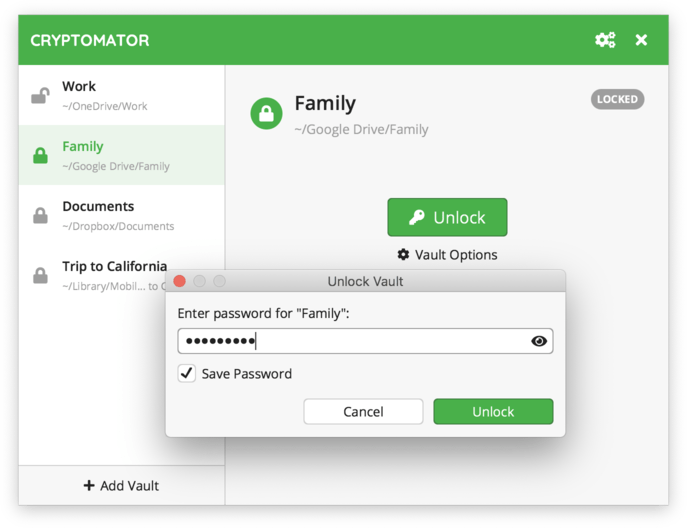
Cryptomator is a popular open-source encryption tool specifically designed for cloud storage security. It creates encrypted vaults that automatically encrypt files before they sync to cloud services, ensuring your cloud data remains private even if the service provider is compromised. This makes it a modern BitLocker alternative for cloud-centric users.
Client-side encryption for cloud storage
The software features transparent encryption, meaning you simply drag files into a vault and they're automatically encrypted. This client-side encryption model ensures the provider never sees your encryption keys.
Cross-platform availability
Cryptomator is available across all major platforms (Windows, macOS, Linux, Android, iOS), providing cross-device access to encrypted data. This makes it ideal for users who work across multiple devices and platforms.
No boot-time complications
For users frustrated by the dreaded scenario where BitLocker keeps asking for recovery key at startup Windows 11—often triggered by BIOS updates, TPM misconfigurations, or Windows updates—Cryptomator's file-level approach completely sidesteps these boot-time headaches, offering a simpler and more predictable encryption experience.
Conclusion
While BitLocker remains a solid encryption tool for Windows Pro users, is BitLocker available in Windows 11 Home? No, and the same goes for BitLocker Windows 10 Home. Whether you're securing a BitLocker laptop or avoiding frustrating BitLocker blue screen errors, a capable BitLocker alternative is within reach. For the best balance of encryption, system optimization, and privacy protection, Advanced SystemCare stands out as the most comprehensive choice.