- Support Center
- Multiple Languages
- Language
- Help Us Translate
Expert in
PC Health Solution

All-in-one PC health solution: clean, optimize and secure

Comprehensive PC cleaning, optimization and protection

Keep drivers always up-to-date

More stable performance with less system crashes

Protect millions of computers against malware

Top computer security with full-round protection

Protect against viruses & boost PC performance
Clean: 420 billion traces removed & 85 EB junk files cleaned
Protect: 80 million unauthorized access blocked & 20 million bugs fixed
Speed Up: 6 million hours of startup time saved & Turbo boost
Optimize: Auto clean and auto care your PC with AI mode

What is BitLocker? Why is it used? In this article, we will take an in-depth look at what BitLocker is, how it works, and how you can remove it if necessary.



The basic definition and core aim of BitLocker.
BitLocker encrypts the full drive with authentication and TPM technology.
3 major benefits of using BitLocker.
The steps to set up BitLocker on a Windows PC.
Remove BitLocker from Control Panel and Command Line.
BitLocker is not 100% secure and it will slow down PC.
Protect important files/folders with Safe Folder.
Basic Definition of BitLocker
What is BitLocker? BitLocker is a full-disk encryption tool developed by Microsoft to protect user data. Its primary function is to encrypt the entire contents of a hard drive, ensuring that if the device is lost or stolen, the data remains inaccessible without the password or recovery key.
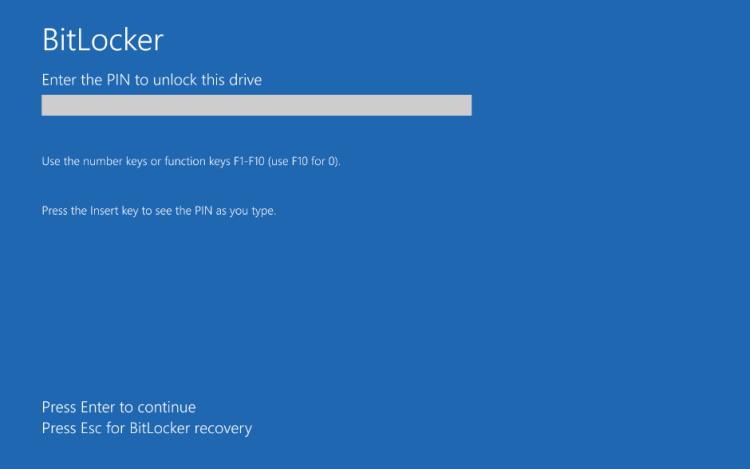
BitLocker's Objective: Security and Protection
The main goal of BitLocker is to protect sensitive information. It encrypts the hard drive and ensures that no one can access system files without the correct key.
Full-Disk Encryption
BitLocker encrypts the entire hard drive, meaning even operating system files are protected. This ensures that all data stored on your device is fully encrypted.
User Authentication: Password and Keys
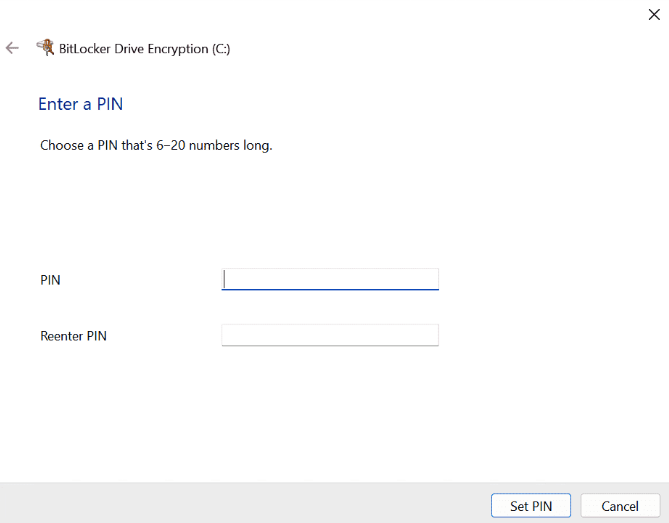
To access the encrypted data, BitLocker requires authentication—such as a password, PIN, or recovery key—depending on how it is configured.
 TPM (Trusted Platform Module) Technology
A key element that facilitates BitLocker is the TPM, a security chip that stores encryption keys. The TPM ensures the system boots up only if the hardware and software have not been tampered with.
Protection of Sensitive Data
With BitLocker, your data remains protected against unauthorized access, especially if your device is lost or stolen.
Regulatory Compliance
If you work in an environment requiring high security standards—such as the financial or healthcare sectors—using BitLocker can help you meet privacy and data protection regulations.
Minimal Performance Impact
Despite performing encryption, BitLocker has a minimal impact on system performance, allowing your device to run smoothly.
Requirements for Using BitLocker
To use BitLocker, your device must meet certain requirements. Specifically, it needs a compatible operating system—such as Windows 10 Pro or Enterprise—and a TPM chip.
Activate BitLocker in Windows 11/10
Open Control Panel: Go to "Control Panel" and select "System and Security."
Select BitLocker: Click on "BitLocker Drive Encryption."
Turn on BitLocker: Select the drive you want to encrypt and follow the instructions to configure the encryption.
Choose an Authentication Method
You can choose from several authentication options, such as a password protect or a USB drive. Select the method that best suits your needs.
Turn off BitLocker via Control Panel
Access BitLocker: Go to "System and Security" in the "Control Panel."
Select the Drive: Choose the drive you want to unlock.
Turn off BitLocker: Click "Turn off BitLocker" and confirm your choice.
Remove Encryption Using the Command Line
If you prefer using the command line, open the Command Prompt with administrator privileges and type the following command: manage-bde -off C:
This command will remove BitLocker on the C: drive (make sure to change the drive letter if it is different).
It Is Not 100% Secure
Although BitLocker offers a high level of protection, it is not infallible. It is always advisable to keep a backup and use strong passwords.
It Slows Down Device Performance
Another common myth is that BitLocker slows down device performance. In most cases, the impact is minimal, and the security it provides outweighs any inconvenience.
Now you know “what is BitLocker”. While BitLocker protects data at the drive level, some users may only need extra protection for a few sensitive files or folders. In this case, Advanced SystemCare Safe Folder offers another simple way to protect selected files from unauthorized access, making it useful alongside broader Windows security features such as BitLocker.
 People Also Ask
Learn what to do when the referenced account is currently locked and you may not be able to log in, avoid future lockouts, and protect your PC.
Learn everything about the Windows 12 release date, expected features, hardware requirements, pricing, and compatibility. Discover the latest rumors, the possible Windows 12 launch date, and how to prepare your PC.
Is your computer overheating? Learn how to check CPU temperature is the first step toward a healthier, faster PC. Also, learn how to cool your computer down.
How to improve Steam download speed? Check how to make Steam download faster in 12 ways: Check Internet Connection, Switch Steam Download Server Region…
What is a device driver? A device driver is a middle program that lets your OS communicate with hardware. Learn more about the device drivers in computer.
How to defrag hard disk Windows 11/10? Check this step-by-step guide inside.