- Support Center
- Multiple Languages
- Language
- Help Us Translate
Expert in
PC Health Solution

All-in-one PC health solution: clean, optimize and secure

Comprehensive PC cleaning, optimization and protection

Keep drivers always up-to-date

More stable performance with less system crashes

Protect millions of computers against malware

Top computer security with full-round protection

Protect against viruses & boost PC performance
Clean: 420 billion traces removed & 85 EB junk files cleaned
Protect: 80 million unauthorized access blocked & 20 million bugs fixed
Speed Up: 6 million hours of startup time saved & Turbo boost
Optimize: Auto clean and auto care your PC with AI mode

Learn what to do when the referenced account is currently locked and you may not be able to log in, avoid future lockouts, and protect your PC.



What Does "The Referenced Account Is Currently Blocked" Mean?
6 Solutions to The Referenced Account is Currently Locked
What to Do If the Error Continues to Appear
The Referred Account is Blocked: Solutions and FAQ
If you received the error message "The referenced account is currently locked and you may not be able to log in" when starting your PC for the first time (which is more common on new PCs), it's understandable to feel concerned. Below, we explain the meaning of this warning, why it occurs, and what to do when the lockout isn't resolved by basic solutions.
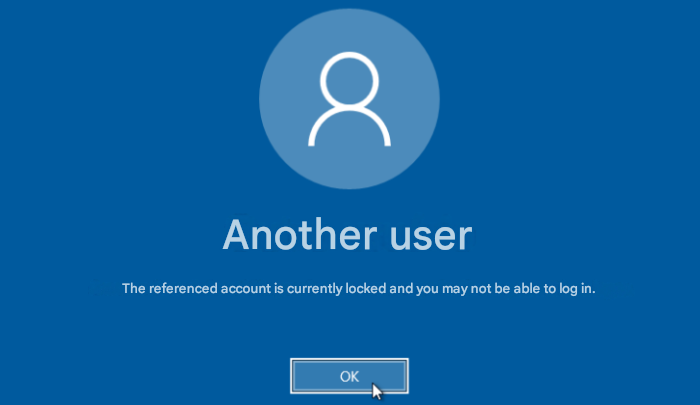
When Windows displays the message "The referenced account is currently locked out and may not be logged on to," this indicates that access to the account has been temporarily blocked for security reasons. Common causes include:
Repeated attempts at entering the wrong password trigger automatic account lockouts.
Recent changes to your account, such as password changes, account type, or permissions.
Activation of Windows or Microsoft protection mechanisms due to suspicious activity.
Corporate network or domain security policies that block logins after consecutive failures.
Synchronization issues with online Microsoft accounts or authentication across multiple devices.
Use of devices, IPs, or networks not recognized by the system, which may generate security alerts.
Hardware or software failures on the computer, such as corrupted system files, hard drive problems, or Windows registry errors.
Malware or virus attacks that may attempt to access the account or modify critical settings, leading the system to block login as a preventative measure.
In Windows 11, the warning usually appears in full: "The referenced account is currently locked and may not be logged on to," completely preventing access to the system. In many cases, this is a temporary protection, but unlocking does not always happen automatically.
A quick way to bypass the temporary block is to disconnect your computer from the internet. This prevents login attempts from continuously failing and allows the block period to expire.
Disconnect the Ethernet cable or turn off the Wi-Fi connection.
Please wait a few minutes for Windows to recognize the lack of connection and allow you to unlock the account.
Try logging in again without a connection.
Warning: this solution usually only works for temporary blocks and does not resolve restrictions imposed by local policies.
After multiple incorrect login attempts, Windows locks the account for a set period of time (usually 30 minutes). Simply waiting out this period may resolve the issue.
Tip: Avoid trying multiple times during the lockdown period, as this may prolong the restriction time.
If you see the Reset password option on the login screen, this is one of the safest ways to recover a locked Microsoft account.
On the login screen, click Reset password.
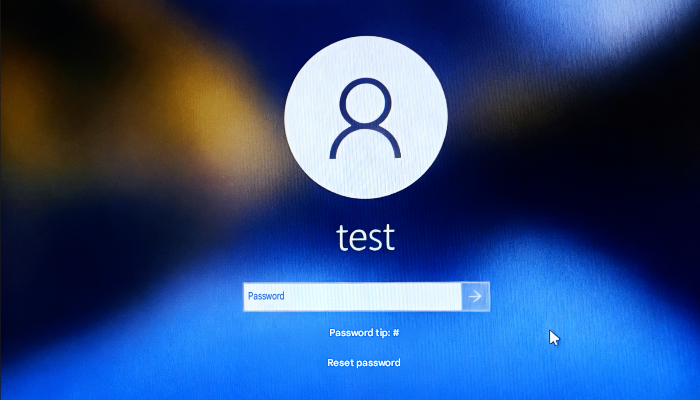
Follow the instructions to verify your identity: answer the security questions, or use a password reset disk if you created one previously.
Create a new, secure password and confirm it.
Log in with your new password.
Note: Resetting your password does not remove locks caused by security policies.
Related article: Best Solution: How to Defrag Hard Disk Windows 11/10 >>
Before continuing, please confirm:
The computer does not belong to a corporate domain.
You have access to the Windows recovery environment.
How to activate:
Click the power icon in the bottom right corner of the login screen.
Press Shift and select Restart, or restart your computer and repeatedly press F8 or F11 when Windows starts.
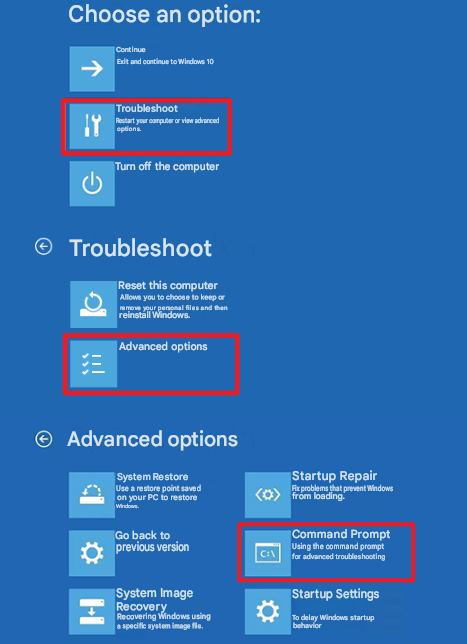
On the troubleshooting screen, go to Troubleshooting > Advanced options > Command Prompt.
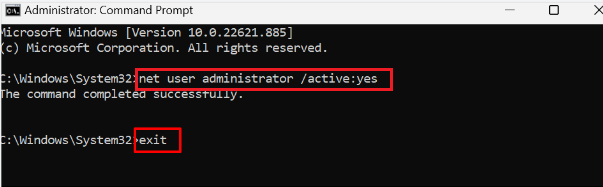
Type the command net user Administrator /active:yes and press Enter.
Next, type exit and restart your computer.
On the login screen, select the Administrator account and log in.
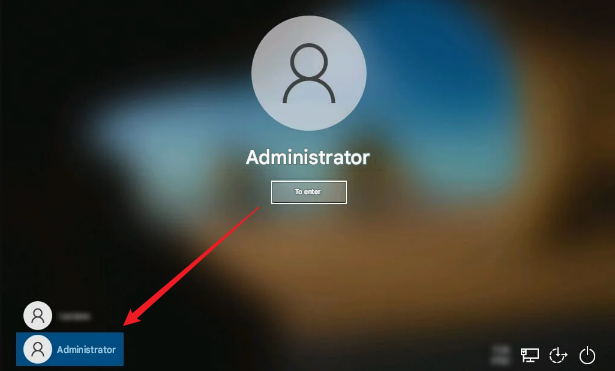
If you have administrator access, you can modify the blocking policy to prevent the problem from recurring.
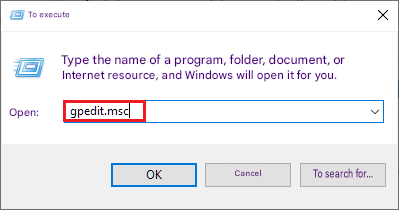
Press Win + R, type gpedit.msc, and press Enter.
Navigate to Computer Configuration > Windows Settings > Security Settings > Account Policies > Account Lockout Policy.
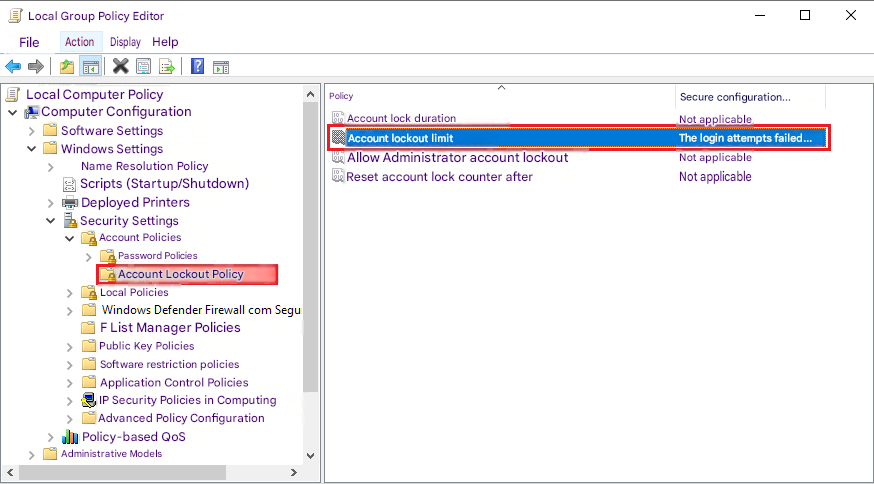
Double-click on Account Lock Limit and adjust the number.
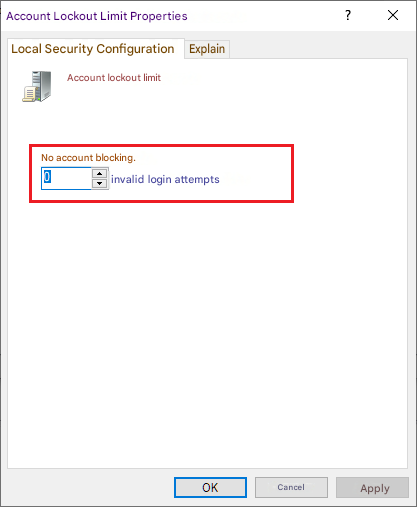
Click Apply and then OK.
This approach to the referenced account is currently locked out is useful for system administrators who want to prevent the referenced account from being locked out and unable to log in from happening repeatedly.
If none of the previous solutions work, resetting Windows 11 may solve the problem by restoring the system to its factory settings.
Activate the device's internet connection.
Turn on your PC and press F11.
Select Reset this computer.
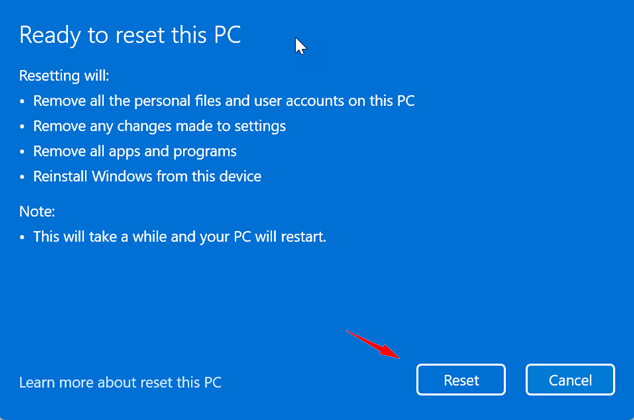
Follow the on-screen instructions to complete the reset.
After restarting, set up the account again.
This is a last resort, indicated when the error "the referenced account is locked out in Windows 11" persists and completely prevents access to the system.
If the message "the referenced account is currently blocked" persists, the problem may be related to:
Corrupted local security policies
Corrupted system files
Other Windows logon errors
In these cases, the blockage affects not only the account but also the authentication environment. A practical way to try to resolve these problems is by using a reliable system maintenance tool, such as IObit Advanced SystemCare.
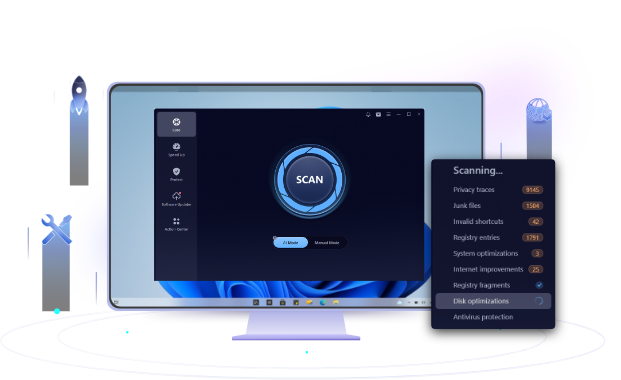
Advanced SystemCare helps you to:
Detect and repair corrupted system files.
Correct registry entries that may affect login.
Optimize overall Windows performance and reduce unexpected crashes.
Here’s how it works:
Step 1. Free download and install it on your PC.
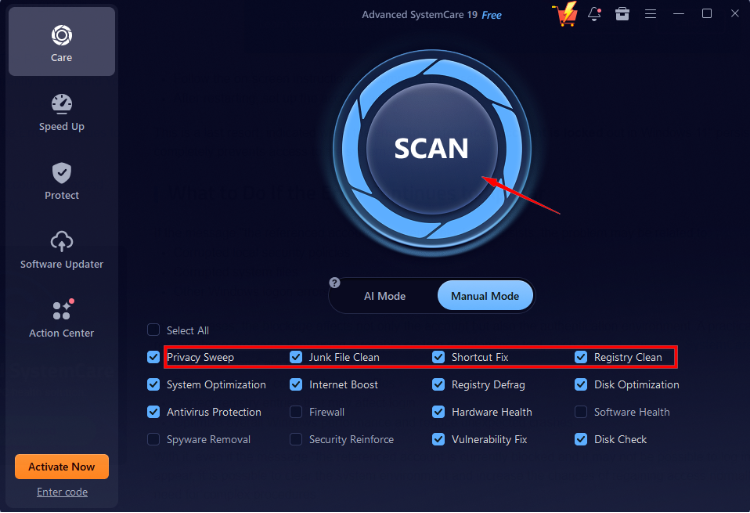
Step 2. Select “Manual Mode” > check the items you need, click on “SCAN”.
Step 3. Click “Fix” to optimize your PC and fix all the system errors.
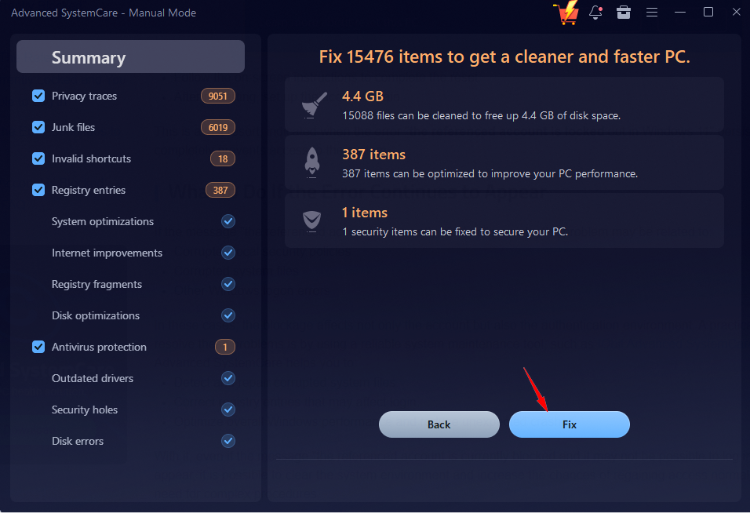
With it, even if the message "the referenced account is currently blocked and it may not be possible to log in" continues to appear, it is possible to clear the system environment and increase the chances of regaining access normally, without the need for complex procedures.
The error "The referenced account is currently locked and you may not be able to log on" is a security measure, but when misinterpreted or handled with the wrong solution, it can completely prevent access to Windows. If the referenced account is locked problem persists even after checking the scenarios above, it is best to contact Microsoft Support or evaluate system repair tools.
The lockout time can vary depending on Windows or company policy. Typically, temporary lockouts last from a few minutes to a few hours.
Generally, after 3 to 5 consecutive incorrect password attempts, Windows may temporarily lock the account as a security measure. In corporate environments, this number can be configured by administrators.
If the referenced account is locked and you don't remember the password, use the Windows or Microsoft account password recovery option. Alternatively, follow the reset procedures provided by your system administrator if it's a corporate computer.
If there is another administrator account available on the same computer, you can access it to fix problems or reset the password for the locked account.
If the message "the referenced account is currently locked out and may not be logged on to" persists, it is recommended to use system repair tools, such as Advanced SystemCare, or contact technical support to restore access.
 People Also Ask
Discover Tiny10, a lightweight version of Windows 10 built for low-spec devices. Learn its features, benefits, requirements, and limitations.
How to improve Steam download speed? Check how to make Steam download faster in 12 ways: Check Internet Connection, Switch Steam Download Server Region…
How to fix corrupted files in Windows 11 to enhance system stability? This guide covers the most effective methods to repair damaged files on your PC.