- Support Center
- Multiple Languages
- Language
- Help Us Translate
Expert in
PC Health Solution

All-in-one PC health solution: clean, optimize and secure

Comprehensive PC cleaning, optimization and protection

Keep drivers always up-to-date

More stable performance with less system crashes

Protect millions of computers against malware

Top computer security with full-round protection

Protect against viruses & boost PC performance
Clean: 420 billion traces removed & 85 EB junk files cleaned
Protect: 80 million unauthorized access blocked & 20 million bugs fixed
Speed Up: 6 million hours of startup time saved & Turbo boost
Optimize: Auto clean and auto care your PC with AI mode

Is your computer overheating? Learn how to check CPU temperature is the first step toward a healthier, faster PC. Also, learn how to cool your computer down.



Monitoring CPU temperature can prevent PC problems and ensure efficient system operation.
Three ways to check CPU temperature: in the BIOS, using third-party tools, or using Windows tools.
Five tips to lower CPU temperature.
Use best computer cleaning tool to optimize your system and prevent CPU overheating.
CPU overheating can cause performance drops, system crashes, and even permanent damage to your hardware. How to check CPU temperature or check it regularly? Here’s a straightforward, easy-to-follow way.
Your CPU powers everything on your computer, from browsing the web to running heavy software. High temperatures can cause slowdowns, crashes, and even permanent damage. Checking CPU temperature regularly helps you avoid these problems and ensures your system runs efficiently.
This method is useful if your system crashes under Windows, but it only shows idle temps before the OS loads.
1. Restart your PC and press the startup key (usually F2, Del, or Esc).
2. Navigate to “Hardware Monitor”, “PC Health Status”, or “H/W Monitor” section.
3. You’ll see your CPU temperature there.
For real-time monitoring, dedicated software is the best choice. Download a lightweight, trusted tool like Core Temp, HWMonitor, or Open Hardware Monitor. These apps are simple to install and provide continuous monitoring while your computer is in use. Look for the “Tjunction” value—that’s your actual operating temperature. For most desktops, idle temps of 30–50°C and load temps of 70–85°C are normal.
For a quick check in Windows, you can use built-in utilities like Task Manager.
Task Manager: While Task Manager does not directly show CPU temperature, you can monitor CPU usage, which can indicate overheating issues.
Windows PowerShell/Command Prompt: Some users can retrieve temperature data using system information commands, but this often requires additional drivers or sensors.
How to get temperature of CPU in PowerShell:
Open PowerShell as admin and run:
Get-WmiObject MSAcpi_ThermalZoneTemperature -Namespace “root/wmi”.
Note that not all systems support this, and the result is in tenths of a Kelvin (so divide by 10 and subtract 273.15 to get Celsius).
If your CPU runs consistently above 85°C under load, or hits 95°C+, take action.
Improve airflow – Ensure fans aren’t blocked and add more if necessary.
Clean dust – Dust buildup on fans and heat sinks traps heat.
Replace thermal paste – Old paste reduces heat transfer.
Close heavy apps – Limit resource-intensive programs running at once.
Upgrade cooling – Consider a better CPU cooler or liquid cooling system.
While the above methods are essential, many overheating problems stem from software inefficiency. Background bloatware, unnecessary startup programs, and rogue processes keep your CPU active even when idle, raising baseline temperatures.
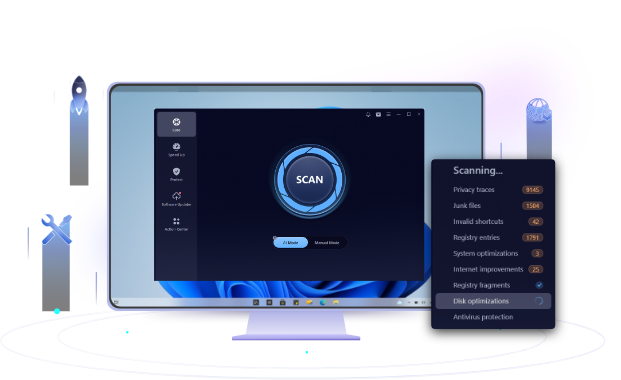
This is where Advanced SystemCare makes a real difference. It goes beyond basic temperature monitoring by actively reducing the software-side causes of heat. One click stops hidden resource hogs, disables auto-start junk, and deep-cleans system junk that slows cooling efficiency.
How to check CPU temperature is not difficult. It is suggested to monitor your temps weekly, act when they creep up, and let reliable software handle the rest. A cool CPU is a happy CPU.
 People Also Ask
How to improve Steam download speed? Check how to make Steam download faster in 12 ways: Check Internet Connection, Switch Steam Download Server Region…
How to defrag hard disk Windows 11/10? Check this step-by-step guide inside.
How to fix corrupted files in Windows 11 to enhance system stability? This guide covers the most effective methods to repair damaged files on your PC.