- Support Center
- Multiple Languages
- Language
- Help Us Translate
Expert in
PC Health Solution

All-in-one PC health solution: clean, optimize and secure

Comprehensive PC cleaning, optimization and protection

Keep drivers always up-to-date

More stable performance with less system crashes

Protect millions of computers against malware

Top computer security with full-round protection

Protect against viruses & boost PC performance
Automatically scan and update drivers.
Update game ready drivers for peak gaming performance.
Identify and fix various common of hardware issues.
Boost 30% of system performance for fast & smooth running.

Forgot your Wi-Fi password? Learn “how to find out my WiFi password” on PC and mobile devices (Windows, Mac, Android, iOS) and easily regain access.



When Would You Need to Find the WiFi Password
How to Find WiFi Password on PC
How to Check WiFi Password on macOS
How to View WiFi Password on Mobile Devices
How to Find Out My WiFi Password via Router
FAQs About WiFi Password & WiFi Device
Has this ever happened to you? You have a new phone, a guest arrives, and... poof... the Wi-Fi password has completely slipped your mind? How to find out my WiFi password? Don't worry; here you’ll learn the methods to find WiFi passwords, specifically how to view it on your PC—step-by-step.
Common scenarios
You forgot the password and need to connect a new device.
You have guests and want to give them quick access.
You are about to change the router's name or password and need to confirm the current one.
Is it legal and safe to view it? Quick warnings
You should only view or retrieve passwords for networks you have the right to access (your own router, your work network if permitted, etc.). Attempting to access other people's networks without permission is illegal. Also, only share the password with trusted individuals and avoid sending the key via insecure messaging methods.
Where can I find my wifi password? If you are a PC user, please follow the instructions here. You can view Wifi Password on Windows with both Windows settings and Command Prompt.
On Windows 10:
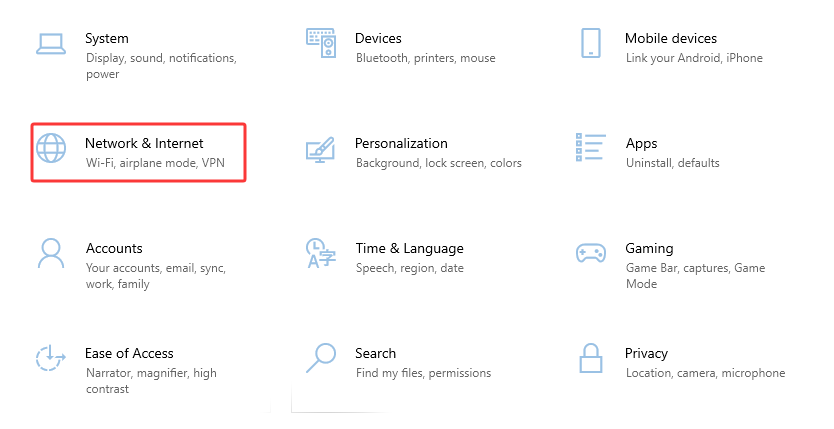
1. Go to Settings > Network & Internet.
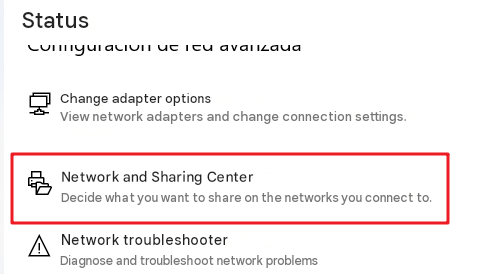
2. Go to Status > Network and Sharing Center (or search for "View network connections").
3. Click your WiFi connection → Wireless Properties.
4. On the Security tab, check "Show characters" for the Network security key.
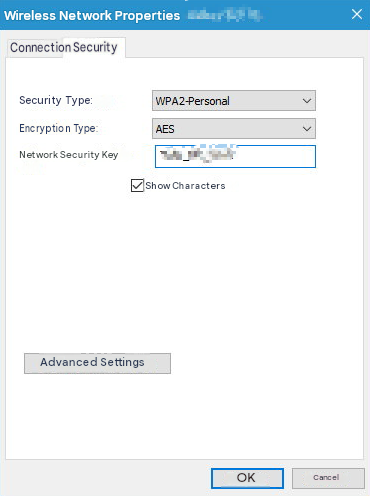
Done! The password will appear.
On Windows 11:
How to find my WiFi password on Windows 11? The process will be similar.
1. Start > Settings > Network & internet.
2. Click Advanced network settings > More network adapter options.
3. Choose the connected WiFi > choose View status of this connection and then follow the same process as on Windows 10 to view WiFi password on Windows 11 in the Network Security Key field.
1. Open Command Prompt as administrator (search for "cmd" and select "Run as administrator").
2. Type:
netsh wlan show profiles
This lists the saved networks.
3. To view the password for a specific network (replace NETWORK_NAME with the SSID):
netsh wlan show profile name="WiFi_NAME" key=clear
Look for the line "Key Content": the password is displayed there in plain text.
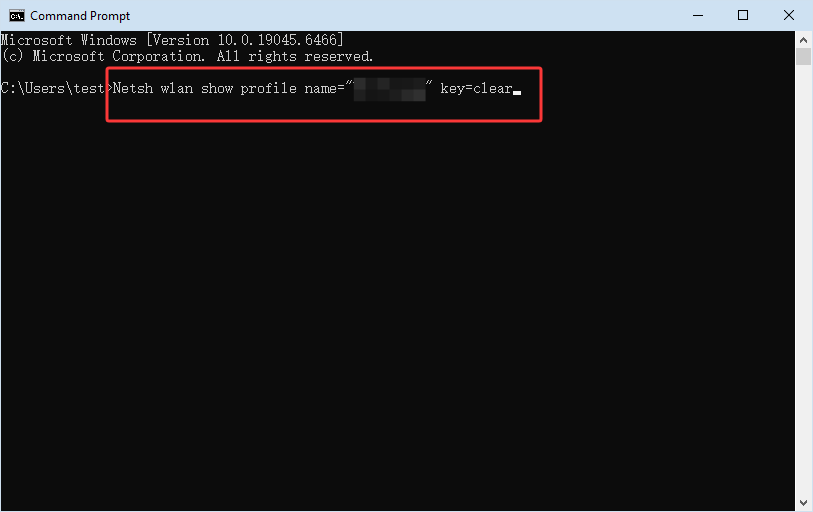
Tips: This is how to know WiFi password in laptop without connected. Use the graphical method if you prefer to avoid commands; the *netsh* method is fast and reliable.
Method 1. Find WiFi Password Using Keychain Access
1. Open Keychain Access.
2. In the left column, select System or iCloud, then search for the Wi-Fi network name (SSID).
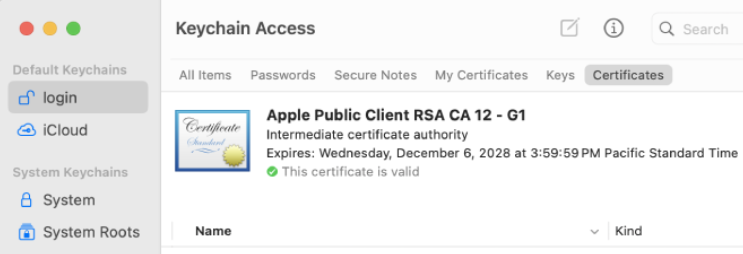
3. Double-click the network name → check "Show password" → enter your administrator username/password when prompted.
The password will appear.
Method 2. Find Out My WiFi Password with Terminal
If you prefer Terminal:
security find-generic-password -D "AirPort network password" -a "NETWORK_NAME" -w
It will ask for permission and then display the password.
Bonus Tip: How fast is your internet? Try testing with a PC speed tester.
1. View WiFi Password in Android 10+ (Share/QR)
How to find out my WiFi password if I use mobile devices? On modern versions of Android (10 and up), saved networks can be shared:
1. Settings > Network & internet > Wi-Fi > Saved networks.
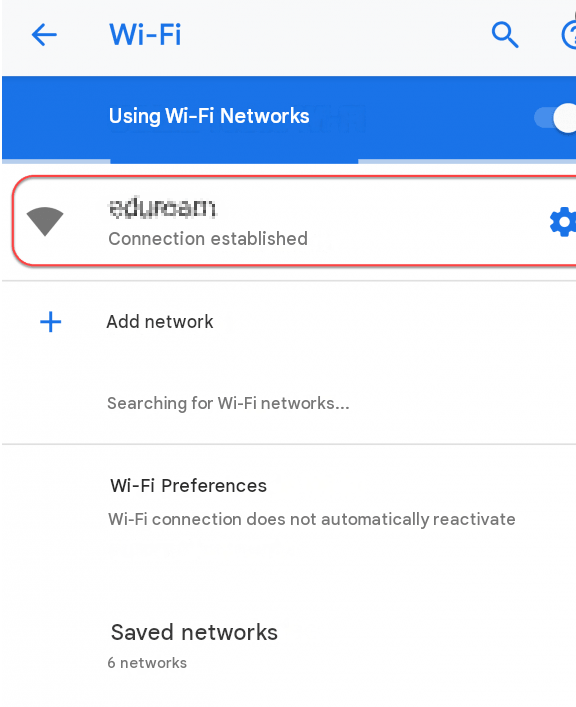
2. Select the network and tap Share.
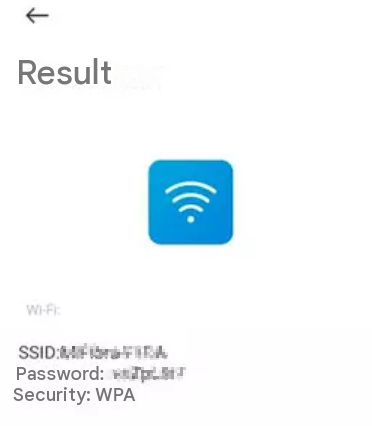
3. A QR code will appear, and in many cases, the password in plain text (or the QR code can be scanned from another mobile device to connect). You may be asked for your fingerprint or PIN. On older Android versions, you need root access to directly view the file where passwords are stored.
Tips: You might also be interested in: How to Boost WiFi Speed
2. Find WiFi Password from iPhone (iOS)
Share password via AirDrop: If your iPhone is already connected and the other device is nearby, iOS offers to share the password automatically (via a pop-up window).
View on iPhone: iOS 16 and later allow you to view saved passwords under Settings → Passwords → search for the network → view password (using Face ID/Touch ID).
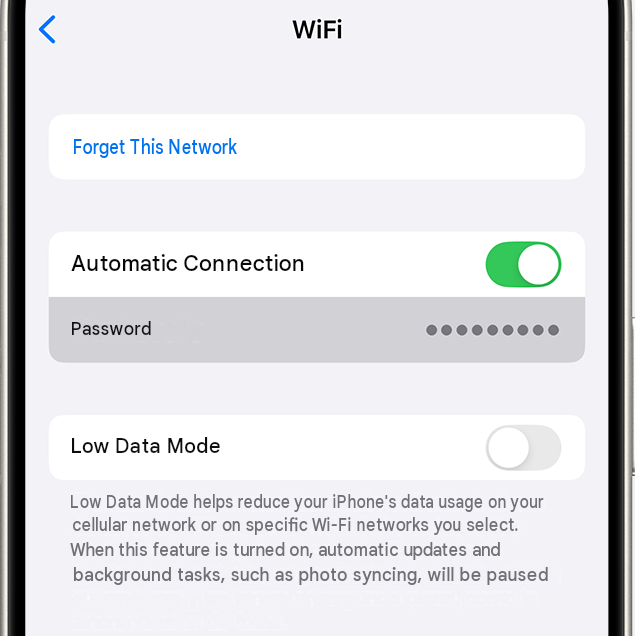
Alternative: If you use iCloud Keychain, you can view the password from a synced Mac (see macOS section).
Find the router's IP and log in
On your PC, open cmd and type ipconfig (Windows) and search for Default Gateway; normally it is 192.168.0.1 or 192.168.1.1.
Open a browser and enter that IP.
Log in with username/password (if you never changed it, it can be admin/admin — check the router label).
Search for Wireless, Wi-Fi, or Wireless Security; There you will see the SSID and the password (or you can change it).
Reset the router as a last resort
If you don't remember the panel credentials, you can reset the router with the physical button (press and hold ~10s). That returns everything to factory settings (default SSID and password on the label). Please note that you will lose all custom settings.
1. Can I see someone else's Wi-Fi password from my PC?
No. You can only view passwords for networks saved on your computer or those to which you have administrative access. Attempting to access other people's networks without permission is illegal.
2. Will I lose my settings if I reset the router to recover the password?
Yes. A factory reset wipes all configurations (SSID, password, ports, rules, etc.). Only use this option if there is no other way.
3. What If I Connected to My WiFi and The Network Is Not Working?
The issue may stem from a router issue, internet service outage, an outdated/missing/corrupted network adapter driver, or other errors. Try restarting your router, reconnecting, checking your network service subscription, testing on multiple devices, etc. If the issue only appears on your PC, try updating your network adapter driver, e.g., with Driver Booster, which safely and efficiently scans your driver status and updates drivers easily.

4. What should I do if the "Show password" option doesn't appear in Windows?
Try the `netsh` command in the Command Prompt running as administrator (`netsh wlan show profile name="NETWORK_NAME" key=clear`) or check the router settings.
5. Are passwords shared via QR code on Android secure?
Yes, sharing via QR code is secure if done in the person's presence. The code contains the password in plain text, which another device can read to connect. Do not share the QR code in public places.
6. How can I avoid having to retrieve the password in the future?
Use a password manager to save it, write it down in a secure place, enable iCloud Keychain or password syncing across your devices, and set up a guest network for visitors instead of giving out the main password.
These are methods for “how to find out my WiFi passwords on PC and mobile devices”. Finding out your Wi-Fi password doesn't have to be a headache. Depending on the device you use—Windows, macOS, Android, iPhone, or the router itself—there are clear, secure methods to retrieve the key. Always remember to do this only on networks where you have permission, and follow security best practices so you don't have to retrieve the password frequently. Ready to connect that new phone?
 People Also Ask
Learn how to restart computer with keyboard, commands, or shortcuts in Windows 10, and find out why it restarts on its own in this complete guide with step-by-step solutions.
No sound in headphones? Explore easy workarounds to fix sound not playing through headphones in Windows (11).
PC stuck on boot screen? Learn how to fix pc stuck on boot screen with proven methods like Safe Mode, SFC scan, and driver updates.
Is your keyboard stuck on your laptop, preventing you from using your computer? Discover 6 simple and effective solutions to unblock your keyboard.
Explore possible methods of how to update BIOS on Windows 11. Learn all essentials for BIOS update on PCs and laptops.
Yes. You can try 3 ways on how to uninstall the Realtek audio driver and reinstall it to solve the problem that PC sound is not working generally.