- Support Center
- Multiple Languages
- Language
- Help Us Translate
Expert in
PC Health Solution

All-in-one PC health solution: clean, optimize and secure

Comprehensive PC cleaning, optimization and protection

Keep drivers always up-to-date

More stable performance with less system crashes

Protect millions of computers against malware

Top computer security with full-round protection

Protect against viruses & boost PC performance
Automatically scan and update drivers.
Update game ready drivers for peak gaming performance.
Identify and fix various common of hardware issues.
Boost 30% of system performance for fast & smooth running.

No sound in headphones? Explore easy workarounds to fix sound not playing through headphones in Windows (11).



No sound in headphones is a common issue the many PC users encounter, whether they are using wired or Bluetooth headphones. The cause varies, from connection problems, to audio settings or outdated drivers. If you have headphones connected but no sound, here are a few simple troubleshooting tips that make your headphones work properly again in Windows.
For wired headphones
Unplug and reconnect the headphones firmly. It’s better try another audio or USB port if available.
For Bluetooth headphones
3. Make sure that your headphones have sufficient battery and work well. Then unpair and repair it.
1. Go to Settings > Bluetooth & devices.
2. Locate your headphone and choose Remove device.
3. Click Add device and select your headphone from the list.
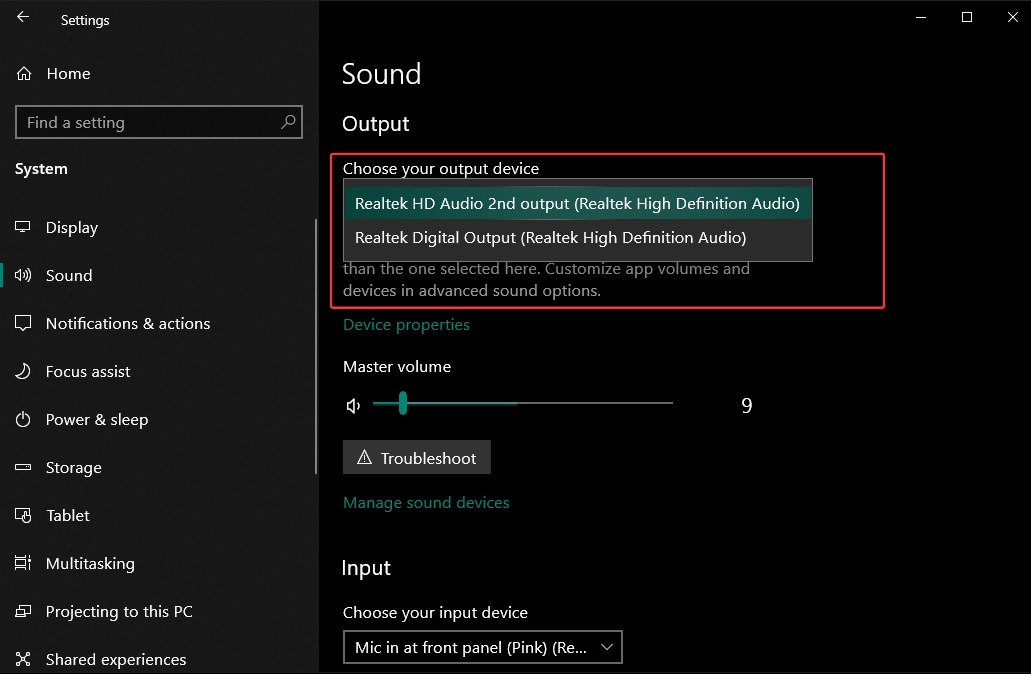
When there are multiple audio output devices - speaker, headphones - connected to your PC, check whether the current (Bluetooth) headphones or are the selected device.
1. Go to Settings > System > Sound.
2. Select the correct audio device under Output.
3. Make sure that the volume is not muted.
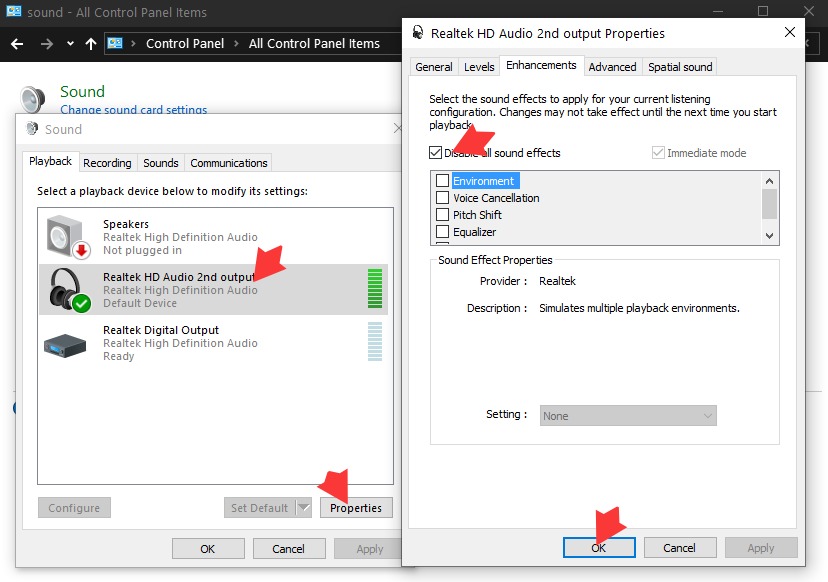
Windows builds in audio enhancements to apply special sound effects, like loudness equalization, bass boost, virtual surround, that can improve playback quality of your audio devices, especially when watching movies or gaming. However, the feature sometimes leads to distorted audio, high latency or even no sound from headphones. If so, turn off all audio enhancements.
1. Open Control Panel on your PC.
2. Click Sound > Playback.
3. Select your headphones and click Properties
4. Navigate to Enhancements and check Disable all sound effects.
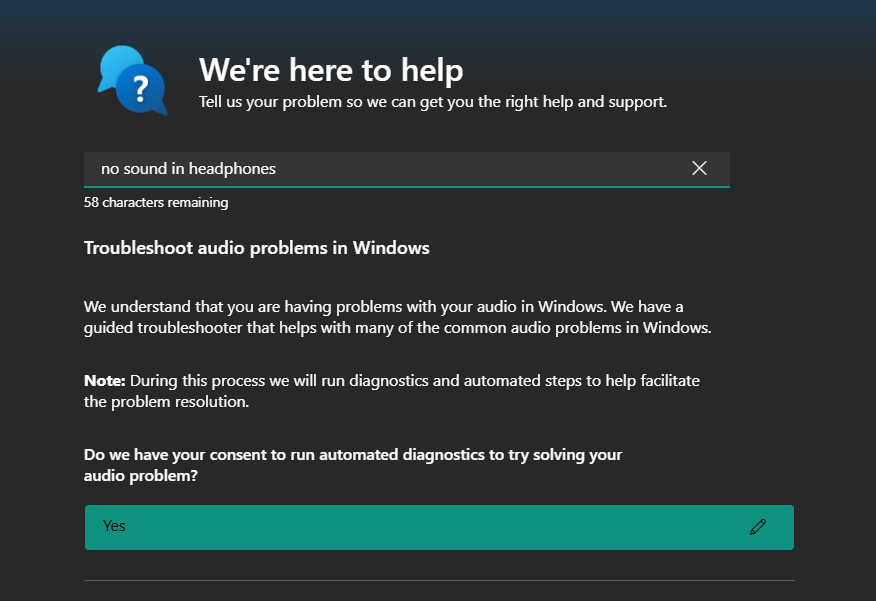
Windows Audio Troubleshooter is designed to diagnose and fix most audio problems. If the sound is not coming through headphones, run the troubleshooter to attempt to fix the issue.
1. Open Get Help app.
2. Search "No sound in headphones" and press Enter.
3. Click Yes to run the automated diagnostics.
4. Windows will detect and fix audio problems soon.
Outdated audio or Bluetooth drivers may not compatible with the system and your devices, causing no sound in headphones. Check for driver update and restore audio.
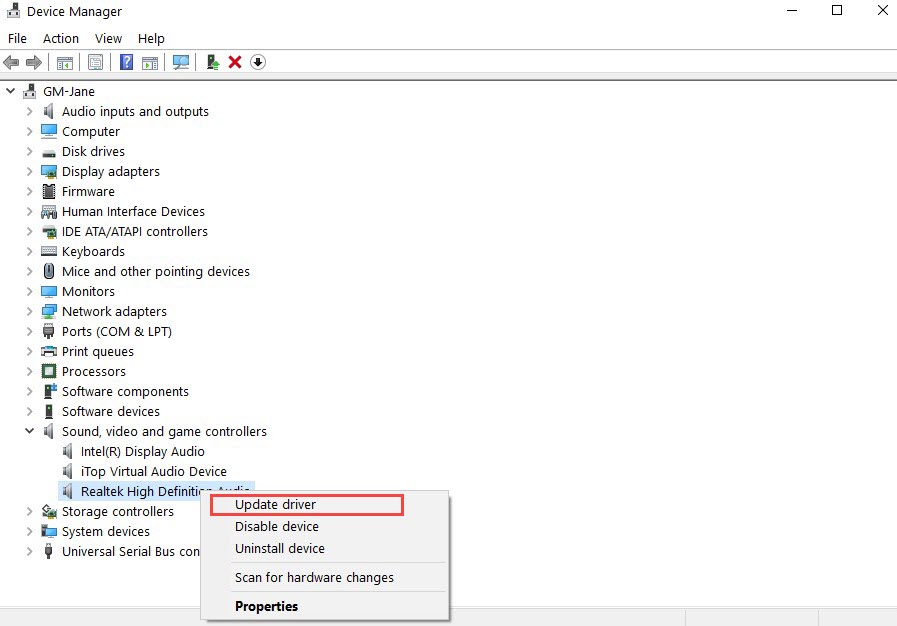
Device Manager is a built-in tool in Windows available to manage drivers, allowing you to manually update, uninstall or roll back certain drivers.
1. Open Device Manager.
2. Find your device.
For audio driver: Expand Sound, video and game controllers and select your audio device.
For Bluetooth driver: Expand Bluetooth and find the Bluetooth adapter.
3. Right click the device and select Update driver.
4. Restart your PC to finish the update.
Alternative to Device Manager, Driver Booster - a reliable driver updater for Windows - offers a much simper way to keep all drivers up to date. It not only automatically scans and detects outdated drivers, but helps install the latest yet fully-matched drivers in a single click. The vast database allows you to explore and update almost device drivers, such as audio, Bluetooth, USB and more, with ease. All drivers are verified, ensuring safe update.
1. Download and install Driver Booster.
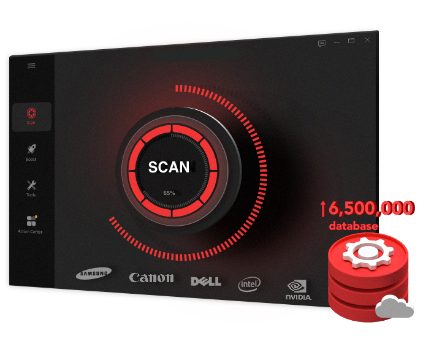
2. Launch the program and click SCAN.
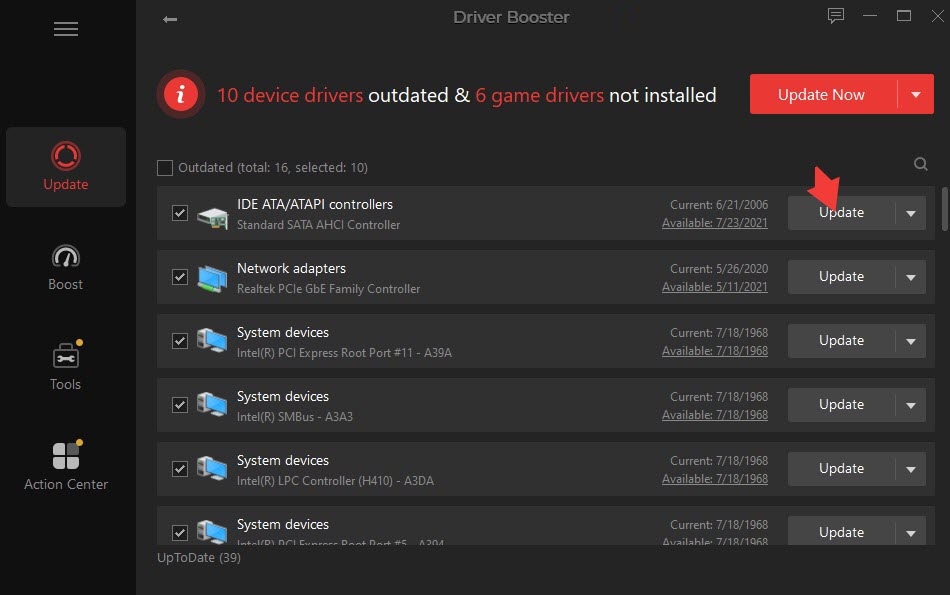
3. Find the driver and click update. You can also select two or more drivers and click Update Now to update multiple drivers at once.
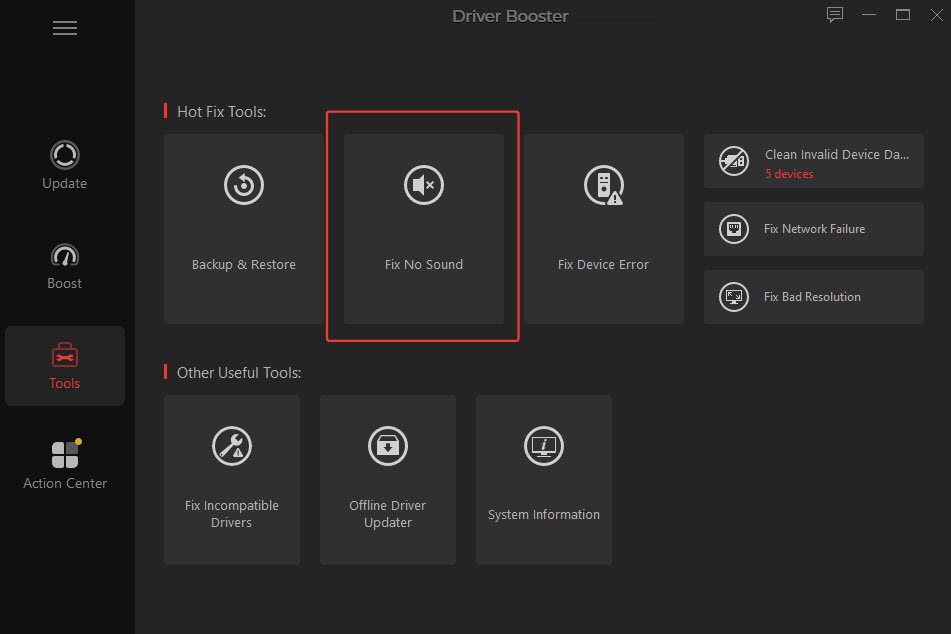
Moreover, this free driver updater has fix tool to troubleshoot no sound error. You can also run the tool instead of using Windows Audio Troubleshooter.
Also Read: Can I Uninstall and Reinstall Realtek Audio Driver >>
Final Thoughts
It is not difficult to fix no sound in headphones on a PC. Check the connection, audio settings, drives and apply appropriate adjustments to recover the audio. But if the error is caused by hardware issues, for example, damaged headphones or jack/USB port, you’d better switch to another devices that work well.
 People Also Ask
PC stuck on boot screen? Learn how to fix pc stuck on boot screen with proven methods like Safe Mode, SFC scan, and driver updates.
Is your keyboard stuck on your laptop, preventing you from using your computer? Discover 6 simple and effective solutions to unblock your keyboard.
Why is my PC screen black? How to fix a black screen? What can I do as a normal person?