- Support Center
- Multiple Languages
- Language
- Help Us Translate
Expert in
PC Health Solution

All-in-one PC health solution: clean, optimize and secure

Comprehensive PC cleaning, optimization and protection

Keep drivers always up-to-date

More stable performance with less system crashes

Protect millions of computers against malware

Top computer security with full-round protection

Protect against viruses & boost PC performance
Automatically scan and update drivers.
Update game ready drivers for peak gaming performance.
Identify and fix various common of hardware issues.
Boost 30% of system performance for fast & smooth running.

Learn how to restart computer with keyboard, commands, or shortcuts in Windows 10, and find out why it restarts on its own in this complete guide with step-by-step solutions.



What Does Restarting Computer Mean
Why Does My PC Restart Suddenly Without Noitice
How to Restart a PC Normally
How to Restart PC with Keyboard
How to Restart Computer from Command Prompt
Has your computer ever restarted on its own, or do you simply not know how to restart it without a mouse? Don't worry! In this article, we’ll explore how to restart computer with keyboard or commands, and even look at why your computer might be restarting without warning. Whether you're using Windows 10 or any other version of Windows, this guide will walk you through the process step by step.
Restarting vs. Shutting Down
Restarting your PC is not the same as shutting it down. While shutting down cuts off power completely, restarting closes all processes and immediately turns the system back on. It is useful when installing software, updating the system, or resolving temporary errors.
Hardware Issues
A failure in the power supply, motherboard, or RAM can cause unexpected restarts. Even processor overheating is a sufficient cause.
Software or Operating System Issues
System errors, corrupted files, or faulty drivers can also trigger sudden restarts. Windows often attempts to "protect itself" this way.
Automatic Restarts Due to Updates
Do you notice your PC restarting after an update? It is completely normal. By default, Windows triggers an automatic restart after installing certain security patches.
Hidden Malware or Viruses
Some viruses are designed to restart the system without your knowledge. It is important to have reliable, up-to-date antivirus software.
Auto Restart After a Driver Update
Some driver updates also require or trigger a fresh initialization, restarting your computer. Major updates like GPU driver updates, chipset driver updates, etc., generally demand a reboot.
Utilize professional, reliable driver updaters to manage your regular driver updates. For instance, you may use Driver Booster, the best driver scanner and updater, to check the status of your drivers actively and more in an organized and aware way.
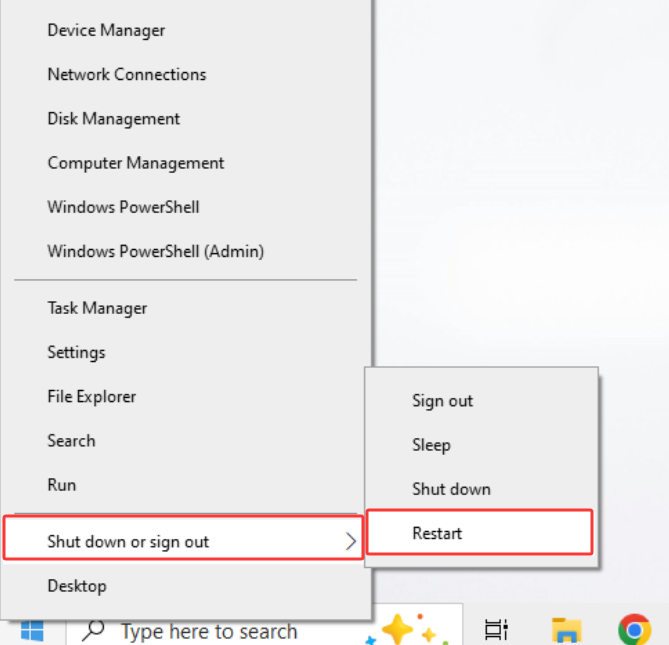
Click the Start button
Select Shut down or sign out
Choose Restart
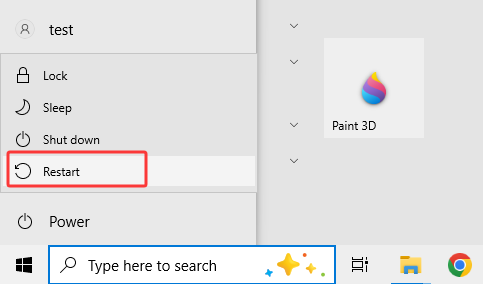
Very simple, but please note that doing it this way allows Windows to close all processes correctly. Apart from rebooting from the Windows menu, you can also use keyboard shortcut to restart computers.
Keyboard Shortcut to Restart PC in Windows 10
Check how to restart pc with keyboard shortcuts.
Press Ctrl + Alt + Del
Press the Tab key until you select the power button in the bottom-right corner
Use the arrows to select Restart and press Enter
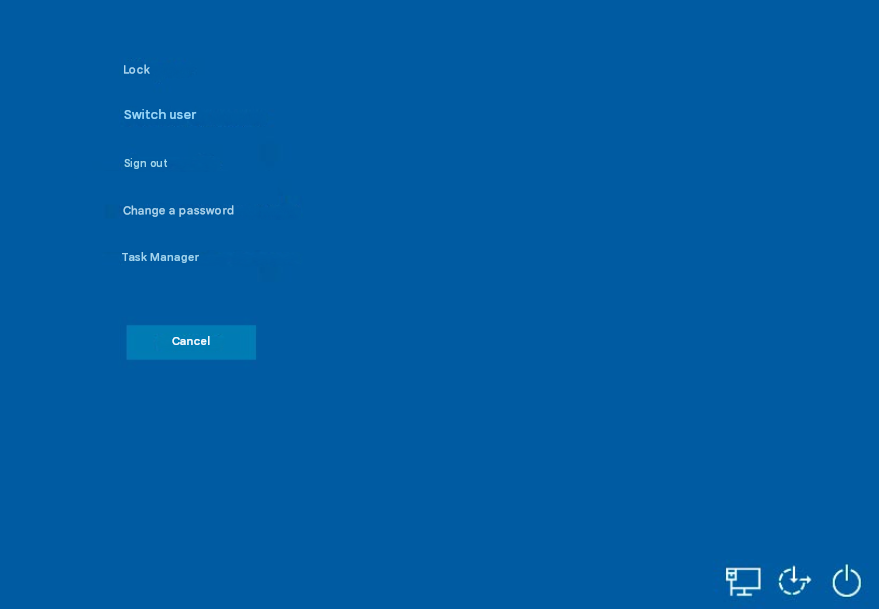
Forced reboot from the device
If your PC has frozen completely, try:
Laptop: Press and hold the power button for 5-10 seconds
Desktop PC: Use Ctrl + Alt + Del first. If it doesn't respond, press the physical button.
Useful Shortcuts for Emergency Situations
Alt + F4 on the desktop opens the shutdown menu
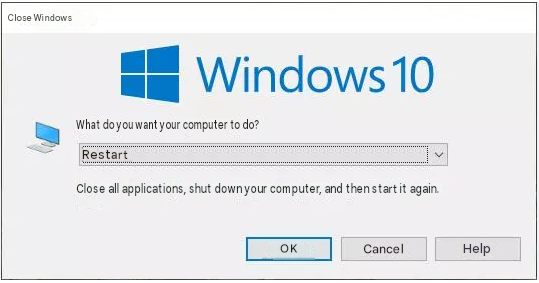
Windows + X, then U and R to quickly restart
Windows + X, then U and R to quickly restart
These are all feasible methods on how to restart pc with keyboard shortcuts.
Tip: Check if all the keys on your keyboard are working correctly using our online test.
If your PC stuck on boot screen after restarting, check the troubleshooting blog to fix it.
Check how to restart computer from Command Prompt and PowerShell.
Using CMD (Command Prompt)
You can open CMD with administrator privileges and type: shutdown /r /t 0
/r: restarts
/t 0: waits 0 seconds
This is how you restart a computer from Command Prompt.
Restarting with PowerShell
You can also use commands to restart computer in PowerShell: Restart-Computer
Ideal for advanced users or administrators.
You now know how to restart computer with keyboard and commands in various scenarios and how to identify why it might be restarting on its own. Restarting a PC seems like a simple task, but there can be many underlying variations and causes. Whether it involves a command, a keyboard shortcut, or an unexpected issue, knowing how to proceed is key to keeping your system running smoothly. Plus, you might use the best driver scanner and updater to manage your driver updates more regularly and methodically.
 People Also Ask
Want to upgrade to Windows 11, but TPM 2.0 isn't enabled? Check out our easy guide to enable TPM 2.0 on all compatible PCs.
Discover Tiny10, a lightweight version of Windows 10 built for low-spec devices. Learn its features, benefits, requirements, and limitations.
Yes. You can try 3 ways on how to uninstall the Realtek audio driver and reinstall it to solve the problem that PC sound is not working generally.
Why is Warzone so laggy on PC? How do you fix lag and stuttering in Warzone? Find out main reasons and get available fixes that help improve gaming performance.
Struggling with “why won't my GeForce driver update”? Learn why you can’t update NVIDIA driver and discover fixes for GeForce driver installation errors.