- Support Center
- Multiple Languages
- Language
- Help Us Translate
Expert in
PC Health Solution

All-in-one PC health solution: clean, optimize and secure

Comprehensive PC cleaning, optimization and protection

Keep drivers always up-to-date

More stable performance with less system crashes

Protect millions of computers against malware

Top computer security with full-round protection

Protect against viruses & boost PC performance
Automatically scan and update drivers.
Update game ready drivers for peak gaming performance.
Identify and fix various common of hardware issues.
Boost 30% of system performance for fast & smooth running.

Is your keyboard stuck on your laptop, preventing you from using your computer? Discover 6 simple and effective solutions to unblock your keyboard.



Locked laptop keyboard may caused by accidental lock, lock settings, hardware problems.
Fix 1. Press Fn with a function key or Caps Lock to unlock laptop keyboard.
Fix 2. Hold Fn and press Scroll Lock to reset.
Fix 3. Check the language and keyboard layout settings.
Fix 4. Inspect the keyboard for debris.
Fix 5. Disable the typing timeout in Windows settings.
Fix 6. Check and update the keyboard drivers.
A laptop keyboard stuck can be incredibly frustrating, especially if you rely on it for work or entertainment. This problem can arise for a variety of reasons, ranging from simple configuration errors to more complex hardware issues. In this article, we'll explain how to unstick your laptop keyboard and provide 6 quick and easy solutions to restore its functionality. Whether you're a novice or an experienced user, these tips will help you resolve this issue effectively.
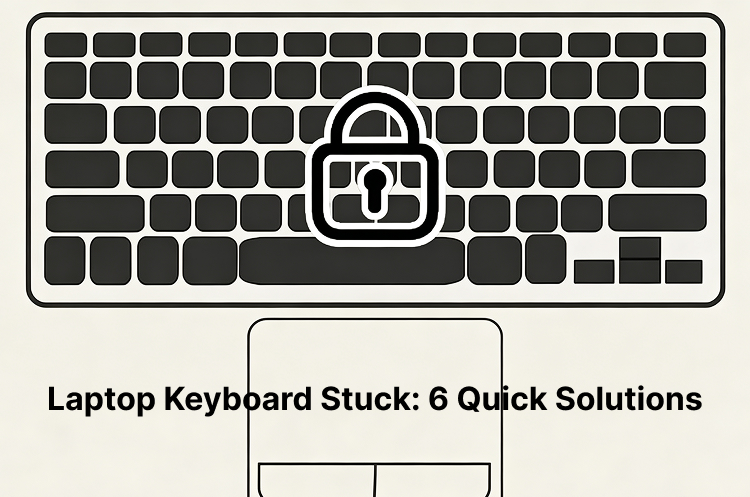
Accidental lock: Unintentionally pressing a key combination.
Lock settings: Some keyboards have built-in lock functions.
Hardware problems: A faulty keyboard may require replacement.
To unlock your laptop keyboard, start by pressing the "Fn" key, usually located in the bottom left corner of the keyboard. Hold this key down while pressing another key, often one of the F1 through F12 keys. Some models also display a padlock symbol on the function key, indicating that it can be used to unlock the keyboard.
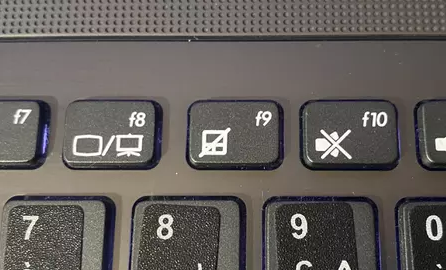
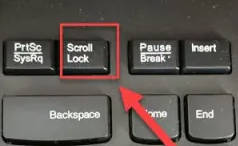
If the keyboard remains locked, try holding down the Fn key and pressing the Scroll Lock, Num Lock, or any similar key on your keyboard. This usually resets the lock and restores normal keyboard functionality.
Another factor that can cause a stuck keyboard on a laptop is an error in the language or keyboard layout settings. Make sure the language and layout match your region. For example, English keyboards are configured as QWERTY, while French keyboards follow the AZERTY layout.
In the taskbar, near the clock, click the language icon and choose the language you want.
If your laptop keyboard remains stuck, debris or dust may have accumulated under the keys. Gently tap the keyboard to dislodge any visible particles, or use a keycap puller for a more thorough cleaning if necessary.
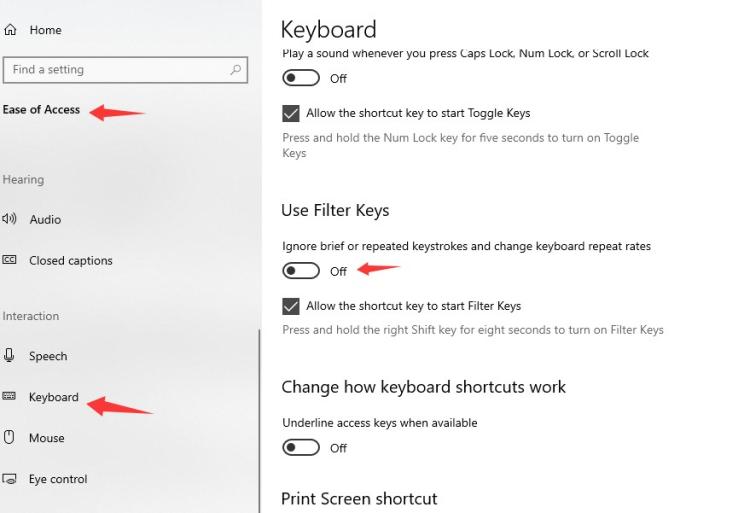
Holding down the Shift key for 8 seconds could activate the typing delay, requiring you to press the keys for a longer time.
To disable this option, click Ease of Access, then Keyboard on the left. Turn off the Use filter keys option.
Regularly updating your keyboard drivers is crucial to avoiding compatibility issues that could cause problems. Go to your operating system's Device Manager > Keyboard, then right-click and select Update driver. If there are issues with other drivers, you can also check, update, or reinstall them here—for example, reinstall Realtek audio driver.
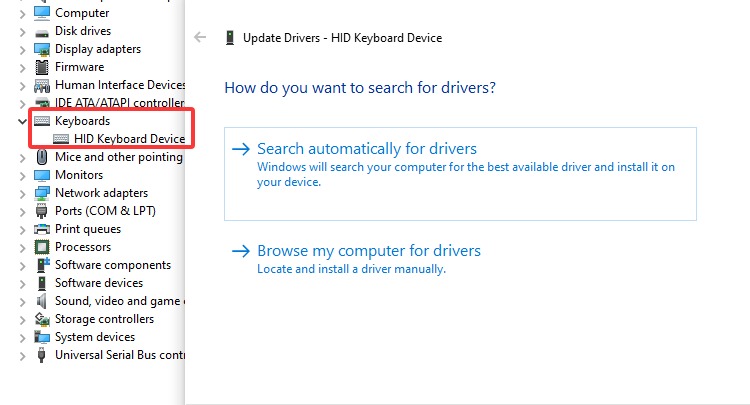
We recommend using Driver Booster, a driver update software that automatically detects and updates outdated drivers. It can update Windows device drivers and effectively resolve common driver-related issues without manual configuration. Additionally, if your PC stuck on boot screen, using a driver updater to troubleshoot or update the relevant settings can also resolve the issue.

Prevention is key to avoiding laptop keyboard stuck issues. Regular maintenance, such as cleaning the keys and checking the connections, can greatly contribute to keeping your keyboard working properly. Additionally, it's crucial to ensure your keyboard drivers are up to date, as outdated drivers can cause malfunctions. By incorporating these practices into your daily routine, you can significantly reduce the risk of experiencing keyboard problems in the future.
Follow our advice to prevent this problem from happening again and enjoy a smooth computing experience. If no solution works, consider a professional inspection.
 People Also Ask
PC stuck on boot screen? Learn how to fix pc stuck on boot screen with proven methods like Safe Mode, SFC scan, and driver updates.
Yes. You can try 3 ways on how to uninstall the Realtek audio driver and reinstall it to solve the problem that PC sound is not working generally.
Struggling with “why won't my GeForce driver update”? Learn why you can’t update NVIDIA driver and discover fixes for GeForce driver installation errors.