- Support Center
- Multiple Languages
- Language
- Help Us Translate
Expert in
PC Health Solution

All-in-one PC health solution: clean, optimize and secure

Comprehensive PC cleaning, optimization and protection

Keep drivers always up-to-date

More stable performance with less system crashes

Protect millions of computers against malware

Top computer security with full-round protection

Protect against viruses & boost PC performance
Automatically scan and update drivers.
Update game ready drivers for peak gaming performance.
Identify and fix various common of hardware issues.
Boost 30% of system performance for fast & smooth running.

Explore possible methods of how to update BIOS on Windows 11. Learn all essentials for BIOS update on PCs and laptops.



BIOS update is not a routine. It is the right time to update BIOS when the latest version introduces bug fixes, major optimizations and other improvements for system stability. How to Update BIOS on Windows 11? Follow us to discover everything you need to know.
BIOS, abbreviated from Basic Input/Output System, is a firmware integrated into the chip on motherboard. It performs hardware initialization and identifies whether all components are working properly before Windows starts. Without a working BIOS, your computer cannot boot into Windows.
On modern system - like Windows 11, the Legacy BIOS has been largely replace with its successor UEFI (Unified Extensible Firmware Interface), which offer a more intuitive interface, better hardware support and enhanced security. However, most people still use "BIOS" to refer to both.
While you'd better leave BIOS if your computer is running perfectly, there are several scenarios where updating your BIOS in highly recommended.
Hardware Compatibility: A BIOS update is often required if you are upgrading to a newer CPU, RAM, GPU, etc., for the motherboard to recognize and support the new components.
System Stability: If you are experiencing Blue Screens of Death (BSODs), system crashes or boot failures, updating BIOS may resolve those problems.
Security Improvement: Manufacturers regularly release BIOS updates to patch security firmware vulnerabilities.
Performance Optimization: BIOS updates often optimize how the motherboard interacts with these strict Windows 11 security protocols, making your PC run smoother.
Updating BIOS is considered as a critical operation. It may lead to serious risks, even a permanently broken computer, if something goes wrong. Follow the essential pre-update list to ensure everything goes smoothly.
Verify the version currently installed on your PC and confirm if an update is actually necessary. Also, manufacturers release different BIOS update files so that you should know the exact model and install the right BIOS for a successful update.
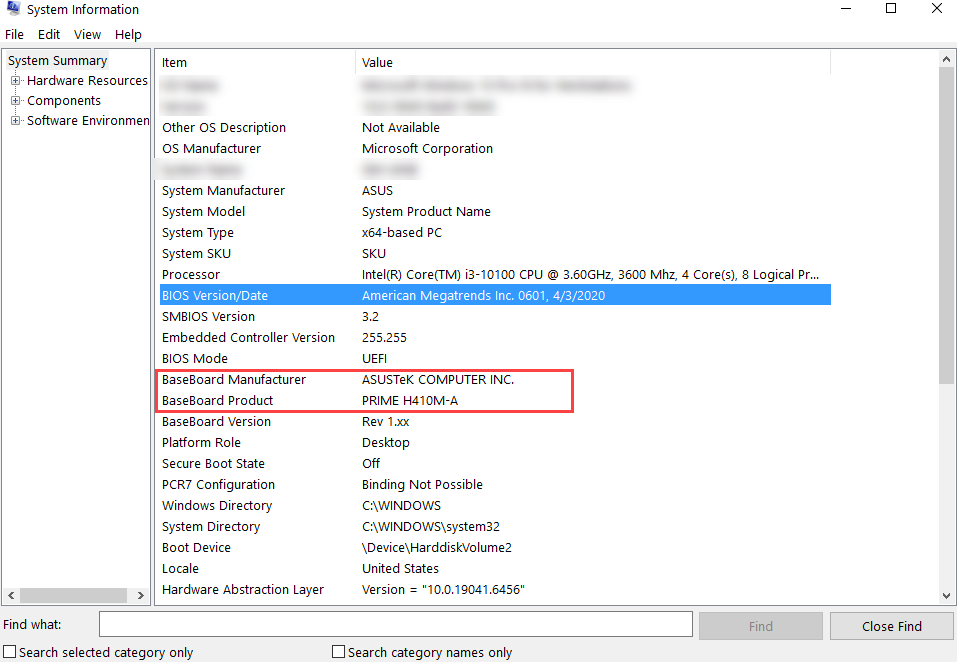
1. Press Windows key + R to open the Run dialogue.
2. Type msinfo32 and press Enter.
3. Look for BIOS Version/Date.
4. Also note your BaseBoard Manufacturer and BaseBoard Product (the motherboard model).
It probably corrupts your motherboard if power loss occurs wile writing the new BIOS.
If you are on a laptop, please plug it directly into the wall outlet. Never update BIOS on laptop with battery power alone.
If you are on a desktop PC, please connect it to an uninterruptible power supply (UPS). Avoid perform a BIOS update during storms or when power outages are likely.
Although normally, BIOS update doesn't affect your hard drive, unexpected data loss occasionally happens if system hands or setting resets. Back up your essential photos, documents, and project files to an external drive or cloud storage before you begin.
If you have enabled BitLocker Drive Encryption, BIOS update can trigger a security alert because it detects a change in the foundational hardware. Windows might lock you out and demand your recovery key.
1. Search Bitlocker and open it.
2. Click Suspend Protection.
3. Click Yes if it prompts.
After the BIOS update is complete and you've verified everything is working correctly, you can resume BitLocker protection.
Also Read: How to Remove BitLocker >>
There are three primary ways to update your BIOS on Windows 11.
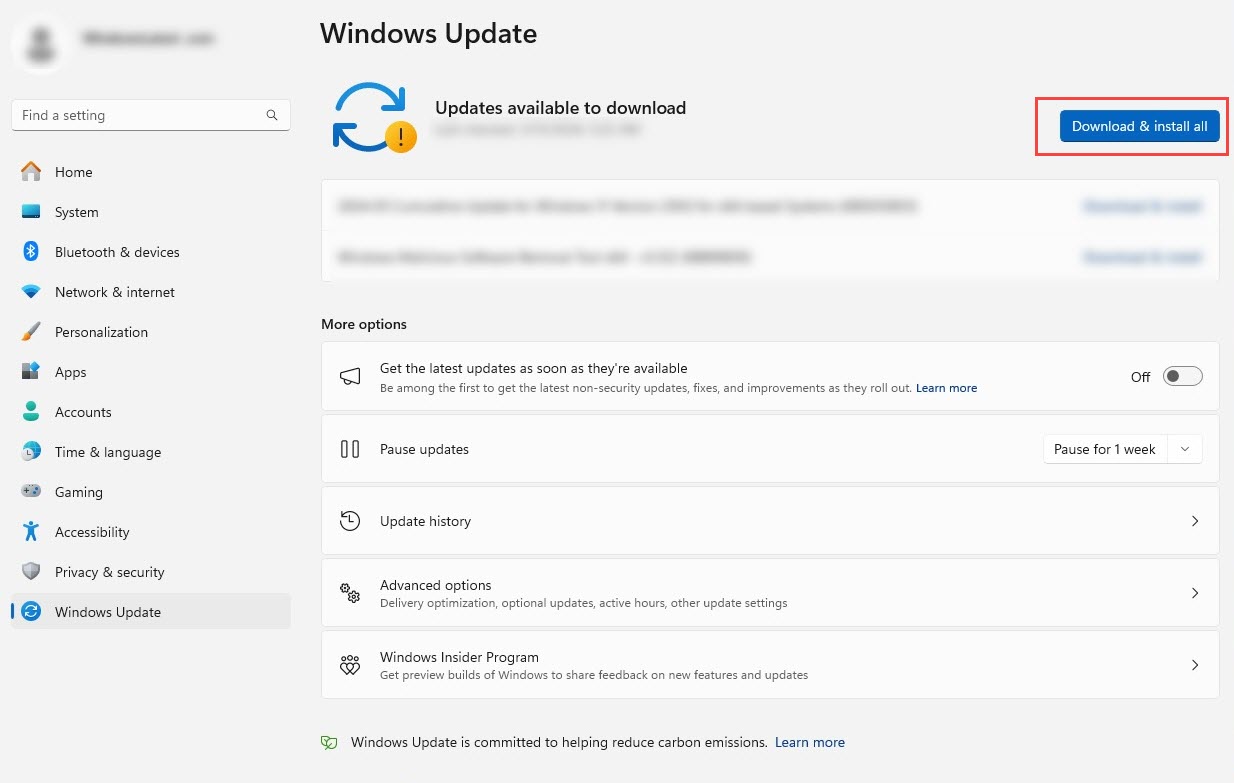
Sometimes, Microsoft bundles BIOS updates directly into Windows Update.
1. Go to Settings > Windows Update > Check for Windows updates.
2. Select Download & install if a new update is available.
3. After it completes the process, click Restart now to apply the update.
Many motherboard manufacturers develop assistant utilities that scan and install updates automatically. With those utilities, you can update BIOS for Windows 11 more easily and quickly.
At the start, please download and install the BIOS update software from your manufacturer’s official site.
Examples:
MyASUS
MSI Center
Gigabyte Control Center
Dell SupportAssist
HP Support Assistant
Lenovo Vantage
Next, let's take MyASUS as example and learn how to update your BIOS for Windows 11.
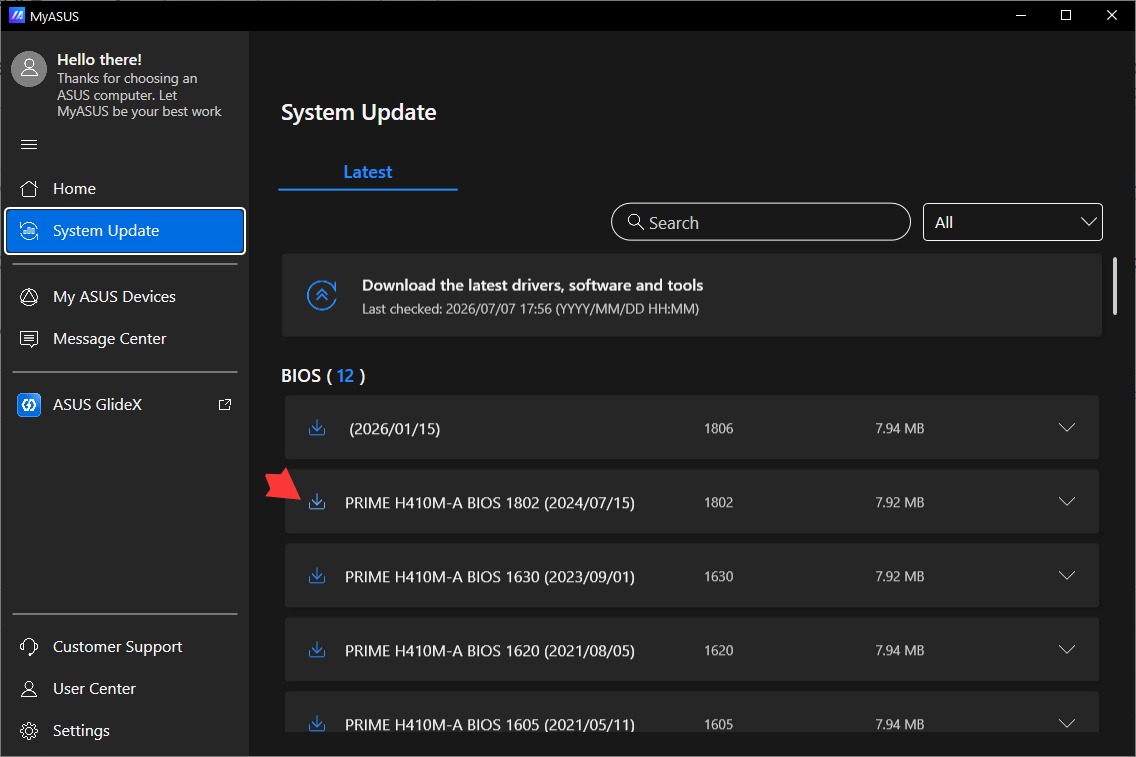
1. Open MyASUS and select System Update.
2. Under BIOS section, select the latest version that exactly matches with the model of your motherboard.
3. Click the download icon to download the BIOS file.
4. After it finishes downloading, restart your computer to apply ASUS BIOS update.
It is a traditional yet the safest way to update BIOS on Windows 11. It happens outside of the Windows operating system, reducing the risk of software interference.
1. Plug in a USB drive and format FAT32.
2. Go to the official support page of your motherboard manufacturer. Search for your exact motherboard model and download the latest BIOS/UEFI file, usually in extensions like .CAP, or .BIN.
3. Unzip the downloaded folder and copy the BIOS file to your USB drive.
4. Restart your PC. As it boots up, repeatedly tap F2, F12 or Del.
5. Launch the update utility tool like EZ Flash, M-Flash or Q-Flahs.
6. Select your USB driver, choose the BIOS file and confirm the update.
Notice: Do not turn off your computer during update.
Verify BIOS Version: Please verify your BIOS version after the update process and make sure that the latest BIOS version is correctly installed.
Re-enable Custom Settings: BIOS update resets all your custom settings back to factory defaults. Restore those settings, especially for XMP or EXPO memory profiles, for better performance.
Update Drivers: If your BIOS update adds support for new hardware or features, please update chipset, graphics, network and storage controller drivers to ensure compatibility and stability. Instead of manual update, Driver Booster delivers an automated option to scan and update drivers in a single click. It also helps fix various driver issues to achieve crash-free performance.
Test Your System Performance: Run your computer normally and verify whether the system boosts correctly and the components (like network, audio, bluetooth) work properly. Monitor CPU temperature and fan speed to make sure that no overheating occurs under load.
Final Thoughts
BIOS update is an important part of stabilizing a modern PC. Manufacturers designs specific utility helping users update BIOS on Windows 11 easily and quickly. Before updating, please strictly follow the precautions for a successful and seamless result.
 People Also Ask
Stuck with the “This app can’t run on your PC” error? Learn quick fixes, compatibility settings, and advanced ways to make programs run smoothly on Windows.
Want to upgrade to Windows 11, but TPM 2.0 isn't enabled? Check out our easy guide to enable TPM 2.0 on all compatible PCs.
How to fix corrupted files in Windows 11 to enhance system stability? This guide covers the most effective methods to repair damaged files on your PC.