- Support Center
- Multiple Languages
- Language
- Help Us Translate
Expert in
PC Health Solution

All-in-one PC health solution: clean, optimize and secure

Comprehensive PC cleaning, optimization and protection

Keep drivers always up-to-date

More stable performance with less system crashes

Protect millions of computers against malware

Top computer security with full-round protection

Protect against viruses & boost PC performance
Automatically scan and update drivers.
Update game ready drivers for peak gaming performance.
Identify and fix various common of hardware issues.
Boost 30% of system performance for fast & smooth running.

PC stuck on boot screen? Learn how to fix pc stuck on boot screen with proven methods like Safe Mode, SFC scan, and driver updates.



Boot into Safe Mode to remove problematic drivers or updates
Run System File Checker to repair corrupted system files
Perform basic hardware checks and disconnect external devices
Update drivers automatically to prevent future boot failures
You press the power button, expecting your PC to load as usual—but instead, it freezes on the Windows logo or spinning loading screen. A PC stuck on boot screen is one of the most frustrating startup problems Windows users face. Whether your Windows loading screen is stuck, your laptop freezes during startup, or your computer cannot get past the boot screen, the problem can prevent you from accessing Windows normally.
The good news? This problem is often fixable. Whether your Windows PC stuck on boot screen is caused by software conflicts or hardware issues, there are several proven solutions you can try. In this guide, we’ll walk you through exactly how to fix PC stuck on boot screen step by step.
Before jumping into fixes, it helps to understand why your PC stuck on boot happens in the first place:
Corrupted system files interrupt the boot process
Outdated or faulty drivers cause hardware conflicts
Failed Windows updates create startup errors
Connected external devices interfere with booting
Hardware issues like failing hard drives or overheating
Identifying the root cause makes it easier to apply the right fix.
When Windows is stuck on the loading screen or your Windows PC is stuck on the boot screen, applying the right fix in the correct order can help you identify whether the problem comes from external devices, drivers, system files, or recent updates.
Start with the simplest fixes if your PC is stuck on the boot screen. These basic checks can also help when a computer is stuck on the boot screen because of connected devices, loose cables, or temporary startup errors.
Steps:
Hold the power button for 5–10 seconds to force shutdown.
Disconnect all external devices (USB drives, printers, etc.).
Restart your PC.
Check cables and ensure hardware components are properly connected.
Why it works:
External devices or loose connections can interrupt the boot process, especially after updates or hardware changes.
If your Windows PC is still stuck on the boot screen, or your laptop is stuck on the startup screen, booting into Safe Mode can help isolate the cause.
Steps to enter Safe Mode:
Force shutdown your PC 2–3 times during boot.
Wait for the Windows Recovery Environment (WinRE).
Select: Troubleshoot > Advanced options > Startup Settings > Restart.
Press 4 or F4 to enter Safe Mode.
What to do in Safe Mode:
Uninstall recent Windows updates
Remove newly installed drivers
Disable startup programs
Why it works:
Safe Mode loads only essential drivers, helping you identify whether software conflicts are causing the PC stuck on boot issue. If Windows starts normally after you remove or roll back a recently installed driver, a driver conflict may be causing the boot problem. Once your PC is accessible again, it’s a good idea to check other drivers for outdated or problematic versions to help prevent the same issue from happening again.
Corrupted system files are a common reason for startup failures.
Steps:
Enter WinRE (as described above).
Go to: Troubleshoot > Advanced options > Command Prompt.
Type the following command and press Enter:
sfc /scannow
Wait for the scan to complete and restart your PC.
Why it works:
The System File Checker automatically detects and repairs corrupted Windows files that may be preventing normal startup.
Getting Windows to start again solves the immediate problem, but it doesn’t always remove the underlying cause. If the boot freeze was related to an outdated, incompatible, or recently changed driver, the same problem could return after another restart or system update. Once Windows is running normally again, checking your drivers can help you identify outdated versions and reduce the risk of future driver-related startup conflicts.
Outdated or incompatible drivers are one of the leading causes of a PC stuck on boot screen. Even if your system starts working again, failing to update drivers can lead to recurring issues. Manually updating drivers can be time-consuming and risky if you install the wrong version. That’s where IObit Driver Booster comes in.
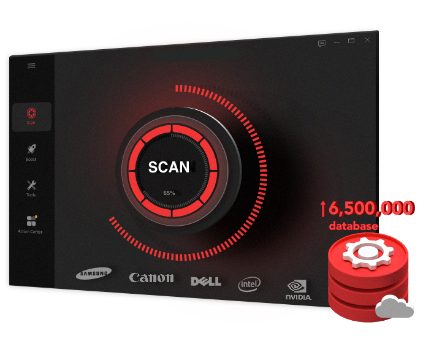
Why use Driver Booster after a boot problem:
Scan outdated drivers quickly: Check multiple device drivers without searching for each update manually.
Update drivers more easily: Install suitable driver updates from one place after Windows becomes accessible.
Back up drivers before updates: Add an extra safeguard before replacing existing driver versions.
Reduce recurring driver conflicts: Keeping drivers updated may help prevent similar driver-related startup problems.
If a faulty or outdated driver contributed to your PC getting stuck on the boot screen, checking your drivers after recovery can help reduce the chance of the problem returning.
A PC stuck on boot screen can feel like a major problem, but in most cases, it’s fixable with the right approach. Start with basic troubleshooting, then move to Safe Mode and system repairs if needed.
Most importantly, keep your drivers updated to prevent future issues. Tools like Driver Booster simplify this process and help maintain system stability.
By following these steps, you’ll not only fix your current Windows PC stuck on boot screen issue but also reduce the chances of it happening again.
 People Also Ask
Yes. You can try 3 ways on how to uninstall the Realtek audio driver and reinstall it to solve the problem that PC sound is not working generally.
Internet not working? Learn the top reasons and proven troubleshooting steps to fix no internet connection issues and get back online quickly.
How to install device drivers? Easy guide for both PC and desktop users to check for driver updates and download new drivers for free.