Have you ever complained about the repetitive, tedious daily routine on your PC, such as backing up files and running programs? Did you know that you can give these tasks to your PC to run on a schedule? This is where Windows Task Scheduler shows its power.
With this free automation tool, you can set Windows scheduled tasks to streamline your workflow, saving time and labor.
What Are Windows Scheduled Tasks
The first is definitely to clarify what it is. Let’s start with “What is Windows Task Scheduler”. Windows Task Scheduler is one of the built-in features in Windows, allowing users to automate programs, commands, etc. By setting auto tasks to do specific actions at specific times, users can be freed from manual work.
How do Windows scheduled tasks work?
Every scheduled task works based on 3 elements:
Triggers: the condition that sets off the action; e.g., a specific error.
Actions: the operation that you want the system to do; e.g., start a program.
Conditions & Settings: the rule deciding how the tasks run.
What do scheduled tasks on Windows do? Check the common uses.
System maintenance: disk cleanup scheduled task, defragmentation, background antivirus scans, etc.
Power management: force sleep/hibernation, waking the PC, etc.
Auto backup: it kicks off backup software to copy important files to given locations.
App automation: run apps automatically for specific purposes.
…
How to Schedule a Task with Windows Task Scheduler?
Where can you access this tool? How to schedule task on Windows? We might as well take using Windows Task Scheduler to start a program automatically as an example. Check the following instructions.
Let’s get started with the simple one: create a basic task.
Step 1. Search Task Scheduler in the Windows search bar > Open.
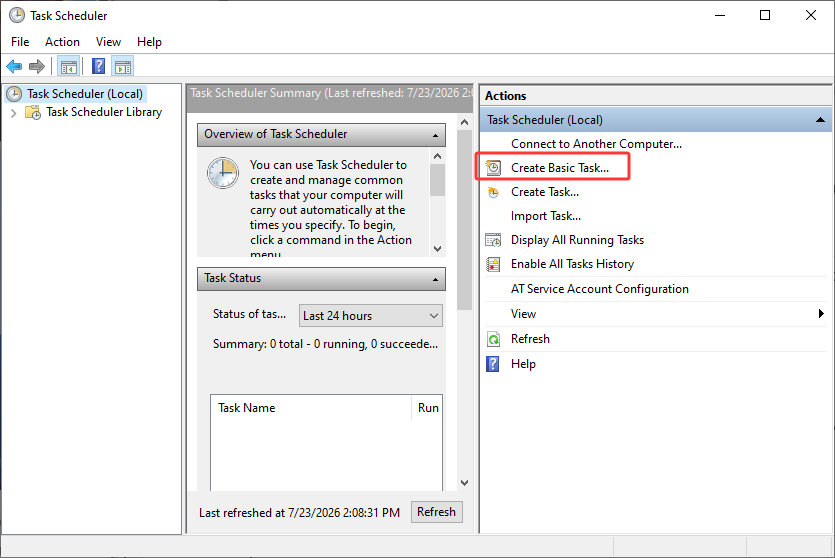
Step 2. Come to the main interface of Windows Task Scheduler, find Create Basic Task in the upper-right panel Action.
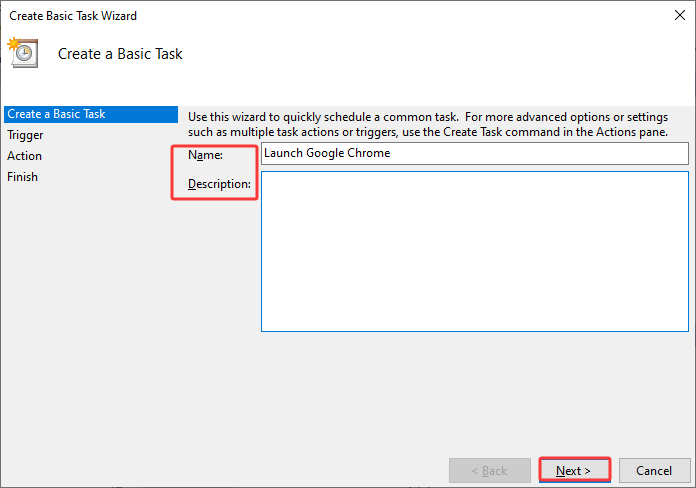
Step 3. Name your task, and describe it as you need.
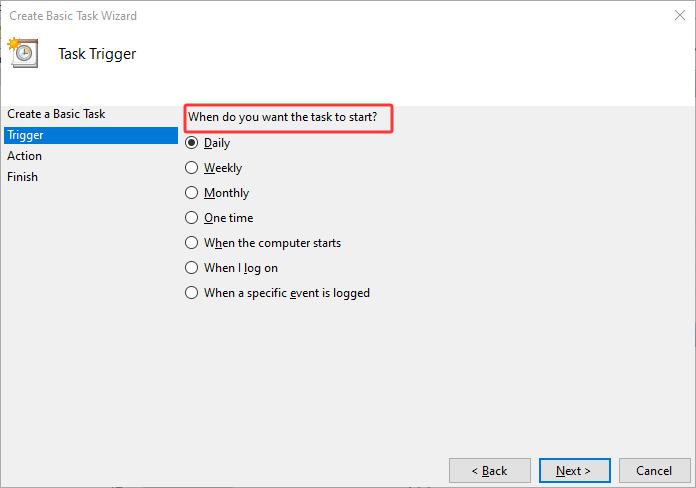
Step 4. Choose the time to start this task in Trigger. It will allow you to set the detailed, specific time. Then, click Next.
Step 5. Choose Start a program in Action > Browse > locate the exact app you want to run. * You need to find the .exe file.
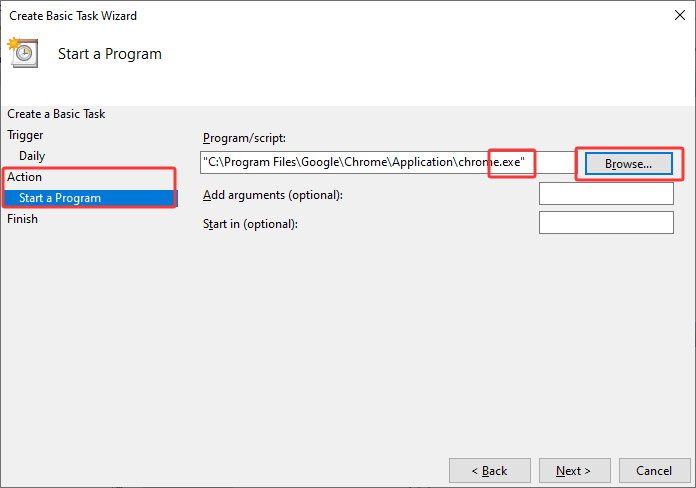
Click Next, and you can check the overall info and details. If everything is okay, click Finish. Then, your scheduled task on Windows is automated and will run as it should.
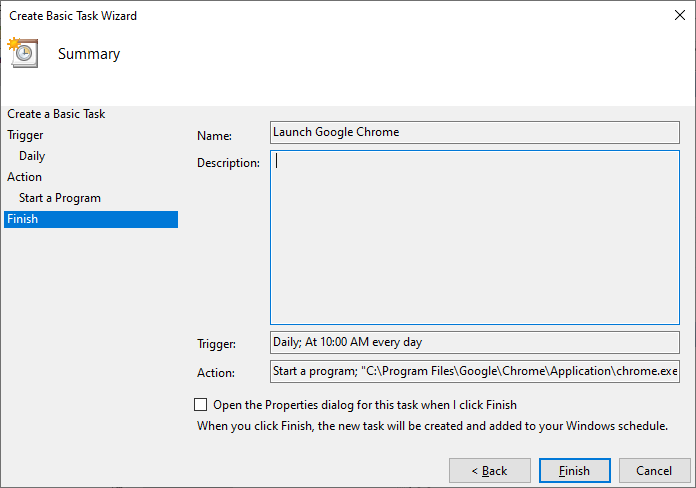 This is how you schedule task on Windows. With this tool, you can let Windows do many things for you, auto-back up with specific apps, auto-hard drive cleanup with commands, etc.
Are Windows Scheduled Tasks Safe?
Well, it depends. We know now that you users can create automation tasks for convenience, but did you know that your apps can dynamically and secretly create, manage, and update scheduled tasks?
Yes, many programs, including legitimate apps like OneDrive and antivirus, will use tasks to run automation operations for better workflow:
However, it is not only legit and safe apps that will take the tiller. So, are scheduled tasks risky? It depends on who is creating tasks and what they do. They can be risky if the tasks are created by malicious entities.
Malware/Adware: they may abuse scheduled tasks to track your activities, flood your screen with unwanted ads/pop-ups, and also bypass security checks and reinfect your PC even after removal.
Remote Access Trojans: infostealers may use automated scripts to acquire authorities, collect your passwords, etc.
Cloud services might also be exploited to deploy malicious tasks.
…
Suspect some scheduled tasks might be malicious ones? It's a good idea to run a malware scan with professional antivirus software before you manually delete any.
Can Too Many Windows Scheduled Tasks Slow Down Your PC?
Yes. Scheduled tasks are undeniably useful and convenient, but it is not recommended to create too many. A few scheduled tasks won't noticeably affect performance; however, dozens of unnecessary or outdated tasks can increase background activity and lengthen startup time.
They might cause system resource spikes if too many tasks fire at the same time, choking your system. What’s more, malicious tasks also eat up your system resources. If so, it is urgent to diagnose and disable unnecessary tasks.
How to Disable Unnecessary Scheduled Tasks?
How to turn off Task Scheduler’s unwanted tasks? Check the steps below to shut down those tasks you don’t want.
Step 1. Go to Windows Task Scheduler > go to the Task Scheduler Library.
Step 2. Check your tasks and identify the ones you don’t want. For instance, check the Trigger and Last Launch Time to see if there are multiple tasks running at the same time.
Step 3. Choose the task > click Disable on the right panel.
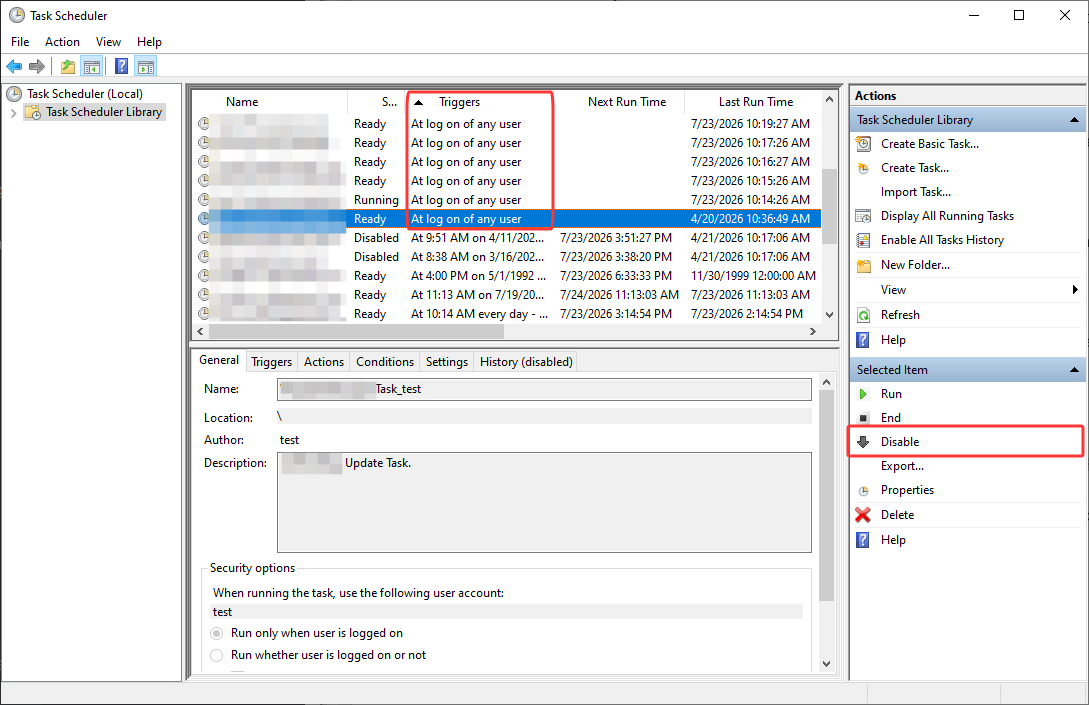
This is how to disable Task Scheduler’s unwanted tasks; pretty easy but still some shortcomings:
To make it easier and more efficient, you might need a proper tool. Read on and check.
Disable Unnecessary Scheduled Tasks & Boost PC Performance in 1 Go
If you simply want to optimize Windows without manually reviewing hundreds of scheduled tasks, a powerful PC optimization tool, Advanced SystemCare, can automatically identify unnecessary startup and scheduled items.
Its Startup Optimizer feature scans scheduled tasks and lets you disable unnecessary ones with one click, helping reduce background activity and improve startup performance without affecting essential Windows services.
Advanced SystemCare Free
- Clean: 420 billion traces removed & 85 EB junk files cleaned
- Protect: 80 million unauthorized access blocked & 20 million bugs fixed
- Speed Up: 6 million hours of startup time saved & Turbo boost
- Optimize: Auto clean and auto care your PC with AI mode

Plus, more culprits are slowing down your PC beyond just overloaded and malicious Windows scheduled tasks:
These issues can consume storage and system resources heavily. Instead of optimizing Windows piece by piece, you can also rely on Advanced SystemCare's AutoCare feature, which performs routine maintenance automatically, helping keep your PC clean and responsive with minimal effort.
Check how it streamlines scheduled task management and PC performance boost.
● Disable scheduled tasks, startup items/services/browser startups easily in 1 click with Startup Optimizer.
● Roll back the startup items you disabled in Rescue Center in case you regret it.
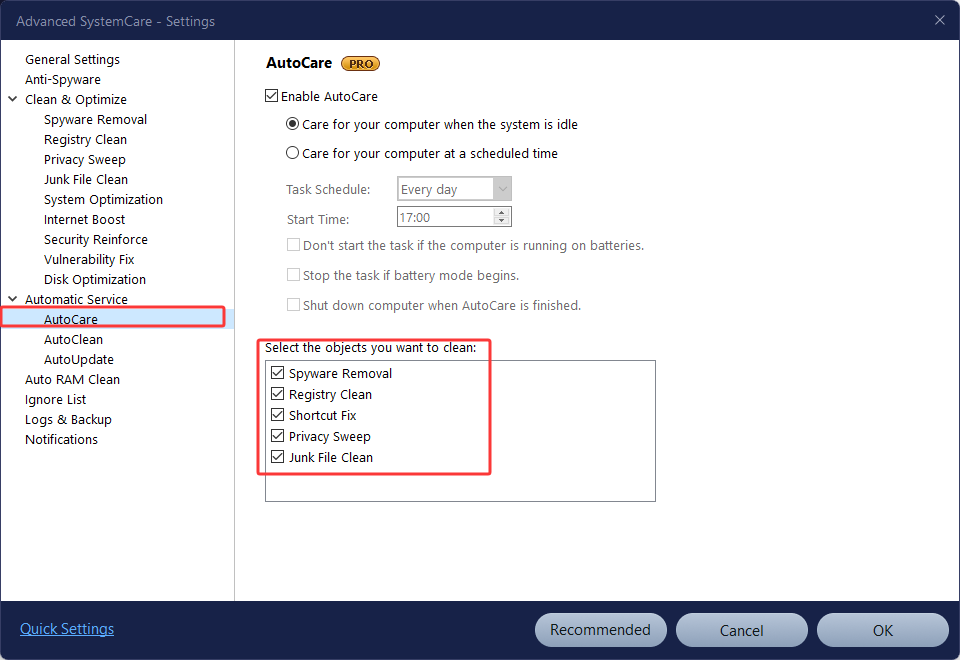
● Automatically clean up disks, removing junk files, leftover registry keys, broken shortcuts, privacy traces, etc.
● Release and optimize RAM automatically in the background by disabling inactive processes, intelligently managing system resources with Auto RAM Clean and Turbo Boost.
Check how to turn off task scheduler’s tasks and also optimize your PC easily.
Step 1. Download Advanced SystemCare, the best optimizer for Windows, for free on your device.
Step 2. Head over to the Speed Up tab > find Startup Optimizer > click Optimize.
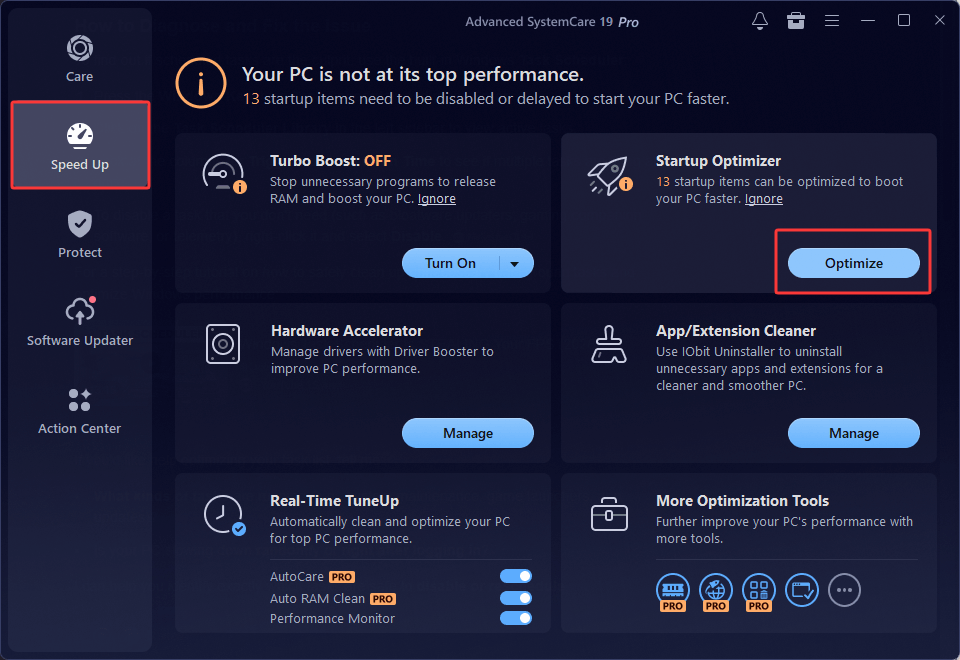
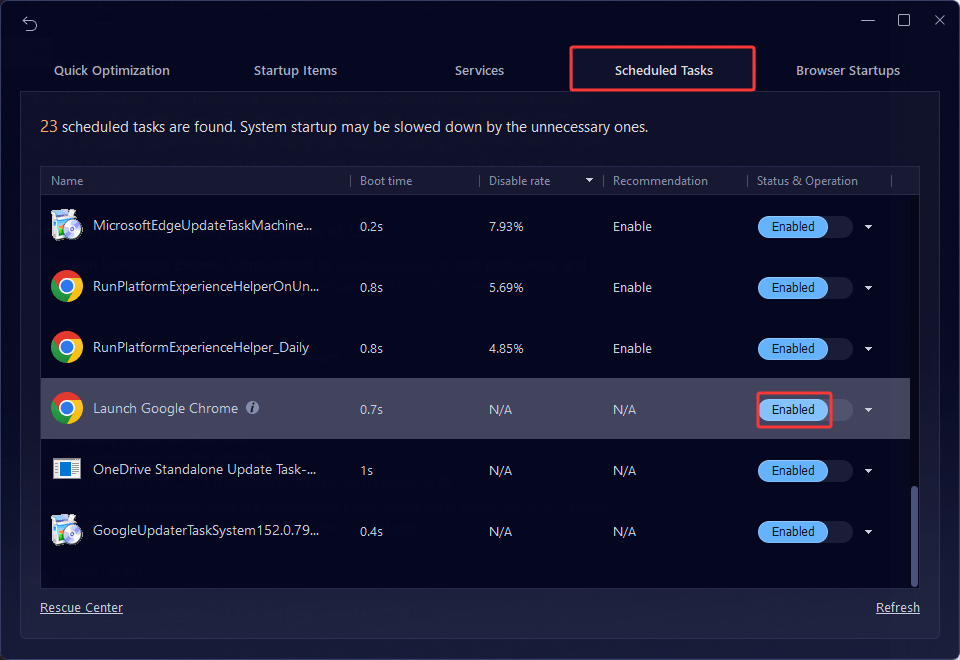
Step 3. Go to the Scheduled Tasks tab. At here, you can manage all scheduled tasks created by applications. You might check the Boost time, Disable rate, or Recommendations to see if there are tasks suggested to be disabled; choose and click to Disable.
Also, don’t forget to check the AutoCare feature. Enable it to care for and boost your PC without manual work.
Final Thoughts
What it is, how it works, how to schedule task on Windows, and how to manage your Windows scheduled tasks are elaborated with details. If you need a tool to simplify your workflow, Windows Task Scheduler is a wise choice.
Meanwhile, pay attention to managing your tasks and identifying malicious/abnormal tasks. To better manage and detect your scheduled tasks and boost PC performance, don’t hesitate to try IObit Advanced SystemCare, the best Windows computer maintenance and optimization software.