This is a digital world. People reply on internet to obtain information, amuse themselves, socialize with others and so on. Unstable network connection can be incredibly frustrating specially during gameplay and video streaming. Don't blame everything on your router or ISP. Outdated WiFi drivers may be the primary reason. It is time to update the driver for your wireless network adapter.
How to update WiFi drivers? Here, we would like to introduce 3 working ways to update your WiFi drivers on Windows 11/10 for different needs.
What Are WiFi Drivers and Why WiFi Driver Update Matters
Wireless adapters let computers connect to network without physical cables. But your Windows doesn't know how to send data to the wireless chip, making the internet hardware useless. Wi-Fi are the keys allowing the operating system to communicate with the WiFi device smoothly. With WiFi driver, your internet connection can keep functional, stable and safe.
It is not enough to install a correct WiFi driver on your PC. Keeping WiFi drivers up to date helps maintain network health and improve your online experience. Besides, you can enjoy more benefits with the latest drivers.
Improved performance: The newly released updates often optimize the performance to deliver faster internet speeds and lower latency.
Enhanced security: Updated drivers can protect against vulnerabilities in older driver code and safeguard your system from local network attacks.
Better compatibility: Windows updates sometimes break compatibility with older drivers, leading to connection errors. Install the latest driver and make the network run smoothly.
New features and bug fixes: Manufactures sometimes update drivers to unblock new capabilities, for example, better support for the latest Wi-Fi standards. Also, bugs in older version that may result in disconnections, slow download speed or other network issues, can be fixed in a new version.
Well, how to update WiFi drivers on Windows? Both Windows built-in tool and third-party driver updater can help you achieve the goal.
Driver Booster Free
- Automatically scan and update drivers.
- Update game ready drivers for peak gaming performance.
- Identify and fix various common of hardware issues.
- Boost 30% of system performance for fast & smooth running.

How to Update WiFi Driver with Device Manager
Device Manager introduces a native way for Windows users to manage all attached hardware on PC. You can install/uninstall and update drivers, enable and disable devices, as well as adjust device settings. Device Manager is considered as one of the quickest solutions to update WiFi drivers manually.
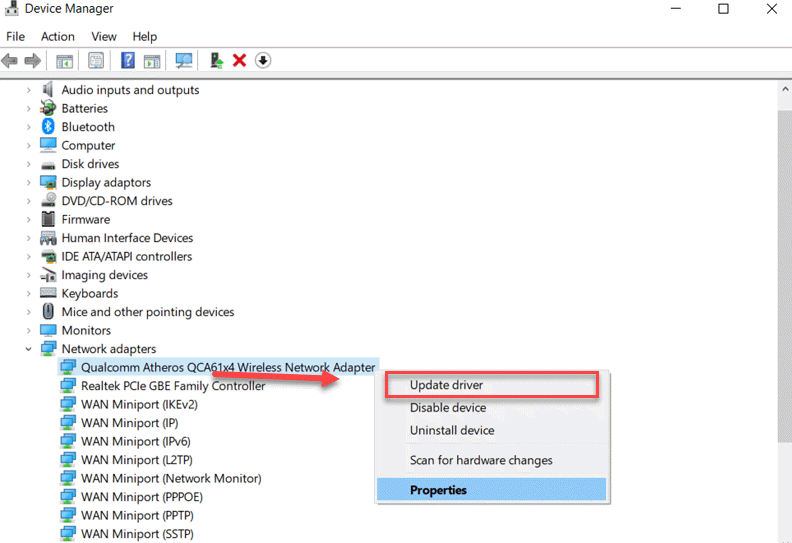
Step 1. Right click the Start icon and select Device Manager to get access to the tool. Otherwise, directly search Device Manager.
Step 2. Locate "Network adapters" and expand the category.
Step 3. Find your WiFi adapter which usually has "Wireless" or "Wi-Fi" in the name.
Step 4. Right click the adapter and select "Update driver".
Step 5. Choose "Search automatically for drivers" and let Windows search, download and install the update. If you have downloaded an update, use "Browse my computer for drivers" to locate and install the new version manually.
Step 6. Restart your computer to apply changes.
In short, Device Manager is perfect for Windows users to update WiFi drivers directly, without extra tools. However, it sometimes may not find the latest driver version, only giving the message "The best drivers for your device are already installed".
How to Update WiFi Drivers via Manufacturers' Websites
If Device Manager fails to find a newer driver, you can visit hardware manufacture's website and get the most up-to-date version.
Step 1. Identify your current wireless adapter model and driver version.
Go to Device Manager and locate your Wi-Fi device (e.g., Intel(R) Dual Band Wireless-AC 8260). Right click the adapter and select Properties to see manufacturer, driver version and other details.
Step 2. Head to manufacturer's or your laptop brand’s official site. Examples include Intel, Realtek, HP, Dell, Lenovo, etc.
Step 3. Search your Wi-Fi adapter model and download the latest driver compatible with your operating system.
Step 4. Double click the downloaded file and follow the on-screen instructions to install the latest driver.
Step 5. Restart your computer after installation.
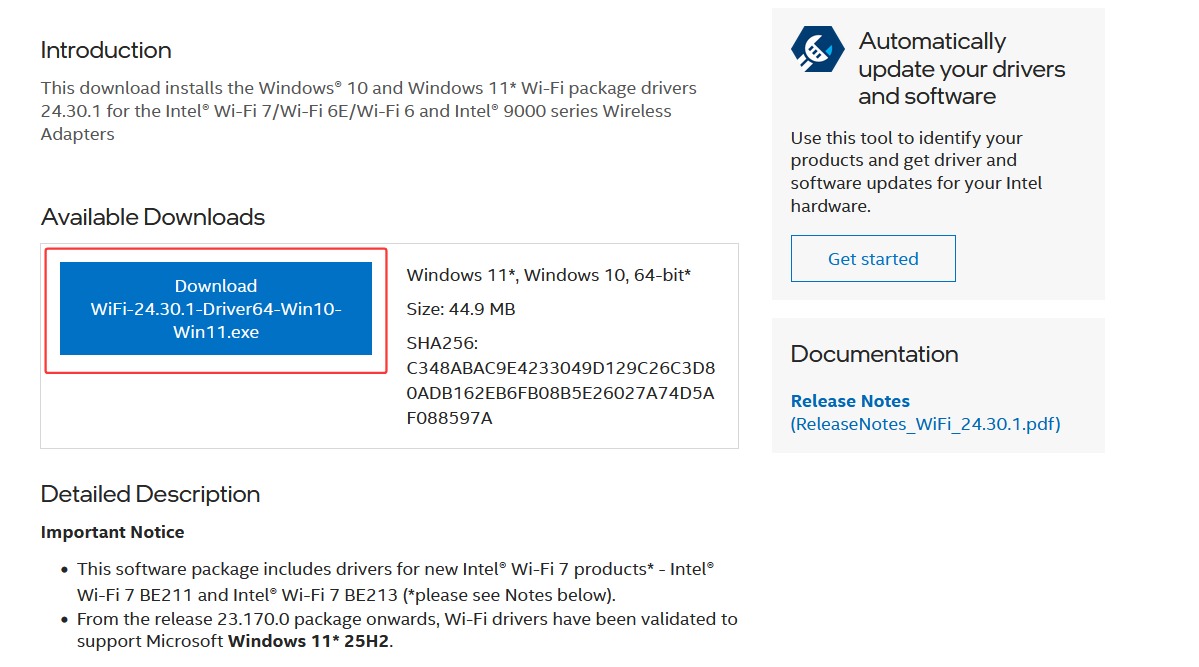
Manufacture's website is considered as the best source for access to the latest and most optimized Wi-Fi drivers. But it requires more manual effort to find out the correct driver for your device. Some system risks may happen if installing a wrong driver.
How to Update Wi-Fi Drivers with Driver Booster
Is it possible get a new and correct driver with no effort? Driver Booster streamlines driver updates, which can automatically discover and update all outdated drivers on your PC in a single click.
The leading driver updater for Windows has a smart scan system, helping instantly find the latest drivers that completely match with your devices. Its database delivers certified drivers from 1,200+ brands, allowing you to update drivers for almost all devices, Wi-Fi adapter, GPU, audio devices and more. It ensures a safe and reliable update workflow, thanks to the two-step verification - Microsoft WHQL and IObit security scan for each driver.
Driver Booster has a modern and intuitive interface. Even a beginner can quickly get how to update WiFi drivers without learning curve.
Step 1. Please download and install Driver Booster on your PC. It is fully supports Windows 11/10, ARM64 devices.'
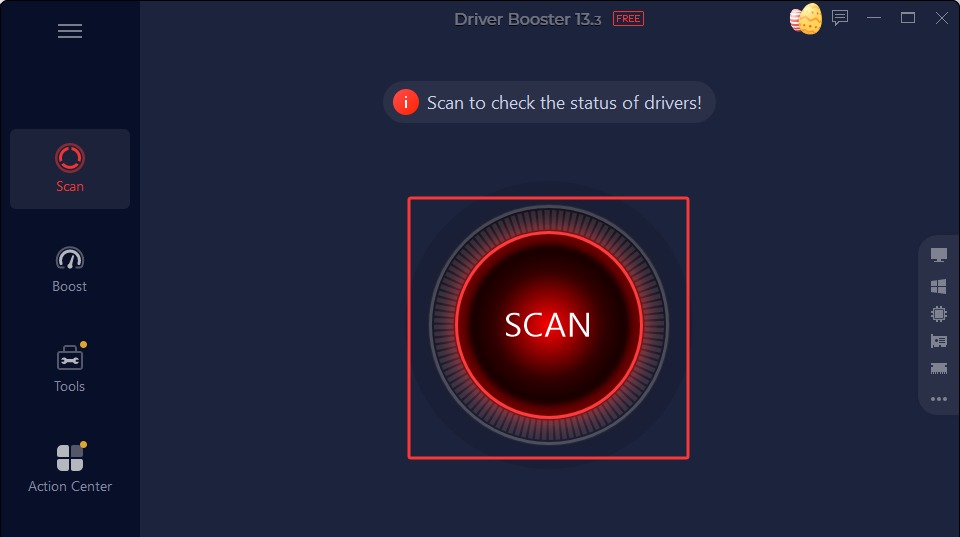
Step 2. Launch Driver Booster. Click SCAN to let it scan your system and find the drivers which need to update.
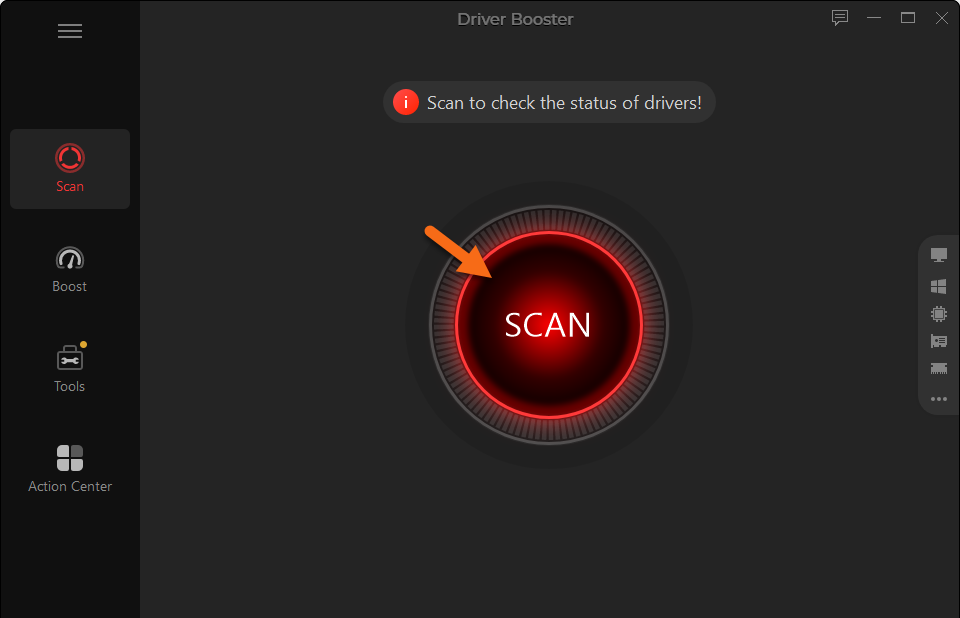
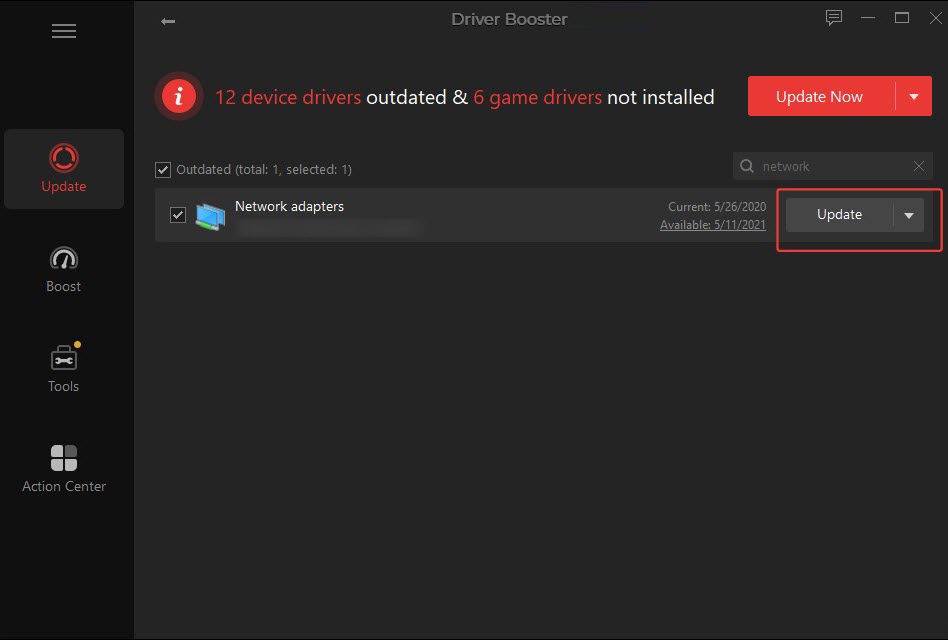
Step 3. When the scan finishes, it will list all outdated drivers. Input "network" into the search box to get the driver for your WiFi adapter.
Step 4. Click Update to update Wi-Fi driver.
Tips:
Driver Booster can update all outdated drivers at a touch of the button. Select all drivers and click Update Now.
Driver Booster empowers you to back up drivers before updating so that you can restore your system to a stable status if errors happen after WiFi driver update. Click the drop-down arrow next to Update button and select Back Up to quickly make a copy of your driver.
Final Thoughts
Are your experiencing sudden disconnections or slow internet speeds? Try to update WiFi drivers for better performance. You can manually perform WiFi driver update through Device Manager or downloading the exact new driver versions from manufacturers' websites, while Driver Booster ensures a more automatic solution to update WiFi drivers on Windows 11/10. If you are not a skilled user and don't know how to identify the accurate WiFi driver, Driver Booster is the best helper.
Driver Booster Free
- Automatically scan and update drivers.
- Update game ready drivers for peak gaming performance.
- Identify and fix various common of hardware issues.
- Boost 30% of system performance for fast & smooth running.