



Kevin Hart
Kevin is an experienced editor focused on tech blog writing. Familiar with all kinds of PC software on the market. All the topics he chooses are aimed at bringing more benefits to users.
Expert in
PC Health Solution

All-in-one PC health solution: clean, optimize and secure

Comprehensive PC cleaning, optimization and protection

Keep drivers always up-to-date

More stable performance with less system crashes

Protect millions of computers against malware

Top computer security with full-round protection

Protect against viruses & boost PC performance
Automatically scan and update drivers.
Update game ready drivers for peak gaming performance.
Identify and fix various common of hardware issues.
Boost 30% of system performance for fast & smooth running.

This guide walks you through 4 ways on driver update for Dell using official tools, manual downloads, or smart software to keep your computer running smoothly.

Kevin Hart


You know that feeling when your laptop suddenly freezes, your sound stops working, or your Wi-Fi disconnects every hour? Outdated drivers are often the hidden villain. When they are old, your hardware and software can't talk to each other properly. Things crash, lag, or just feel sluggish. Learn driver update for Dell easily here. Keep your Dell computer or laptop running smoothly with safe, proven methods. No tech headaches, just real fixes.
Keeping your Dell drivers up to date is crucial for maintaining system stability, performance, and compatibility with the latest software. In this guide, we'll walk you through everything you need to know about Dell driver updates and show you multiple safe and effective ways to do it fast. Keep up!
Even if your PC seems fine, outdated drivers can silently affect performance, speed, and compatibility. Doing a Dell driver update can:
Fix bugs and glitches: Get rid of sudden crashes and blue screens.
Improve system performance: Speed up your computer and make tasks run faster.
Enable new features: Make sure your device works perfectly with the latest software updates.
Prevent security issues: Protect your PC from newly discovered security threats.
In short, regular driver updates help your Dell PC or laptop reach its full potential.
Dell SupportAssist is Dell's official software for managing drivers, hardware diagnostics, and system optimization. It comes pre-installed on most Dell laptops and desktops. This is Dell's own control hub. Use this first—it is safe, automatic, and made specifically for your machine.
Easy how-to steps:
Step 1. Type SupportAssist into your Windows search bar and open the app.
Step 2. On the main dashboard, look for Update Software and click Start. The tool will automatically scan your computer and look for outdated drivers.
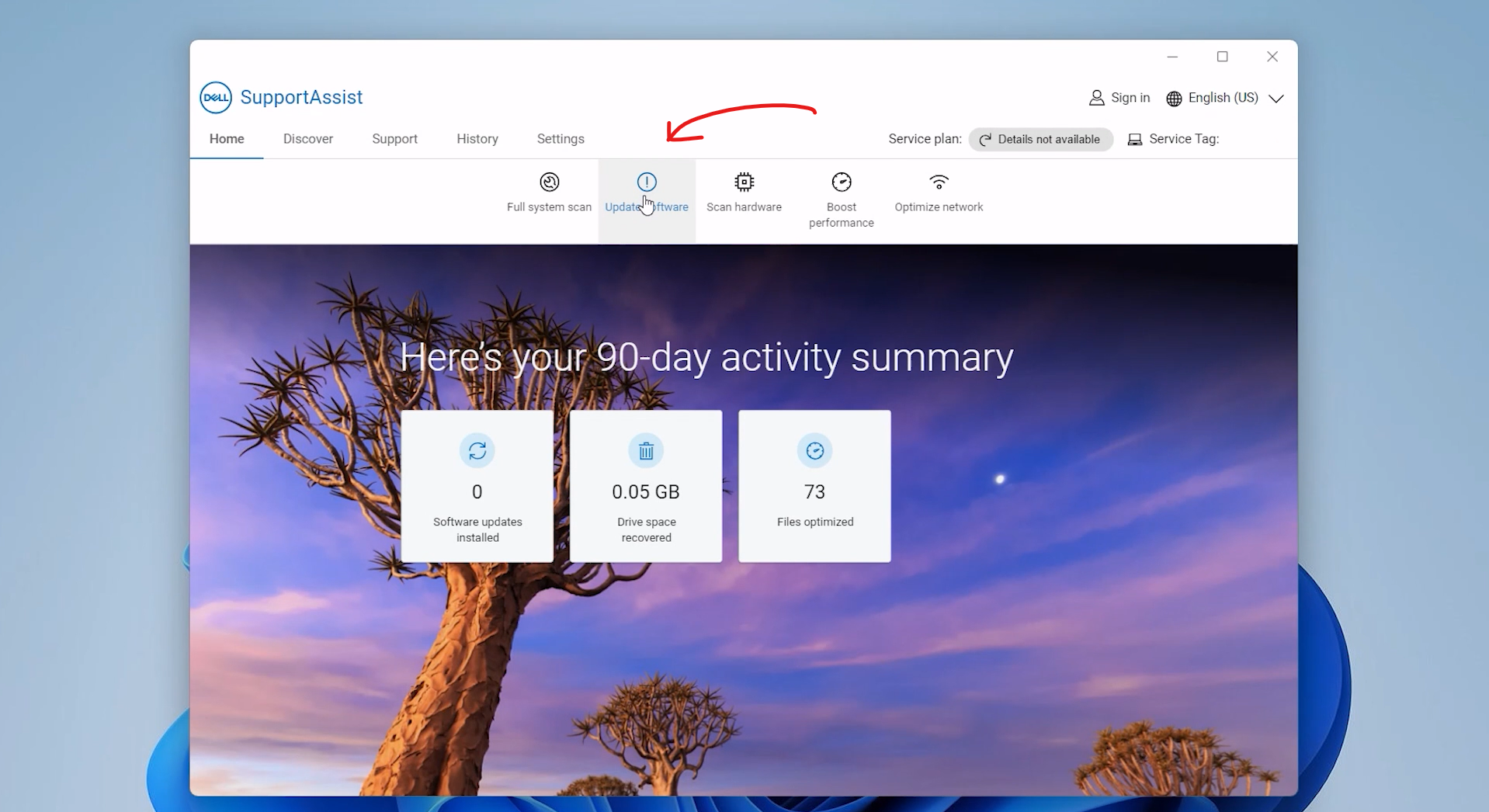
Step 3. Once the scan finishes, review the list of available updates and click Install.
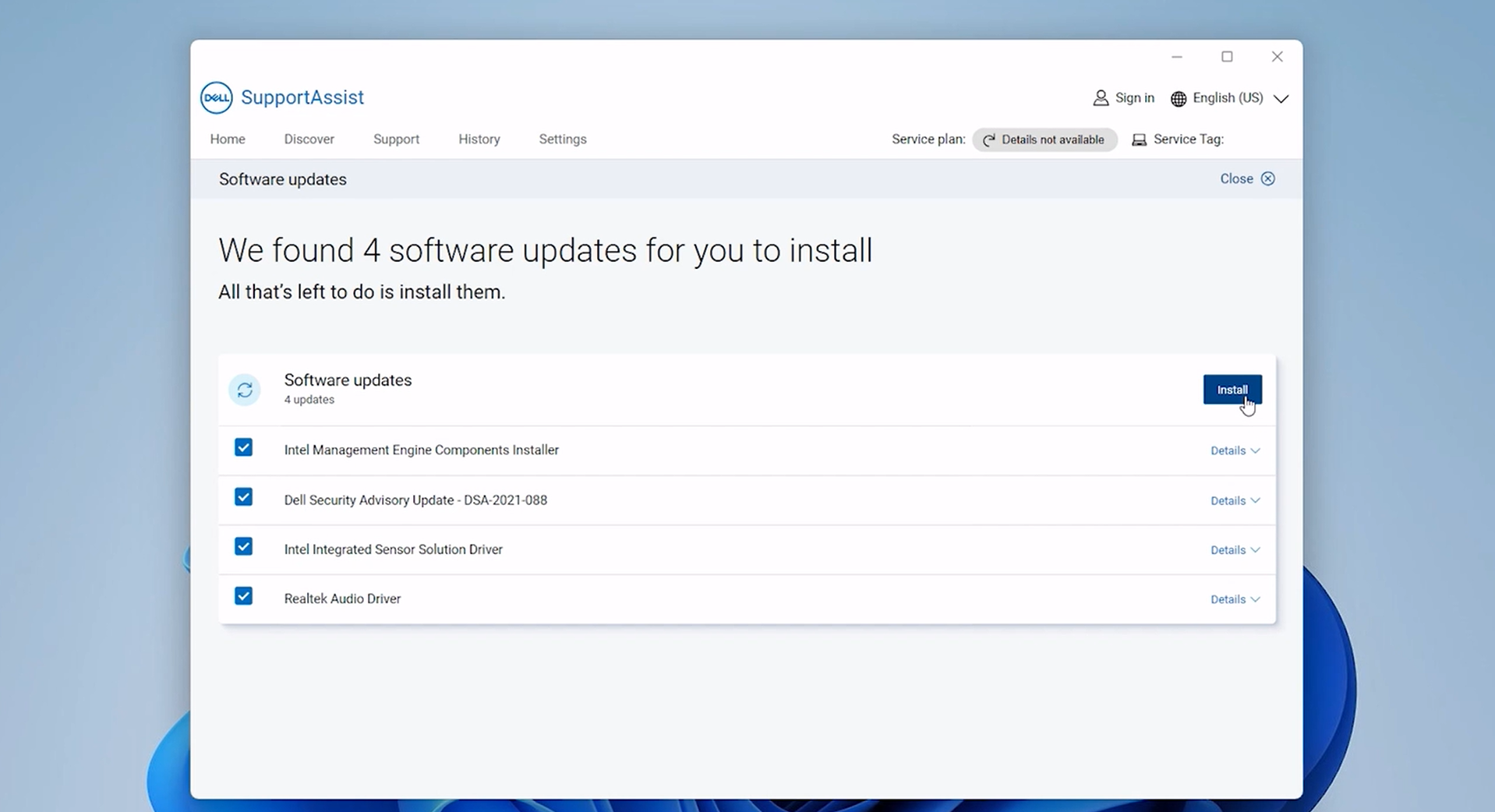
Step 4. Your computer may restart during this process. Do not shut down your PC until the installation is completely finished.
Pros:
Fully automatic: No guessing games or searching for model numbers.
Beginner-friendly: Simple layout with clear buttons.
Safe: Downloads come straight from Dell's official database.
Some of us like to be in total control. Or maybe your SupportAssist app is acting up, and you need to get a specific driver version yourself. A manual download from Dell's website is your best friend. Here’s how to update driver:
Easy how-to steps:
Step 1. Go to the official Dell Support Website (dell.com/support).
Step 2. Enter your Service Tag (a 7-character code found on a sticker at the bottom of your laptop or back of your desktop) or click Browse all products to select your specific model.
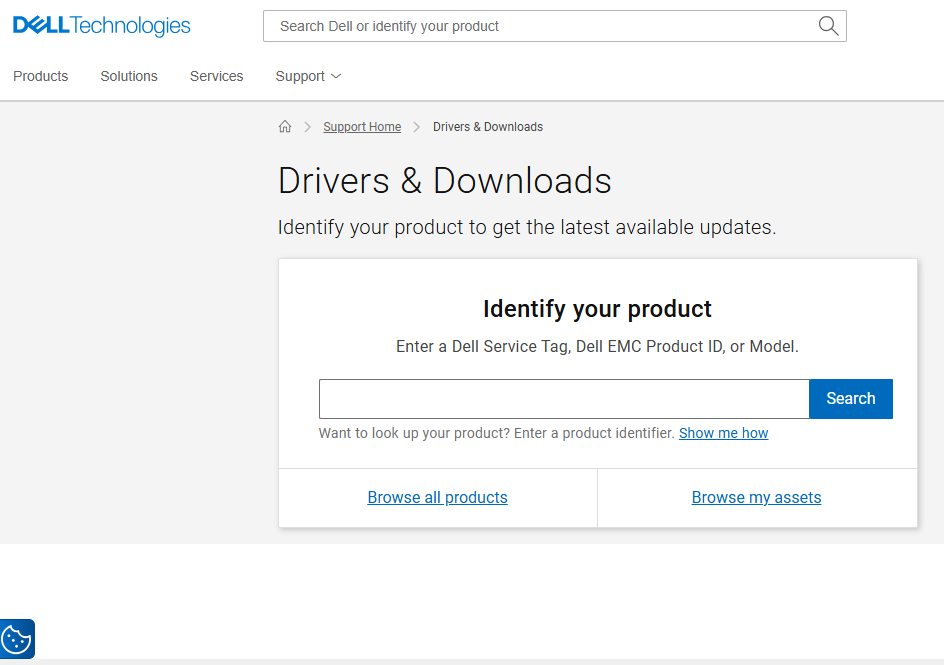
Step 3. Click on the Drivers & Downloads tab.
Step 4. Select your Operating System (e.g., Windows 11) from the drop-down menu. Look through the list, find the driver you need (like Graphics, Network, or Audio), and click Download.
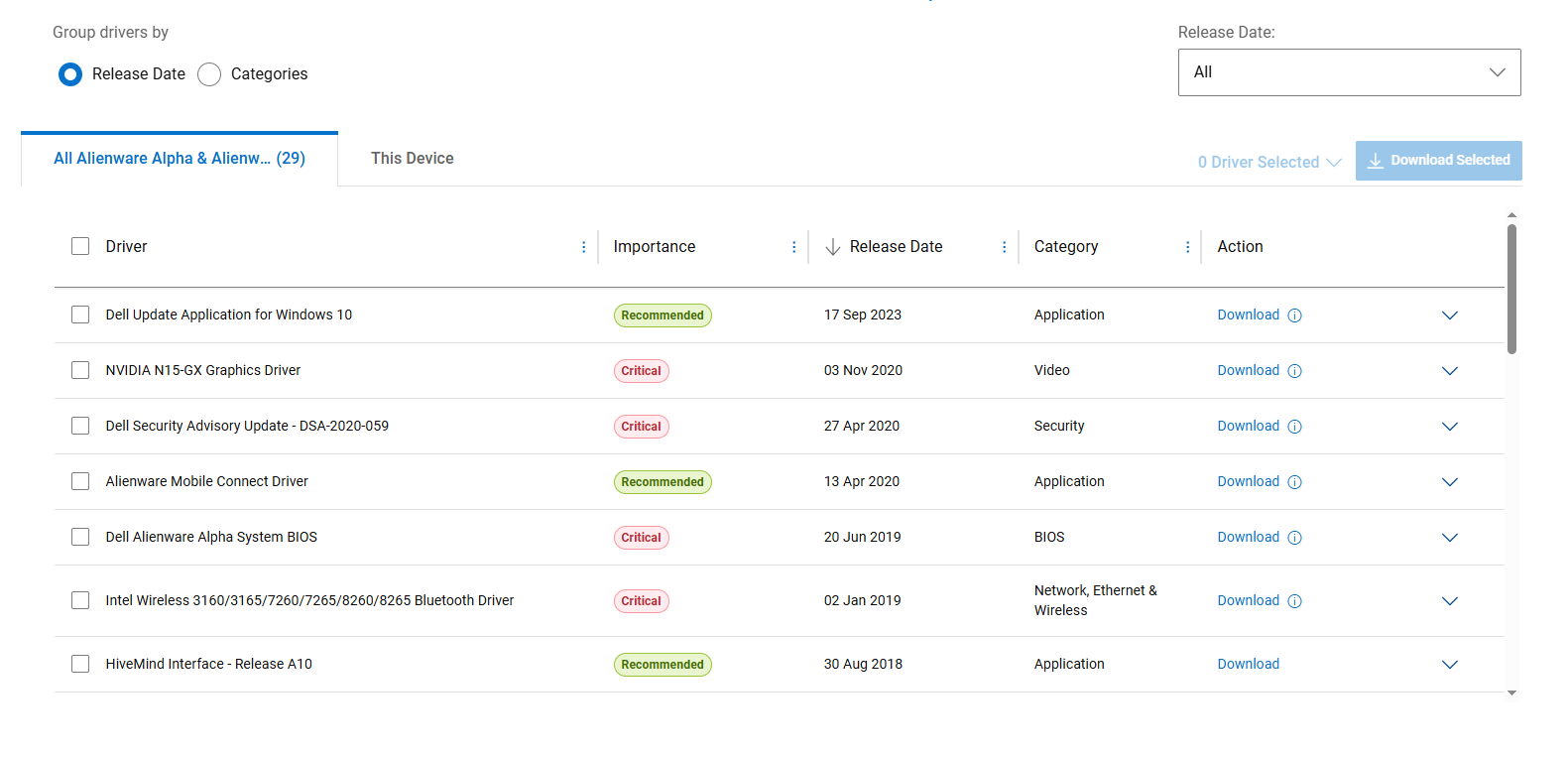
Step 5. Open the downloaded file (usually an .exe file) and follow the simple on-screen instructions to install it.
Pro tip: Always prioritize Chipset drivers first, as other components depend on them to work properly!
Pros:
Zero malware risk: Safe and directly from the official manufacturer.
Always accurate: Find exact drivers tied specifically to your hardware configuration.
Great for offline use: You can save the downloaded setup files on a USB drive for later.
Yes, Windows can help with downloading drivers automatically — including many basic drivers for Dell hardware. It runs quietly in the background and requires very little effort.
How to use Windows Driver Updater Dell
Step 1. Search Control Panel in your Windows search bar.
Step 2. Click on Hardware and Sound.
Step 3. Click Device Manager. Choose your Dell device to update the driver.
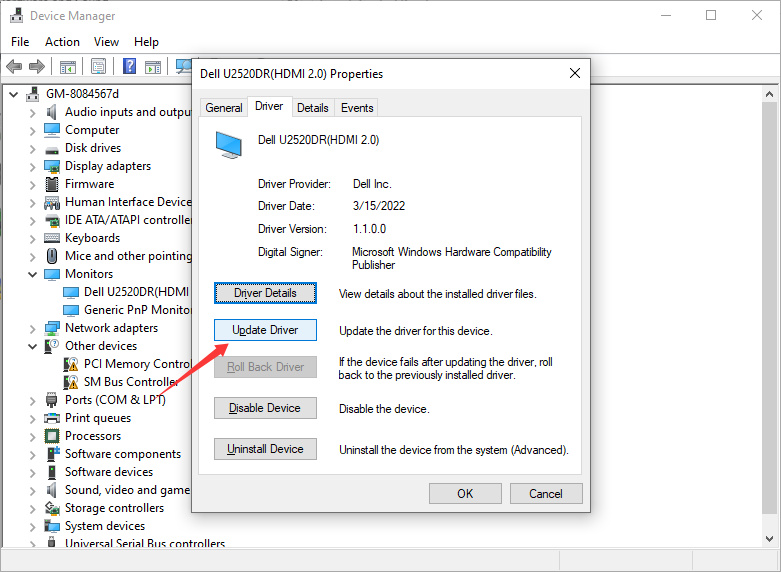
Why it’s good, but not perfect:
This how to update Windows driver method is entirely hands-free, which makes it incredibly safe. However, Windows usually delivers drivers that are "stable but older." You might wait weeks or months for a critical performance patch that Dell had already released on their official site. Here the most convenient and recommended method for Dell driver update is listed below, check it now!
Sometimes manually checking each website or waiting for slow Windows updates can feel time-consuming. If you want a quick option that scans your entire system at once, you can use a dedicated utility like Driver Booster.
It simplifies your routine by organizing all your hardware components in one place and letting you fix outdated drivers with a single click.
How to update drivers with a driver updater:
Step 1. Download, install, and launch Driver Booster on your Dell machine.
Step 2. Click the large Scan button on the home screen. The tool will check your entire Dell PC for missing, broken, or outdated drivers.
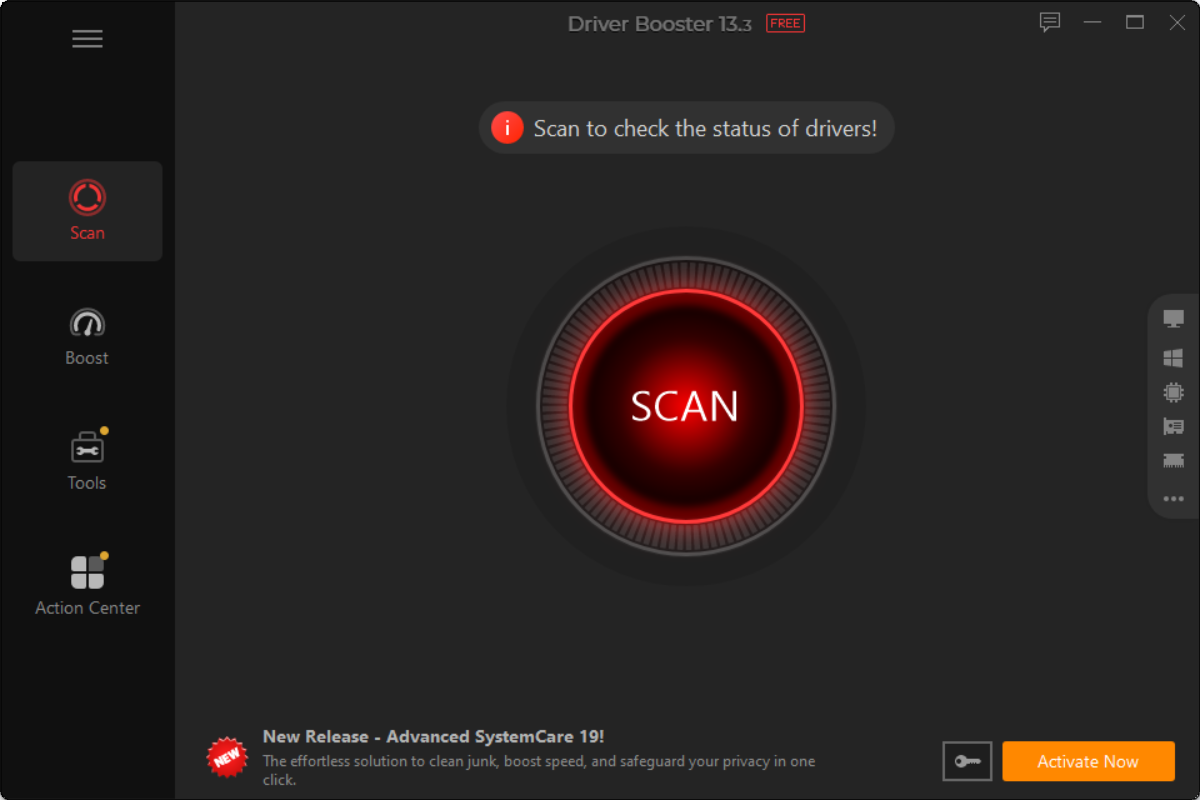
Step 3. Review the scan results. You can choose to update individual drivers or simply click Update Now to update everything at once.
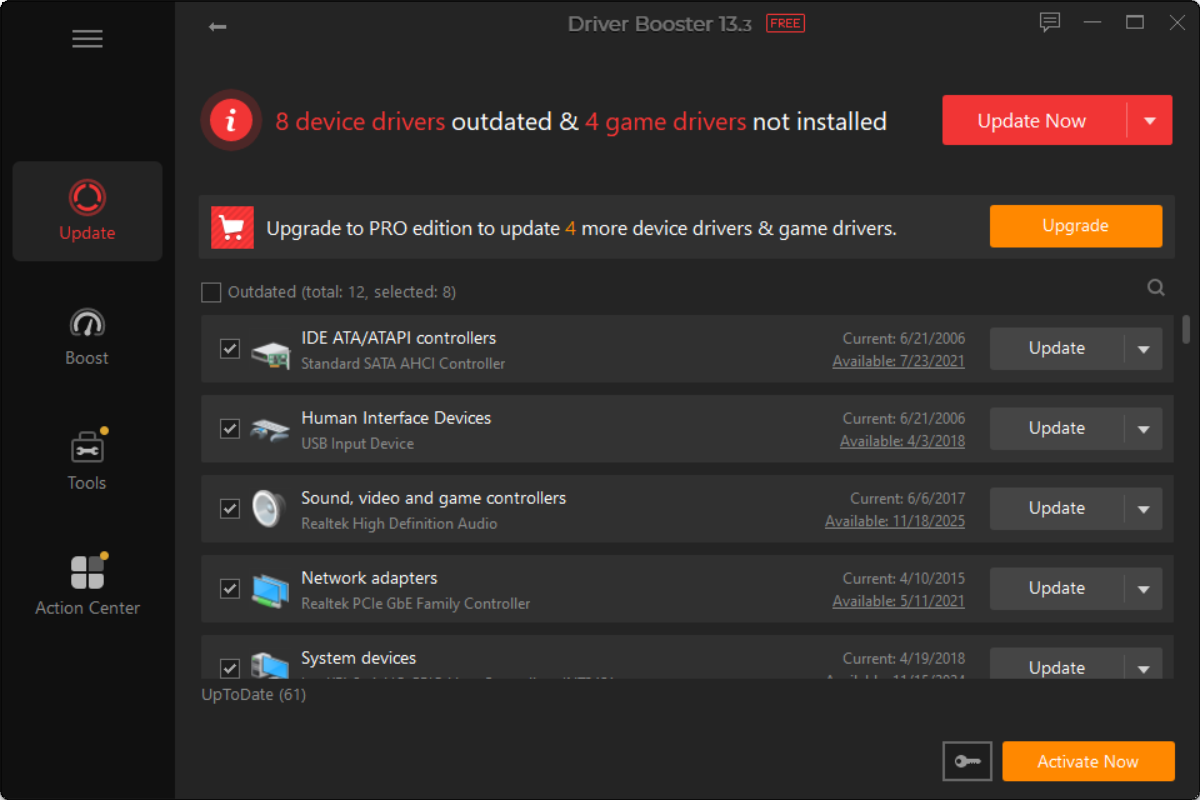
Step 4. Wait for the installation to finish and restart your computer to apply the changes.
Why it is a great alternative:
One-Click Scanning: No need to check individual hardware components one by one.
Large Database: Handles your Dell motherboard, audio, graphics, and network cards all in one go.
Safety First: Automatically creates a system restore point before updating, allowing you to safely undo changes if a driver behaves poorly.
That’s all the 4 methods on driver update for Dell. You can pick the method that best matches your comfort level now. By using official tools like Dell SupportAssist, downloading directly from the Dell Support Page, relying on Windows Update, or using a fast utility like Driver Booster, you can Improve system stability and overall speed, prevent annoying bugs and game crashes and keep your hardware working like new. Download Driver Booster free to keep your Dell PC running at peak performance right away!


Keep drivers always up-to-date.
Free Download