A malfunctioning touchpad can make your laptop frustrating to use. Whether your touchpad is lagging, freezing, not responding, or missing multi-touch gestures, an outdated or corrupted driver is often the culprit. Fortunately, updating or reinstalling the touchpad driver can resolve most touchpad-related issues without replacing any hardware.
In this guide, you'll learn how to update touchpad drivers and how to reinstall touchpad driver using several proven methods. We'll also show you the easiest way to automatically keep your touchpad driver up to date.
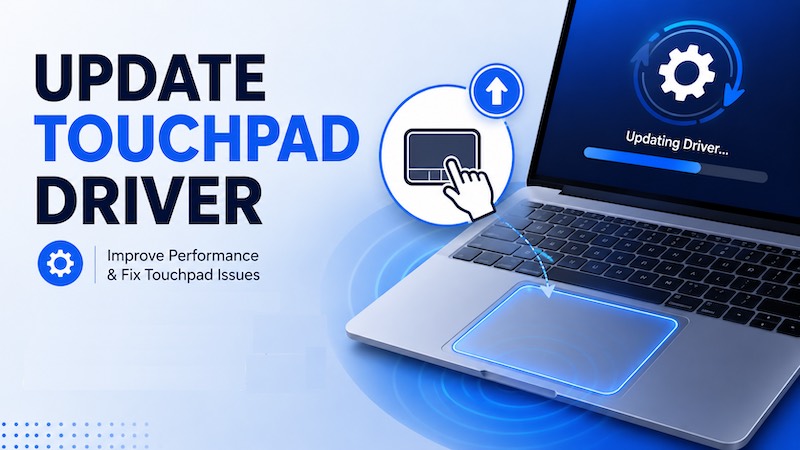
Why Should You Update Your Touchpad Driver?
Updating your touchpad driver doesn't just fix existing problems—it also helps prevent future issues. New driver versions improve compatibility with Windows updates, enhance touchpad responsiveness, and add support for the latest gestures and features.
Keeping your touchpad driver current offers several benefits:
Fixes an unresponsive or frozen touchpad
Restores scrolling and gesture support
Improves cursor accuracy and responsiveness
Fixes compatibility issues after Windows updates
Enhances laptop stability and performance
Prevents driver-related errors
If your touchpad has stopped working after upgrading to Windows, reinstalling the driver is often the quickest solution.
How to Update Touchpad Driver
There are several ways to update touchpad driver Windows 11 or 10, ranging from built-in Windows utilities to automatic driver management software. Start with the easiest methods below before trying more advanced solutions if your touchpad still isn't working properly.
Method 1. Update Touchpad Driver Using Device Manager
Best for: Manual driver updates through Windows
Device Manager is the quickest built-in tool for updating hardware drivers. It searches Windows' driver database for newer versions and installs them automatically if available. Although it may not always provide the latest manufacturer driver, it's an excellent first step when learning how to update touchpad driver without downloading additional software.
Step 1. Press Win + X and choose Device Manager.
Step 2. Expand Mice and other pointing devices or Human Interface Devices.
Step 3. Locate your touchpad device (Synaptics, ELAN, Precision Touchpad, HID-compliant touchpad, etc.).
Step 4. Right-click the driver and select Update driver.
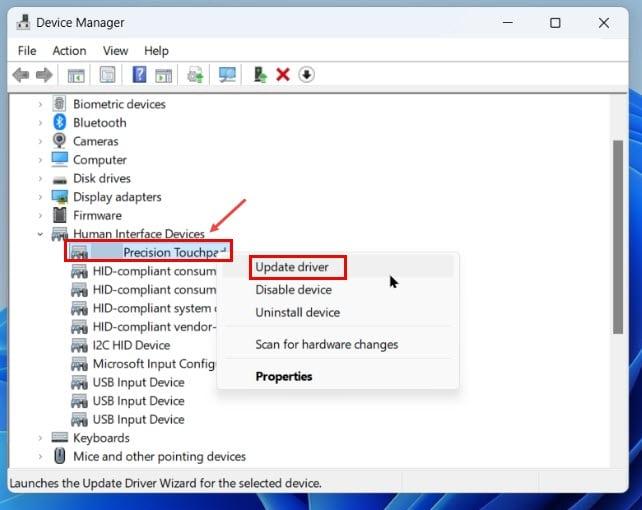
Step 5. Choose Search automatically for drivers. Wait Windows searches for and installs the latest available driver.
Step 6. Restart your PC if Windows installs a newer version.
Method 2. Update Touchpad Driver via Windows Update
Best for: Installing Microsoft-certified drivers
Many laptop manufacturers distribute certified touchpad drivers through Windows Update. Checking for optional driver updates is another simple way to update touchpad driver Windows 11 or 10 without visiting the manufacturer's website. This method is especially useful after installing a major Windows update, as newer touchpad drivers are often released to improve compatibility and stability.
Step 1. Open Settings.
Step 2. Select Windows Update.
Step 3. Click Check for updates.
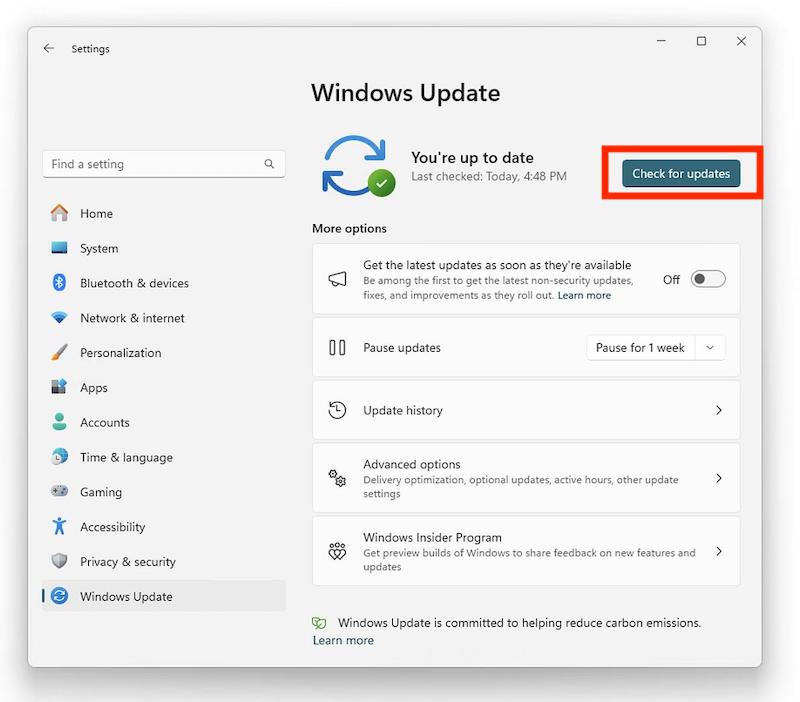
Step 4. Open Advanced options > Optional updates.
Step 5. Expand the Driver Updates section and install any available touchpad driver updates.
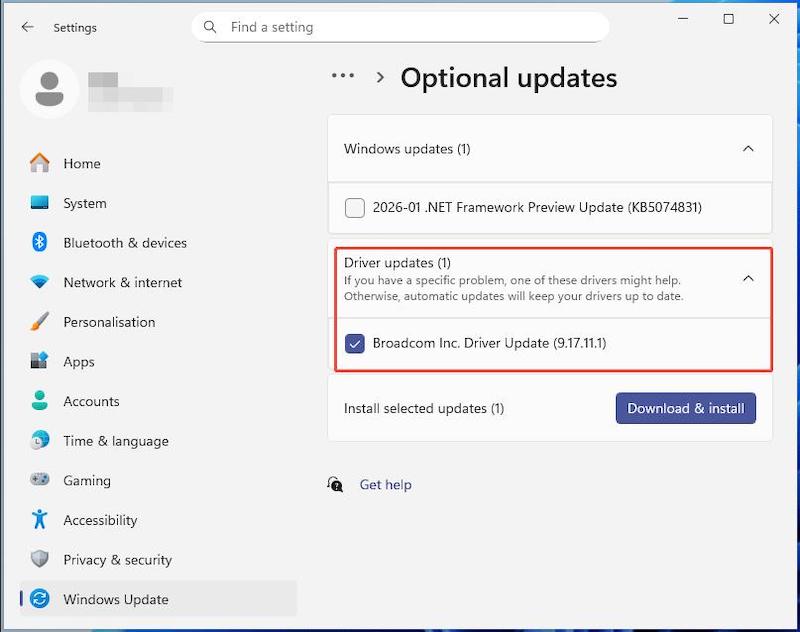
Step 6. Restart Windows to check if the problem is solved.
Method 3. Update Touchpad Driver Automatically with Driver Booster
Best for: One-click driver updates
If Windows can't find the latest touchpad driver or you don't know your laptop's exact model, using an automatic driver updater can save time. Driver Booster scans your computer for outdated, missing, and faulty drivers, then installs the latest official versions with one click. Besides helping you update the touchpad driver, it also keeps other hardware drivers current, improving your PC's stability, performance, and compatibility with Windows.
Why Choose Driver Booster?
Driver Booster makes updating drivers quick and easy. It automatically scans your PC for outdated, missing, or faulty drivers and installs the latest compatible versions with one click. Before updating, it backs up existing drivers so you can restore them if needed. It also supports offline updates. Whether you want to update the touchpad driver Windows or keep all your device drivers up to date, Driver Booster is a simple and reliable solution.
Key Features of IObit Driver Booster
One-Click Driver Updates
Scan your laptop thoroughly and automatically detect outdated touchpad and other hardware drivers, then update them with a single click, saving time, reducing manual effort, and ensuring your system runs smoothly and efficiently.
Large Driver Database
Provides access to millions of certified drivers for touchpads, graphics cards, network adapters, audio devices, and many other hardware components, ensuring your system always has the most compatible and up-to-date drivers available. That also makes it a great option to fix audio driver not working Windows 11.
Driver Backup and Restore
Creates a secure backup of existing drivers before any update, allowing you to easily restore the previous version if compatibility issues or system problems occur after installation.
Offline Driver Updates
Allows you to update drivers on computers with limited or no internet access by downloading the necessary files on another device and transferring them using the built-in offline update feature.
Safe Driver Installation
Installs only compatible and thoroughly tested drivers, helping to improve overall hardware stability while minimizing the risk of installation errors, crashes, or system conflicts.
Game Ready Driver Support
Keeps your system updated with the latest game-ready drivers, improving gaming performance, reducing lag, and ensuring better compatibility with newly released games and updates. For example, it is helpful when you want to know how to fix Roblox lag.
Steps to update the driver with IObit Driver Booster
Step 1. Download the latest version of IObit Driver Booster and install it on your Windows computer.
Step 2. Open the software and click the large Scan button. Driver Booster will automatically inspect all hardware drivers, including your touchpad driver.
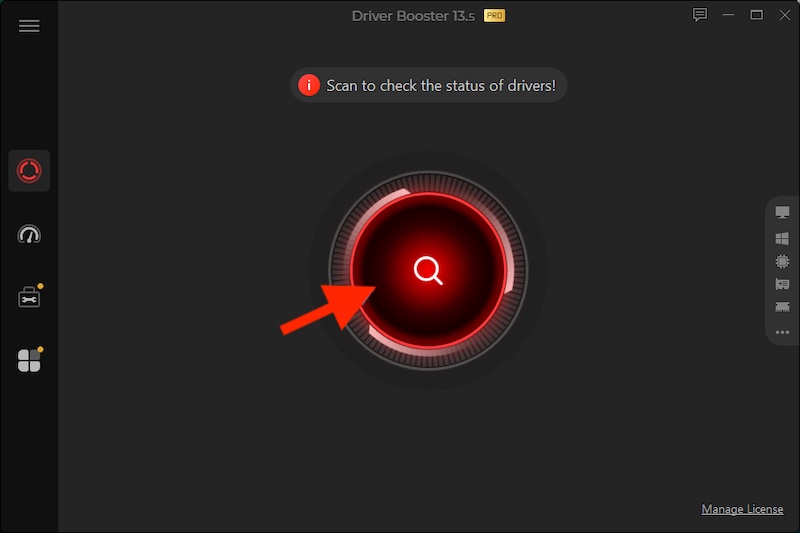
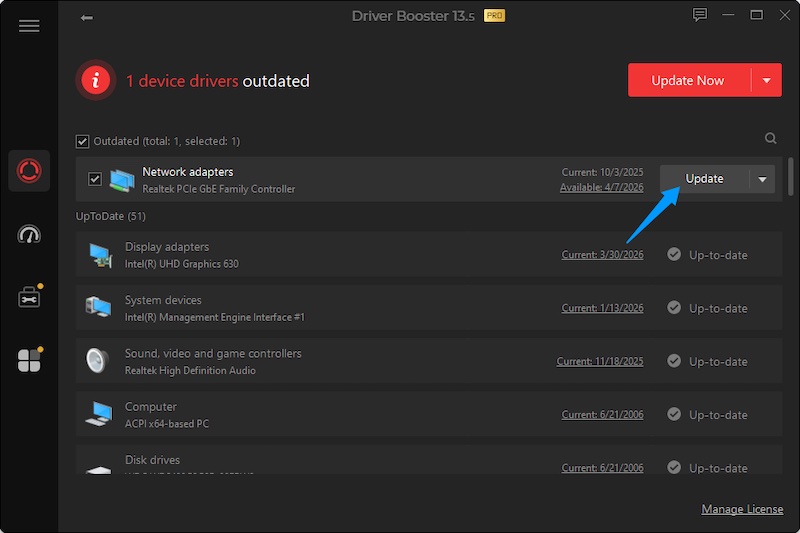
Step 3. Once the scan finishes, locate the driver you wish to update. Click Update beside the touchpad driver or click Update Now to update all outdated drivers simultaneously.
Method 4. Download the Latest Touchpad Driver from the Laptop Manufacturer
Best for: Installing the newest official driver.
If Windows doesn't provide the newest driver, downloading it directly from your laptop manufacturer's support website is another reliable option. Manufacturers usually release updated touchpad drivers before they appear in Windows Update, ensuring better compatibility, improved gesture support, and bug fixes. This method is particularly recommended if you've recently upgraded Windows or need the latest driver designed specifically for your laptop model.
Step 1. Find your laptop model number by heading to Settings > System > About.
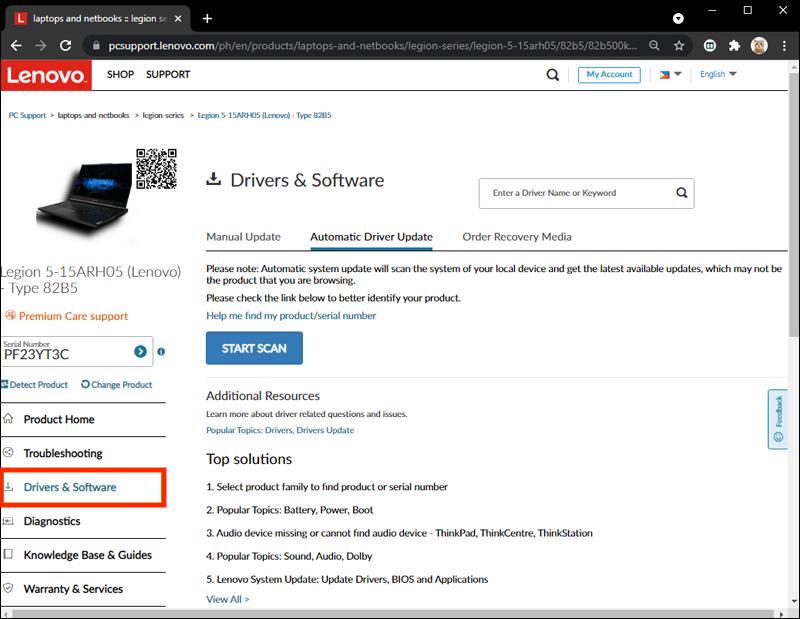
Step 2. Open your laptop manufacturer's support page and search for your device model.
Step 3. Download the latest correct Touchpad driver.
Step 4. Double-click the downloaded installation package and follow the on-screen instructions until the installation finishes
Step 5. Restart your PC to complete the installation.
How to Reinstall Touchpad Driver When Update Keeps Failing
If updating the driver doesn't solve the issue, the driver itself may be corrupted or improperly installed. In this case, it's best to reinstall the touchpad driver using Device Manager or from the Manufacturer. Thus, Windows will remove the current driver and reinstall a fresh version after you restart your computer. These methods are highly effective for fixing touchpad errors, missing gestures, or an unresponsive touchpad in Windows.
Method 1. Reinstall Touchpad Driver Windows 11 & 10 Using Device Manager
Reinstalling the driver through Device Manager will remove corrupted or outdated driver files and let Windows install a fresh version, often resolving touchpad issues caused by driver conflicts or installation errors. Here are the steps.
Step 1. Press Win + X and select Device Manager from the menu.
Step 2. Expand Mice and other pointing devices or Human Interface Devices. Find your touchpad device.
Step 3. Right-click the touchpad device and choose Uninstall Device. If available, check Attempt to remove the driver for this device, then click Uninstall.
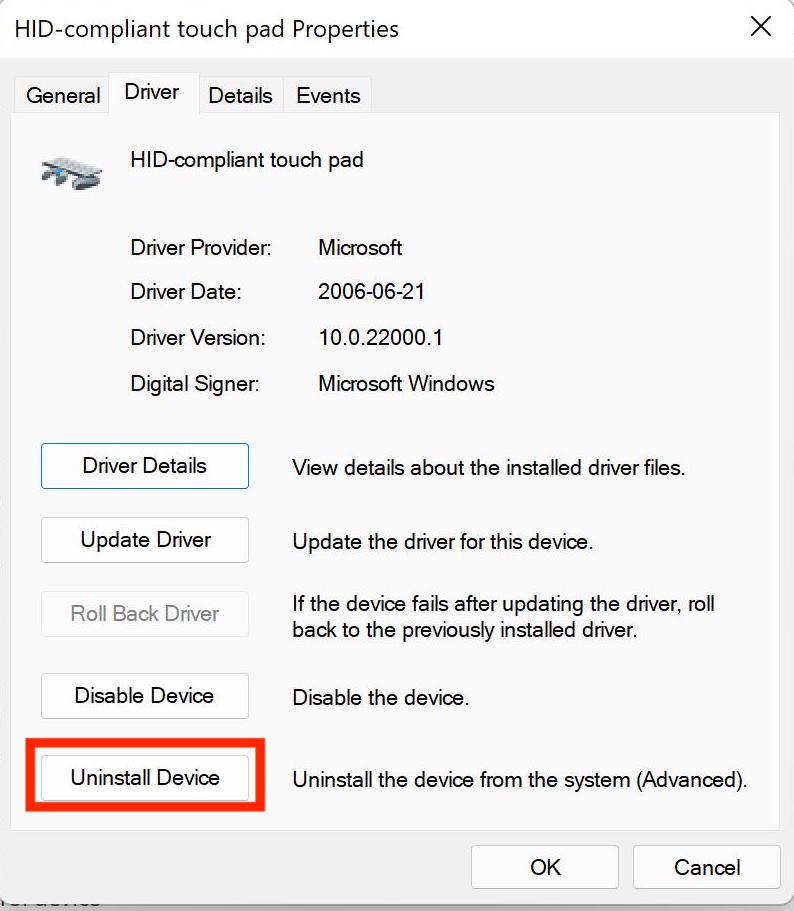
Step 4. Windows will automatically reinstall the touchpad driver during startup.
Method 2. Reinstall Touchpad Driver Windows 11 & 10 from the Manufacturer
Another option to reinstall the touchpad driver is from the manufacturer. Manufacturer drivers often include the latest bug fixes, performance improvements, and full support for advanced features like multi-touch gestures and palm rejection.
Step 1. Go to the official support page for your laptop brand and search for your device model.
Step 2. Choose your laptop model and operating system, then download the latest touchpad driver available.
Step 3. Run the downloaded installer and follow the on-screen instructions to complete the installation.
What If the Touchpad Driver Is Missing?
Sometimes, the touchpad driver may disappear from Device Manager after a Windows update, system reset, or driver corruption. Don't worry—this doesn't always mean your touchpad is broken. The following solutions can help you restore the missing driver and get your touchpad working again.
Try these fixes:
Select Action > Scan for hardware changes
Show hidden devices
Install the chipset driver first
Enable the touchpad in BIOS
Enable the touchpad using your laptop's function key
Install the official driver from your manufacturer
How to Fix Touchpad Driver Problems After Windows Update
If your touchpad stopped working after installing a Windows update, the new system may have replaced or disabled the original driver. Try the following solutions to restore normal touchpad functionality before considering a system reset.
Reinstall the touchpad driver.
Roll back to the previous driver version.
Install optional updates.
Update your chipset drivers.
Run the hardware troubleshooter.
Install the newest manufacturer driver.
Conclusion
Knowing how to update touchpad driver or how to reinstall touchpad driver can quickly resolve many common touchpad issues, including unresponsive gestures, cursor lag, and missing functionality.
For the easiest maintenance experience, consider using the best Driver Booster. It automatically scans your system, detects outdated or missing drivers, and installs the latest versions with just one click, saving time and helping keep your touchpad and the rest of your hardware running smoothly.