

Lane Maxwell
With extensive experience in the tech industry, Lane is a trusted editor who delivers actionable insights and solution-driven content. His articles have guided millions of readers toward effective and efficient problem-solving.
Expert in
PC Health Solution

All-in-one PC health solution: clean, optimize and secure

Comprehensive PC cleaning, optimization and protection

Keep drivers always up-to-date

More stable performance with less system crashes

Protect millions of computers against malware

Top computer security with full-round protection

Protect against viruses & boost PC performance
Clean: 420 billion traces removed & 85 EB junk files cleaned
Protect: 80 million unauthorized access blocked & 20 million bugs fixed
Speed Up: 6 million hours of startup time saved & Turbo boost
Optimize: Auto clean and auto care your PC with AI mode

How to fix lag in games? This blog will introduce 6 manual methods. You can also find the simplest software to boost FPS and stop stuttering in one click.

Lane Maxwell


You are in the final circle of a Battle Royale, or a clutch moment in a MOBA, and suddenly... freeze. The screen stutters, your character teleports, and you are eliminated. This is one of the most frustrating gaming experiences that can ever happen. The annoying lag can be caused by limited system resources, background apps, outdated drivers, overheating, or poor optimization. So, how to fix lag in games? This blog will introduce the real reasons behind lag, the fastest one-click fix, and practical manual methods that can help you boost FPS and stop stuttering. Just read on to learn more.

How to stop lag in games? Before jumping into the solutions, let’s see the common reasons behind this issue.
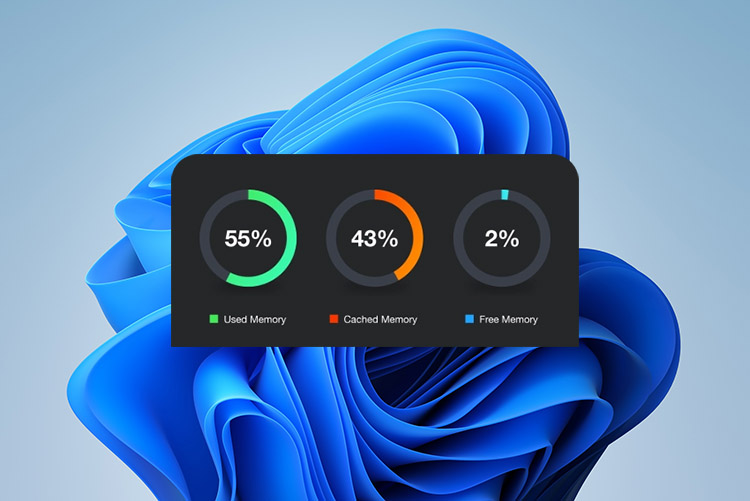
High CPU or RAM Usage: Running too many apps at once might leave fewer resources for your game.
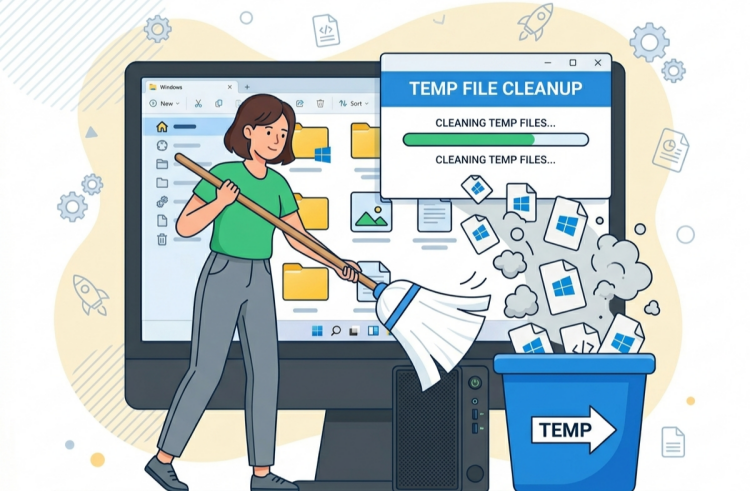
System Junk and Temporary Files: Over time, the clutter could slow down your system and affect performance.
Outdated Graphics Drivers: Without updates, your GPU can’t handle modern games efficiently.
Overheating: When temperatures rise, your system will throttle performance to prevent damage.
Slow Storage (HDD vs SSD): Older hard drives can cause stuttering and slow loading.
But don’t worry. Some of the issues are fixable. Just read on to learn how to fix lag in all games PC with proven solutions!
Now you know the reasons behind the lagging. So, how to stop lag in games? IObit Advanced SystemCare stands out as the ultimate all-in-one solution. Compatible with Windows, the software can clean, speed up, and protect your PC, elevating your gaming experience successfully! Before introducing how to stop lag in games with it, let’s check out its key features.

One Click Fix for Lag-Free Gaming: Simply run a scan, and it will automatically detect and fix common issues like junk files, registry errors, and fragmented data that often cause stuttering.
Turbo Boost for Game: Its Turbo Boost feature closes unnecessary background processes, frees up RAM, and prioritizes CPU/GPU resources. So your games run much smoother and closer to peak performance.
Deep Clean & Registry Fix: It clears out hidden system clutter and repairs invalid registry entries, which directly helps reduce slowdowns and improve gaming experience.
Real-Time Protection: How to fix lag in all games PC in real time? The software keeps monitoring my system in the background, preventing various issues from building up during long gaming sessions.
Game Mode Support: It also comes with a specialized Game Mode, which instantly optimizes system performance and prioritizes resources for gaming.
IObit Advanced SystemCare is one of the simplest yet most powerful solutions for improving both gaming performance and overall PC speed. So, how to fix lag in all games PC? Just follow these steps to get started.
Step 1: Free Download and install IObit Advanced SystemCare on your PC.
Step 2: Launch the software. Head to the Care tab and choose the Manual Mode. Choose the options and run a system scan.
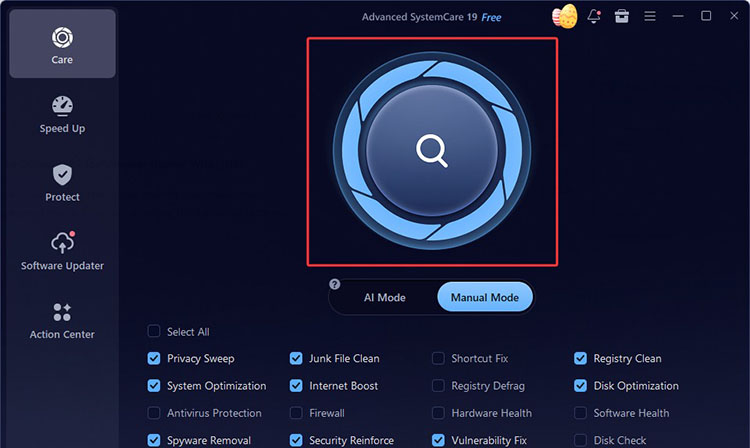
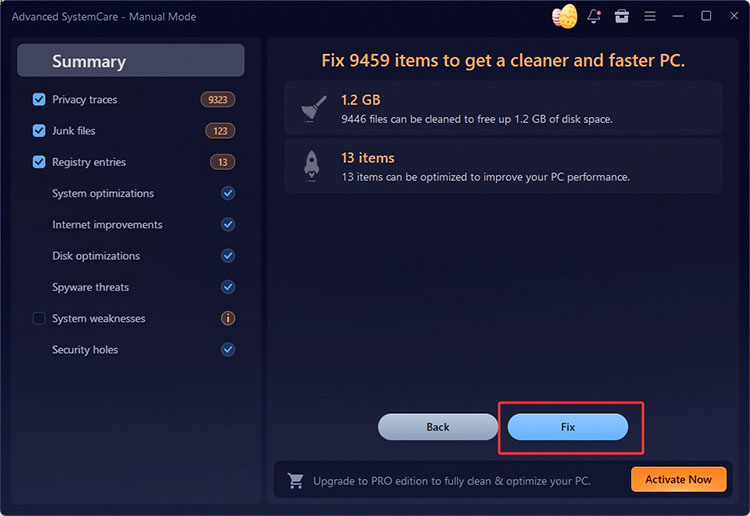
Step 3: Click the Fix button to clean junk files and optimize performance.
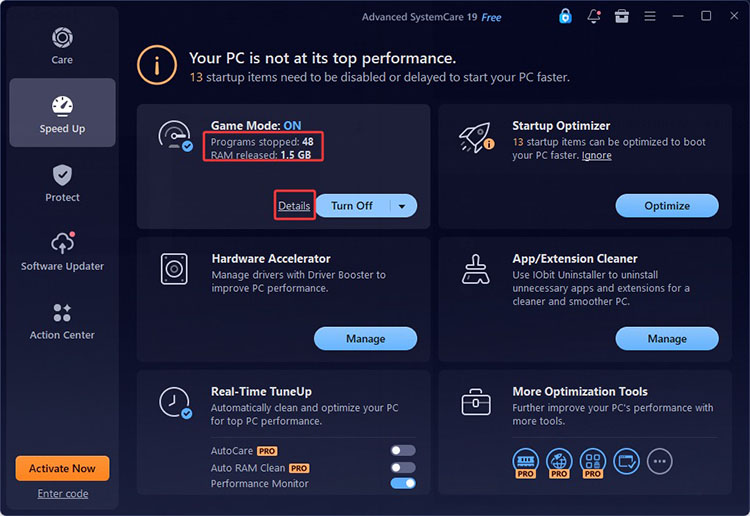
Step 4: In the Speed Up tab, click on the arrow next to the Turbo Boost. Choose Game Mode and turn it on.
Step 5: Meanwhile, go to the Real-Time Tune Up and turn on the Performance Monitor, and it will release RAM for smooth gaming.
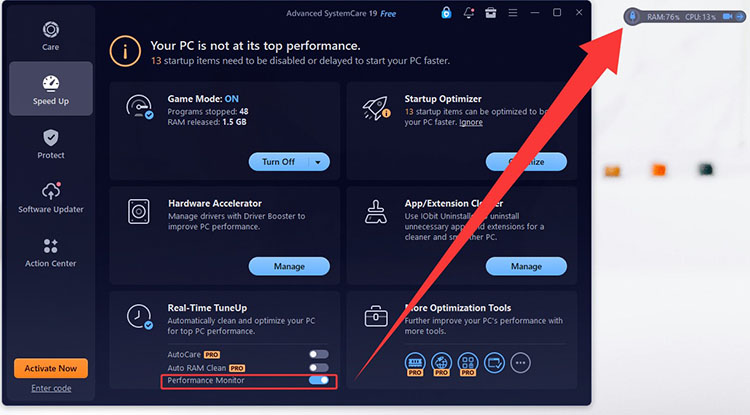
That’s how to stop lag in games easily. As you can see, the entire process is super simple, and it takes just a few minutes!
While IObit Advanced SystemCare provides one-click optimization, there are manual methods that can complement the software. So, how to fix lag in games manually? Here are 6 proven tricks to fine-tune performance and reduce stuttering even further.
One of the most effective ways to tackle lag is to adjust in-game graphics options. High settings may overwhelm your GPU and CPU, leading to frame drops and stuttering. For most games, you can do these tweaks:
- Reduce resolution to gain a significant FPS boost, and set shadow quality to low or off to reduce GPU load.
- Adjust texture quality according to available VRAM to prevent stuttering during gameplay.
- Lower reflections, fog, and volumetric effects, as these are highly resource-intensive.
- Turn off or reduce anti-aliasing to enhance overall stability and achieve smoother performance.
It’s best to keep your graphic drivers updated for the latest game-ready optimizations, bug fixes, and performance improvements. You can right-click Start > Device Manager > Expand Display adapters > Right-click your GPU > Update driver to update it to the latest version.
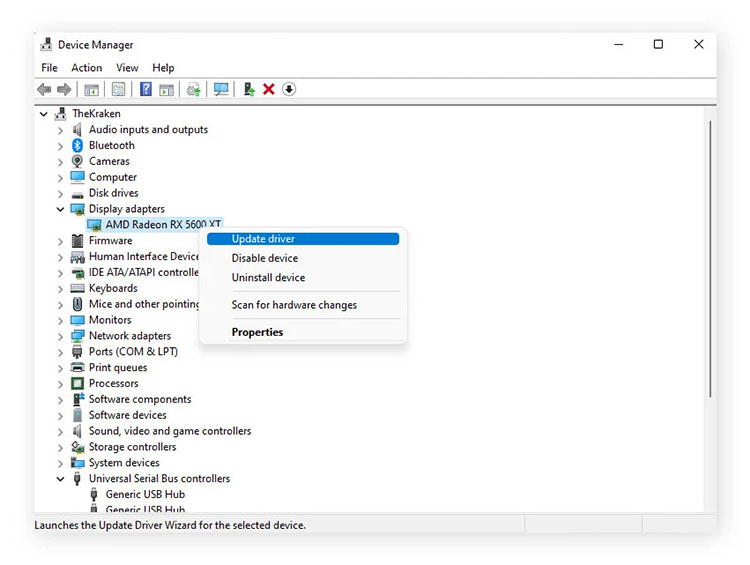
For reliable and easy updates, consider the Driver Booster from IObit. So, how to fix lag in games with it? It’s simple. This tool will scan your system, identify outdated drivers, and you can install the latest versions with one click.
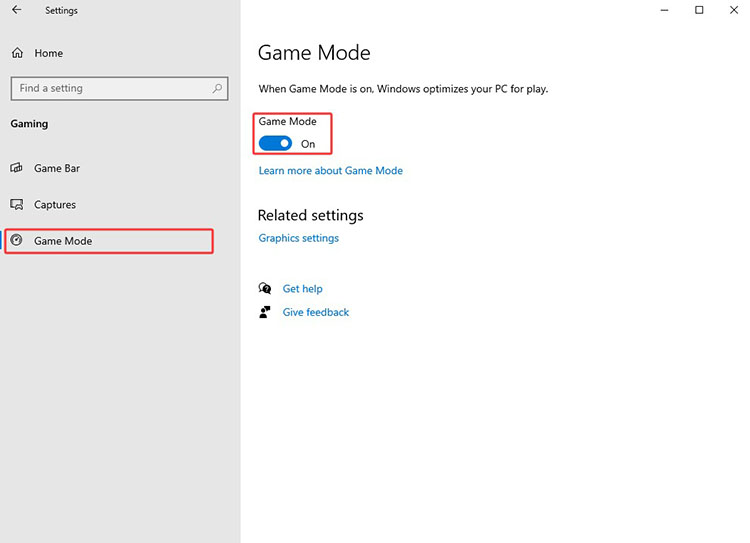
Windows Game Mode is a built-in feature designed to prioritize your game over background tasks, which helps improve resource allocation, stabilize FPS, and minimize micro-stutters effectively. Here’s how to reduce lag in games with it.
Step 1: Go to Windows Settings and open the panel.
Step 2. Click Gaming on the left sidebar. Select Game Mode and toggle the switch to On.
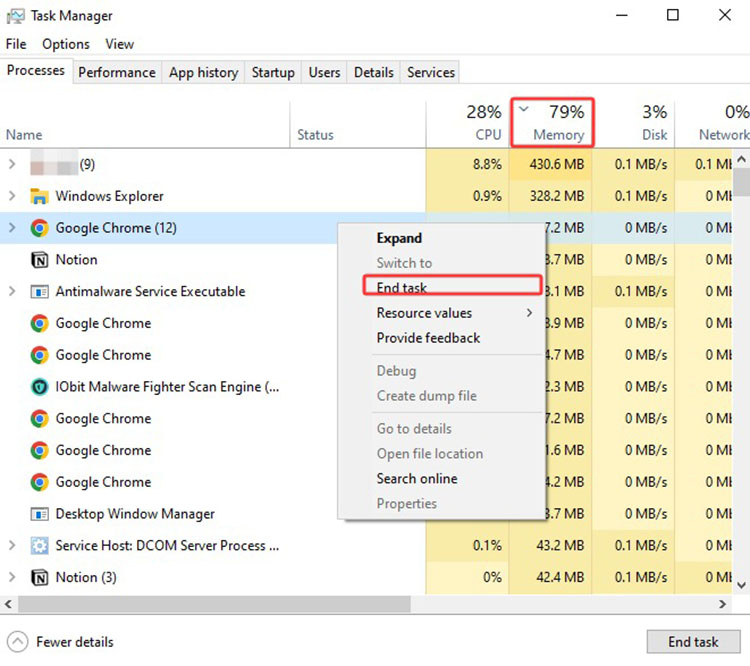
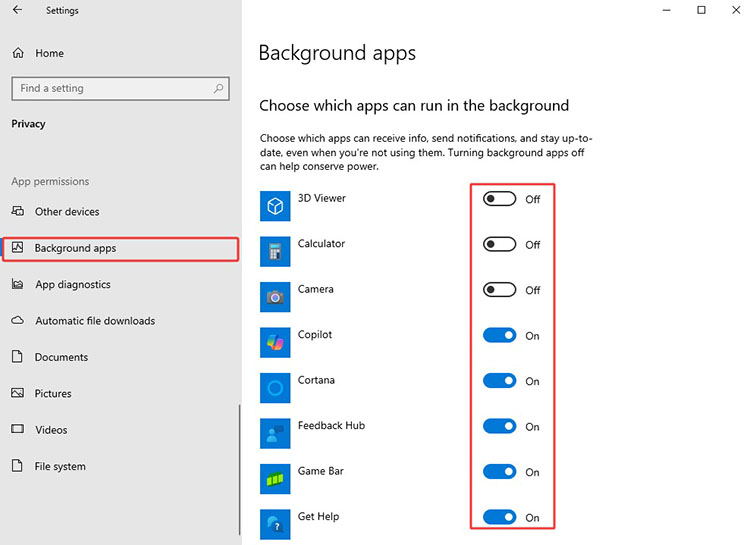
Background apps and startup processes silently consume CPU, RAM, and disk resources, causing resource contention and stuttering during gameplay. Check out how to fix lag in games by disabling them.
Step 1: Search for Task Manager to open it. In the Processes tab, sort by CPU or Memory usage. Right-click and end any non-essential apps.
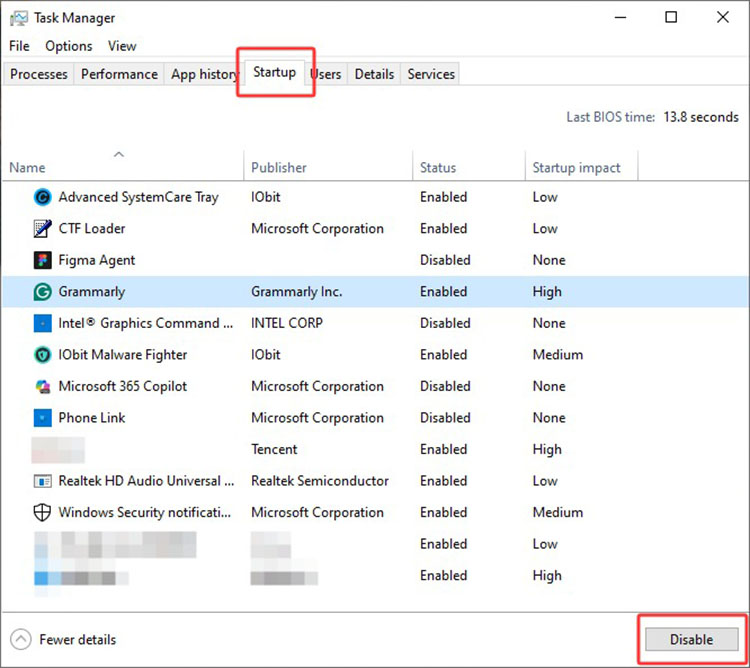
Step 2: Switch to the Startup apps tab and disable everything unnecessary.
Step 3: Go to Settings > Privacy > Background apps. Turn off the apps so they don’t run in the background.
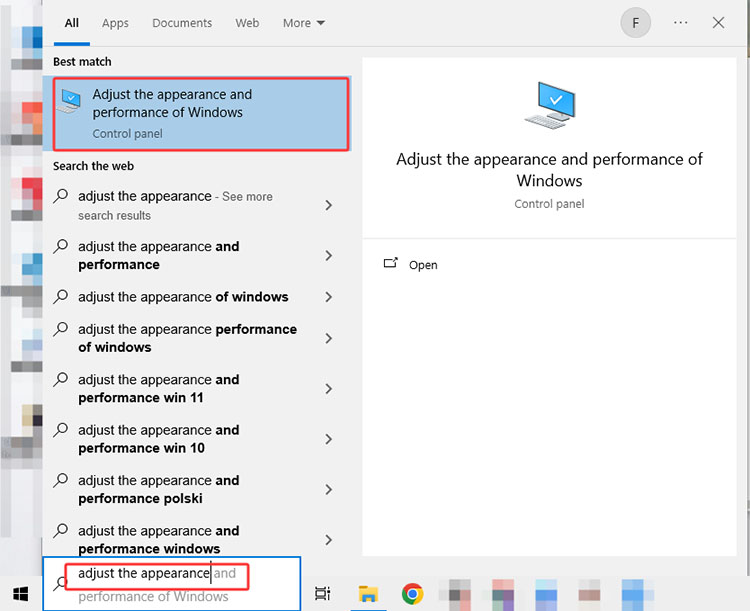
You may also optimize Windows visual settings to prevent CPU throttling and reduce latency during intensive gaming sessions. Here’s how to fix lag in all games PC via Windows Settings.
Step 1: Search “Adjust the appearance” in the Windows search bar and open “Adjust the appearance and performance of Windows.”
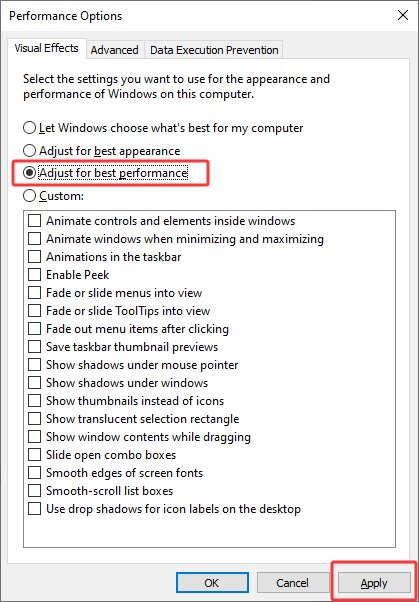
Step 2: In the Performance Options window, open the Visual Effects tab. Select “Adjust for best performance” and apply the changes.
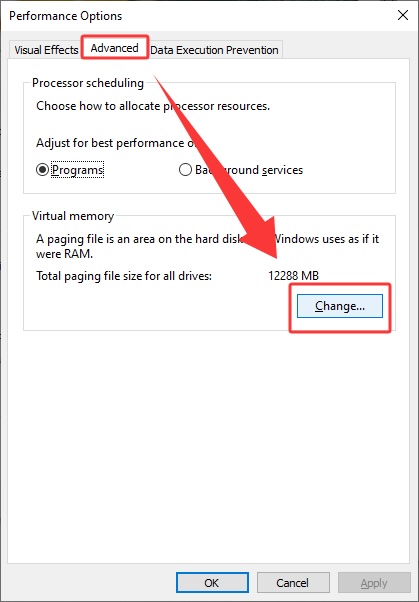
Increasing virtual memory helps reduce stuttering and prevents crashes during demanding gaming moments, especially when physical RAM reaches its limit. Here’s how to fix lag on games and improve system responsiveness via virtual memory settings.
Step 1: Open “Adjust the appearance and performance of Windows” as introduced above. Then, go to Performance Options > Advanced tab and click Change under Virtual memory.
Step 2: Uncheck “Automatically manage paging file size for all drives.” Select the drive you want to modify, choose Custom size, and enter a value of at least 32GB (64-128GB is preferable for better stability).

Step 3: Set both Initial size and Maximum size to the same value, then click Set and confirm the changes.
With the previous guide above, you should now know how to fix lag in games effectively. If you still have questions, here’s more information regarding fixing lag in games.
Q1: Why does my game lag even on a good PC?
Even a powerful PC can still experience lag due to background applications, outdated drivers, overheating, or poor system optimization. In many cases, you can clean system junk, update drivers, and adjust performance settings to quickly resolve the issue.
Q2: How to fix lag on PC games on Windows 11?
The process is similar to the methods described earlier, including enabling Game Mode, updating GPU drivers, closing unnecessary background programs, etc. You can also use IObit Advanced SystemCare, which is a handy tool that can improve gaming experience and overall system performance on major Windows OS.
Q3: Does SSD help reduce game lag?
Yes. Installing games on an SSD reduces loading times, minimizes texture streaming delays, and decreases stuttering compared to traditional HDDs. This is especially noticeable in large or open-world games.
Q4: How to play games with no lag?
Lag cannot be eliminated completely, but it can be significantly reduced by combining several methods. For instance, system optimization, updated drivers, proper in-game settings, and stable hardware performance altogether can deliver the smoothest gaming experience.
Q5: How to stop lag in games quickly?
The fastest method should be lowering the in-game settings. You can also close unnecessary applications and use optimization tools like IObit Advanced SystemCare to free system resources and boost performance instantly.
The Bottom Line
How to fix lag in games? This guide has covered 7 practical solutions that help reduce stuttering, improve FPS, and stabilize overall performance effectively. While built-in Windows settings can provide noticeable improvements, combining them with third-party optimization tools can deliver even better results. IObit Advanced SystemCare is a solid option here, which helps clean system junk, optimize performance, and free up valuable resources for gaming. Try it to keep your PC running at its best during gaming sessions now!

All-in-one PC health solution.
Free Download