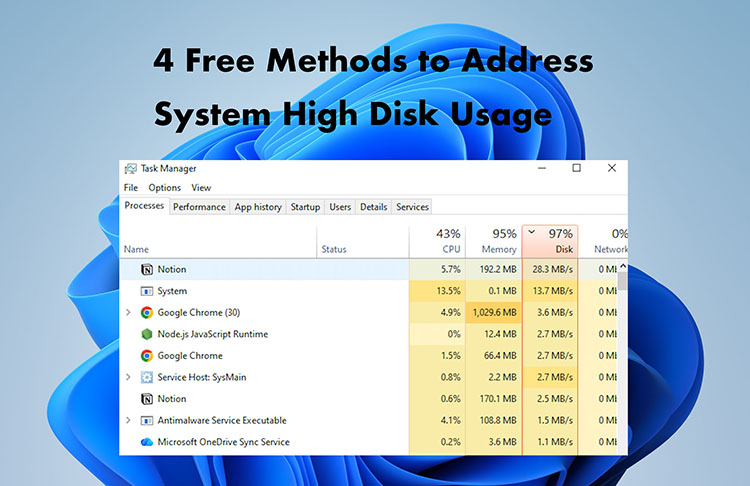
System high disk usage is different from highly packed disk storage. While a packed storage drive does not necessarily slow down your PC, high disk usage can significantly reduce performance. When disk usage stays at a high level, your computer may experience freezing, slow startup, lagging apps, and even constant 100% disk usage in Task Manager. These issues can make everyday tasks frustrating. But worry not.
This blog will introduce 4 effective methods to help you fix the issue. Just read on to learn how to restore your PC’s speed and smooth performance.
What Causes System High Disk Usage?
Today, “system high disk usage reddit” has become a hot topic, with many users searching for effective fixes. Before diving into the solutions, let’s check out the common culprits:
-Windows Update running in the background continuously downloads and installs updates, which causes noticeable spikes in disk activity. Similarly, Microsoft Store updates can get stuck and trigger severe Wasppx high disk usage issues.
-Too many startup programs launching automatically at boot can also overload disk operations, which then slows overall system responsiveness.
-Antivirus scans frequently access files and directories; they can significantly increase disk usage as well.
-Outdated drivers may fail to communicate efficiently with hardware components. This might result in persistent system high disk usage issues.
-HDD aging or disk errors can slow down read/write speeds, which forces the system to work harder and increase disk usage.
-Insufficient RAM forces the system to rely heavily on virtual memory. This causes excessive paging to disk, resulting in a spiked Ntoskrnl. high disk usage process and consistently high disk usage levels overall.
How to Fix System High Disk Usage by Disabling Startup Programs?
Auto-starting programs are one of the major reasons behind system high disk usage. These apps consume disk resources immediately when Windows boots up and continue running in the background, leading to system process high CPU usage overall.
But fret not, you can use IObit Advanced SystemCare to fix it easily. This all-in-one system optimization tool offers a powerful Startup Optimizer, which allows you to scan your system and disable unwanted autostart programs in just one click. Most importantly, it is 100% free to get started!
How to fix system high disk usage with Advanced SystemCare?
Step 1. Download and install IObit Advanced SystemCare for free. Launch the program on your PC.
Step 2. Open the “Speed Up” section from the main dashboard. Enter the “Startup Optimizer” feature.
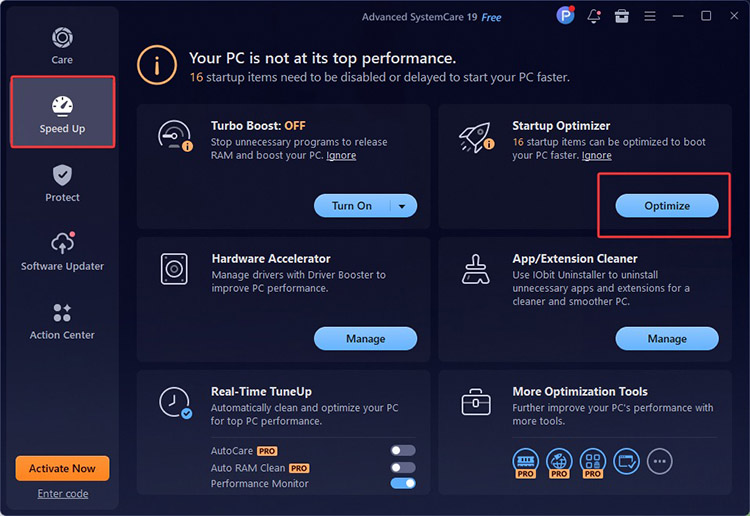
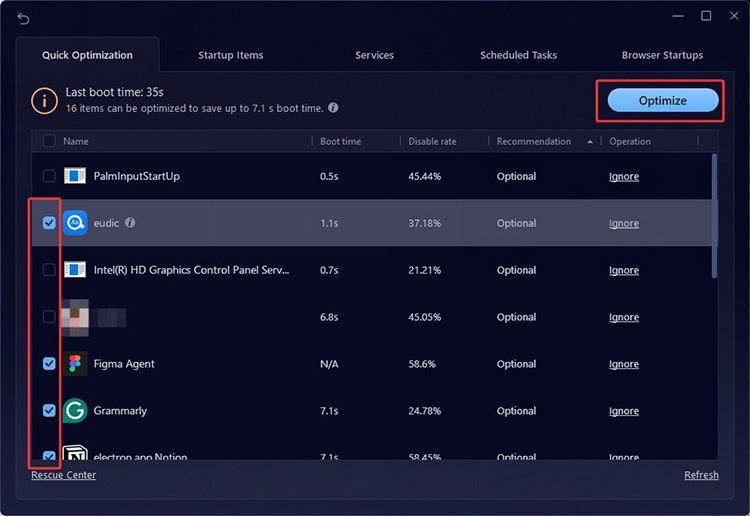
Step 3. From the Quick Optimization tab, you can find a list displaying startup programs. Select unnecessary items and click the “Optimize” button to disable them easily.
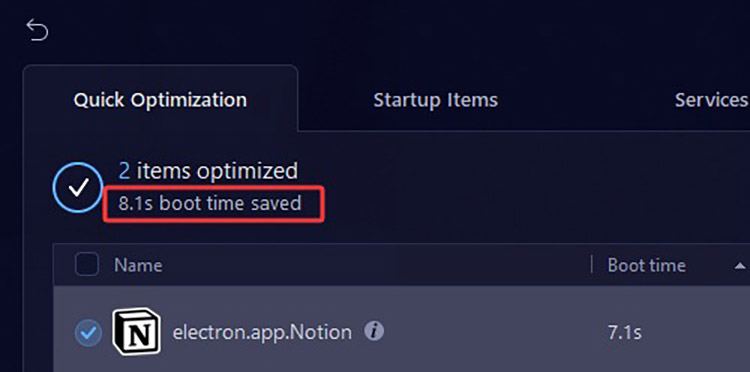
Step 4. After you optimize and disable the startup apps, you can see the boot time saved.
Aside from startup management, IObit Advanced SystemCare offers 3 powerful features that can further reduce system high disk usage and improve overall system responsiveness.
Smart RAM: It helps free up and optimize memory usage in real time, reducing unnecessary background load that contributes to system high disk usage.
Internet Booster: The feature optimizes network-related system settings and background processes, which reduces system strain during online activities.
Performance Monitor: A handy feature that tracks CPU, RAM, and disk activity in real time. You can easily identify processes that might cause system high disk usage and take timely optimization actions.
How to Fix System High Disk Usage by Running CHKDSK and System File Checker?
Corrupted system files and disk errors are also common causes of system high disk usage. They force your system to repeatedly access and process faulty data. Fortunately, Windows provides built-in tools that can help diagnose and repair these issues. You can either use CHKDSK to scan your drive for logical errors and bad sectors, or SFC checks for corrupted system files and restores them automatically.
These two simple yet effective methods are frequently recommended in system high disk usage Reddit discussions. Many users report noticeable improvements after running them. Overall, CHKDSK and SFC can significantly reduce unnecessary disk activity and help stabilize overall system performance.
How to fix system high disk usage windows 11/10 natively?
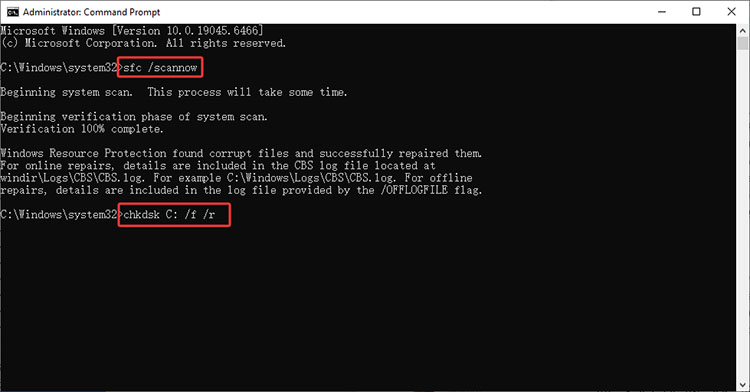
Step 1. Search for the Command Prompt to open the panel. Type the following command: sfc /scannow
Step 2. Wait for the verification to reach 100%. If SFC finds broken files, it will automatically replace them.
Step 3. In the same command prompt, type the following command: chkdsk C: /f /r
Step 4. The system will prompt you to schedule the scan for the next restart. Type Y and press Enter. Then restart your PC to begin the repair process.
How to Fix System High Disk Usage by Updating Old Drivers?
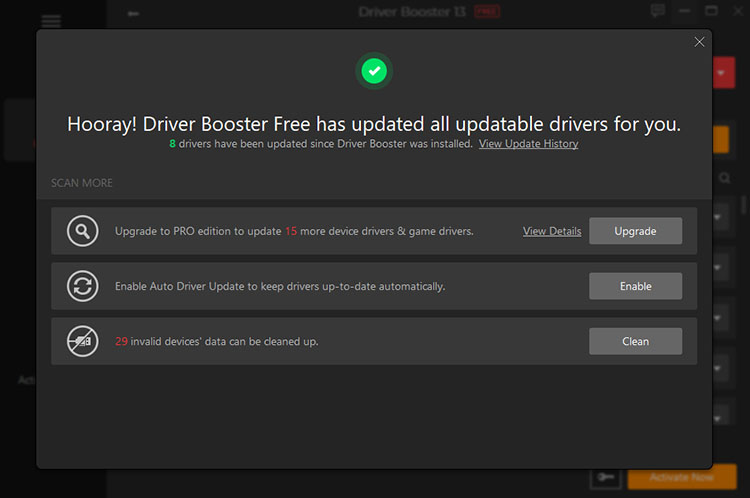
Outdated drivers are a common cause of system high disk usage. They lead to inefficient communication between hardware and the operating system, which triggers unnecessary disk activity. However, the issue is easy to fix with a dedicated driver updater—IObit Driver Booster. This reliable tool can automatically detect outdated drivers and update them in one click!
Featuring a massive driver database covering drivers from over 1,200 brands, Driver Booster ensures broad compatibility. Meanwhile, all drivers are sourced from official providers and pass Microsoft WHQL tests, which guarantees every update is safe and reliable.
How to update drivers with IObit Driver Booster?
Step 1. Free download and install the IObit Driver Booster on your Windows PC.
Step 2. On the main interface, click the huge Scan button to start scanning.
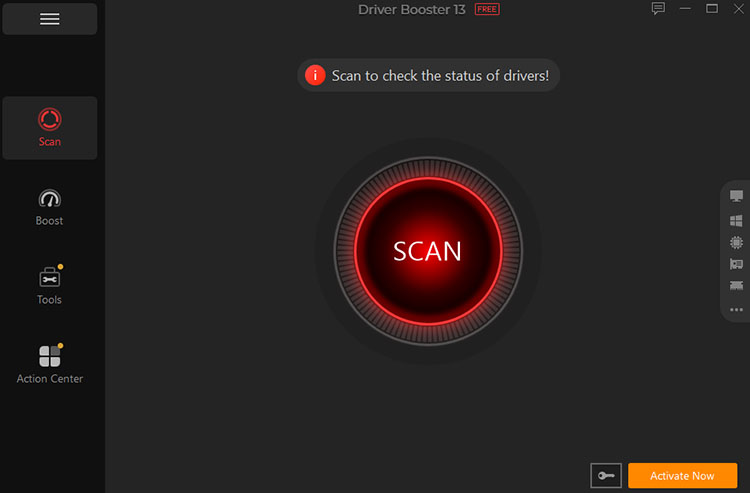
Step 3. Then you will see a list of device drivers that need to be updated.
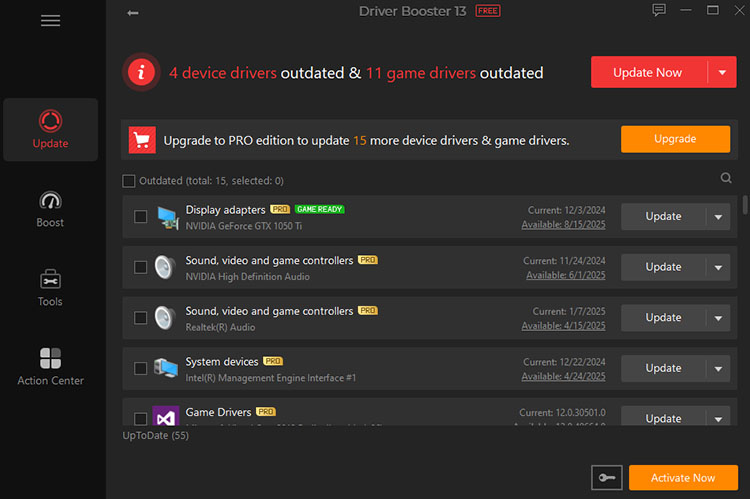
Step 4. You can select one/multiple device drivers and update them in one click!
How to Fix System High Disk Usage by Upgrading HDD to SSD?
If software fixes fail to resolve 100% disk usage, the most effective solution is to upgrade your mechanical Hard Disk Drive (HDD) to a Solid-State Drive (SSD). This is because traditional HDDs use spinning platters, which can easily bottleneck modern operating systems. This upgrade is rather useful if your other PC components (CPU and RAM) are not long overdue for a replacement.
If you are looking for a highly cost-effective option, the Crucial P3 (PCIe 3.0) or WD Blue SN5100 (PCIe 4.0) are excellent budget-friendly choices. But if your motherboard only supports older connections, the Crucial MX500 or Samsung 870 EVO are affordable 2.5-inch SATA SSDs.
How to upgrade HDD to SSD step by step?
Step 1. Purchase a compatible SSD and a SATA-to-USB adapter/enclosure. Connect the new SSD to your computer via the adapter.
Step 2. Download and install a reliable disk cloning tool to migrate your entire Windows installation.
Step 3. Launch the software. Select your current HDD as the source and the new SSD as the target. Choose “Auto fit the disk” for layout, then start the cloning process. Wait for the process to complete (do not interrupt it).
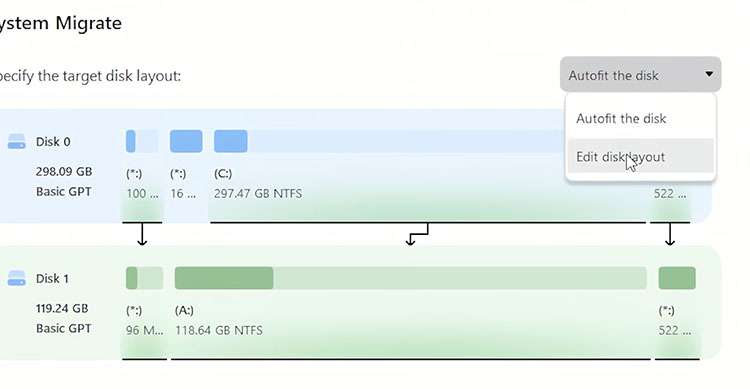
Step 4. Shut down your PC and disconnect the power and battery. Open the case and remove the old HDD and install the SSD in its place. Close your computer or laptop.
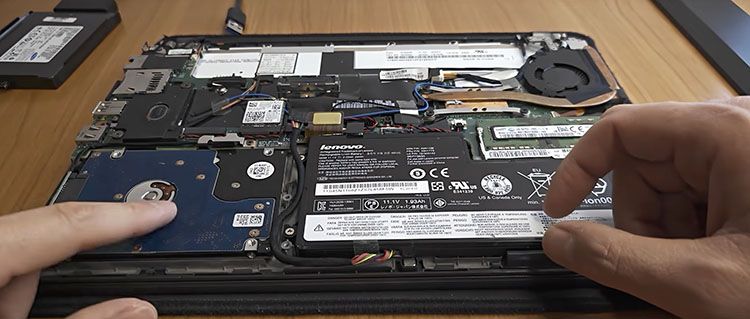
Step 5. Turn your computer back on. If the clone was successful, your PC should now boot much faster with significantly lower disk usage.
Conclusion
System high disk usage is a common issue that stems from various causes. But worry not. With the 4 practical, step-by-step methods above, you can effectively reduce disk usage and restore smooth PC performance. As you can see, IObit Advanced SystemCare stands out as the most efficient solution, which lets you clean and optimize your system in one click. You can also try Driver Booster to keep all drivers up to date with minimal effort. Just download and pair both to maintain long-term system stability and speed hassle-free from now on!
Advanced SystemCare Free
- Clean: 420 billion traces removed & 85 EB junk files cleaned
- Protect: 80 million unauthorized access blocked & 20 million bugs fixed
- Speed Up: 6 million hours of startup time saved & Turbo boost
- Optimize: Auto clean and auto care your PC with AI mode