Your online activities leave behind many traces, including browser history, cookies, old accounts, and public information. Over time, these records may expose personal details or increase privacy risks.
Feeling uneasy with this? Learning how to remove digital footprints helps you control what information remains stored on your devices and online. This guide explains local cleanup methods, internet removal steps, and how proper tools help reduce unnecessary privacy traces.

What Are Digital Footprints
If you have ever searched “what are digital footprints,” the term refers to information created through your online activities, device usage, and interactions with websites or applications. A digital footprint is the information created by your online activities, device usage, and interactions with websites or applications.
Digital footprints are divided into two types:
Active Footprints
Active footprints consist of information you intentionally share online, including:
Social media posts, comments, and uploaded photos.
Online reviews, forum discussions, and public profiles.
Account registrations and subscriptions.
Because users create these records directly, they are usually easier to find and manage. However, old posts or inactive accounts may continue to expose information.
Passive Footprints
Passive footprints are collected automatically during online activity, such as:
Browser cookies, cached files, browsing history, and tracking identifiers.
Location data, device information, and usage patterns collected by websites.
These traces are often stored locally on browsers and devices, making privacy cleanup tools useful for reducing unnecessary records.
Why Digital Footprint Removal Matters
Daily browsing, shopping, communication, and app usage can create large amounts of personal data, reveal your info and bring potential risks, which may include:
Phishing risks: Public information and leaked data may help attackers create more convincing phishing messages.
Identity theft: Old accounts and exposed personal details may provide information used for fraudulent activities.
Privacy concerns: Advertising networks and data collectors may use browsing activity to build user profiles.
Inactive account risks: Forgotten accounts may still contain emails, saved addresses, or personal information.
This is why digital footprint removal matters. However, when you eagerly search for “remove my digital footprint,” keep in mind that becoming completely invisible online is unrealistic. The practical goal is, and it is still necessary, to reduce unnecessary traces and control how much personal information remains available.
How to Remove Digital Footprint in 1 Click from Local Browsers
Many digital traces are stored locally on your computer, including browser history, cache files, cookies, download records, and application activity. A privacy cleanup tool can simplify this process by scanning multiple locations at once.
Advanced SystemCare provides privacy cleaning and PC optimization features that help remove unnecessary traces from Windows systems. Compared with manual cleanup, it combines browser privacy cleaning with broader system maintenance.
Advanced SystemCare Free
- Clean: 420 billion traces removed & 85 EB junk files cleaned
- Protect: 80 million unauthorized access blocked & 20 million bugs fixed
- Speed Up: 6 million hours of startup time saved & Turbo boost
- Optimize: Auto clean and auto care your PC with AI mode

Wipe Privacy Traces from All Browsers & Windows Apps
Its Privacy Sweep feature removes privacy traces from popular browsers and Windows applications, cleaning browsing history, download records, cookies, and other activity-related data from browsers such as Chrome, Edge, and Firefox.
Automatically & Regularly Remove Digital Footprint
It provides automatic maintenance like AutoCare and AutoClean to reduce repeated manual digital footprint cleanup, removing privacy traces, junk, and more unwanted data at Windows startup or while the system is idle; no manual work needed.
All-in-One PC Maintenance Beyond Digital Footprint Removal
Beyond privacy protection, this app also offers broader PC cleanup, Startup Optimizer, and Turbo Boost to improve responsiveness and experience. Users can use it as a hard disk cleaner to better manage storage and boost PC performance.
How to Remove My Digital Footprint?
Step 1: Download Advanced SystemCare
Download and install Advanced SystemCare. Launch the app to access privacy cleaning and optimization features.
Step 2: Customize Privacy Settings and Scan
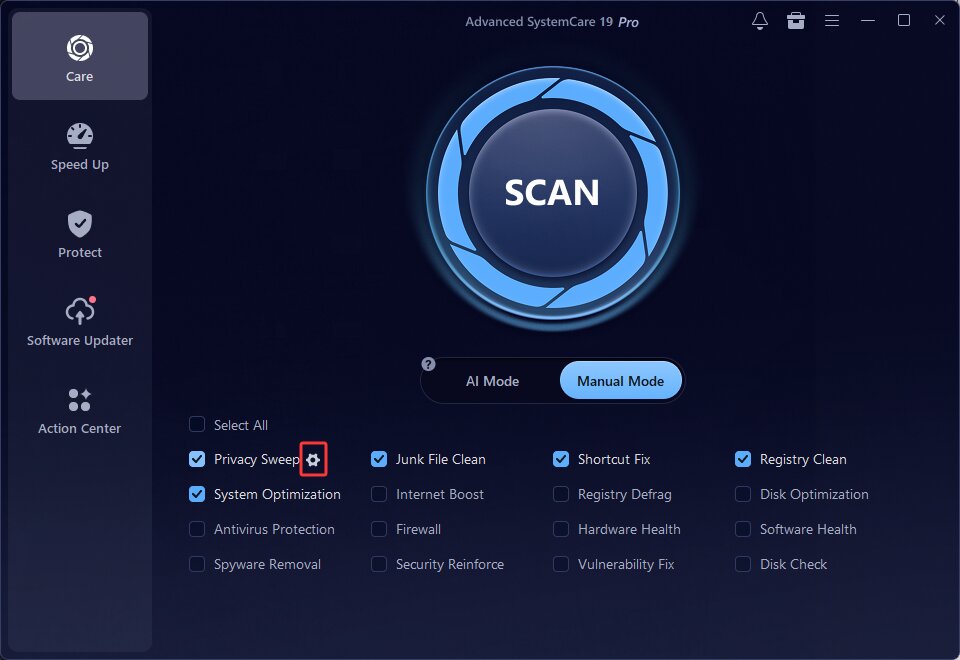
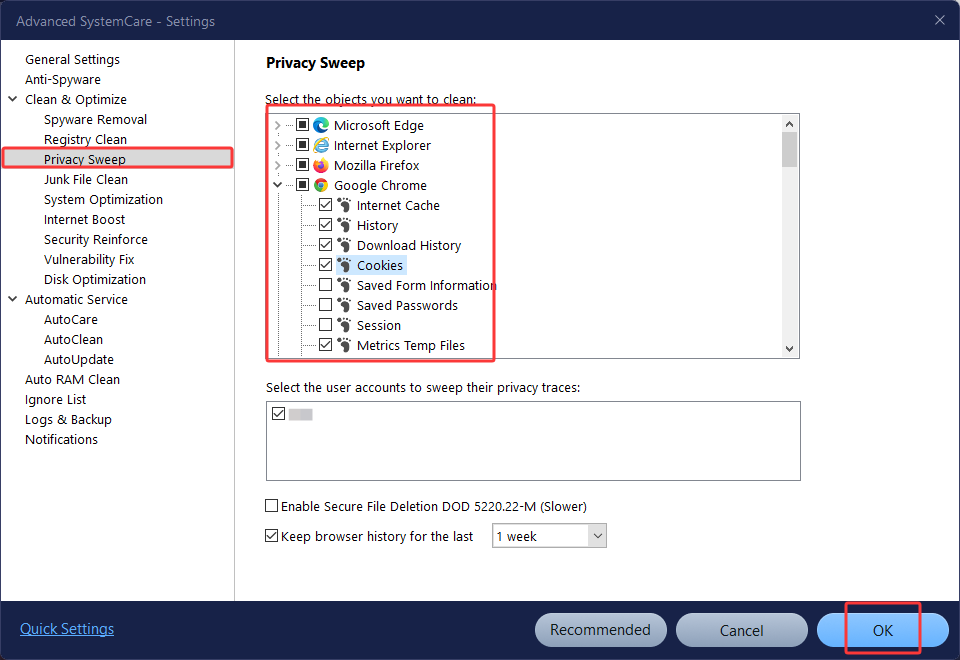
On the Care Panel, switch to Manual Mode, select Privacy Sweep, and click the gear icon beside it to choose which browser and application traces you want to clean.
Click OK, return to the Care page, and click Scan.
Step 3: Clean Detected Privacy Traces
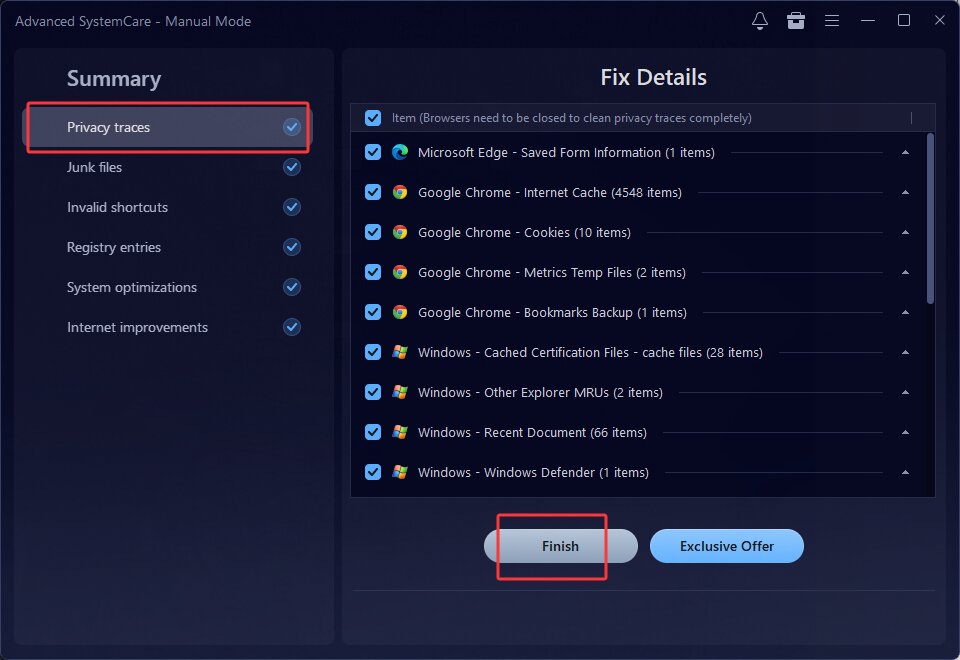
After scanning, review detected items and click Fix > Finish to remove digital footprint.
For users who want automatic maintenance, AutoClean is a good choice available in Advanced SystemCare Pro, which automatically clears all passive digital footprints. Upgrade to Pro if you prefer automatic privacy cleanup with less manual maintenance.
How to Remove Digital Footprint from Internet
Apart from local browser data, many footprints exist online, including old accounts, indexed webpages, and information collected by data brokers. Therefore, users who wonder “how to remove digital footprint from internet” more thoroughly also need to address information that remains outside your local devices.
#1 Delete Old Accounts & Content
Old online accounts are one of the most common sources of forgotten personal information. Even if you no longer use a service, the account may still contain your email address, profile details, uploaded content, or previous activity.
Unused accounts may create risks such as:
Data exposure: Old platforms may experience security breaches that expose stored information.
Identity risks: Forgotten accounts may contain usernames, emails, or personal details that attackers can misuse.
Privacy concerns: Some services may continue collecting information even when accounts are rarely used.
Before deleting accounts, first identify where your information is stored:
Email inboxes: Search registration emails, verification messages, and newsletters.
Password managers: Review saved accounts and login credentials.
Browser saved passwords: Check stored website logins.
Social media profiles: Review old posts, photos, and public information.
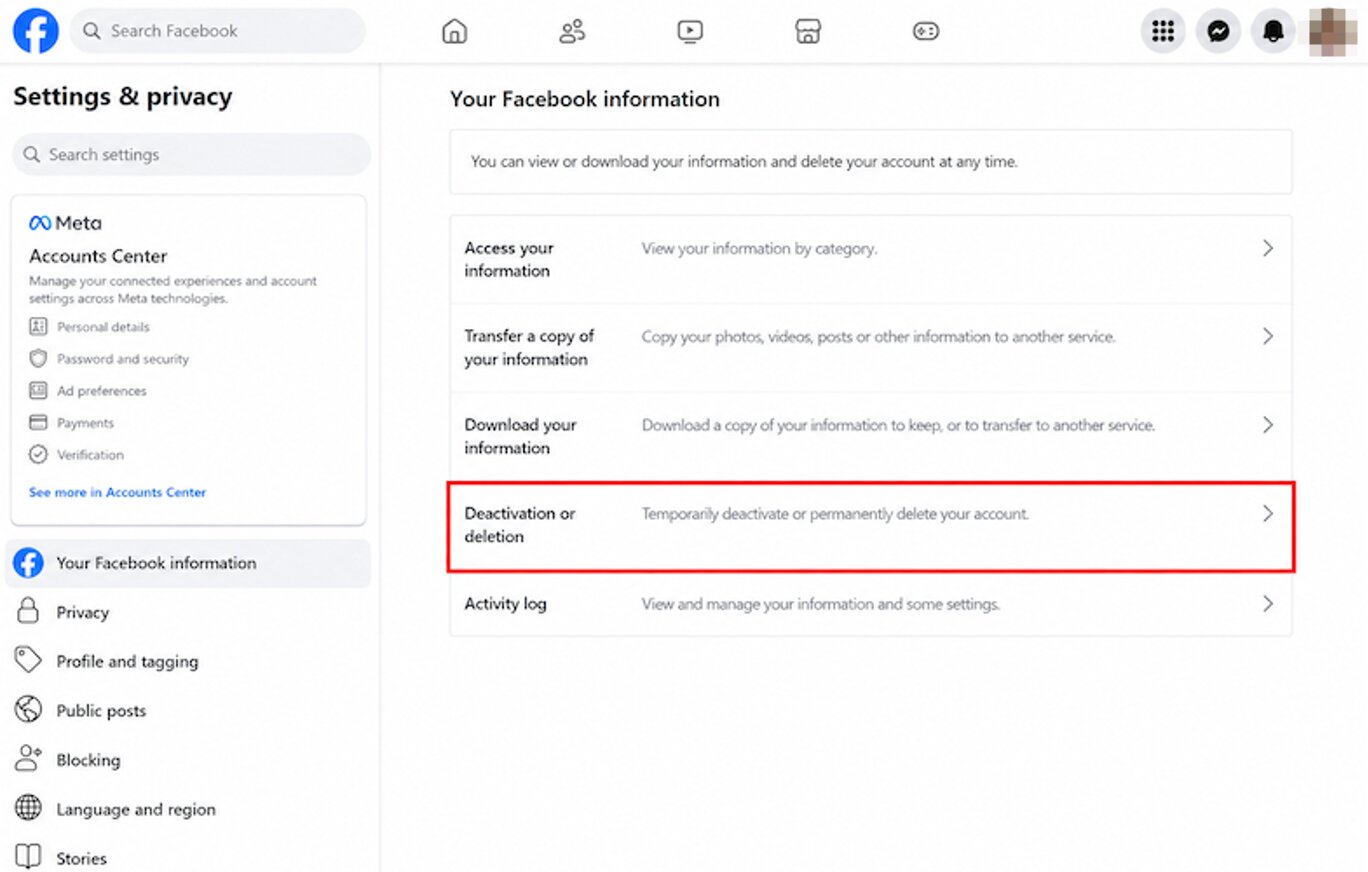
After finding unnecessary accounts, follow the platform’s official deletion process. For example, to delete a Facebook account:
Step 1. Open Facebook and select Settings & privacy.
Step 2. Go to Settings > Accounts Center.
Step 3. Select Personal details > Account ownership and control.
Step 4. Choose Deactivation or deletion and follow the instructions.
 Also Read: How to Boost Internet Speed on PC Fast & Easy >>
#2 Remove Your Results from Search Engine
Even after deleting accounts or webpages, personal information may still appear in search results. Search engines index webpages, public records, forum posts, and online profiles, which may keep outdated information visible.
If you want to remove digital footprint from Internet search results, regularly checking your personal information is an important step.
Step 1. Search your name, email address, phone number, username, or other personal details.
Step 2. Review results and identify pages containing outdated or unwanted information.
Step 3. Contact the website owner or submit a removal request through search engine privacy tools.
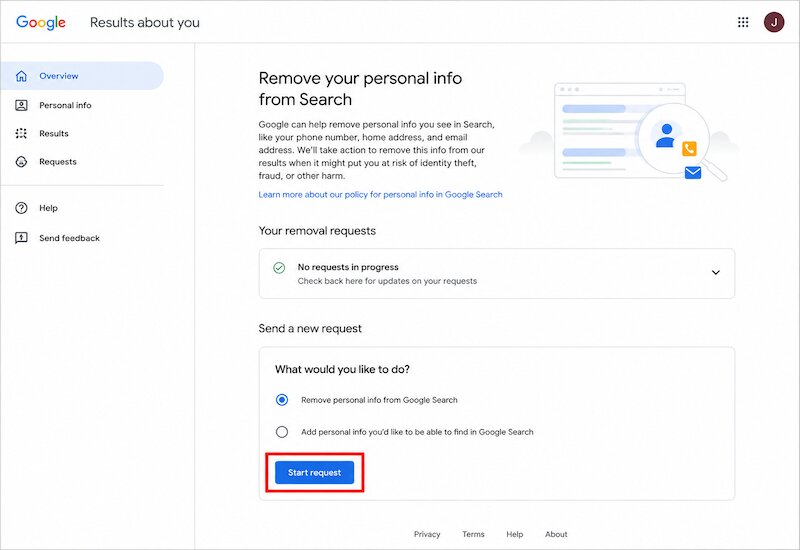
Keep in mind that removing a search result does not always delete the original webpage. Removing information from the source website is usually the most effective solution.
#3 Remove Data Brokers Listings
Data brokers collect information from different sources and create user profiles for marketing, analytics, and other purposes. They may collect names, contact details, location information, interests, and online behavior.
Because users usually do not directly interact with these companies, removing information requires manual opt-out requests.
To reduce your exposure:
Step 1. Search your name together with terms such as “data broker” or “people search”.
Step 2. Visit the company’s privacy page and find the opt-out process.
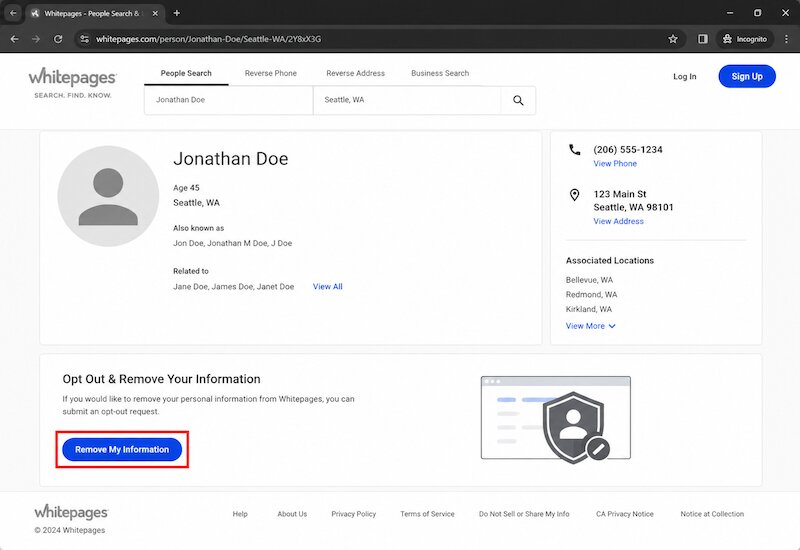
Step 3. Submit a removal request and complete any required verification.
Different companies have different policies, so the process may require repeated checks. Regularly reviewing these listings is an important part of long-term digital footprint removal.
Reduce Digital Footprint Before It Generates
Although you may think that “I can remove my digital footprint from existing locations whenever there are any,” preventing unnecessary tracking is just as important. New digital traces can be created whenever you browse websites, use online services, or interact with web content.
Advanced SystemCare provides privacy features designed to reduce this exposure. Its Fingerprint Protection feature automatically disguises your online identity to help keep your real identity and browsing activities more private. It can be enabled separately for supported browsers such as Chrome, Edge, and Firefox.
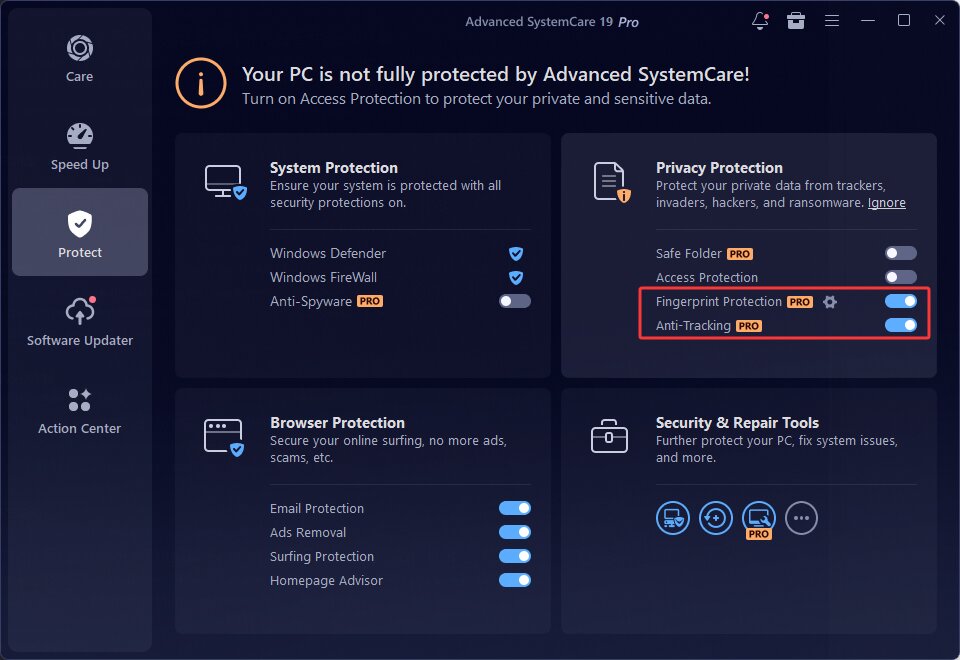
Plus, Anti-Tracking helps reduce unwanted tracking, while Browser Protection includes tools such as Surfing Protection, Email Protection, Ads Removal, and Homepage Advisor to provide additional protection during everyday browsing.
What’s more, never forget regular cleanup that can further reduce unnecessary local traces. Download Advanced SystemCare to combine privacy protection with broader PC cleanup and maintenance.
Advanced SystemCare Free
- Clean: 420 billion traces removed & 85 EB junk files cleaned
- Protect: 80 million unauthorized access blocked & 20 million bugs fixed
- Speed Up: 6 million hours of startup time saved & Turbo boost
- Optimize: Auto clean and auto care your PC with AI mode
Final Thoughts
Digital footprints cannot be completely erased, but proper management can reduce unnecessary exposure. Learning how to clear my digital footprint and regularly cleaning local and online traces can improve privacy. The Windows optimizer, Advanced SystemCare, helps users remove digital footprints while maintaining Windows performance. Simply download it to start managing privacy traces more efficiently.
















