Today, a properly functioning printer is essential both at home and in the office. However, common problems such as missing print functions, error messages, or slow printing are often caused by outdated printer drivers. In this article, we explain how to update or install a printer driver to quickly resolve these issues. Whether you want to update a printer driver on Windows 10 or Windows 11, our detailed guides will help ensure your printer operates reliably and your print jobs are processed smoothly.
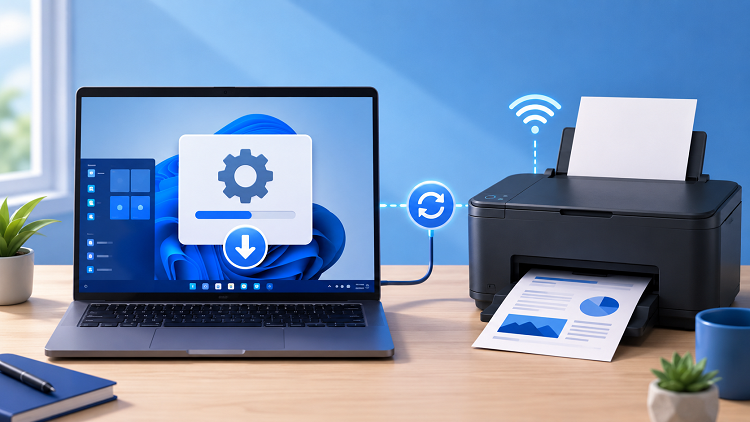
How Do I Check the Current Printer Driver
Before you begin installing or updating your printer driver, it's important to check its current status. In Windows 10 and Windows 11, this is straightforward:
1. Open Device Manager by pressing the Windows + X key combination. (Alternatively, right-click the Start button and select Device Manager.)
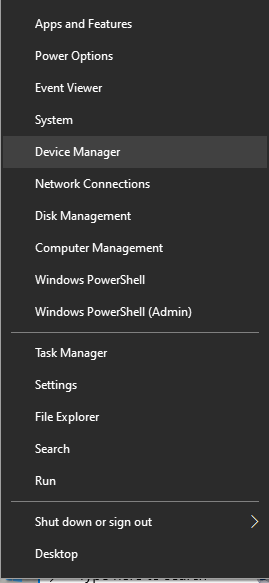
2. In the list of devices, find your printer and open its properties.
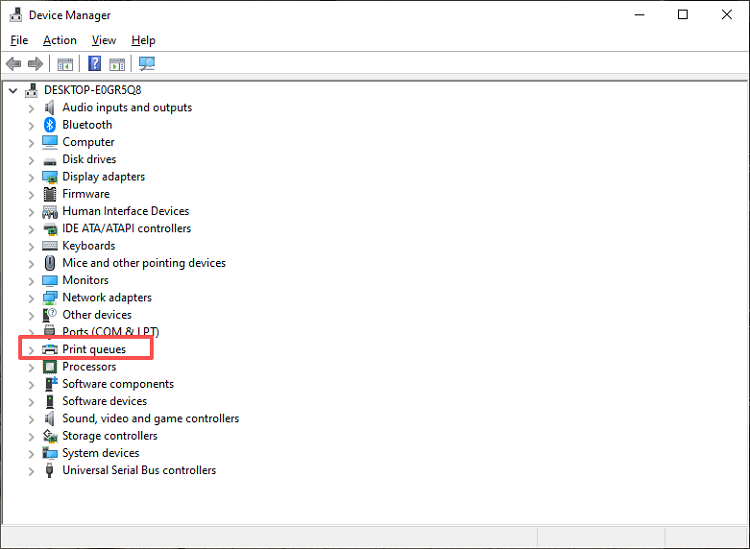 3. Go to the Driver or General tab to see the driver name and potentially its version.
If your driver is outdated or causing problems, updating it is the best solution. In the next chapter, we'll explain how to manually update or install a printer driver and resolve common errors.
3 Effective Methods to Install or Update a Printer Driver in Windows 10/11
There are several ways to install or update printer drivers. Each method has advantages depending on the situation. Here are three proven methods to keep your printer driver up to date or install a new one, ensuring reliable and error-free operation of your printer.
Method 1: Download and Install the Driver Directly from the Manufacturer
If you've bought a new computer and don't know how to install printer driver, the best method is to download it directly from the manufacturer's website. Here's how:
1. Visit the official website of your printer manufacturer ( HP, Canon, Epson, etc.).
2. Go to the Support or Drivers section.
3. Enter your printer's model number.
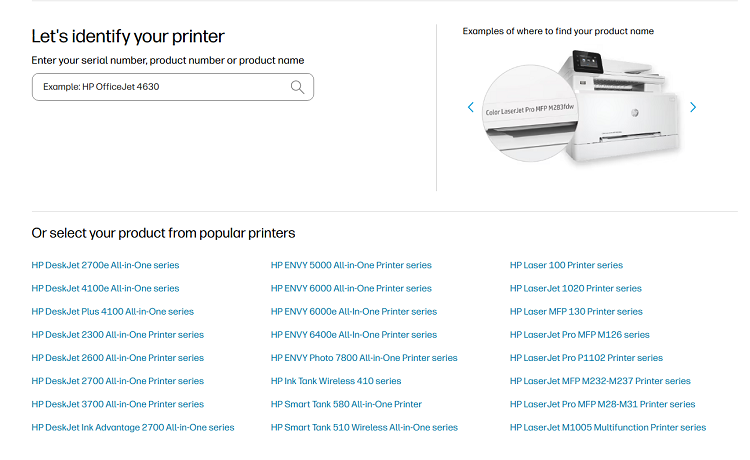
4. Select your operating system (Windows 10 or Windows 11).
5. Download the appropriate driver and start the installation.
Manufacturer printer driver update are often more recent and generally offer bug fixes or additional features not yet available through Windows updates.
Also Read: How to Update the Graphics Driver >>
Method 2: Update the Printer Driver Manually or Automatically via Windows 10/11
If you've checked your driver status and Windows isn't automatically finding an update, you can choose to update it manually or use Windows' automatic function to search for a newer driver. Here's how:
1. Open Device Manager by pressing Windows + X or by right-clicking the Start button and selecting Device Manager.
2. In the list, find your printer and right-click on it, then select Update driver.
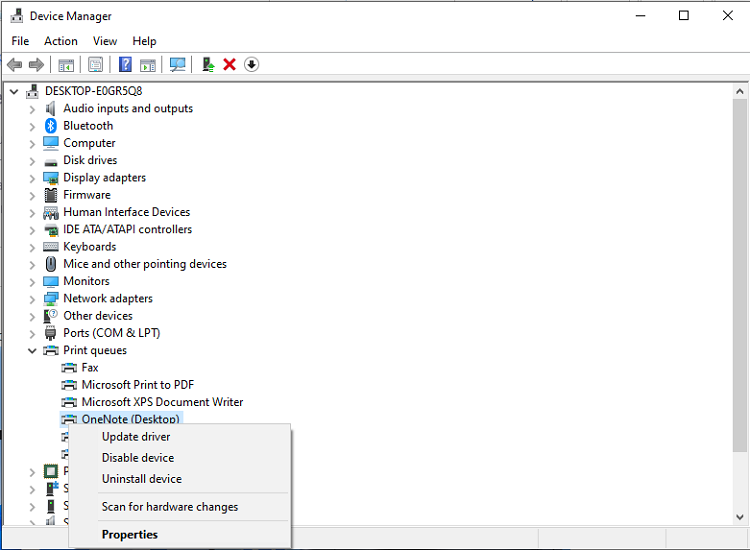
3. You have two options:
Automatic search: If you choose this option, Windows will automatically search for the latest driver version via Windows Update.
Manual search: If you have already downloaded the driver from the manufacturer's website (HP, Canon, etc.), you can select the option "Browse my computer for drivers" and choose the downloaded file.
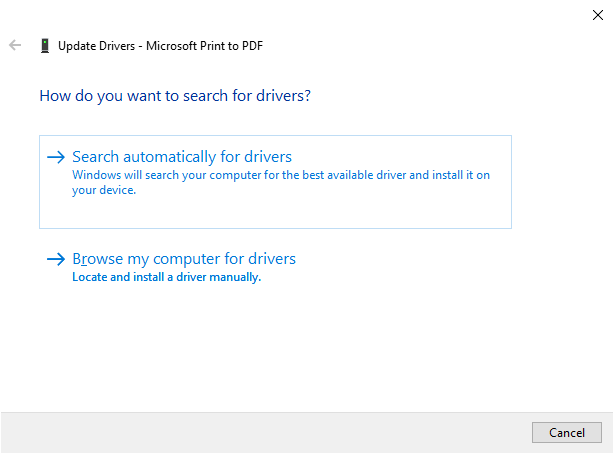
This method allows you to manage updates flexibly. If you have direct access to the latest drivers from the manufacturer's website, you can install them manually; otherwise, Windows will handle the update automatically.
However, keep in mind that while Windows Update is convenient, it doesn't always offer the latest versions. In this case, it's recommended to check directly on the manufacturer's website to ensure you get the latest driver version, especially if your printer is experiencing compatibility or performance issues.
Method 3: Use a Free Driver Update Tool
The two previous methods are effective, but they have some limitations: manual updating can be time-consuming, Windows does not always offer the latest drivers, and downloading drivers from manufacturers' websites may require a good understanding of the model and operating system.
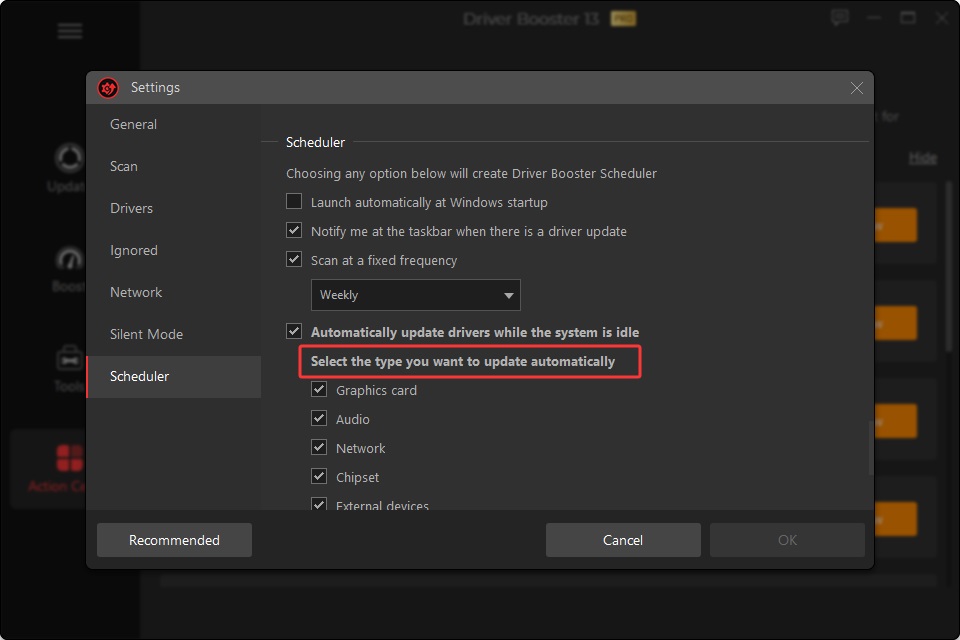
In this case, a driver update tool like Driver Booster can be a quick and safe solution. Here's how to use it:
1. Download and install IObit Driver Booster.
2. Launch the program and click on Scan to detect outdated drivers.
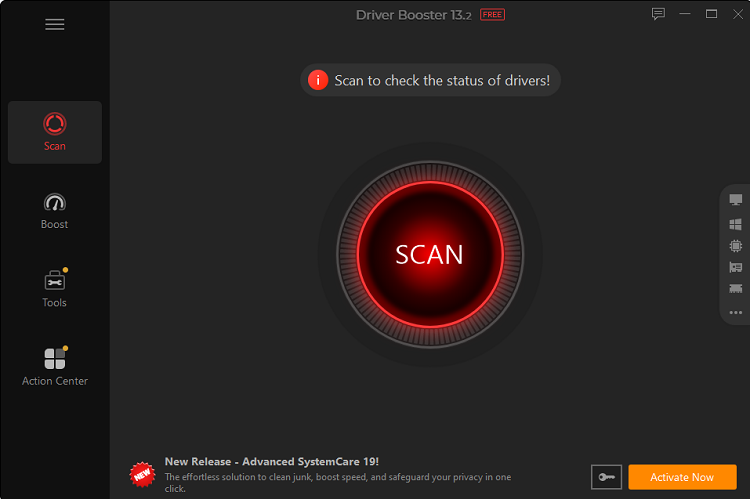 Once the scan is complete, Driver Booster will display all outdated drivers, including those for your printer. Click Update to automatically download and install the correct driver.
Advantages of Driver Booster:
Automatic Driver Detection: Driver Booster scans audio and hardware drivers automatically, helping users find outdated components with an automatic driver updater.
Beginner-Friendly Interface: A clean layout guides every step, making tasks like Lenovo driver update simple without technical skills.
One-Click Batch Updates: Update multiple drivers simultaneously to save time and keep audio, graphics, network, and peripheral devices working smoothly.
Safe Driver Backup: Driver Booster creates backups before updates, allowing users to restore previous versions if compatibility problems occur.
Improved System Stability: Keeping drivers current helps reduce audio errors, device conflicts, connection issues, and other common hardware-related problems.
This tool saves you time, avoids common problems, and ensures optimal performance of your printer.
Driver Booster Free
- Automatically scan and update drivers.
- Update game ready drivers for peak gaming performance.
- Identify and fix various common of hardware issues.
- Boost 30% of system performance for fast & smooth running.

FAQ on Installing and Updating Printer Drivers
Why doesn't Windows recognize my printer after installing the driver?
After an update, Windows may not immediately recognize the printer. Check in Device Manager or reinstall the driver to resolve the issue.
Can I update multiple drivers at the same time under Windows 10/11?
Yes, with Windows Update or with a driver update tool like Driver Booster, you can update multiple drivers simultaneously, saving you time and avoiding compatibility issues.
Can an outdated driver affect print quality, especially for HP printers?
Yes, an outdated driver can cause printing errors or the inability to use certain functions, such as duplex printing or scanning options.
How can we know if an update is really necessary, like with Canon drivers?
Check the driver version in Device Manager or visit the manufacturer's website. If Windows or the printer displays an error message, an update is likely required.
Also Read: How to Fix Audio Drivers on Windows 11 >>
Conclusion
Updating or installing printer drivers is essential to ensure quality printing and prevent malfunctions. Whether you use an HP or Canon printer, follow these steps to download, install, and update the necessary drivers. With these tips, you can enjoy optimal printing performance and quickly resolve any issues that may arise.