





Kevin Hart
Kevin is an experienced editor focused on tech blog writing. Familiar with all kinds of PC software on the market. All the topics he chooses are aimed at bringing more benefits to users.
Expert in
PC Health Solution

All-in-one PC health solution: clean, optimize and secure

Comprehensive PC cleaning, optimization and protection

Keep drivers always up-to-date

More stable performance with less system crashes

Protect millions of computers against malware

Top computer security with full-round protection

Protect against viruses & boost PC performance
Clean: 420 billion traces removed & 85 EB junk files cleaned
Protect: 80 million unauthorized access blocked & 20 million bugs fixed
Speed Up: 6 million hours of startup time saved & Turbo boost
Optimize: Auto clean and auto care your PC with AI mode

Looking for a PC tune up program? Compare the top 8 PC tune up tools for cleaning junk, managing startup apps, freeing up space, and speeding up Windows PCs.

Kevin Hart


A slow PC does not always mean it is time for a hardware upgrade. Too many startup apps, unnecessary files, unused software, and poorly managed Windows settings can all drag down everyday performance. The right PC tune up program clears out clutter, reduces background load, and keeps Windows running smoothly without complicated manual tweaks. The eight programs below cover different needs, with priority given to free options and a closer look at the features that can make a noticeable difference in everyday PC use.

PC tune-up programs are Windows utilities that help clean up unnecessary data, manage software and startup activity, and adjust certain system settings. The goal is not to magically increase a processor's speed, but to remove common sources of clutter and reduce avoidable background activity.
A good PC tune up program may be useful when a computer has accumulated temporary files, too many startup apps, leftover software, or limited storage space.
Definition: A PC tune-up tool that comes with one or more maintenance functions that help keep Windows organized and responsive.
Core Functions: Depending on the software, these may include junk-file cleanup, startup management, software removal, storage analysis, privacy cleanup, Windows configuration, and basic performance optimization.
Before installing any PC tune up software, check whether Windows already provides a suitable solution. Built-in tools such as Storage Sense, Disk Cleanup, Task Manager, and Startup Apps can handle many routine maintenance tasks without adding another program. This is especially useful for simple cleanup or startup management.
Windows Built-in Alternatives: Try Windows' own tools first when the problem involves temporary files, storage, or startup programs. They are integrated into the operating system and generally require no additional software.
Potential Risks: Be cautious with registry cleaners, aggressive “boost” features, and one-click optimization. Removing the wrong file or changing an important system setting can create new problems instead of solving existing ones. Before making major changes, create a restore point or backup important data.
The eight computer system tune up tools picked below support different approaches to PC maintenance, including customizable junk cleanup, startup management, software removal, and Windows optimization.
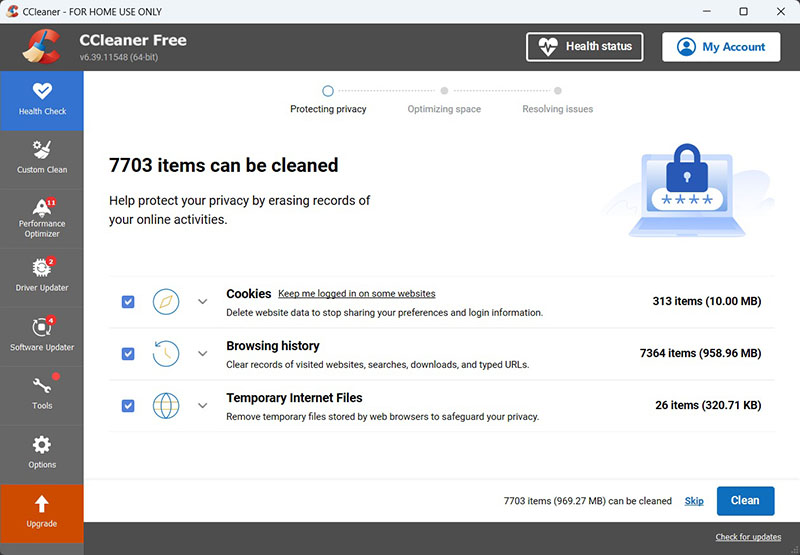
CCleaner is a long-standing Windows PC tune up software that merges various features through a single, unified interface. Its hard disk cleaner gives detailed control over which Windows and third-party application data gets removed, while Health Check provides a simpler way to scan for common cleanup and startup issues.
Best For: Customizable junk-file and browser cleanup.
Key Features:
Select specific Windows, browser, and application data to remove.
Check for browser clutter, unnecessary files, and startup.
Manage Windows startup programs to reduce unnecessary startup activity.
Software updater for keeping supported third-party applications up to date.
Free version available for basic cleaning and privacy maintenance.
Customizable cleaning provides more control.
Blend several maintenance functions in one application.
Several useful optimization features require a paid subscription.
Features and upgrade prompts can make the interface feel busier.
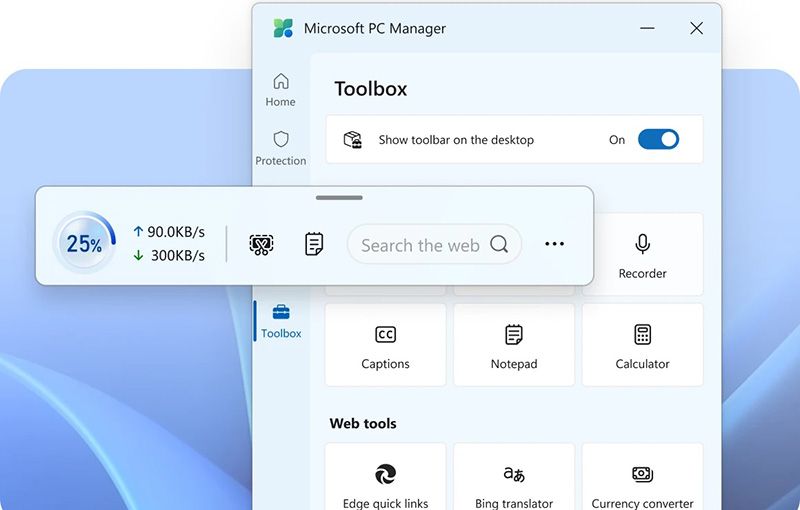
Microsoft PC Manager is Microsoft's free Windows optimizer with several system cleanup, storage, startup, security, and management functions. Rather than adding a completely new optimization layer, much of what the PC tune up program offers makes existing Windows tools easier to find and use.
Best for: Simple, all-in-one Windows cleanup and maintenance.
Key Features:
Clear selected temporary files and close certain background processes.
Scan for common cleanup and system-maintenance items.
Identify temporary files, large files, and other storage consumers with disk analysis tools.
Startup app management and Windows protection & maintenance.
Free, no paid upgrade required for the basic PC Manager experience.
Simple, beginner-friendly interface.
Integrate several Windows maintenance tools.
Many functions overlap with built-in Windows tools.
Fewer advanced controls than dedicated optimization utilities.
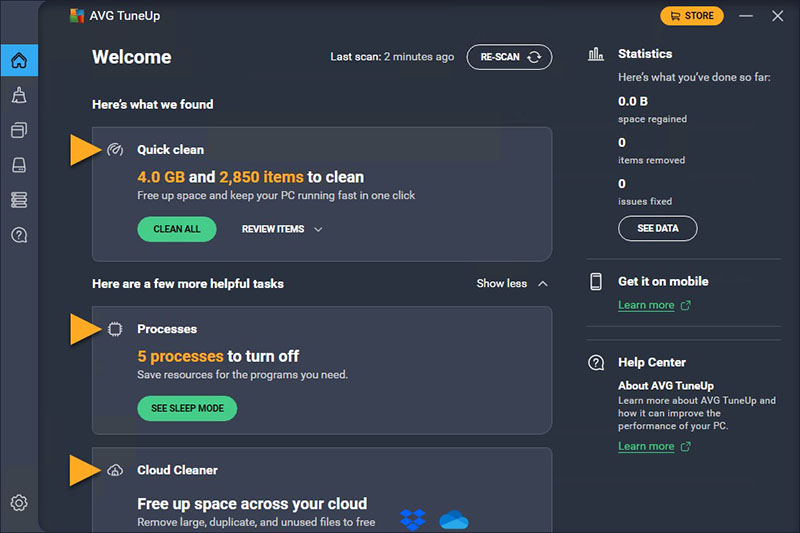
AVG TuneUp is one of the best premium PC tune up services built to automate routine maintenance, reclaim storage space, and improve PC responsiveness. The PC optimizer for gaming consolidates junk file removal, background application management, and software updating into an automated, hands-off background workflow.
Best For: An automated, all-in-one maintenance solution.
Key Features
Perform scheduled silent background sweeps to clear browser caches, cookies, leftover installation files, and broken shortcuts.
Regularly check installed third-party programs and hardware drivers.
Detect pre-installed trialware, ad-supported software, and long-unused applications.
Sleep Mode provides a measurable performance bump.
Multi-device subscriptions allow coverage for up to 10 systems.
Include helpful auxiliary tools like an uninstaller and driver updater.
Require an ongoing paid subscription, with prices jumping noticeably.
Several core features overlap with tools already native to Windows 10/11.
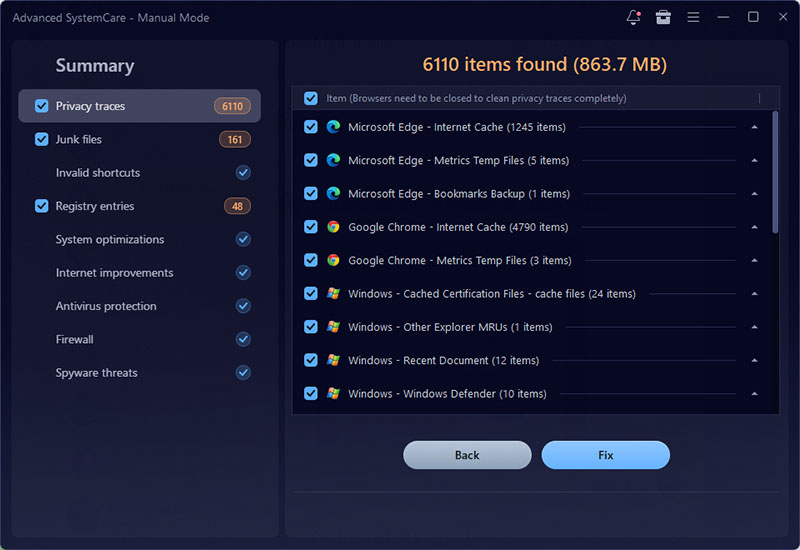
Advanced SystemCare is a Windows PC cleaner and optimizer focused on PC routine maintenance and performance tuning. The computer system tune up software combines junk cleanup, startup management, resource optimization, and system troubleshooting in one interface. The free version of the PC tune up program handles common cleanup and tune-up tasks, while some advanced options are reserved for Pro.
Best for: One-click automatic Windows cleanup and everyday tune-up.
Key Features:
AI Scan to detect junk, unnecessary startup items, and potential system issues.
Disk and registry cleaner to remove temporary files, caches, logs, and other clutter.
Startup optimizer for controlling programs that slow Windows startup.
Free system resources by limiting selected background activity.
Performance monitor and RAM optimizer Windows 11/10 to track CPU, RAM, and disk usage.
Cover essential cleaning and tune-up tasks in the free version.
Broad feature set like cleaning, startup control, privacy tools, performance monitoring, and system optimization.
Automation makes routine maintenance easy for non-technical users.
Some advanced features are limited to Pro.
How to Use Advanced SystemCare for PC Tune-Up
Step 1. Download and install Advanced SystemCare.
Step 2. Open the program and select Care, then click SCAN to check for junk and optimization issues.
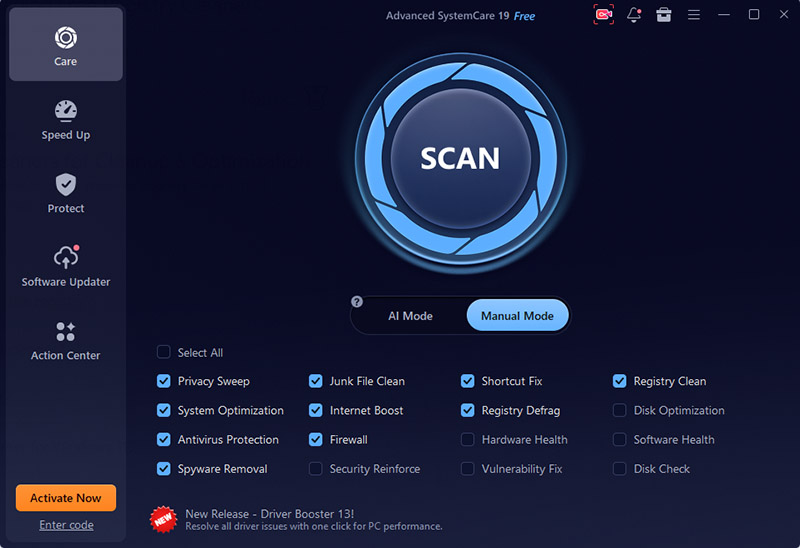
Step 3. Review the results and click Fix to apply the available cleanup and optimization actions.
PrivaZer is a free PC tune up program for removing junk files and traces of past activity. It can scan browsers, Windows components, applications, and storage areas more deeply than a basic cleanup utility.
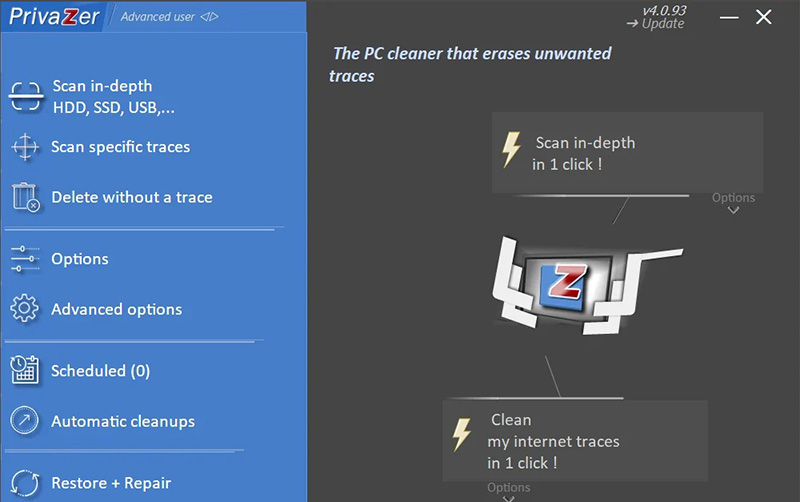
Best For: Deep privacy and leftover-file cleanup.
Key Features:
Find residual traces from Windows, browsers, and applications.
Overwrite selected data and free space to make recovery more difficult.
Adjust approach for HDDs and SSDs rather than treating every drive the same.
The main cleanup and secure-deletion functions are available free.
Cleanup to examine browser, application, and Windows activity traces.
No telemetry, tracking, or advertising.
Deep scans and secure deletion may take considerably longer.
Can be confusing for first-time users.
Glary Utilities Free is an all-in-one Windows maintenance and optimization suite that packages over 20 system utilities into a single, beginner-friendly hub. Rather than forcing users to manage multiple single-purpose tools, it combines junk file removal, startup management, and basic privacy protection under a unified interface.
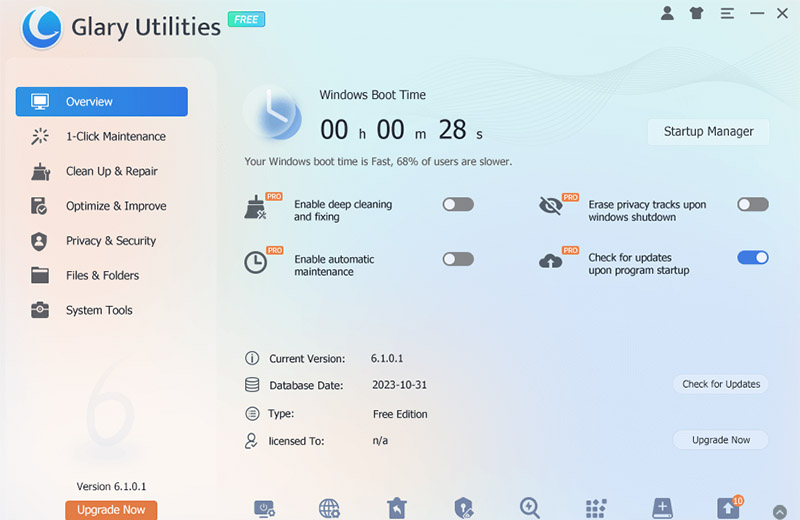
Best For: A set-and-forget toolbox for routine system cleanup and basic performance maintenance.
Key Features
Scan and resolve issues with junk files, broken registry entries, startup items, and browsing traces in a single step.
Startup Manager to tracks boot times, details auto-starting apps.
Feature built-in utilities to search for duplicate files and analyze empty folders.
Offer registry backup/restore points and driver management options to revert unintended system changes.
Wide collection of system utilities conveniently consolidated into one free application.
Extremely easy to navigate with straightforward options for non-technical users.
Fast scan times that do not heavily impact system memory or CPU during operation.
Full automatic background maintenance and real-time scheduling require a Pro upgrade
The extensive feature list can occasionally feel cluttered.
Razer Cortex is a free PC tune up program aimed primarily at gamers. Its Game Booster can suspend selected background processes while a game is running, while System Booster provides junk cleanup and Windows optimization tools. It also includes an FPS overlay and game-launching features.
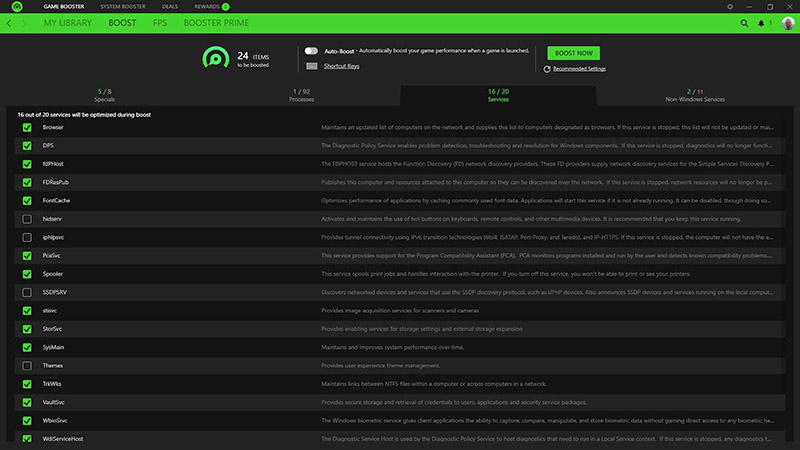
Best For: Gaming-focused PC performance tuning.
Key Features:
Reduce selected background activity during gameplay.
Scan gaming platforms, browsers, and Windows for removable junk.
Adjust selected Windows services, caches, file-system, and network settings.
Optimize supported game settings for different performance or quality targets.
Combine game boosting with basic system cleanup.
Useful FPS monitoring and game management features.
Can automatically apply boosting when recognized games launch.
Not a substitute for upgrading hardware or fixing genuine system bottlenecks.
Lower performance or stability problems after enabling certain boost settings.
Winhance is a free debloating and customization tool for Windows 10 and 11. The PC tune up program is especially useful for cleaning up unwanted preinstalled apps and reducing unnecessary background activity, although debloating does not automatically translate into major performance gains.
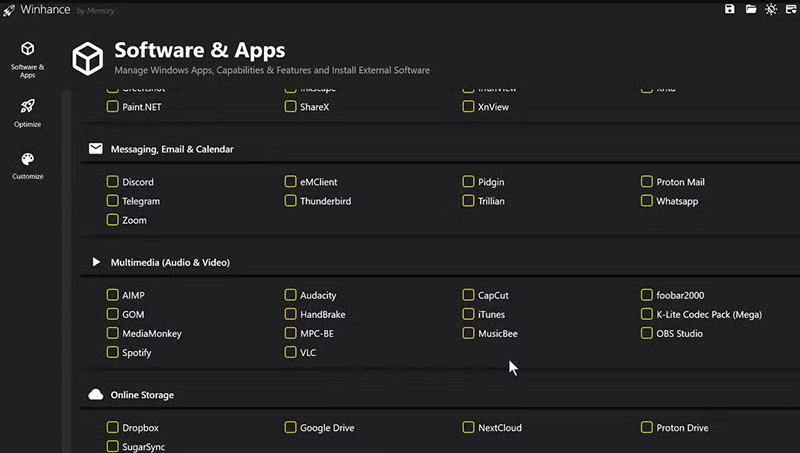
Best For: Removing Windows bloat and customizing system settings.
Key Features:
Remove selected Windows apps and components that are not needed.
Manage telemetry, advertising, and other Windows privacy settings.
Review and remove Windows or supported third-party applications.
Free and open source.
Modern interface is easier to use than command-line debloat scripts.
Cover a wide range of Windows customization options.
Portable and does not need to remain running in the background.
Removing too many built-in apps or services may create compatibility problems.
Performance improvements vary considerably between PCs.
A good PC tune up program can make routine Windows maintenance much less of a chore. The tools above cover everything from junk cleanup and privacy protection to storage management and system tweaking. For those who prefer having these tasks handled from one place, Advanced SystemCare is a solid option for keeping everyday PC performance in shape.


All-in-one PC health solution.
Free Download