The motherboard is one of the most important components in a computer because it connects and enables communication between all major hardware, allowing all hardware components to communicate and work together. Understanding the motherboard components and their functions can help you better understand how your computer works, thus optimizing performance or identifying problems. So what does the motherboard parts contain and what are the functions of each component? Let's get started!
Motherboard Parts and Functions
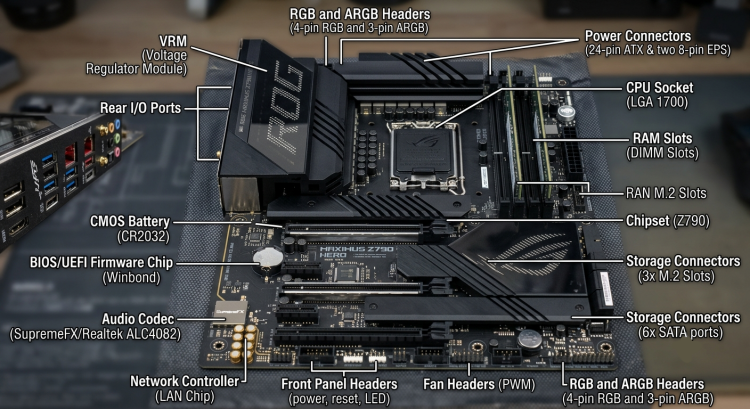
A motherboard contains many different components that work together to power, connect, and control your computer. Understanding these parts of motherboard not only helps you build or upgrade a PC but also makes troubleshooting hardware issues much easier. Below are the main components of motherboard and the role each one plays.
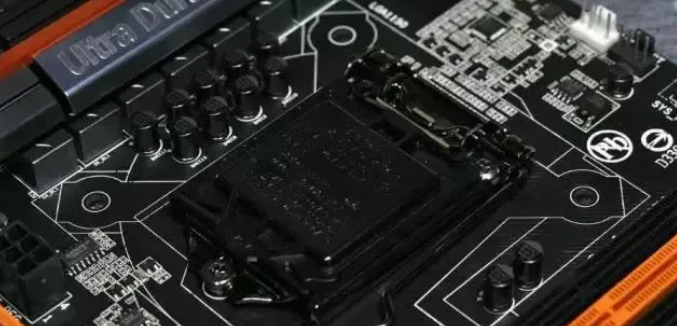
1. CPU Socket
The CPU socket is the physical connector that holds the processor and allows it to communicate with the rest of the system. The socket type determines which processors are compatible with the motherboard.
Modern Intel motherboards use LGA (Land Grid Array) sockets, where the pins are located on the motherboard. Older AMD platforms such as AM4 use PGA (Pin Grid Array) sockets with pins on the CPU, while newer AMD AM5 motherboards also use LGA sockets.
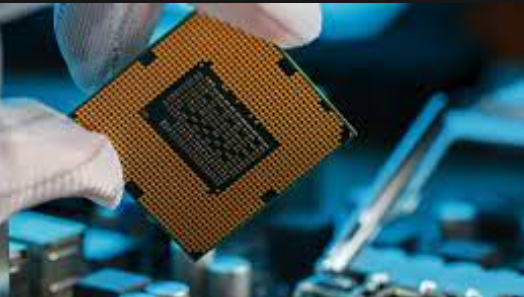
2. Chipset
The chipset acts as the motherboard's traffic controller, managing communication between the CPU and many connected devices, including USB ports, storage drives, networking, and PCIe expansion cards.
On modern Intel and AMD platforms, many functions previously handled by the northbridge have been integrated into the processor. Today's chipset primarily manages I/O devices and additional connectivity features.
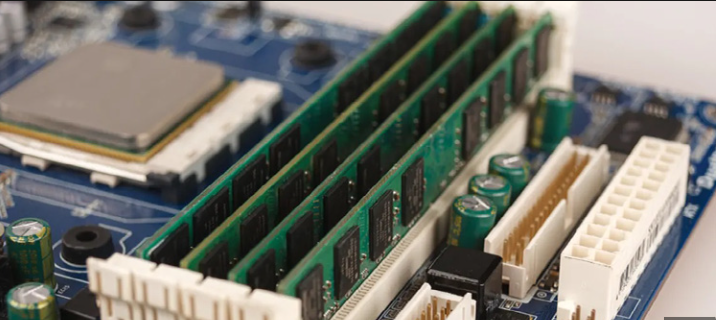
3. RAM Slots (DIMM Slots)
RAM slots, also called DIMM slots, hold your system memory modules. Memory stores data that the CPU needs immediate access to, allowing applications and the operating system to run smoothly.
Most consumer motherboards include two or four RAM slots and support dual-channel or DDR5 memory configurations, depending on the platform.
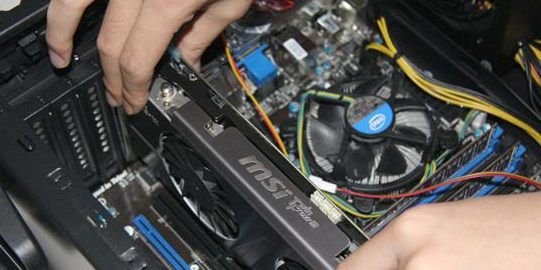
4. PCIe Expansion Slots
PCI Express (PCIe) slots allow you to install expansion cards that add new functionality to your computer.
The largest PCIe x16 slot is typically used for a dedicated graphics card, while smaller PCIe x1 or x4 slots can accommodate devices such as Wi-Fi adapters, sound cards, capture cards, or additional storage controllers.
5. Storage Connectors (SATA & M.2)
Storage connectors connect your HDDs and SSDs to the motherboard.
SATA ports are commonly used for traditional hard drives and 2.5-inch SATA SSDs.
M.2 slots support compact SSDs, including high-speed NVMe drives that offer significantly faster read and write speeds than SATA SSDs.
Choosing the right storage interface can greatly improve system responsiveness and boot times.
6. VRM (Voltage Regulator Module)
The Voltage Regulator Module (VRM) supplies clean and stable power to the CPU. It converts the power delivered by the power supply into the precise voltage required by the processor.
High-quality VRMs improve system stability, especially during gaming, heavy workloads, and CPU overclocking. Most gaming motherboards also include large heatsinks to keep the VRM cool.
7. Power Connectors
Power connectors deliver electricity from the power supply to the motherboard and its components.
The primary connectors include:
Without these connections, the motherboard and processor cannot operate.
8. CMOS Battery
The CMOS battery powers the motherboard's real-time clock (RTC) and preserves BIOS or UEFI settings when the computer is turned off or disconnected from power.
If the battery becomes depleted, your system may lose the correct time or reset BIOS settings to their defaults.
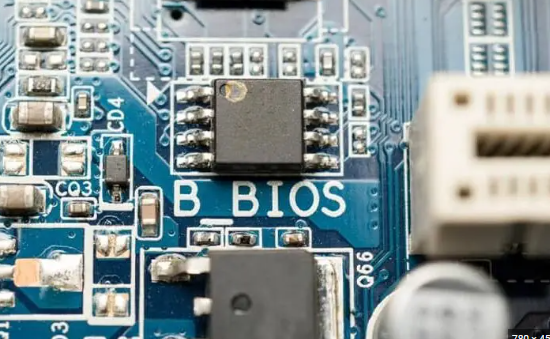
9. BIOS/UEFI Firmware Chip
Modern motherboards store firmware on a dedicated flash memory chip. This firmware is known as BIOS or, more commonly today, UEFI (Unified Extensible Firmware Interface).
UEFI provides a graphical interface, supports larger storage devices, offers faster startup, and includes more advanced hardware configuration options than the legacy BIOS.
10. Rear I/O Ports
The rear I/O panel contains the external connectors located on the back of the motherboard.
Depending on the motherboard model, these may include:
These ports allow you to connect monitors, keyboards, mice, storage devices, speakers, and network cables.
11. Front Panel Headers
Front panel headers connect the computer case to the motherboard.
These small connectors control features such as:
Power button
Reset button
Power LED
HDD activity LED
Front USB ports
Front audio ports
Correctly connecting these headers is an important step when building a PC.
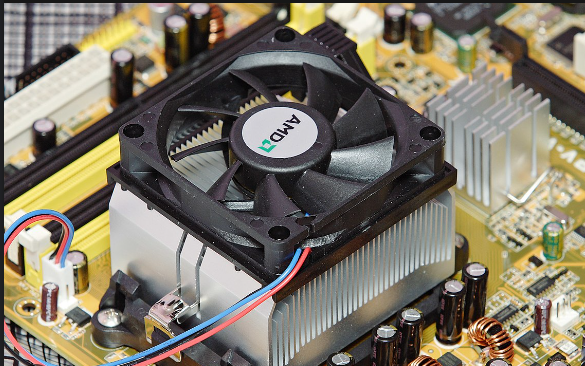
12. Fan Headers
Fan headers supply power and control signals for CPU coolers and system fans.
Most modern motherboards include dedicated CPU fan headers, chassis fan headers, and sometimes pump headers for liquid cooling systems. Proper fan connections help maintain safe operating temperatures and improve overall system reliability.
13. Audio Codec
The onboard audio codec processes sound for headphones, speakers, and microphones without requiring a separate sound card.
Higher-end motherboards often feature premium audio chipsets that provide clearer sound quality and reduced electrical interference.
14. Network Controller (LAN Chip)
The LAN controller enables wired Ethernet connectivity. Many modern motherboards include Gigabit Ethernet, while premium models may support 2.5GbE, 5GbE, or even 10GbE networking for faster data transfers.
Some motherboards also integrate Wi-Fi and Bluetooth modules for wireless connectivity.
15. RGB and ARGB Headers
Many gaming motherboards include RGB or Addressable RGB (ARGB) headers that allow users to connect LED strips, cooling fans, and other lighting accessories.
These headers make it easy to synchronize lighting effects across compatible hardware using motherboard software.
Also Read: [7 Fixes] How to Fix Audio Drivers on Windows 11: Quick & Easy Guide >>
BIOS vs. UEFI: What's the Difference?
Both BIOS and UEFI are firmware interfaces that initialize your hardware before the operating system loads. However, UEFI has largely replaced the traditional BIOS because it offers better performance, improved security, and support for modern hardware.
| Feature |
BIOS |
UEFI |
| Interface |
Text-based |
Graphical interface with mouse support |
| Boot Speed |
Slower |
Faster |
| Maximum Drive Size |
Up to 2 TB |
Supports drives over 2 TB |
| Partition Style |
MBR |
GPT |
| Security |
Basic |
Supports Secure Boot |
| Modern Hardware |
Support |
Limited Excellent |
Most computers manufactured in recent years use UEFI by default.
How to Check Your Motherboard Model
Sometimes you need to know your motherboard model before upgrading your CPU, RAM, or BIOS. Fortunately, Windows provides several ways to find this information.
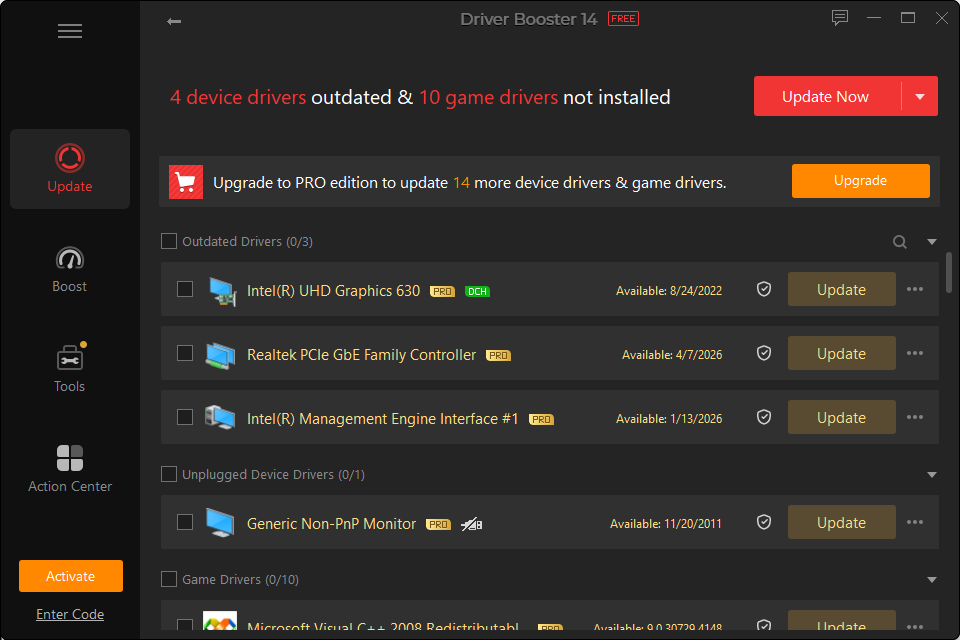
Method 1: Check Your Motherboard with Driver Booster
If you prefer a beginner-friendly solution, Driver Booster makes it easy to view detailed hardware information without using command-line tools.
Driver Booster Free
- Automatically scan and update drivers.
- Update game ready drivers for peak gaming performance.
- Identify and fix various common of hardware issues.
- Boost 30% of system performance for fast & smooth running.

How to check motherboard information with Driver Booster:
Step 1. Download and install Driver Booster.
Step 2. Open the program and move your cursor over the left sidebar. Select Learn More to open the hardware information page.
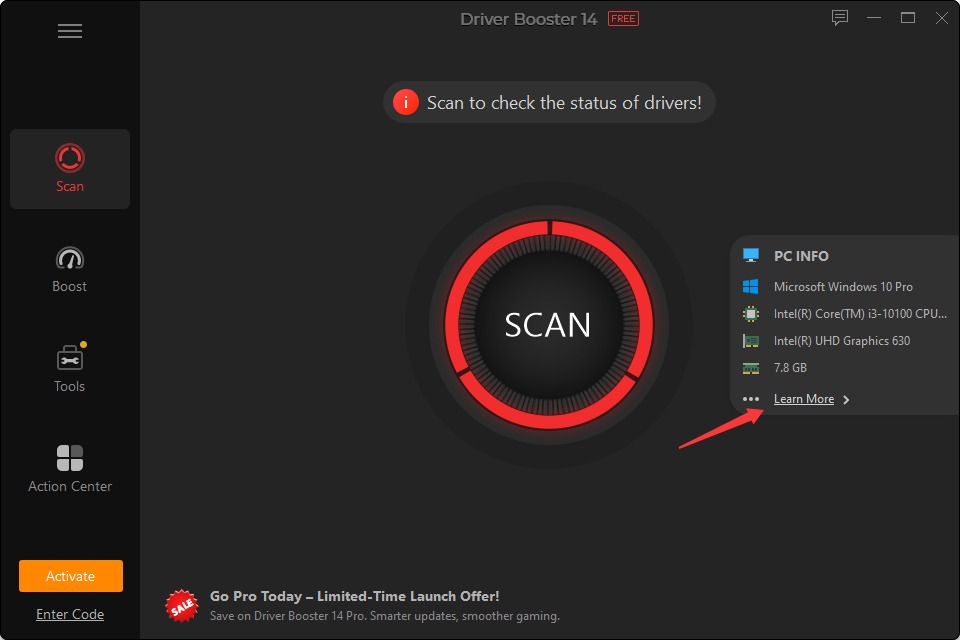
Step 3. Under Processor and Motherboard, you'll find your motherboard manufacturer, model, chipset, BIOS version, and other system details.
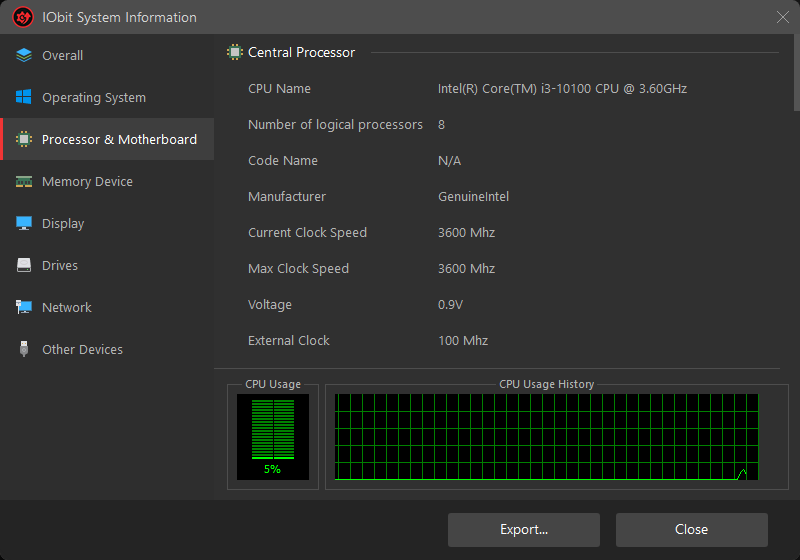
Driver Booster is also deemed the best driver updater that scans for outdated or missing drivers and helps keep your chipset, storage, network, and other hardware drivers up to date. Keeping drivers current can improve hardware compatibility, system stability, and overall PC performance.
Method 2: Use Windows System Information
You can also check your motherboard model using Windows' built-in System Information tool.
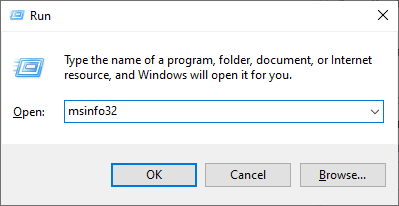
Step 1: Press Windows + R, type msinfo32, and press Enter.
Step 2: In the System Information window, locate BaseBoard Manufacturer, BaseBoard Product, and BaseBoard Version.
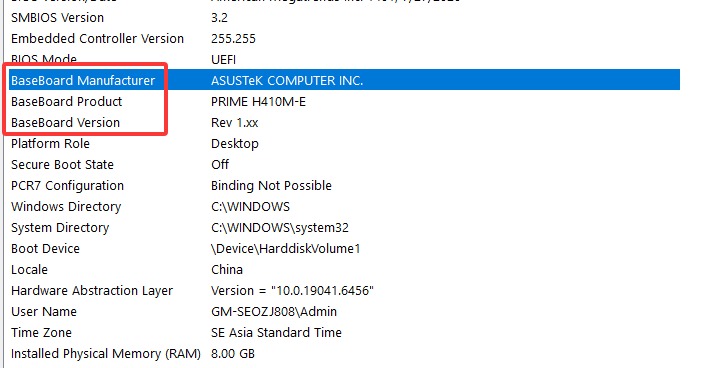
These entries display your motherboard manufacturer and model number.
Motherboard Components FAQs
1. What are the motherboard parts and functions?
A motherboard connects all major hardware components in a computer and allows them to communicate with one another. It distributes power, manages data transfer, and provides interfaces for storage devices, memory, expansion cards, and peripherals.
2. What are the main parts of a motherboard?
The main parts of motherboard include the CPU socket, chipset, RAM slots, PCIe expansion slots, storage connectors, VRM, BIOS/UEFI firmware chip, CMOS battery, power connectors, fan headers, and rear I/O ports. Each component performs a specific function to ensure the computer operates correctly.
3. Can a motherboard work without a CMOS battery?
Yes. A computer can boot without a CMOS battery, but the system clock and BIOS settings may reset whenever power is disconnected.
Conclusion
The motherboard is the foundation of every computer, connecting all hardware components into a single, fully functional system. Once you understand the purpose of each component, you'll find it much easier to build, upgrade, or troubleshoot your PC.
Whether you're performing hardware upgrades or simply learning how your computer works, understanding motherboard components gives you the confidence to identify parts correctly and make informed decisions. If you also need to view detailed hardware specifications or make your driver update, tools like Driver Booster can simplify the process by displaying comprehensive system information and helping maintain stable hardware performance.