Many Windows users think the CPU has a dedicated driver that needs updating, especially when the PC feels slow, overheats, or struggles with gaming. However, the truth is that CPUs (Intel or AMD processors) do not have standalone drivers like GPUs or printers.
Instead, what people usually refer to as a CPU driver is actually the chipset driver, which controls communication between the CPU, motherboard, and other hardware components. In this guide, you’ll learn what you actually need to update, and the safest ways for how to update CPU drivers on Windows 11/10.
Note: In this guide, when we talk about how to update my CPU driver, we are referring to chipset drivers and system-level drivers.
Do CPUs Really Have Drivers? (The Truth)
No, CPUs do not require separate drivers.
A CPU is managed directly by the operating system and motherboard firmware. What users commonly call “CPU drivers” are actually:
These drivers ensure proper communication between:
CPU
RAM
GPU
Storage devices
USB controllers
So when you search how to update CPU driver, you should focus on updating chipset drivers instead.
Why Updating Chipset Drivers Matters
Updating chipset drivers can improve:
While it won’t directly boost CPU speed, it ensures your processor operates correctly under optimal system conditions.
Method 1: Easiest Way - Use a Driver Update Tool
If you want a beginner-friendly and time-saving solution, you can use a driver updater tool like Driver Booster. Driver Booster is a third-party driver management tool that can help users automatically scan and update outdated drivers, including chipset-related components.
Driver Booster Free
- Automatically scan and update drivers.
- Update game ready drivers for peak gaming performance.
- Identify and fix various common of hardware issues.
- Boost 30% of system performance for fast & smooth running.

How to update driver with this tool:
Step 1. Go to the official IObit website and download Driver Booster, or click the download button below.
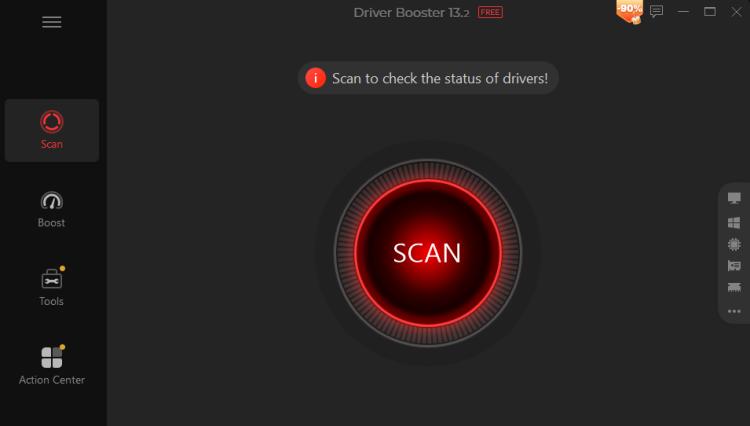
Step 2. Install and run the program. Click the “Scan” button to check all outdated, broken, or missing drivers.
Step 3. Once the scan is complete, review the list of outdated drivers (it will clearly show your chipset drivers, Intel or AMD). Click Update Now.
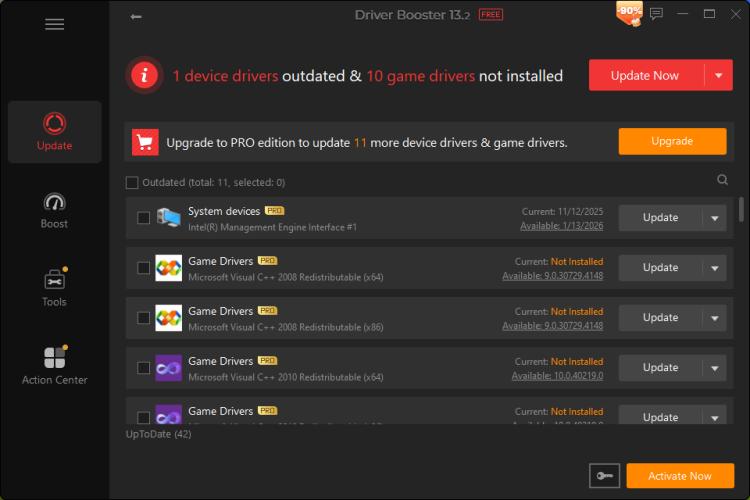
Restart your computer when prompted. This method is suitable for users who do not want to manually search drivers or risk installing the wrong version.
Key features:
Automatic Driver Scanning
It scans your system and detects outdated drivers across hardware components, including chipset, system, network, and more.
One-Click Driver Updates
Users can update multiple drivers at once without manually searching each manufacturer website.
Driver Backup and Restore
Before updating, it can create backups so you can roll back if something goes wrong.
Supports Updating Everything
It’s not just for chipsets. It updates graphics cards, audio devices, network cards, printers, USB devices, and more.
Method 2: Update via Intel or AMD Official Tools (Recommended)
For the most reliable and safe updates, it is recommended to use official manufacturer tools. Both major CPU manufacturers provide free, automatic scanning utilities.
How to update my computer drivers:
For Intel users:
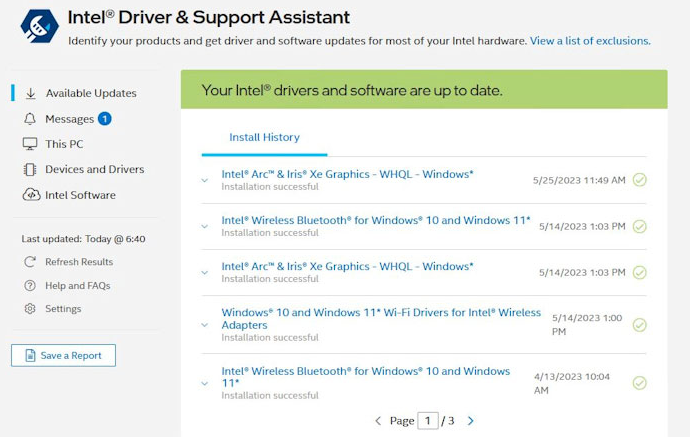
Use the Intel Driver & Support Assistant, which automatically scans your system and recommends updated chipset and system drivers.
For AMD users:
Use the AMD Auto-Detect Tool or download chipset drivers directly from AMD’s official website.
Benefits of this method:
Official and verified drivers
Best compatibility for your hardware
Improved system stability
Optimized performance for Intel/AMD platforms
This is especially important for gamers, content creators, and users running demanding software.
Method 3: Update Chipset Drivers Manually (Windows Device Manager)
If you don’t want to use third-party tools, you can update chipset drivers manually.
How to do it:
Step 1. Right-click on the Start menu, choose Device Manager from the list.
Step 2. Expand the System Device category.
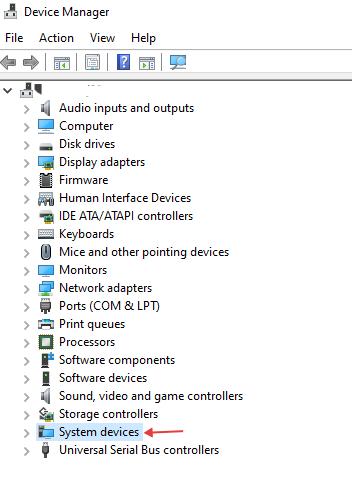
Step 3. Find chipset-related entries (e.g., Intel Chipset, AMD SMBus).
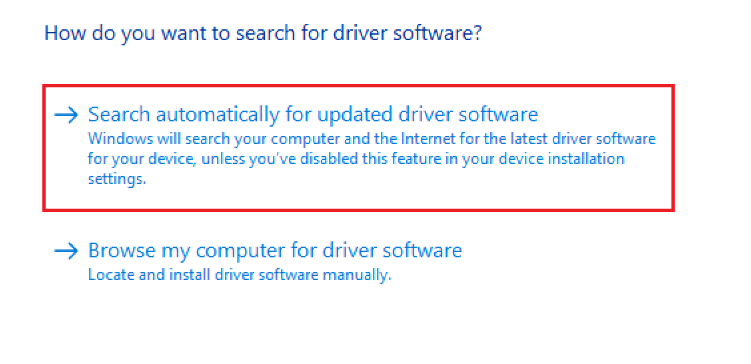
Step 4. Right-click and choose update driver.
Step 5. Select Search automatically for drivers.
Method 4: Update via Motherboard Manufacturer Website
Another reliable method for how to update CPU driver is downloading drivers from your motherboard brand. This method is useful when you need the most stable version tailored to your hardware configuration.
Steps for how to update Windows drivers from manufacturer website:
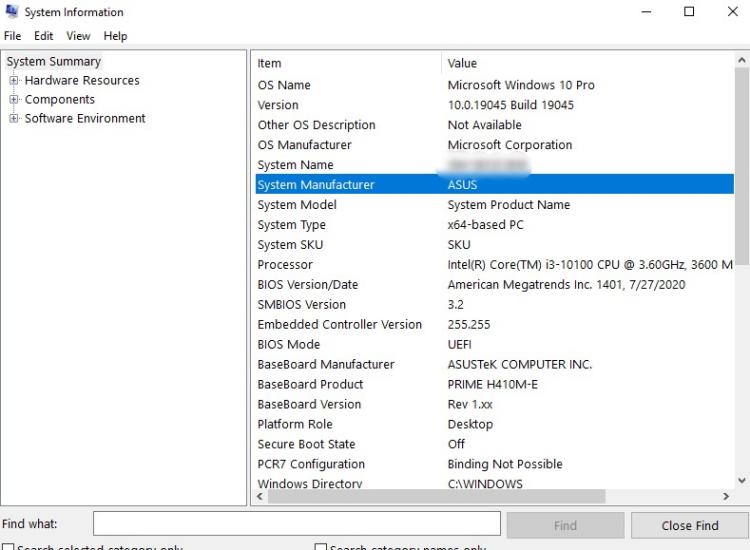
Step 1. Find your motherboard model (e.g., ASUS, MSI, Gigabyte). Press Windows + R, type msinfo32, and press Enter. Look for "System Manufacturer" and "System Model".
Step 2. Visit the official support page. Enter your exact model number into the search bar.
Step 3. Navigate to the Drivers & Downloads section. Select your operating system (Windows 10/11 64-bit).
Step 4. Look for the Chipset or System category and download the latest version.
Step 5. Run the downloaded installer and restart your PC.
Why this matters:
Motherboard vendors often customize these drivers to ensure compatibility with their specific PCB layouts and BIOS versions. This method is particularly useful for older boards where the official Intel/AMD tools might no longer offer updates.
How to Check If Your Drivers Are Updated
After updating, you can verify your driver version.
On Windows 10/11:
Right-click the Start menu and open Device Manager.
Expand System Devices.
Look for entries like Intel Chipset, SMBus Controller, or AMD SMBus. Intel Chipset Device Software” or “AMD SMBus,” “AMD PCI,” or “AMD Interface Driver”.
Right-click > Properties > Driver tab.
Check the driver version and date.
Bonus: Should You Update the BIOS/UEFI?
Many advanced users conflate chipset updates with BIOS updates. While a BIOS update can fix CPU compatibility issues (e.g., for newer processors) and security vulnerabilities, it is not a driver and should be handled with extreme care.
Do this only if: You are experiencing specific hardware compatibility issues, or the manufacturer explicitly recommends it for a security patch.
Never do this: During a thunderstorm, on a laptop with low battery, or without reading the motherboard’s specific recovery instructions.
Skip it if your system is running stably—because a failed BIOS update can brick your motherboard.

FAQs About Updating CPU Drivers
Do CPU drivers really exist?
No. CPUs do not require separate drivers. Chipset drivers handle CPU communication with the system.
Will updating chipset drivers increase CPU speed?
Not directly. It improves system efficiency, stability, and hardware communication.
How often should I update drivers?
Every 3–6 months is enough for most users, or whenever you experience performance issues.
Is it safe to use driver update tools like Driver Booster?
Yes, but it’s best used carefully and combined with official driver sources for critical updates.
The Bottom Line
Even though many users search for how to update CPU driver, the correct solution is to update chipset drivers and system drivers, not the CPU itself.
For best results:
Use Intel or AMD official tools (recommended)
Use motherboard manufacturer drivers for stability
Use a driver updater for Windows for convenience
Keeping your chipset drivers updated ensures better compatibility, system stability, and smoother overall performance on Windows 11/10.
Driver Booster Free
- Automatically scan and update drivers.
- Update game ready drivers for peak gaming performance.
- Identify and fix various common of hardware issues.
- Boost 30% of system performance for fast & smooth running.