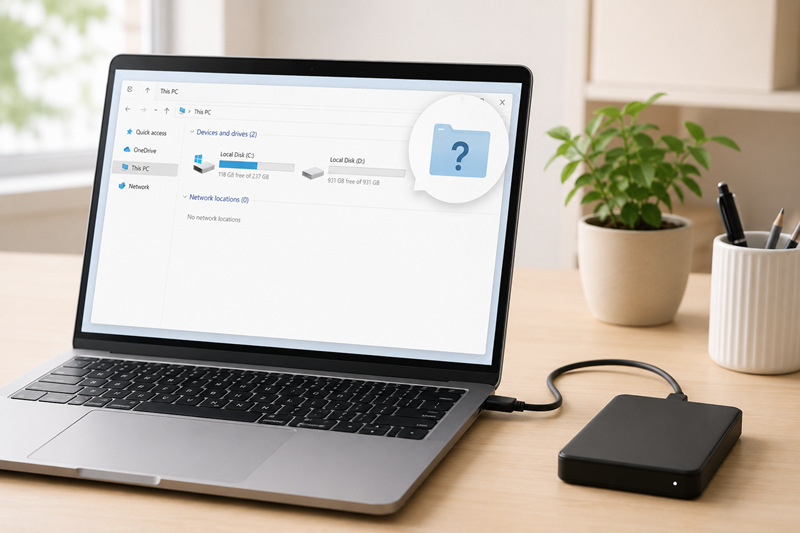
The Kernel Data Inpage Error is a common blue screen issue; it often appears when Windows can not load a required page of kernel data. Generally, there are three major triggers: storage read problems (especially on SSDs), faulty RAM, or driver/communication failures. This in-depth guide will teach you how to troubleshoot the issue and apply the right fix for your Kernel Data Inpage Error Windows 11 case. Just keep reading!

What Is Kernel Data Inpage Error? 5 Possible Causes
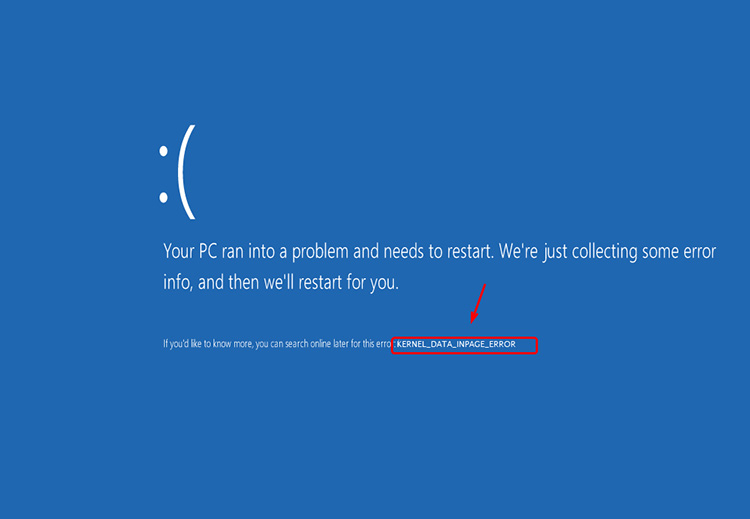
The Kernel Data Inpage Error comes with the stop code 0x0000007A. Along with the Kernel Data Inpage Error critical process died; this means Windows failed to retrieve essential data from a paging file into memory, causing a vital system process to crash. The Kernel Data Inpage Error Windows 11/10 can originate from various causes, and here are the common ones:
1. Hard Drive or SSD Failure
When your HDDs/SSDs fail, they might contain bad sectors or experience read errors that prevent Windows from accessing critical data, which then results in the Kernel Data Inpage Error BSOD.
2. RAM Issues
Faulty RAM can corrupt data that Windows needs to process. Since Windows relies on memory to handle kernel data, memory errors can interfere with normal system operations and trigger the Kernel Data Inpage Error.
3. Corrupted System Files
Over time, unexpected shutdowns or disk errors can damage Windows system files. These files may prevent the operating system from loading kernel data correctly.
4. Driver Issues
Outdated or corrupted storage drivers can disrupt disk read operations, which prevents Windows from retrieving essential kernel data and causes the error. You can explore our guide on how to fix drivers for more information.
5. Disk Connection Issues
A loose SATA cable or unstable power connection may interrupt communication between Windows and a drive. This will cause read failures and the Kernel Data Inpage Error Windows 10 blue screen.
How to Locate the Issue Behind Kernel Data Inpage Error 0x7A in Windows 11?
When Windows displays KERNEL_DATA_INPAGE_ERROR (0x7A), it’s a typical kernel security check failure that needs to be addressed. It might not indicate a storage problem for sure. You will need to trace back to the DMP file to find some hints. Here are the 3 derivative codes in the DMP file and the respective problems you might be facing.
0xC000009C: Often associated with disk data errors or bad sectors.
0xC000016A: Usually indicates a disk read or operation failure, with potential bad sectors.
0xC0000185: May indicate an I/O device communication problem, faulty cables, or storage controller errors.
How to find these codes in a DMP file with WinDbg?
Step 1. Download and install WinDbg from the Microsoft Store.
Step 2. Locate the minidump files. They are normally stored in C:\Windows\Minidump. Copy the most recent .dmp file to a folder.
Step 3. Launch WinDbg, go to File > Open dump file, and select the .dmp file you copied.
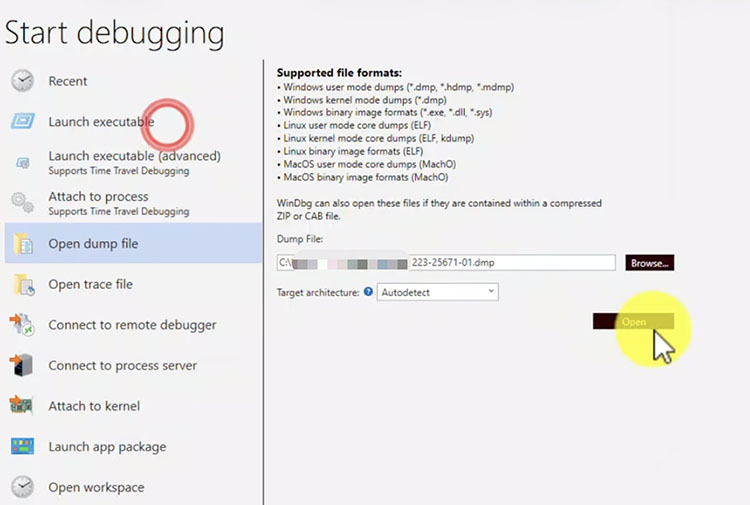
Step 4. In the command window, type !analyze -v and press Enter. Scroll through the output and look for the BugCheck parameters.
Step 5. For KERNEL_DATA_INPAGE_ERROR (0x7a), the Error Status / I/O status code is often a hex NTSTATUS code such as 0xC000000E, 0xC000009C, 0xC000009D, or 0xC0000185.
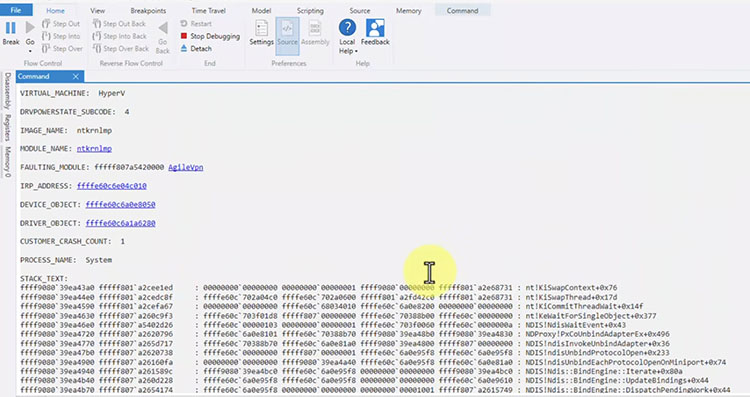
After analyzing the dump file, you might want to review additional system logs to identify the cause of the crash. For more information about investigating system crashes, see our guide on how to use Windows system crash logs.
Kernel Data Inpage Error Fix: Disk Data Errors/Bad Sectors
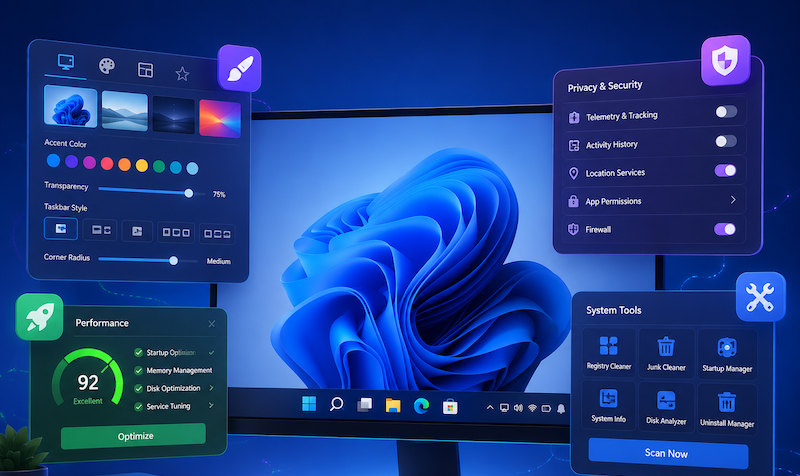
If the dump file contains 0xC000009C, it generally points to bad sectors or other disk read errors. In this case, one practical Kernel Data Inpage Error fix is to optimize and clean the drive so Windows can avoid the bad areas. For beginners who don’t know how to get on with the task, IObit Advanced SystemCare is the best tool that comes in handy. The software provides PC cleanup and optimization features that can help remove unnecessary files and maintain system performance.
For HDDs, it uses suspension technology to piece together fragmented files stored across non-contiguous sectors and rearranges them sequentially.
For solid-state drives, it applies SSD-friendly optimization routines like TRIM to help the drive manage unused data blocks efficiently.
How to use this tool to fix Kernel Data Inpage Error: Bad Sectors?
Step 1. Download IObit Advanced SystemCare.
Step 2. Navigate to Manual Mode. Click on the settings icon next to Disk Optimization.
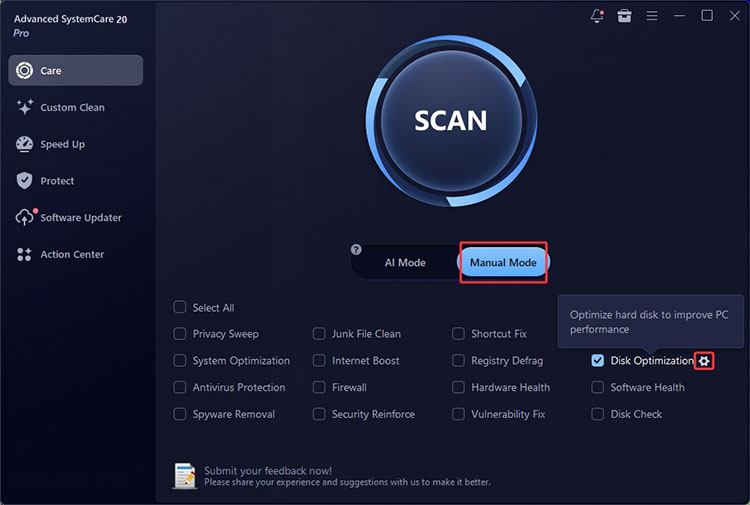
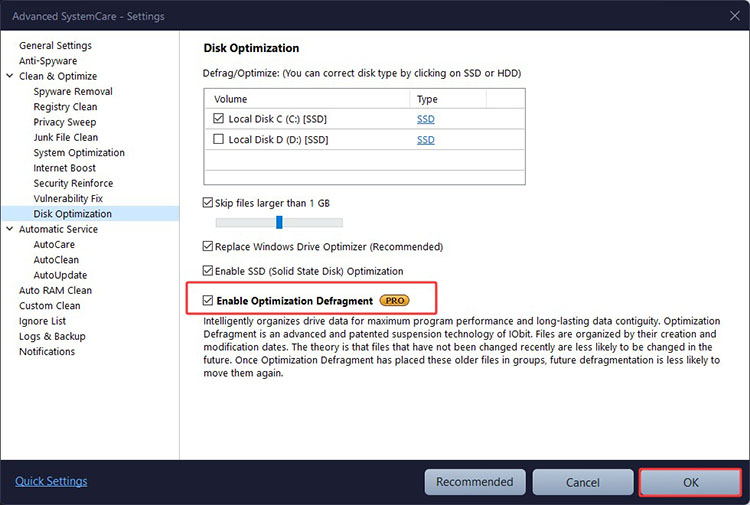
Step 3. In the settings, go to Disk Optimization and enable the Optimization Defragment.
Step 4. Go back to the main interface and click on the Scan button. You will see a report showing the fragments and partitions. Click on the Fix button to fix the reported errors.
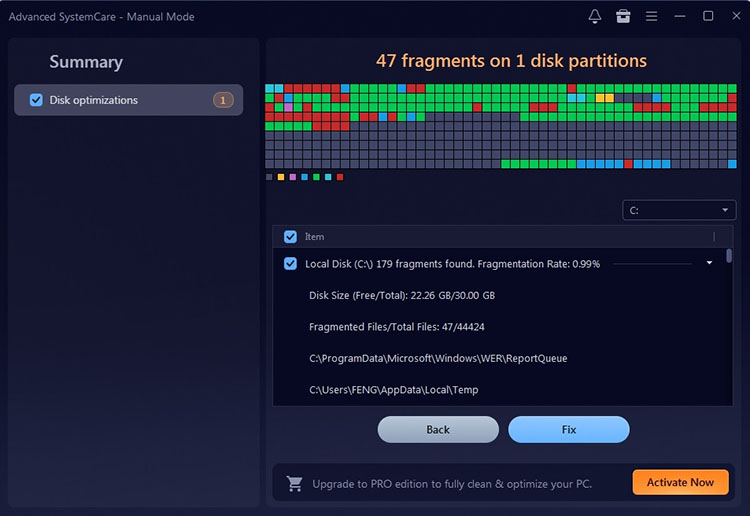
These steps can help with routine disk maintenance, but they should not fix the Kernel Data Inpage Error Windows 11/10 if the underlying cause is physical storage damage. In this case, back up important files immediately, run the drive manufacturer's diagnostic tool, and consider replacing the failing drive. If low disk space is also a concern, you can use a disk space analyzer to identify files consuming unnecessary storage.
How to Solve Kernel Data Inpage Error: Disk Operation Failure
When the Kernel Data Inpage Error Windows 11 is confirmed to be a 0x7a and 0xC000016A problem, you will need to inspect the disk read failures and storage health first. One useful method is to use Command Prompt, which allows you to check the file system and repair recoverable system file corruption.
Step 1. Search for Command Prompt on your Windows PC. Type chkdsk C: /r and press Enter (you can replace C: with the letter of the affected drive here ).
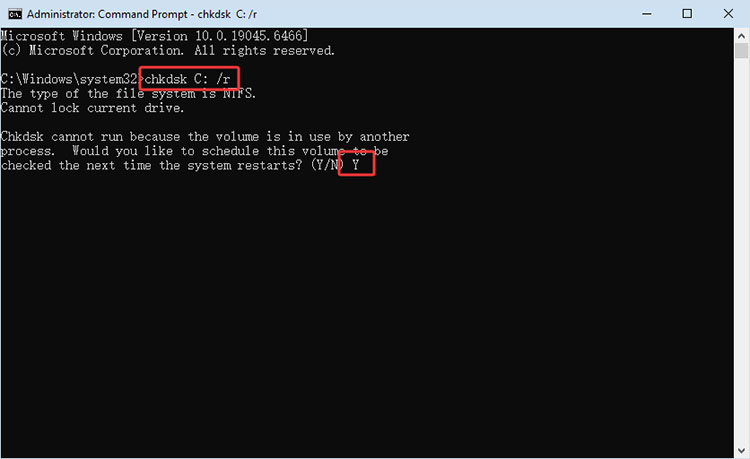
Step 2. If the drive is in use, type Y and press Enter to schedule the scan for the next restart.
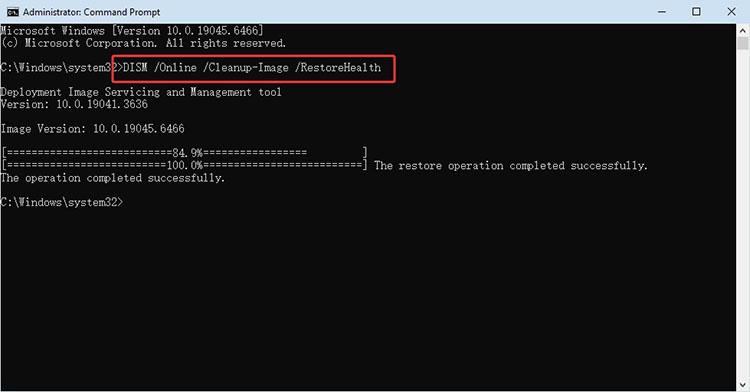
Step 3. Type: sfc /scannow and press Enter. Once the SFC scan completes, run the Deployment Image Servicing and Management tool with the command: DISM /Online /Cleanup-Image /RestoreHealth. This pulls healthy replacement files directly from Windows Update.
Note: In addition to Command Prompt, check the overall health of your drive. Many modern HDDs and SSDs support S.M.A.R.T. monitoring, which can help identify potential drive problems. If a drive health tool reports a warning (Caution or Bad), it’s recommended to back up your important data immediately and consider replacing the drive to prevent further data loss.
Kernel Data Inpage Error Fix: Faulty Cables and Controllers
When it comes to 0xC0000185, it usually points to a communication problem between Windows and the storage device. For instance, a faulty cable, a storage controller issue, or failing HDDs/SSDs.
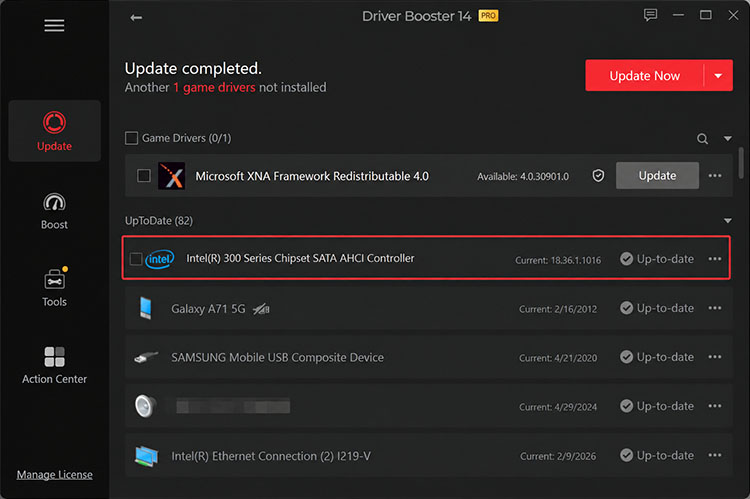
You can do a basic check of the connection first. If all the connections are fine, the next step is to investigate the relevant storage controller drivers. Outdated or incompatible drivers may prevent Windows from communicating reliably with the storage device. In this case, IObit Driver Booster is what you need, which allows you to scan and update problematic drivers in one click!
How to Update Storage Controller Drivers? (Use IObit Driver Booster)
Step 1. Download IObit Driver Booster from the official website and launch it.
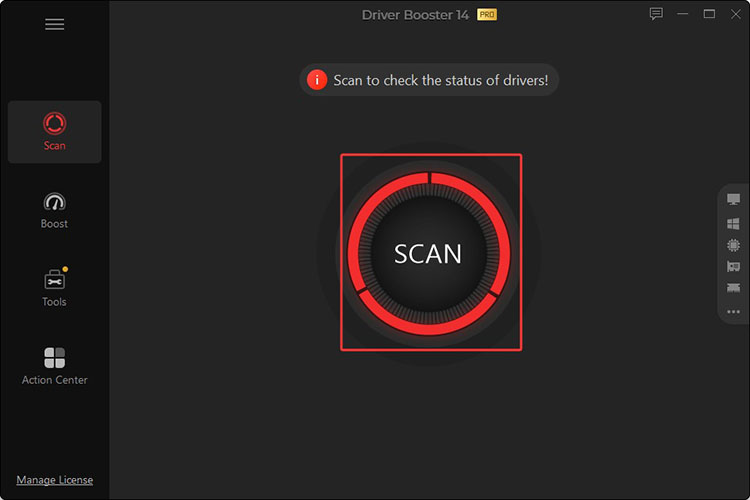
Step 2. Click the Scan button to have a thorough scan of your PC. You will see the scan results after a few minutes.
Step 3. Look for a driver you want to update. You can also update other drivers altogether; for instance, update USB drivers if they are outdated.
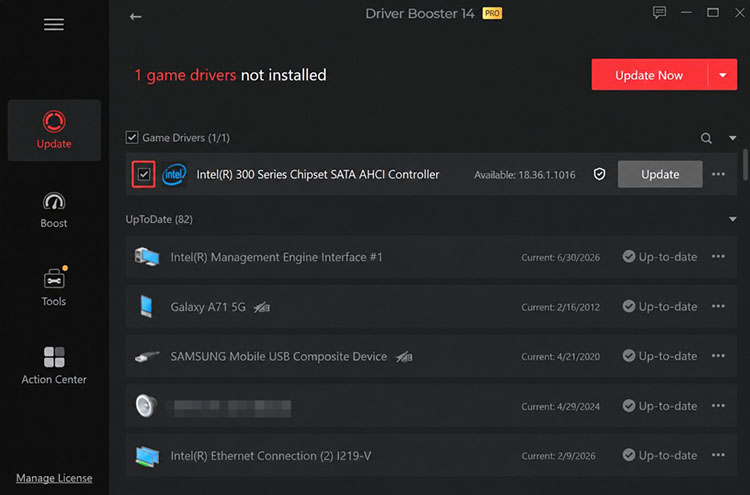
Step 4. Wait for Driver Booster to finish the update. Restart your computer and verify if the Kernel Data Inpage Error Windows 11 has been fixed.
Conclusion
Kernel Data Inpage Error Windows 11 can result from storage errors, disk operation failures, corrupted system files, faulty connections, or driver issues. Among the possible fixes, IObit Advanced SystemCare can help clean up unnecessary files and optimize disk performance. It’s also an all-in-one optimization tool for routine PC maintenance. Try it to avoid disk errors and keep your PC clean and optimized now!
Advanced SystemCare Free
- Clean: 420 billion traces removed & 85 EB junk files cleaned
- Protect: 80 million unauthorized access blocked & 20 million bugs fixed
- Speed Up: 6 million hours of startup time saved & Turbo boost
- Optimize: Auto clean and auto care your PC with AI mode