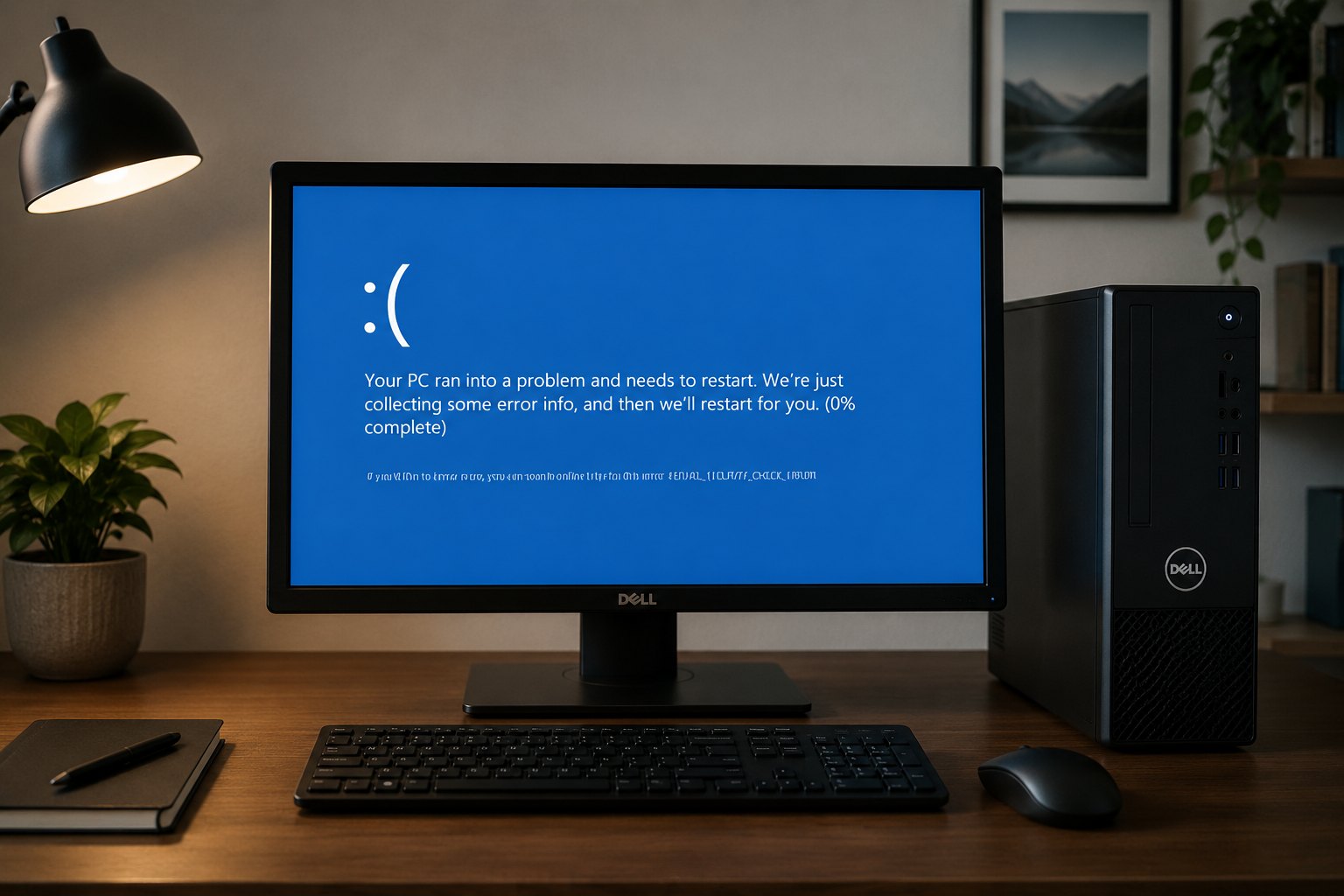
Learn what causes kernel security check failure errors on Windows PCs. This guide explains driver problems, RAM issues, malware threats, and simple fixes for Windows 11 users. Kernel security check failure is a common Blue Screen of Death error on Windows computers. Many users see this issue while gaming, starting their PC, or using heavy software. In most cases, outdated drivers cause the problem. Bad RAM, damaged system files, disk problems, and malware attacks can also trigger the error. If you notice a kernel security check failure Windows 11 error, you should check your drivers, memory, and security status quickly before the issue gets worse.
Common Factors Behind Kernel Security Check Failure
Fixes Reddit users usually don’t recommend trying first:
Many users face kernel security check failure errors without knowing the real reason behind them. This problem normally appears when Windows detects unstable system behavior. Sometimes the system crashes with a blue screen, while other users notice a kernel security check failure black screen during startup. Below are the most common reasons behind this issue.
1. Outdated Drivers
Old or damaged drivers are the biggest reason for kernel security check failure. Graphics drivers, chipset drivers, and storage drivers often create conflicts with Windows. Studies show that driver problems cause over 70% of these crashes.
2. Corrupted System Files
Missing or broken Windows system files can stop important processes from working correctly. This may trigger a kernel security check failure 0x139 error.
3. Bad RAM
Unstable RAM can create random crashes, freezing, and restart problems. Around 20% of users experience this issue because of memory instability.
4. Disk Errors
Hard drive or SSD errors may damage system data. When Windows cannot read important files properly, the system may crash suddenly.
5. Malware Threats
Viruses, spyware, ransomware, and hidden malware can attack Windows system files. Around 10% of kernel security check failure cases relate to malware attacks.
6. Faulty Windows Updates
Some Windows updates install incorrect drivers or create compatibility issues. This can lead to a kernel security check failure windows 11 crash after rebooting the computer.
Kernel Security Check Failure 0x139 Black Screen Fix
Actually, it is a blue screen problem. When the Kernel Security Check Failure 0x139 appears, it means a Kernel-mode component corrupted critical system data (drivers specifically). From this interface, we can boot into Safe Mode to let your system uninstall harmful drivers installed recently and restore system data.
How to fix Kernel Security Check Failure blue screen?
Step 1. From the BIOS, enter Safe Mode.
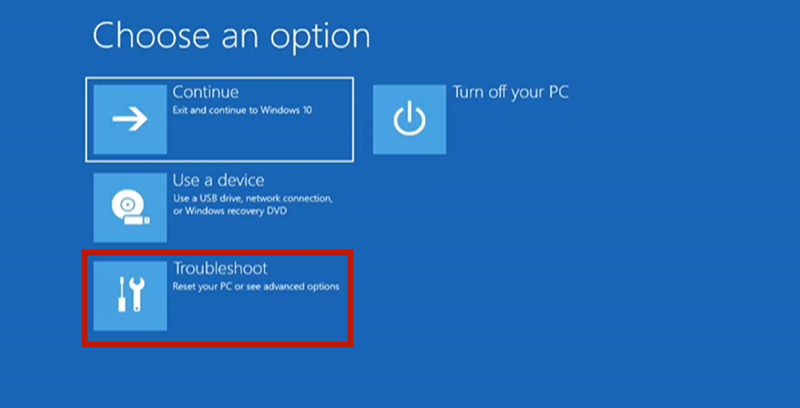
Step 2. Choose Troubleshoot > Advanced Options.
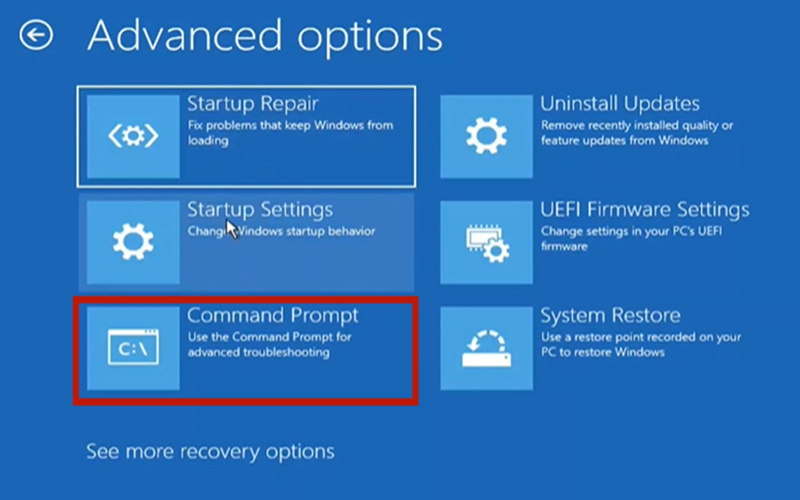
Step 3. Choose Command Prompt.
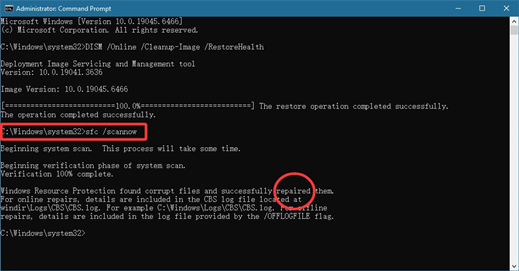
Step 4. Input DISM + SFC order to restore and scan your PC.
Firstly, input this prompt below to restore Windows components:
DISM /Online /Cleanup-Image /RestoreHealth
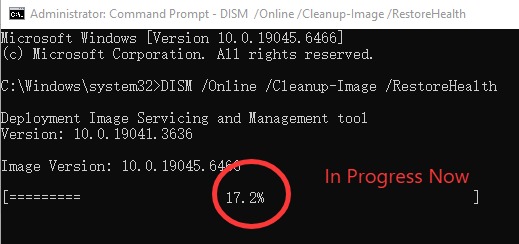
Step 5. Wait until the process hits 100%. And Then input the prompt below to restore system files:
sfc /scannow
Bonus Tip: If you cannot enter Safe Mode (Even cannot enter BIOS) because of a very bad black screen problem, but your PC can reach the Windows logo before going black screen. You can still enter Safe Mode by force restarting your PC and entering the WinRE(Windows Recovery Environment).
Here is the tutorial:
Step 1. Force shut down your PC during startup 2–3 times until Preparing Automatic Repair appears.
Step 2. Then go to Troubleshoot > Advanced options > Startup Settings > Restart
Step 3. Press 4 (F4) for Safe Mode or 5 (F5) for Safe Mode with Networking.
To wrap up, if the CMD system restoration fails, you need to try other fixes. In many real-world cases, the fix often comes down to driver management:
Updating outdated GPU drivers
Rolling back recently updated drivers
Removing newly installed drivers that may cause conflicts, such as audio, RGB, or network drivers
If you don’t have a driver fixer to help you update drivers, you can use IObit Driver Booster, a 100% free auto driver updater. Please read on!
Kernel Security Check Failure: Driver Fix
Outdated drivers are the most common reason behind kernel security check failure. Manually checking every driver takes time and many users install incorrect versions accidentally. A safer option is using IObit Driver Booster to scan and update drivers automatically. This tool checks outdated, missing, and broken drivers in a few minutes. It also helps improve gaming stability and Windows performance.
Driver Booster Free
- Automatically scan and update drivers.
- Update game ready drivers for peak gaming performance.
- Identify and fix various common of hardware issues.
- Boost 30% of system performance for fast & smooth running.

How to Update Drivers with Driver Booster
Step 1: Download
Click the given official IObit driver link and download Driver Booster. Install it on your PC and launch the program to get started.
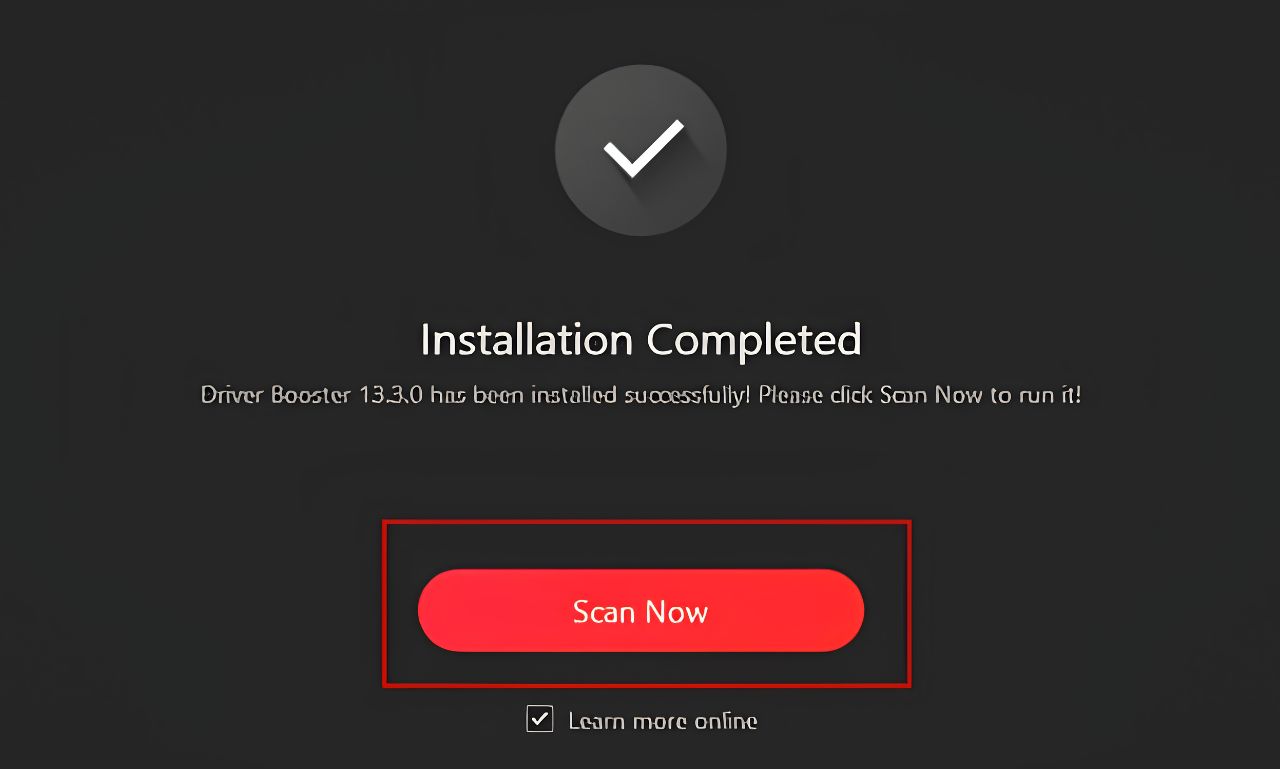
Step 2: Scan
Open Driver Booster and click the “Scan” button. The tool will quickly scan your system and list all outdated or missing drivers.
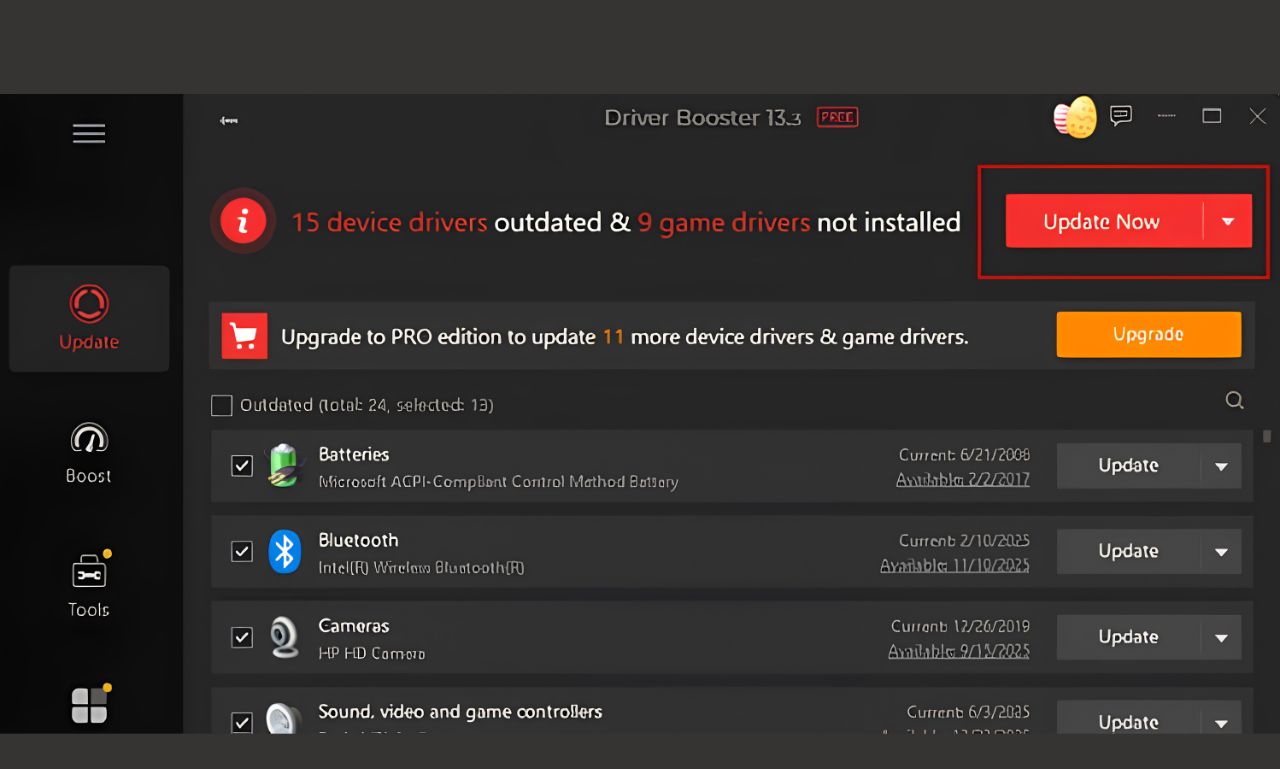
Step 3: Update
Click “Update Now” to install all drivers at once. You can also update drivers individually based on your needs.
Updating drivers can reduce crashes, fix kernel security check failure windows 11 problems, and improve system stability. Many users also use this method as their first kernel security check failure fix because it solves driver conflicts quickly. For better PC protection, you can also read this guide about Best virus protection for pc.
Kernel Security Check Failure: RAM Fix
Bad memory modules can create serious Windows crashes. If your RAM becomes unstable, you may experience random blue screens, freezing, or restart loops. Windows includes a built-in tool called Windows Memory Diagnostic to help check RAM health.
How to Check RAM Problems
Step 1. Press the Windows key and type “Windows Memory Diagnostic.”
Step 2. Click the utility from the search results.
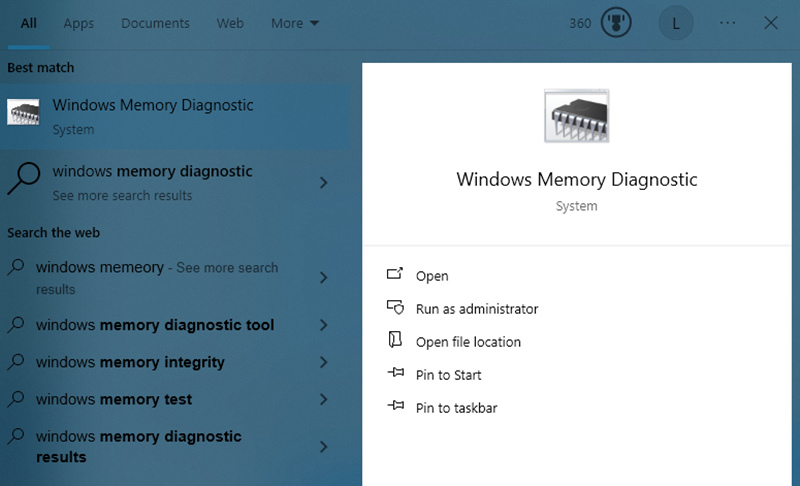
Step 3. Choose “Restart now and check for problems.” Windows will restart automatically and begin scanning your RAM.
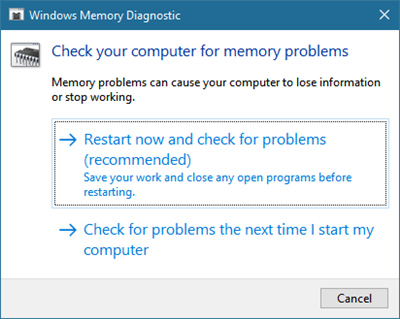
Step 4. After the scan finishes, Windows will display the memory test results after login.
If the tool finds memory problems, you may need to reseat the RAM sticks or replace faulty memory hardware. RAM issues often cause kernel security check failure errors during gaming and heavy multitasking. You should also avoid overclocking memory settings if you face repeated crashes. Stable RAM settings help reduce kernel security check failure windows 11 problems significantly.
Kernel Security Check Failure: Malware Fix
Malware attacks can damage Windows files, inject harmful processes, and create serious system instability. Infected computers may show kernel security check failure errors repeatedly. Some users even experience a kernel security check failure black screen after malware attacks damage startup files. Using trusted security software is important for removing threats and protecting your system. IObit Malware Fighter helps detect viruses, ransomware, spyware, and hidden malware before they damage your PC. The software includes several useful protection tools that help stop future infections.
The Core Features of IObit Malware Fighter
Real-Time Protection: This feature monitors your system continuously and blocks suspicious activity before malware can damage files or steal data.
Malware & Virus Removal: The software scans deep system areas and removes viruses, spyware, trojans, and hidden threats safely.
Ransomware Protection: Ransomware attacks can lock personal files and demand payment. IObit Malware Fighter helps stop ransomware activity before files become encrypted.
Safe Browsing & Anti-Tracking: This feature blocks dangerous websites, harmful downloads, and tracking scripts while browsing online. You can also learn more about Anti virus software for free for extra protection options.
How to Scan Your PC with IObit Malware Fighter
Step 1. Download and install IObit Malware Fighter from the official website.
Step 2. Launch the software and go to the main dashboard.
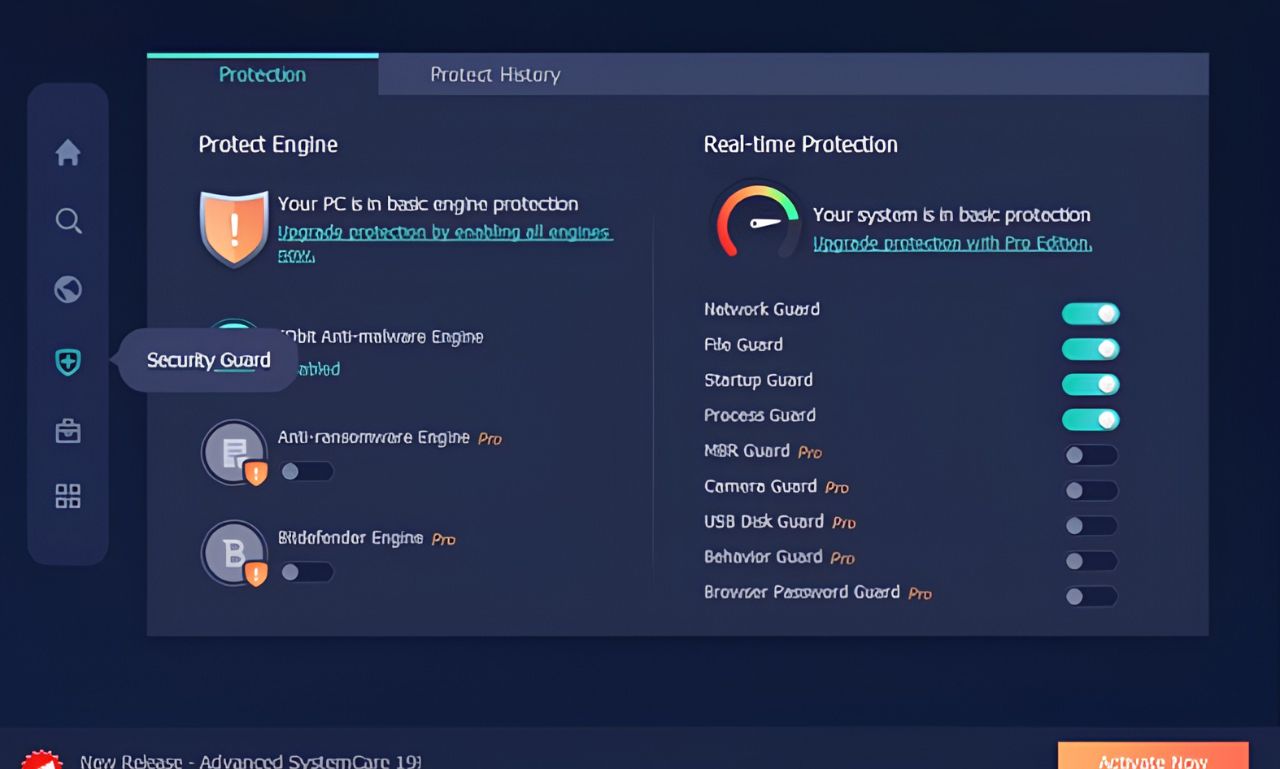
Step 3. Click the “Scan” button to check your PC for malware, spyware, ransomware, and suspicious files.
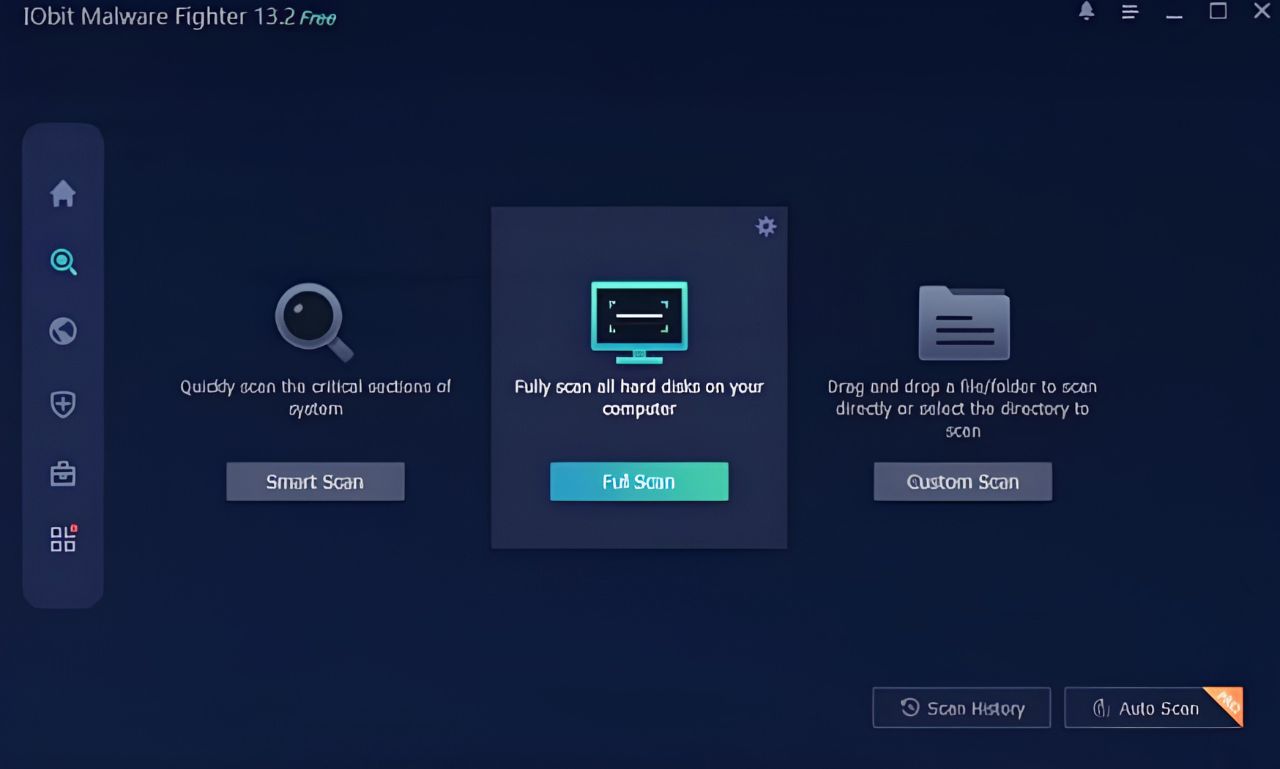
Step 4. After the scan finishes, remove all detected threats and restart your computer.
Regular malware scans help prevent system crashes and improve overall Windows stability. If malware caused your kernel security check failure issue, this process may solve the problem completely.
Conclusion
Kernel security check failure problems usually happen because of outdated drivers, damaged system files, RAM instability, disk errors, or malware attacks. These issues can slow down your PC, trigger blue screen crashes, and even cause startup problems on Windows 11 systems. The good news is that many users can fix the problem by updating drivers, checking RAM health, repairing system errors, and scanning for malware regularly. Using IObit Driver Booster helps keep drivers updated, while IObit Malware Fighter adds strong protection against viruses, ransomware, spyware, and other online threats to keep your PC stable and secure.
IObit Malware Fighter Free
- Quick and deep system scanning throughout PC system.
- Smart defense against all malicious infestations.
- High-level security and privacy protection in real time.
- Leading anti-malware and anti-virus engines.