



Kevin Hart
Kevin is an experienced editor focused on tech blog writing. Familiar with all kinds of PC software on the market. All the topics he chooses are aimed at bringing more benefits to users.
Expert in
PC Health Solution

All-in-one PC health solution: clean, optimize and secure

Comprehensive PC cleaning, optimization and protection

Keep drivers always up-to-date

More stable performance with less system crashes

Protect millions of computers against malware

Top computer security with full-round protection

Protect against viruses & boost PC performance
Automatically scan and update drivers.
Update game ready drivers for peak gaming performance.
Identify and fix various common of hardware issues.
Boost 30% of system performance for fast & smooth running.

Driver issues preventing your device from running properly? Check how to fix drivers inside. It covers 6 methods, including an all-in-one smart tool.

Kevin Hart


Drivers run quietly in the background, ensuring your Windows system works as expected—from connecting to the internet to delivering smooth graphics and clear audio. When devices like your graphics card, sound card, or network adapter stop functioning properly, the issue is often not hardware-related but driver-related.
Outdated, corrupted, or missing drivers are among the most common causes of system instability. They can lead to unrecognized devices, lag, or even application crashes.
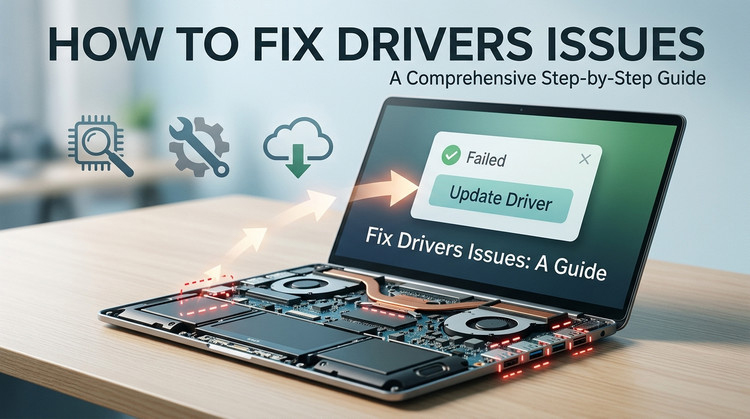
If you're wondering how to fix drivers, this guide will walk you through everything you need to know. From identifying driver issues to applying both manual and automatic fixes, you'll learn how to restore your PC to optimal performance quickly and safely.
Let's start with the basics.
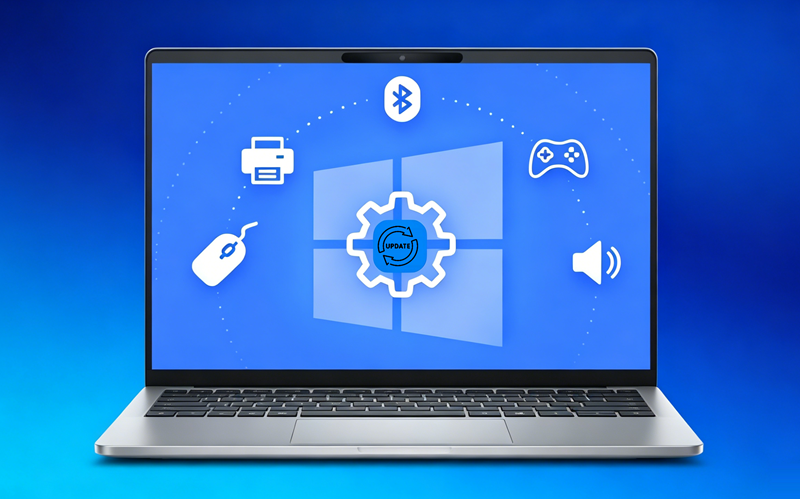
When you search online for solutions to computer performance issues, you'll quickly notice that the term driver appears everywhere. People often talk about installing or updating drivers—but what exactly does a driver mean?
You can think of a driver as a type of software or mechanism whose core purpose is to bridge hardware and software, enabling communication between them. This allows the operating system to recognize and properly use your hardware.
In everyday use, drivers play several key roles:
Ensuring that hardware such as graphics cards, sound cards, and network devices function properly
Maintaining system stability and compatibility between the operating system and hardware
Providing performance optimization and enhancing device security
However, once drivers encounter issues—such as becoming outdated, corrupted, or incompatible—you may face problems like:
System crashes or application failures
Hardware (such as sound cards or graphics cards) not being recognized
Performance drops, lag, or blurry display
Software conflicts
This is why understanding how to fix device driver issues in advance is so important. In fact, driver problems are one of the most common causes of Windows system failures.
That said, it's not always immediately clear whether a problem is caused by a driver. Therefore, before learning how to fix corrupted drivers, you first need to identify which drivers are actually causing the issue.
As mentioned earlier, the first step in resolving any issue is identifying its source.
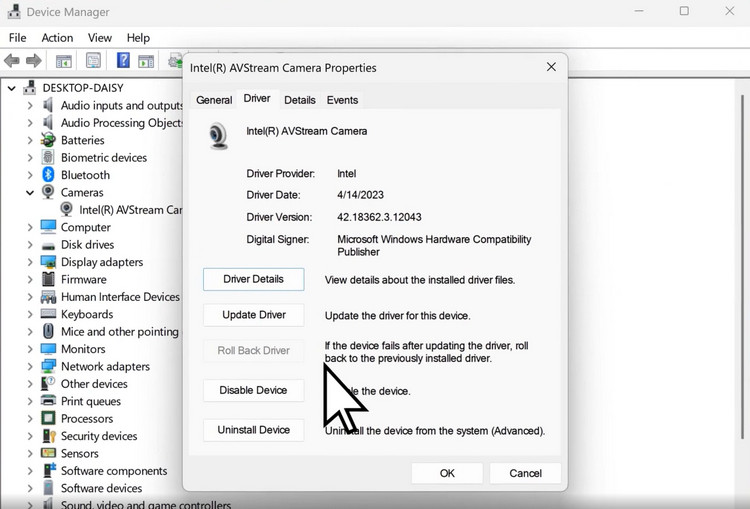
The good news is that Windows already includes a built-in tool to help you check driver status. Here's how to use it:
Step 1. Right-click the Start menu and select Device Manager
Step 2. Review the device list and look for any yellow warning icons
Step 3. Right-click the device, then select Properties to view its status and error codes
If a device shows messages like not working properly or displays an error, it likely means the driver needs to be updated or repaired. At this point, the comprehensive guide on how to fix corrupted drivers below will help you resolve the issue effectively.
So, after checking, have you identified the root cause? Did you find any drivers that haven't been updated regularly?
Once you've pinpointed the issue, you can apply the appropriate how to fix corrupted drivers Windows 11 or 10 solutions based on your situation. This section will walk you through five effective methods, along with step-by-step instructions.
One of the most common and direct causes of system issues is outdated drivers. Fortunately, the fix is simple—check the driver version and let Windows handle the update.
Since the how to update driver steps differ slightly between Windows 10 and Windows 11, this part cover them separately.
On Windows 11
Here is how to fix faulty drivers Windows 11:
Step 1. Open the Start menu and search for Device Manager
Step 2. Locate the problematic device, right-click it, and select Update driver
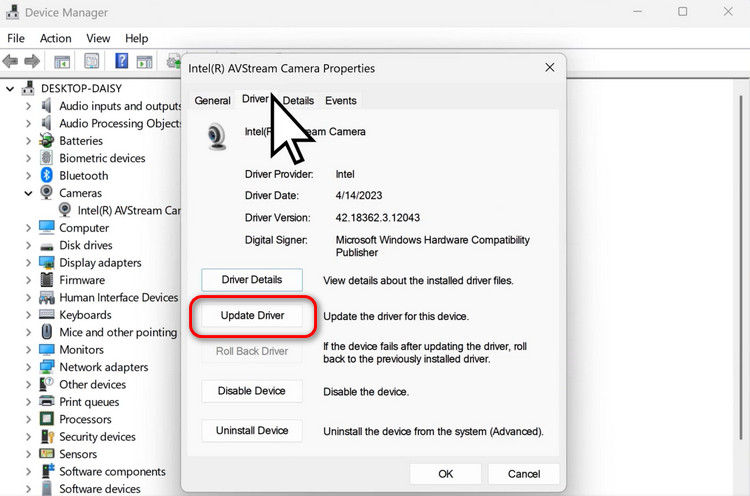
Step 3. Select Search automatically for drivers
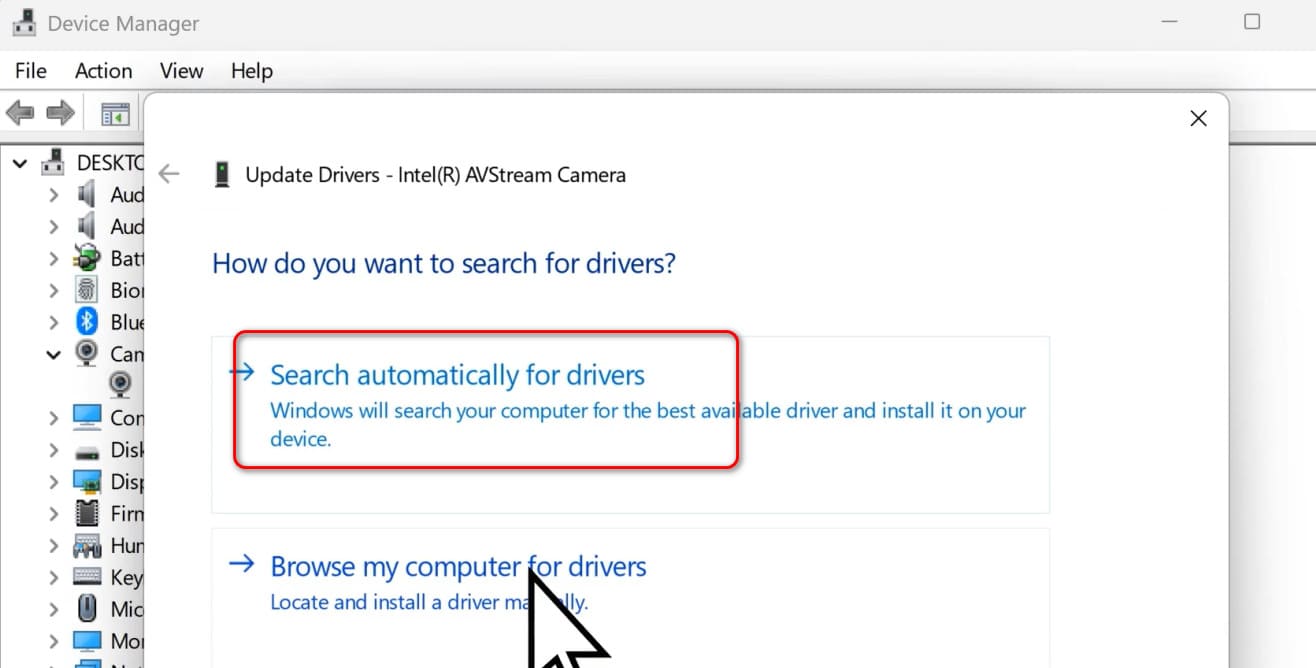
Step 4. If a newer version is found, follow the prompts to complete the update
On Windows 10
Here is how to fix outdated drivers on Windows 10:
Step 1. Open the Start menu and go to Device Manager
Step 2. Find the target device and right-click to select Update driver
Step 3. Follow the on-screen instructions to complete the update
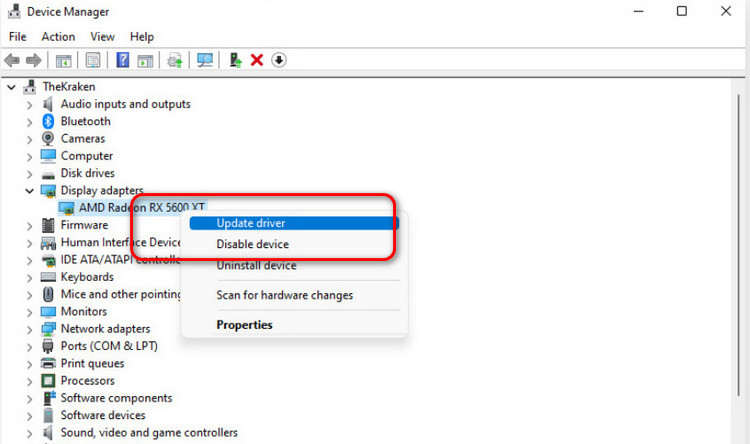
Tip: Some drivers—especially graphics drivers—may require you to download and install the latest version directly from the manufacturer's official website.
Manually updating drivers can work, but the process is often tedious and time-consuming. You need to search for the correct drivers and get them one by one. Choosing the wrong version may even cause new compatibility issues.
If a simpler way to handle how to fix drivers is preferred, using an automated tool is a much more efficient option.
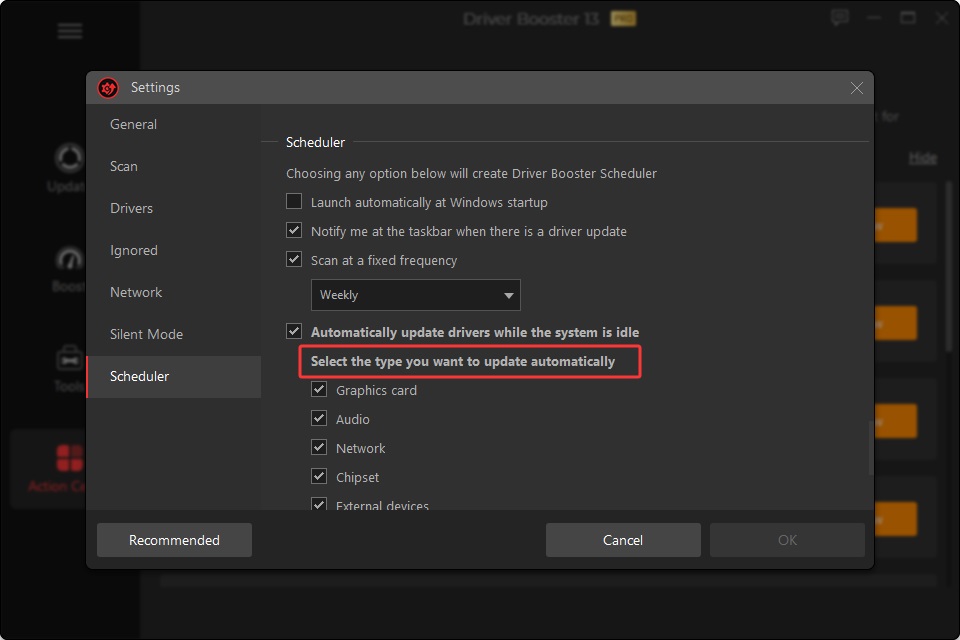
Driver Booster is a smart driver management tool designed for everyday users. It automatically scans your system, detects outdated, corrupted, or missing drivers, and matches them with stable and compatible versions for updating, making the entire process quick and straightforward.
Compared to manual methods, it streamlines multiple steps into a single click, saving time while reducing the risk of human error. It is especially suitable for users looking to quickly resolve how to fix corrupted drivers or how to fix outdated drivers.
Main Features
Automatic driver scanning
With one click, the tool scans your system and accurately identifies outdated or problematic drivers, eliminating the need for manual checks.
Batch driver updates
Update multiple drivers at once instead of installing them individually, which greatly improves efficiency.
Stable and compatible driver database
All drivers come from reliable sources and are thoroughly tested to ensure compatibility with your system.
Enhanced system performance and stability
Beyond updates, it helps fix common issues such as no sound, unstable networks, or unrecognized devices, improving overall system performance.
How to fix outdated drivers with this driver updater
Step 1. Download and install Driver Booster.
Step 2. Launch the program and click Scan to detect driver issues.
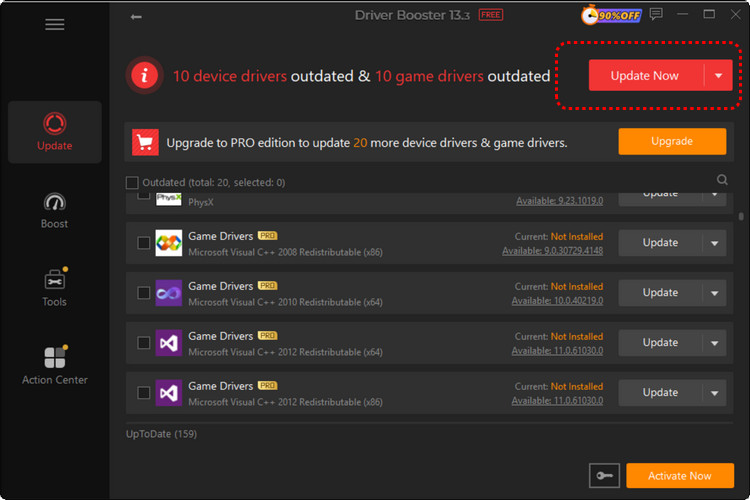
Step 3. Click Update Now to fix all driver problems at once.
If you're figuring out how to fix drivers, this is a great place to start—especially when issues appear right after an update. Rolling back to a previous version can quickly restore stability if the new driver causes problems.
Step 1. Open Device Manager.
Step 2. Right-click the device and select Properties.
Step 3. Go to the Driver tab.
Step 4. Click Roll Back Driver.
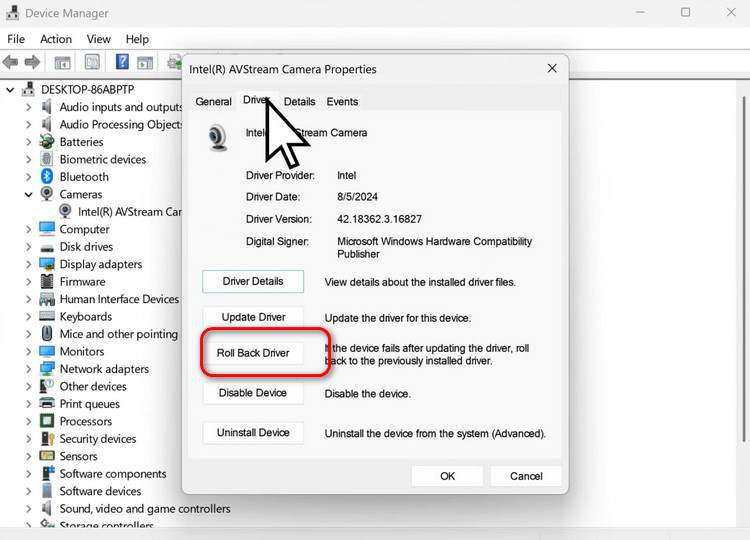
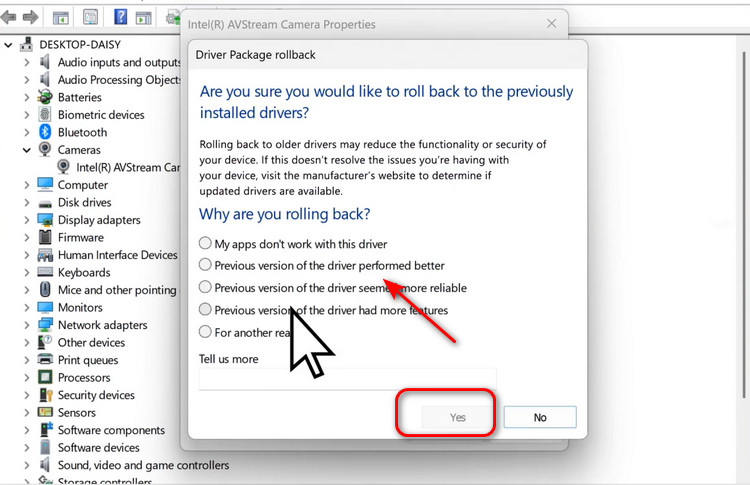
Step 5. A new pop-up window will appear. Select the option that suits your preference, then click Yes.
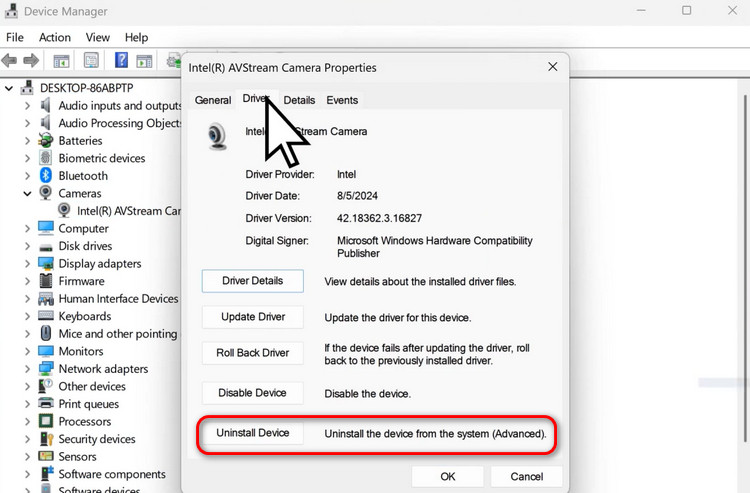
When it comes to how to fix drivers, reinstalling is one of the most effective solutions. It removes corrupted files and replaces them with a clean, working version.
Step 1. Open Device Manager.
Step 2. Right-click the device and choose Uninstall device.
Step 3. Restart your computer.
Another reliable way for how to fix drivers is to download them directly from the manufacturer's website. This helps ensure compatibility and avoids outdated or incorrect versions.
Step 1. Go to the official website of your device manufacturer.
Step 2. Search for your device model.
Step 3. Download the driver that matches your system version.
Step 4. Install it and restart your PC.
If you're still exploring how to fix drivers and nothing seems to work, the issue might be tied to system files. In that case, built-in repair tools can help resolve deeper problems.
Step 1. Open Command Prompt as an administrator.
Step 2. Type: sfc /scannow
Step 3. Wait for the scan to complete and let the system repair any detected issues.
This guide walked through why drivers matter and how to identify and solve common issues. It covered several practical methods for how to fix drivers, including updating, rolling back, reinstalling, and downloading drivers from official sources.
While manual methods are useful for basic troubleshooting, they can be time-consuming and easy to overlook important details. For a more efficient and complete approach to how to fix drivers, an automatic tool like Driver Booster is a better choice.


Keep drivers always up-to-date.
Free Download