Today, many users connect their iPhone devices to a PC via a USB cable to transfer photos, videos, or create backups. However, iPhone not connecting to PC issue can occur unexpectedly, leaving the device completely unrecognized. So, what to do when your iPhone won't connect to PC? This blog is a comprehensive guide that covers the most common causes along with proven solutions that can resolve the issue quickly and effectively, helping you restore a stable connection with ease!
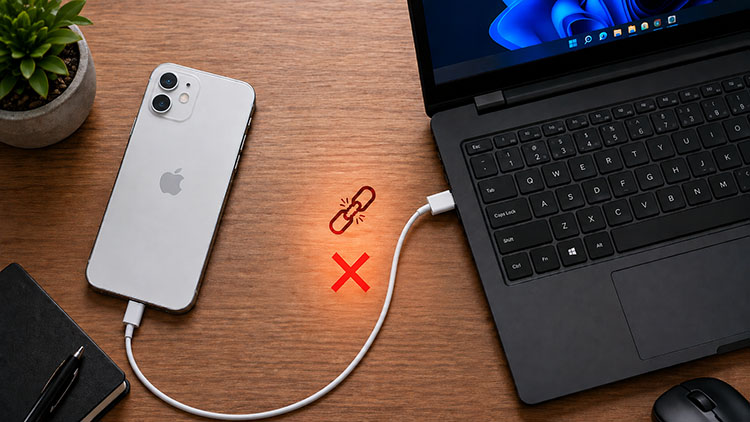
Can't Connect iPhone to PC? Why?
When you encounter iPhone not connecting to PC, several common reasons might be responsible, and they are:
Faulty USB Cable or Port: The issue can be caused by a damaged/non-certified USB cable or a dirty/malfunctioning USB port. This might block proper data transfer between devices.
Outdated Windows or iOS: When your Windows or iOS is running an outdated version, it might introduce compatibility issues, and you can find your iPhone not connecting to PC only charging.
Apple Mobile Device Service Not Working: If this essential background service is disabled or malfunctioning, your PC can not properly communicate with any connected iPhone device.
Old or Missing Apple Device Driver: An outdated/missing Apple Mobile Device USB Driver can prevent the system from recognizing your iPhone, completely blocking communication and data transfer. In that case, a driver update should be performed.
iPhone Not Connecting to PC? Quick Fixes for You!
Regardless of the cause, there's always a fix. Check out these proven solutions to connect your iPhone to PC successfully.
Fix 1. Use a Different USB Cable or Port
As introduced earlier, a faulty cable or problematic USB port is one of the simplest reasons behind an iPhone not connecting to PC via USB. First off, you should check the cable for visible damage and see if there's fraying or bent connectors. Also, it’s best to use a genuine Apple or MFi-certified cable for a reliable result. Next, plug into a different USB port on your PC. Then reconnect your iPhone and see if the issue is resolved.
Fix 2. Trust This Computer When Prompted
Sometimes, your iPhone displays a "Trust This Computer" alert to protect personal data from unauthorized access. If you do not tap Trust (and enter your passcode), the PC will never detect the device.
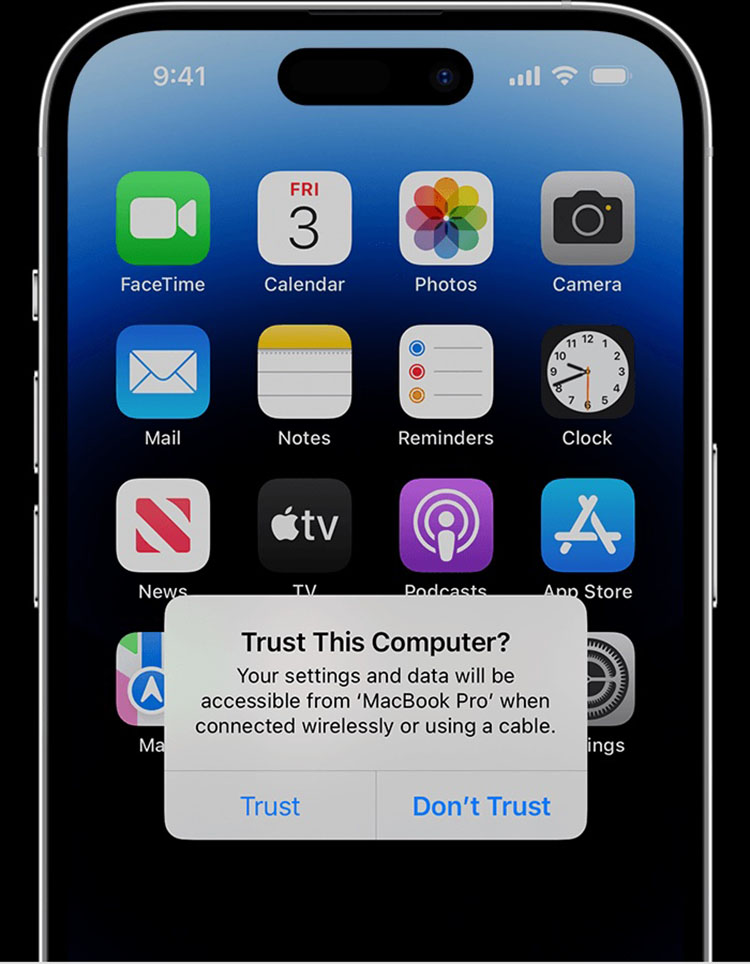
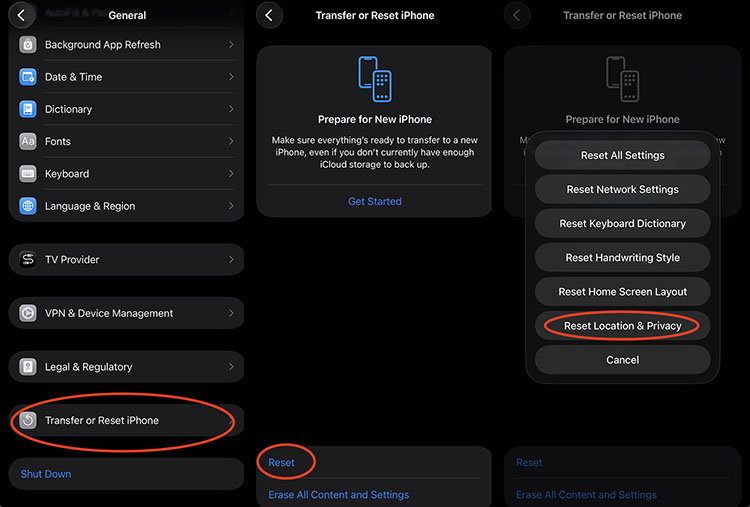
If the prompt doesn't appear, make sure your iPhone is unlocked and the screen is active when connecting. You can also reset Location & Privacy settings via:
Settings > General > Transfer or Reset iPhone > Reset > Reset Location & Privacy, then reconnect and try again.
Fix 3. Restart Your Devices
If the USB cable/port works well and you have a trusted computer, you can try restarting the device. The practice clears temporary glitches and reloads essential system services, which is an another workaround that can solve the iPhone not connecting to PC issue.
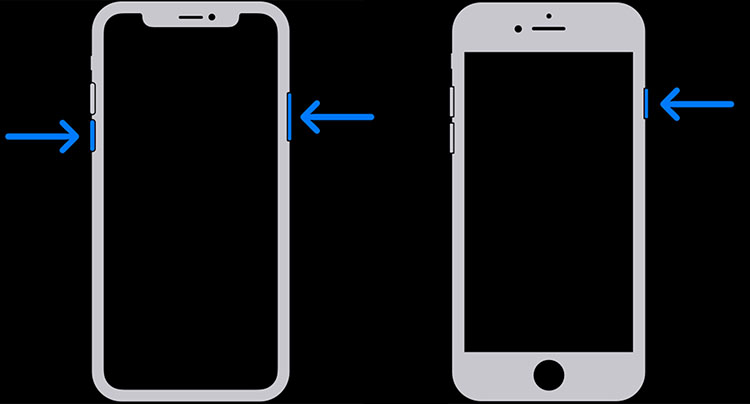
To Restart an iPhone:
Step 1. For iPhone X, 11, 12, 13, and later, press and hold the side button + volume down button until the power slider appears. For the models earlier, just press and hold the side button on the right.
Step 2. Drag the slider to turn off the device. Wait about 30 seconds and turn it on again.
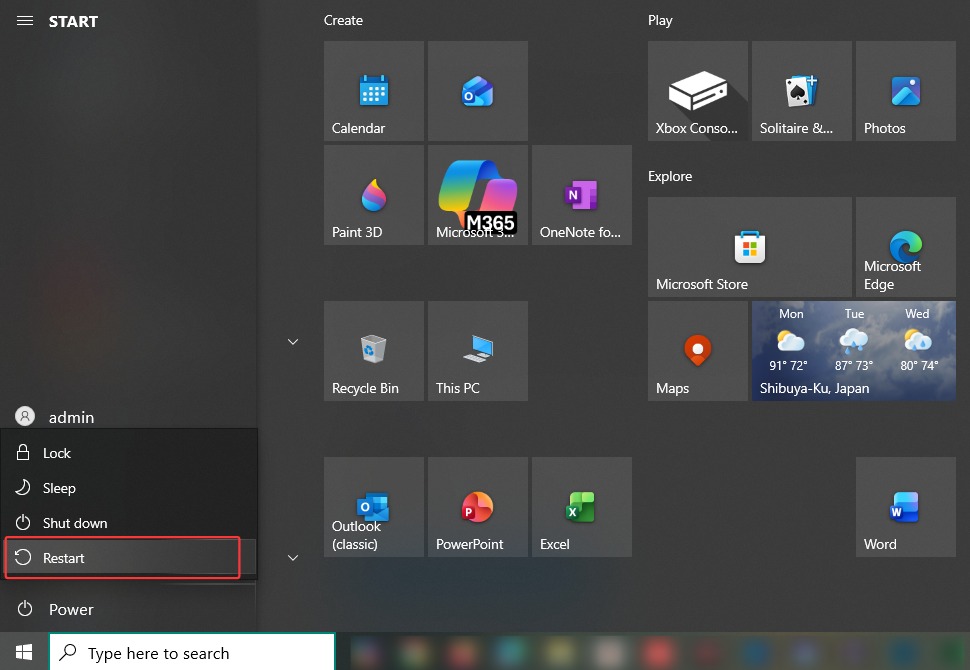
To Restart a PC:
Step 1. Click the Start menu. Select the power icon.
Step 2. Choose Restart and wait for the system to reboot completely.
Fix 4. Update Windows and iOS
The latest operating systems often include new features, bug fixes, security patches, and performance improvements. If your iPhone cannot connect to PC, make sure that both your Windows and iOS are updated to the latest versions. This helps resolve compatibility problems and improve the connection between iPhone and PC.
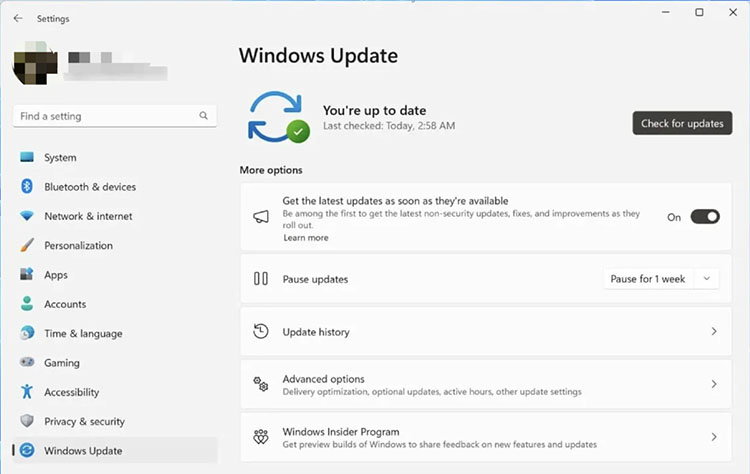
For Windows Update:
Step 1. Search setting to open the Settings app.
Step 2. Navigate to Windows Update from the left panel.
Step 3. Click Check for updates, download and install any available updates, then restart your PC.
For iOS Update:
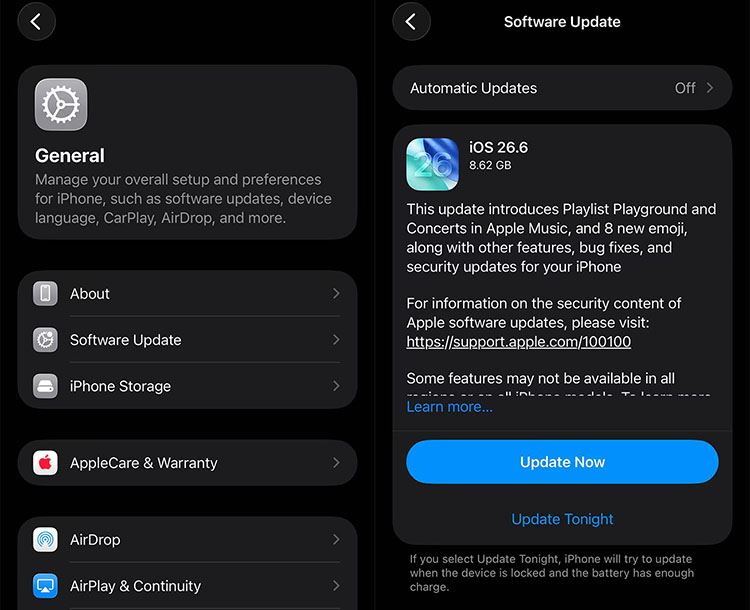
Step 1. Open Settings on your iPhone and go to General > Software Update.
Step 2. Check for available updates, then tap Update Now.
Step 3. Wait for the update to complete, restart your iPhone, and reconnect it to your PC.
Fix 5. Update or Reinstall iTunes
iTunes (or Apple Music on newer Windows systems) is essential for managing iOS devices. An outdated or corrupted installation can cause connection issues. If you have iTunes installed on your PC, just update it with the steps below
Step 1. Open iTunes. Click Help > Check for Updates (or go to the Microsoft Store if you use the Store version).
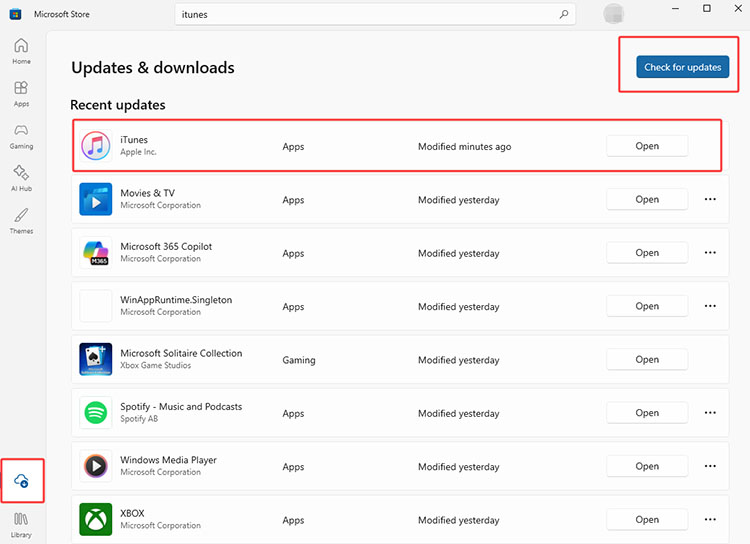
Step 2. Download and install the latest version, then restart your PC.
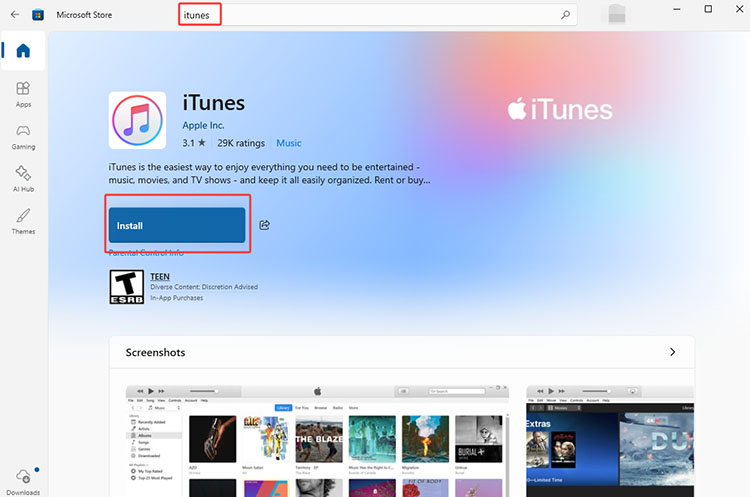
If your iTunes has been updated to the latest version, but you still find your iPhone not connecting to the PC, you may follow these steps to reinstall it.
Step 1. Go to Settings > Apps > Apps & features. Locate iTunes and click the Uninstall button to remove it. Otherwise, use a third-party uninstaller to completely uninstall iTunes without leftovers.
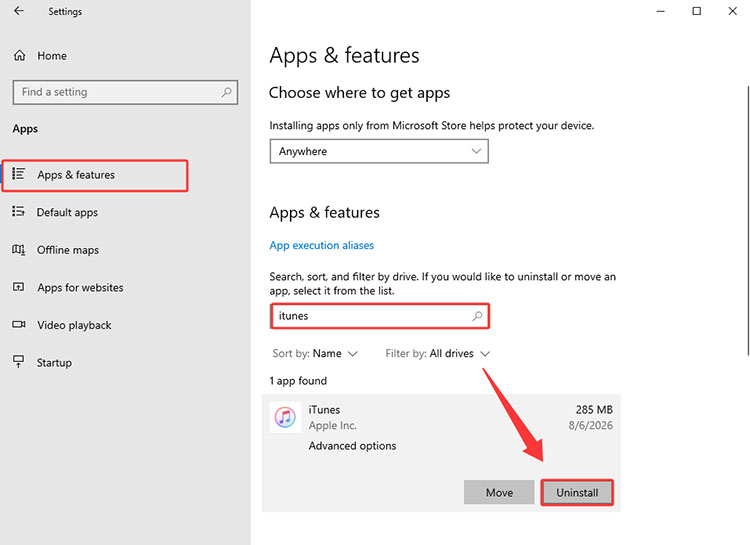
Step 2. Download the latest iTunes from Apple's website or the Microsoft Store and reinstall it.
Fix 6. Restart Apple Mobile Device Service
The Apple Mobile Device Service is a background Windows service that handles communication between the PC and any connected iOS device. If this service stops running, you might find your iPhone not connecting to PC. But worry not, you can adjust it with the steps below.
Step 1. Press Windows key + R, type services.msc, and press Enter. This will open the service console.
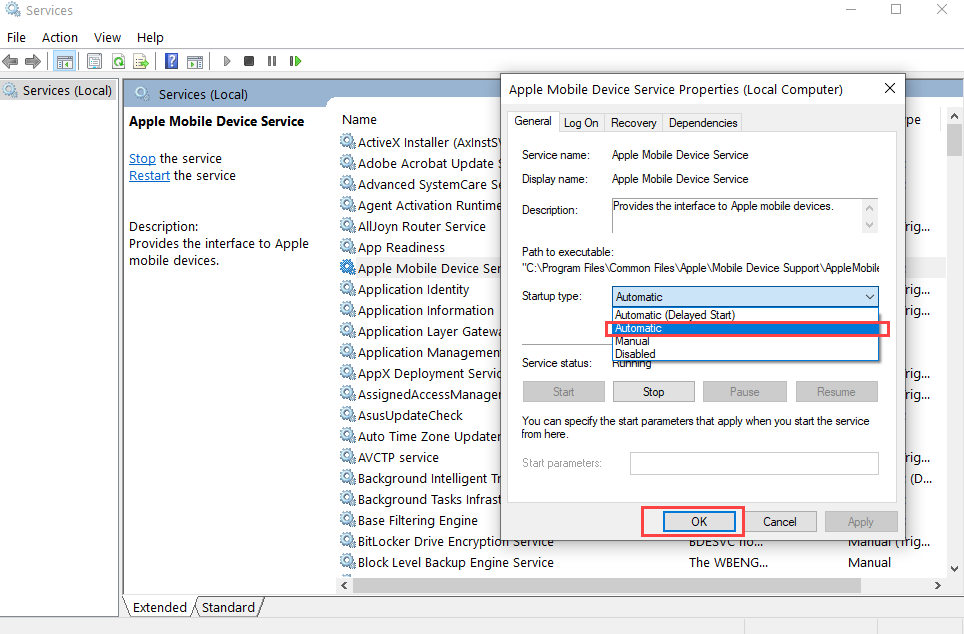
Step 2. Locate Apple Mobile Device Service, right-click it, and choose Restart (or Start if it is stopped).
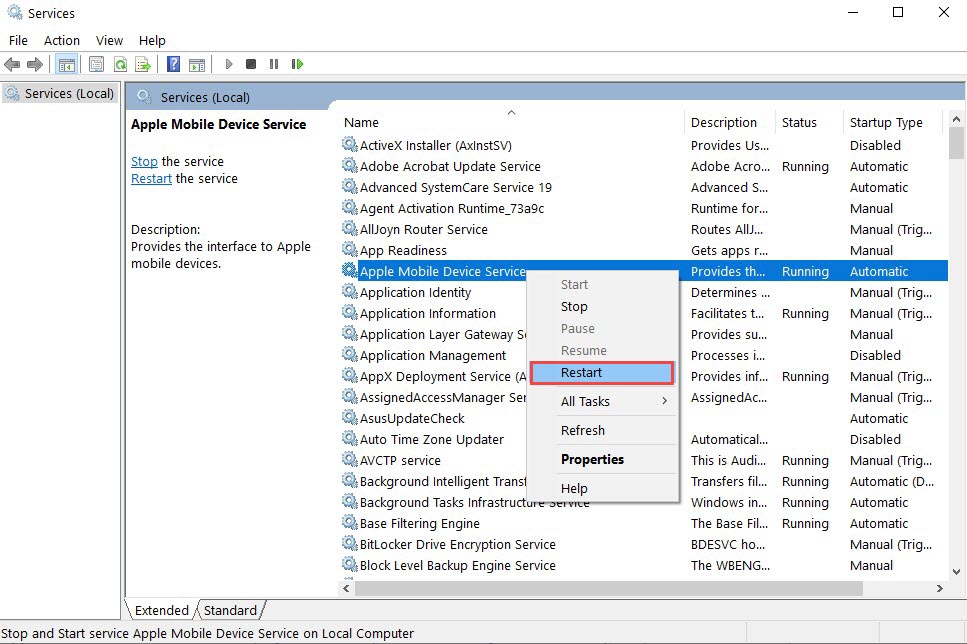
Step 3. Furthermore, double click Apple Mobile Device Service and set the Startup type to Automatic, then reconnect your iPhone.
Fix 7. Update Apple Mobile Device USB Driver
The Apple Mobile Device USB Driver plays an crucial part that allows your PC to recognize, communicate with, and transfer data between your iPhone and computer. If this driver is outdated or corrupted, Windows may fail to detect your device, causing the iPhone not connecting to PC issue.
While the regular update process requires manual search and installation, it can be too complicated for beginners. So, Driver Booster is here to help. The professional driver updater lets you update the Apple Mobile Device USB Driver quickly and easily.
Driver Booster Free
- Automatically scan and update drivers.
- Update game ready drivers for peak gaming performance.
- Identify and fix various common of hardware issues.
- Boost 30% of system performance for fast & smooth running.

Highlighted features of Driver Booster
Auto Scan Outdated Drivers for Update: Instead of manual downloads and installation, Driver Booster automatically scan your system, detects outdated Apple Mobile Device USB driver and recommends the most suitable, appropriate updates.
Large Driver Database for Various Devices: Backed by an extensive driver library (12 million) that covers all major categories, it can not only update USB driver but also other hardware components,
Update Drivers in 1-Click: Driver Booster will install the latest compatible drivers, and the entire update process takes just one single click. The free driver updater is super intuitive, which makes it great for users without advanced technical knowledge.
Safe and Reliable Driver Update: Driver Booster provides reliable drivers verified in two methods: Microsoft WHQL and an IObit security scan. This ensures that all installed drivers are safe and fully compatible with your system.
How to update Apple Mobile Device USB Driver
Step 1. Download and install Driver Booster on your PC, then launch the program.
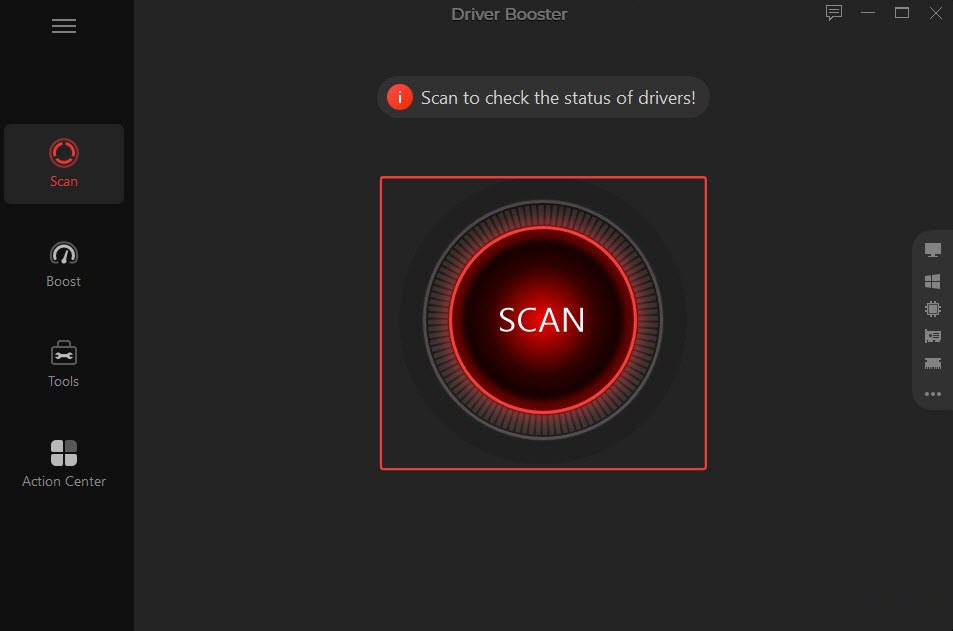
Step 2. Click the Scan button to detect drivers on your PC. Your Apple Mobile Device USB Driver that is outdated/problematic will be identified soon.
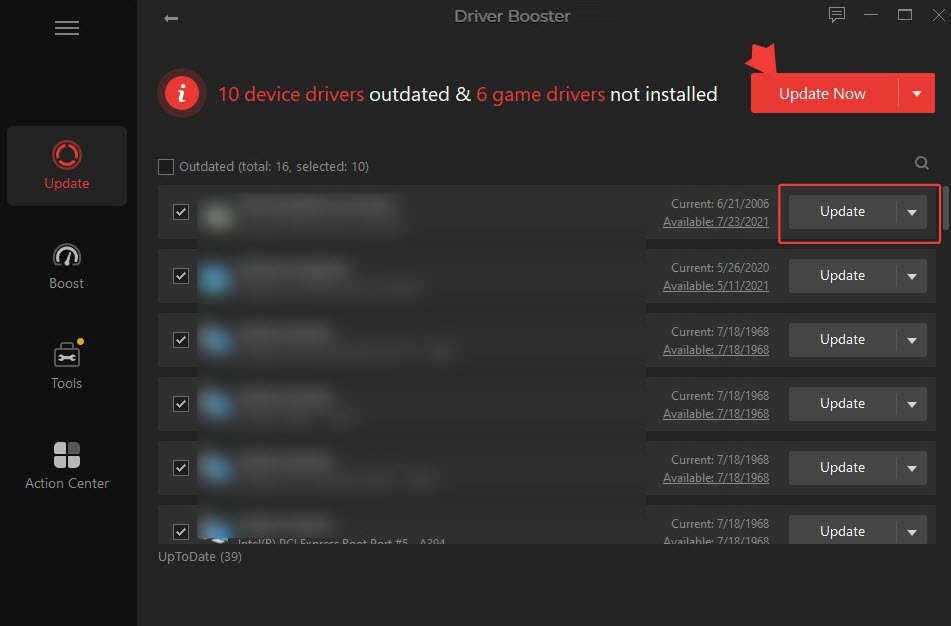
 Step 3. Select the Apple Mobile Device USB Driver in the list and click Update button to start updating. You can also select several drivers and click Update Now to update multiple drivers at one time.
Step 4. Your Apple Mobile Device USB Driver will be updated to the latest version in a few seconds.
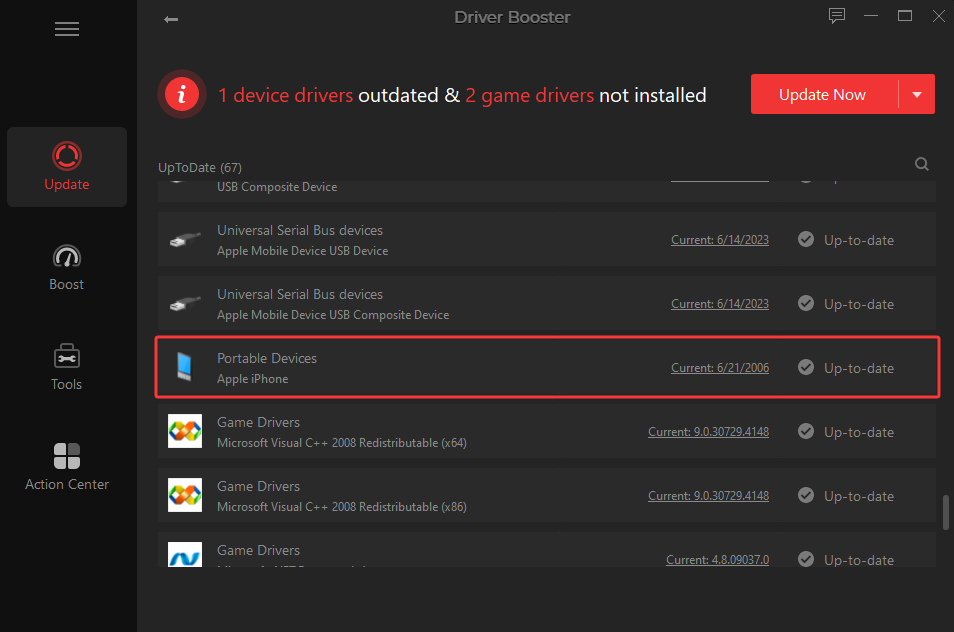
Tip: The Apple Mobile Device USB Driver needs to have been installed and used for iPhone synchronization beforehand. So Driver Booster can detect and update it.
More Troubleshooting Tips to Fix iPhone Not Connecting to PC
Unfortunately, if your iPhone still won’t connect to your PC after trying all the fixes, the problem may be related to hardware, for instance, a damaged charging port or a faulty USB controller on your computer. In this case, try the following additional troubleshooting tips.
Reset your iPhone: A factory reset is a good fix for deep technical problems, but it will erase all current settings, apps, and personal data. Make sure to back up your iPhone before resetting it.
Try a different PC with a working USB controller: Connect your iPhone to another computer. So you can determine whether the issue comes from your original PC’s USB ports or hardware.
Contact Apple Support: If you have checked the cable, software, drivers, and iPhone hardware and confirmed that the device itself is faulty, contact Apple Support for professional assistance.
The Bottom Line
The iPhone not connecting to PC issue is a common problem that many users may encounter. There are several simple methods that can fix the issue. Just follow the troubleshooting guide above to restore the connection. If you have ensured that the problem is caused by an outdated/corrupted Apple Mobile Device USB Driver, Driver Booster is your best help. It automatically detects and updates problematic drivers, which lets you restore proper communication between your iPhone and PC in one click. Try this automatic driver updater and fix driver-related connection issues from now on.
Driver Booster Free
- Automatically scan and update drivers.
- Update game ready drivers for peak gaming performance.
- Identify and fix various common of hardware issues.
- Boost 30% of system performance for fast & smooth running.