

- Support Center
- Multiple Languages
- Language
- Help Us Translate
Expert in
PC Health Solution

All-in-one PC health solution: clean, optimize and secure

Comprehensive PC cleaning, optimization and protection

Keep drivers always up-to-date

More stable performance with less system crashes

Protect millions of computers against malware

Top computer security with full-round protection

Protect against viruses & boost PC performance
Automatically scan and update drivers.
Update game ready drivers for peak gaming performance.
Identify and fix various common of hardware issues.
Boost 30% of system performance for fast & smooth running.

Internet not working? Learn the top reasons and proven troubleshooting steps to fix no internet connection issues and get back online quickly.



Common Reasons Your Internet Is Down
Immediate Fixes for No Network Connection
Smart Habits to Keep Your Internet Stable
A sudden internet outage can be frustrating. This guide explains the most common reasons why your internet is not working and offers effective fixes to help you get back online fast.
Modem or router glitch.
ISP outage.
Weak Wi-Fi signal or interference.
Loose or faulty cables.
Incorrect network or DNS settings.
VPN, firewall, or software conflicts.
Outdated network drivers.
Device-specific issues.
Network congestion (too many devices).
Malware or security issues.
Modem or Router Glitch
The router may be overloaded, overheating, or temporarily glitching.
Fix:
Restart your modem and router (unplug for 30–60 seconds)
Ensure no other heat-generating devices are stacked on top
Reset the router (only if issues persist)
>> Also check, How to Boost Internet Speed on PC Fast & Easy?
ISP Outage
The Internet Service Provider could be experiencing downtime in your area.
Fix:
First, check if other devices (phone, tablet, computer) also have no internet
Check your ISP’s status page or outage trackers
Contact your provider for confirmation
Weak Wi-Fi Signal or Interference
Distance, walls, or interference from other devices could weaken the signal.
Fix:
Move closer to the router
Place the router in a central, open location
Reduce interference (microwaves, Bluetooth devices)
Consider a Wi-Fi extender or mesh system
Loose or Faulty Cables
Ethernet, phone, or coaxial cable unplugged or damaged.
Fix:
Check all cable connections (Ethernet, coax, power)
Reconnect or replace damaged cables
Try different ports on the router/modem
Incorrect Network or DNS Settings
Wrong IP configuration, DNS issues, or misconfigured settings that block access.
Fix:
Restart your device to refresh IP settings
Set DNS to public servers: Google DNS: 8.8.8.8 / 8.8.4.4
Reset network settings if needed
VPN, Firewall, or Software Conflicts
Misconfigured VPNs or security tools can disrupt connections.
Fix:
Disable VPN or proxy temporarily
Turn off the third-party firewall/antivirus for testing
Reconfigure or uninstall problematic software
Outdated Network Drivers
Old or corrupted drivers (especially on Windows) may prevent connectivity. Here's an easy way to update or reinstall your drivers with just one click.
Fix (Windows):
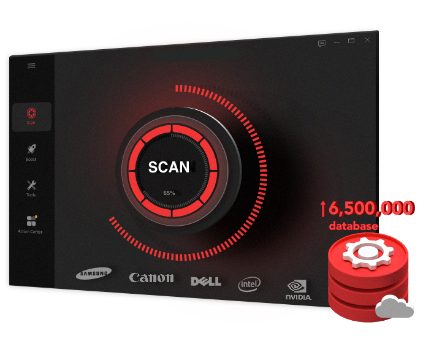
Download and install Driver Booster on your PC.
Click the "Scan" button to check if your drivers are the latest versions and update them in batches.
Tips:
This powerful tool also makes troubleshooting network problems easy. Simply go to "Tools" > "Fix Network Failure" to get started.
Device-Specific Issues
Only one computer/phone can’t connect; others work fine.
Fix:
Restart the affected device
Forget and reconnect to Wi-Fi
Run built-in network troubleshooters (Windows: Settings > Network & Internet > Status > Network Troubleshooter; Mac: Option + click Wi-Fi icon > Open Wireless Diagnostics)
Network Congestion
Bandwidth may be overloaded, slowing or cutting off your connection.
Fix:
Disconnect unused devices
Limit bandwidth-heavy activities
Upgrade your internet plan if needed
Enable QoS (Quality of Service) on your router
Malware or Security Problems
Malicious software can disrupt or block your internet connection.
Fix:
Run a full antivirus or anti-malware scan (Windows: Start menu > Windows Security > Virus & threat protection > Quick Scan)
Remove suspicious programs
Keep your system and security software updated
Restart your router regularly
Use Driver Booster to keep drivers updated
Use a strong Wi-Fi password
Avoid overloading your network
Place your router in an open, central location
 People Also Ask
Free up disk space by safe Windows Installer folder cleanup. This guide shows how to use Settings, Disk Cleanup, etc., to remove unwanted installer files.
Yes. You can try 3 ways on how to uninstall the Realtek audio driver and reinstall it to solve the problem that PC sound is not working generally.
How to install device drivers? Easy guide for both PC and desktop users to check for driver updates and download new drivers for free.