If you want to uninstall Rockstar Games Launcher, it may not be because you no longer play Rockstar games—after all, who can resist the temptation of GTA 5? However, the launcher can sometimes run into issues such as failed updates, login errors, or corrupted files. Or perhaps you're simply tired of it mysteriously launching every time you start your computer.
In that case, it may be worth removing the old version and downloading it again from scratch. This guide will introduce several reliable how to uninstall Rockstar Games Launcher methods, including uninstalling it through Windows, using Rockstar's official uninstaller, and taking the easier route with third-party software. No matter which approach you prefer, you'll find a suitable method here.
What to Know Before You Uninstall Rockstar Games Launcher
Before getting into how to uninstall Rockstar Games Launcher, it's worth taking a moment to go through the necessary preparations first. This can save you from a lot of unnecessary trouble later:
Close All Rockstar Games
Before you begin, close any games that may rely on Rockstar Games Launcher, as they could interfere with the uninstallation process. If you have any ongoing progress, make sure to save your game first.
Back Up Important Saves and Settings
This guide recommends backing up important local game saves or custom settings beforehand. This way, you won't accidentally delete relevant game data while cleaning up leftover Rockstar Games Launcher files and lose access to it later.
Completely Exit Rockstar Games Launcher
Simply closing the Rockstar Games Launcher window isn't enough. Make sure it is also completely closed from the system tray. Otherwise, you may receive a warning that the program cannot be uninstalled because it is still running.
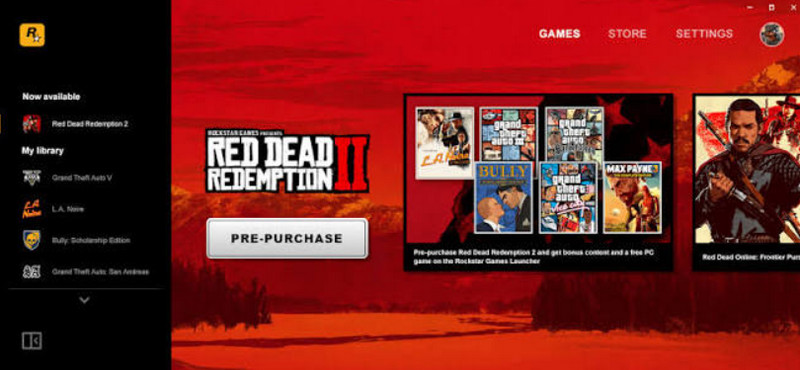
How to Uninstall Rockstar Games Launcher: 5 Methods
Now, let's get into how to delete Rockstar Games Launcher.
Note: Windows’ built-in tools work well for standard uninstallation, but they may leave stubborn files or fail to remove the Launcher completely. Among the five methods below, IObit Uninstaller stands out by combining program removal with leftover scanning.
Method 1: How to Uninstall Rockstar Games Launcher Completely with IObit Uninstaller
If you don't want to stop at simply removing the visible Rockstar Games Launcher program and instead want to clean up as many related files as possible after uninstallation, why not get it done in one go with IObit Uninstaller? Even if you encounter can't uninstall Rockstar Games Launcher because of corrupted files, IObit Uninstaller's Force Uninstall feature can help resolve the issue.
IObit Uninstaller Free
- Complete forced uninstallation for stubborn programs.
- Uninstall a batch of programs at once.
- Scan and remove leftover files, folders, and registry entries.
- Support the management of Universal Windows Platform apps.

Here is how to delete Rockstar Games Launcher using this best uninstaller.
Step 1. Download and install IObit Uninstaller on your computer, then launch the software.
Step 2. Click Programs > All Programs on the left sidebar and find Rockstar Games Launcher in the program list.
Step 3. Check the box next to Rockstar Games Launcher, then click the Uninstall button on the right or at the top of the page.
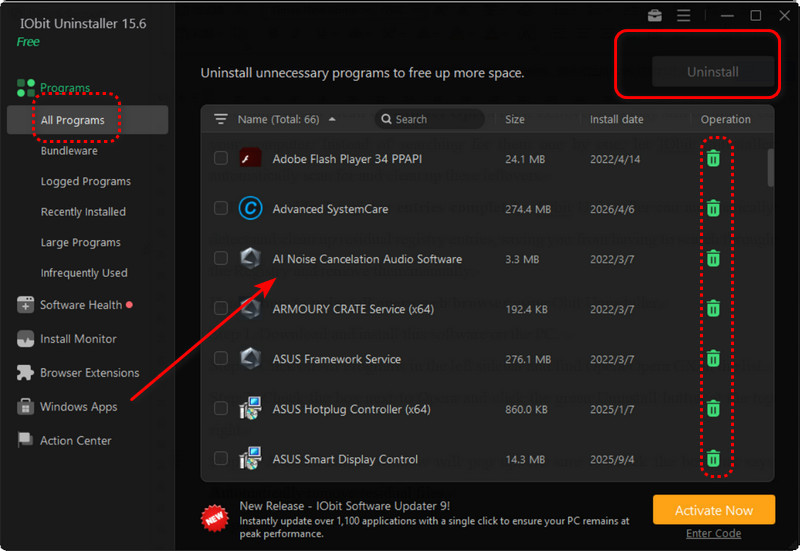
You will then see a pop-up uninstallation confirmation window.
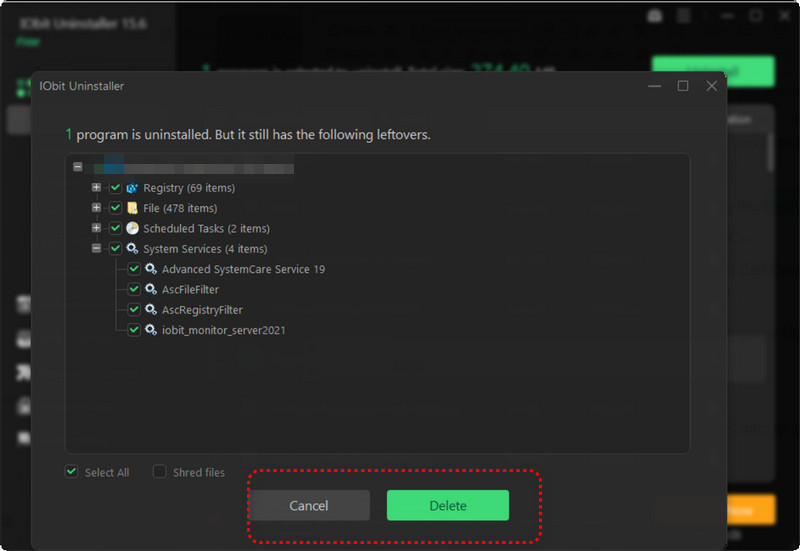
Step 4. Confirm the residual files, folders, and registry entries you want to remove, then click the cleanup option to complete the process.
Key Features of IObit Uninstaller
Complete Leftover Cleanup: IObit Uninstaller thoroughly removes the main program along with related files, folders, and registry leftovers, helping prevent unwanted data from lingering.
Stubborn Program Removal: If Rockstar Games Launcher refuses to uninstall, contains corrupted files, or gets stuck during removal, IObit Uninstaller's Force Uninstall program Windows 11/10 feature can help remove it completely and get the process back on track.
Automatic Residual Removal: IObit Uninstaller automatically scans for related leftovers, saving you the hassle of manually searching for hidden files and unwanted data.
Restore-Point Protection: IObit Uninstaller can create a restore point before removal, giving your system an extra layer of protection during the uninstall process.
Unseen Leftover Scan: IObit Uninstaller can identify hidden leftovers, bundled content, and extensions that may otherwise remain after the main program has been removed.
Method 2: How to Uninstall Rockstar Games Launcher from Windows Settings
Of course, when it comes to how to uninstall Rockstar Games Launcher, the original uninstallation method provided by Windows should not be overlooked—managing the app through Settings. However, this only ensures that the main program itself is removed. You may need to spend some time checking whether any files related to the Launcher or Rockstar Games Social Club are still present on your computer and deciding whether to delete them.
Here is how to uninstall Rockstar Games Launcher via Settings.
Step 1. Open Windows Settings, then go to Apps.
Step 2. Depending on your operating system, you can:
In Windows 11, click Installed apps.
In Windows 10, select Apps & features.
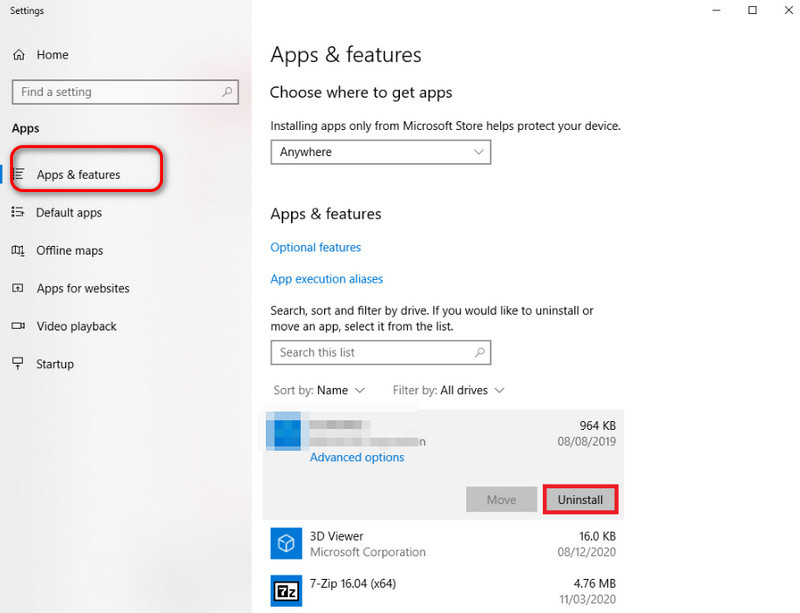
Step 3. Search for Rockstar Games Launcher in the app list. Once you find it:
Windows 11: Click the three-dot button on the right, then select Uninstall.
Windows 10: Click Rockstar Games Launcher, then select Uninstall.
Step 4. Click Uninstall again to confirm, then follow the on-screen instructions to complete the process.
After the uninstallation is complete, it is recommended that you restart your computer.
Method 3: How to Uninstall Rockstar Games Launcher Through Control Panel
If Rockstar Games Launcher cannot be uninstalled properly through Settings, or does not appear in the Installed apps list, try the classic Windows Control Panel instead. It can be particularly useful for desktop applications that cannot be found in Settings.
Here is how to uninstall Rockstar Games Launcher through Control Panel.
Step 1. Press Windows + S to open the system search box, then use it to find Control Panel.
Step 2. Click Programs > Programs and Features > Uninstall a Program.
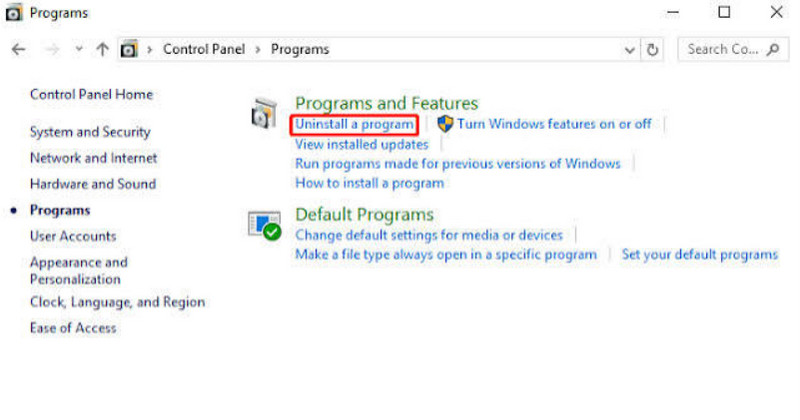
Step 3. Find Rockstar Games Launcher, select it, and click Uninstall at the top. Then follow the on-screen instructions to complete the uninstallation.
After the uninstallation is complete, you should also restart your computer.
Method 4: Uninstall Rockstar Games Launcher from the Start Menu
If you can find Rockstar Games Launcher in the Windows app list, there's actually an even simpler option: start the uninstallation directly from the Start Menu.
Here is how to uninstall Rockstar Games Launcher via Start Menu.
Step 1. Open the Windows Start Menu.
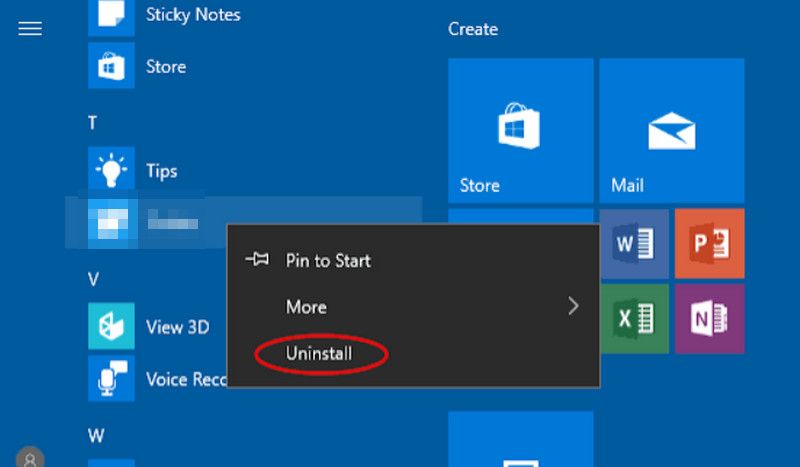
Step 2. Find Rockstar Games Launcher in the app list.
Step 3. Right-click Rockstar Games Launcher and select Uninstall.
Step 4. Confirm the uninstallation according to the on-screen instructions.
Finally, don't forget to restart your computer after the process is complete.
Note: Methods 2, 3, and 4 also apply to other how to deep uninstall apps on Windows 11 issues.
Method 5: Use Rockstar Games Launcher's Official Uninstaller and Delete Leftovers
If you're preparing to reinstall Rockstar Games Launcher, or if it cannot be uninstalled properly through Settings and Control Panel, you can try the how to uninstall Rockstar Games Launcher guide officially recommended by Rockstar Games, followed by manually cleaning up the related leftovers.
Warning: Make sure to carefully verify the folders before deleting them. Do not delete other Rockstar Games folders or game installation directories, as they may contain installed games, save files, or other local game data. Doing so could result in data loss.
Here is how to do it:
Step 1. Close all running Rockstar Games and completely exit Rockstar Games Launcher.
Step 2. Open the Rockstar Games Launcher installation folder. The default path is usually:
C:\Program Files\Rockstar Games\Launcher
Find uninstall.exe, double-click it, and follow the on-screen instructions to uninstall Rockstar Games Launcher.
Step 3. If the uninstaller shows options such as Uninstall game data, do not check them. This helps prevent your installed game data from being deleted along with the Launcher.
Step 4. After the uninstallation is complete, check the following Rockstar Games Launcher or Social Club-related folders. If you confirm that they only contain Launcher leftovers, you can delete the corresponding folders:
C:\Users\[Username]\Documents\Rockstar Games\Social Club
C:\Users\[Username]\Documents\Rockstar Games\Launcher
C:\Program Files\Rockstar Games\Launcher
C:\Program Files\Rockstar Games\Social Club
C:\Program Files (x86)\Rockstar Games\Social Club
Step 5. Restart your computer.
Why Can't I Uninstall Rockstar Games Launcher?
Decided to remove Rockstar Games Launcher but found that it won't uninstall? Don't worry—this can happen for several reasons, including running processes, permission issues, or damaged files. Here are some quick fixes:
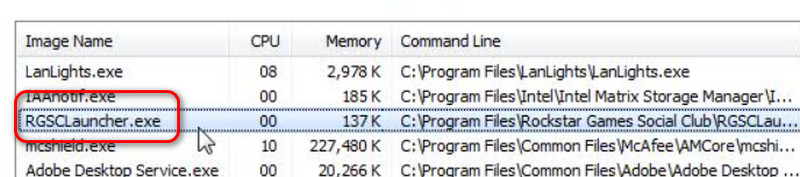
Background processes are running → Open Task Manager, end any Rockstar-related processes, and try uninstalling again.
Not enough permissions → Sign in with an administrator account or run the uninstaller as an administrator.
Corrupted installation files → If the built-in uninstaller is damaged, try IObit Uninstaller's Force Uninstall feature to remove the stubborn program.
Launcher is missing from Windows → Check its installation folder for uninstall.exe. If it's unavailable, IObit Uninstaller can provide an alternative.
Leftover files remain → If Rockstar components are still causing conflicts, use IObit Uninstaller to scan for and remove leftover files before reinstalling the Launcher.
FAQs About How to Uninstall Rockstar Games Launcher
How Do I Uninstall Rockstar Games Launcher Without Deleting GTA V?
If you only want to remove the Launcher, do not select options such as Uninstall game data during the process. It is also recommended to back up important save files beforehand.
How to Delete Rockstar Games Launcher Completely?
First, remove the main program through Settings, Control Panel, or the official uninstaller. Then check for leftover Launcher and Social Club files. If you don't want to track them down manually, IObit Uninstaller can scan for and clean up related leftovers.
Why Does Rockstar Games Launcher Keep Reinstalling?
This may happen because a related Rockstar game still requires the Launcher, or because an installation or update process downloads the necessary components again. If you're trying to fix a Launcher issue, check the related gaming platform and Rockstar services before repeatedly deleting the Launcher.
How to Uninstall Games from Rockstar Games Launcher?
You can uninstall a game directly through Rockstar Games Launcher by following these steps:
Step 1. Open Rockstar Games Launcher and sign in to your account.
Step 2. Click Settings in the launcher.
Step 3. Under My installed games, select the game you want to uninstall.
Step 4. Click Uninstall, then confirm your choice and follow the on-screen instructions to complete the process.
Conclusion
If you only want to perform a standard Rockstar Games Launcher uninstallation, Windows Settings, Control Panel, and Start Menu all offer simple and straightforward solutions, while Rockstar's official uninstall.exe is suitable for users who want to perform additional manual cleanup. With the official method, you can also check for and remove Launcher and Social Club leftovers, but be sure to avoid accidentally deleting installed games or save files.
For users who don't want to track down leftover files one by one or are dealing with uninstallation failures or corrupted program files, IObit Uninstaller is a more convenient option for how to uninstall Rockstar Games Launcher.