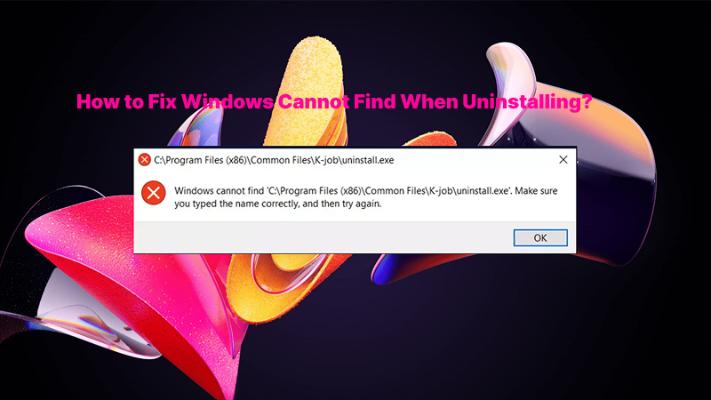
We’ve all been there. You click “Uninstall,” wait for the progress bar to move… and nothing happens. Or worse, Windows throws up an error saying the app can’t be removed, leaving you staring at a program you no longer want, taking up space on your drive.
This is one of the most frustrating Windows problems out there. Leftover files, corrupted uninstallers, missing permissions, or background processes that refuse to die can all prevent an app from being deleted. Now you don’t have to live with it. This guide will show you exactly how to uninstall apps that won’t uninstall using several reliable methods, from quick fixes to more advanced solutions.

Why Won’t Some Apps Uninstall Normally?
It’s better to know “why” before you ask “how.” because this will help you understand why certain apps dig their heels in. And here are the most common culprits:
Corrupted Uninstaller Files – The app’s built-in uninstaller (like unins000.exe) might be missing or damaged, so when you click Uninstall, Windows can’t find the instructions it needs.
Running Background Processes – The app or its associated services are still running in the background, locking files and preventing removal.
Permission Issues – Some apps are installed with administrator-level privileges and require the same elevated access to be uninstalled.
Stubborn or Protected Apps – Certain system apps or pre-installed bloatware are protected by Windows and can’t be removed through normal channels.
Broken Registry Entries – The uninstall information stored in the Windows Registry may be corrupted or pointing to the wrong location.
Now that you know what you’re dealing with, let’s get to “how to uninstall an app that won’t uninstall”.
Method 1. Remove Apps That Won’t Uninstall with an Easy Uninstaller
If you’re searching for how to delete an app that won't uninstall, the absolute easiest and most reliable solution is using a dedicated uninstaller tool. That’s where IObit Uninstaller comes in. IObit Uninstaller is designed specifically to remove stubborn programs that Windows’ built-in tools simply can’t handle. It’s widely regarded as the best uninstaller for Windows 11 for good reason–it goes far beyond what the Control Panel or Settings app can do.
What makes IObit Uninstaller so effective? It doesn’t just force uninstall apps – it also detects and fixes common uninstall issues, removes leftover files that other tools miss, cleans broken uninstall entries, and ensures programs are completely wiped from your system.
IObit Uninstaller Free
- Complete forced uninstallation for stubborn programs.
- Uninstall a batch of programs at once.
- Scan and remove leftover files, folders, and registry entries.
- Support the management of Universal Windows Platform apps.

Here’s how to uninstall apps that won’t uninstall with IObit Uninstaller:
Step 1. Download and install IObit Uninstaller by clicking the button below.
Step 2. Launch the program. You’ll see a clean list of all installed software on your PC.
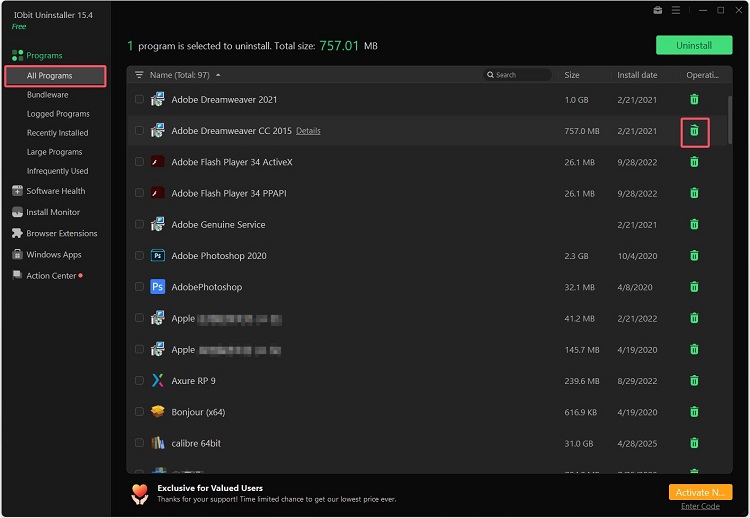
Step 3. Find the stubborn app in the list. Then click the green trash can. Almost done.
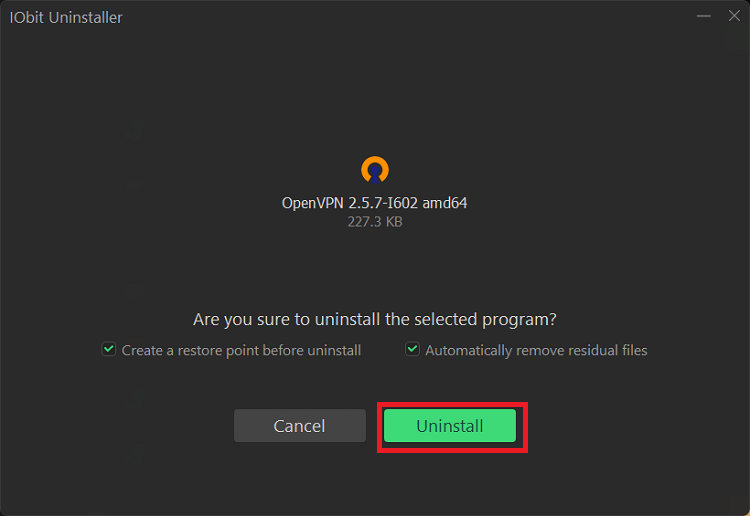
Step 4. Check the boxes to “Create a restore point before uninstall” or “Automatically remove residual files”. Then click “Uninstall”. The stubborn app is removed without hassle.
Why choose IObit Uninstaller to uninstall apps that won’t uninstall:
IObit Uninstaller provides one-click removal of stubborn programs with deep scanning to eliminate every trace, from leftover files to registry entries.
Force Uninstall Stubborn Apps: Bypasses broken uninstallers and forcibly removes programs such as how to remove Norton from PC that refuse to go away.
Detect and Fix Broken Uninstall Issues: Identifies corrupted uninstall entries and repairs them automatically.
Remove Programs with Missing or Damaged Uninstallers: Even if the uninstall.exe file is gone, IObit can still clean up the mess.
Deep Scan Leftover Files and Registry Entries: After uninstalling, it scans for and deletes residual files, folders, and registry keys that other tools leave behind.
Method 2. End the App Process Before Uninstalling
How to uninstall apps that won’t uninstall? Sometimes, the reason is simply because it’s still running. You might have closed the window, but the process is still active in the background, locking files and preventing removal.
The fix is straightforward: end the app in Task Manager.
Step 1. Press Ctrl + Shift + Esc or Win + X and select Task Manager.
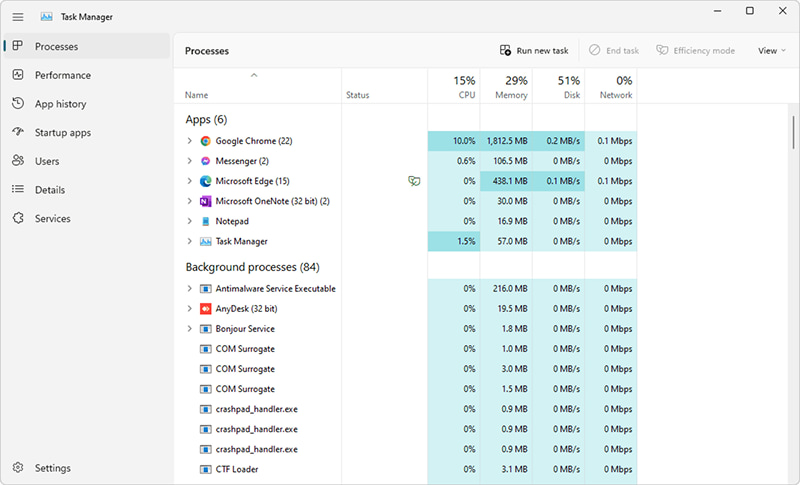
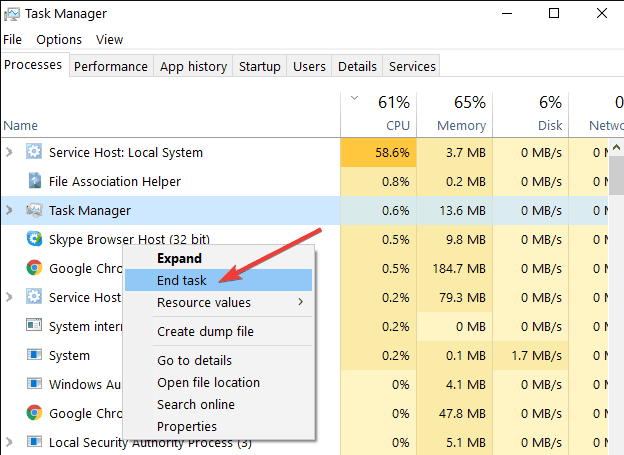
Step 2. In the Processes tab, locate the app you want to uninstall. Right-click it and select “End Task”.
Step 3. Close Task Manager and try uninstalling the app again – either from Settings > Apps > Installed Apps, or from the Start menu.
For those searching for how to delete an app that won't uninstall, this method works well for simple cases where the app is just running in the background. However, it won’t solve deeper issues like corrupted uninstallers or missing files.
Method 3. Reinstall the App to Restore Missing Uninstall Files
Wondering how to uninstall apps that won’t uninstall? Here’s a clever trick: if an app’s uninstaller files are missing or corrupted, reinstalling the app can restore them. Once the uninstall.exe is back in place, you can remove the app normally.
Step 1. Download the app from the official source.
Step 2. Run the installer and reinstall the app over the existing installation (don’t uninstall it first).
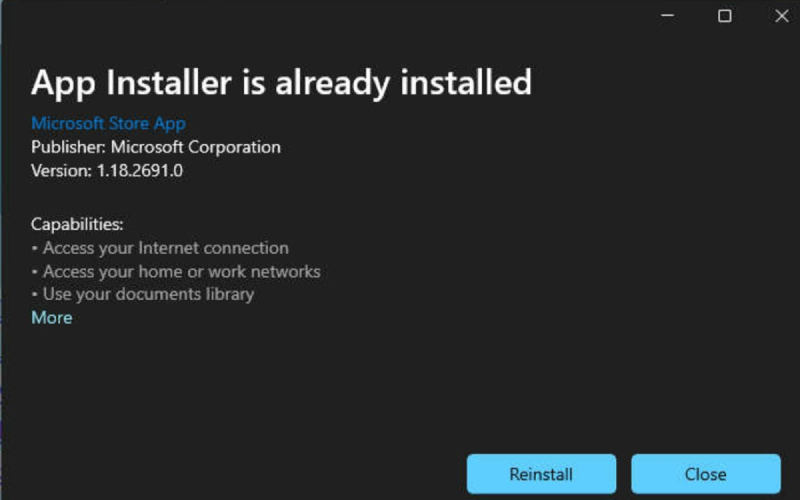
Step 3. Once the reinstall is complete, go to Settings > Apps > Installed Apps, find the app, and click Uninstall. This time, the uninstaller should work properly.
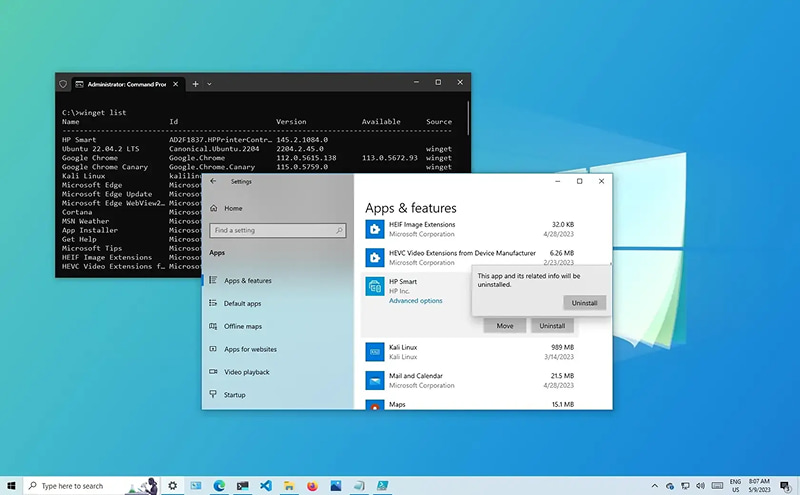
This method is particularly useful for apps that were partially removed or had their installation files damaged.
Method 4. Run the Uninstaller as Administrator
If you are the one who is confused about “how to remove apps that won't uninstall” or “how to delete apps when it won't let you”, then you really should take a look at this section. Many security apps and system-level programs require elevated permissions to be uninstalled. If you’re getting a “permission denied” or “insufficient access” error, the solution is simple: run the uninstaller as an administrator.
Step 1. Navigate to the app’s installation folder – usually in C:\Program Files\[App Name] or C:\Program Files (x86)\[App Name].
Step 2. Look for the uninstaller executable (often named uninstall.exe, unins000.exe, or similar).
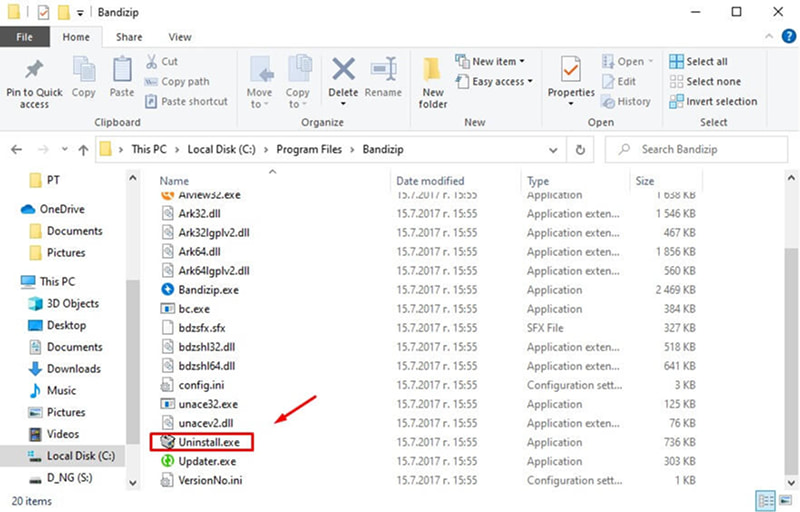
Step 3. You just need to right-click the uninstaller file, choose “Run as administrator” and then follow the tips to finish the uninstallation.
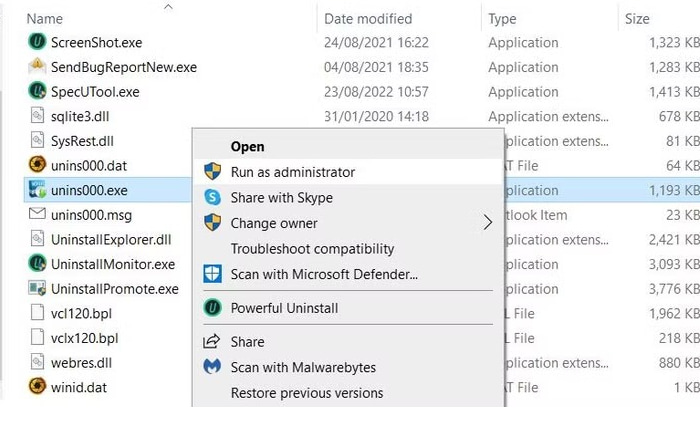 This gives the uninstaller the permissions it needs to remove the app completely.
Also Read: How to Force Uninstall Programs on Windows [5 Easy Ways] >>
Method 5. Remove Apps That Won’t Uninstall in Safe Mode
If you're dealing with “how to uninstall apps that cannot be uninstalled”, the third-party services may be the reason. Sometimes, third-party services or drivers keep locking app files, which can also cause an “app can’t uninstall” issue. Safe Mode starts Windows with only essential drivers and services, preventing most third-party applications from launching automatically. This creates a clean environment where stubborn apps can’t hide behind running processes. Here’s how to remove apps that won't uninstall in Safe Mode:
Step 1. Open Settings > System > Recovery. Under Advanced Startup, click “Restart now”.
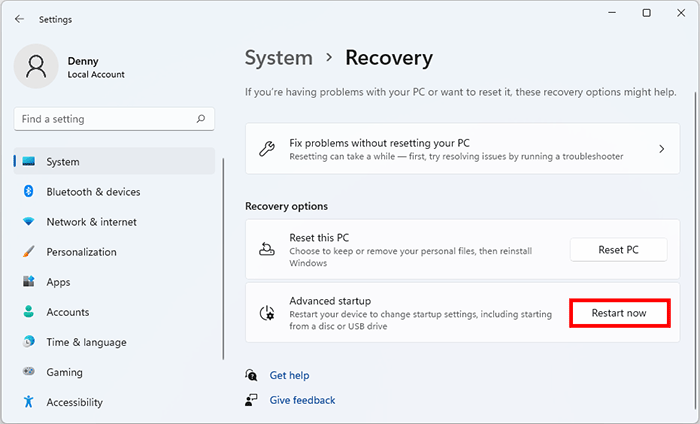
Step 2. When PC restarts, find Troubleshoot - Advanced Options - Startup Settings - Restart. Then you need to press F4 to get into the Safe Mode.
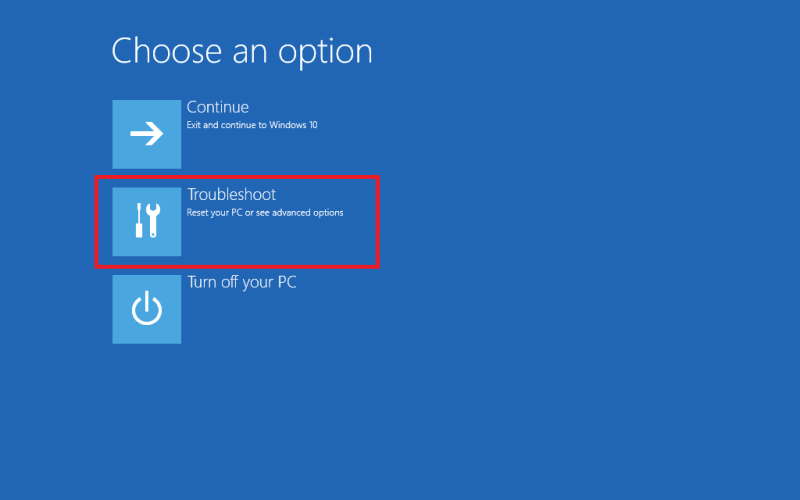 Step 3. Once in Safe Mode, go to Settings > Apps > Installed Apps, find the problematic app, and click Uninstall.
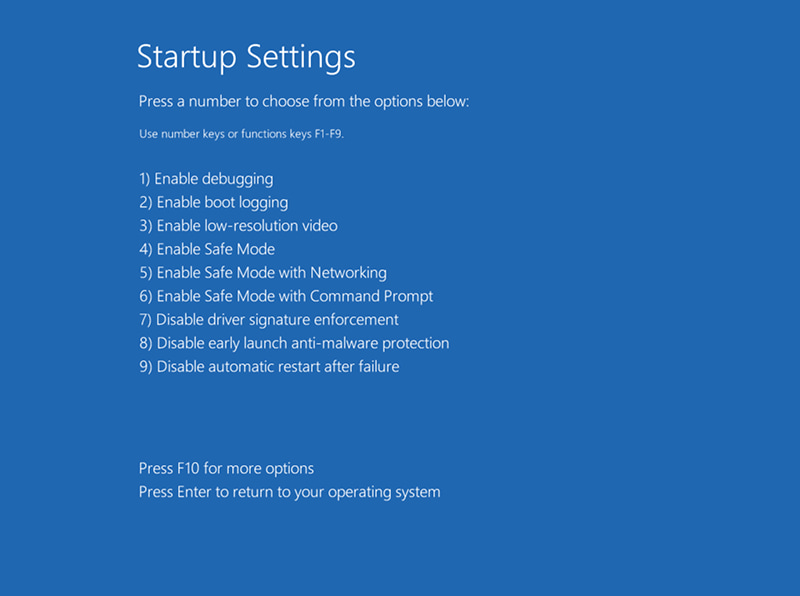
After uninstalling, restart your PC normally. This method is especially effective for antivirus software, drivers, and other low-level programs that resist removal.
Method 6. Fix Broken Uninstall Issues with Microsoft Troubleshooter
Still wondering how to uninstall apps that won’t uninstall? If an app will not uninstall because its uninstall information is damaged or missing, Microsoft’s Program Install and Uninstall Troubleshooter may help. This official Microsoft tool can clear corrupt Windows Installer entries and fix problems that block programs from being installed or removed.
Step 1. Visit Microsoft Support to download the Program Install and Uninstall Troubleshooter
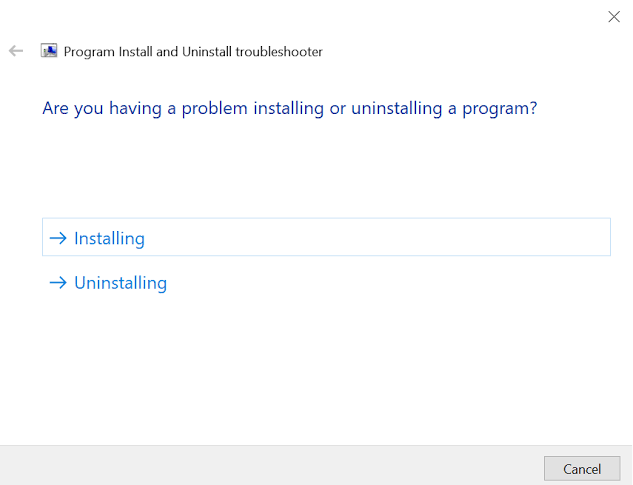
Step 2. Run the downloaded file (MicrosoftProgram_Install_and_Uninstall.meta.diagcab).
Step 3. Select “Uninstalling” when prompted, then choose the problematic app from the list and follow the on-screen instructions.
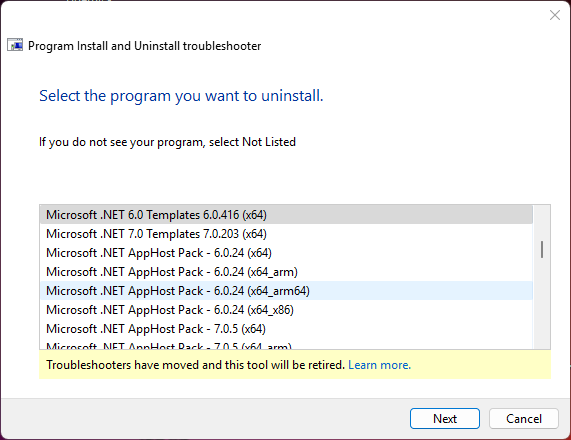
The troubleshooter will attempt to detect and fix issues with the app’s uninstall information. If you want to know how to remove an app that won't uninstall Windows 10, please keep in mind that this tool works best for apps with corrupted registry entries – it won’t help with apps that are actively running or have permission issues.
Overview: How to Remove an App That Won't Uninstall Windows 11/10
Here’s a quick summary of the methods about “how to uninstall apps that won’t uninstall”, so you can see at a glance the potential reasons why an app cannot be uninstalled and the corresponding solutions:
Reasons Why an App Won’t Uninstall |
Corresponding Solution |
App is still running |
End Task in Task Manager |
Permission issue |
Run uninstaller as administrator |
Missing/corrupted uninstall files |
Reinstall the app |
Broken uninstall registry |
Microsoft Troubleshooter |
Services/drivers keep locking program files |
Boot into Safe Mode |
All of the above still fail |
IObit Uninstaller Force Uninstall |
If you prefer to avoid manual troubleshooting, using IObit Uninstaller is the most user-friendly, fast, and clean way to remove stubborn or problematic apps. It handles everything such as how to uninstall Battle.net and beyond. Whether you need to force uninstall program windows 11 or simply want a cleaner system, IObit does the heavy lifting for you.
Conclusion
Here are the six effective ways about how to uninstall apps that won’t uninstall–from ending processes in Task Manager and running uninstallers as administrator, to booting into Safe Mode and using Microsoft’s official troubleshooter. But let’s be honest: manual troubleshooting takes time and patience. If you want the easiest, most complete solution, give IObit Uninstaller a try. It’s designed to handle even the most stubborn programs, clean up every last leftover file, and keep your system running smoothly. Download it today and say goodbye to uninstall headaches for good.