Many users find themselves dealing with unexpected data loss or apps being accidentally uninstalled during routine updates. Anyone who is looking for a trustworthy way to fix system instability need to know how to repair Windows 11 without losing data.
In this guide, we’ll lead you through 5 practical techniques to get your system back to health, step by step. Additional optimization techniques guarantee a smooth and secure recovery process.
Part 1. Can You Repair Windows 11 Without Losing Data?
System updates and corrupt files frequently cause unexpected boot loops, application crashes, and performance drops. When users encounter these system failures, they often wonder how to fix PC problems without resorting to a complete hard drive wipe.
Fortunately, modern recovery environments and specialized tools allow you to understand how to repair Windows 11 without losing data and apps safely. By utilizing non-destructive upgrade paths, you can restore damaged system binaries, resolve issues caused by a RAM optimizer Windows 11, and bring your computer back to peak health while keeping your personal files, documents, and programs fully intact.
Part 2. How to Repair Windows 11 Without Losing Data or Programs
Since you now know that safe repairs are completely possible, let us look at the practical implementation. The following methods break down 5 effective ways on how to repair Windows 11 without losing data or programs.
Method 1. Use Windows Update Repair (Built-In Feature)
Minor update glitches can be resolved successfully through the native Windows Update mechanism. This feature re-downloads missing component files without requiring a full system reinstallation.
Step 1. Press the Windows key and the I key together to open the Settings menu.
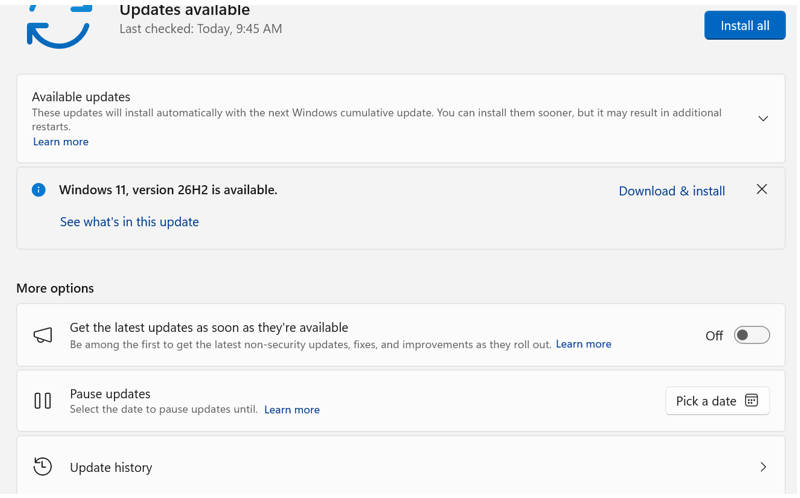
Step 2. Navigate to Windows Update in the left sidebar and select Update history.
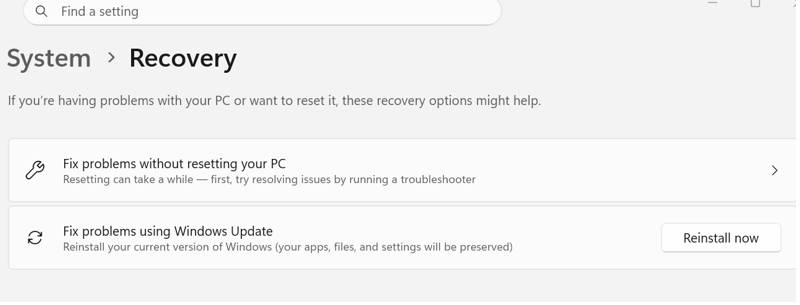
Step 3. Click Recovery, locate the option to fix problems using Windows Update, and click Reinstall now to download healthy system components without harming your files.
Method 2. Perform an In-Place Upgrade on Windows
Extensive system file corruption requires an in-place upgrade mechanism. This approach refreshes the operating system state while preserving all personal files and software.
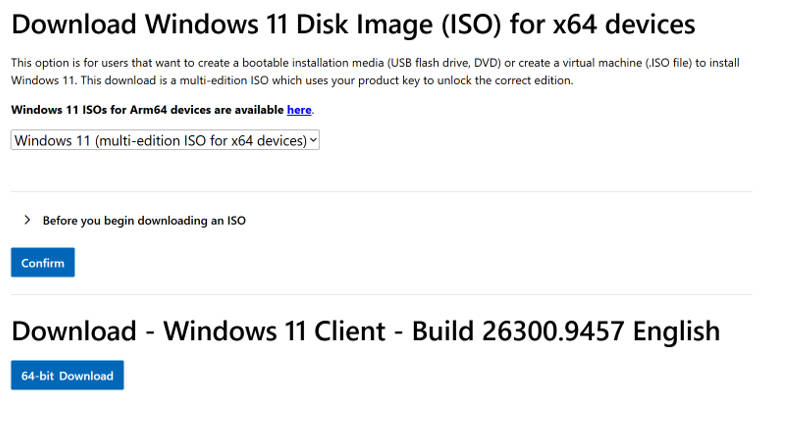
Step 1. Download the official Windows 11 Disk Image (ISO) file by visiting the official Microsoft Software Download website and selecting the Windows 11 ISO option under the download section.
Step 2. Open the downloaded ISO file inside File Explorer, right-click the file to select Mount, and then double-click the setup.exe application file (bypassing any standard "Unknown Publisher" security warnings by clicking Open) to launch the installation wizard.
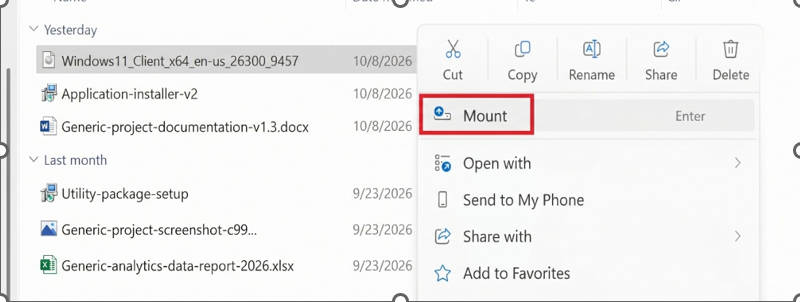
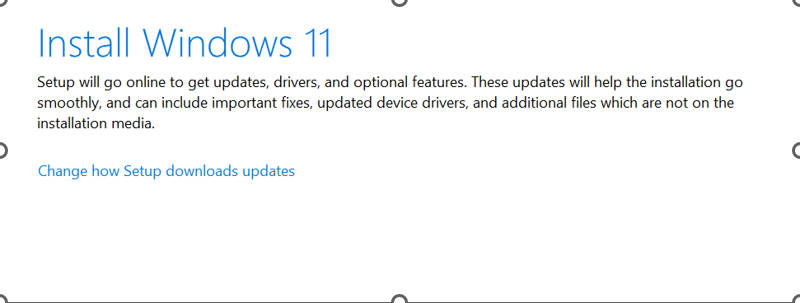
Step 3. Follow the initial on-screen prompts while making sure to select the option that keeps your personal files and apps before proceeding.
Method 3. Rely on a Dedicated PC Repair Tool (Most Effective)
When native utilities struggle with stubborn registry conflicts and system errors, utilizing a reliable Windows optimizer like IObit Advanced SystemCare offers an effective method regarding how to repair Windows 11 without losing data or programs, deep-cleaning and optimizing your machine safely.
Advanced SystemCare Free
- Clean: 420 billion traces removed & 85 EB junk files cleaned
- Protect: 80 million unauthorized access blocked & 20 million bugs fixed
- Speed Up: 6 million hours of startup time saved & Turbo boost
- Optimize: Auto clean and auto care your PC with AI mode

How to Scan and Repair Windows 11 Without Data Loss
After launching the program, follow these straightforward steps to initiate a deep system scan:
Step 1. Download, install, and launch the utility application on your computer.
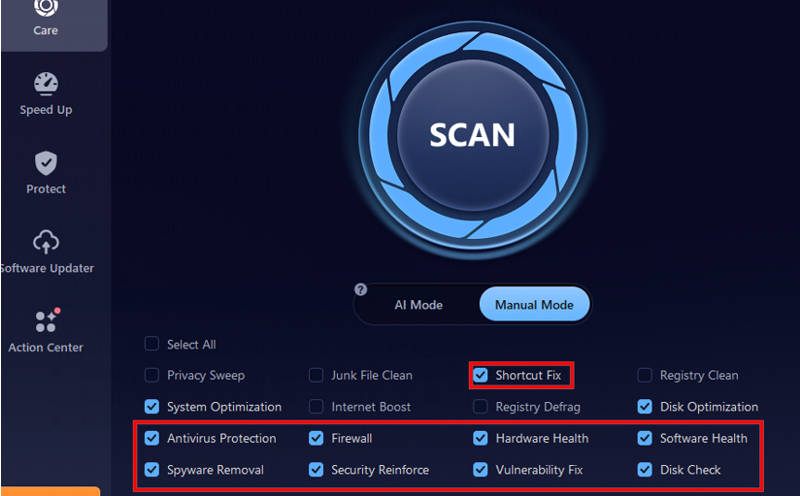
Step 2. Switch to Manual Mode, check the needed repair options, and click Scan.
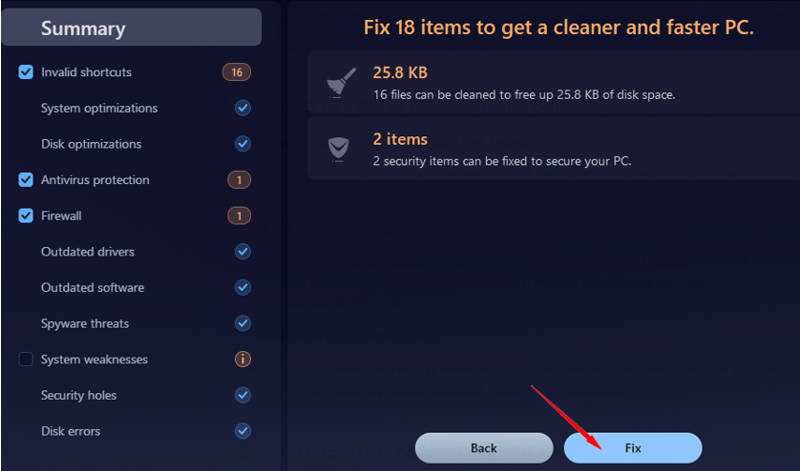
Step 3. Review diagnostic results and click Fix to resolve registry errors.
Why Choose Advanced SystemCare for PC Repairs?
-
Quickly Scan & Repair Windows 11 No Data Loss:
Employs rapid shortcut fixes and targeted vulnerability patches to resolve underlying OS instability, mastering how to repair Windows 11 without losing data effortlessly while safeguarding your private files.
-
Disk Check and Repair Without Losing Files:
Incorporates a robust Disk Check and Disk Doctor module within the Toolbox menu to handle every necessary hard disk cleaner task safely and thoroughly.
-
Software & Hardware Health Check Regularly:
Automatically detects and repairs errors involving outdated software drivers, missing security patches, and hidden hardware faults before minor bugs escalate into major system crashes.
-
AI-Powered System Cleaning & Optimization Safely:
Leverages intelligent algorithms to purge residual junk data and temporary system cache, such as old update residuals, ensuring critical user files and system libraries remain untouched.
-
Advanced Antivirus Protection for Windows 11:
Shields your machine with powerful anti-spyware defenses, intrusive ad removal, and homepage advisor features to block malicious hijackers and protect your online privacy.
-
Auto Analyze & Fix the Found Problems on PC:
Leverages powerful built-in utilities like Win Fix, MyWin10, and Shortcut Fixer to eliminate random performance issues, including when your computer keeps on freezing.
Method 4. Run SFC and DISM System Commands
Command-line utilities offer administrators a direct method to verify and replace damaged operating system components using built-in system repair images.
Step 1. Right-click the Start menu button, select Terminal (Admin) or Command Prompt (Admin), and click Yes if a User Account Control prompt appears.
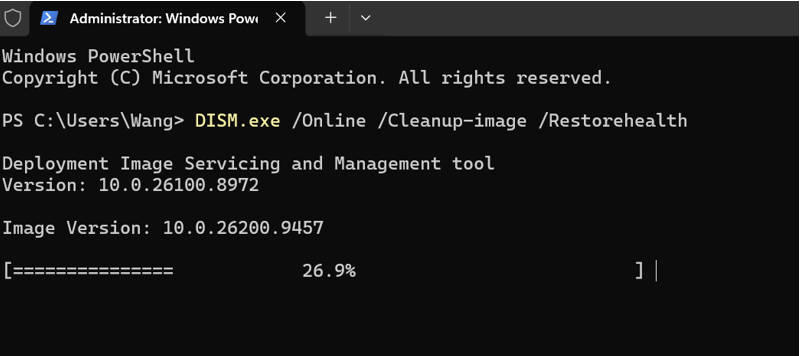
Step 2. Type DISM.exe /Online /Cleanup-image /Restorehealth and press the Enter key to scan and repair the underlying Windows system component store.
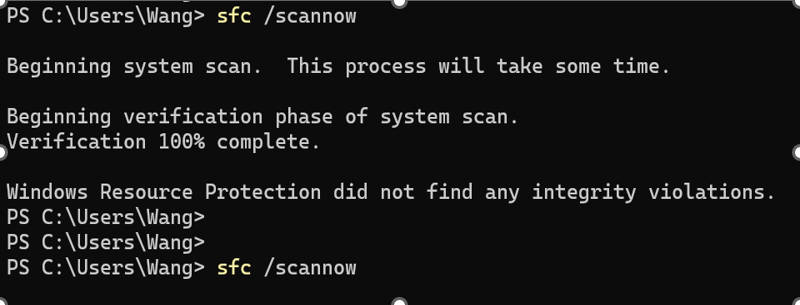
Step 3. Type sfc /scannow and press the Enter key to let the System File Checker scan all protected system files and replace any corrupted entries.
Method 5. Use System Restore After an Update/Installation
Recent driver installations or faulty software patches occasionally trigger severe system instability. Rolling back the computer environment to a previously recorded working state provides an ideal safety net.
Step 1. Open the Start menu search bar, type Create a restore point, and press Enter to open the System Properties window.
Step 2. Select the System Protection tab and click the System Restore button to launch the recovery configuration wizard.
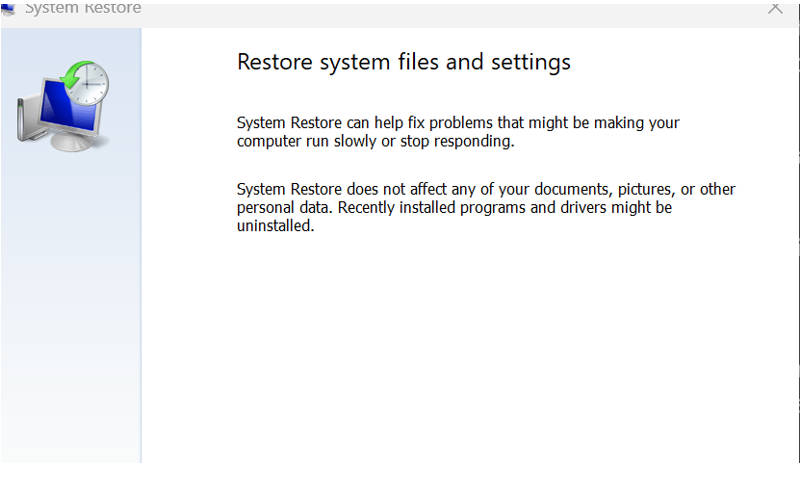
Step 3. Click Next, choose a restore point created before your system errors began, and follow the on-screen prompts to complete the roll-back process.
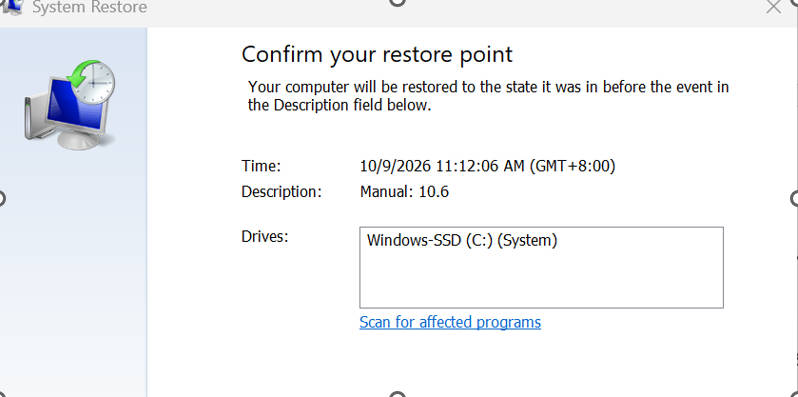
Note: System Restore requires active protection settings and a previously generated snapshot to function. If no restore points appear in the list, it indicates that the feature was previously disabled or no backup points were saved.
To prevent this, select your main system drive in the System Protection tab, click Configure, select "Turn on system protection," and click Apply so your PC automatically captures future snapshots. Enabling system protection and creating manual points in advance ensures a reliable fallback option.
Part 3. Common Problems During Repairing Windows 11 (Troubleshooting)
When figuring out how to fix computer errors, complex system environments occasionally present unexpected roadblocks during recovery tasks. Users tackling system fixes encounter recurring technical hiccups. Managing network parameters using a TCP optimizer or handling installation bottlenecks requires specific solutions.
1. In-Place Upgrade Fails or Rolls Back: The setup wizard aborts installation and reverts the system due to third-party driver conflicts.
Fix: Disconnect non-essential USB peripherals, disable third-party antivirus software, and run setup locally.
2. SFC or DISM Commands Getting Stuck or Failing: Command-line scanners hang at specific percentages or report unresolvable component store corruption.
Fix: Restart the computer into Safe Mode with Networking and re-run the DISM command.
3. Stuck in an Automatic Repair Boot Loop: Computers continuously cycle through diagnostic screens without loading the desktop interface.
Fix: Access the Windows Recovery Environment by interrupting boot sequences, navigate to Advanced options, and uninstall updates.
Part 4. More Things to Know About How to Fix PC Problems
How to Repair Corrupt Windows 11?
Discovering how to repair Windows 11 without losing data and apps when faced with deep system corruption involves isolating damaged system clusters by combining native DISM and SFC image restoration with automated registry cleanup routines.
How Do I Repair Windows Installer in Windows 11?
Users re-register the Windows Installer service by opening an elevated command prompt and executing the register command.
How to Reinstall Windows 11 Without Losing Data?
Utilizing the Reset this PC feature while exploring methods on how to repair Windows 11 without losing files ensures user profiles remain untouched.
Final Thought
Understanding how to repair Windows 11 without losing data delivers complete peace of mind when unexpected system errors strike. Manual commands offer assistance, but leveraging a comprehensive solution like IObit Advanced SystemCare allows users to fix Windows errors safely, clear Windows update cache, and optimize performance. Download the software today to keep your computer running at peak efficiency!
Advanced SystemCare Free
- Clean: 420 billion traces removed & 85 EB junk files cleaned
- Protect: 80 million unauthorized access blocked & 20 million bugs fixed
- Speed Up: 6 million hours of startup time saved & Turbo boost
- Optimize: Auto clean and auto care your PC with AI mode