Google Chrome makes web browsing highly efficient by automatically storing your login credentials. However, this feature can also introduce privacy risks or cause frustration. Outdated credentials, shared computers, or unwanted autofill behavior frequently leave users looking for ways to clean up their digital footprints. When these security concerns arise, learning how to remove saved passwords from Chrome becomes essential for maintaining total control over your sensitive personal information.
Whether you want to clear a single outdated credential or wipe your entire login history for maximum security, this guide provides all the steps you need. We will explore several practical techniques to manage your data, ranging from Chrome's built-in tools to automated software solutions.
Managing your stored data does not have to be difficult. Before introducing the step-by-step instructions, it helps to understand why keeping your browser clean is so important for your overall digital safety and privacy preservation.
Why You May Need to Remove Saved Passwords from Chrome
Before learning how to fix saved password issues, it is important to understand why they become a problem in the first place. Many users searching for how to remove saved passwords from Chrome are trying to solve critical privacy or security concerns. Over time, a browser can collect hundreds of unmonitored credentials, increasing your vulnerability to data leaks, credential stuffing to continuously conflict, and identity theft.
To protect your online security, it helps to resolve these risks early. Here are the most common situations where a thorough credential cleanup becomes necessary:
Using a shared or public computer: Leaving your personal profiles accessible on public devices exposes your private accounts to total strangers.
Old or changed passwords still auto-filling: Outdated login data can cause frustrating authentication errors when trying to log into updated websites.
Security concerns after account compromise: If a major website suffers a security breach, you must delete old credentials immediately to protect yourself.
Wanting to reset browser privacy settings: Clearing out clutter helps users regain a clean slate and ensures no unauthorized tracking remains behind.
Syncing issues across multiple devices: Corrupted cloud data can cause devices to sync incorrectly, requiring a fresh manual reset to fix the issue.

By recognizing these vulnerabilities, you can proactively protect your online security before an unauthorized party gains access to your accounts. Let's move on to the manual removal techniques available within the browser interface.
Method 1. Remove Saved Passwords from Chrome Settings
Chrome's password manager is the best starting point. Users searching how to remove saved passwords from Chrome usually begin here to delete items one by one. It is ideal if you just need to know how to remove a saved password from Chrome for specific sites. If you have been looking for an easy way on how to remove a saved password from Chrome without clearing your entire browsing history, this manual lookup path gives you total control over each account entry.
How to Remove Saved Passwords from Chrome Settings:
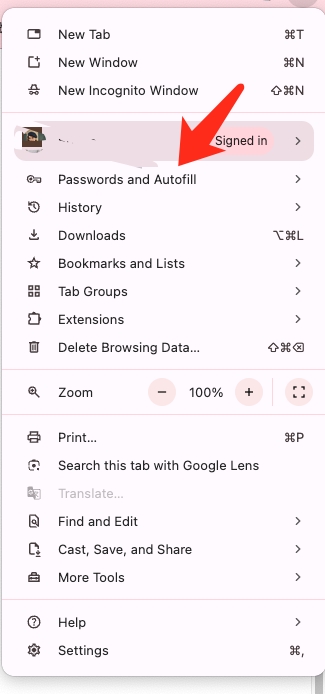
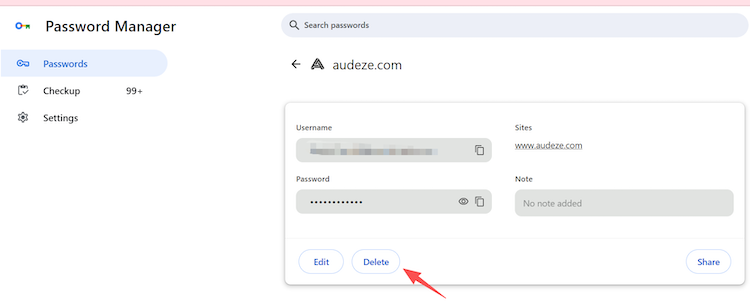
Step 1. Click the three dots in Chrome and open Passwords and autofill.
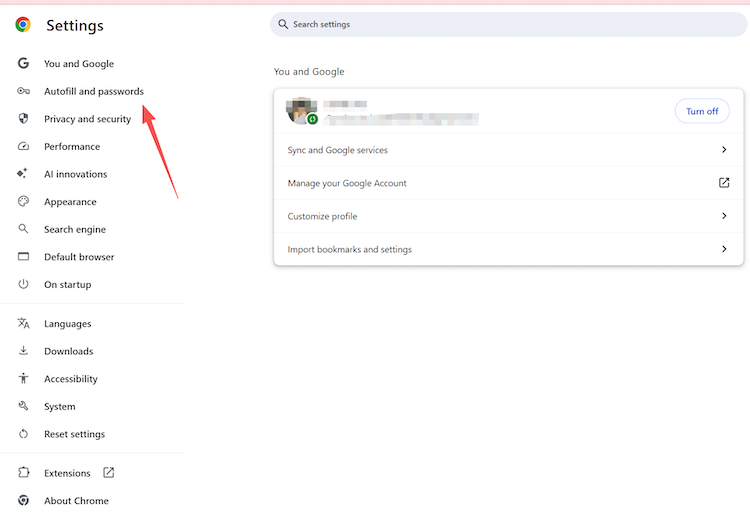
Step 2. Click Autofill and passwords, then Google Password Manager.
 Step 3. Select your target website profile entry.
Step 4. Click Delete to complete.
Method 2. Bulk Delete Saved Passwords in Google Chrome
Deleting entries one by one is time-consuming if you have dozens of saved accounts. Users searching how to remove saved passwords from Google Chrome often prefer a bulk solution to wipe the browser database completely clean when donating or resetting computers.
⚠ Important Note: Using the method below will completely wipe your entire Google Password Manager database. This means it will delete not only your saved passwords but also any stored passkeys and related security data. If you only want to remove passwords and keep your passkeys, please use Method 1 to remove them individually or Method 4 to clear specific browsing data.
How to Bulk Delete Saved Passwords in Google Chrome:
Step 1. In Chrome Settings, open Google Password Manager.
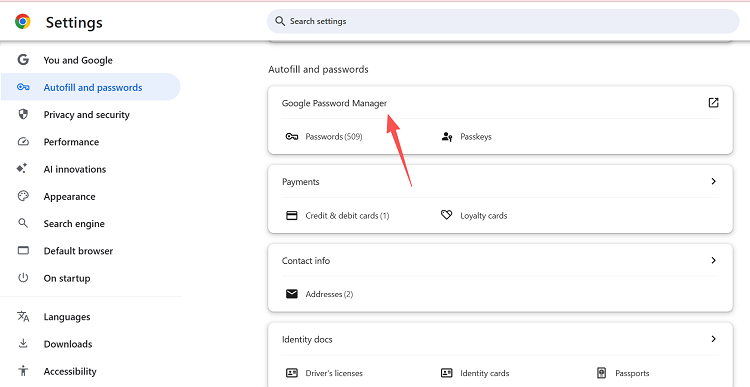
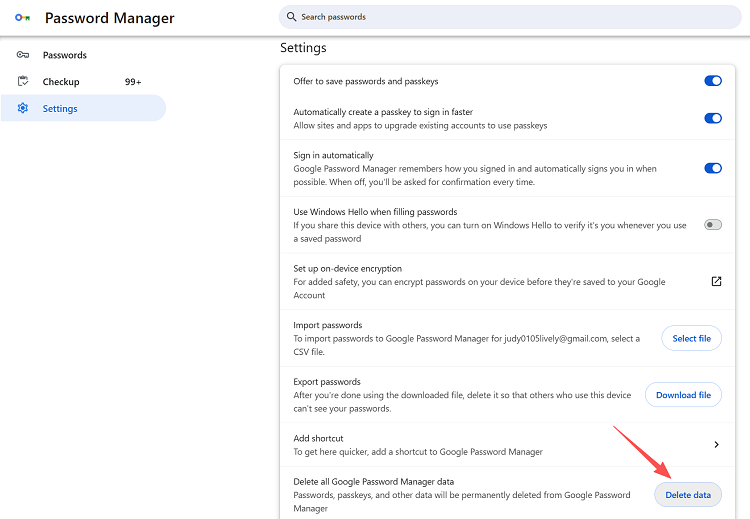
Step 2. Click the Settings gear icon on the left panel.
Step 3. Click Delete all Google Password Manager data at once.
Method 3. One-Click Cleanup Using Advanced SystemCare
Not all users are comfortable navigating complex browser menus, dealing with operating system password prompts, or digging deep into advanced account settings. Users searching how to remove saved passwords from Chrome may prefer a simple, centralized one-click solution that handles everything safely.
This is where Advanced SystemCare offers an incredibly beginner-friendly alternative. This comprehensive software allows you to clear out private browser logs without ever needing to open Chrome yourself. It ensures that your private credentials are fully scrubbed from your hard drive, preventing unauthorized users from extracting cached data. If you are wondering how to remove saved password in Google Chrome automatically, using a dedicated optimization utility provides a safer approach.
Advanced SystemCare Free
- Clean: 420 billion traces removed & 85 EB junk files cleaned
- Protect: 80 million unauthorized access blocked & 20 million bugs fixed
- Speed Up: 6 million hours of startup time saved & Turbo boost
- Optimize: Auto clean and auto care your PC with AI mode

How to Remove Saved Password in Google Chrome Automatically:
Step 1. Download and install Advanced SystemCare on your PC.
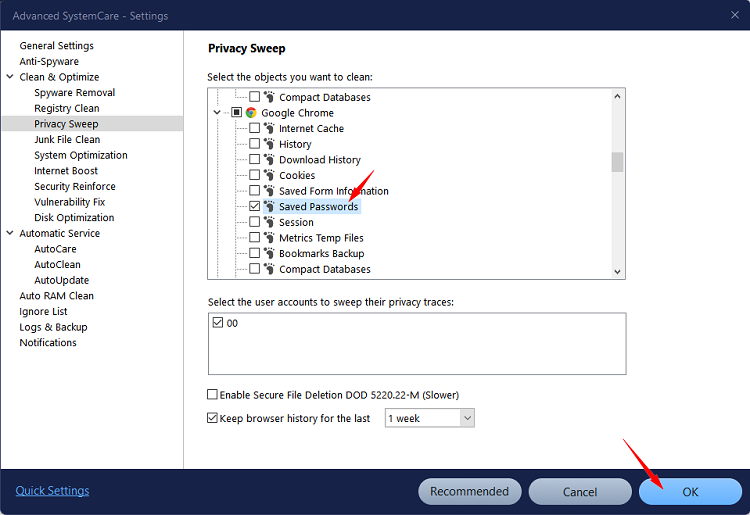
Step 2. Open the software settings, go to Clean & Optimize > Privacy Sweep, find Google Chrome, then click OK for Saved Passwords box.
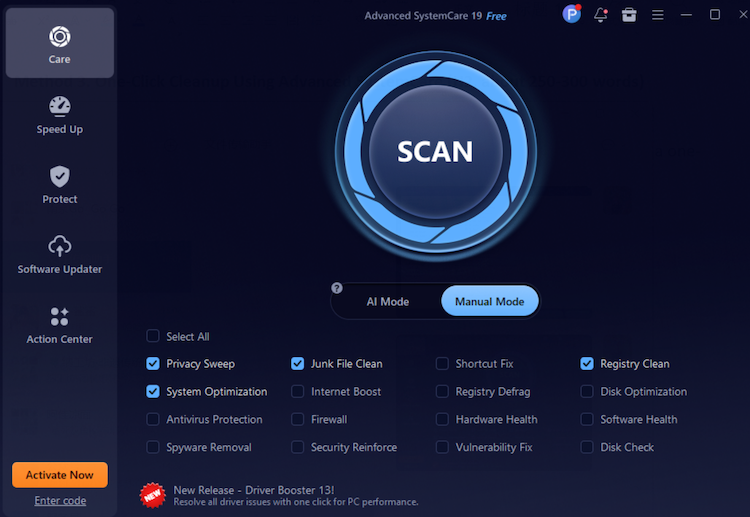
Step 3. Return to the main screen, click the Care tab, switch to Manual Mode, check the Privacy Sweep item, and click the large SCAN button.
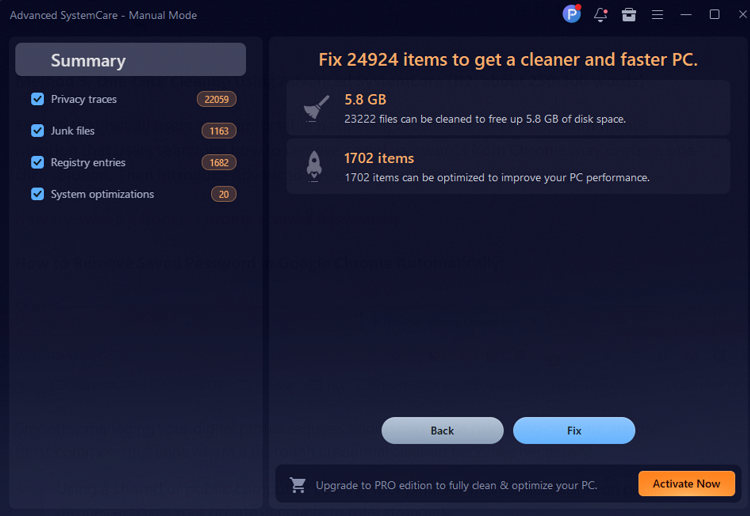
Step 4. Once the scanning process finishes, review your summary results as shown, and click the blue Fix button to permanently remove the credentials.
Why Use Advanced SystemCare Beyond Password Cleanup
Advanced SystemCare is an all-in-one PC utility that improves system speed, privacy, and stability. While it answers how to remove saved password in Google Chrome, it also serves as an excellent RAM booster for Windows 11 to stop random system lagging.
More Features of Advanced SystemCare You Can Explore:
Internet Booster: Optimizes network settings to show you how to boost internet speed on PC for smoother streaming.
Software Updater: Patches daily apps to secure versions automatically, preventing potential vulnerabilities from putting your system at risk.
Spyware Removal: Blocks malicious hidden tracker files instantly to guard your personal data against unauthorized third-party tracking.
Firewall Enhancement: Fortifies network guards against outside threats, ensuring your operating system remains secure during daily web browsing.
Disk Optimization: Defrags drives to safely free up disk space, which keeps your storage organized and running efficiently.
Shortcut Fix: Cleans broken desktop icons and invalid system references to maintain a tidy and error-free user workspace.
Hardware Monitor: Tracks CPU temperature and memory usage metrics in real time to prevent sudden overheating or performance drops.
Method 4. Clear Saved Passwords on Chrome Using Browser Data Reset
Sometimes users need a full profile reset. Those searching for how to clear saved passwords on Chrome prefer clearing all stored browser history to flush out corrupted caches, which is also great when learning how to remove browser cache. If your primary goal is learning how to remove saved passwords from Google Chrome along with resolving deep-seated browser conflicts, this full history wipe offers an immediate solution. It directly resets how to remove the saved password in Google Chrome profiles.
How to Remove Saved Passwords in Google Chrome using Browser Data Reset:
Step 1. Press Ctrl + Shift + Delete to open the clear data window.
Step 2. Set the time range to All time, click Advanced, and check Passwords and other sign-in data.
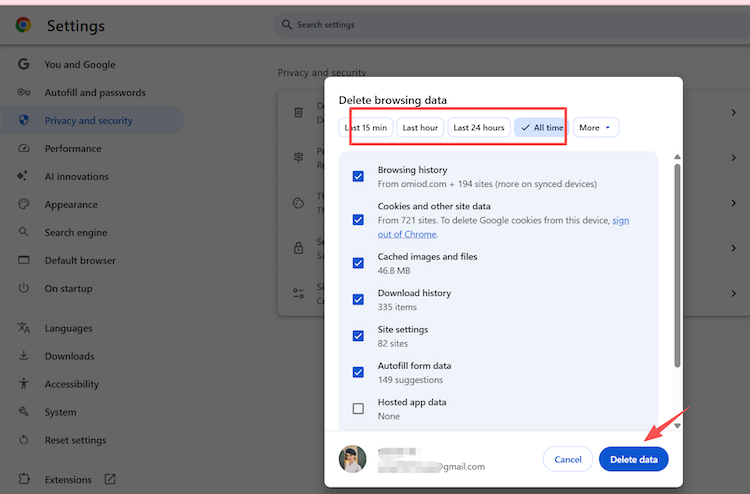
Step 3. Click Clear data.
Method 5. Remove Saved Passwords on Chrome Mobile (Android & iOS)
Many users use mobile devices daily. Because phones get lost easily, knowing how to remove saved passwords from Chrome is a vital mobile query. Managing how to remove the saved password in Google Chrome apps is simple. In fact, following the steps below will show you exactly how to remove a saved password from Chrome directly on your Android or iOS screen.
How to Remove Saved Passwords on Chrome Mobile:
Step 1. Open the mobile Chrome App and tap the three-dot menu (top-right on Android, bottom-right on iOS).
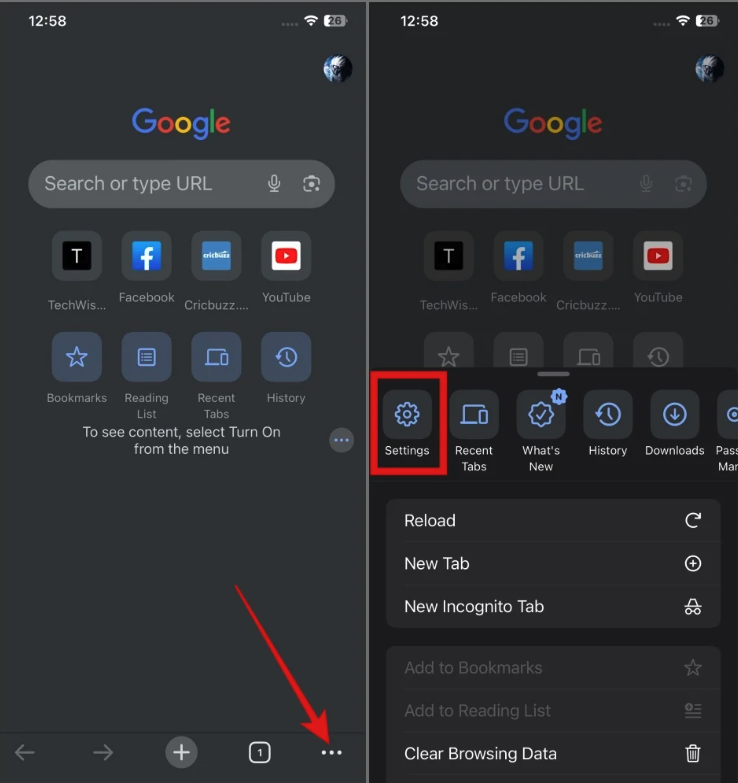
Step 2. Go to Settings and choose Password Manager.
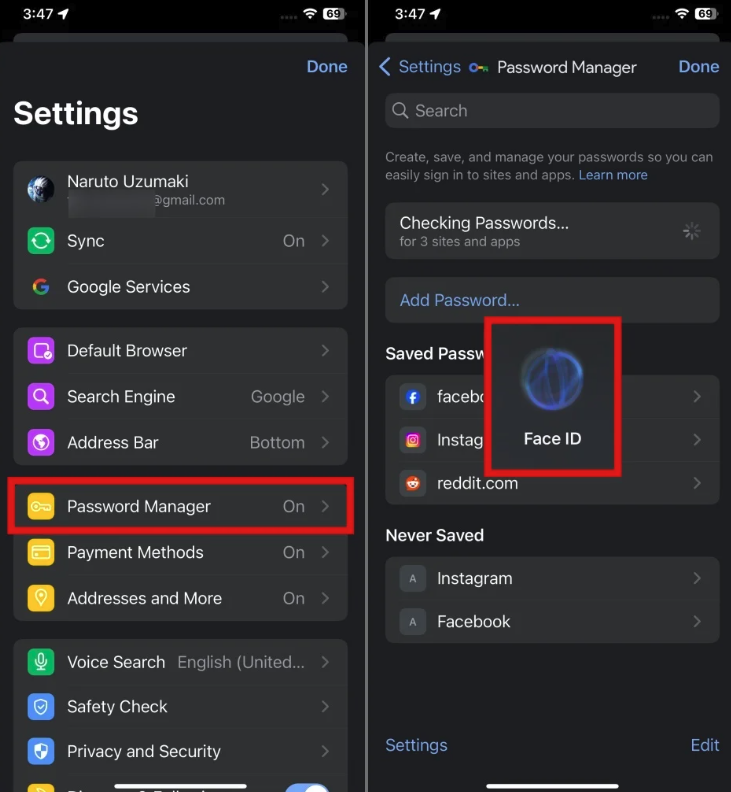
Step 3. Tap your target website.
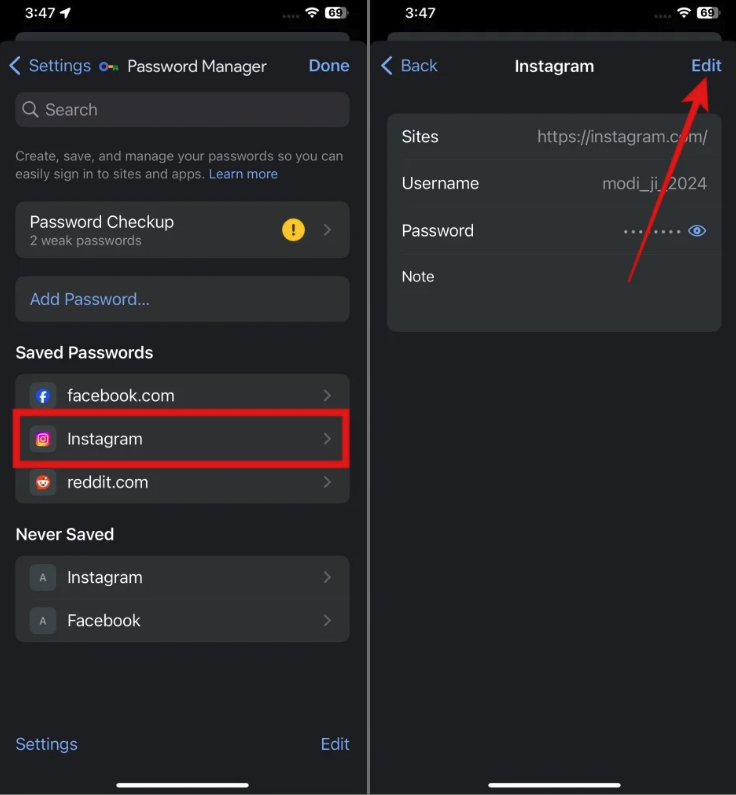
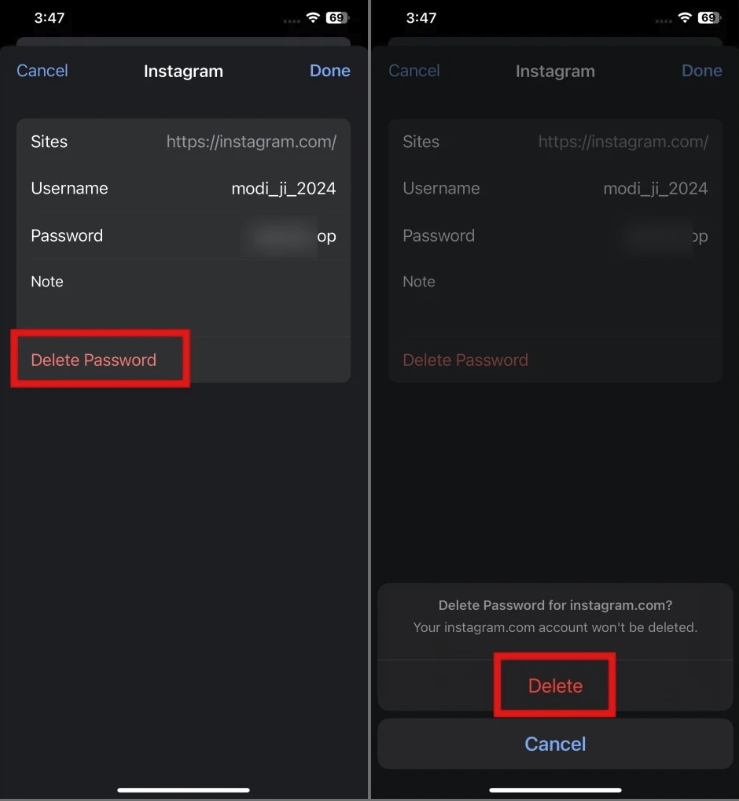
Step 4. Tap Delete to finish how to remove saved passwords from Chrome on mobile.
Common Issues & Best Practices for Managing Saved Passwords in Chrome
Even after users successfully learn how to remove saved passwords from Chrome, they may still experience unexpected behavior such as passwords reappearing or autofill continuing to trigger old credentials. Understanding these common technical issues and applying good password habits can help prevent them from happening again in the future.
Common Issues When Removing Saved Passwords
Passwords reappearing due to sync: If you wipe credentials on one computer while Chrome sync is active, your other active devices might upload the older saved data back into the cloud. Always make sure your Google account sync profile is turned on or properly reset when doing cleanups.
Autofill still suggesting deleted credentials: Sometimes local browser memory retains ghost copies of old forms. If this occurs, running a privacy sweep can remove the remaining remnants.
Multi-device synchronization conflicts: Using your profile simultaneously across tablets, phones, and computers can delay the deletion process across your account network.
Best Practices for Better Password Management in Chrome
Use a dedicated password manager instead of browser storage: Specialized external tools offer much stronger end-to-end encryption standards than standard web browsers.
Regularly review and clean saved credentials: Set an alert to audit your stored logins every few months to remove inactive or redundant accounts.
Enable two-factor authentication (2FA) for important accounts: Adding an extra layer of mobile security means that even if someone sees an old password, they cannot access your personal profile.
Disable auto sign-in when privacy is a concern: Turn off the automatic login feature within Chrome's settings so the browser always asks for explicit permission before logging you into a website.
Final Words
In conclusion, learning how to remove saved passwords from Chrome is a highly effective way to protect your privacy and clean up your online workflow. Whether you choose to delete single credentials through Chrome settings, complete a bulk data reset, use mobile options, or employ the convenient one-click automation features found inside Advanced SystemCare, taking control of your data helps ensure your private information stays safe. Choose the cleaning method that best fits your personal convenience preferences and security goals to enjoy a safer, clutter-free browsing experience today.